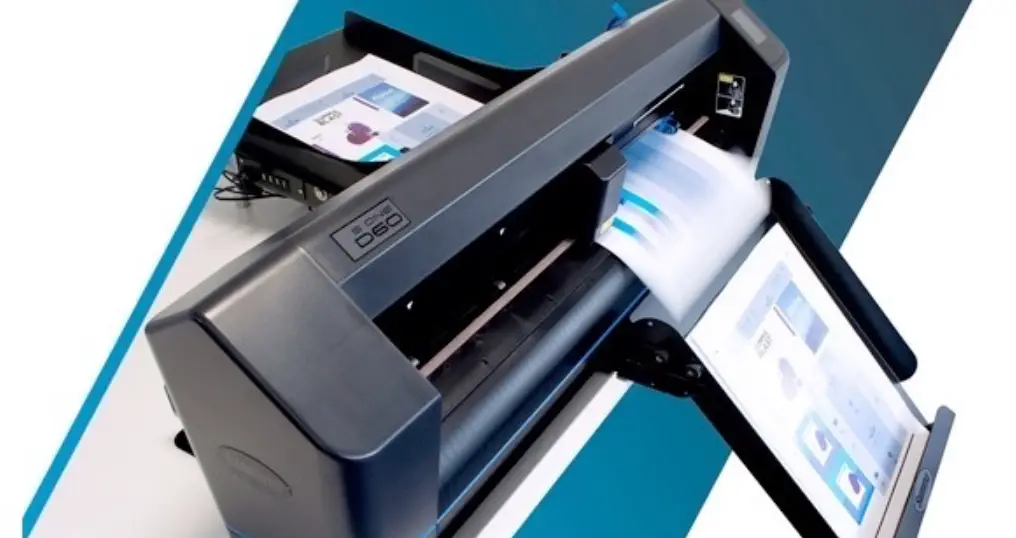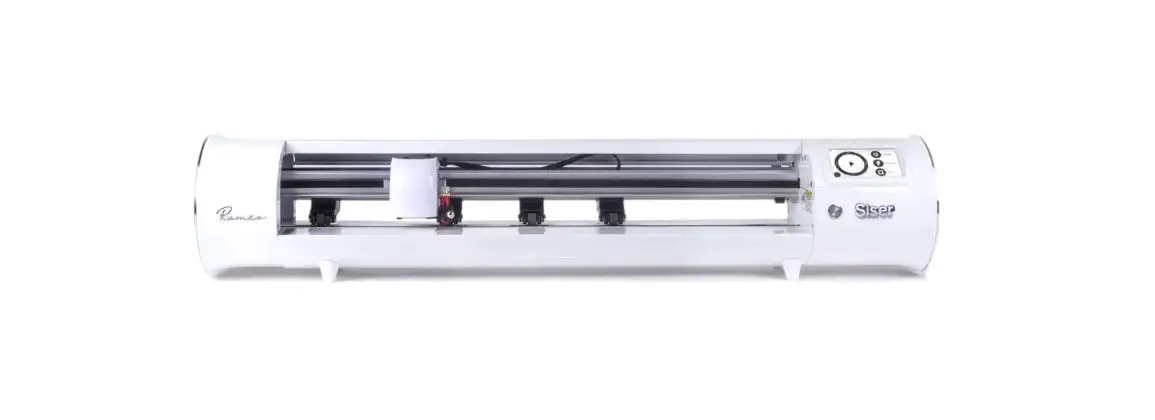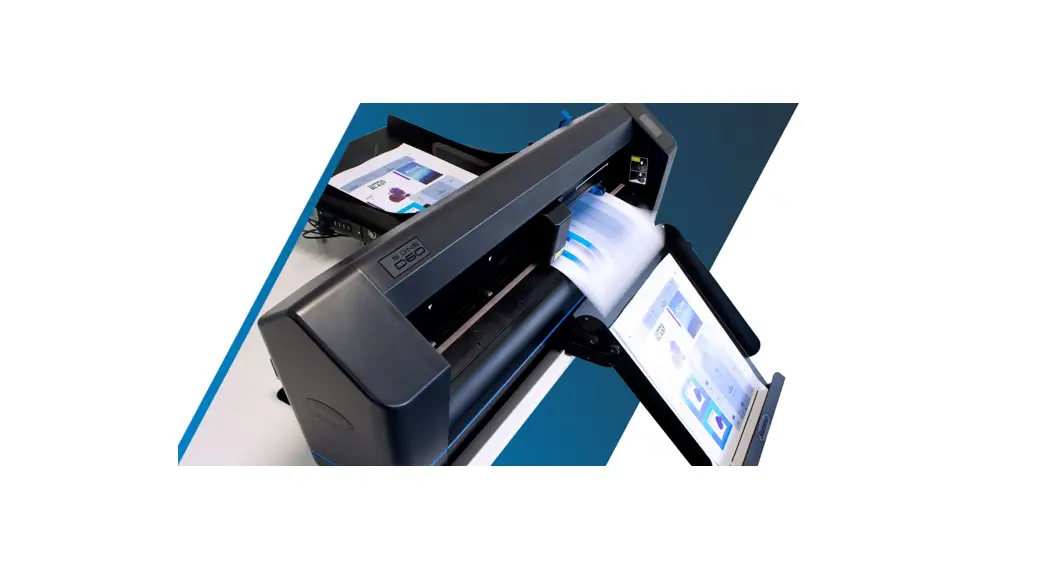

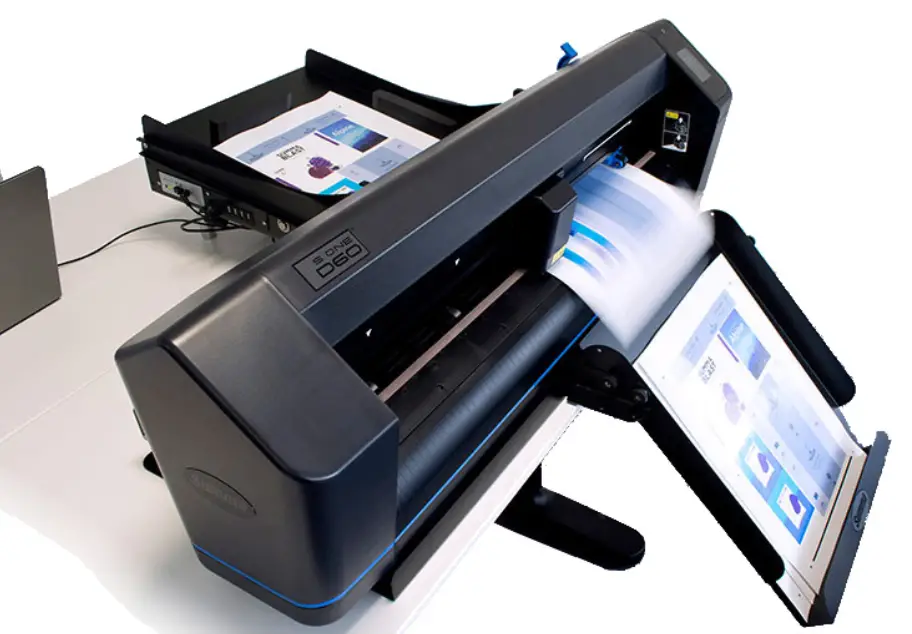
TRAY ONE Sheet feeder for Summa vinyl cutters
User Manual REV 002
Notice
Summa reserves the right to modify the information contained in this User Manual at any time without prior notice. Unauthorized copying, modification, distribution, or display are prohibited. All rights reserved.
EU Waste Electrical and Electronic Equipment (WEEE) Directive
The symbol (right) is shown on this product. It indicates that the product should not be placed in municipal waste but should be disposed of separately.
Electrical and electronic equipment can contain materials, which are hazardous to the environment and human health, and therefore should be disposed of at a designated waste facility or returned to your retailer for the appropriate recycling to take place.
If you wish to dispose of this product and the product still functions, please consider recycling/reusing it by donating it to a charity shop, selling it, or exchanging parts of it with your retailer.
Identification of the equipment:
GMN-SU
Applicable EU legislation:
2006/42/EC,
2014/30/EU,
2011/65/EU + (EU) 2015/863
The following standards have been applied:
EN ISO 12100:2010,
EN 60204-1:2018,
EN 55014-1:2017 +A11:2020,
EN 55014-2:1997 + AC:1997 + A1:2001 + A2:2008,
EN 61000-3-2:2014,
EN 61000-3-3:2013,
EN IEC 63000:2018.
Registering Your Device
Please register your cutter on the following link: http://www.summa.be/registration.html
Contact Information
All inquiries, comments, or suggestions concerning this and other Summa manuals should be directed to:
Summa, NV
Rochesterlaan 6
B-8470 LISTEL
Belgium
www.summa.com
Summa America
100 Cummings Center Suite #151-G
Beverly MA 01915
USA
www.summaamerica.com
+1-978-522-4765
Safety precautions

Risk of electric shock.
Use only with the included power supply unit.
The cutter has its own built-in power supply unit.
Moving Parts.
Keep hands, hair, clothing, and jewelry away from moving parts.
Do not wear jewelry, loose clothing, scarves, open jackets, or shirtsleeves.

Attention.
Additional safety precautions in the cutter manual.
SETUP
1.1 Assembling the sheet feeder
The sheet feeder comes in two boxes. One box is with the parts that are specific for your model of the cutter. Before assembling the sheet feeder check if that box is the correct one. This box will be referred to as box 2 in the assembly procedure below.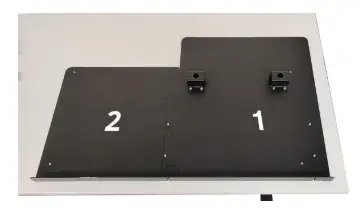
Put the plate from box 1 and from box 2 on the table, they fit like a jigsaw puzzle. 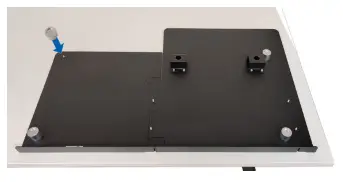 Take the 4 aluminum feet holders and screw them on the plates.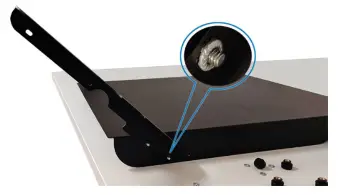
Screw a bracket on the side of the tray with two washers and two large grip knobs. Mind the orientation of the washers (see detail). 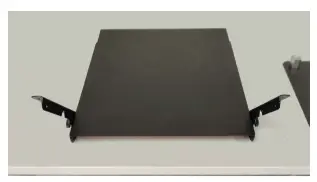
Do the same on the other side. 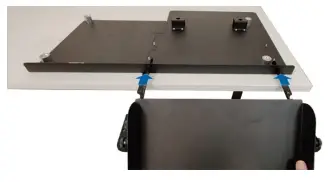 Slide the tray in the slots of the plates
 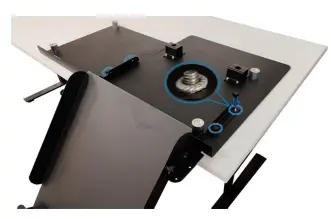 Put the brackets over the threaded pins and secure them with 4 washers and the smaller grip knobs. Mind the orientation of the washers (see detail)
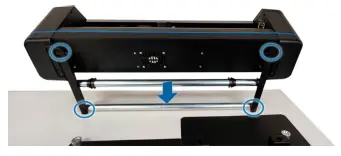
Make sure the rear roll on the cutter is in its most back position. Locate the 4 feet on the cutter. They will fit in the feet holders that just have been screwed on the plates in step 2 of this procedure.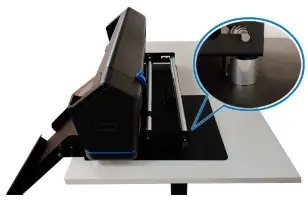 Put the cutter on the plate make sure the feet fit in the feet holders.
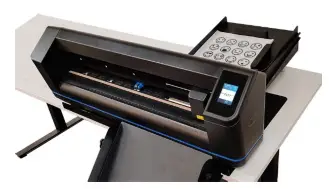
Fully assembled.
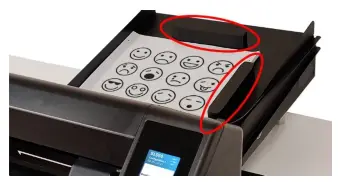
2 magnetic blocks to hold loaded sheets aligned. 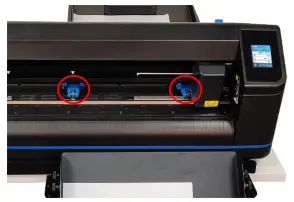
Position pinch rollers (left one fixed, right one adjust to sheet size)
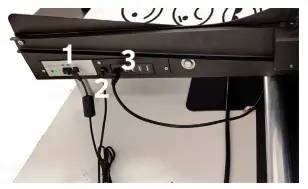
- Connect adapter (next to the sheet feeder ON/OFF switch)
- USB cable that needs to be connected to the computer
- Cable to the cutter USB port.
Tray One
1.1 Set up computer and connect
1.1.1 Driver installation
The program design is used to drive the sheet feeder and cutter. Install first the program GoSign before connecting the cutter to the computer. During the installation of the program, all the necessary files for the drivers will be copied to the computer. The moment the cutter and sheet feeder are connected to the computer, the driver will be correctly installed.
 NOTE: The minimum version of GoSign for using the sheet feeder is 2.1. If an earlier version is installed on your computer, then upgrade first.
1.1.2 Parameter settings on the cutter
For the S One cutter, the parameter sheet feeder has to be set ON.
For the SummaCut cutter, a couple of parameters need to be changed separately.
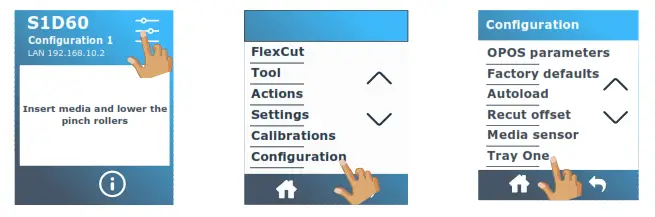
For the S One
- Power on machine.

- Press on the barcode icon.
- Scroll down with the arrow and press on Configuration.
- Scroll down with an arrow and press on Tray One.

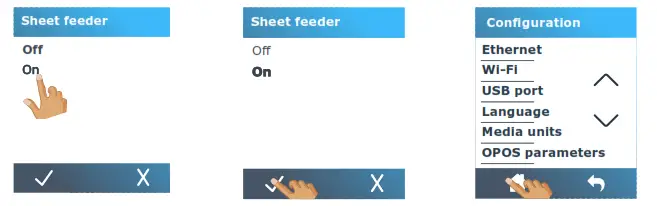
- Press on ‘On’.
- Press confirm.
- Press on the home icon.
For the SummaCut:
- Power on the cutter (see section 1.4.3).
- Press

‘KNIFE PRESSURE’ will appear on the LCD. - Press
 .
.
‘SYSTEM SETUP’ will appear on the LCD. - Press

ACTIONS’ will appear on the LCD. - Use
 to scroll through the menu until ‘Configuration’ is reached. Press.
‘IP CONFIG’ will appear on the LCD.
6. Use to scroll through the menu until ‘AUTOLOAD’ is reached. Press.
The value of the chosen parameter will appear on the LCD.
7. Press to changes the value to ‘OFF’.
‘OFF’ will appear on the LCD.
8. Press to confirm.
An asterisk will appear before OFF, indicating it is now the selected setting.
9. Press to confirm.
‘IP CONFIG’ will appear on the LCD.
10. Use or scroll through the menu until ‘MEDIA SENSOR’ is reached. Press
The value of the chosen parameter will appear on the LCD.
11. Press to change the value to ‘OFF’.
‘OFF’ will appear on the LCD.
12. Pressto confirm.
An asterisk will appear before OFF, indicating it is now the selected setting.
13. Pressto confirm.
14. Press twice to leave the menu.

 .
. to scroll through the menu until ‘Configuration’ is reached. Press
 to changes the value to ‘OFF’.
 twice to leave the menu.
USAGE
2.1 Preparing the job in your design software
2.1.1 General
The sheet feeder is driven by design. GoSign can import pdf files created by programs like Adobe Illustrator or CorelDRAW.
It is highly recommended to use layers when designing the job in your program. One layer contains the design that needs to be printed and another layer will have the cut lines in them. The registration marks needed for the cutter to be able to read the position of the printed design are best put on a third layer.
You can either work with a template with registration marks or use the GoSign plug-in from Summa for Illustrator or CorelDRAW to add the registration marks. The layer with the print data and the layer with the registration marks is then printed, the layer with the cut data and the registration marks are then sent to the program GoSign. Either by exporting them to a pdf file or by using the GoSign plug-in. When a template is created with registration marks then make sure the marks should be 3mm in size and put at equal distance in both directions (X and Y).
Below is a sample of how the job is built up.
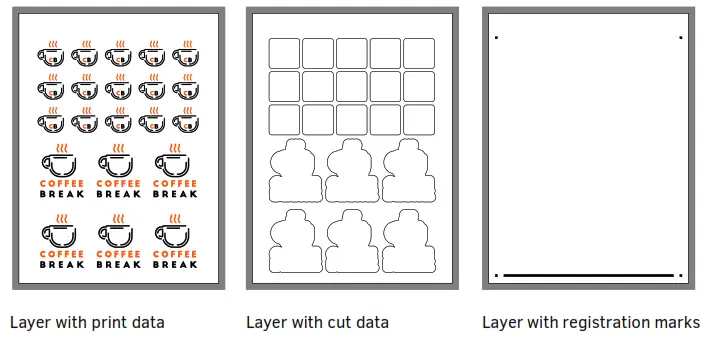
The grey border is just a way of marking the page size.
The line at the bottom in the registration mark layer is there because the marks were created with the plug-in for Illustrator or CorelDRAW, provided by Summa.
The two outer layers are printed. The middle and right layer are converted into a pdf file for the program GoSign (if the plug-in is used to open the file directly from Illustrator or CorelDRAW).
NOTE: Recommended layer names are:
Print Data for the layer with the print data.
Renmark for the layer with the registration marks on them 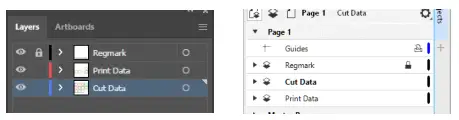
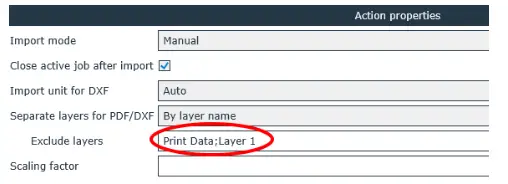
NOTE: If the layer name of the layer with the print data is always the same, then there is a setting in GoSign to ignore the data from this layer. This makes it unnecessary to disable the layer before exporting.
2.1.2 Making template if the plug-in is not available for your design software
A template can be made if the plug-in is not used. Easiest is to make a template with the marks as far outward as possible so that the maximum space of the sheet can be used. When making this template, please take into account the margin settings in your printer driver and/or the limitations of the printer. The best way is to make a template, print that blank template out. Measure the distances between the marks and the sheet edges and adjust the template if needed. The minimum distances between the marks and edges of the sheets are 10mm at both sides and at the bottom. The minimum distance at the top of the sheet needs to be 35mm.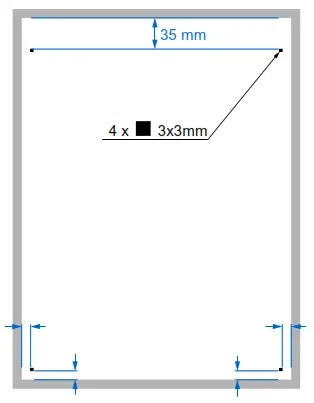
2.2 Output the job
When a job is opened in GoSign then everything is normally set ready for output.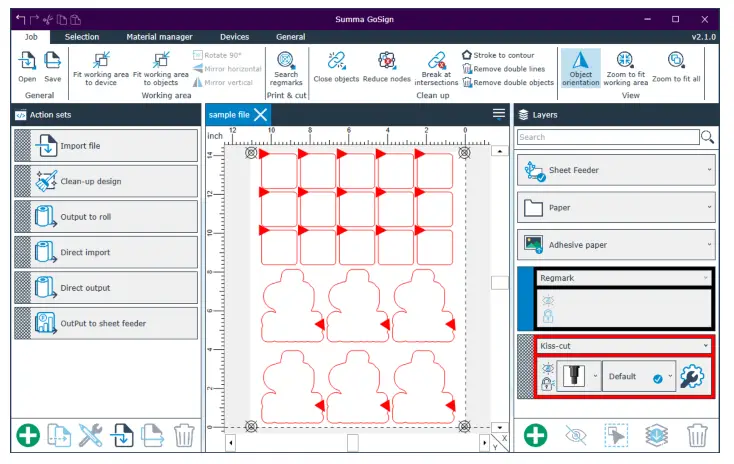
In the sample above a separate action, the set has been made for output to the cutter with the sheet feeder installed. If there is no special action set made, then you will have to change the setting for usage with a sheet feeder each time data is sent to the cutter.
To make a special action set for the sheet feeder make sure these parameters are set like in the figure below.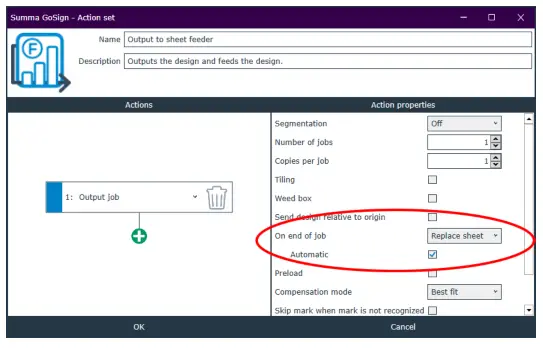
Click on the output action to send the cut file to the sheet feeder. 
The cutter will load the first sheet and prompt the user to put the tool above the first registration mark.
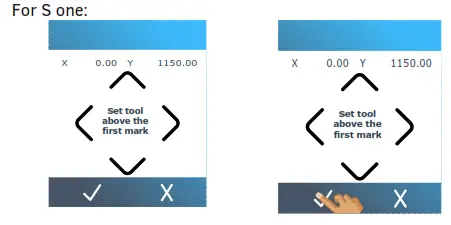
Use the arrow keys to set the tool above the first mark. Pres to confirm.
For SummaCut:
Use  and set the tool above the first mark. Press
 to confirm.
The cutter will read the marks and cut the first job.
When the job is done, the sheet will be ejected into the tray. The cutter will take the next sheet and move automatically above the first mark, read all the registration marks, and cut the job. This will continue un till all the sheets are cut, or when the number of copies if it is a file din in GoSign, is reached.
2.3 Practical tips for loading media.
Fan or flex media stack before loading. This is to prevent static electricity might causing double feeds (sticking of the sheets).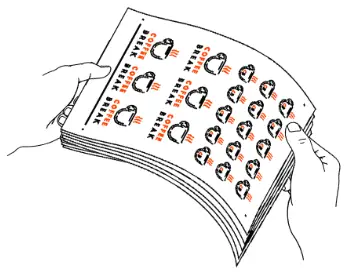
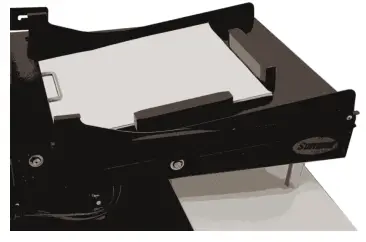
Before loading in the Tray make sure the stack is square
 And put a couple of empty sheets before putting the stack of jobs.
2.4 Using a rip instead of a standard printer driver
When a rip is used, then the registration marks can be set by the rip, and the file with cut data will be a typical cut file with DMPL or HPGL data in it. In this case, the pro Pack for GoSign will have to be purchased since the standard version of GoSign cannot import DMPL, DMP, HPGL, or HPG files.