 Part no: 315-9017700-002
Product name: NO LOGO
Spec: L148*W420mm; L148*W105mm/100P/4C
Designer: Sam
Color: C60 M10 Y5 K0
 C100 M40 Y0 K0
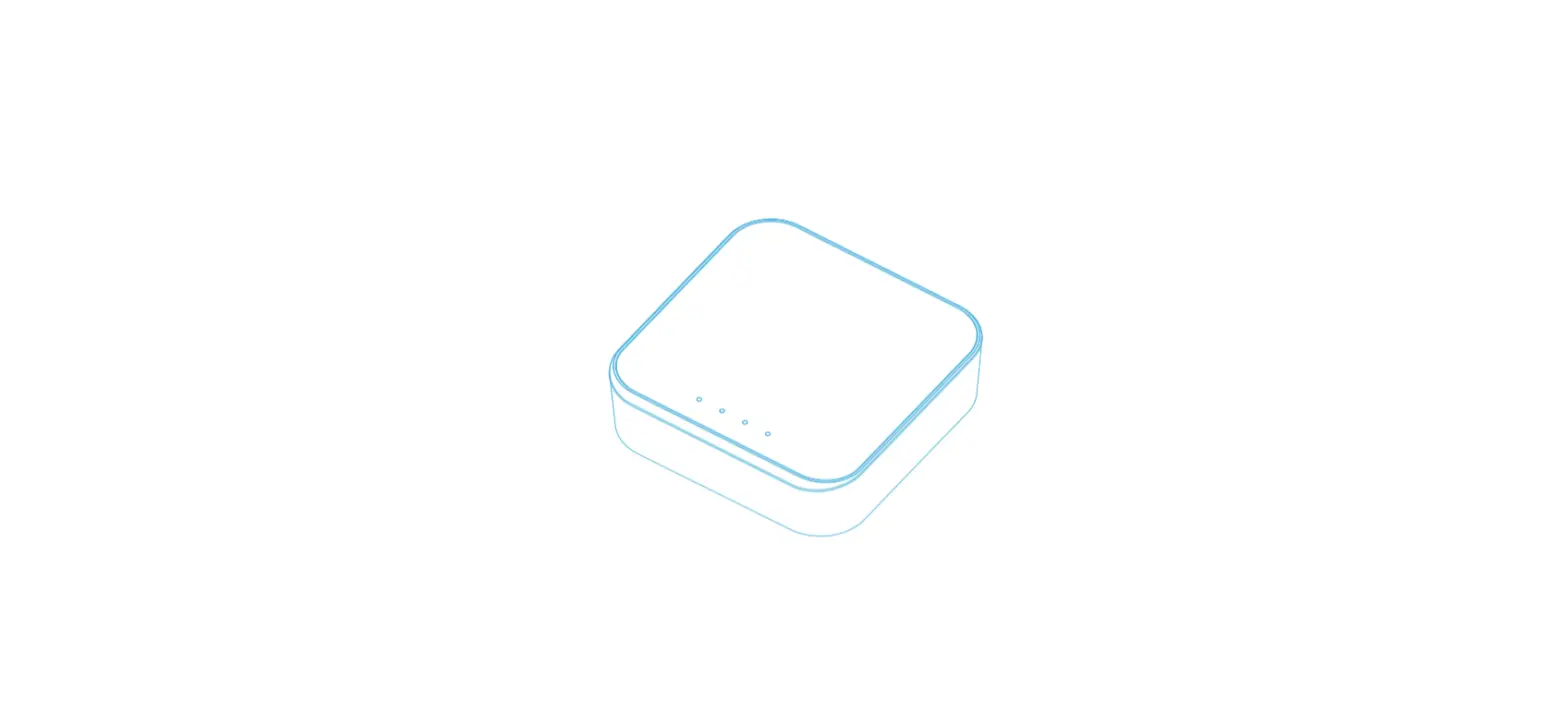
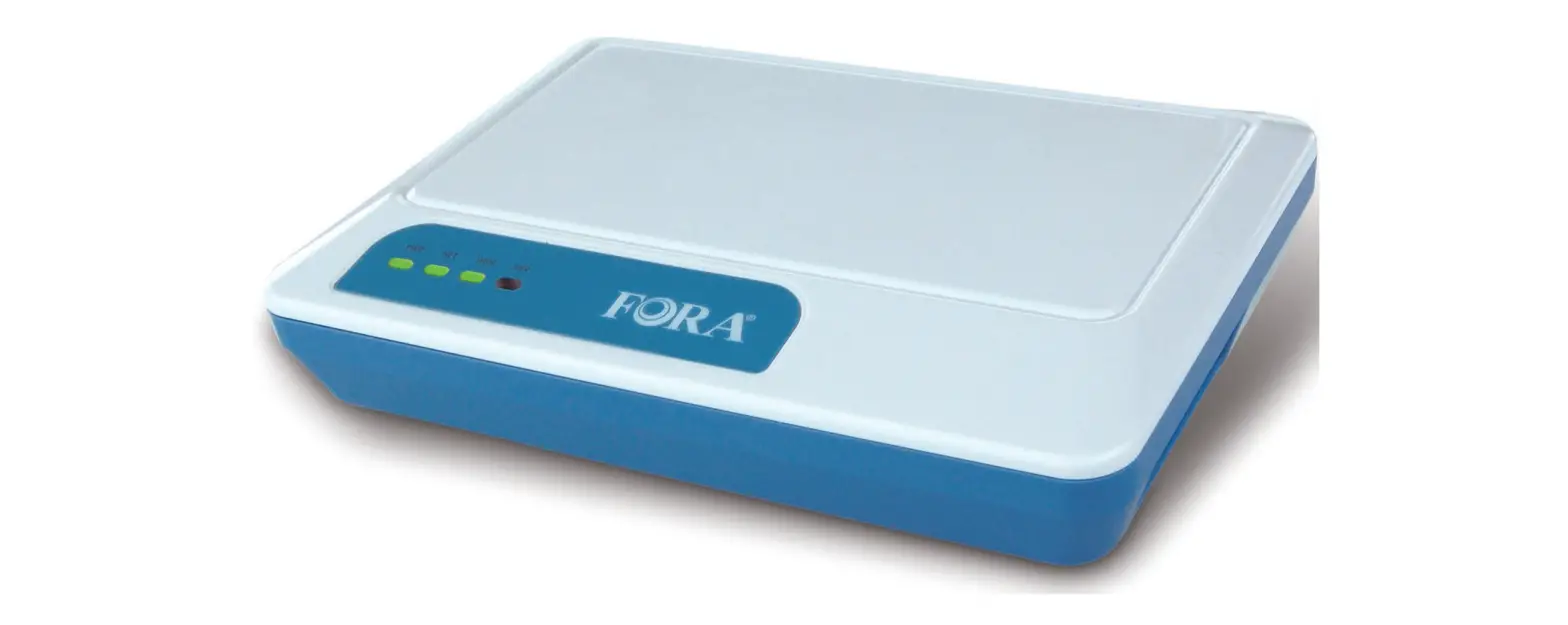
TeleHealth Gateway
Quick Start Guide 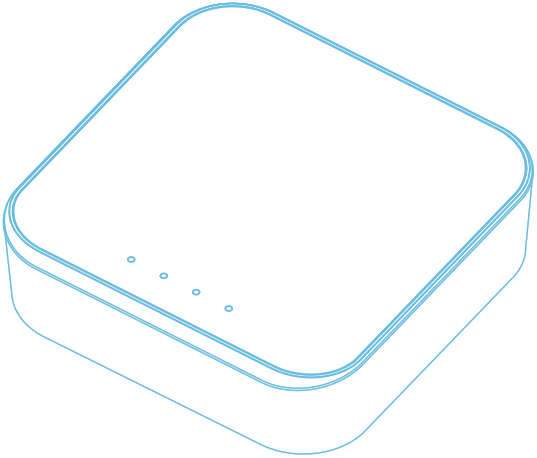
SETTING UP THE GATEWAY
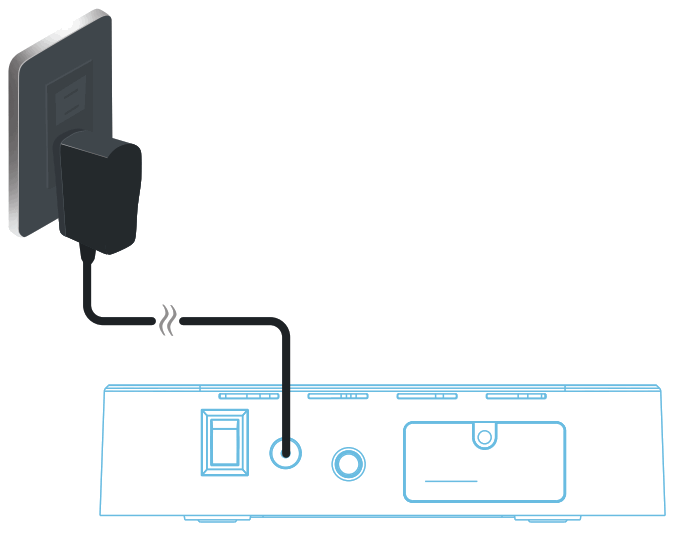
- Plug the power adapter included with the unit into the back of the device. Do not use any other adapters with the gateway.
- Plug the power adapter into a wall outlet.

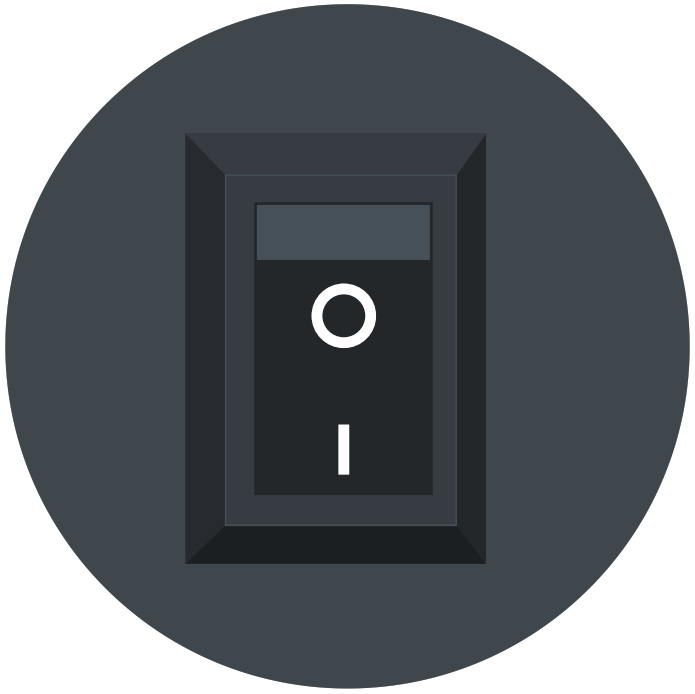
- Press the power switch on the back of the device (I is on, O is off ).

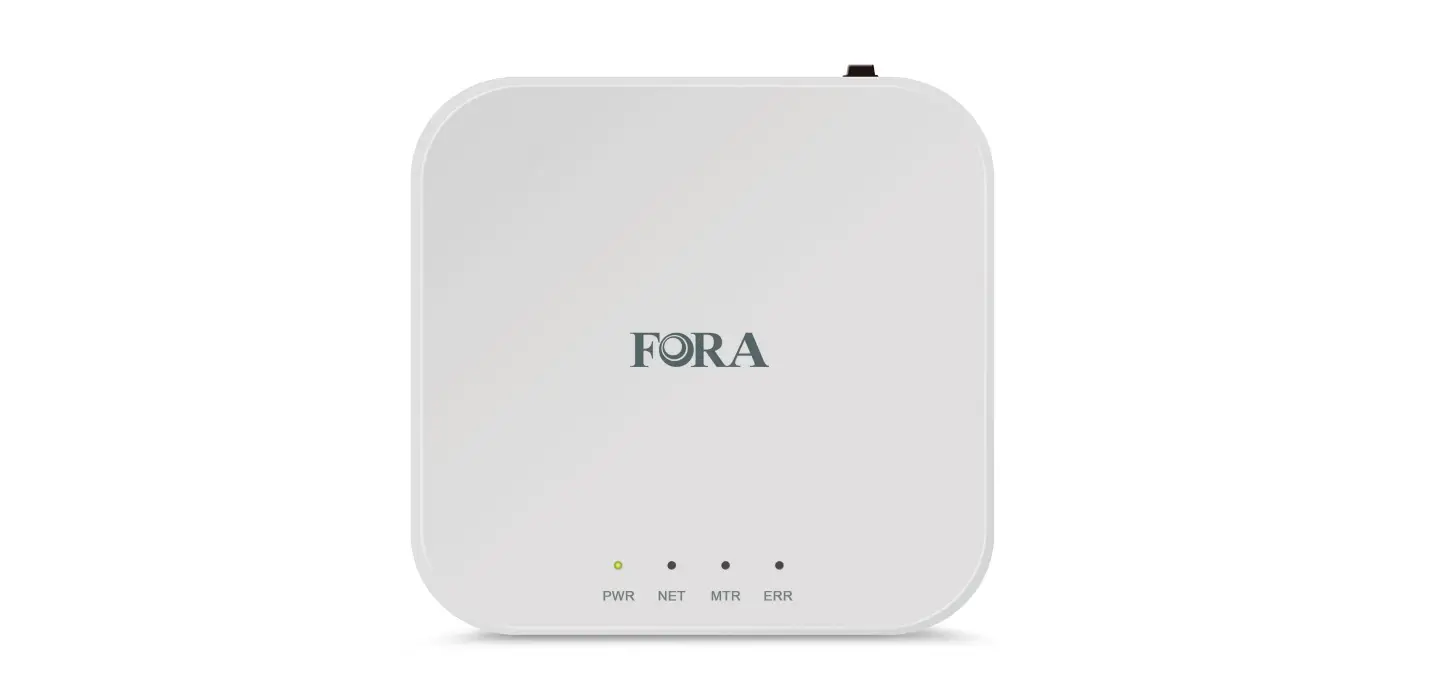
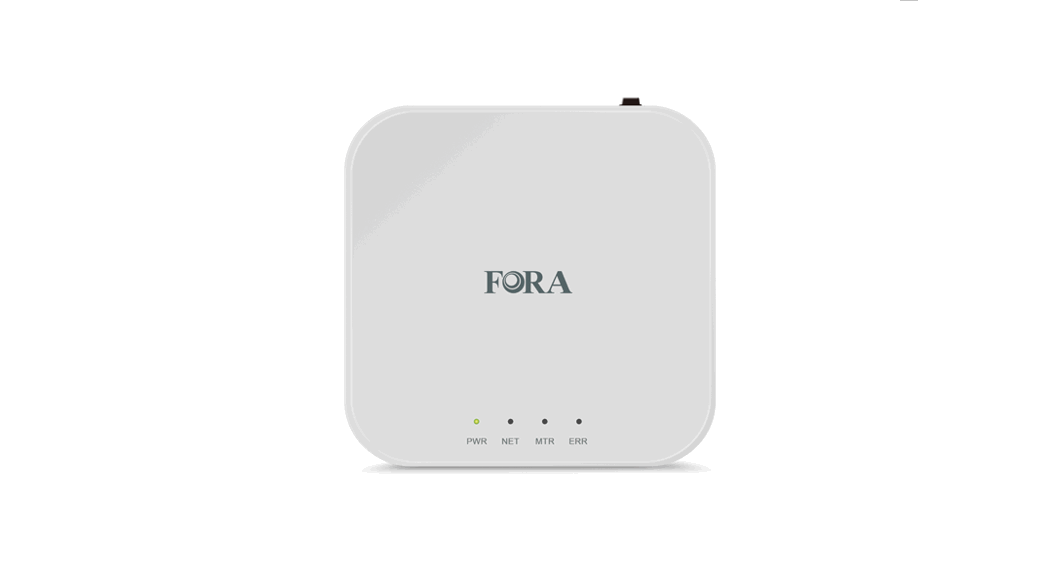
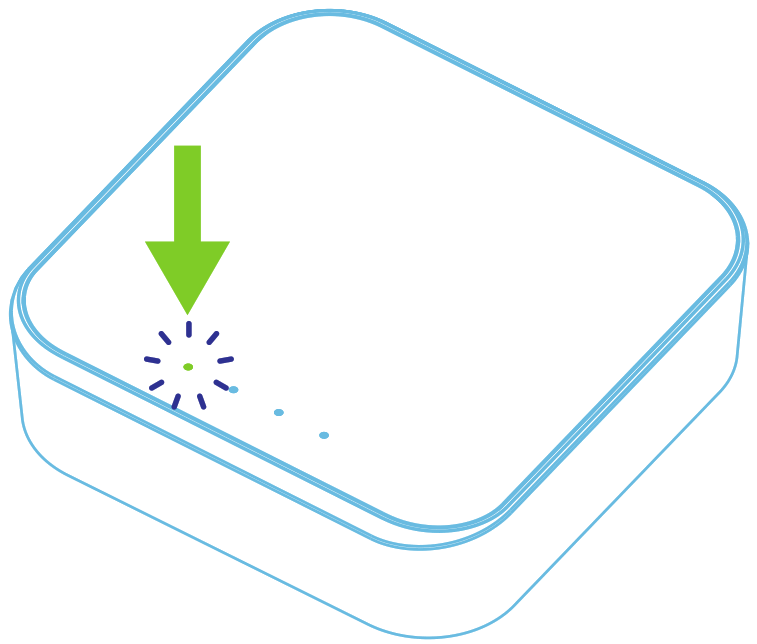
- The PWR indicator will turn solid green when ready for use.
CONNECT YOUR FORA DEVICES TO THE GATEWAY
To connect your FORA devices to the FORA TeleHealth Gateway, please activate the Bluetooth function on your FORA devices (for individual FORA devices, please refer to user manuals for information on Bluetooth activation).
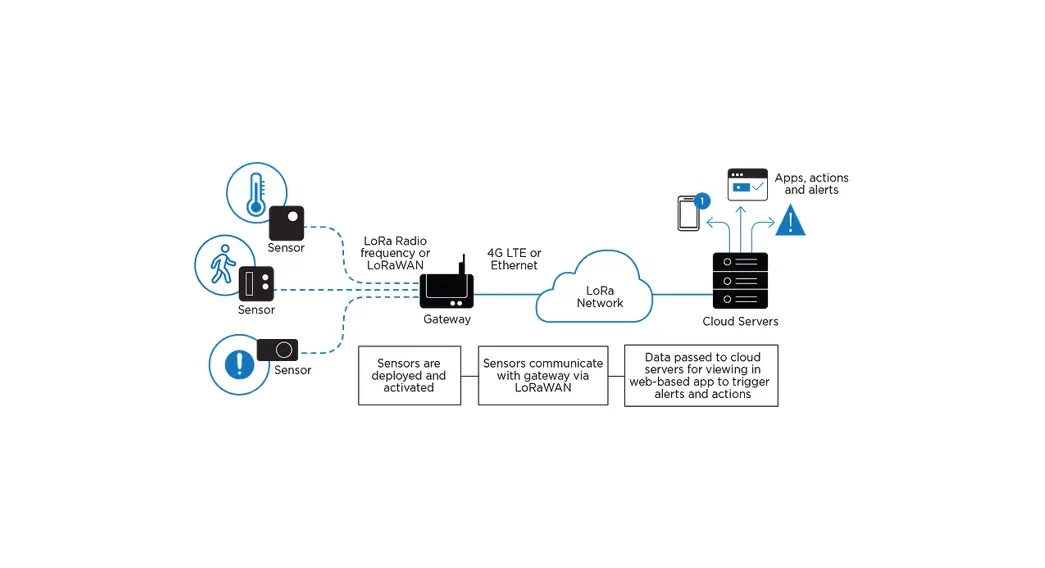
As each measurement is performed, the FORA devices will automatically transmit the data to the gateway. And then, the gateway will transmit the data to the telehealth system.
NOTE:
Transmission time may vary depending on the 4G LTE network condition.
LED INDICATORS
| LED Indicators | Gateway Status | Description |
 | Ready for use / Standby | After turning on the gateway, a green PWR indicates that the gateway is ready. |
 | Connected to the FORA device | MTR will be on when FORA devices are connected to the gateway. |
 | Connecting to the TeleHealth server | NET will be on when the gatway is connected to the telehealth server. |
 | Data transmission in progress | NET (orange)/MTR (blue) starts flashing when data is being transmitted via 4G LTE netwook/Bluetooth connection. |
 | Data transmission completed | NET/MTR stops flashing when data transmission is completed. The FORA device that has completed the transmission will turn off automatically. |
 | Error | ERR is On with one or multiple beeps. Please refer to TROUBLESHOOTING for more information. |
TROUBLESHOOTING
If you cannot perform a normal transmission and a red ERR LED indicator is on, or the gateway emits long beeps, please check if all the installations are correct.
| Error Status | Possible Cause | Solution |
| No LED indicator works | No power supply to the gateway | ‧ Check if PWR is on. ‧ Check if the gateway power switch is on. ‧Check if the power supply is securely plug-in the power outlet and the gateway power adapter port. |
| Red ERR indicator with a long beep | Bluetooth transmission problem | Check if the meter is too far away from a gateway or turned off accidentally during the transmission. |
| Red ERR indicator with two long beeps | 4G LTE network signal is not stable | ‧Move the gateway closer to the window or other open space. ‧If the problem persists, please contact the place of purchase or call customer service for assistance. |
| Red ERR indicator with three long beeps. | Meter is not registered. | Please contact the place of purchase or call customer service for assistance. |
| Red ERR indicator with four long beeps | Hardware error | Please contact the place of purchase or call customer service for assistance. |
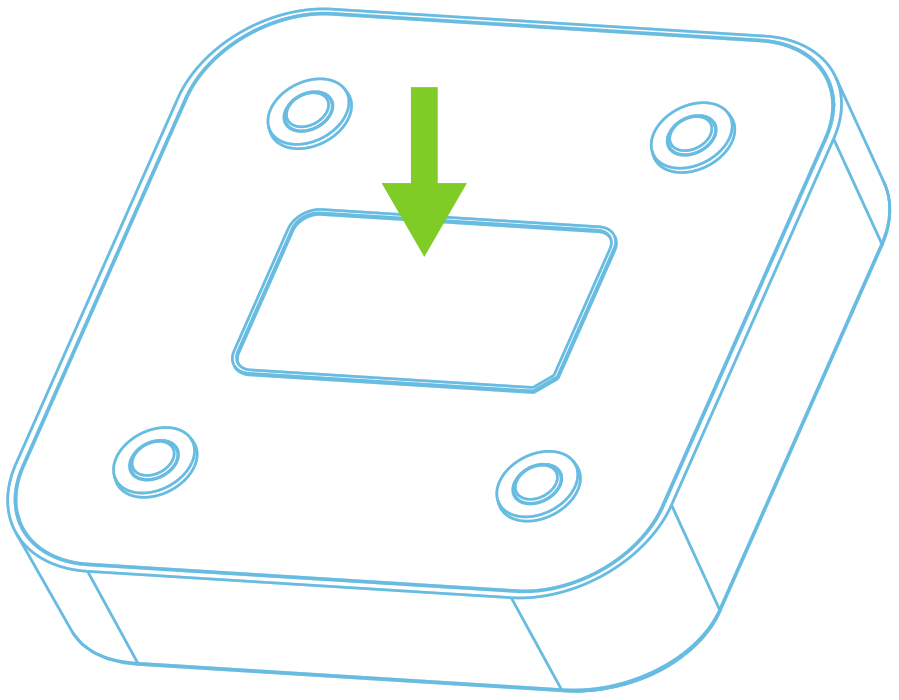
Before contacting customer service, please write down the serial numbers of the gateway and the meter devices. The serial numbers are found on the back label of the gateway and the meter. Customer service will need the serial numbers to identify the issue.
SPECIFICATIONS
| Model No. | TD-9017G |
| Input interface | Bluetooth Low Energy |
| Output interface | 4G LTE |
| Dimension | 128 mm(L) x 131 mm (W) x 32 mm (H) |
| Weight | 400 g |
| SIM slot | Micro SIM |
| USB slot | Mini USB type B (For setting only) |
| Power switch | To power ON or OFF system |
| Power Indicator (PWR) | Green LED |
| Bluetooth Status Indicator (MTR) | Blue LED to show Bluetooth State |
| 4G LTE Power (NET) | Orange LED |
| 4G LTE TX/RX (NET) | Blue LED to show data transmission |
| System Error Indicator (ERR) | Red LED to show system error |
| Power | AC power adapter (input: 100-240Vac; output: 6V, 1A) |
| Operating condition | +5°C ~ +40°C, 15% ~ 93% R.H. |
| Storage condition | -25°C ~ +70°C, 10% ~ 95% R.H. |
TeleHealth Gateway
Federal Communications Commission (FCC) Statement
15.105(b)
This equipment has been tested and found to comply with the limits for a Class B digital device, pursuant to part 15 of the FCC rules. These limits are designed to provide reasonable protection against harmful interference in a residential installation.
This equipment generates, uses and can radiate radio frequency energy and, if not installed and used in accordance with the instructions, may cause harmful interference to radio communications. However, there is no guarantee that interference will not occur in a particular installation. If this equipment does cause harmful interference to radio or television reception, which can be determined by turning the equipment off and on, the user is encouraged to try to correct the interference by one or more of the following measures:
- Reorient or relocate the receiving antenna.
- Increase the separation between the equipment and receiver.
- Connect the equipment into an outlet on a circuit different from that to which the receiver is connected.
- Consult the dealer or an experienced radio/TV technician for help.
15.19
This device complies with Part 15 of the FCC Rules.
Operation is subject to the following two conditions:
- this device may not cause harmful interference and
- this device must accept any interference received, including interference that may cause undesired operation.
15.21
You are cautioned that changes or modifications not expressly approved by the party responsible for compliance could void the user’s authority to operate the equipment.
FCC RF Radiation Exposure Statement:
- This Transmitter must not be co-located or operating in conjunction with any other antenna or transmitter.
- This equipment complies with FCC RF radiation exposure limits set forth for an uncontrolled environment. This equipment should be installed and operated with a minimum distance of 20 centimeters between the radiator and your body.
 TaiDoc Technology Corporation
B1-7F, No. 127, Wugong 2nd Rd., Wugu Dist.,
24888 New Taipei City, Taiwan