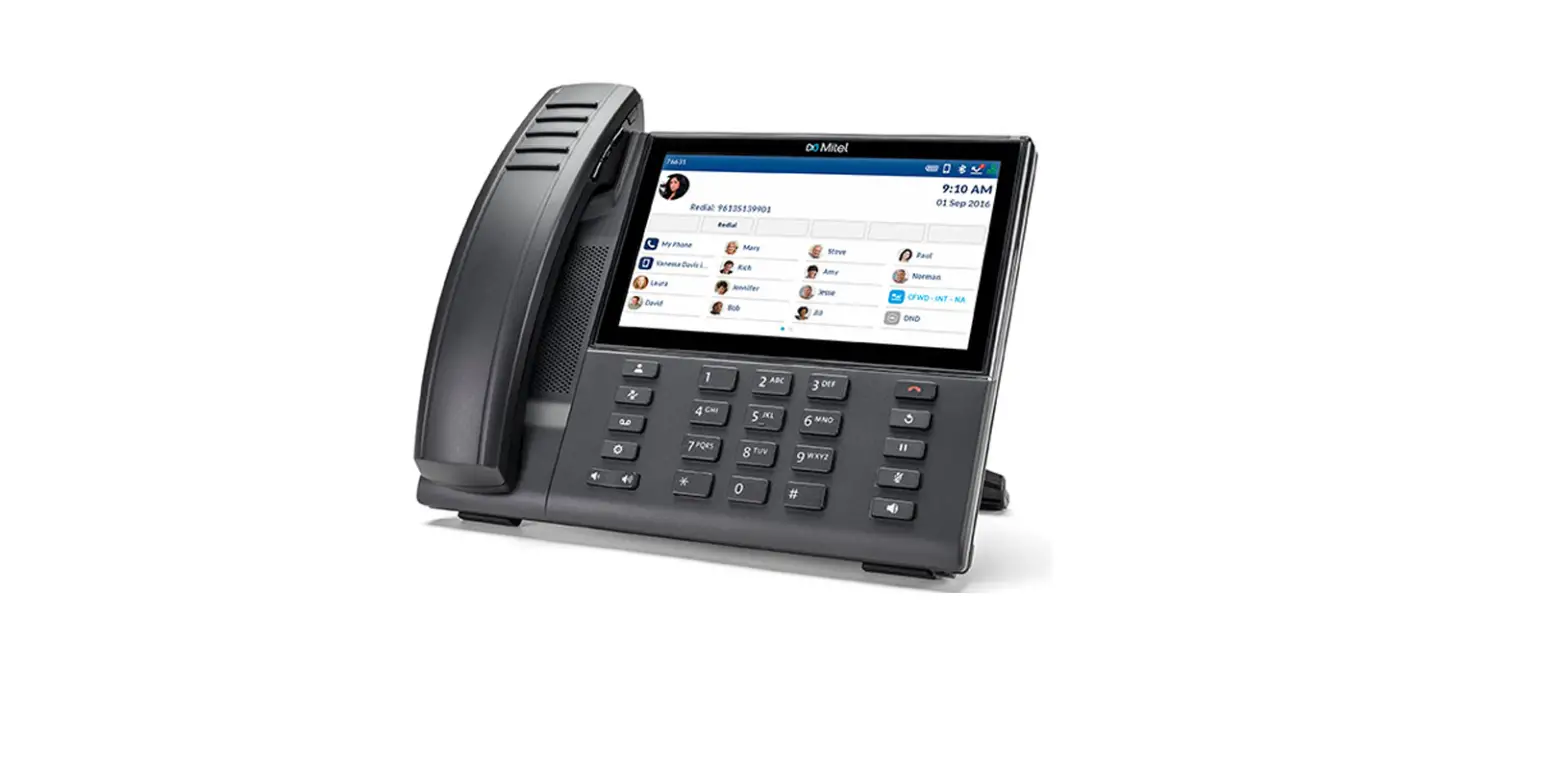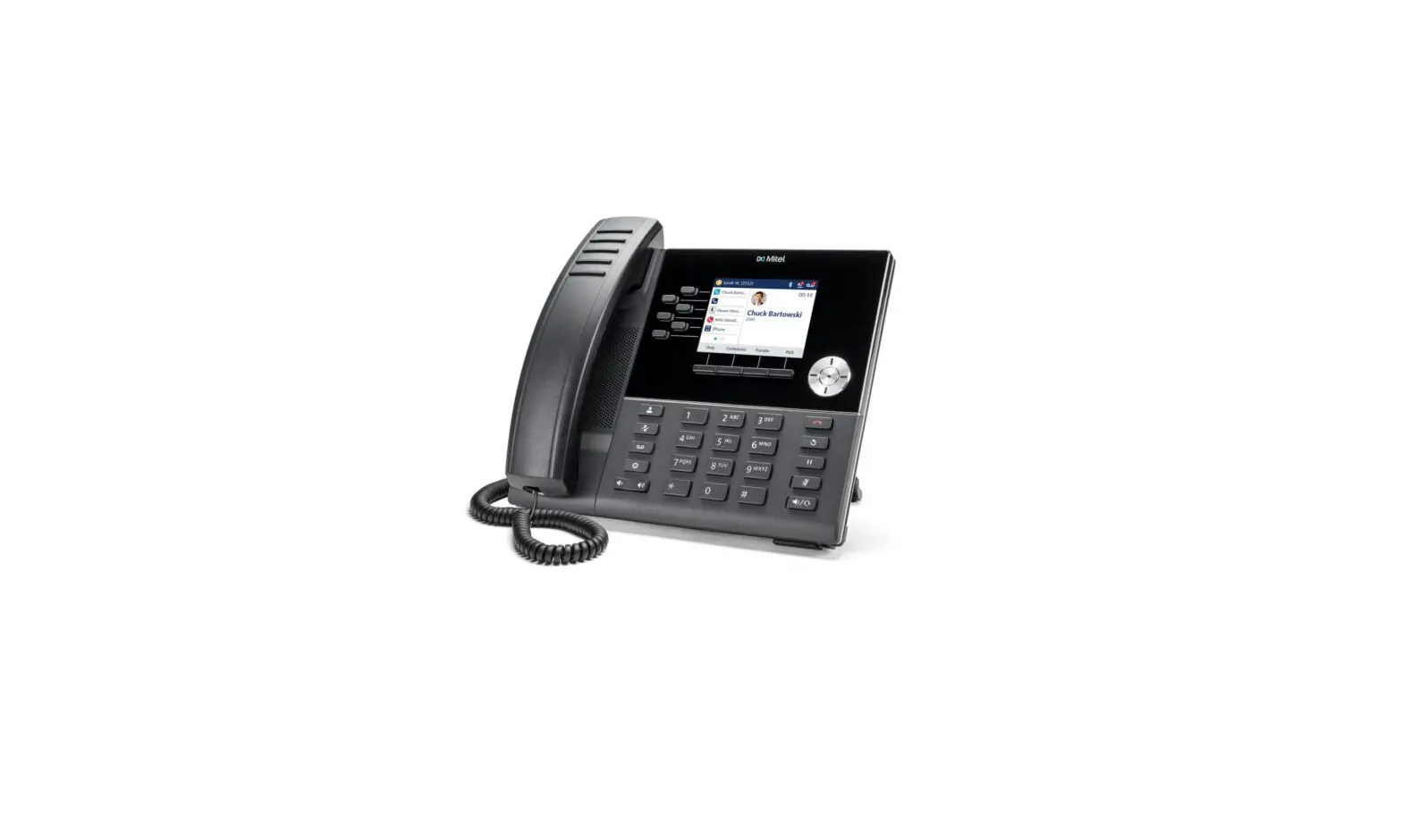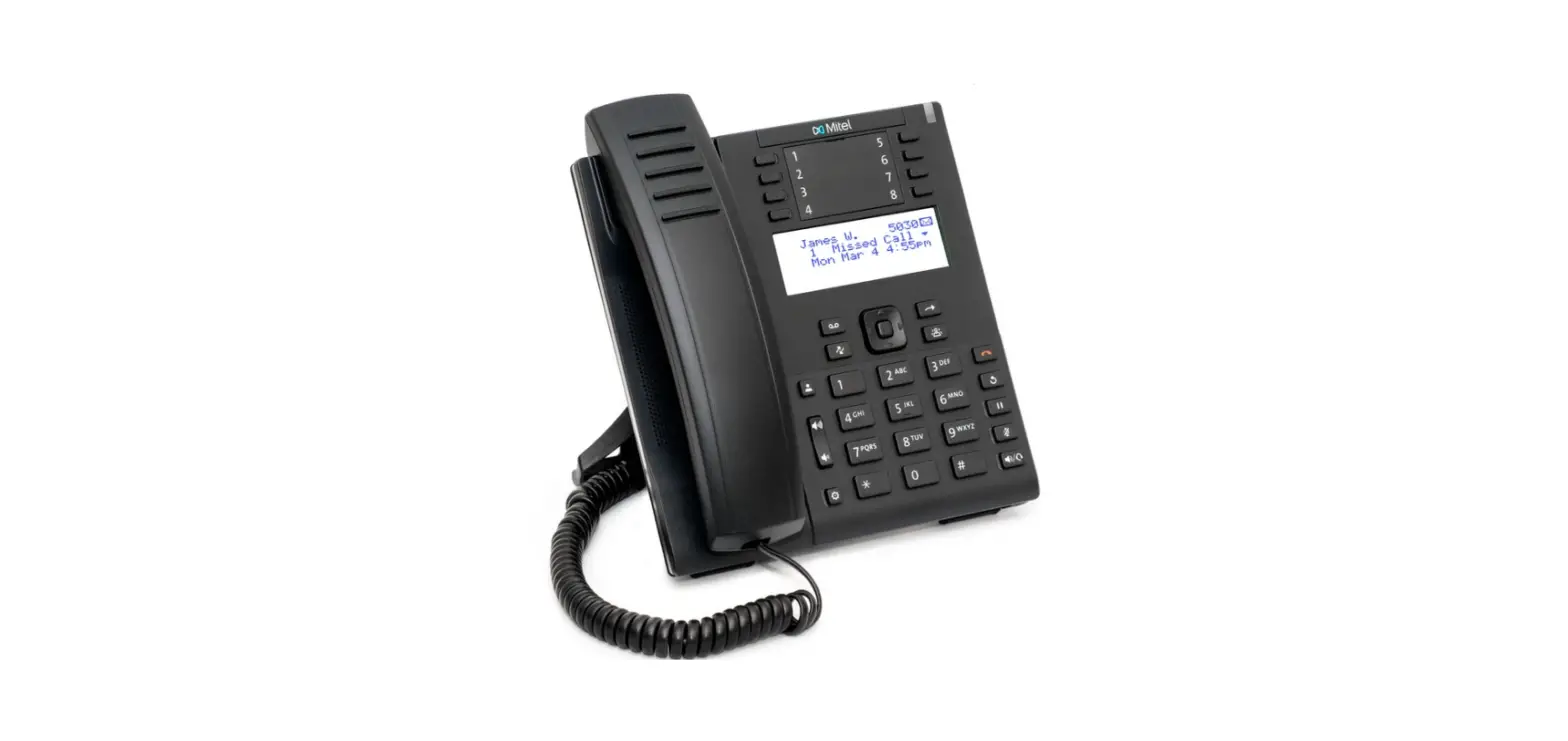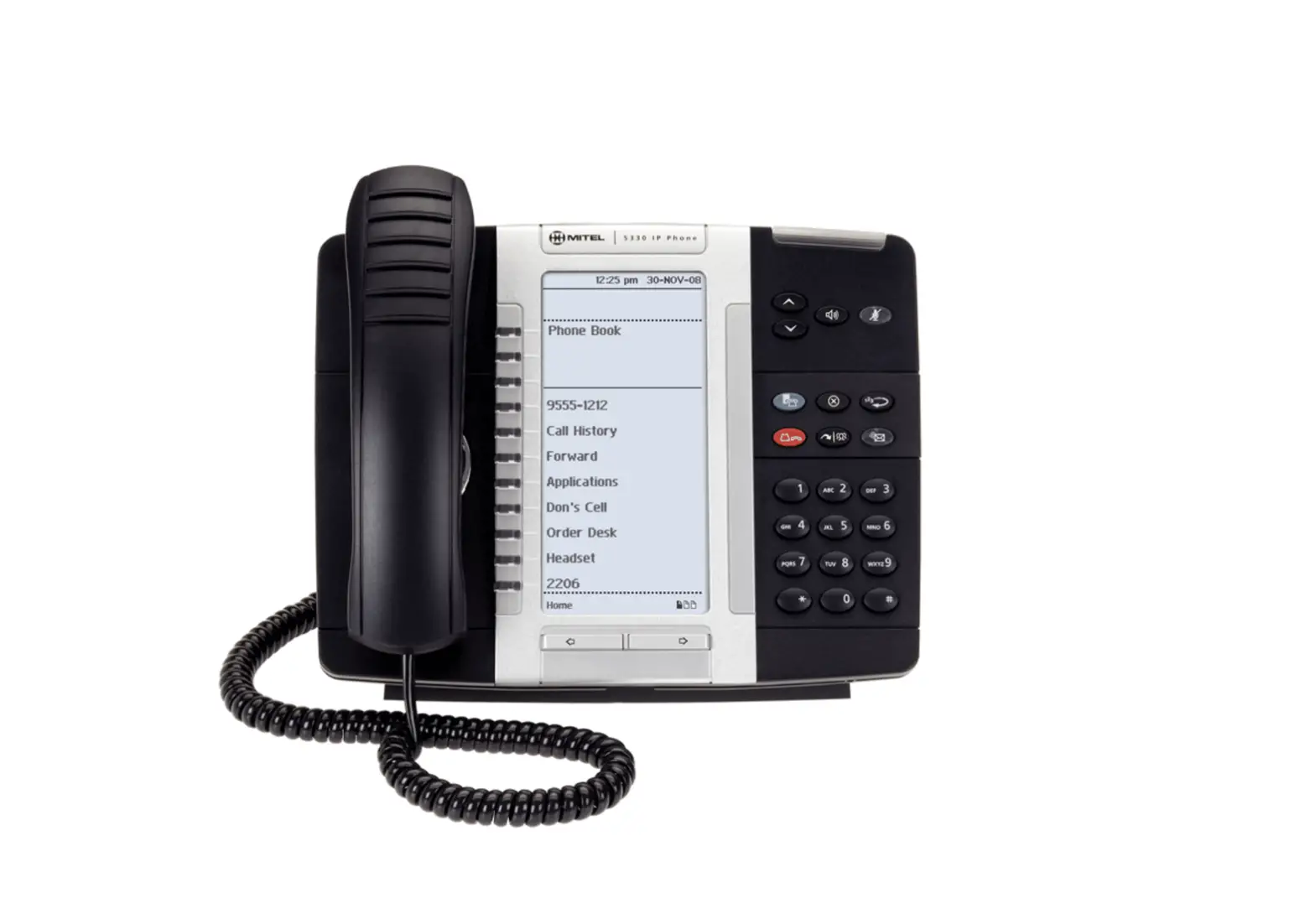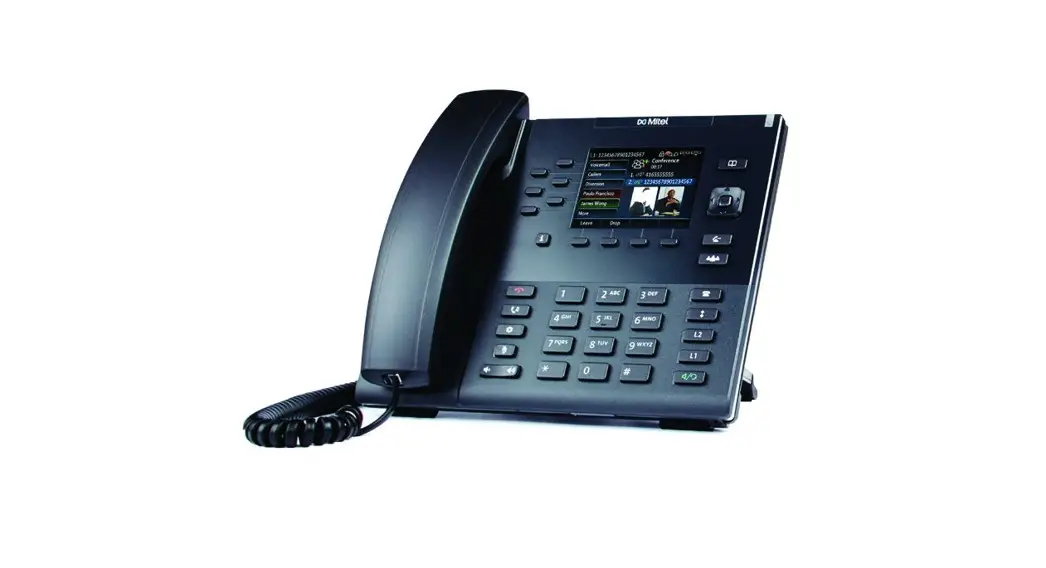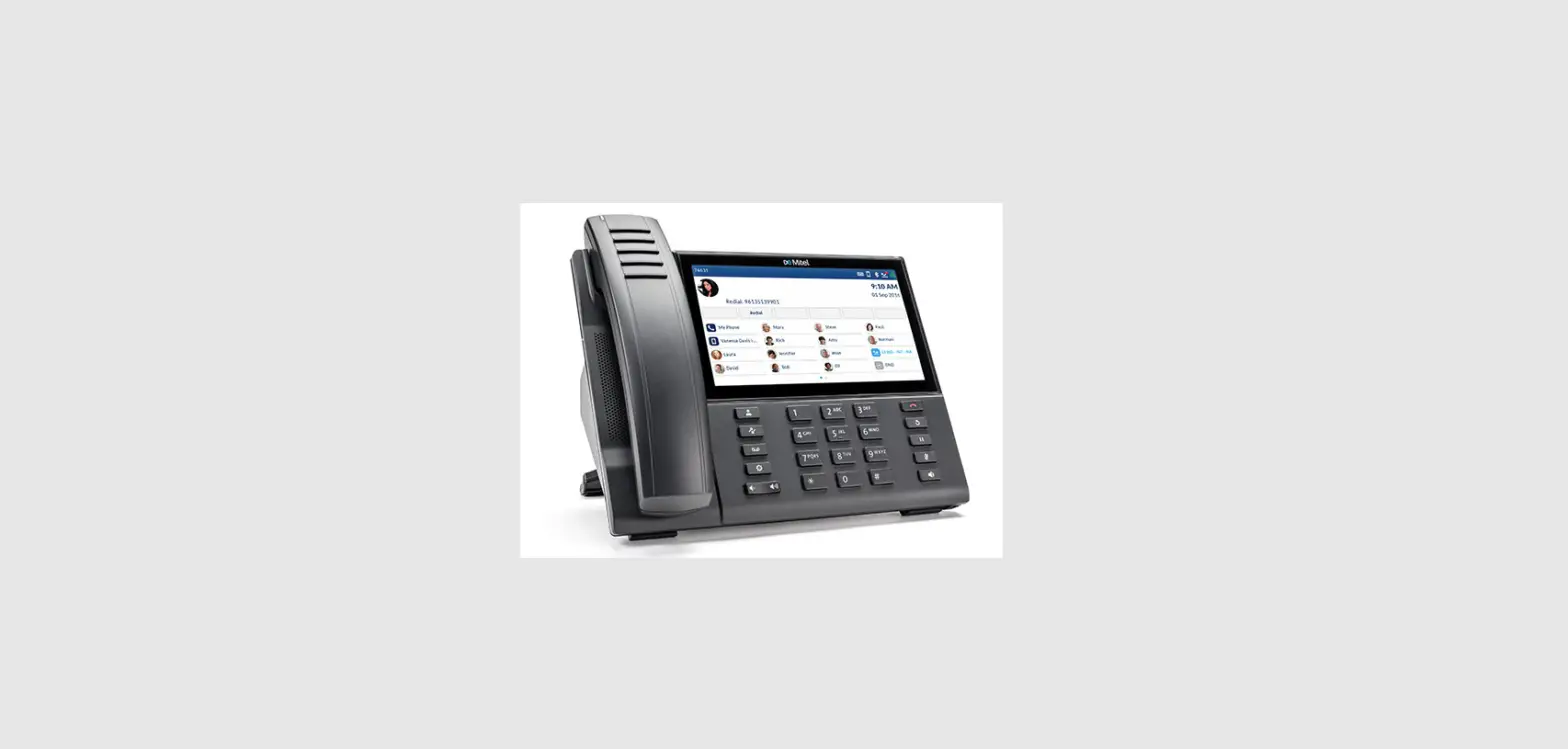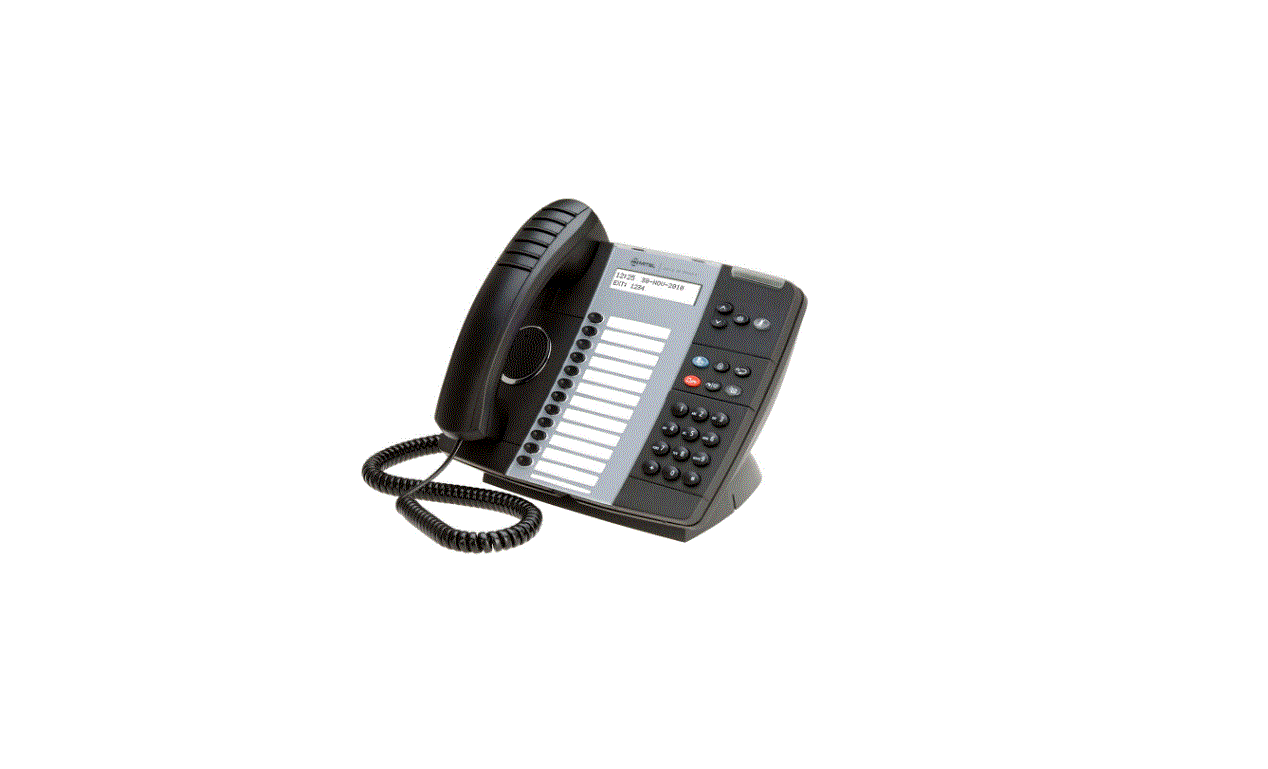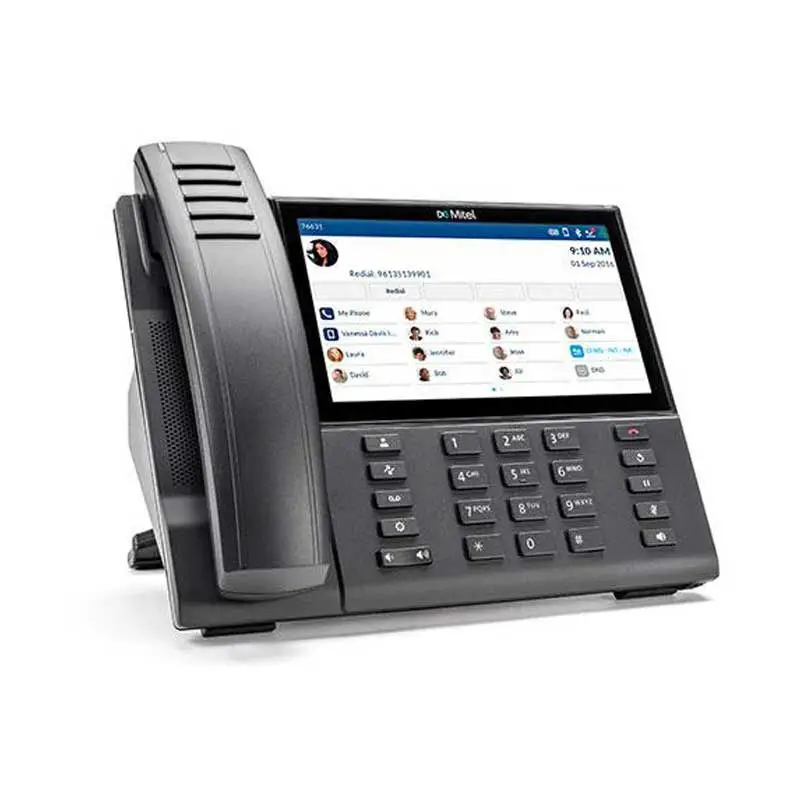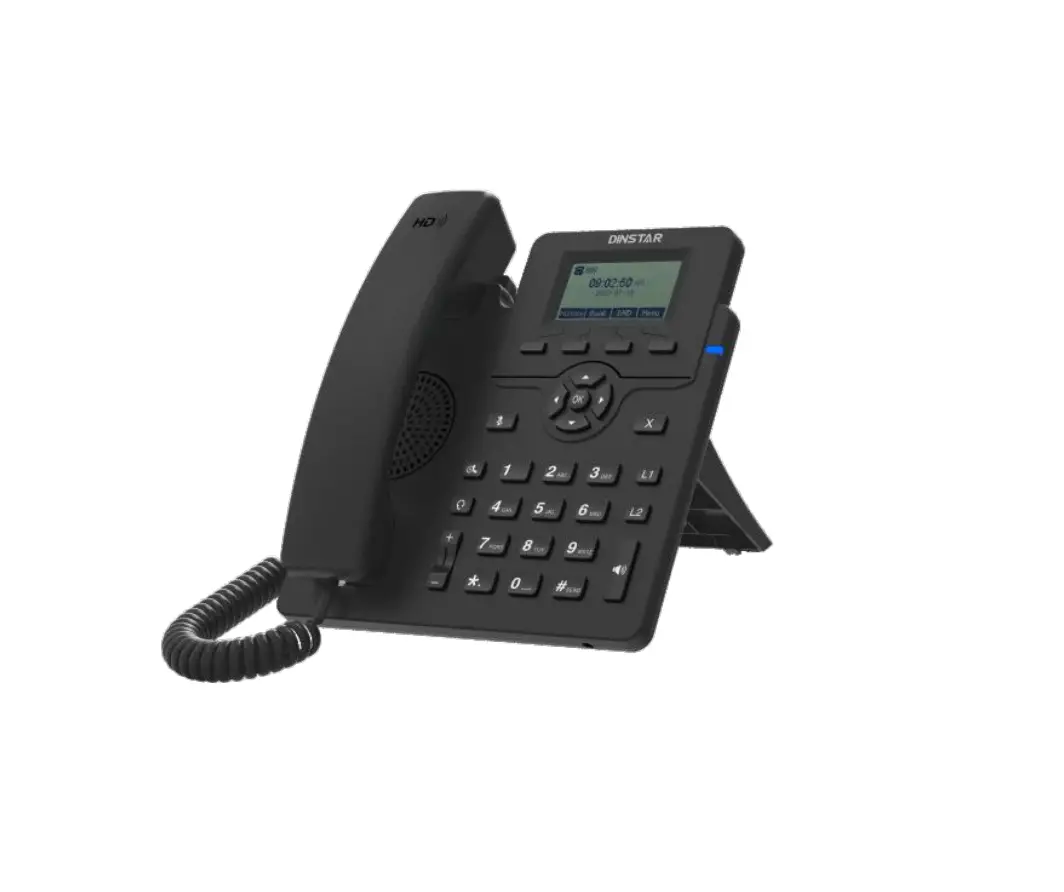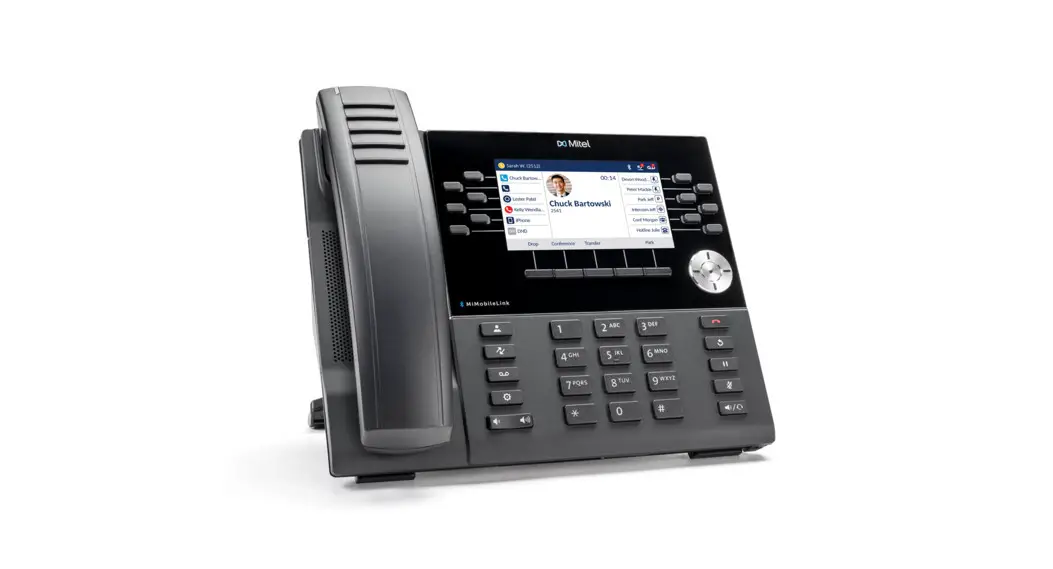
 MITEL 6930 IP Phone
User Guide
Placing an Internal Call
- Lift handset
- Dial extension or press a speed dial
Placing an External Call
- Lift handset
- Dial access code 9 + number
Answering a Call
- Lift handset OR
- Press the headset or speaker button
Placing a Call on Hold
- While on a call press

- Line key will flash

Note: A held call will ring back after 1 minute
Retrieving a Held Call
- Press OR Pick Up OR the flashing line key
Redial
- Press
 twice to callback the last number dialed
 twice to callback the last number dialed
Changing Availability State
- Press State
- Choose the desired state and press Save
Park
- Press the Park Button
- Dial in an extension to Park the call
- To retrieve the Parked Call, press unpark and dial the extension
Transferring a Call
Blind Transfer
- While on a call, press Transfer
- Dial 9 + number or press a speed dial or dial an extension
- Press Transfer
- Hang up
Consult Transfer
- While on a call, press Transfer
- Dial 9 + number or press a speed dial or dial an extension
- Wait for an answer, then announce the call
- Hang up to complete the transfer
Transfer to Voicemail
- Press Transfer
- Dial an extension or press a speed dial
- Press

- Press To VM

Conference Calls
- While on a call, press Conference
- Dial 9+ number or press a speed dial or dial an extension
- Press Conference again and all parties will be connected
Note: You can hang up the call and the other two parties will still be connected or you can press drop to drop the highlighted caller
Message Waiting Light
Located in the Top Right Hand Corner of the phone, when you have a voicemail, this will be lit up red
Hot-Desking
Allows you to assign another phone as your phone
Logging In
- Press

- Press Assign
- Enter Extension
- Enter Voicemail Password
- Press Enter

SoftKeys
The softkeys are the buttons located directly below the LCD display that control the Speed dial, voicemail features, and conference Softkeys on LCD Screen
Pick Up – This allows you to pick up a ringing extension from your phone
UnPark – Picks up a call from Park
Pick up – pick up another ringing extension or parked call
Conference – Initiates/completes a conference
State– Changes your availability, sends calls to voicemail
Answer – Answers an incoming call
Ignore – Ignores incoming call but continues to ring the phone
Transfer –Transfer to another party
ToVM– Send an incoming to call your mailbox without ringing the full time
Silence – Call Continues to ring silently until voicemail picks up
Drop – Hangs up on the highlighted caller
Conference – Conference multiple calls together
Park– System-wide hold that can be picked up from any phone
Hardys
 | Directory |
 | Call History |
 | Voice mail |
 | Settings- Change Ringtone, program buttons, enable headsets |
 | Volume down and up |
 | End Call |
 | Redial |
 | Hold |
 | Mute |
 | Speaker/Headset flips back and forth between to two |
Headset
- Press

- Enter your Voicemail pin
- Choose Audio Mode
- Press Select
- Select headset
- Press OK
- Press Exit
Any button on your phone that does not have a designated feature or line appearance may be programmed as a speed dial
Programming
| • Press • Enter your Voicemail pin • Choose Program Keys Edit • Press Select • Select Top Softkeys • Press Select | • Scroll to the Key you want to program • Enter a Label • Enter a phone number (Include 9 for external numbers) • Choose Dial number for a Speed dial • Press Save |