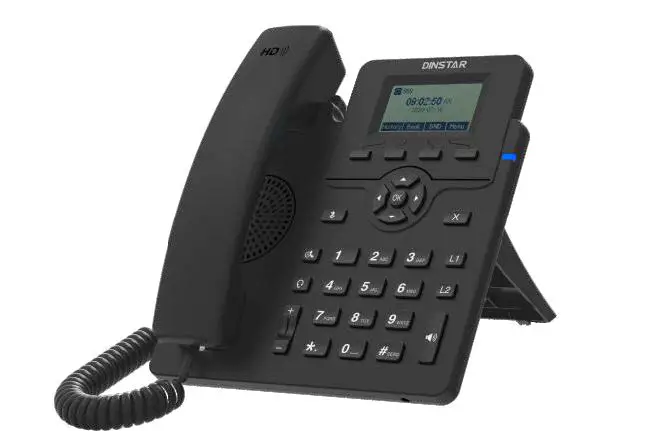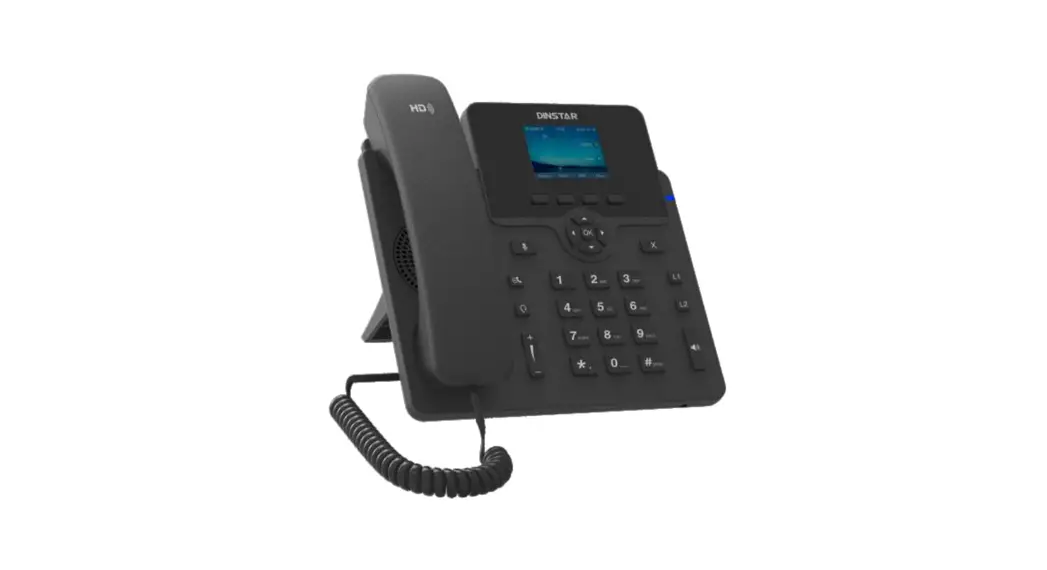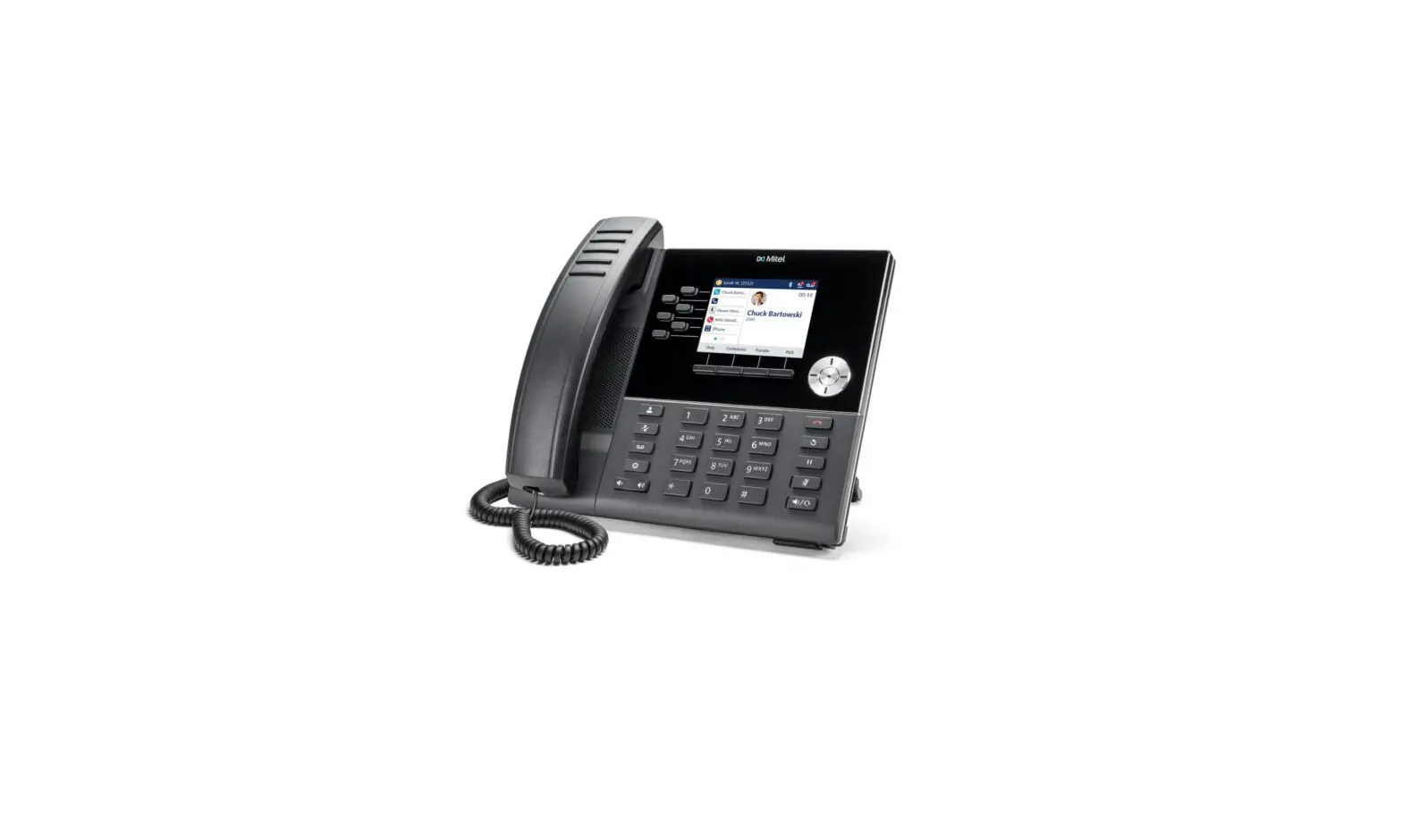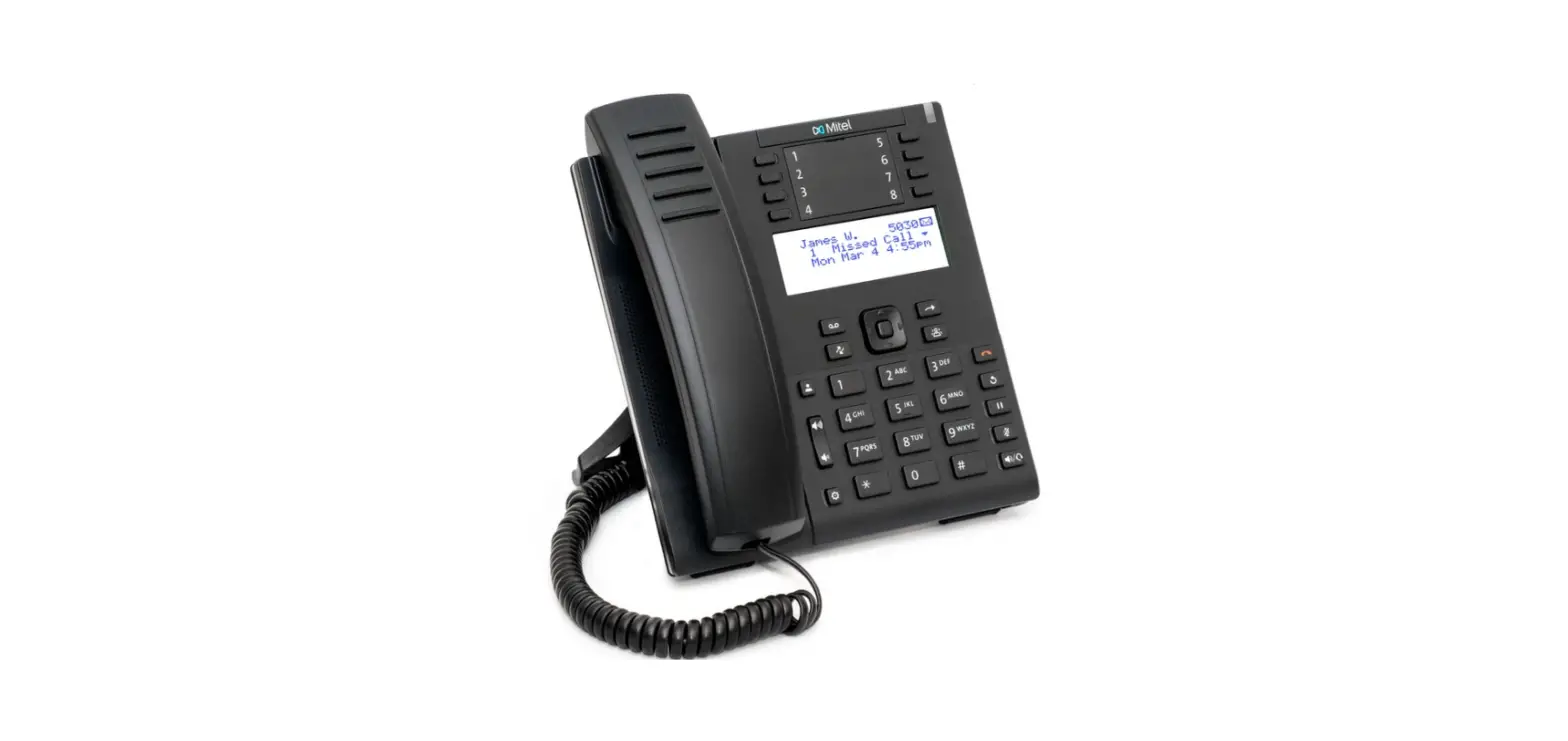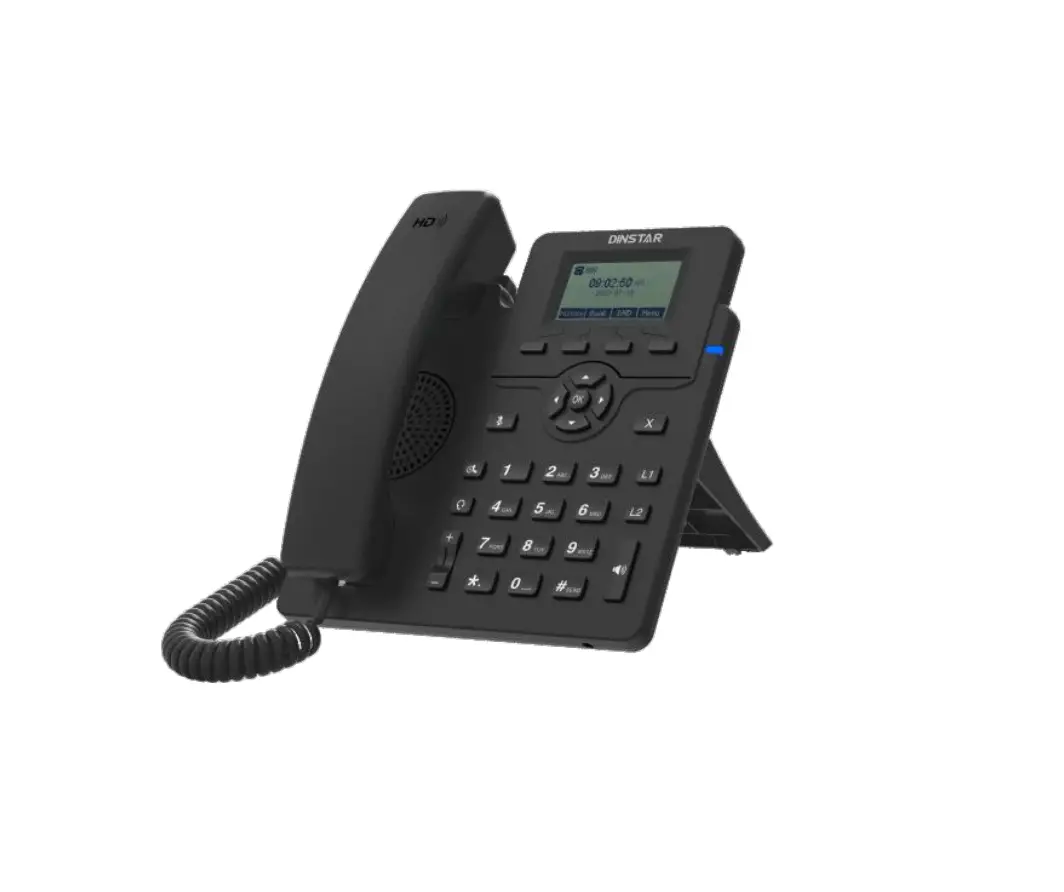
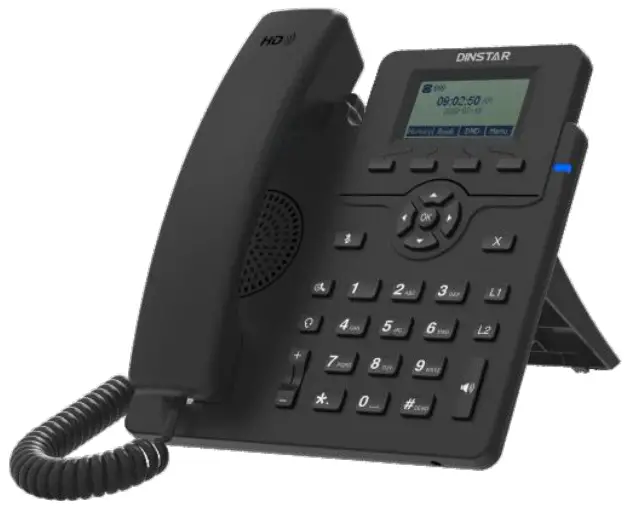
DINSTAR C60S Enterprise IP Phone
Packaging Contents
The following items are included in your package. If you find anything missing, please contact our supporting and customer center.
 C60S/C60SP IP Phone
- IP Phone

- Handset

- Handset Cord

- Ethernet Cable

- Stand

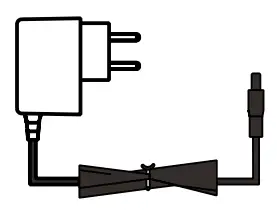
- Power Adapter (Optional)





Hardware Component Instructions
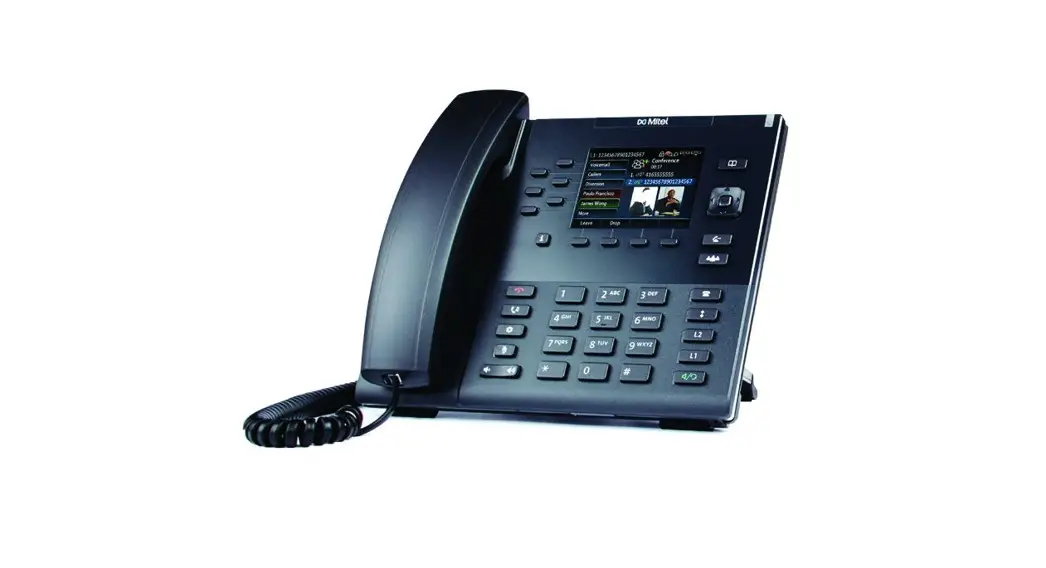
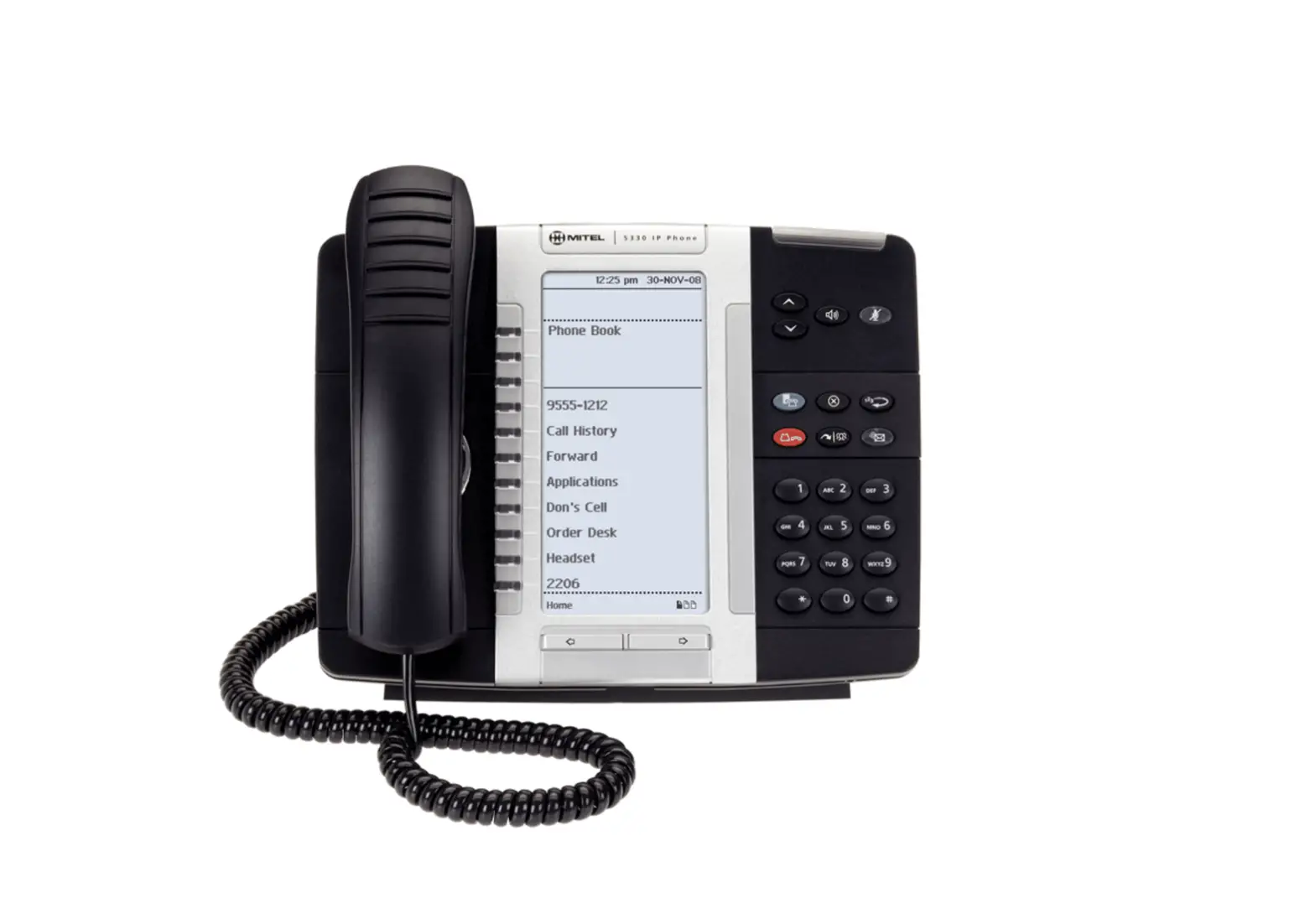
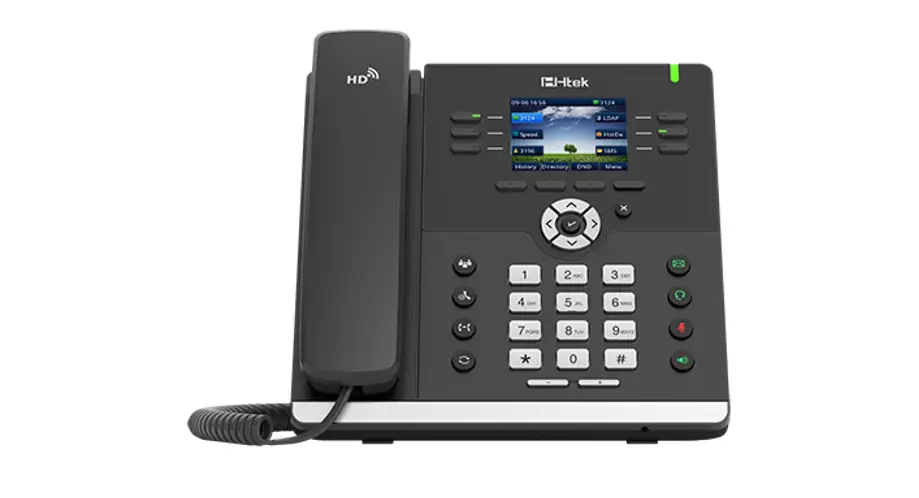
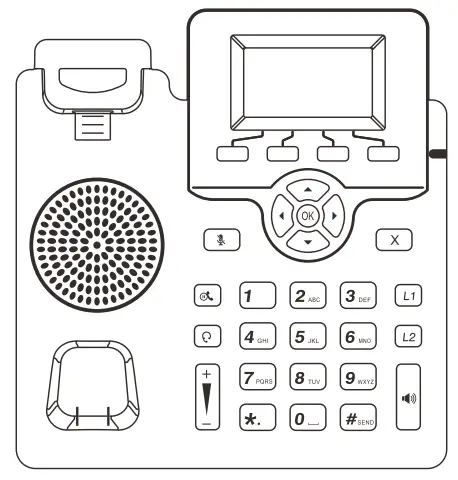
The main hardware components of the C60S/C60SP IP Phone are the LCD screen and the keypad.
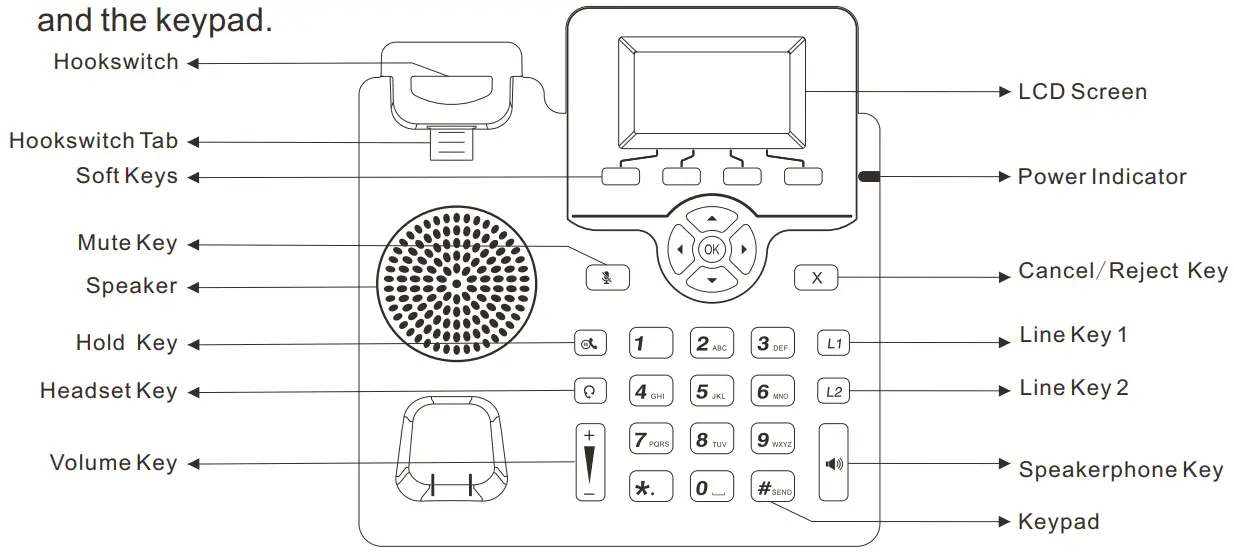
| LCD Screen | Displays the call, default account, message, soft key, time, date and other related information. |
| Power Indicator | · Indicates the power connection status and other characteristic status of the telephone: · When receiving a call, the indicator light flashes quickly; · When there are missed calls or received voice messages / short messages, the indicator light flashes slowly. |
| Line Keys | It is used to activate 2 accounts and configure various functions. |
| Soft Keys | The LCD interface of the phone displays the function names corresponding to the four soft keys, and the user can press the corresponding soft keys to complete the operation. |
| Hookswitch | · Pick up the handle from the handle frame, spring up the fork spring and connect the lines; · Put the handle back into the handle holder and disconnect. |
| Keypad | Provides input for numbers, uppercase and lowercase letters, and other special characters. |
Assembling the IP Phone
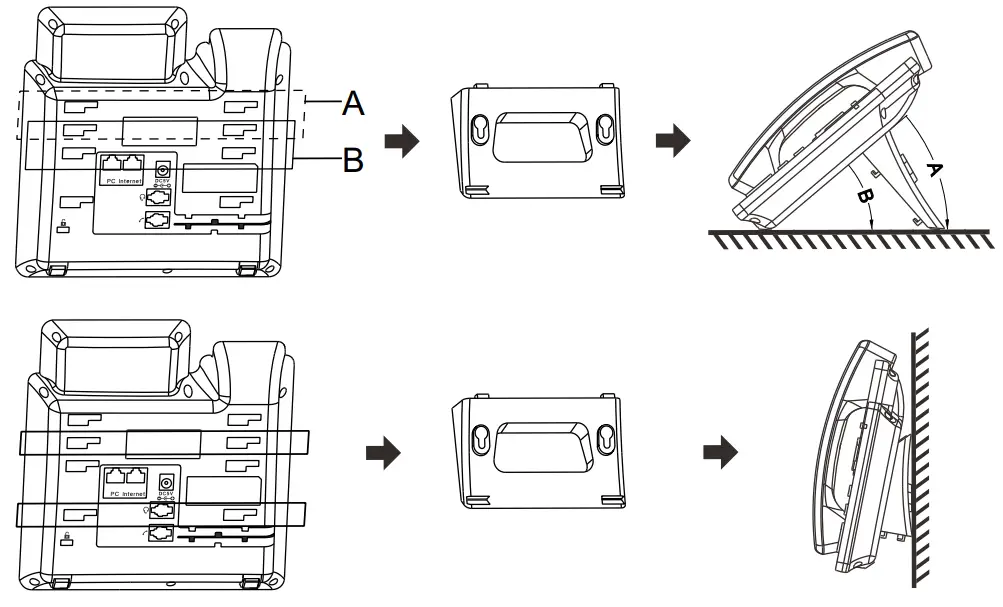
Attach the stand to the IP Phone, as shown below:
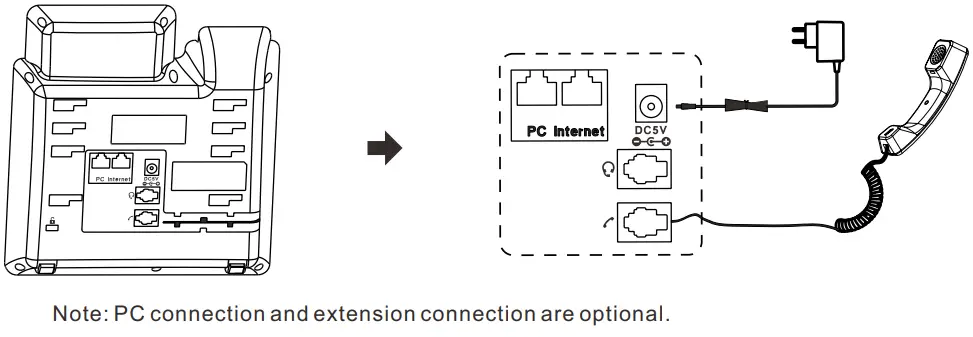
Connect the handle, headset, PC and power supply as shown in the figure below:
Startup
After the IP Phone is powered on and connected to network, it will start up automatically. And then the IP Phone is ready for use. You can configure the phone via the phone’s user interface or the web user interface.
Configure the IP Phone
There are two ways to customize the configurations of the IP Phone.
- Configure via the user interface on the IP Phone
- Configure via the web interface on your PC
Configure via the user interface on the IP Phone
The LCD screen and the keypad on the IP Phone allows you to execute all call operation tasks and basic configuration changes directly on the phone.
Network Setting
By default, the phone attempts to contact a DHCP server in your network to obtain its valid network settings, e.g., IP address, subnet mask and gateway address.
If your phone cannot contact a DHCP server, you need to configure network settings manually.
- Press the Menu soft key when the phone is idle, select Settings →Advanced Setting, input the default password ‘admin’, and then select Network →LAN → Port, press
 .
. - Select Static IP or PPPoE. If you select static IP, you need to enter the IP address, subnet mask and gateway address. If you select PPPoE, you need to enter the user name and password of the PPPoE account.
- Press the Save soft key to accept the change. Then the network settings is completed.
 .
.Account Setting
- Press the ‘Menu’ soft key when the phone is idle, and then select Settings →Advanced Setting, input the default password ‘admin’, and then select Account, press.
- Select an account to configure account information. The following is the explanation of relevant parameters:
Active: Press  or
or to select Enable/Disable to enable or disable the account.
Label: It is shown on the LCD screen to identify the account.
Display Name: It is shown as caller ID when you place a call.
Register Name: It is an authenticated ID for authentication provided by ITSP (required).
User Name: It is provided by ITSP for registration (required).
Password: It is provided by ITSP for registration (required).
SIP Server: It is provided by ITSP for registration (required).
SIP Port: It is provided by ITSP for registration (required).
For more information about account parameters, please refer to the user manual of the IP Phone.
Configure via the Web interface on your PC
Accessing the web interface on PC
- Press the key when the phone is idle to obtain the IP address of the phone.
- Open a web browser on your PC, enter the IP address into the address bar(e.g., http://192.168.11.110′), and then press Enter.
- Enter the username (default: admin) and password (default: admin) in to the login page and then click Login.
Network Setting
Click Network → Basic to configure the LAN port and the PC port.
If there is a need, click Network → Advanced to configure the VLAN, VPN, SNMP, TR069,LLDP, local RTP, QoS and 802.1x.
Account Setting
Click Account →Basic to configure the basic information of an account. For the explanation of the account parameters, please refer to Configure via the user interface on the Phone.
If there is a need, click Account →Advanced to configure the codec, DTMF, call-related information and etc. for the account.
Basic Call Features
Place a call
Using the handset
- Pick up the handset.
- Enter the number and then press the Send soft key.
Using the speakerphone
- With the handset on-hook, press
 .
. - Enter the number and then press the Send soft key.
Using the Headset
- With the headset connected, press
 to activate the headset mode.
 - Enter the number and then press the Send soft key.
Note: During a call, you can alternate between the headset, hands-free speakerphone and the handset mode by pressing the corresponding key or by picking up the handset.
Answer a call
Using the handset
Pick up the handset.
Using the speakerphone
(1) Press .
.
Using the headset
(2) Press  .
.
Note: You can reject an incoming call by pressing the Reject soft key.
End a call
Using the handset
Hand up the handset or press the Cancel soft key .
Using the speakerphone
Press or the Cancel soft key.
Using the Headset
Press the Cancel soft key.
Redial
Press the History soft key ,then press or
or to select the desired entry, and then press the Send soft key.
Call Mute and Un-mute
Press  to mute the microphone during a call.
Press again to un-mute the call.
Call Hold and Resume
Place a call on hold
Press or the Hold soft key during an active call.
To resume a call
If there is only one call on hold, press or the Resume soft key .
If there is more than one call on hold, press or to select the desired call, and then press or the Resume soft key .
Call Transfer
- Press the Trans soft key during an active call. The call is placed on hold.
- Enter the number you want to transfer to.
- Press .
Call Forward
- Press the Menu soft key when the phone is idle and then select Features →Call Forward.
- Select the desired forward type:
Always Forward: Incoming calls are forwarded unconditionally. Busy Forward: Incoming calls are forwarded when the phone is busy. No Answer Forward: Incoming calls are forwarded if not answered after a period of time. - Enter the number you want the call to be forwarded to. For No Answer Forward, set a value in the Timeout field for determining the duration of the ringing time before the call is forwarded.
- Press the Save soft key to accept the change.
Speed Dial
To configure a speed dial key
- Press the Menu soft key when the phone is idle, and then select Features→ Programmable→ Keys →Line Keys.
- Select the desired line key, and then press the Enter soft key.
- Press the Switch soft key to select Speed Dial from the Type field, and then enter the number for speed dial in the Value field.
- Press the Save soft key to accept the change.
To use the speed dial key:
Press the speed dial key to dial out the preset number.
Hotline
To configure a hotline number:
- Press the Menu soft key when the phone is idle, and then select Features→Hotline.
- Press the Switch soft key to select Enable for the Active field, and then enter the desired hotline number in the Number field.
- Enter the hotline delay time in the Timeout field. The valid values range from 0 to 5 and default value is 4.
- Press the Save soft key to accept the change.
To use the hotline:
Pick up the handset or press , and the call to the preset hotline will be dialed out automatically.
DND
To enable DND
Press the DND soft key when the phone is idle, or press the Menu soft key and then select Features→ DND Code to enable DND and complete relevant configurations.
Customize the IP Phone
Call History
- Press the History soft key when the phone is idle, press or to scroll through the call list.
- Select an entry from the list, and you can do the following: Press the Dial soft key to place a call to this entry; Press the Delete soft key to delete the entry from the list.
If you press the Option soft key, you can also do the following:
Select Detail to view detailed information about the entry;
Select Add to Contacts to add the entry to the local phonebook;
Select Add to Blacklist to add the entry to the blacklist;
Select Delete All to delete all entries from the history call list.
Phonebook
- Press the Book soft key when the phone is idle, and then select Local Phone book → All Contacts.
- Press the Add soft key to add a contact to the phonebook.
- Enter the contact’s information in corresponding fields and press the Save soft key.
To delete a contact:
- Press the Book soft key when the phone is idle, and then select Local Phone book → All Contacts.
- Press
 or to select the desired contact, press the Option soft key and then select Delete from the prompt list.
 - Press the OK soft key when the LCD screen displays ‘Delete selected item?’.
Volume Adjustment
Press  during a call to adjust receiver volume of the handset/speakphone/headset, Press the same key when the phone is idle or ringing to adjust the ring volume.
You can also press the Menu soft key and select Settings → Basic Setting → Phone Volume to adjust the talk volume, tone volume, ring volume, Mic(handset/headset/handfree) volume as well as key volume.
Ring Tones
- Press the Menu soft key when the phone is idle, and then select Settings Basic Setting → Ring Tones.
- Press or to select the desired ring tone, and then press the Save soft key.
 VoIP Gateway | IP PBX | IP Phone丨Session Border Controller丨SIP Intercom丨DINSTAR