 MyT Find My Car & Real-time Traffic Application
User Guide MYT APP – CONNECTED SERVICES
WARNING LIGHTS
ACTIVE WARNING LIGHT
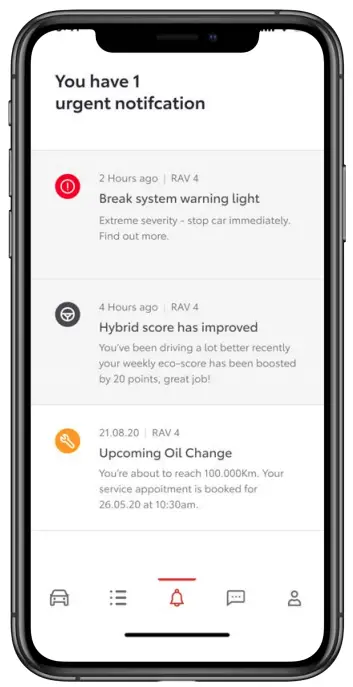 | 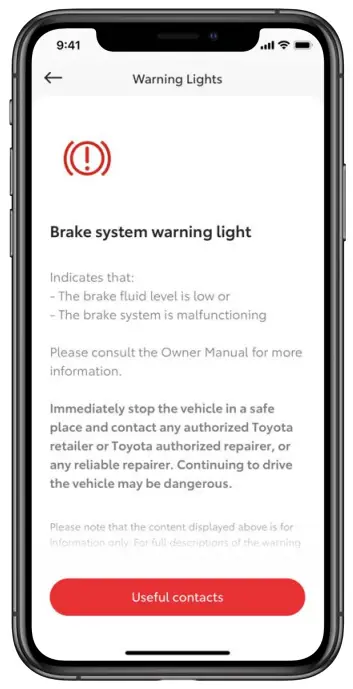 |
| STEP 1 User opens MyT application and taps on the Notification Center in the tab bar. The user can see the active warning light notification. | STEP 2 The user can see the details of the warning light and can contact Toyota or Roadside assistance but tapping on the Useful Contacts button. |
MINI APP
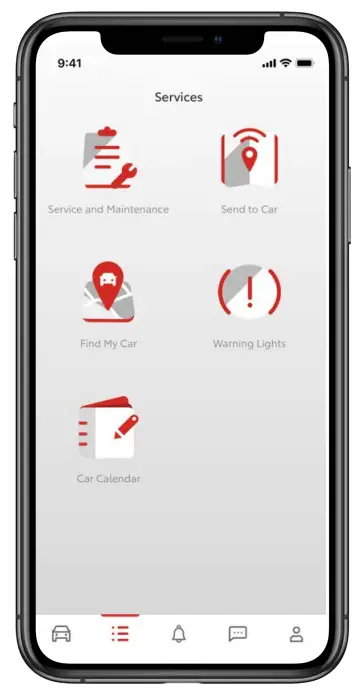 | 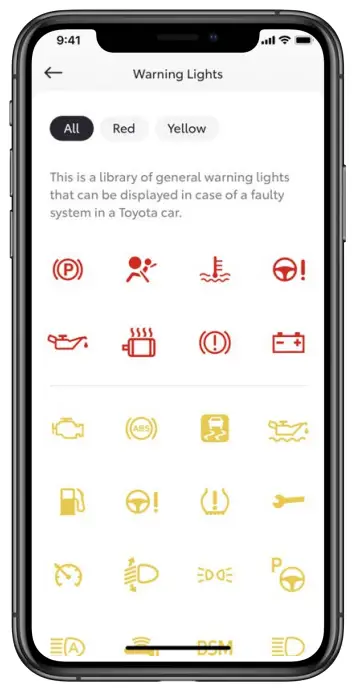 |
| STEP 1 User opens MyT application and taps on the Services button in the tabbar. In the list of services, the user can tap on the Warning Lights to enter the service. | STEP 2 The user can see the whole library of the Warning Lights and can filter the Warning Lights per color. To see the details of a specific warning light, the user taps on the corresponding icon. |
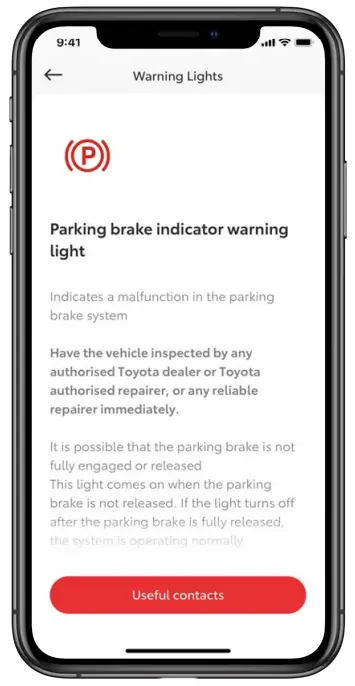 | 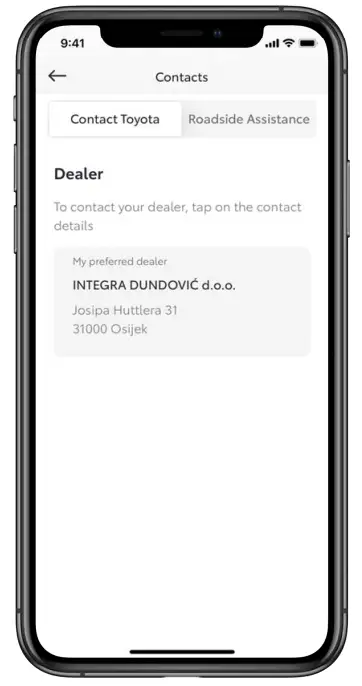 |
| STEP 3 The details explanation of the warning light is shown as well as the implication what the warning light can entail for the vehicle. The user can easily get help by tapping on the Useful Contacts button. | STEP 4 Useful contact screen consists of two sections: • Contact Toyota • Roadside Assistance Depending on the severity, the user can choose which one to contact. |
LIFE HAPPENS WHEN YOU CONNECT
Connected Services are continually improving, therefore visuals and app
screens in this guide may slightly differ from those seen in your MyT app.