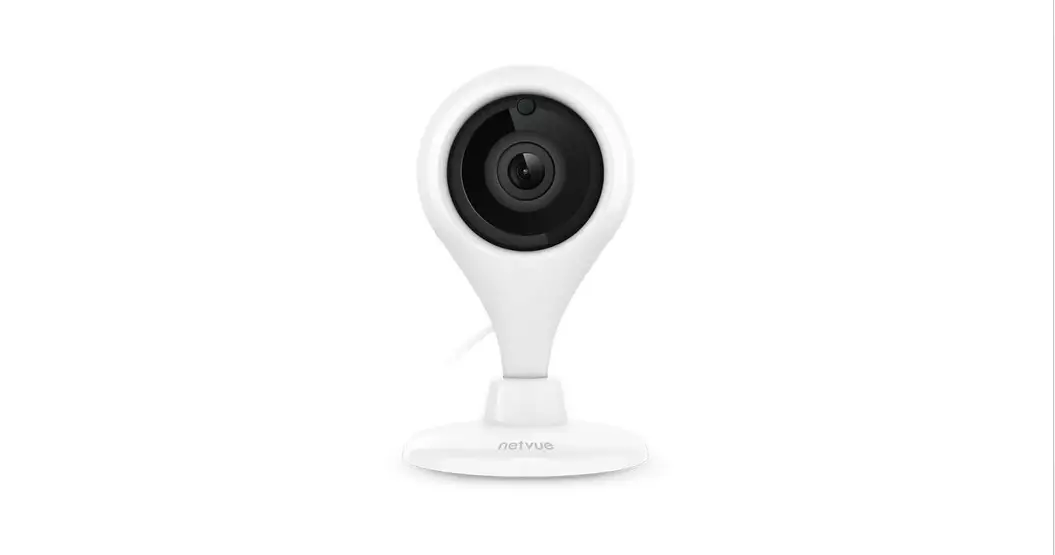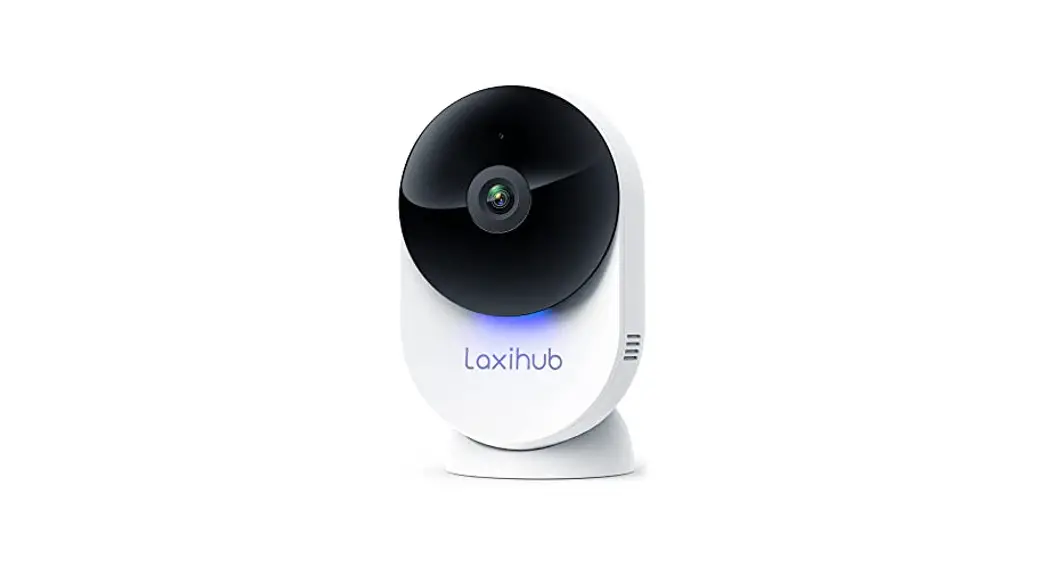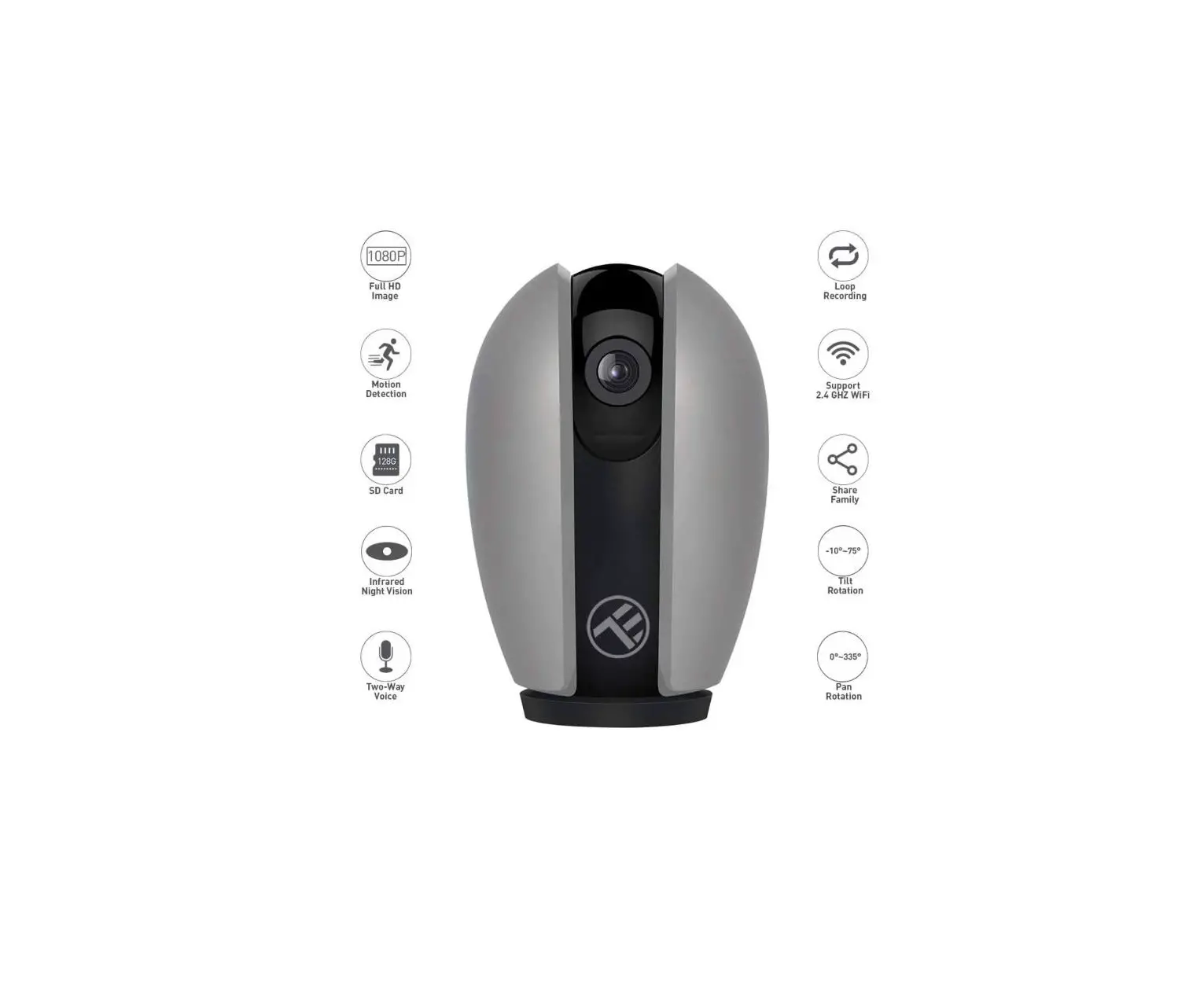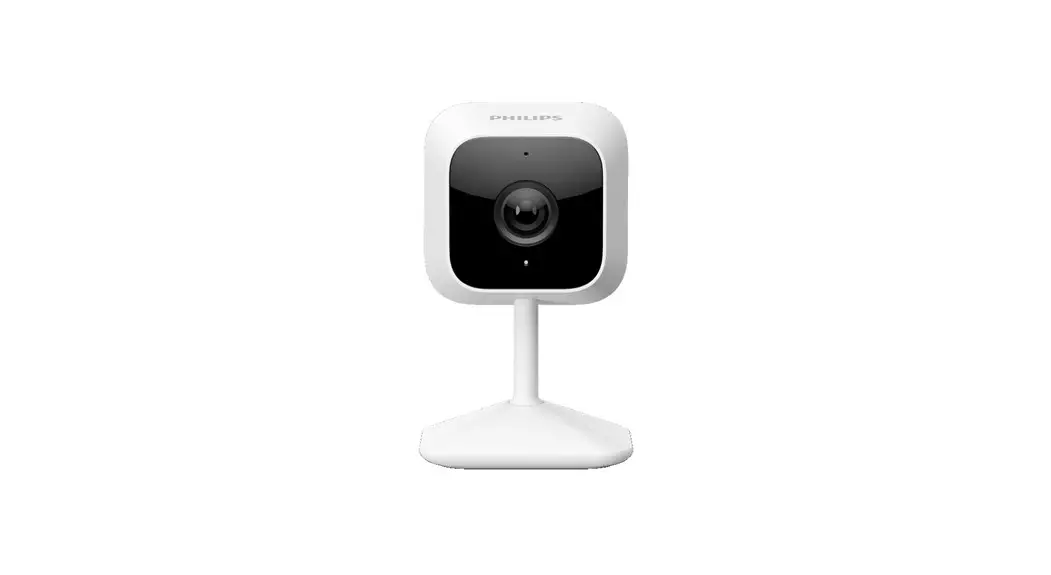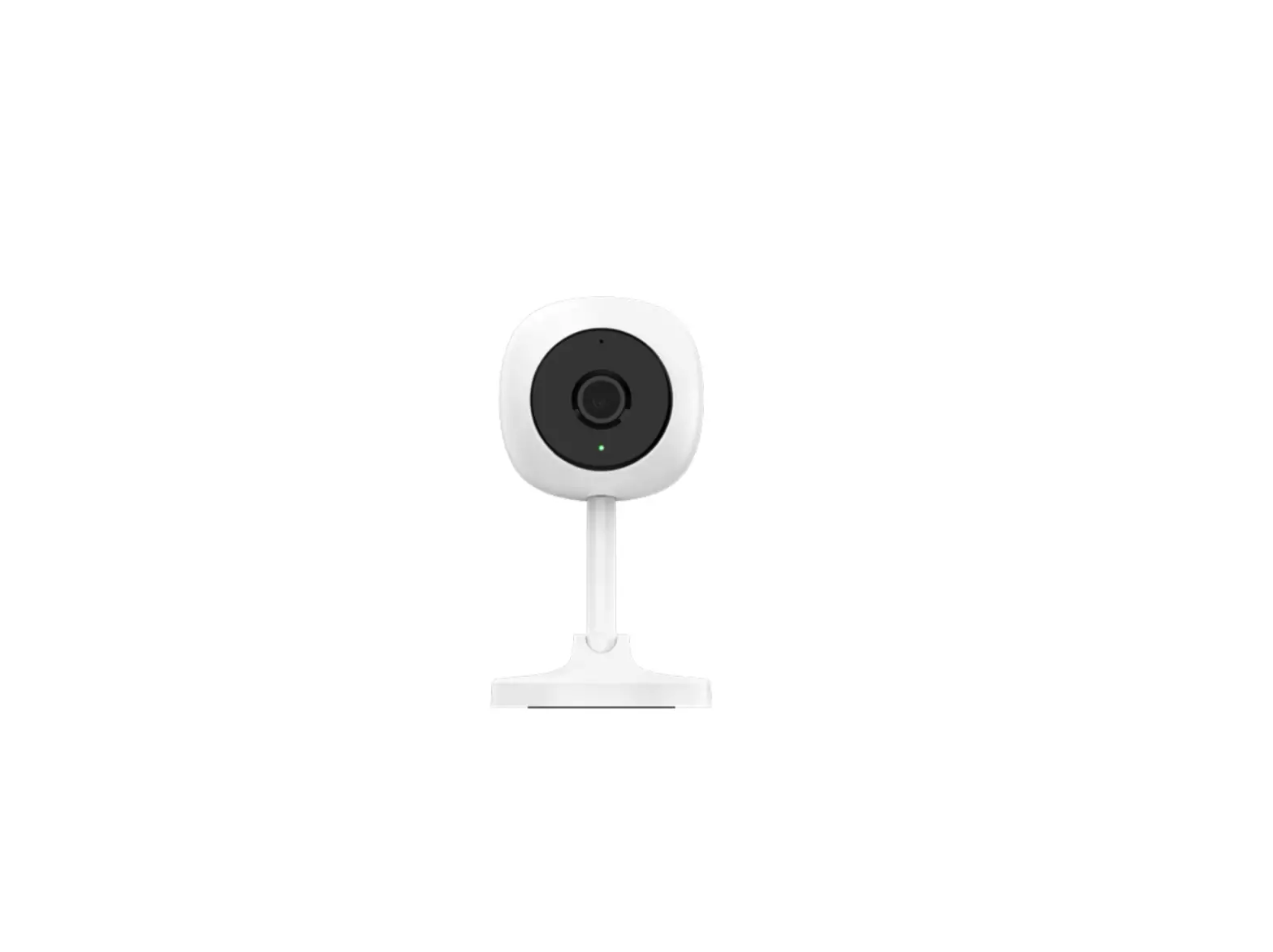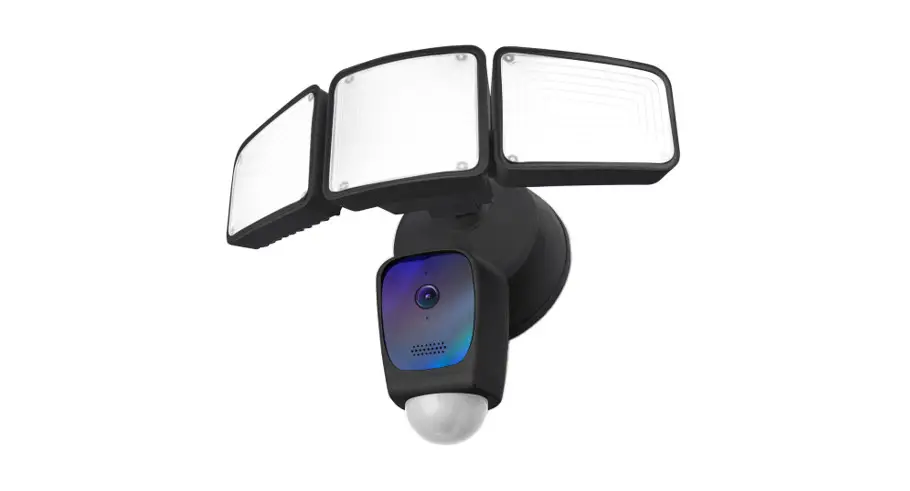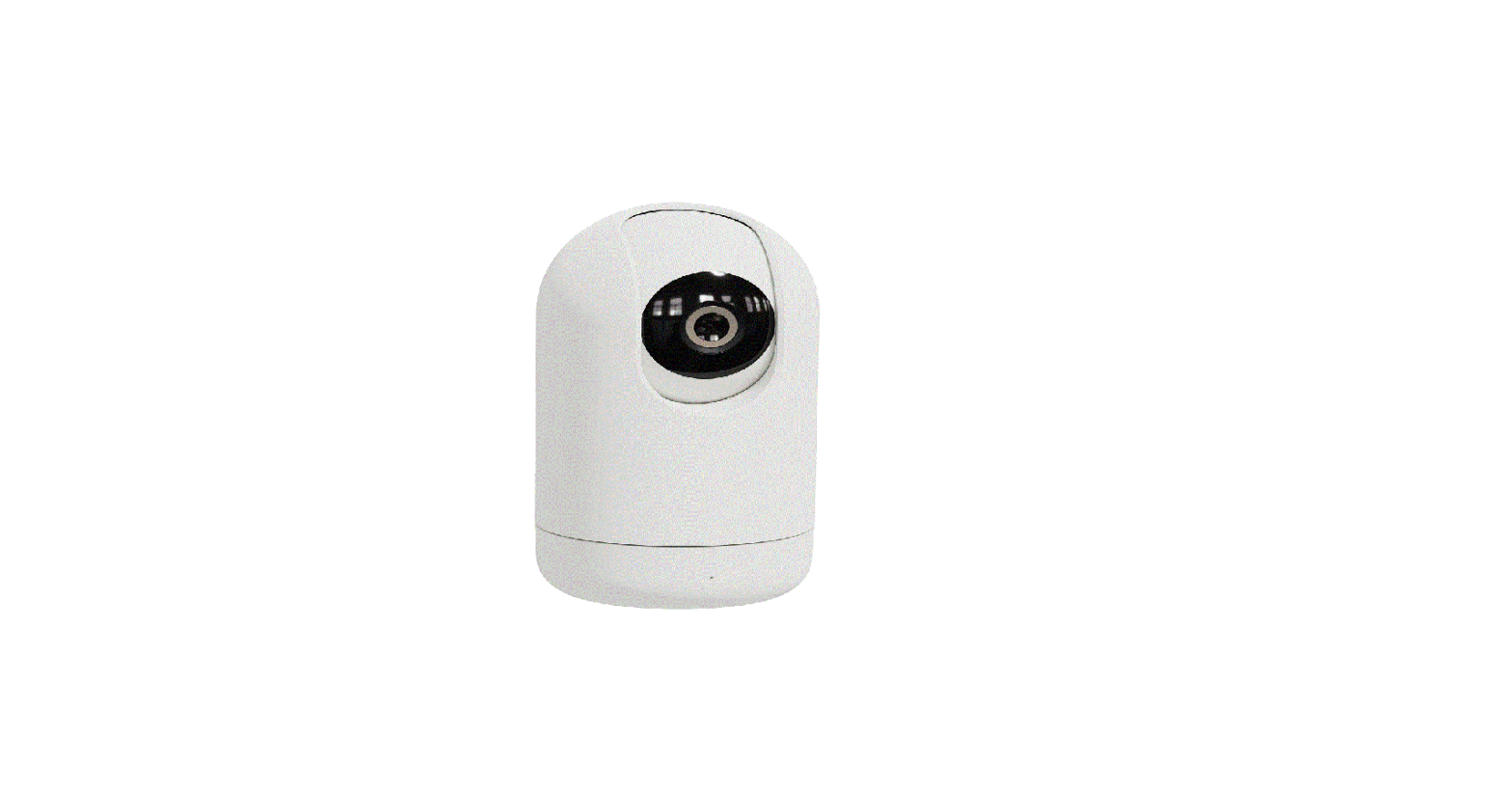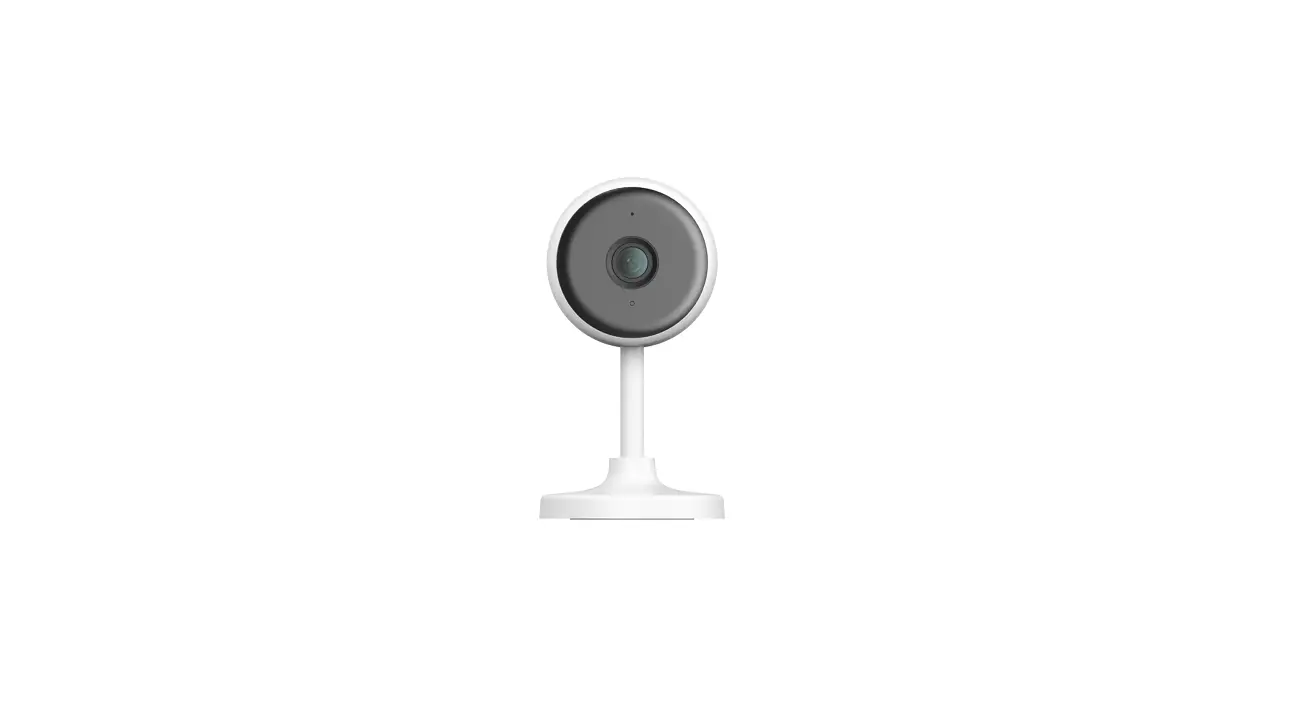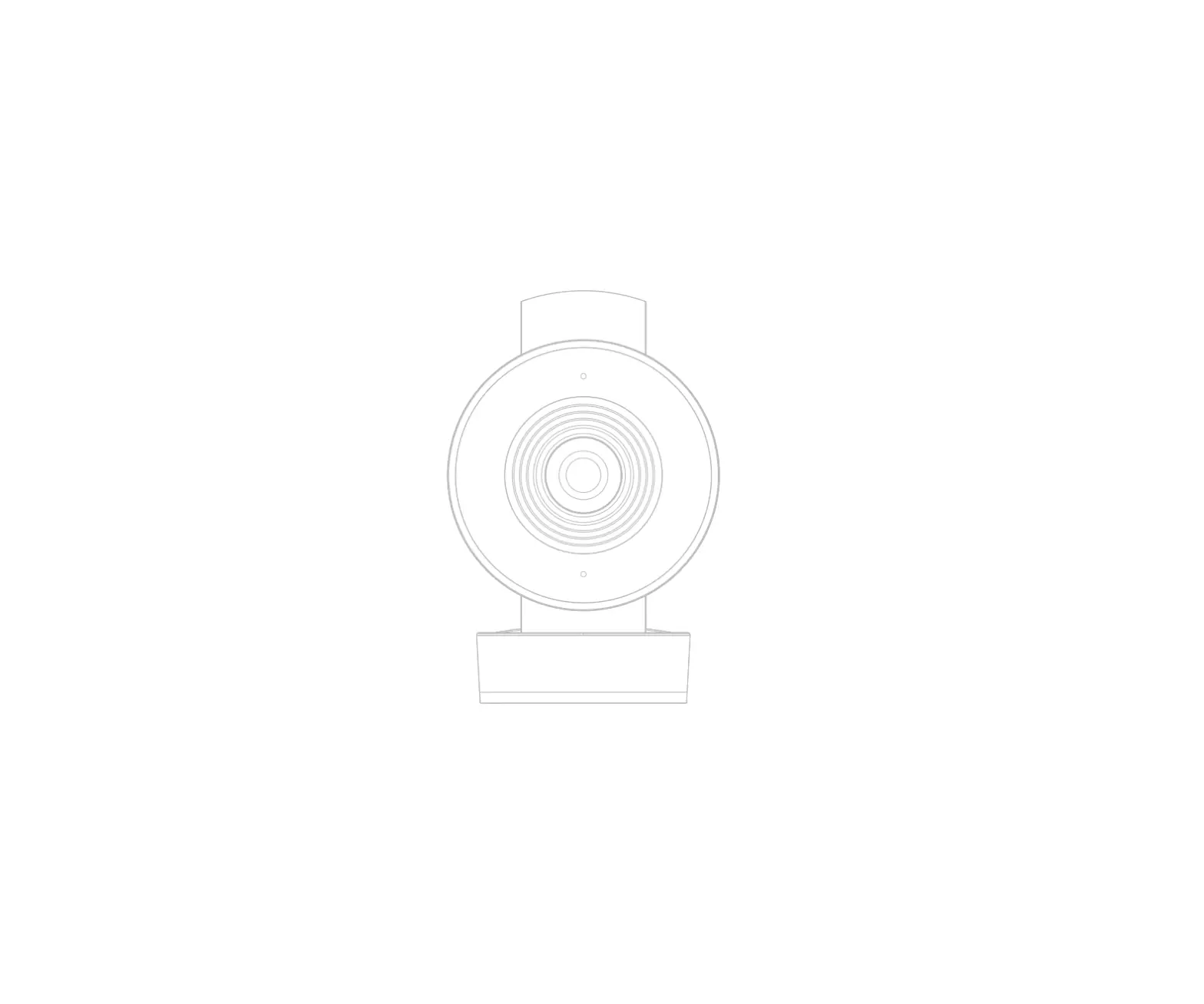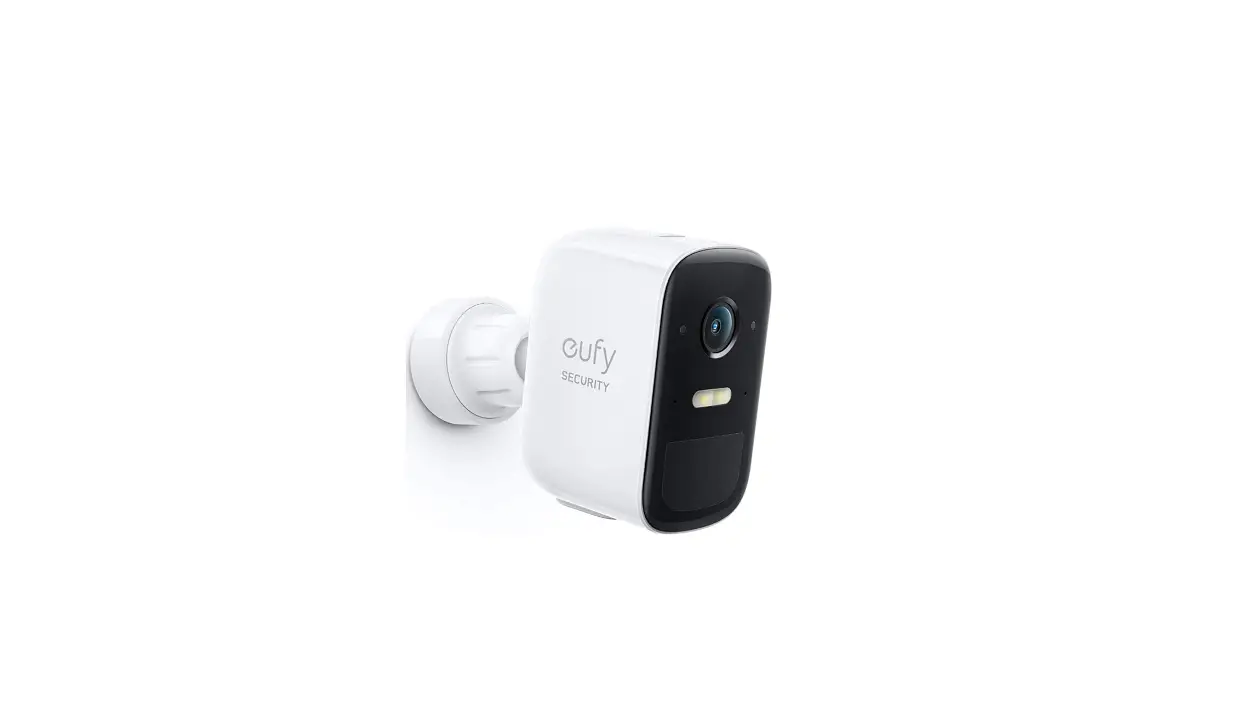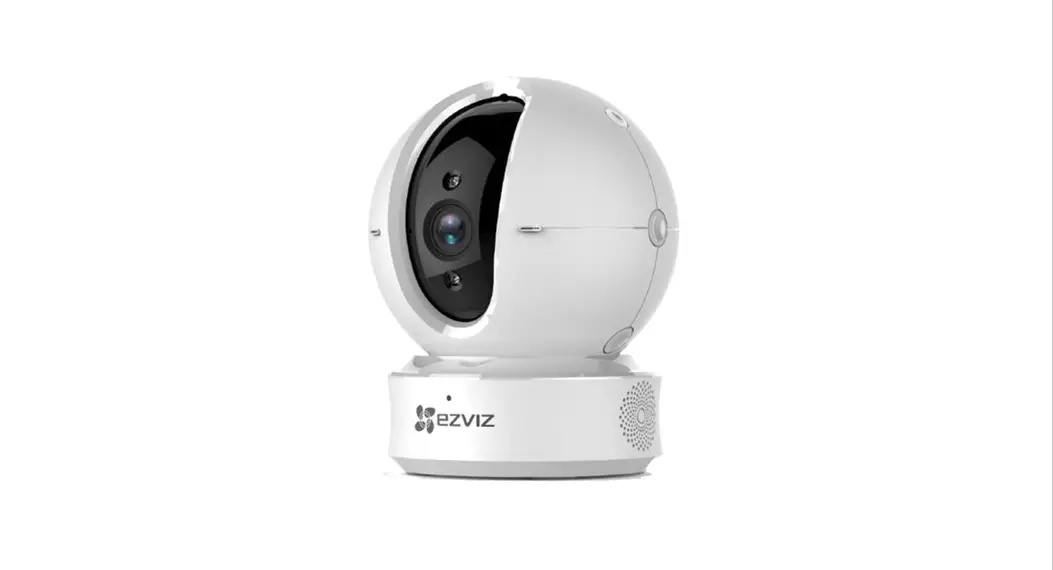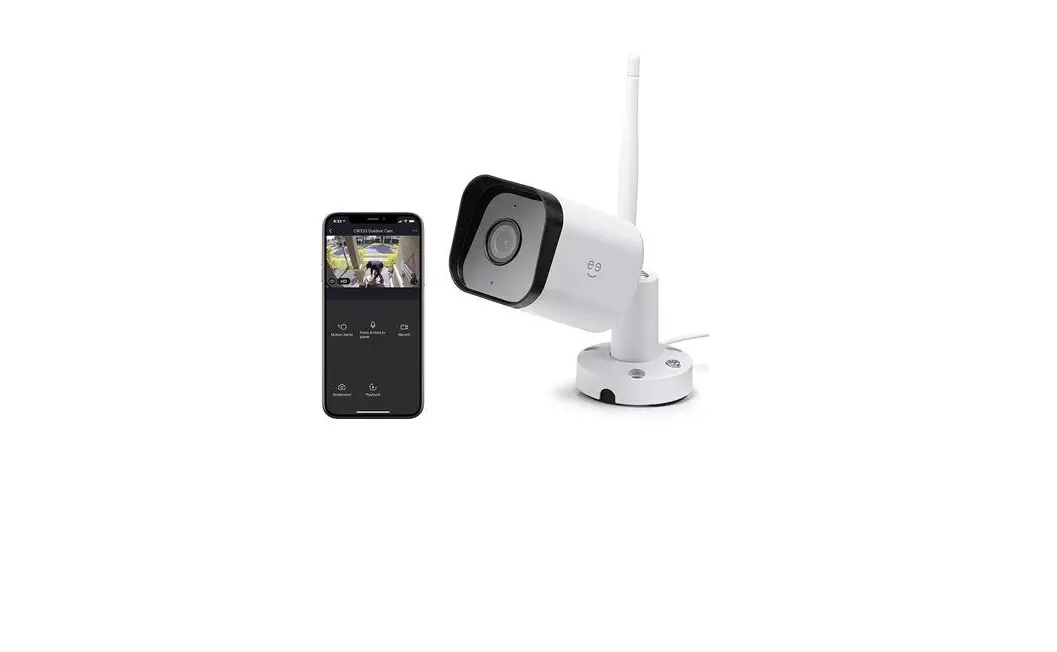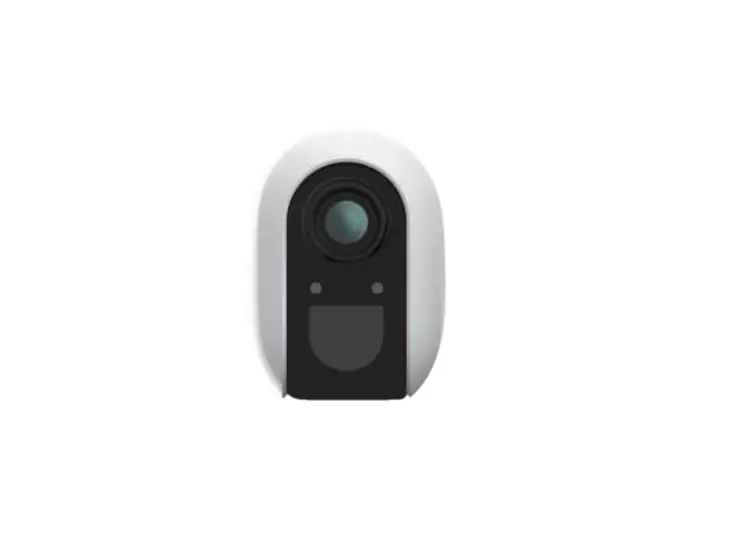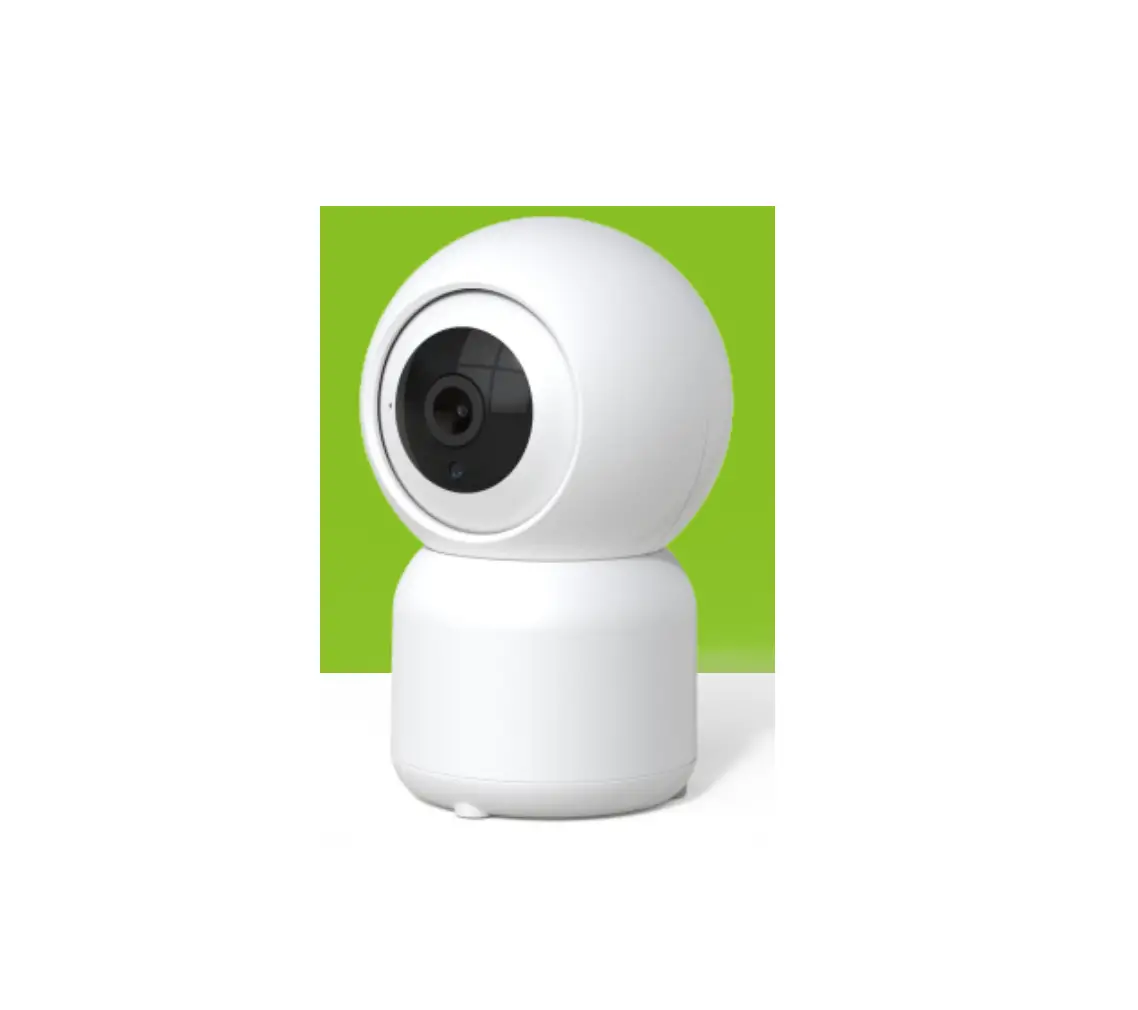
Home Zone ES04128V Smart Wireless Indoor Camera
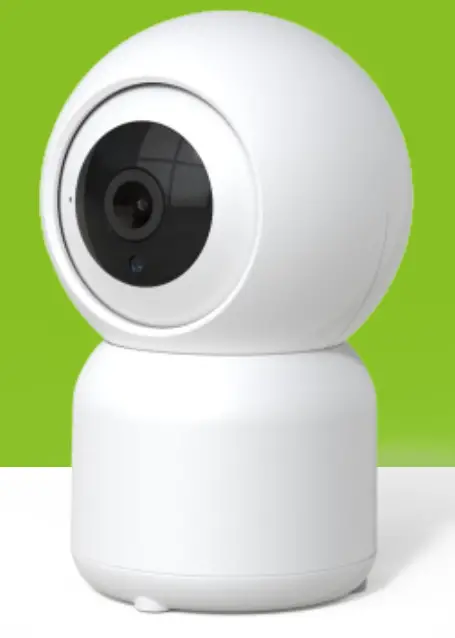
the bright way to do home security.
What’s in the box
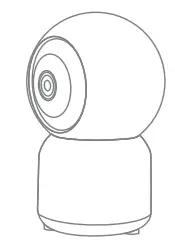
- Camera

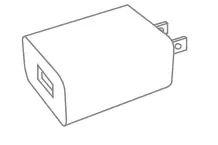
- Power adapter

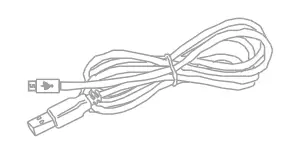
- USB cable

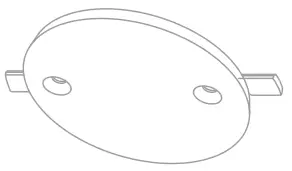
- Bracket

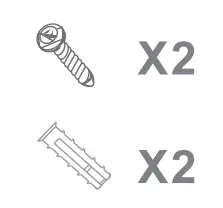
- Screws

- I/M


Description
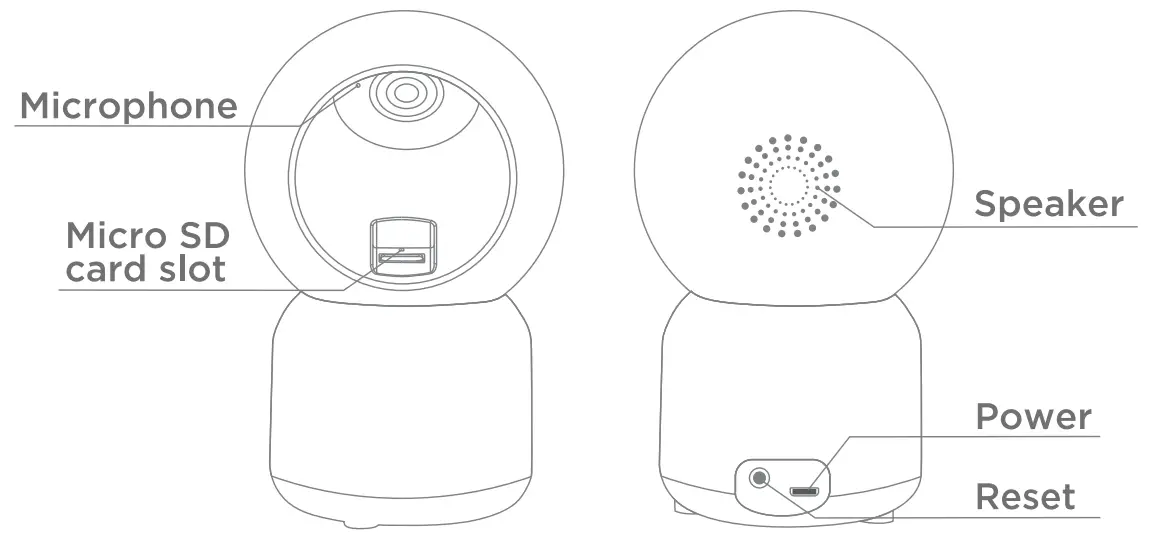
| Power | DC 5V 1A |
| Status light |
|
| Microphone | Captures sound for your video |
| Micro SD card slot | Supports local Micro SD card storage (Max.128G) |
| Reset | Press and hold for 5 seconds with pin to reset the camera. |
Install
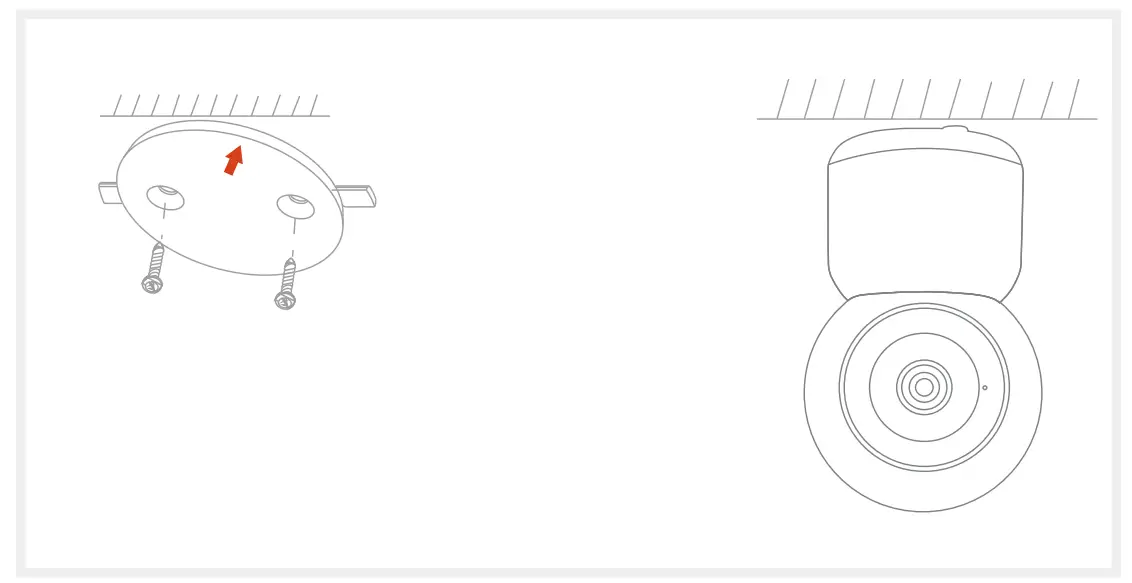
- Use the included mounting bracket to fix the camera to a clean and flat surface.

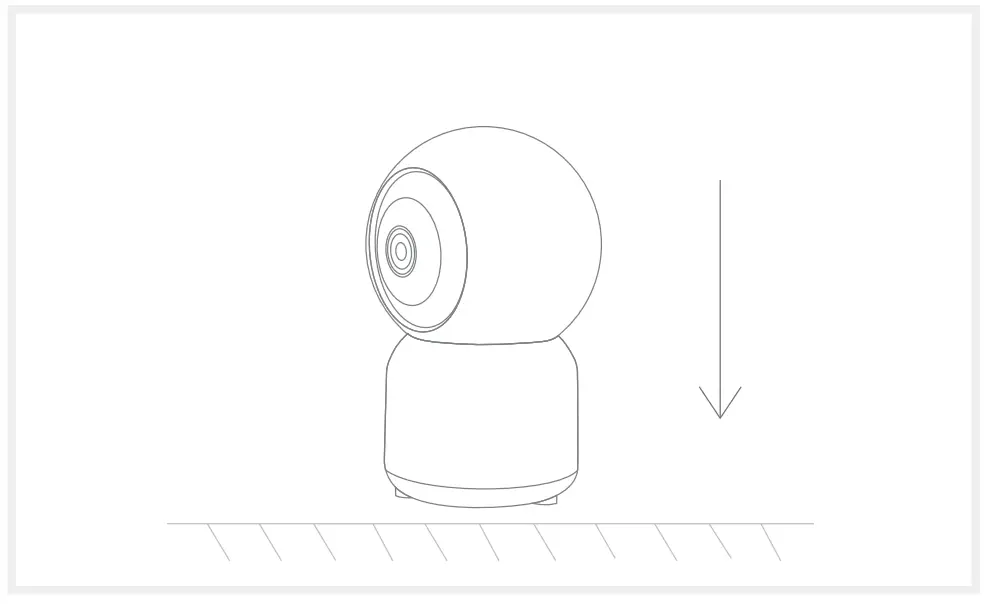
- Or, put the camera on a flat surface.

Connect
Download
Home Zone App is available for both iOS and Android OS. Search the name ‘Home Zone’ in the App Store or Android Market.
 |  |
 |
Set up Router
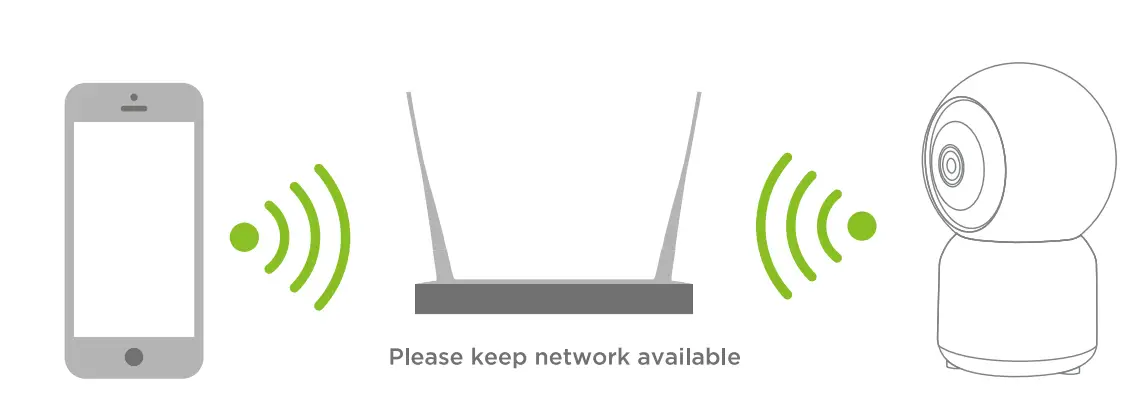
This device only supports 2.4GHz frequency and does not support 5GHz.
Please ensure router is set for 2.4GHz band before connecting your device to router.
Placing your mobile device and camera close to the router during setup can speed up the configuration process.
Registration process
Step 1 Open the Home Zone App, click “Register”, read the “Privacy Policy” and click “Agree”.
Step 2 Input a legal and valid Mobile number or Email address and click “Continue”. Input Verification Code, then log in the App.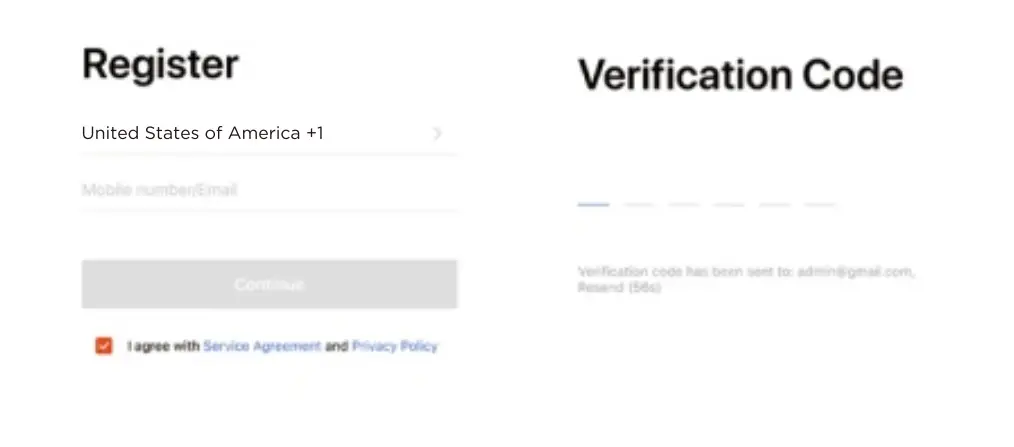
QR Code Configuration
Getting Started
- Please follow the instructions and make sure the passwords are inputted correctly.
- If the device has already been added to an account, be sure the device is removed from the previous account first before pairing to the new account.
Process
Step 1 Open the App, click “+” on the top right corner, or “Add Device”.
Step 2 Select “Smart Camera”. Power the device on and make sure the red light indicator is flashing quickly.
If the red light indicator light is not flashing quickly, reset the device using the included pin.
Step 3 Input WiFi password and click “Confirm”.
Be sure chosen network is 2.4GHz network and click “Continue”.
Face QR code in front of the camera until you hear a prompt tone. You may have to adjust the distance between QR code and camera if prompt tone is not heard.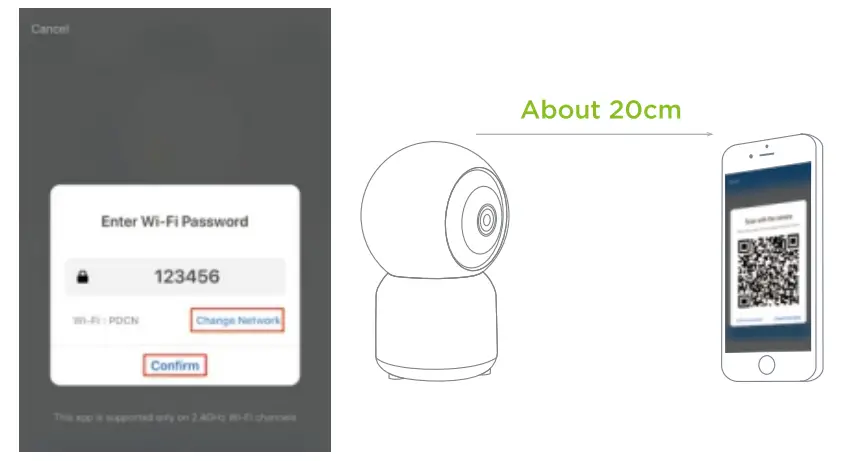
Step 4 Click “I heard the prompt” when the device makes the prompt noise and wait for the connection to complete. The indicator light on the camera will be solid blue once pairing is complete.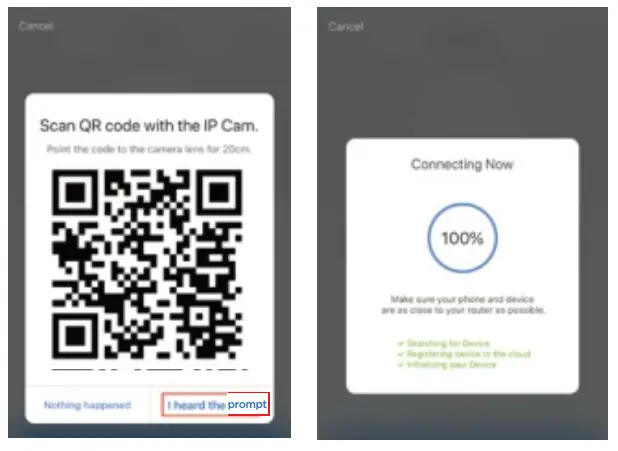
Step 5 Once complete, you can edit the device name on the App and access the device menu.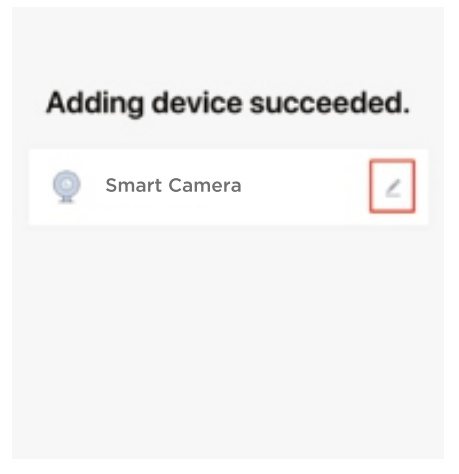
FCC
This device complies with Part 15 of the FCC Rules. Operation is subject to the following two conditions: (1) this device may not cause harmful interference, and (2) this device must accept any interference received, including interference that may cause undesired operation.
Warning: Changes or modifications to this unit not expressly approved by the party responsible for compliance could void the user’s authority to operate the equipment.
NOTE: This equipment has been tested and found to comply with the limits for a Class B digital device, pursuant to Part 15 of the FCC Rules. These limits are designed to provide reasonable protection against harmful interference in a residential installation. This equipment generates, uses and can radiate radio frequency energy and, if not installed and used in accordance with the instructions, may cause harmful interference to radio communications. However, there is no guarantee that interference will not occur in a particular installation. If this equipment does cause harmful interference to radio or television reception, which can be determined by turning the equipment off and on, the user is encouraged to try to correct the interference by one or more of the following measures:
- Reorient or relocate the receiving antenna.
- Increase the separation between the equipment and receiver.
- Connect the equipment into an outlet on a circuit different from that to which the receiver is connected.
- Consult the dealer or an experienced radio/ TV technician for help.
Functions
| Save screenshots of live view to mobile device |
| Save recordings of live view to mobile device |
| Enable microphone for one-way or two-way talk |
| Dial 911 for emergencies |
| View saved recordings on local storage (Requires Micro SD card) |
| Customize activity detection settings. |
| Control pan/tilt direction for camera head. |
| Subscribe to cloud storage package. |
 |  |
 |  |
 Screenshot
 Record
 Talk
Talk Emergency
 Event History
 Alarm Setting
 Direction
 Cloud Storage
Register & Subscribe today to protect your investment and join our email list!
Why Register?
- Receive your extended warranty
- Get professional warranty support
- Be the first to hear the latest product news.
- Get exclusive deals delivered to you email.
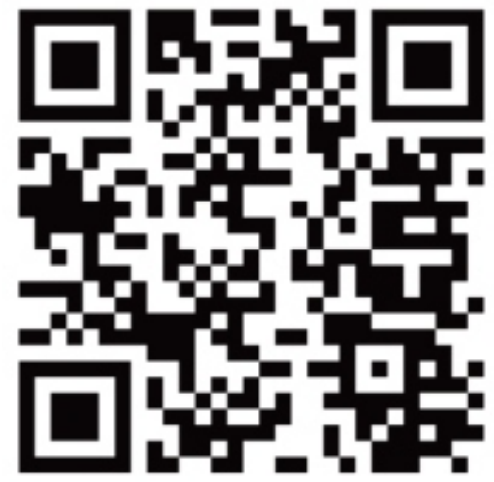
Scan below for link:
Get exclusive offers and deals when you subscribe!
Thank you for choosing Home Zone Security!
We are here to support you every step of the way.
Please be sure to contact our customer support for troubleshooting and register your product for additional benefits. Products must be sold by an authorized reseller or distributor to be valid.
Distributed by
Horizon Marketing Group, LLC ‘9- 5805-C Peachtree Corners East
Norcross, GA 30092
Made in China
FAQ
A: Check whether the network is normal and place the camera closer to the router. Reset the device and add again if problem persists.
A: Resetting the device only resets the network configuration of the camera. Remove the device through the App menu to remove device from App account.
A: First remove the device on the App. Reset the device by pressing the reset button with the pin and then configure the device again by the App.
A: It is recommended to insert the Micro SD card when the device is powered off. Check whether the Micro SD card format is FAT32 and if the card can be recognized by another device.
A: Please confirm that the App is running properly on the phone and the notifications have been enabled for the App on the mobile device.