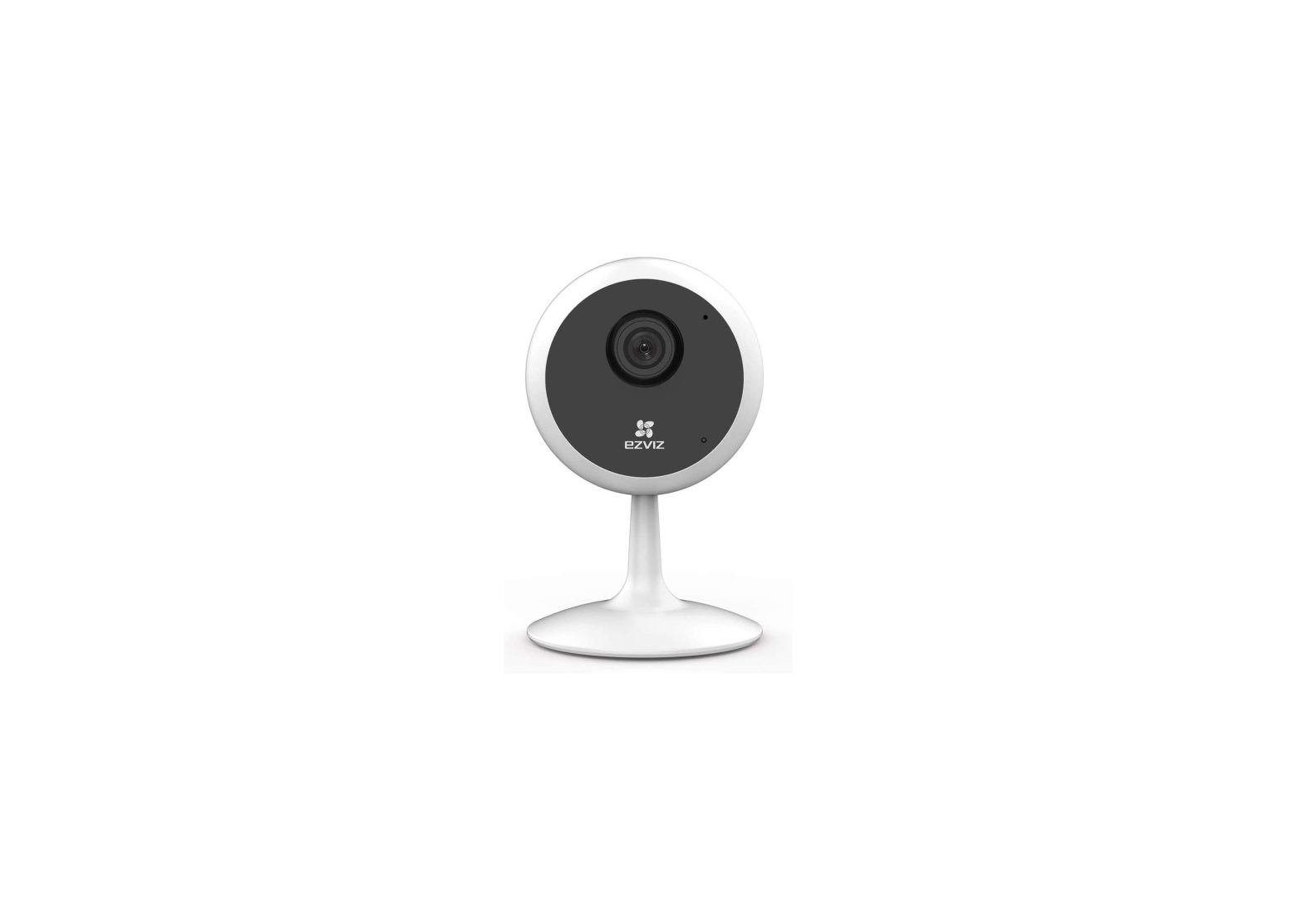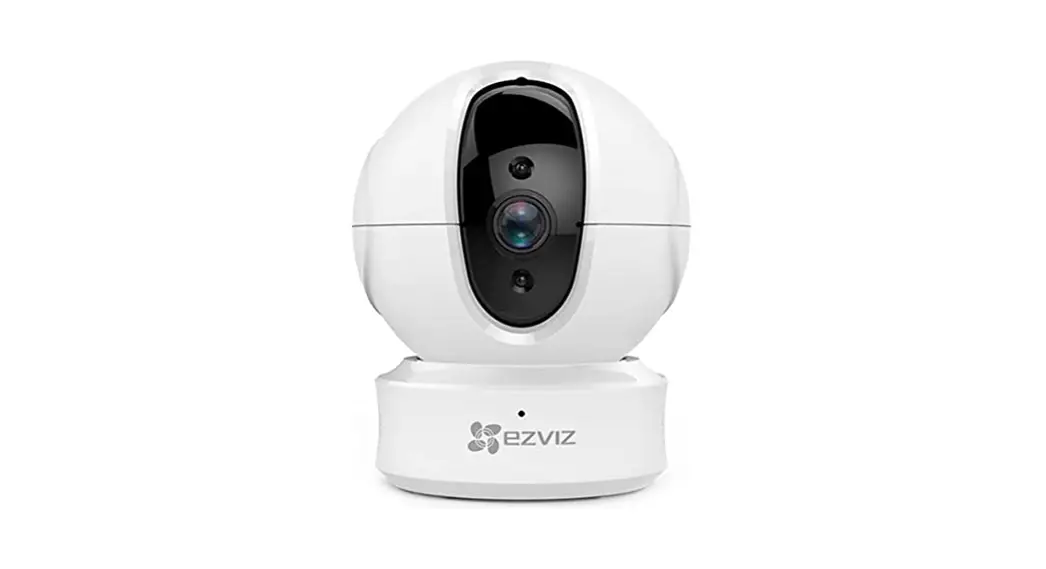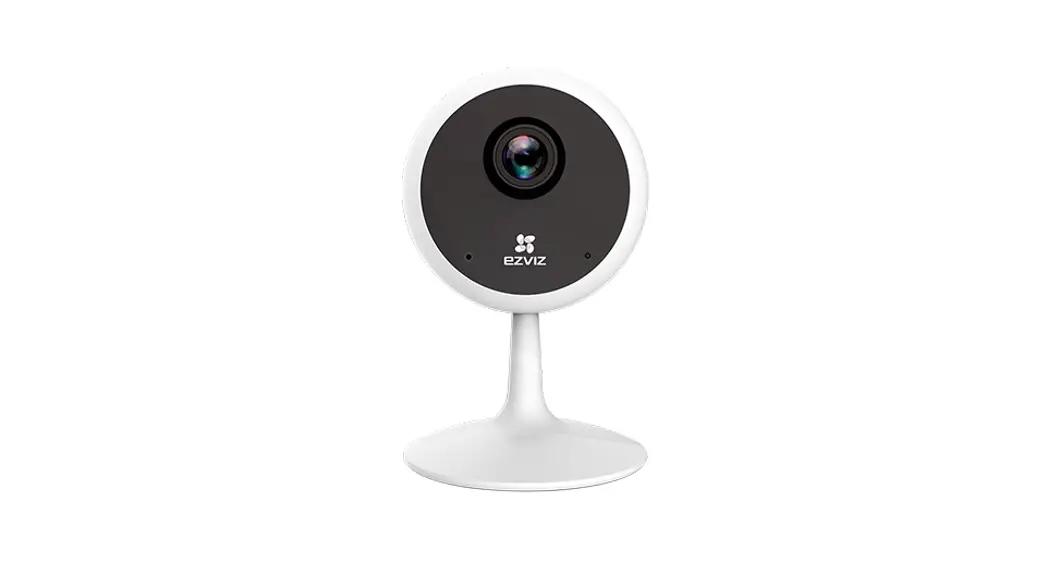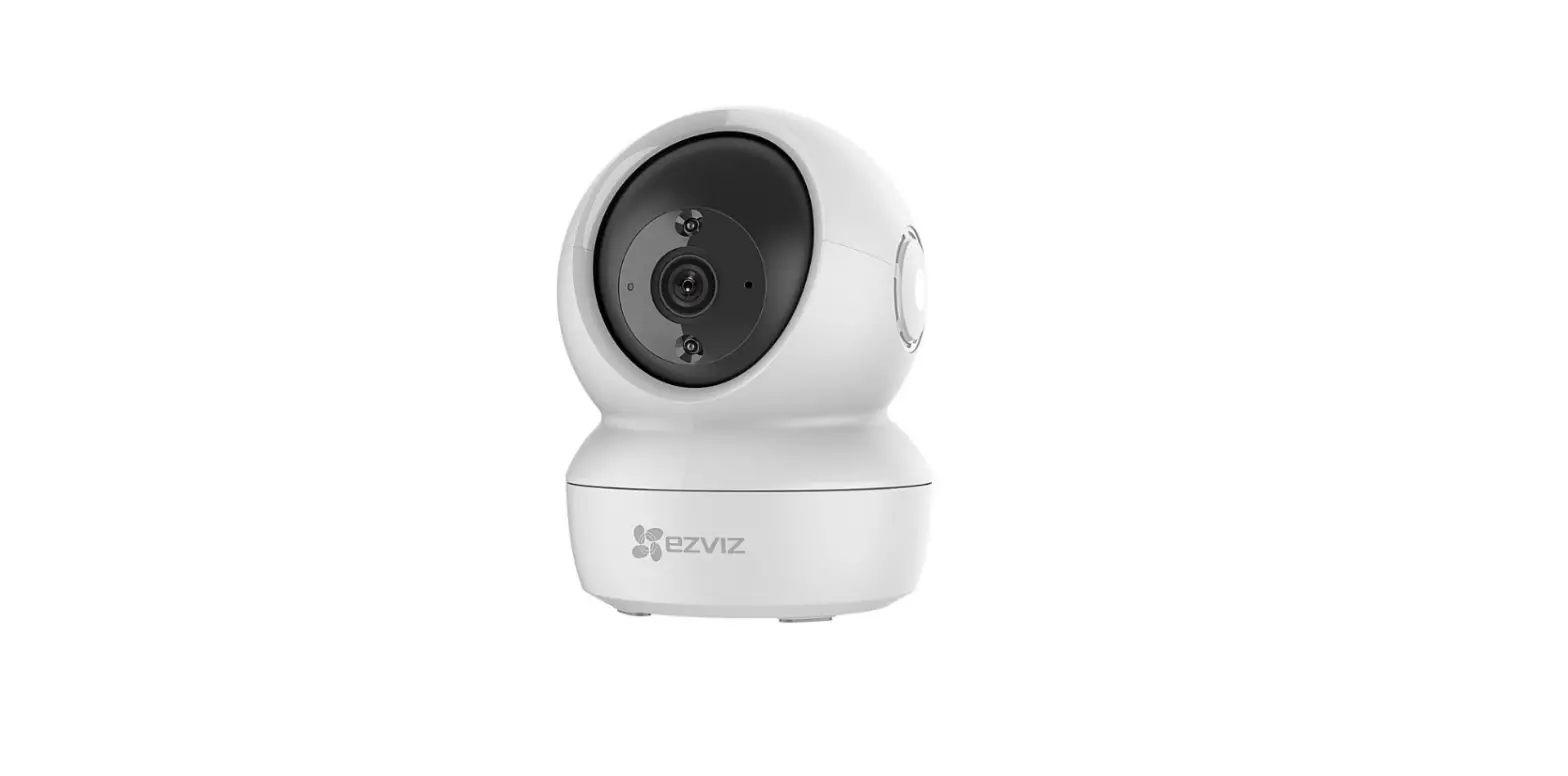

COPYRIGHT © Hangzhou EZVIZ Software Co., Ltd. ALL RIGHTS RESERVED.
Any and all information, including, among others, wordings, pictures, graphs are the properties of Hangzhou EZVIZ Software Co., Ltd. (hereinafter referred to as “EZVIZ”). This user manual (hereinafter referred to as “the Manual”) cannot be reproduced, changed, translated, or distributed, partially or wholly, by any means, without the prior written permission of EZVIZ. Unless otherwise stipulated, EZVIZ does not make any warranties, guarantees, or representations, express or implied, regarding to the Manual.
About this Manual
The Manual includes instructions for using and managing the product. Pictures, charts, images, and all other information hereinafter are for description and explanation only. The information contained in the Manual is subject to change, without notice, due to firmware updates or other reasons. Please find the latest version on the ™ website (http://www.ezvizlife.com).
Revision Record
New release – January 2021
Trademarks Acknowledgementand other EZVIZ’s trademarks and logos are the properties of EZVIZ in various jurisdictions. Other trademarks and logos mentioned below are the properties of their respective owners.
Legal Disclaimer
TO THE MAXIMUM EXTENT PERMITTED BY APPLICABLE LAW, THE PRODUCT DESCRIBED, WITH ITS HARDWARE, SOFTWARE, AND FIRMWARE, IS PROVIDED “AS IS”, WITH ALL FAULTS AND ERRORS, AND EZVIZ MAKES NO WARRANTIES, EXPRESS OR IMPLIED, INCLUDING WITHOUT LIMITATION, MERCHANTABILITY, SATISFACTORY QUALITY, FITNESS FOR A PARTICULAR PURPOSE, AND NON-INFRINGEMENT OF THIRD PARTY. IN NO EVENT WILL EZVIZ, ITS DIRECTORS, OFFICERS, EMPLOYEES, OR AGENTS BE LIABLE TO YOU FOR ANY SPECIAL, CONSEQUENTIAL, INCIDENTAL, OR INDIRECT DAMAGES, INCLUDING, AMONG OTHERS, DAMAGES FOR LOSS OF BUSINESS PROFITS, BUSINESS INTERRUPTION, OR LOSS OF DATA OR DOCUMENTATION, IN CONNECTION WITH THE USE OF THIS PRODUCT, EVEN IF EZVIZ HAS BEEN ADVISED OF THE POSSIBILITY OF SUCH DAMAGES. TO THE MAXIMUM EXTENT PERMITTED BY APPLICABLE LAW, IN NO EVENT SHALL EZVIZ’S TOTAL LIABILITY FOR ALL DAMAGES EXCEED THE ORIGINAL PURCHASE PRICE OF THE PRODUCT. EZVIZ DOES NOT UNDERTAKE ANY LIABILITY FOR PERSONAL INJURY OR PROPERTY DAMAGE AS THE RESULT OF PRODUCT INTERRUPTION OR SERVICE TERMINATION CAUSED BY: A) IMPROPER INSTALLATION OR USAGE OTHER THAN AS REQUESTED; B) THE PROTECTION OF NATIONAL OR PUBLIC INTERESTS; C) FORCE MAJEURE; D) YOURSELF OR THE THIRD PARTY, INCLUDING WITHOUT LIMITATION, USING ANY THIRD PARTY’S PRODUCTS, SOFTWARE, APPLICATIONS, AND AMONG OTHERS. REGARDING THE PRODUCT WITH INTERNET ACCESS, THE USE OF THE PRODUCT SHALL BE WHOLLY AT YOUR OWN RISK. EZVIZ SHALL NOT TAKE ANY RESPONSIBILITY FOR ABNORMAL OPERATION, PRIVACY LEAKAGE, OR OTHER DAMAGES RESULTING FROM CYBER ATTACKS, HACKER ATTACKS, VIRUS INSPECTIONS, OR OTHER INTERNET SECURITY RISKS; HOWEVER, EZVIZ WILL PROVIDE TIMELY TECHNICAL SUPPORT IF REQUIRED. SURVEILLANCE LAWS AND DATA PROTECTION LAWS VARY BY JURISDICTION. PLEASE CHECK ALL RELEVANT LAWS IN YOUR JURISDICTION BEFORE USING THIS PRODUCT IN ORDER TO ENSURE THAT YOUR USE CONFORMS TO THE APPLICABLE LAW. EZVIZ SHALL NOT BE LIABLE IN THE EVENT THAT THIS PRODUCT IS USED WITH ILLEGITIMATE PURPOSES.
IN THE EVENT OF ANY CONFLICTS BETWEEN THE ABOVE AND THE APPLICABLE LAW, THE LATTER PREVAILS.
Overview
Package Contents
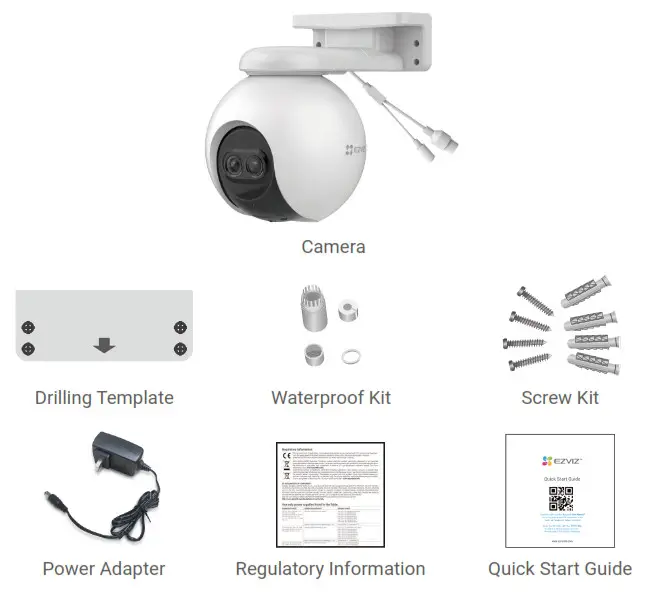
 The power adapter’s appearance is subject to the one you have bought.
Basics
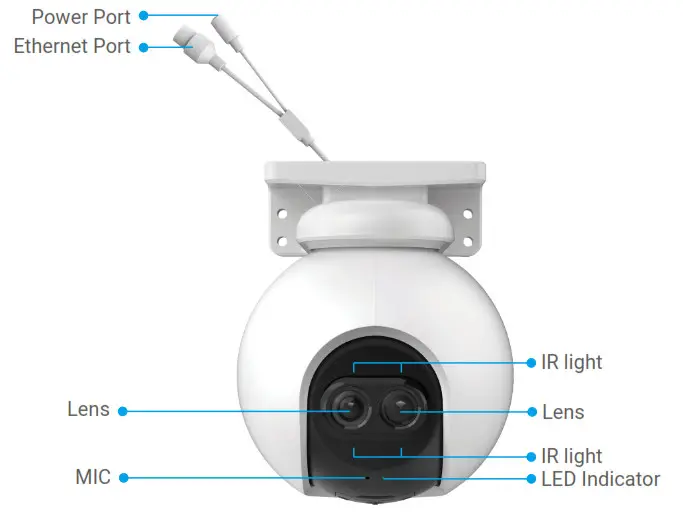
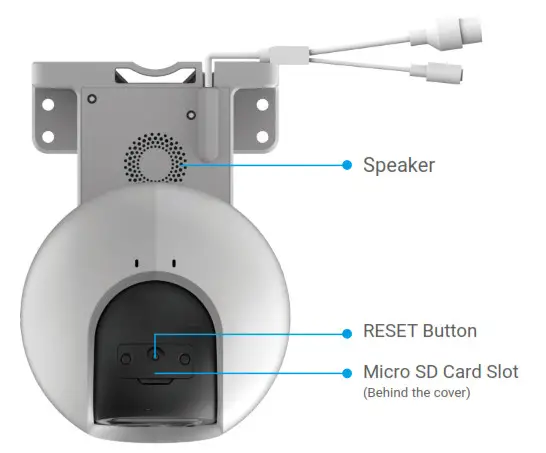
| Name | Description |
| RESET Button | When the camera is working, press and hold for about 5s and all parameters will be restored to default settings. |
| LED Indicator |  Solid Red: Camera starting up. Solid Red: Camera starting up. Slow-flashing Red: Network exception. Slow-flashing Red: Network exception. Fast-flashing Red: Camera exception (e.g. Micro SD card error). Fast-flashing Red: Camera exception (e.g. Micro SD card error). Solid Blue: App visiting camera. Solid Blue: App visiting camera. Slow-flashing Blue: Camera running properly. Slow-flashing Blue: Camera running properly. Fast-flashing Blue: Camera-ready for Wi-Fi connection. Fast-flashing Blue: Camera-ready for Wi-Fi connection. |
Get the EZVIZ App
- Connect your mobile phone to Wi-Fi (suggested).
- Download and install the EZVIZ app by searching for “EZVIZ” in the App Store
or Google Play. - Launch the app and register an EZVIZ user account.
 | |
EZVIZ App | |
 |  |
If you have already used the app, please make sure that it is the latest version. To find out if an update is available, go to the app store and search for “EZVIZ”.
Connect to the Internet
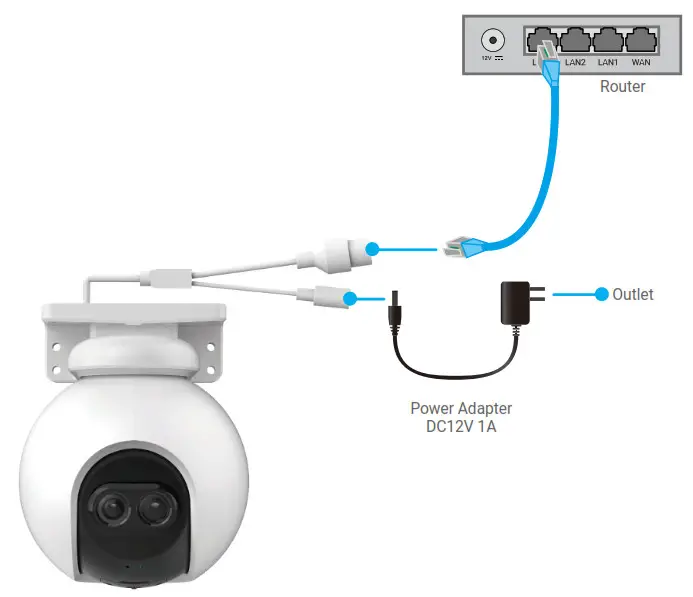
- Wired Connection: Connect the camera to a router. Refer to Option A.
- Wireless Connection: Connect the camera to Wi-Fi. Refer to Option B.
Option A: Wired Connection
- Connect the power adapter cable to the camera’s power port.
- Plug the power adapter into an electrical outlet.
• Use a power adapter and power cable come with the camera in the box.
• The LED turning fast-flashing blue indicates that the camera is powered on and ready
for network configuration. - Connect the camera to the LAN port of your router with the Ethernet cable(purchase separately). The LED turning slow-flashing blue indicates that the camera is connected to the Internet

- Add your camera to EZVIZ.
– Log in to your account using the EZVIZ app.
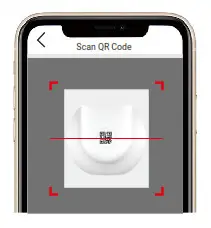
– On the Home screen, tap “+” on the upper-right corner to go to the Scan QR Code interface.
– Scan the QR code on the Quick Start Guide cover or on the body of the camera.
– Follow the EZVIZ app wizard to add the camera to the app.
Option B: Wireless Connection
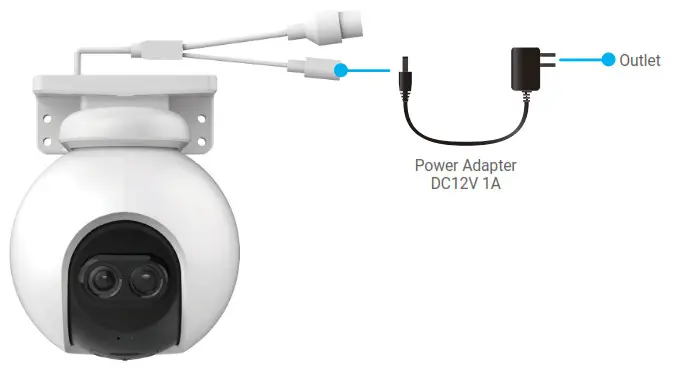
- Connect the power adapter cable to the camera’s power port.
- Plug the power adapter into an electrical outlet.
• Use a power adapter and power cable come with the camera in the box.
• The LED turning fast-flashing blue indicates that the camera is powered on and ready for network configuration.

- Add camera to EZVIZ.
– Log in to your account using the EZVIZ app.
– On the Home screen, tap “+” on the upper-right corner to go to the Scan QR Code interface.
– Scan the QR code on the Quick Start Guide cover or on the body of the camera.
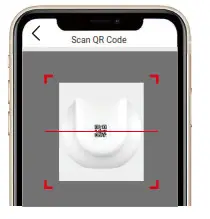
– Follow the EZVIZ app wizard to add the camera to EZVIZ.
- Please connect your camera to the Wi-Fi to which your mobile phone has been connected.
- The band of the Wi-Fi must be 2.4 GHz.
Press and hold the reset button for about 4s, and you can restart the camera and restore all parameters to default.
Press and hold the reset button for about 4s in any of the following cases:
- The camera fails to connect to your Wi-Fi network.
- You want to connect the camera to another Wi-Fi network.
Installation
Micro SD Card Installation (Optional)
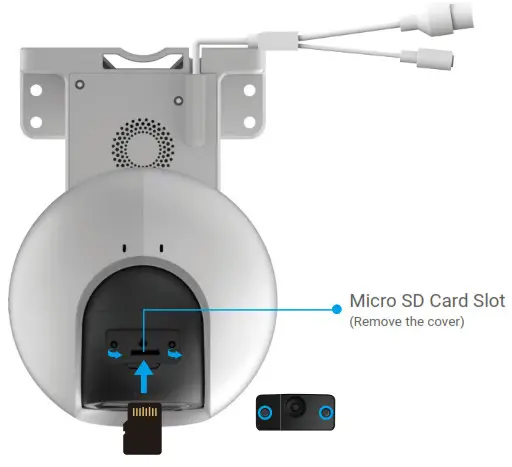
- Remove the cover on the camera.
- Insert the micro SD card (sold separately) into the card slot.
- Fix the cover to the camera.
 After installing the micro SD card, you should initialize the card in the EZVIZ app before using it.
 - In the EZVIZ app, tap the Storage Status in the Device Settings interface to check the SD card status.
- If the memory card status displays as Uninitialized, tap to initialize it
The status will then change to Normal and then videos can be stored.
Installation Location
- Choose a location with a clear, unblocked field of view and with a good wireless signal.
- Make sure the wall is strong enough to withstand three times the weight of the camera.
- The camera cannot be installed with the lens facing direct sunlight.
Installation Procedure
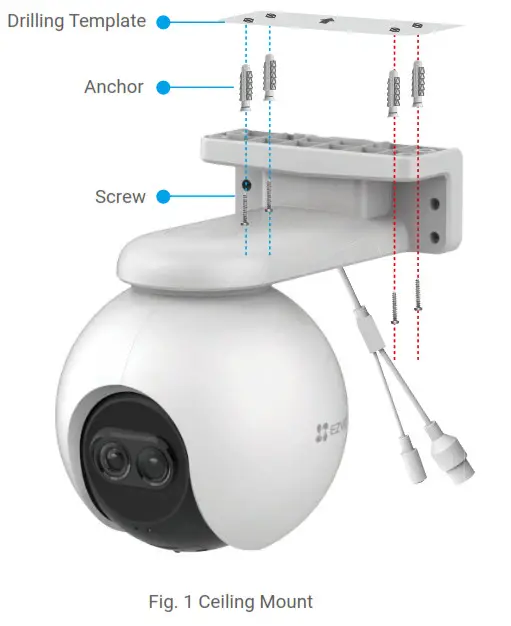
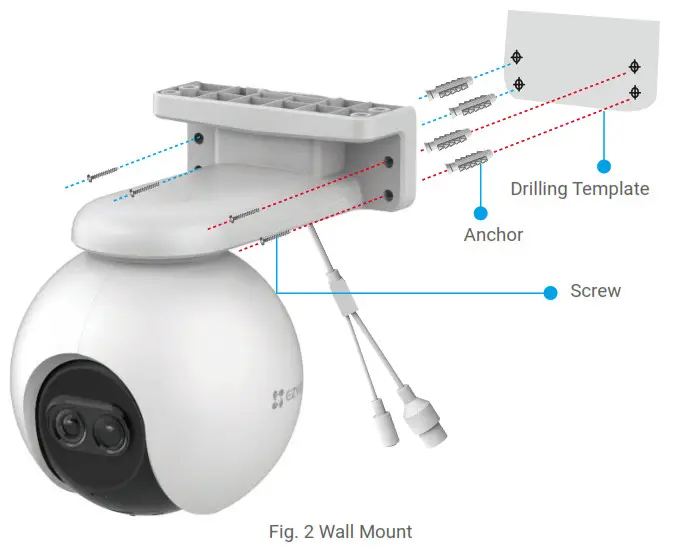
The camera can be wall-mounted and ceiling mounted.
Ceiling/Wall Mount
- Remove the protective film from the lens.
- Stick the drilling template onto a clean and flat surface.
- (For cement wall only) Drill screw holes according to the template, and insert anchors.
- Use screws to fix the camera on the installation surface.
Waterproof Kit Installation (Optional)
If the camera is installed outdoors or in humid environments, please use the waterproof kit.
- Insert the gasket into the Ethernet port of the camera.
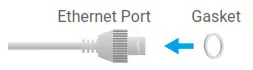
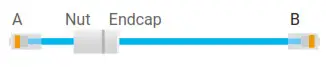
- Thread A through the nut, the gasket, and the endcap.

- Tighten the nut and the endcap.

- Thread A into the Ethernet port of the camera and tighten the nut.

- Connect B to the LAN port of the router.



Operations on the EZVIZ App
The app interface may be different due to version updates, and the interface of the app you installed on your phone shall prevail.
Live View
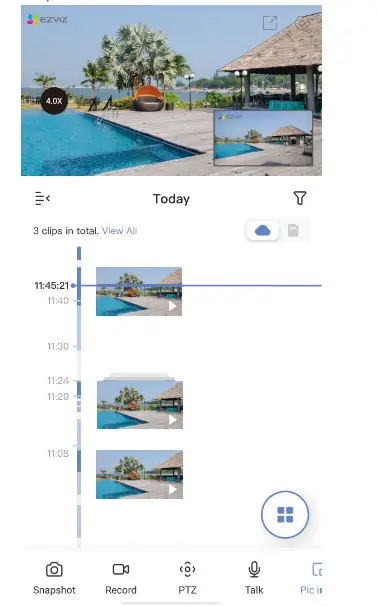
Launch the EZVIZ app, tap Live View, you can view and listen to a live feed, take snapshots, record videos, and choose video definition as needed.
| Icon | Description |
 | Share. Share your device. Settings. View or change the device settings. Snapshot. Take a snapshot. Record. Manually start/stop recording. Definition. Select video resolution from Hi-Def or Basic. Pan/Tilt/Zoom. Rotate the camera to get the broader field of view. Talk. Tap the icon, and then follow the on-screen instructions to talk to or listen to people in front of the camera. Picture in Picture. You can select to see the pictures taken simultaneously by two lenses in the live view. Multi-screen Live. Tap to select window layouts. Tap to zoom. |
Swipe left and right across the screen to see more icons.
Settings
| Parameter | Description |
| Audio | When disabled, both live view and record videos will not have audio. |
| Audio Mode | Intercome: Press and hold to send voice messages. Voice Call: Tap to start a voice call. |
| Status Light | If enabled, the LED indicator on the camera will be on; otherwise the LED indicator will not be on. |
| Alarm Notification | If disabled, notifications will not be pushed to your app once targets are detected. |
| Time Zone | You can select time zone as needed here. |
| Date Format | You can select date format as needed here. |
| Wi-Fi | Make your device offline first, and then you can connect your device to a new network. |
| Cloud Storage | You can subscribe and manage the cloud storage. |
| Storage Status | You can see micro SD card capacity, used space and free space here, and also you can enable or disable cloud storage services here |
| Device Version | You can see device version here. |
| Image Encryption | If enabled, images captured by the camera can only be avaliable after you enter a password. |
| Change Encryption Password | You can change encryption password here. |
| Offline Notification | If enabled, notifications will be pushed to your app once the camera is offline. |
| User Guide | You can read user guide of the camera here. |
| About | You can mark where the device is installed, and get product category, device model, serial number, and device QR code here. |
| Restart | Tap to restart the camera. |
| Delete Device | Tap to delete the camera from EZVIZ cloud. After you have deleted the camera, videos stored in the cloud will not be deleted. Once you add the camera again, the videos can still be viewed. |
FAQ
Q: If the camera is offline on the App, will the video recording continue?
A: If the camera is powered on but disconnected from the Internet, then local recording will continue but cloud recording will stop. If the camera is powered off, both video recordings will stop.
Q: Why the alarm is triggered when nobody in the image?
A: Configure a lower value for the detection sensitivity. Please notice that vehicles and animals are also alarm triggering sources.
Q: How to use the micro SD card for local storage?
A: 1. Make sure that there is a micro SD card inserted and that the camera is added to your EZVIZ account. Open the EZVIZ app and enter the “Device
Details” interface, if the “Initialize Storage Card” button appears, you need to initialize the micro SD card first.
2. The micro SD card recording for motion detection is enabled by default.
Q: The mobile phone cannot receive alarm prompts when the camera is online.
A: 1. Make sure that the EZVIZ app is running on your mobile phone and that the Motion Detection Notification is enabled.
2. For the Android system, make sure the app is running in the background; and for iOS, enable the message push function in “Settings > Notification”.
3. If still no alarm prompts, press and hold the RESET button for about 5 seconds to restore the camera settings.
Q: Live view or playback failed.
A: Make sure that your network is well connected. Watching live videos needs good bandwidth. You can refresh the video, or change a network and try again.
EZVIZ Connect
Use Amazon Alexa
These instructions will enable you to control your EZVIZ devices with Amazon Alexa. If you run into any difficulties during the process, please refer to Troubleshooting.
Before you start, make sure that:
- EZVIZ devices are connected to the EZVIZ app.
- In the EZVIZ app, turn off the “Image Encryption” in the Device Settings page.
- You have an Alexa-enabled device (i.e Echo Spot, Echo-Show, All-new EchoShow, Fire TV (all generations), Fire TV stick (second-generation only), or Fire TV Edition smart TVs).
- The Amazon Alexa app is already installed on your smart device, and you have created an account.
To Control EZVIZ devices with Amazon Alexa:
- Open the Alexa app and select “Skills and Games” from the menu.
- On the Skills and Games screen, search for “EZVIZ”, and you will find “EZVIZ” skills.
- Select your EZVIZ device’s skill, then tap ENABLE TO USE.
- Enter your EZVIZ username and password, and tap Sign in.
- Tap the Authorize button to authorize Alexa to access your EZVIZ account, so that Alexa can control your EZVIZ devices.
- You will see “EZVIZ has been successfully linked”, then tap DISCOVER DEVICES to allow Alexa to discover all your EZVIZ devices.
- Go back to the Alexa app menu and select “Devices”, and under devices, you will see all your EZVIZ devices.
Voice Command
Discover a new smart device via the “Smart Home” menu in the Alexa app or the
Alexa Voice Control function.
Once the device is found, you can control it with your voice. Speak simple commands to Alexa. Your device’s name for example: “show xxxx camera,” can be changed in the EZVIZ app. Each time you change the name of the device, you will need to discover the device again to update the name.
Troubleshooting
What should I do if Alexa fails to discover my device?
Check if there are any Internet connecting problems.
Try to restart the smart device and re-discover the device on Alexa.
Why the device’s status is “Offline” on Alexa?
Your device might have been disconnected from the network. Restart the smart device and re-discover on Alexa.
Check if your router is connected to the Internet and try again. For details about countries where Amazon Alexa is available, see Amazon Alexa’s official website.
Use Google Assistant
With Google Assistant, you can activate your EZVIZ device and watch live by speaking Google Assistant voice commands.
The following devices and apps are required:
- A functional EZVIZ app.
- In the EZVIZ app, turn off the “Image Encryption” and turn on the “Audio” in the
Device Settings page. - A TV with a functional Chromecast connecting to it.
- The Google Assistant app on your phone.
To get started, follow the steps below:
- Set up the EZVIZ device and make sure it works properly on the app.
- Download the Google Home app from the App Store or Google Play store and log into your Google account.
- On the Myhome screen, tap “+” on the upper-left corner, and select “Set up device” from the menu list to go to the Set up interface.
- Tap Works with Google, and search for “EZVIZ”, where you will find “EZVIZ” skills.
- Enter your EZVIZ username and password, and tap Sign in
- Tap the Authorize button to authorize Google to access your EZVIZ account, so that Google can control your EZVIZ devices.
- Tap Return to app.
- Follow the above steps to complete the authorization. When synchronization is completed, EZVIZ service will be listed under your list of services. To see a list of compatible devices under your EZVIZ account, tap on the EZVIZ service
icon. - Now try some commands. Use the name of the camera that you created when you set up the system.
Users can manage devices as a single entity or in a group. Adding devices to a room allows users to control a group of devices at the same time using one command.
See the link for more information:
https://support.google.com/googlehome/answer/7029485?co=GENIE.Platform%3DAndroid&hl=en For additional information about the device, please refer to www.ezviz.eu.
Regulatory Information
This product and – if applicable – the supplied accessories too are marked with “CE” and comply therefore with the applicable harmonized European standards listed under the Radio Equipment Directive 2014/53/EU, the EMC Directive 2014/30/EU, the RoHS Directive 2011/65/EU.
2012/19/EU (WEEE directive): Products marked with this symbol cannot be disposed of as unsorted municipal waste in the European Union. For proper recycling, return this product to your local supplier upon the purchase of equivalent new equipment, or dispose of it at designated collection points. For more information see: www.recyclethis.info.
2006/66/EC and its amendment 2013/56/EU (battery directive): This product contains a battery that cannot be disposed of as unsorted municipal waste in the European Union. See the product documentation for specific battery information. The battery is marked with this symbol, which may include lettering to indicate cadmium (Cd), lead (Pb), or mercury (Hg). For proper recycling, return the battery to your supplier or to a designated collection point. For more information see: www.recyclethis.info.
EC DECLARATION OF CONFORMITY
Hereby, Hangzhou EZVIZ Software Co., Ltd. declares that the radio equipment type [CS-C1C, CS-C1HC, CS-C1T, CS-C2C, CS-CV206, CS-CV310, CS-C3N, CS-C3T, CS-C3TN, CS-C3HX, CS-C3W, CS-C3WN, CS-C3X, CS-C6N, CS-CV246, CS-CV248, CS-C6CN, CS-C6C, CS-C6W, CS-TY1, CS-TY2, CS-TY3, CS-CV336, CS-DB1, CS-DB2 (3MP), CS-DB2 (5MP), CS-DP1, CS-DP2, CS-DP1C, CS-DP2C, CS-DB2C, CS-C4W, CS-C4C, CS-CV228, CS-C5W, CS-C5C, CS-C5HC, CS-C5X, CS-C5HX, CS-C8PF, CS-C8T, CS-C8TN, CS-C8W, CS-C8C, CS-CP1, CS-C3A, CS-BC1, CS-BC1(4MP, W1), CS-BC1-B1, CS-BC1-B2, CS-BC1-B3, CS-BC1-B4, CS-BC1C (4MP, W1), CS-BC8C, CS-BC8C (4MP, W1), CS-BC2, CS-BC3, CS-BC3 (3MP, W1), CS-BC3 (4MP, W1), CS-BC3C, CS-BC3C (3MP, W1), CS-BC3C (4MP, W1), CS-BC8, CS-BC8 (3MP, W1), CS-BC8 (4MP, W1), CS-BM1, CS-W2H, CS-W2H (4MP, W1)] is in compliance with Directive 2014/53/EU.
The full text of the EC DECLARATION OF CONFORMITY is available at the following web link: http://www.ezvizlife.com/declaration-of-conformity.
Use only power adapters listed in the Table.
| Equipment model | Adapter manufacture | Adapter model |
| CS-C1C/ CS-C1HC/ CS-C1T/ CS-C2C/ CS-CV206/ CS-CV246/ CS-C6N/ CS-C6CN/ CS-C6C/ CS-TY1/ CS-TY2/ CS-TY3/ CS-W2D/ CS-BC1C/ CS-CP1/ | Shenzhen Honor Electronic Co Ltd | ADS-5RE-06 05050EPCU/EPC(US), ADS-5RH-06 05050EPB(UK), ADS-5RH-06 05050EPG(EU), ADS-5RH-06 05050EPSA(AU), ADS-5RH-06 05050EPBR(BR), ADS-5RH-06 05050EPI(IN), ADS-5MA-06A 05050GPK(KR) |
| Sichuan Jiuzhou Electronic Technology Co., Ltd | DYS05100CP-U, DYS05100CP-E | |
| CS-CV248/ CS-C6W/ CS-C6Wi/ CS-CV336/ CS-DP1/ CS-DP1C/ CS-DP2C/ CS-C3A/ CS-BC1/ CS-CP1/ CS-BC1C/ CS-BC1C (4MP, W1) / CS-BC3/ CS-BC3C/ CS-BC8/ CS-BC8 (4MP, W1) / CS-BC8C/ CS-BC8C (4MP, W1)/ CS-BM1/ CS-BC3 (4MP,W1)/ CS-BC3C/ (4MP,W1)/ CS-BC1 (4MP,W1)/ CS-BC8C 3MP,W1)/ CS-BC8 (3MP,W1)/ CS-BC3 (3MP,W1 )/ CS-BC3C (3MP,W1) | Shenzhen Honor Electronic Co., Ltd | ADS-10LA-06 05010EPCU/EPC(US), ADS-10RH-06 05010EPB (UK), ADS-10RH-06 05010EPG(EU), ADS-10RH-06 05010EPSA(SA), ADS-10RH-06 05010EPBR(BR), ADS-10RH-06 05010EPI(IN), ADS-12CG-06 05010EPC(JP) |
| Sichuan Jiuzhou Electronic Technology Co., Ltd | DYS05200CQ-U, DYS05200CQ-E | |
| CS-CV310/ CS-C3N/ CS-C3W/ CS-C3WN/ CS-C3X/ CS-SD1/ CS-C4W/ CS-C4C/ CS-CV228/ CS-C8W/ CS-C8C/ CS-W2H/ CS-W2H (4MP, W1)/ CS-W3C-WD1200G/ CS-T8-B/CS-C3T/ CS-C3TN/ CS-C3HX/ CS-C8PF/ CS-C8T/ CS-C8TN | Shenzhen Honor Electronic Co., Ltd | ADS-12FG-12N 12012EPCU(US), ADS-12FG-12N 12012EPB(UK), ADS-12FG-12N 12012EPG(EU), ADS-12FB-12 12012EPSA(AU), ADS-12FG-12N 12012EPBR(BR), ADS-12FG-12N 12012EPI(IN) |
Important Safety Information
 Note: Please read the manual before using the device.
 This symbol on the device indicates that the safety compatibility manual and / or installation manual must be read, which contains information related to the safe operation of the device.
Caution: Be sure to read these instructions before operating the equipment. This symbol on the device indicates that the surface or component is overheating. If you touch this surface, you may cause personal injury.
Warning: To reduce the risk of personal injury due to overheating of the components, wait until the surface cools down before touching it. Warning: The separate earthing terminal must be permanently connected to earth.
Warning: For SELV DC input: the DC power source shall comply with the Safety Extra-Low Voltage (SELV) requirements of EN/IEC 60950-1, EN/IEC 62368-1. Caution: Do not block ventilation openings while the system is on, and keep at least 2 cm distance from ventilation openings and walls or other things which may block the openings.
Warning: Disposal of a battery into fire or a hot oven, or mechanically crushing or cutting of a battery that can result in an explosion.
Warning: Leaving a battery in an extremely high temperature surrounding environment that can result in an explosion or the leakage of flammable liquid or gas.
Warning: A battery subjected to extremely low air pressure that may result in an explosion or the leakage of flammable liquid or gas.
Warning: Dispose of used batteries according to the instructions.
Warning: Replace only with the same or equivalent type recommended by the manufacturer.
Caution: THE PRODUCT IS BUILT IN A REPLACEABLE BATTERY.
Warning: Do not ingest battery, Chemical Burn Hazard.
Caution: This product contains a coin/button cell battery. If the coin / button cell battery is swallowed, it can cause severe internal burns in just 2 hours and can lead to death.
Caution: Keep new and used batteries away from children.
Caution: If the battery compartment does not close securely, stop using the product and keep it away from children.
Caution: If you think batteries might have been swallowed or placed inside any part of the body, seek immediate medical attention.
Caution: Risk of fire or explosion if the battery is replaced by an incorrect type.
Warning: The power source should meet limited power source or PS2 requirements according to IEC 60950-1 or IEC 62368-1.
Warning: Do not block ventilation openings while the system is on, and keep at least 2 cm distance from ventilation openings and walls or other things which may block the openings.
Warning: Do not attempt to disassemble, repair, or alter the device.
Warning: To avoid electric shock, please wear shoes with rubber soles. To avoid injuries, please wear glooves when maintaining the device.
Warning: If you are not familiar with knowledge of cable laying and cable connection, please make sure that the power switch has been turned off before installation and maintenance.
FCC Information
Please take attention that changes or modification not expressly approved by the party responsible for compliance could void the user’s authority to operate the equipment.
FCC compliance
This equipment has been tested and found to comply with the limits for a Class B digital device, pursuant to part 15 of the FCC Rules. These limits are designed to provide reasonable protection against harmful interference in a residential installation. This equipment generates, uses and can radiate radio frequency energy and, if not installed and used in accordance with the instructions, may cause harmful interference to radio communications. However, there is no guarantee that interference will not occur in a particular installation. If this equipment does cause harmful interference to radio or television reception, which can be determined by turning the equipment off and on, the user is encouraged to try to correct the interference by one or more of the following measures:
—Reorient or relocate the receiving antenna.
—Increase the separation between the equipment and receiver.
—Connect the equipment into an outlet on a circuit different from that to which the receiver is connected.
—Consult the dealer or an experienced radio/TV technician for help.
This equipment should be installed and operated with a minimum distance 20cm between the radiator and your body.
FCC Conditions
This device complies with part 15 of the FCC Rules. Operation is subject to the following two conditions:
- This device may not cause harmful interference.
- This device must accept any interference received, including interference that may cause undesired operation.
Industry Canada ICES-003 Compliance
This device meets the CAN ICES-3 (B)/NMB-3(B) standards requirements.
This device complies with Industry Canada licence-exempt RSS standard(s). Operation is subject to the following two conditions:
- this device may not cause interference, and
- this device must accept any interference, including interference that may cause undesired operation of the device
Under Industry Canada regulations, this radio transmitter may only operate using an antenna of a type and maximum (or lesser) gain approved for the transmitter by Industry Canada. To reduce potential radio interference to other users, the antenna type and its gain should be so chosen that the equivalent isotropically radiated power (e.i.r.p.) is not more than that necessary for successful communication.
This equipment should be installed and operated with a minimum distance 20cm between the radiator and your body.