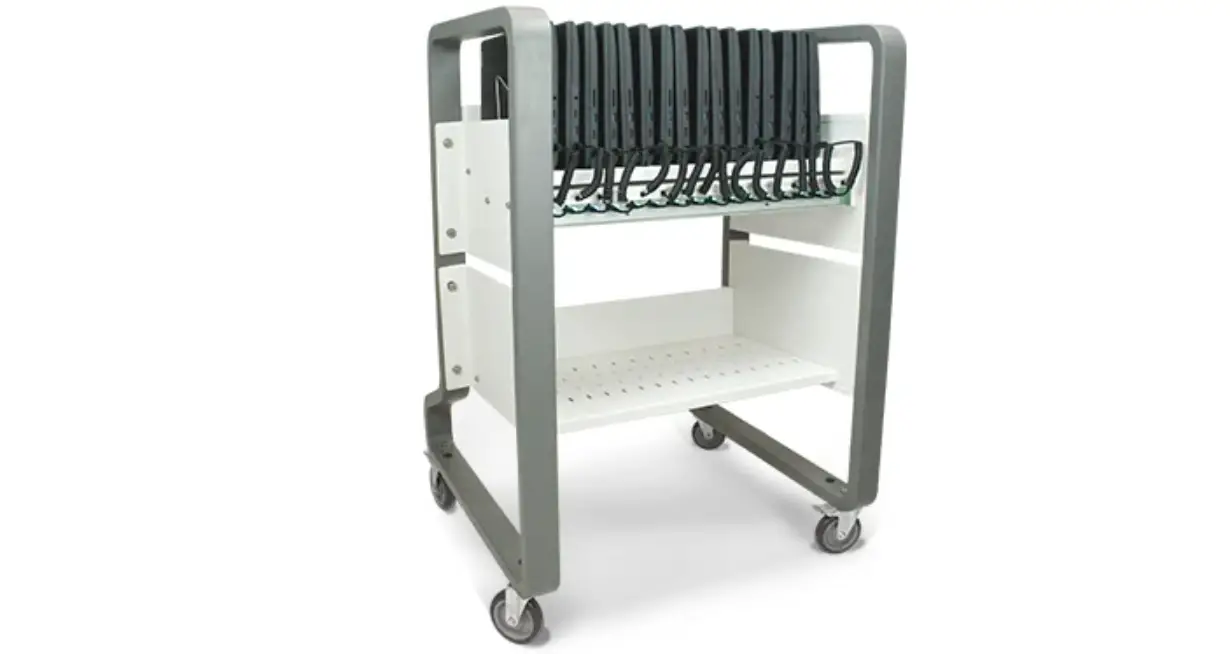
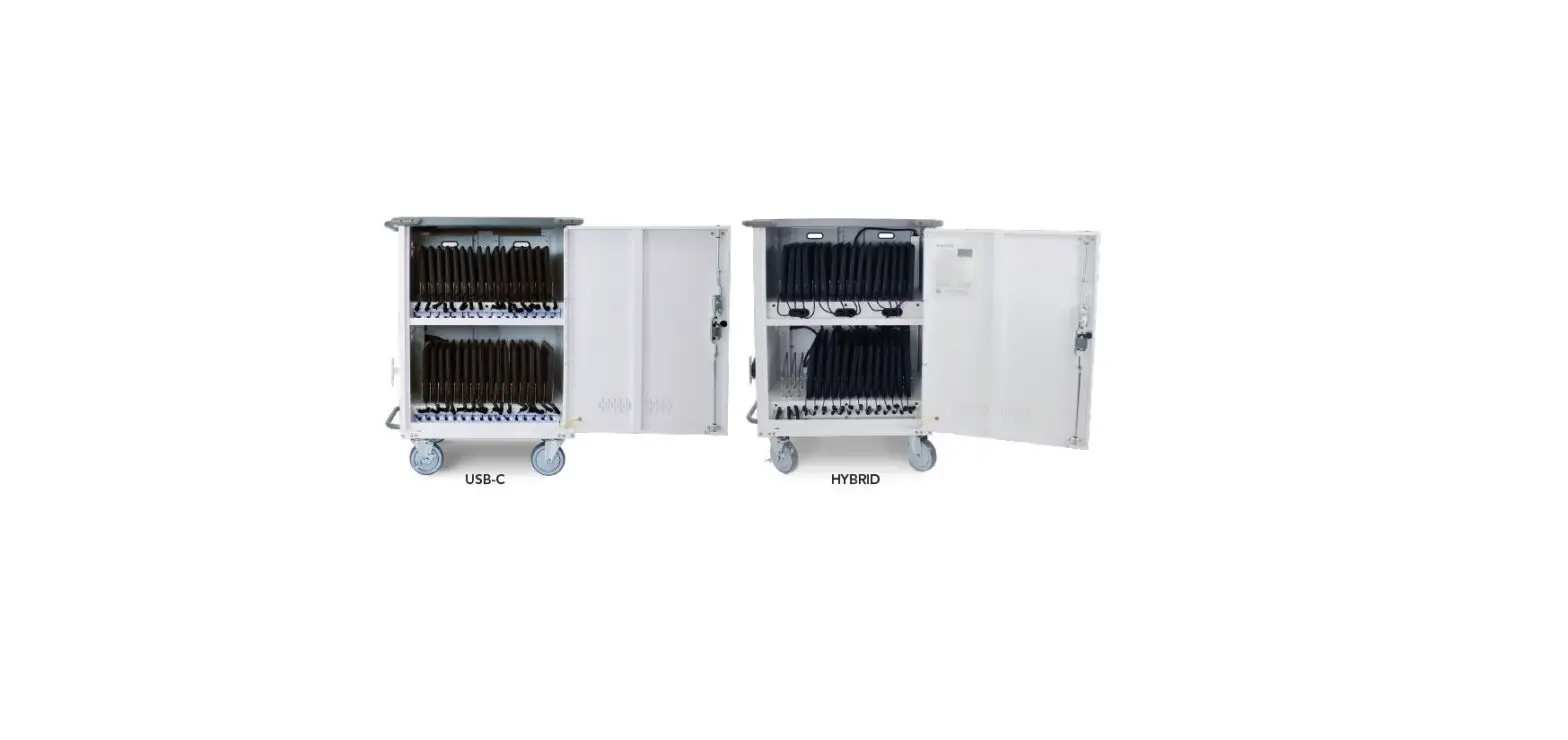
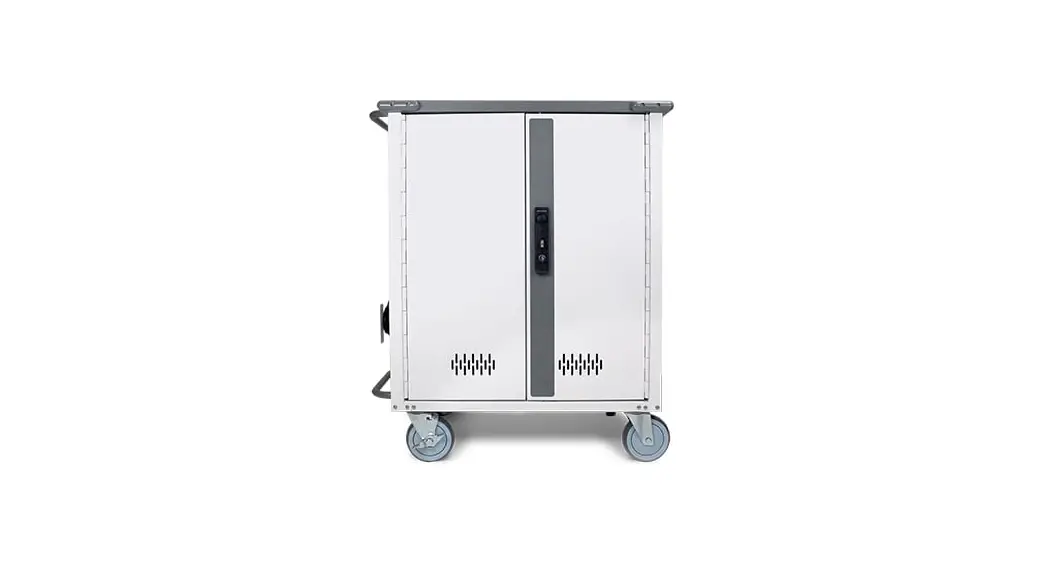
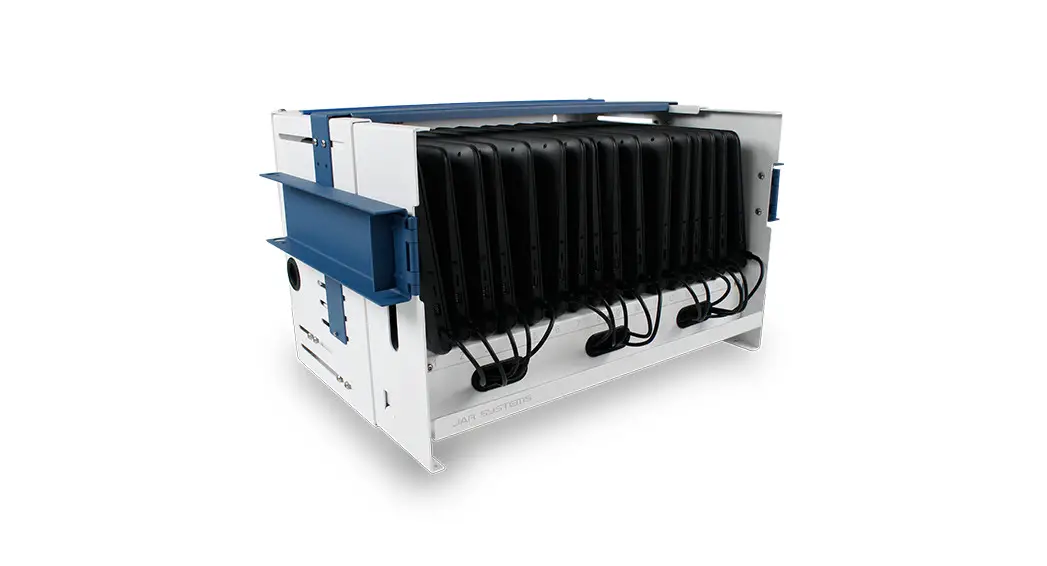
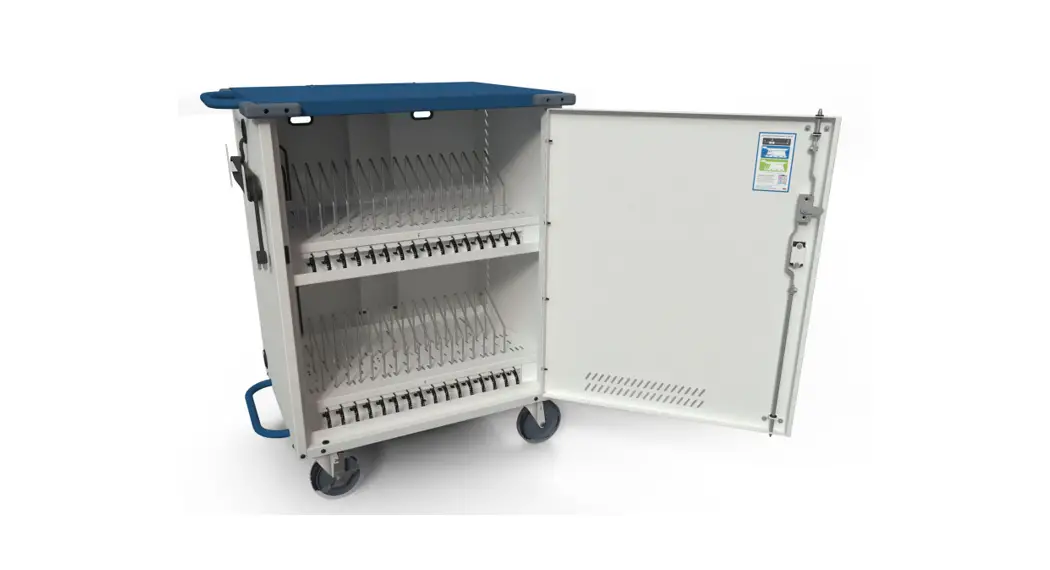
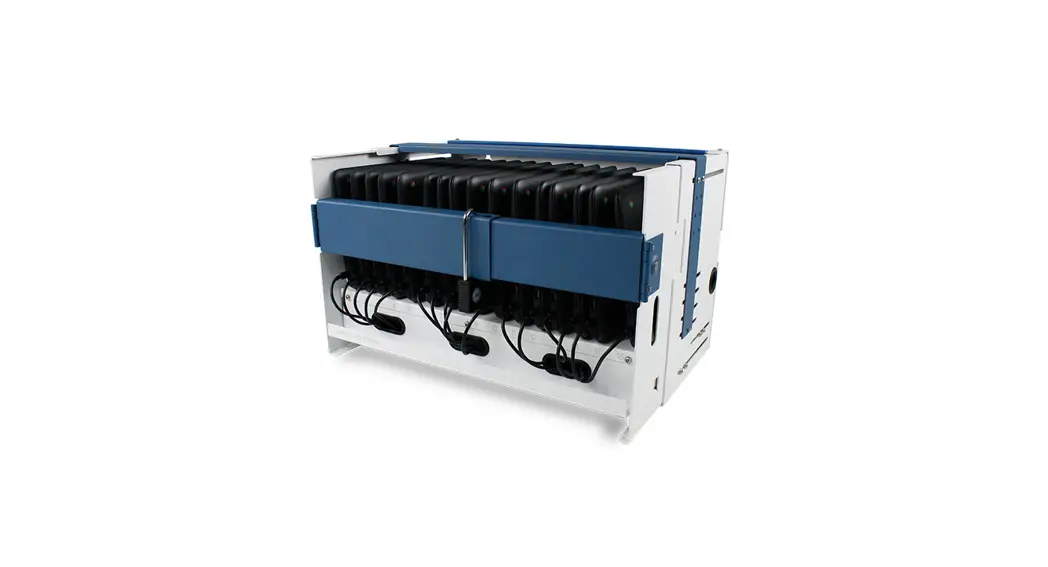
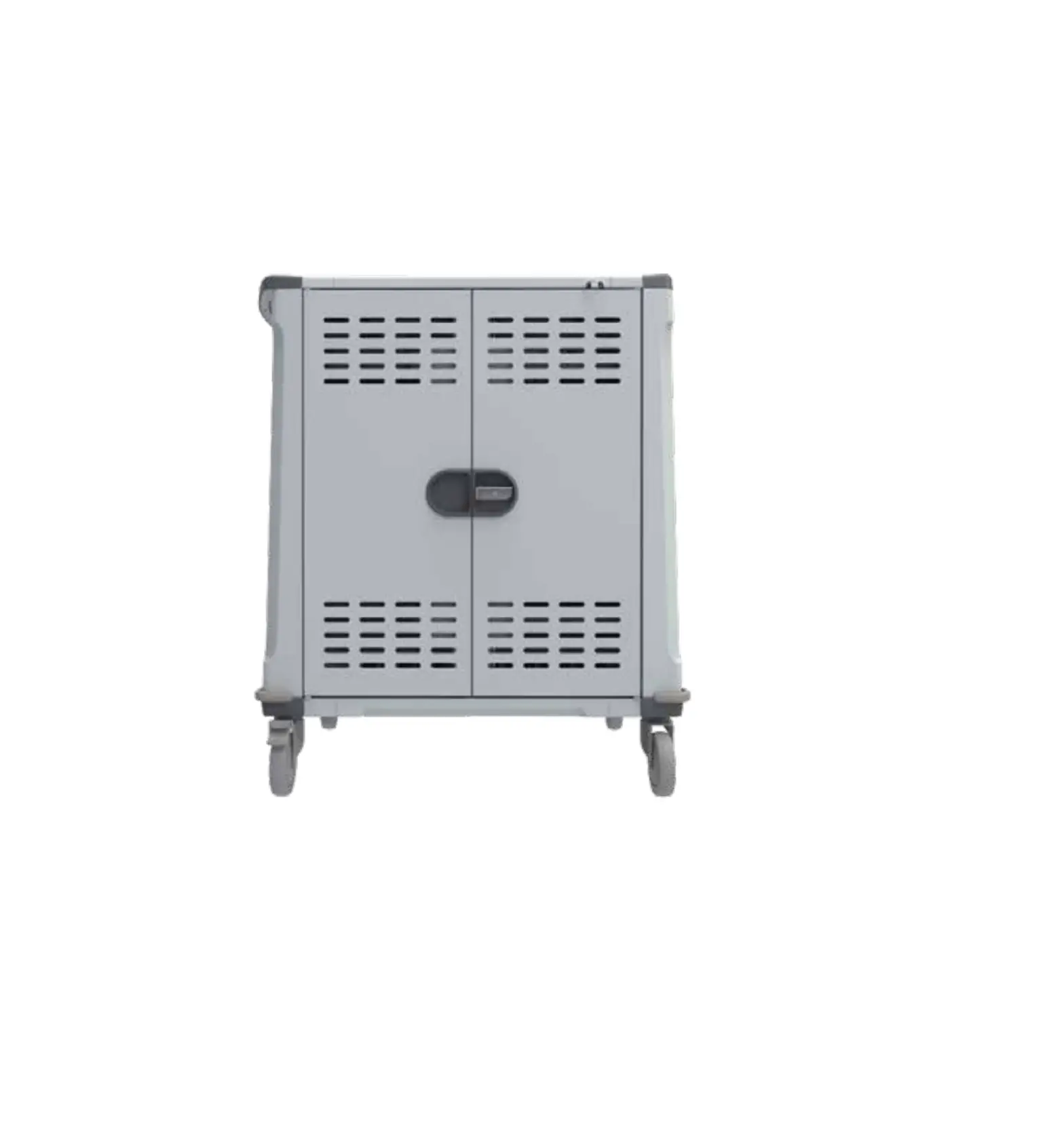
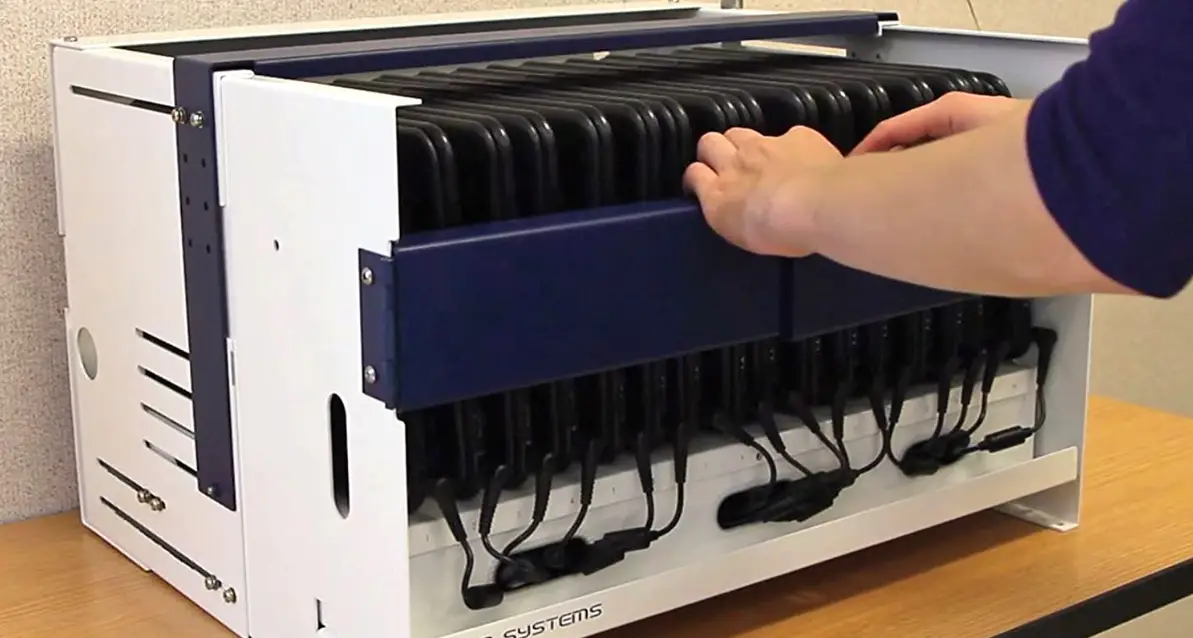
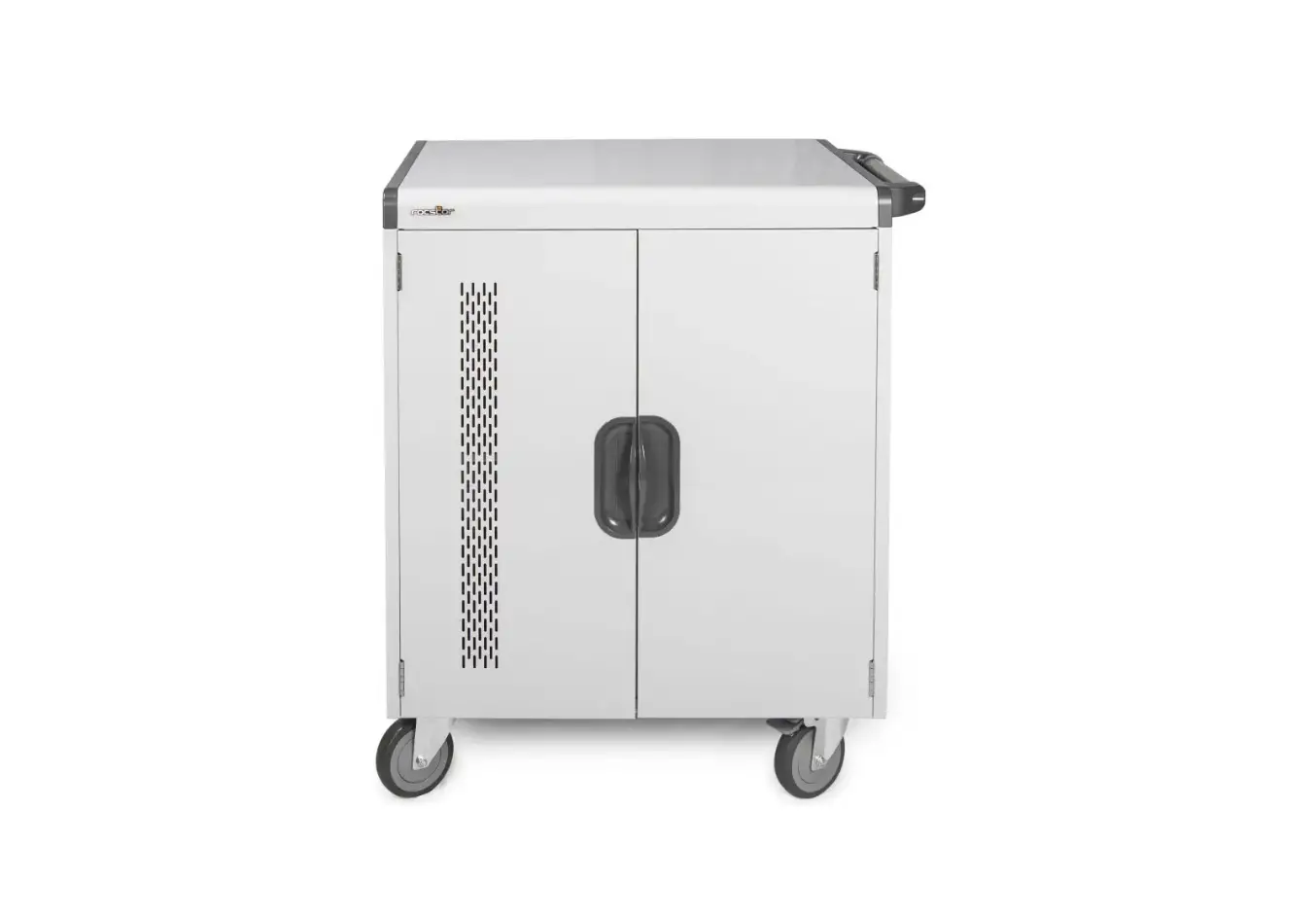
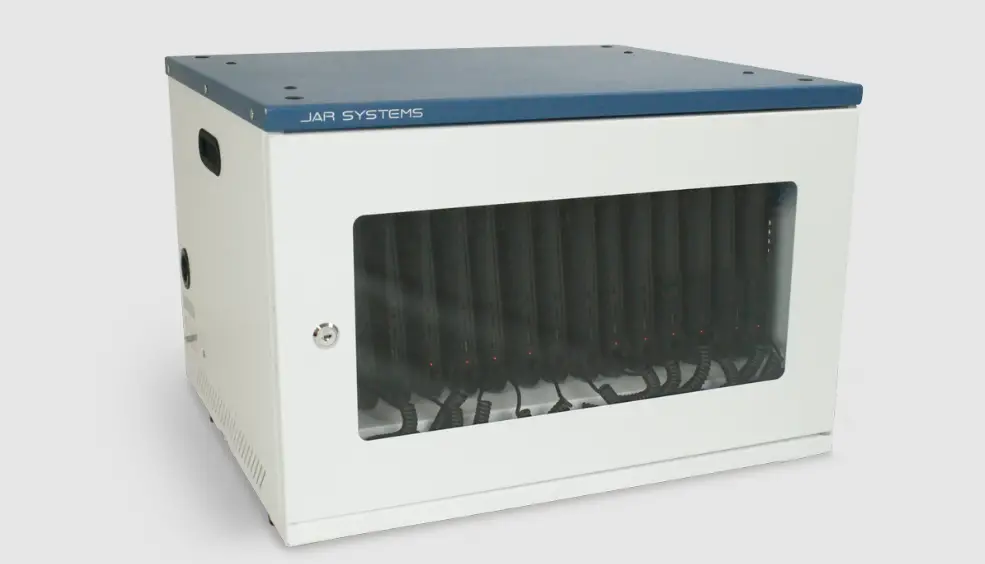
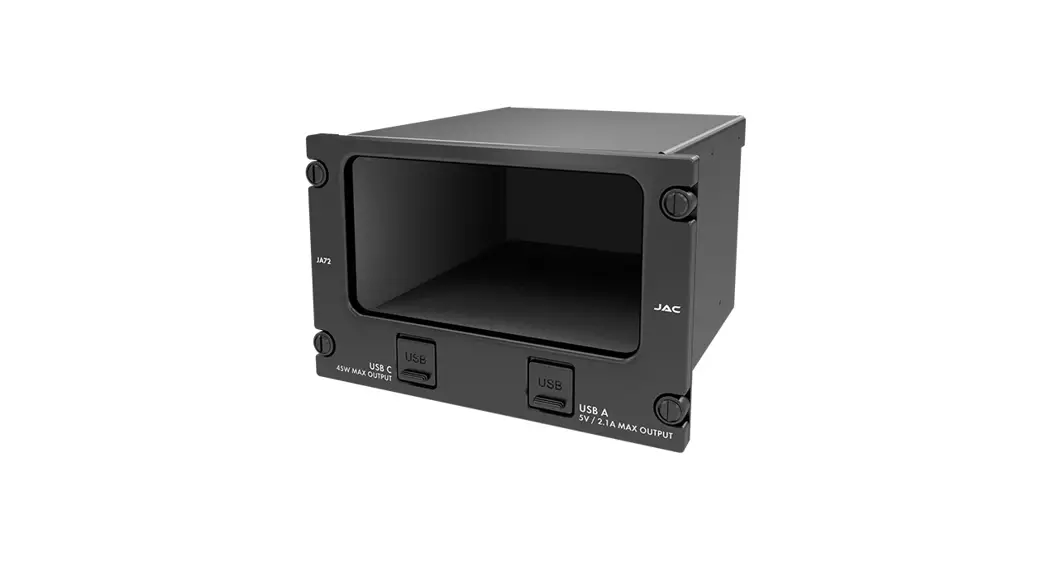
16, 32 MC-40XX-AIR Elevate Air USB-C Charging Cart
Product Information: USB-C Charging Cart
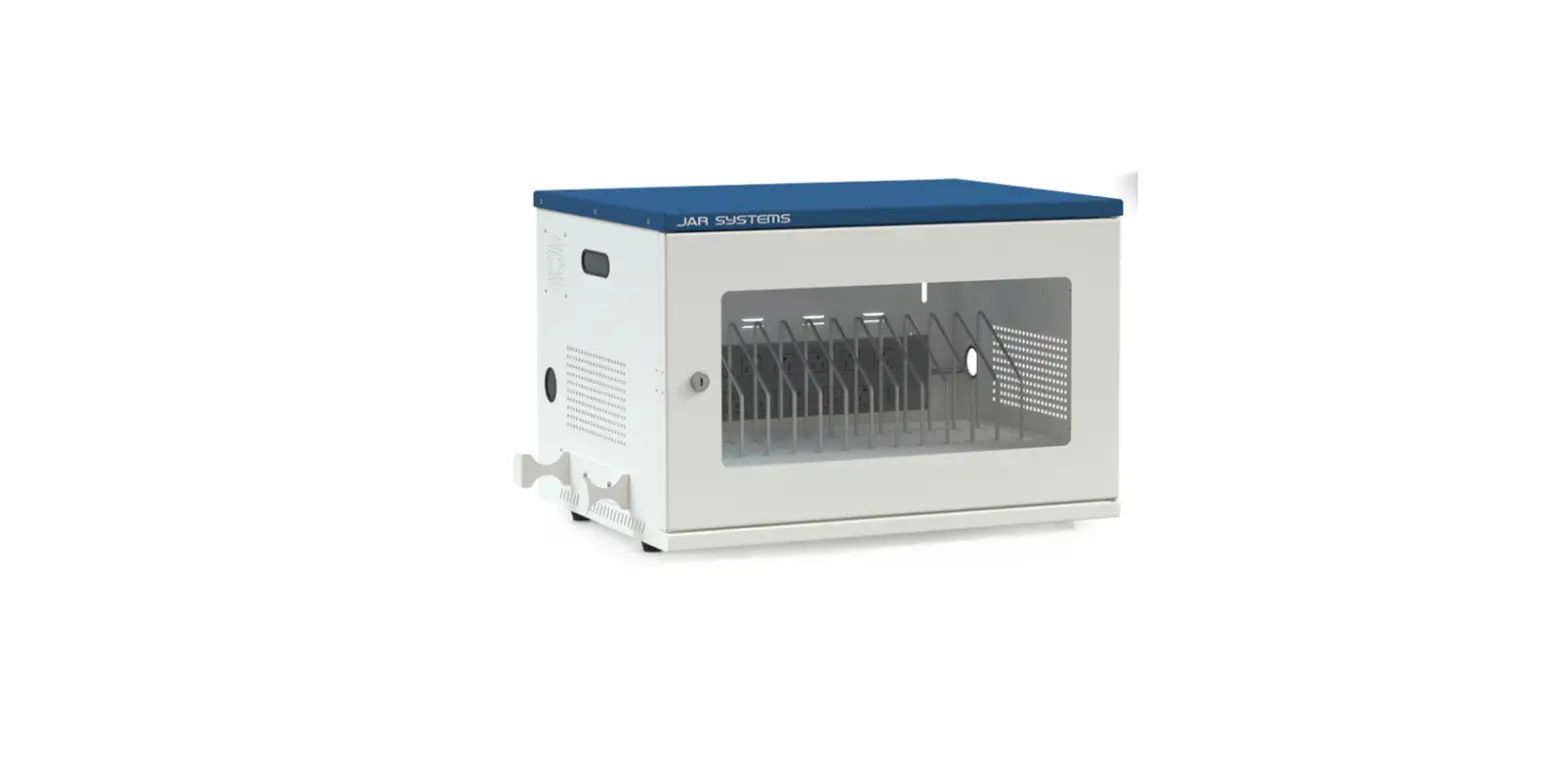
The USB-C Charging Cart is a portable storage and charging
solution designed to charge USB-C enabled devices such as laptops,
tablets, and smartphones. The cart comes with two shelves and a
total of 32 USB-C charging ports, each capable of delivering up to
65W of power. The cart is equipped with LED charging port indicator
lights that display the charging status of the connected devices.
The cart is designed in the USA and made in China.
Cart Assembly Instructions
- Attach 2 casters to each side panel using 1 flat washer, 1
spring washer, 1 nut, and 1 nut cap on each caster. - Install the back panel of the top shelf and bottom shelf using
2 security screws on each side. - Insert the bay dividers into the top and bottom shelves.
Quick Start – Normal Operation
- Connect the cart to a power source using the supplied power
cable. - Connect devices to the USB-C charging cables and place them in
the cart. - LED charging port indicator lights will change color based on
the power draw of the connected devices. - To remove devices, disconnect those with the green LEDs first
before disconnecting those with blue LEDs.
Troubleshooting
If experiencing issues, try unplugging and replugging the power
cord. If problems persist, contact JAR Systems for additional
support.
Open USB-C Charging Cart
16
32
MC-40XX-AIR Assembly and User Manual
Version B
#M00016 Last Modified 02/08/2023
For a copy of the most up-to-date manual, please contact a JAR Systems representative or visit:
JAR-Systems.com/Support
Designed in the USA Made in China
Cart Assembly Instructions
Components
(A1)
(B2)
(C3)
(D4)
(E5)
(F6)
(G7)
(G7) 4 Nut Caps
(D4) 4 Nuts (E5) 4 Spring Washers
(F6) 4 Flat Washers
(H8)
(I9)
(J10)
(K11)
(K11) 4 Casters
(L12)
(M13)
(N14)
1: Using the supplied wrench (J10), secure 2 casters (K11) to each side panel (L12), (M13) of the cart using 1 flat washer (F6), 1 spring washer (E5), 1 nut (D4), and 1 nut cap (G7) on each caster.
(O15)
(P16)
(Q17)
(R18)
(O15) 2 Shelves
(C3) 12 M5 Security Screws
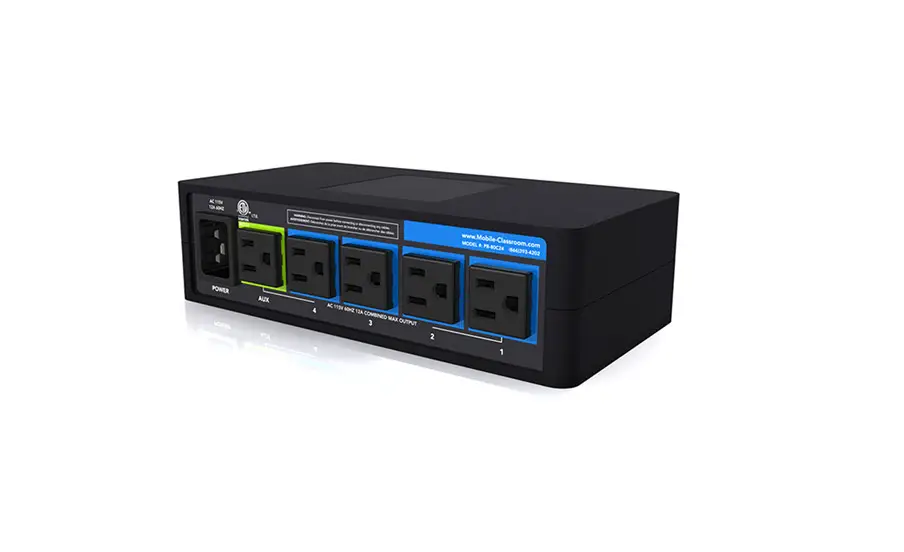
(N14) USB-C Charging Hub(s)
2: Using the T25 Torx key (H8), install the two shelves in the top and bottom positions of the side panels with 2 security screws (C3) on each side. Install the USB-C hub below the top shelf using 2 security screws (C3) on each side. Do not fully tighten the screws until after step 3. MC-4032-AIR ONLY: Install the second USB-C hub below the first hub OR below the bottom shelf using an additional 2 security screws (C3) on each side. Installing the hub below the top shelf provides top-down cables. Installing the hub below the bottom shelf provides extra space for larger devices. Do not fully tighten the screws until after step 3.
2
For Additional Support Call: 866.393.4202 or Email: [email protected]
(A1) 8 Washers
(Q17) (B2) 8 M6 Security Screws
(P16)
3: Using the T30 Torx key (I9), install the back panel of the top shelf (Q17) using 2 security screws (B2) on each side. Install the back panel to the bottom shelf (P16) using 2 security screws (B2) on each side. Tighten all screws installed in steps 2 and 3.
(R18) Bay Dividers
4: Insert the bay dividers (R18) into the top shelf. See page 5 for bay configuration options. MC-4032-AIR ONLY: 5: Connect external power cable(s) to the back of the
Insert the bay dividers on the bottom shelf.
hub(s).
3
For Additional Support Call: 866.393.4202 or Email: [email protected]
Quick Start
Normal Operation
1. Connect cart to power source
·
2. Plug in powered down devices ·
3. Connected devices will automatically charge as efficiently as possible ·
4. Connect/disconnect devices any time
LED Charging Port Indicator Lights
White: Port Ready
·
Blue: Device Charging
Green: Charge Level >90% ·
· ·
Plug the power cable into a standard 15A outlet. LEDs will illuminate white to indicate the cart is connected to a power source.
Power off devices fully before connecting them to the cart for charging.
Connect the devices to the USB-C charging cables. Ensure that devices are placed in the cart so that the charging ports are as close as possible to the USB-C charging port on the cart. Incorrectly connecting devices can strain the cable over long periods of time and lead to damage.
You may hear a clicking sound, and the LED lights will change color according to the power draw of the attached devices.
The system will automatically limit power consumption by turning some of the USB-C ports off temporarily. Refer to the device for the level of charge. Connected devices will charge as fast and evenly as possible, up to 65W, without drawing too much power.
To remove devices from the carts with the greatest level of charge first, disconnect devices with the green LEDs first before you disconnect devices with the blue LEDs.
Devices that do not feature a USB-C charging port can be charged using USB-C emulator cables. (Not Included, contact JAR Systems for more info)
USB-C Emulator Cables
4
For Additional Support Call: 866.393.4202 or Email: [email protected]
Trouble-Shooting
Always start troubleshooting with a simple reboot Entire Charging Hub/Shelf Issue
Unplug and replug the power cord. When the cart is connected to power, the LEDs will change color based on the power draw of connected devices (see light indication).
Single Port or Device Issue
Ensure that both of the USB-C cable ends plug into the cart and the device correctly.
If there is still no charge, disconnect the device from that port (A) and plug into another port (B). If it is still not charging, it may be an issue with the device.
If charging begins when using port (B), exchange the cable from port (B) to port (A). If it begins to charge, the cable (A) is defective and will need to be replaced.
Check the back of the charging hub to see if the cart’s power cable is plugged in and connected correctly.
When the cart is powered back on, the LED lights will begin to illuminate.
Remove/Replace USB-C Cables
Each cable lock may be secured with up to three screws. Remove all screws with the supplied T25 Torx key (H8).
Remove the cable lock. Unplug the cables from the USB-C ports and route them through the cable track.
Reverse the process to replace a cable.
Cable Lock Security Screws
Adjusting Device Bay Dividers
Elevate carts feature adjustable device bays with multiple configuration options. Use the guides below to determine which hole pattern to use.
To remove dividers, push in and upward on the front of the divider and guide it out of the slot in the tray. To install the dividers, simply place the tall side of the divider into the rear slot first, then push in and downward to get the other side into the front slot.
16 DEVICE PATTERN
Best for devices up to 1″ wide.
12 DEVICE PATTERN
Best for devices up to 1.25″ wide.
5
For Additional Support Call: 866.393.4202 or Email: [email protected]
Warnings
Warranty
· Power down all devices prior to connecting them to the hub for charging.
· Keep away from moisture and harsh chemicals. Do not place any liquids near the charging cart.
· Any electrical equipment must be used by an adult or with adult supervision.
· Do not connect unsupported items to the charging cart or use for any purpose other than its intended use.
· Do not attempt to obstruct any ventilation openings or dismantle, open, or modify the system in any way.
· Do not sit or stand on the cart or charging hubs.
· Do not use an extension cable or daisy-chain to any other devices.
· Not intended for operation at altitudes greater than 2000 m or 6561 ft above sea level and should not be operated in extreme temperatures. For indoor use only.
Disclaimer
Failure to read, thoroughly understand, and follow all instructions can result in serious personal injury, damage to equipment, or voiding of factory warranty. Since the use of this information, the equipment connected, and the conditions by which any JAR Systems product is used is beyond the control of JAR Systems, it is the obligation of the owner and/or user to determine the correct and safe use of any equipment and product. To the extent that the law permits, any liability which may be incurred as a result of the use or future use of a product manufactured or sold by JAR Systems is limited to the cost of repairing or replacing the failed product or component at the discretion of JAR Systems either within, or outside of warranty periods, and does not extend to any loss or damage which may be caused as a consequence of misuse or failure of the equipment, product or the information contained herein. JAR Systems shall not in any event be liable for economic loss of profits, indirect, special, bodily injuries or consequential damages. Specifications and images are for illustration purposes only. Final product may differ and is subject to change without notice.
This product comes with a warranty that covers any defects in material or workmanship and extends to the original consumer of the product only. JAR Systems, LLC will replace the product with a new or refurbished product, repair the product, send replacement parts, or refund the purchase price of the product, at JAR Systems, LLC’s discretion. This warranty does not cover accidental damage, unreasonable use, neglect, tampering or other causes not arising from defects in material or workmanship.
Any implied warranties last only as long as the warranty periods listed above except where state law does not allow limitations on how long an implied warranty lasts. This includes but is not limited to the implied warranties or merchantability and fitness. JAR Systems, LLC’s responsibility is limited to the actions listed above and nothing else.
This warranty does not cover, and JAR Systems, LLC will not be responsible for, any damages due to loss of use of the product, or any other costs or expenses incurred by you or anyone else who uses the product, whether due to defects, breach of contract, negligence, strict liability or otherwise. JAR Systems is not liable for any indirect, special, incidental or consequential damages related to the product or this warranty. Some states do not allow exclusions or limitations on consequential or incidental damages, so these limitations or exclusions may not apply.
This warranty gives you specific legal rights and you may also have other rights that vary from state to state. This warranty is governed by the laws of Florida, excluding its conflict of laws principles, unless your state requires that its law be used.
Contact JAR Systems for information on the length of warranty on your product(s).
Explore more options for USB-C Charging!
Learn about ways to charge devices in growing technology landscapes. Contact a JAR Systems representative at 866.393.4202 or visit:
JAR-Systems.com/Products
 Portfolio of Solutions | JAR Systems