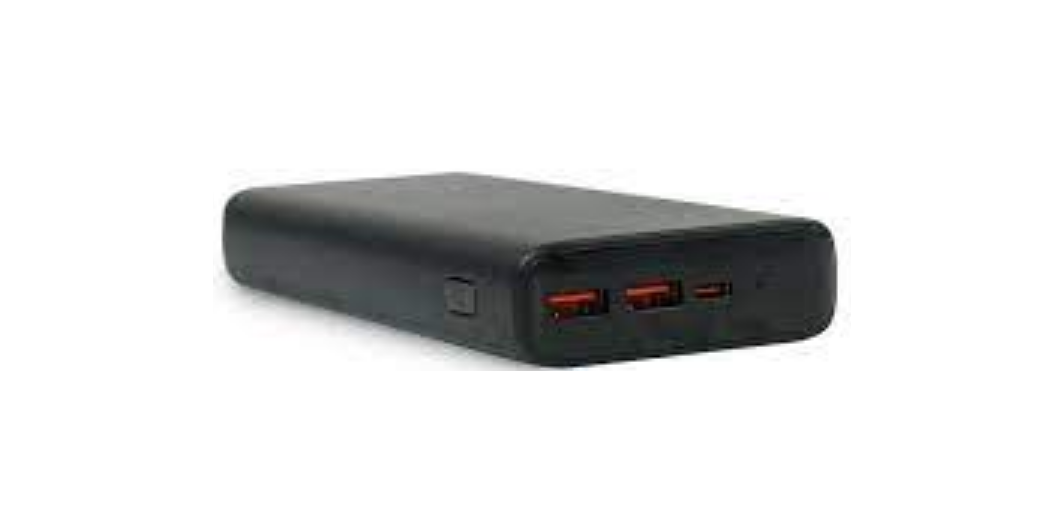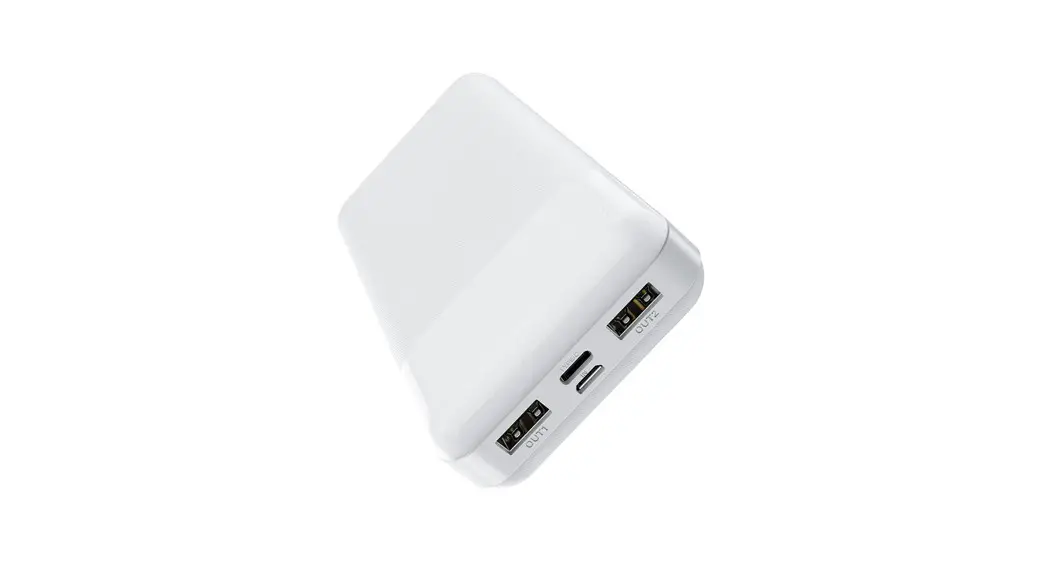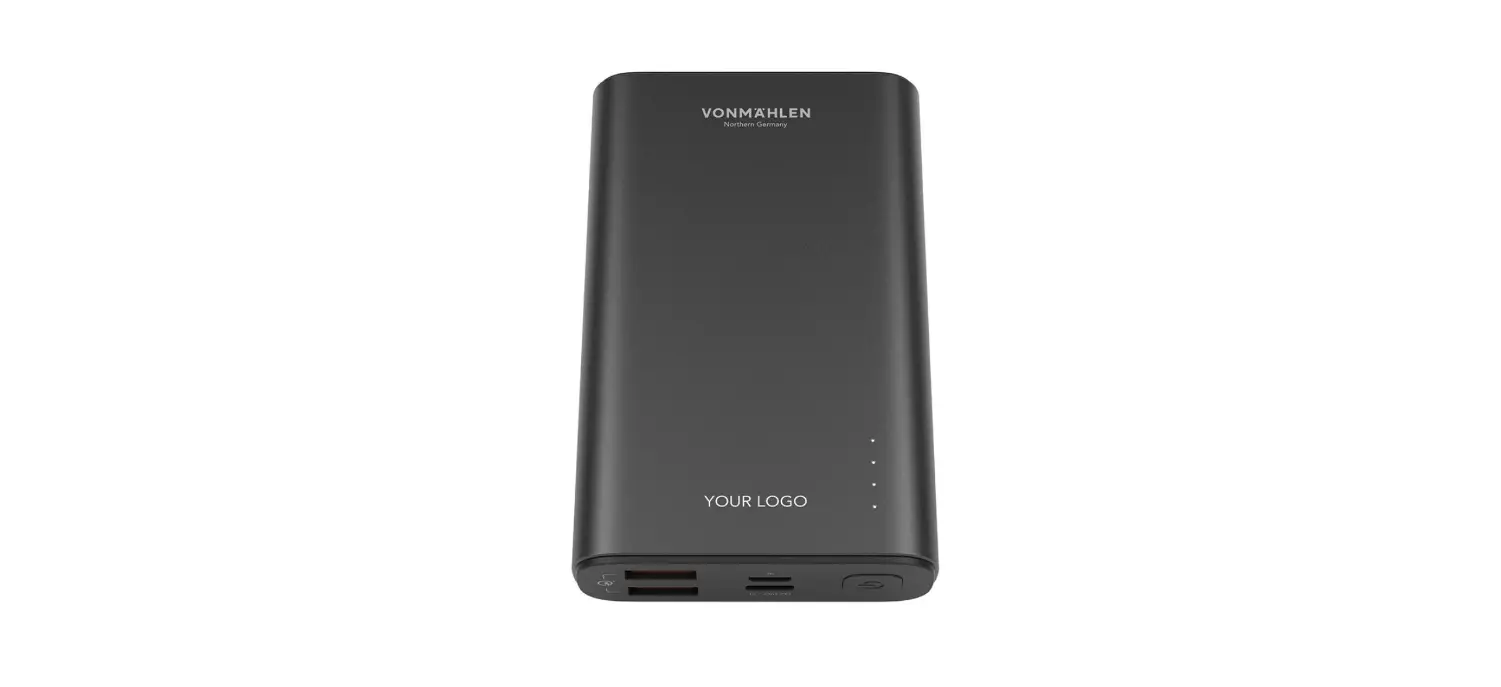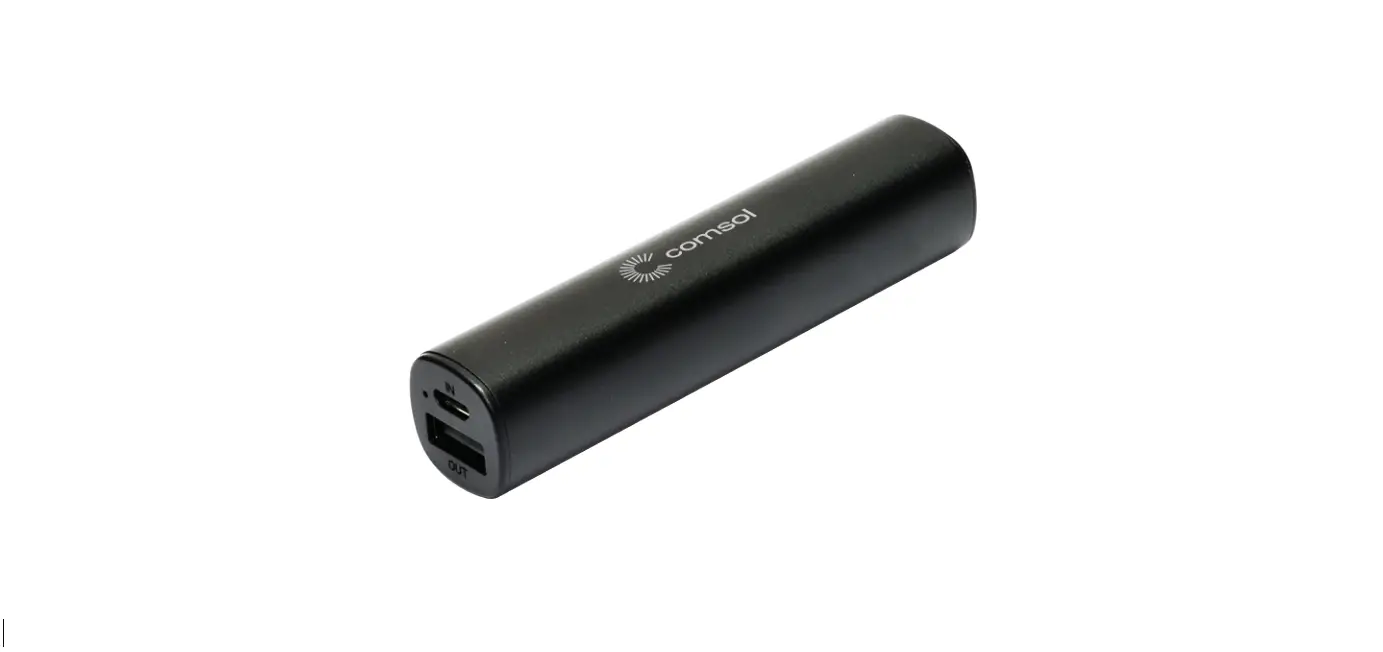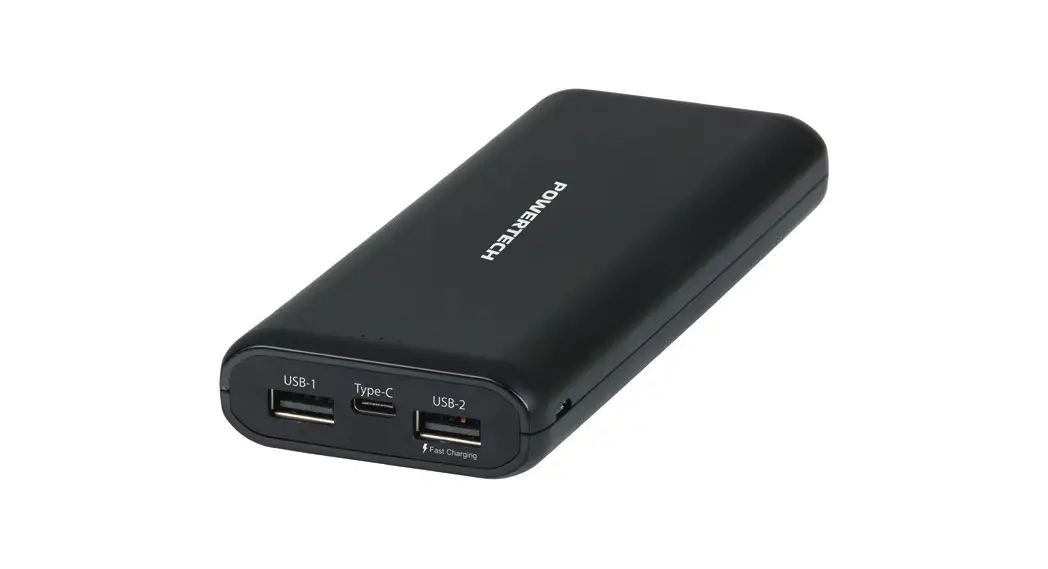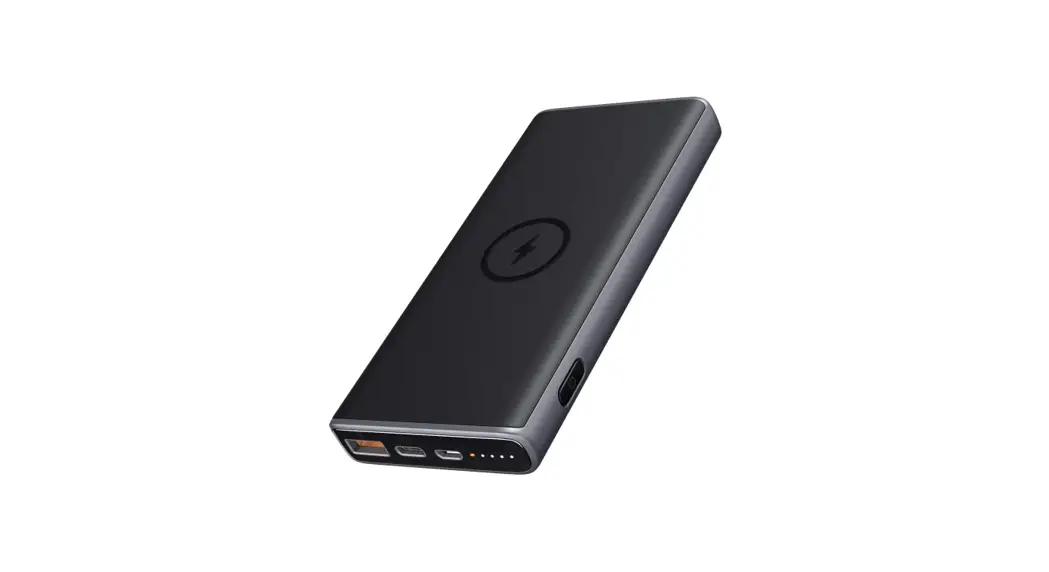
JAR SYSTEMS M00007 Active Charge Power Bank User Manual
Thank you for your purchase!
Please read this user manual carefully and
keep it for future reference. If you need any assistance, please contact our support team. For a copy of the most up-to-date manual, visit:
www.JAR-Systems.com/Support
Call: (866)393-4202
Disclaimer: Failure to read, thoroughly understand, and follow all instructions can result in serious personal injury, damage to equipment, or voiding of factory warranty. Since the use of this information, the equipment connected, and the conditions by which any JAR Systems product is used is beyond the control of JAR
Systems, it is the obligation of the owner and/or user to determine the correct and safe use of any equipment and product. To the extent that the law permits, any liability which may be incurred as a result of the use or future use of a product manufactured or sold by JAR Systems is limited to the cost of repairing or replacing the failed product or component at the discretion of JAR Systems either within, or outside of warranty periods, and does not extend to any loss or damage which may be caused as a consequence of misuse or failure of the equipment, product or the information contained herein. JAR Systems shall not in any event be liable for economic loss of profits, indirect, special, bodily injuries or consequential damages. Specifications and images are for illustration purposes only. Final product may differ and is subject to change without notice.
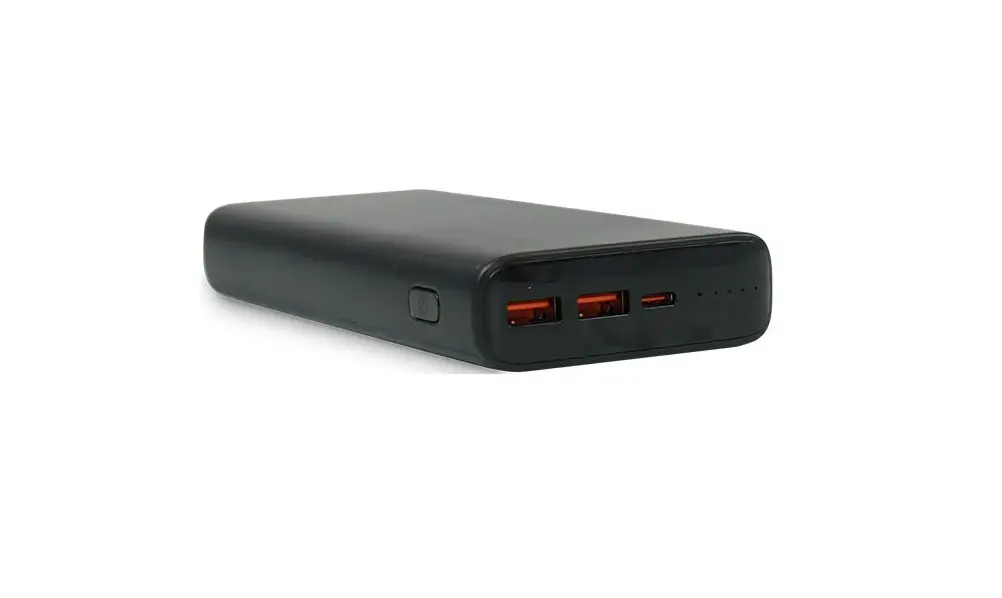
Power Bank
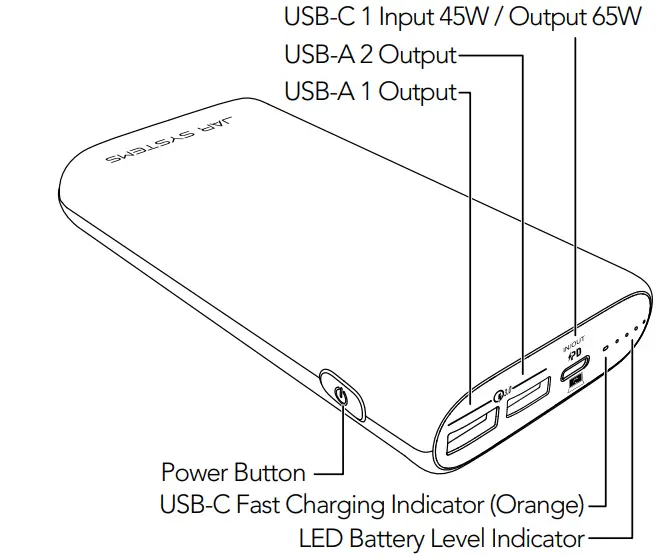
Specifications
| Model Number | ACTIV-BNK |
| Technology | USB Power Delivery 3.0 and Qualcomm® Quick Charge™ 3.0 |
| Capacity | 20000mAh | 74Wh |
| Battery Type | Lithium-ion |
| USB-C 1 Input | (45W Power Delivery 3.0) 5V=3A/9V=3A/12V=3A/15V=3A/20V=2.25A |
| USB-C 1 Output | (65W Power Delivery 3.0) 5V=3A/9V=3A/12V=3A/15V=3A/20V=3.25A |
| USB-A 1 Output USB-A 2 Output | (Quick Charge 3.0) 5V-V=3A/6V-9V=2A/9V=1.5A |
| Max Power Output | 65W |
| Dimensions | 6.17”x 2.91”x 0.98” | 156.7mm x 74mm x 25mm |
| Weight | 13.6 oz | 385.55 g |
Technology
What is USB PD (Power Delivery)
USB Power Delivery is a universal multi-voltage charging standard that enables the maximum functionality of USB.
It provides flexible power delivery bidirectionally, along with data, through a single cable to recharge a wide range of compatible devices safely and efficiently.
What is Required for USB PD
- Electronic devices that have a USB PD compatible port. (Power bank, laptop, tablet, phone, etc.)
- A power source with USB PD compatible port. (Adapt4 USB-C Charging Station, wall charger, etc.)
- A USB PD compatible cable to connect the power source to the electronic device. (USB-C or Thunderbolt cables)
What is Quick Charge 3.0?
Quick Charge 3.0 charges compatible devices up to four times faster than conventional charging. It is engineered to refuel devices twice as fast as Quick Charge 1.0 and is up to 38% more efficient than Quick Charge 2.0. It is backward compatible with Quick Charge 2.0/1.0 devices.
Getting Started
Charging the Power Bank
Fully charge the power bank before the first-time use.
- Connect a USB-C cable to a USB PD power source such as the Adapt4 USB-C Charging Station or a wall charger.
- Connect the other end to the power bank’s USB-C port.
- The LED battery level indicator lights will flash white indicating the power bank is charging.
- Unplug the power bank when fully charged, indicated by all LED battery level indicator lights staying solidly white.
Charging A Device
- Connect a charging cable to a device’s charging port.
- Connect the other end of the cable to a compatible port on the power bank, charging cables need to be either USB-A or USB-C port compatible. (Larger devices such as a laptop will need to be connected to the USB-C port to be able to charge.)
- Turn on the power bank by pressing the power button.
- Unplug the device when it is fully charged.
- To check the remaining power bank level, press the power button and the LED battery level indicator lights will indicate the remaining amount.
Low-Current Charging Mode
Designed to charge low-current devices (60mA or less).
Try switching to this mode if a low-powered device (such as wireless headphones or a fitness tracker) is not charged using the default fast-charge mode.
- Press and hold the power button for 2 seconds to enter low-current charging mode.
- The LED battery level indicator light nearest the USB-C fast charging indicator will turn green, while the other lights will stay white.
- After 2 hours of charging in this mode, the power bank will automatically switch back to the default fast-charge mode and turns off.
- Press and hold the power button for 2 seconds to end low-current charging and enable the default fast-charge mode.
- Unplugging and re-plugging in the charging cable from the power bank will also exit low-current charging mode.
- Charging in low-current charging mode will not harm the connected device’s battery.
Product Use & Care
Warnings
- Do not transport power banks while they are still connected to a device.
- Do not charge a device while recharging the power bank.
- Recharge the power bank at least once every 3 months.
- Do not crush or puncture the power bank.
- Do not expose the power bank to water or other liquids.
- Keep the power bank away from fire and extreme heat.
- Do not open, disassemble, or service any internal parts of the power bank.
- Stop using the power bank if it is damaged, or if you notice any discharge or the buildup of foreign materials anywhere on the power bank.
Symbols and Meanings
 Batteries, electrical, and electronic equipment marked with the symbol of a crossed-out wheeled bin may not be disposed as unsorted municipal waste.
When disposing of the power bank, comply with local laws or regulations for battery disposal.
 European Union conformity – for Class B products that do not have any models with wireless devices This product is in conformity with the protection requirements of EU council directive 2014/30/EU on the approximation of the laws of the member states relating to electromagnetic compatibility.
Warranty
For questions, support, or warranty claims, contact JAR Systems customer support team.
Phone: (866)393-4202 www.JAR-Systems.com/Support
Charge Non-USB-C Devices
Available Charging Emulator Cables
Connect and charge non-USB-C devices to USB PD ports with USB-C PD emulator cables. Listed below are just a few of the compatible models of each charging emulator tip that fit into devices power adapter charging port.
| Compatibility | Part Number | Emulator Tip |
| Acer Chromebook C72 | A4-UCAC-C72 | 3.00 x 1.10 mm |
| Apple Macbooks, tablets, iPhones, | A4-UCAP-LGN A4-UCAP-MS1 A4-UCAP-MS2 | Lightning MagSafe 1 MagSafe 2 |
| Asus Chromebook C20 | A4-UCAS-C20 | 4.00 x 1.35 mm |
| Dell/HP Chromebook C11 | A4-UCDL-C11 | 7.40 x 5.08 mm |
| HP Chromebook C13 | A4-UCHP-C13 | 4.50 x 3.00 mm |
| Lenovo ThinkPad 11E Chromebook, N21 Chromebook, X131 Chromebook | A4-UCLN-11E A4-UCLN-N21 A4-UCLN-X131 | Rectangle ‘Slim Tip’ 11 x 4.50 mm 4.00 x 1.70 mm 7.90 x 5.55 mm |
| Microsoft Select Surface models | A4-UCMS-SF2 | 5-Pin Magnetic |
Call to Order | (866)393-4202
#M00007
Last Modified 8-26-2022
Designed in the USA
Made in China
(866)393-4202 | www.JAR-Systems.com/Support
 Support and FAQ