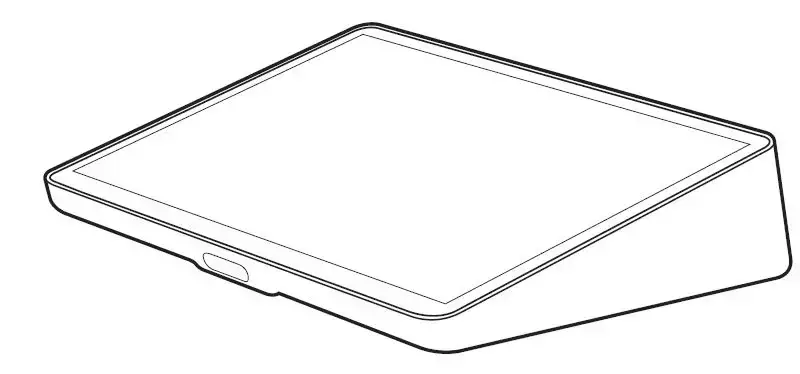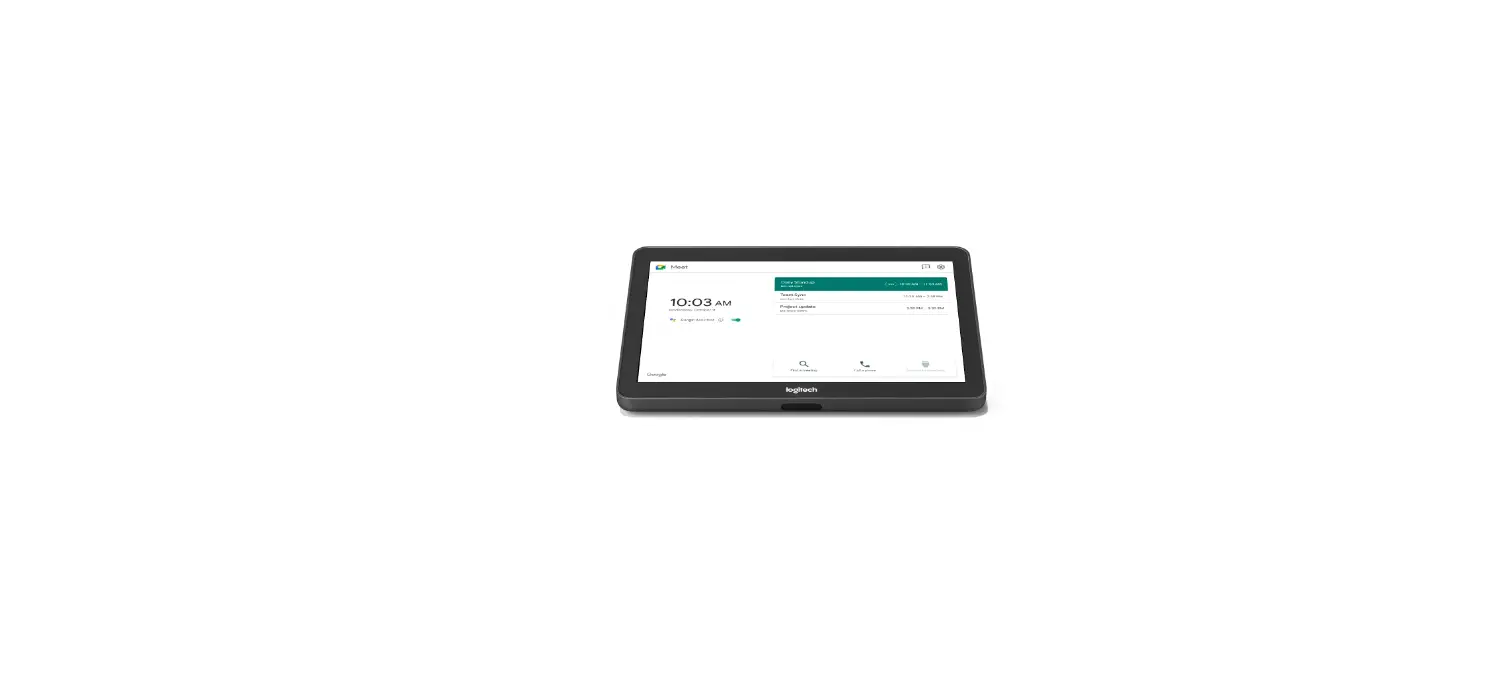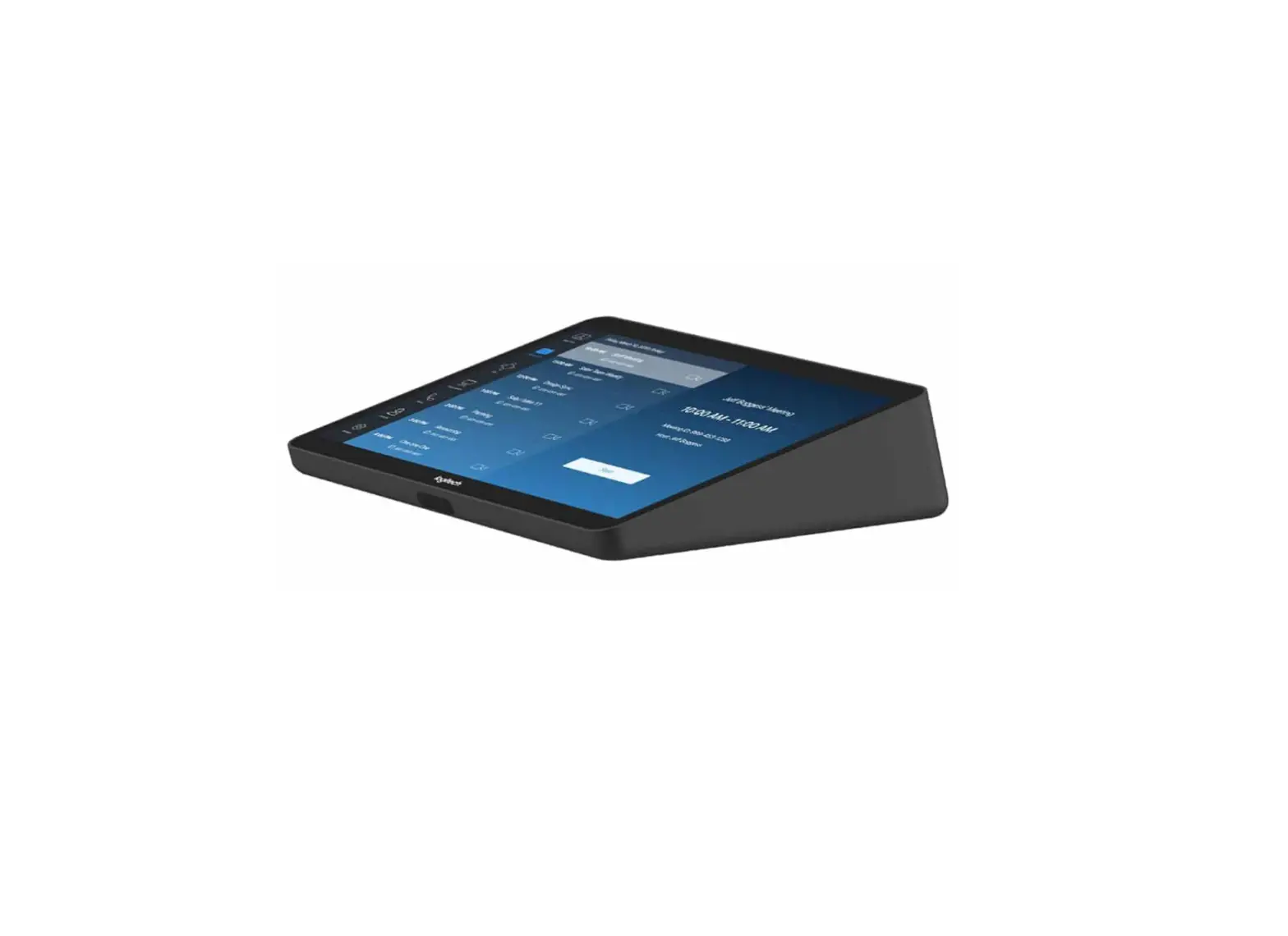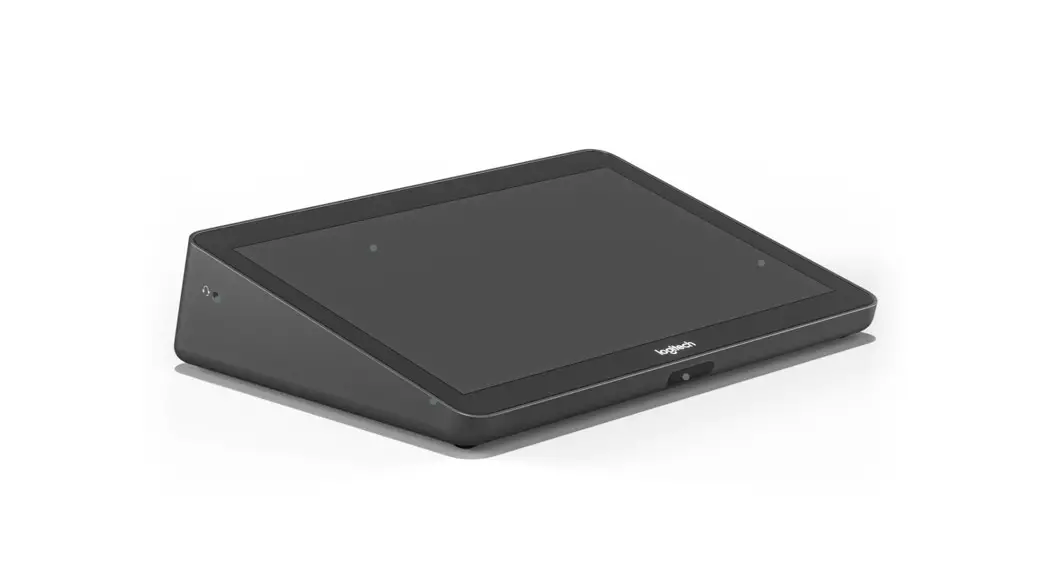
 TAP IP
Setup Guide
Guide d’installation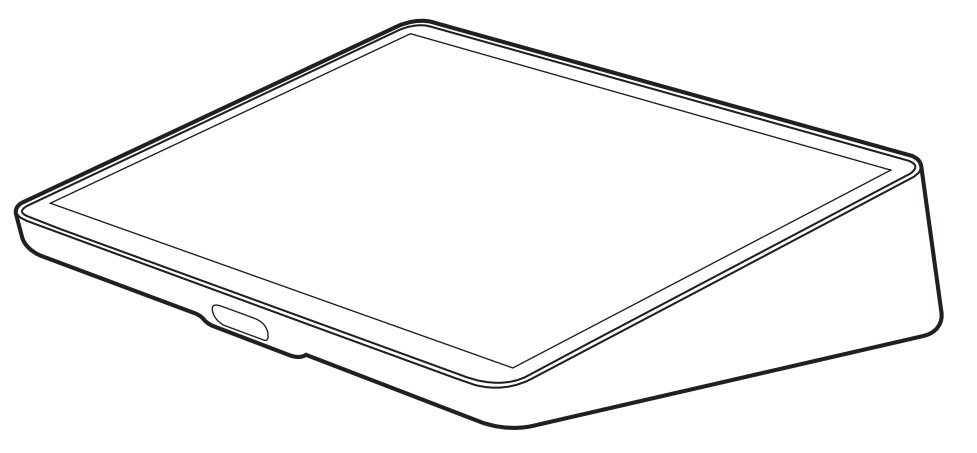
WHAT’S IN THE BOX
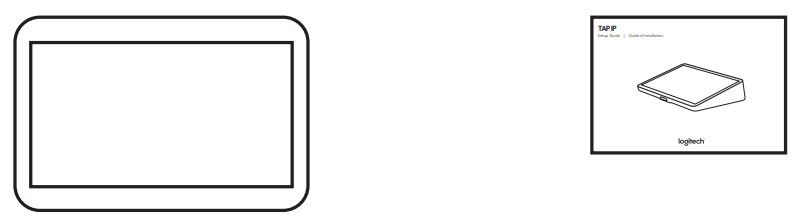 | |
| Tap IP Touch Controller | Documentation |
FEATURES
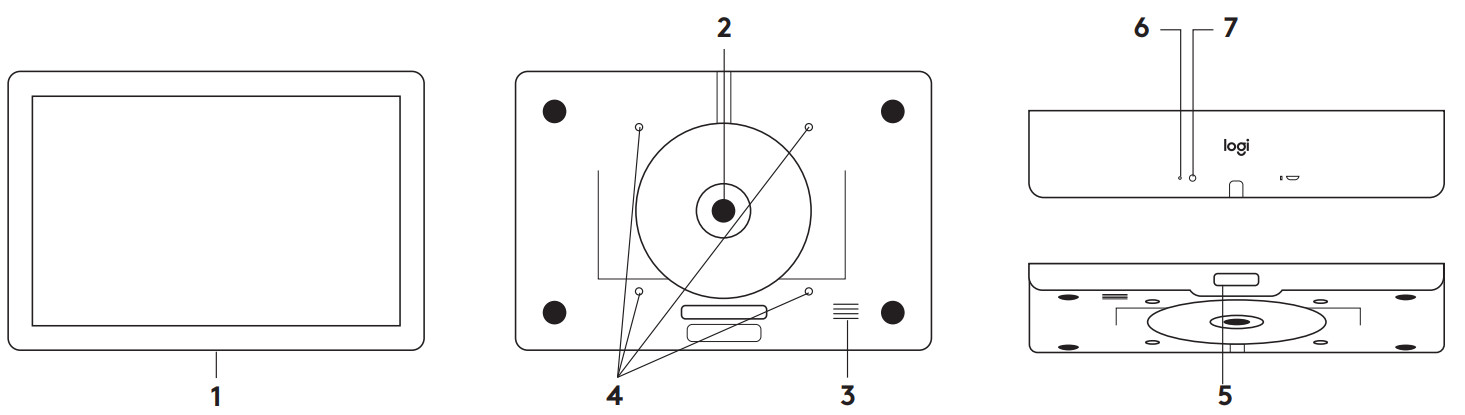 | ||
| 1 – 10.1″ Touch screen 2 – Bottom cover with thumbscrew | 3 – Speaker 4 – VESA MIS-D 100 x 100mm | 5 – Motion sensor 6 – Factory restore pinhole 7 – Device reset button |
BEFORE YOU BEGIN
You will need
- Meeting Room System Credentials/activation code
- Ethernet Cable(s)
- PoE enabled network OR
- PoE Injector and network (Ethernet or WiFi)
SETUP
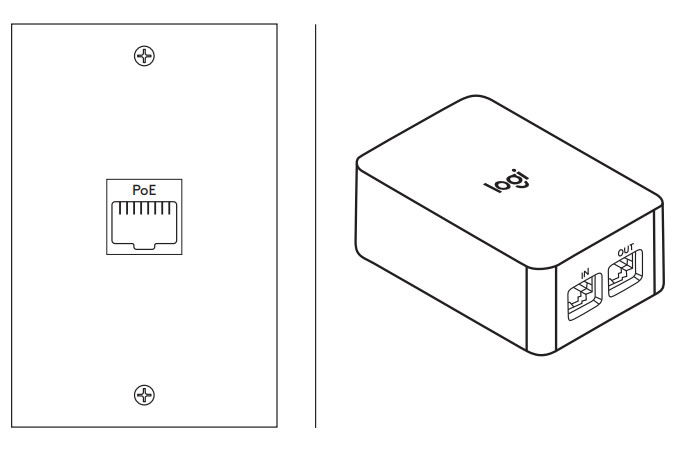
Connect to PoE enabled network or PoE Injector (not included)
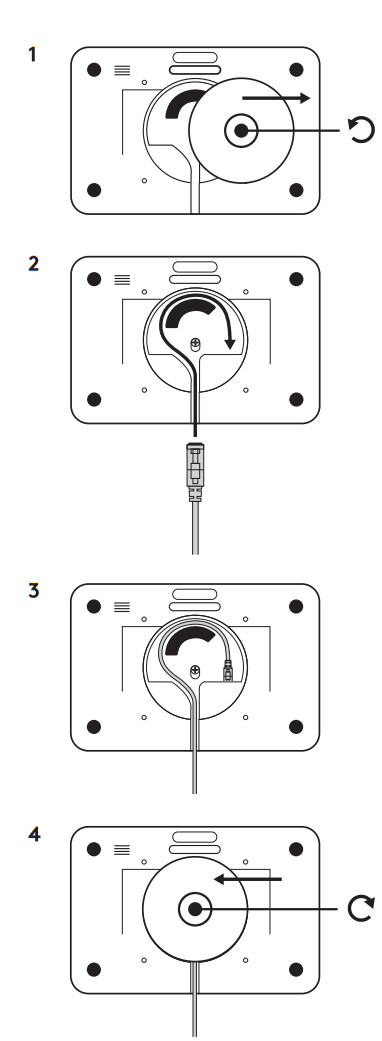
Assembly
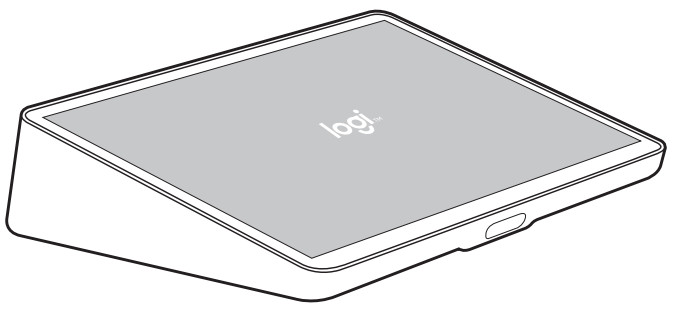
Follow on-screen prompts to complete setup
FACTOR RESET

Press and hold
Pinhole Button for 5 seconds, press (B) Reset button, release (A) then release (B)
 www.logitech.com/tapip
www.logitech.com/support/tapip
© 2021 Logitech, Logi, and the Logitech Logo are trademarks or registered trademarks of Logitech Europe S.A. and/or its affiliates in the U.S. and other countries. All other trademarks are the property of their respective owners. Logitech assumes no responsibility for any errors that may appear in this manual. Information contained herein is subject to change without notice.
620-010671 004