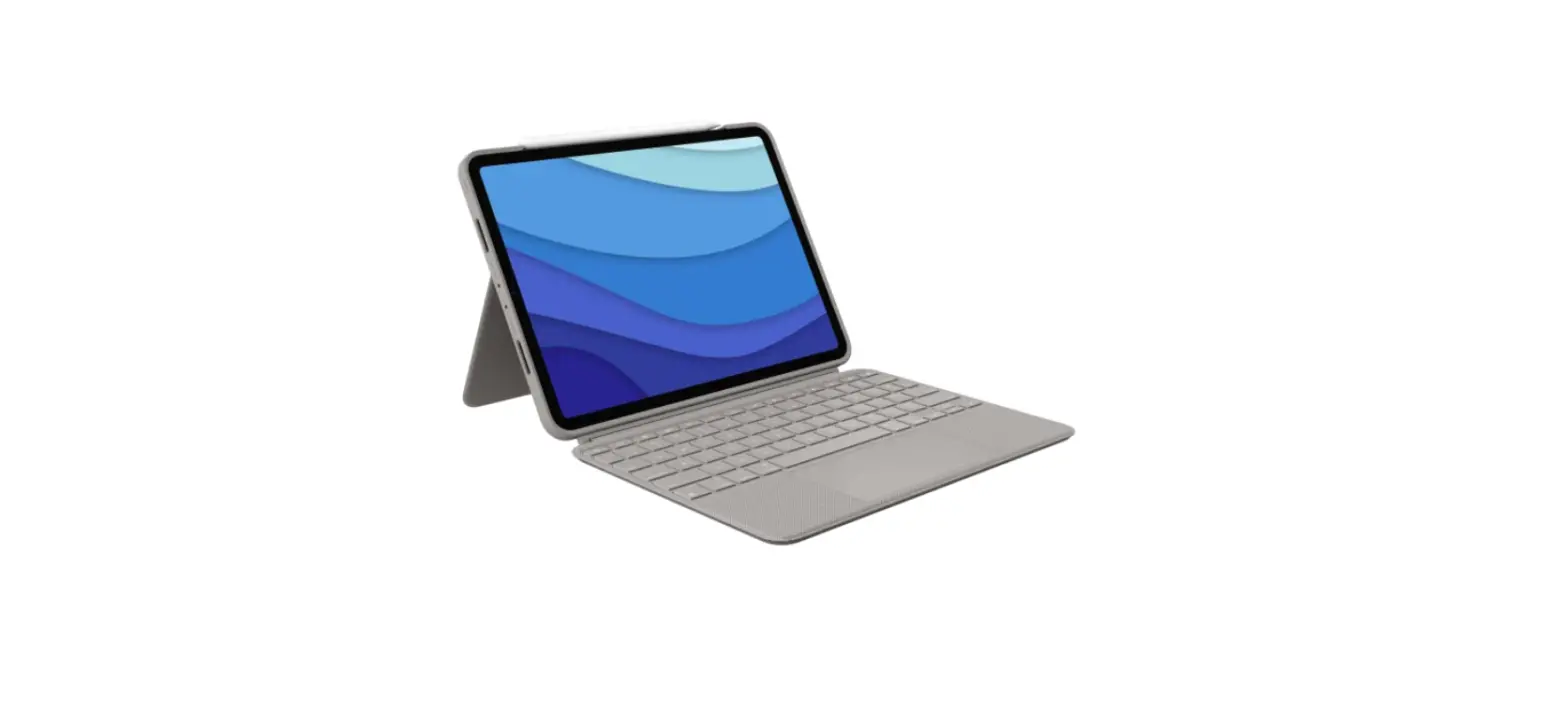

logitech Combo Touch iPad Pro Tablet
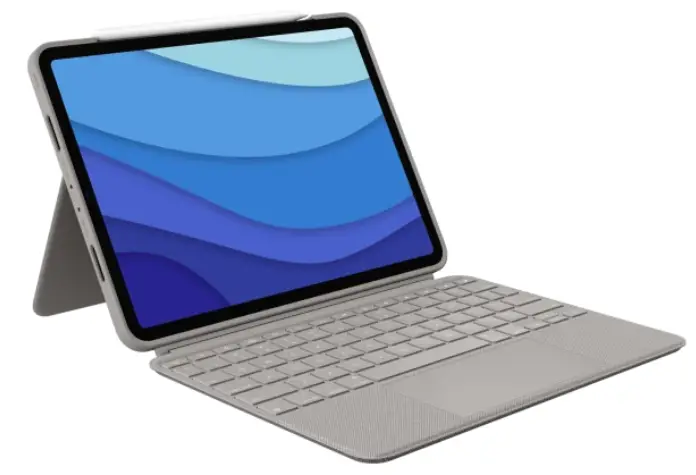
logitech Combo Touch iPad Pro Tablet
COMBO TOUCH

Download to access more features

https://www.logitech.com/combo-touch-app
© 2020 Logitech. Logitech, Logi, and other Logitech marks are owned by Logitech and may be registered. All other trademarks are the property of their respective owners. Logitech assumes no responsibility for any errors that may appear in this manual. Information contained herein is subject to change without notice.
Specs & Details
TROUBLESHOOTING
Combo Touch Keyboard shortcut keys
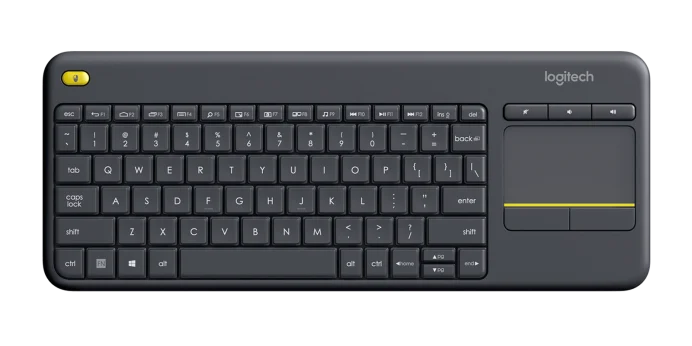
The keys on the top row on the Combo Touch Keyboard are the iPadOS shortcut keys. From left to right they are:
– Home
– iPad screen brightness down
– iPad screen brightness up
– Onscreen keyboard
– Search
– Backlit brightness down
– Backlit brightness up
– Previous track
– Play/pause
– Next track
– Volume mute
– Volume down
– Volume up
– Lock
To clean the keyboard and trackpad, wipe with a lint-free cloth dampened in water. Don’t apply liquids directly on the keyboard. If the spine or the smart connector of the keyboard gets dirty or stained, apply a small amount of rubbing alcohol to a soft, lint-free cloth to clean.
If your iPad does not recognize the Combo Touch Keyboard, and nothing happens when you type, try the following:
– Check that the iPad is securely placed inside the Combo Touch Keyboard case and the connection between the case and keyboard is firm
– Clean the Smart Connectors
– Update the iPadOS on your iPad to the latest version
The keyboard can withstand small splashes from:
– Water
– Soda
The keyboard uses a Smart Connector — a physical connection to the iPad. When you detach the Combo Touch for iPad Pro 12.9” and 11” keyboard from your iPad it will disconnect.
Yes, the keyboard is detachable.
The keyboard is powered by the iPad using the Smart Connector. There is no need to charge the keyboard.
You can click anywhere on the trackpad. You can also enable “tap to click” inside the iPadOS settings and use tap to replace click.
To enable tap to click, connect your keyboard with the iPad, then go to Setting > General > Trackpad > and turn on Tap to click.
Yes, you can adjust the speed in the iPadOS settings.
To adjust the speed, connect your keyboard with the iPad, and then go to Setting > General > Trackpad > and change the tracking speed.
Yes, you can adjust the direction in the iPadOS settings.
To change the scroll direction, connect your keyboard with the iPad, go to Setting > General > Trackpad > and then turn on or off Natural Scrolling.
To clean the keyboard and trackpad, wipe with a lint-free cloth dampened in water. Don’t apply liquids directly on the keyboard. If the spine or the smart connector of the keyboard gets dirty or stained, apply a small amount of rubbing alcohol to a soft, lint-free cloth to clean.
One finger
– Navigate and click
– The option “tap to click” under the iPadOS settings menu
Two fingers
– Swipe to scroll up and down, left and right
– Tap to input secondary click (right-click)
– Pinch to zoom in/out
Three fingers
– Swipe up to close the current app
– Swipe up further to show all apps
– Swipe left/right to switch apps
Logitech has introduced an iPadOS app called Logitech Control that lets you update the firmware and gives. You can find this app in the App Store and download it directly onto your iPad. We recommend you install this to keep up-to-date on firmware for your device.
During firmware updates, it’s important that you do not use the keyboard or touchpad during the process, making sure that the keyboard stays connected, and that the app is open. The best way to accomplish this is to place the device into “typing mode” on a flat surface where there is no risk that the keyboard could become disconnected.
If the keyboard disconnects or the app is closed while you are applying a firmware update, the update may not complete and some functionality of your device may be lost. If this happens, you can force the firmware update by using the following steps:
1. Open Logitech Control App — make sure you’re using the newest version available in the App Store.
2. On the screen, using the image of the keyboard within the app, place your fingers on the Q+W+E buttons (as highlighted in the image below), and then touch or press the Globe key on the image of the keyboard (also highlighted in the image below).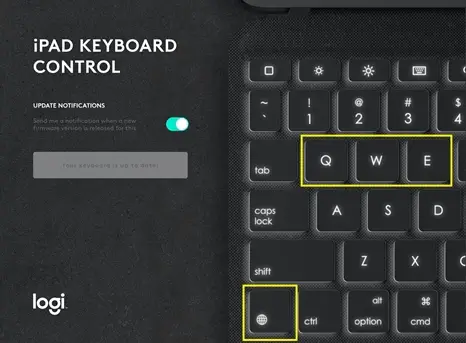
3. You will see the text below the Logi logo change to Unlocking Firmware Update when successful.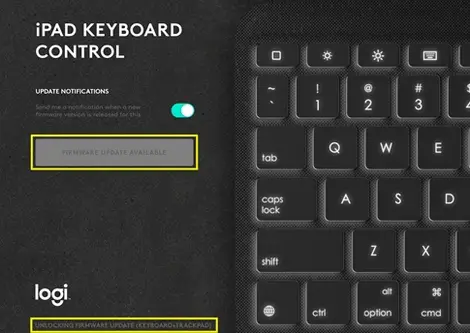
4. After “Unlocking Firmware Update” appears, tap the grayed-out FIRMWARE UPDATE AVAILABLE button.
5. The New Firmware window appears — tap Start Update to restart the firmware update.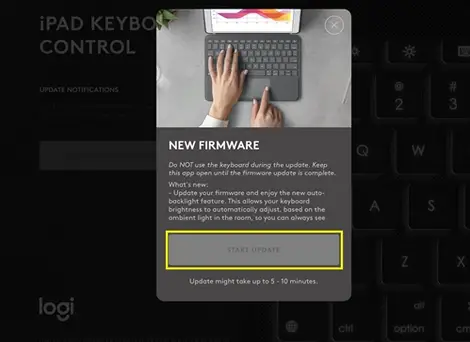
NOTE: Remember to keep the keyboard attached, the app open, and refrain from using the keyboard or touchpad during the process.
To enjoy the automatic adjustable backlighting feature and full backlight control features, you will need to update to iPadOS 13.6 or above.
You can adjust the backlighting of your keyboard from 0% to 100% by 16 different levels.
– To increase the backlighting, press the Backlighting Level Up key
– To decrease the backlighting, press the Backlighting Level Down key
Additionally, you can update the keyboard firmware in the Logitech Control app. You can download the app here, the app logo below, or scan the QR code with your iPad.

The following shortcut and media keys are available on the Combo Touch Keyboard:
– Home
– iPad screen brightness down
– iPad screen brightness up
– Onscreen keyboard
– Search
– Backlit brightness down
– Backlit brightness up
– Previous track
– Play/pause
– Next track
– Volume mute
– Volume down
– Volume up
– Lock
Here’s how to update the Combo Touch Keyboard firmware:
Download “Logitech Control” from the App Store on the iPad you use with the keyboard.
Open the Logitech Control app. It will show new firmware updates if there are any.
You can download the app here, the app logo below, or scan the QR code with your iPad.
If you experience that some of all the keys on Combo Touch Keyboard do not work, please try the following:
Reconnect your device to the iPad and test the keyboard:
– Make sure the Smart Connector on the iPad and top of the keyboard is clean and free of debris.
– Verify that the iPad is in the case properly so that the Smart Connector aligns with the connector on the keyboard.
– Place the iPad to allow the Smart Connector to attach (there is a small magnet that will keep it in place).
If the issue persists, perform a soft reset of your iPad. To perform a soft reset:
– Press and hold the power button and the home button until the iPad restarts and the Apple logo appears.
– After rebooting, confirm that your keyboard is connected to the iPad and then test it.
Make sure your iPad is up to date with the newest iPadOS:
– Plug your iPad into power and connect to the internet with WiFi.
– Tap Settings > General > Software Update.
– Tap Download and then Install and follow the on-screen instructions.
– Once the updates are installed, the iPad will restart.
– Confirm that your keyboard has successfully connected and then test it.
Make sure your Logitech Combo Touch Keyboard is up to date with the newest firmware:
– Download Logitech Control from the App Store on the iPad you use with the keyboard.
– Open the Logitech Control app. It will show new firmware updates if there are any.
– You can download the app here, the app logo below, or scan the QR code with your iPad.
If your Logitech Combo Touch Keyboard shows one or more of the following symptoms:
– The keyboard or touchpad doesn’t respond when typing or moving the cursor.
– The keyboard or trackpad goes back and forth between working, and not working.
– The keyboard or touchpad is slow to respond.
Check the following:
– Make sure the physical connection is well secured.
– Clean the Smart Connector area if necessary.
– Check the iPadOS version and make sure your iPad is up to date.
If an issue still exists, download the Logitech Control App and see if the keyboard firmware needs to be updated.
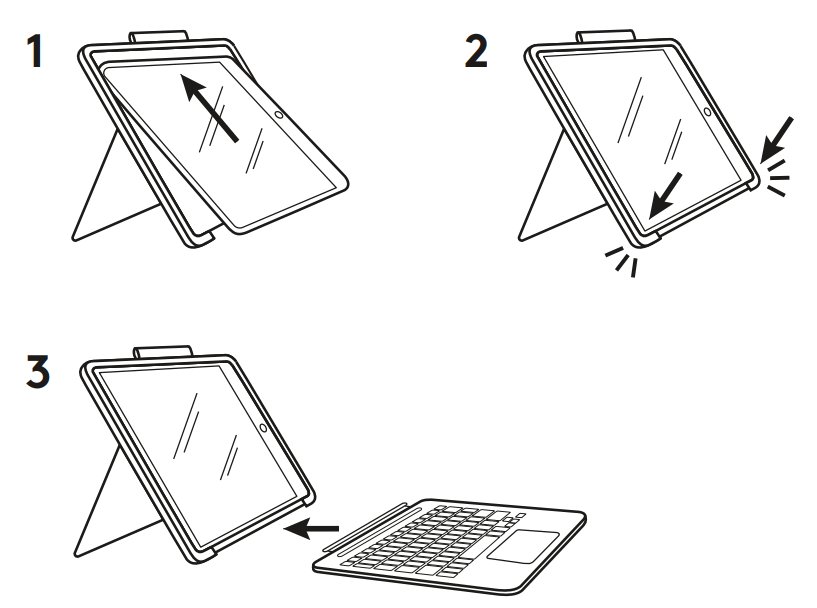
There are four different viewing positions you can use with your Combo Touch Keyboard case:
– Typing mode
– Viewing mode
– Sketching mode
– Reading mode
Typing mode
– Open the kickstand and adjust it to the desired angle (20-60 degrees)
– Place the holder on the desk in landscape layout
– Attach the keyboard to the case
Viewing mode
– Detach keyboard from case
– Open the kickstand and adjust it to the desired angle (20-60 degrees)
– Place the holder on the desk in landscape layout
Sketching mode
– Open the kickstand and adjust it to a lower angle
– Place the holder on the desk in landscape layout
– Use finger, Apple Pencil or Logitech Crayon to sketch
Reading mode
– Detach keyboard from case
– Hold iPad to read or view or reattach keyboard with the keys turned inward — to read books, articles, and more.
Here’s how to update the Combo Touch Keyboard firmware:
Download “Logitech Control” from the App Store on the iPad you use with the keyboard.
Open the Logitech Control app. It will show new firmware updates if there are any.
You can download the app here, the app logo below, or scan the QR code with your iPad.
If your Combo Touch Keyboard shows one or more of the following symptoms:
– The keyboard or touchpad doesn’t respond when typing or moving the cursor
– The keyboard or trackpad goes back and forth between working, and not working
– The keyboard or touchpad is slow to respond
Check the following:
– Make sure the Smart Connector is well secured.
– Clean the Smart Connector areas if necessary.
– Check the iPadOS version and make sure your iPad is up to date.
If an issue still exists, download the Logitech Control App and see if the keyboard firmware needs to be updated.
If you experience that some of all the keys on Combo Touch Keyboard do not work, please try the following:
Reconnect your device to the iPad and test the keyboard:
– Make sure the Smart Connector on the iPad, inside the cover, and the detachable keyboard are clean and free of debris.
– Verify that the iPad is in the case properly so that the Smart Connector aligns.
– Place the iPad to allow the Smart Connector to attach (there is a small magnet that will keep it in place).
If the issue persists, perform a soft reset of your iPad. To perform a soft reset:
– Press and hold the power button and the home button until the iPad restarts and the Apple logo appears.
– After rebooting, confirm that your keyboard is connected to the iPad and then test it.
Make sure your iPad is up to date with the newest iPadOS:
– Plug your iPad into power and connect to the internet with WiFi.
– Tap Settings > General > Software Update.
– Tap Download and then Install and follow the on-screen instructions.
– Once the updates are installed, the iPad will restart.
– Confirm that your keyboard has successfully connected and then test it.
Make sure your Logitech Combo Touch Keyboard is up to date with the newest firmware:
– Download “Logitech Control” from the App Store on the iPad you use with the keyboard.
– Open the Logitech Control app. It will show new firmware updates if there are any.
– You can download the app here, the app logo below, or scan the QR code with your iPad.
If your cursor is jumpy when you use the Combo Touch Keyboard trackpad, please try the following:
– Make sure that only one part of your finger is touching the surface and that you’re not resting your wrist on or very close to the surface. The touch surface might interpret this as your finger touching it and move the pointer in that direction.
– Keep the surface dry and clean:
– To clean the keyboard and trackpad, wipe with a lint-free cloth dampened in water.
– Don’t apply liquids directly on the keyboard/iPad.
– If the spine or the smart connector of the keyboard/iPad gets dirty or stained, apply a small amount of rubbing alcohol to a soft, lint-free cloth to clean.
DOWNLOAD RESOURCES
- logitech Combo Touch iPad Pro Tablet [pdf] User Guide Combo Touch iPad Pro Tablet
- Read more: https://#manualsee.com/logitech/combo-touch-ipad-pro-tablet-manual#ixzz7i2FNvA9G
FAQ’S
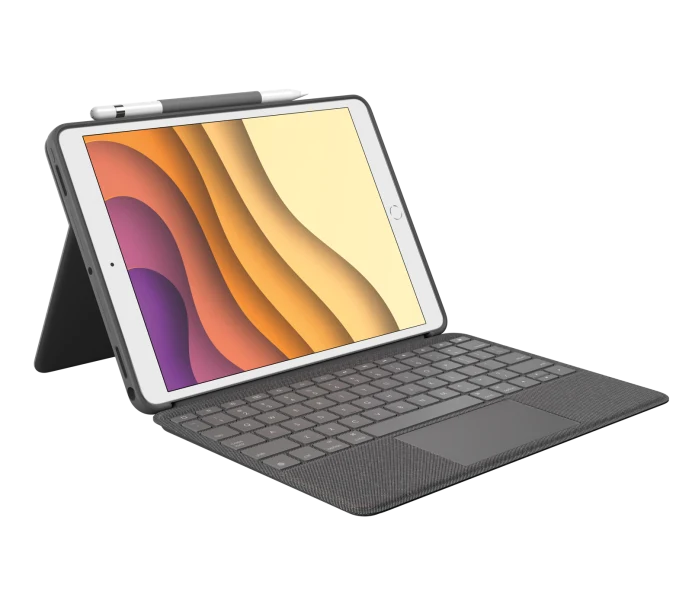
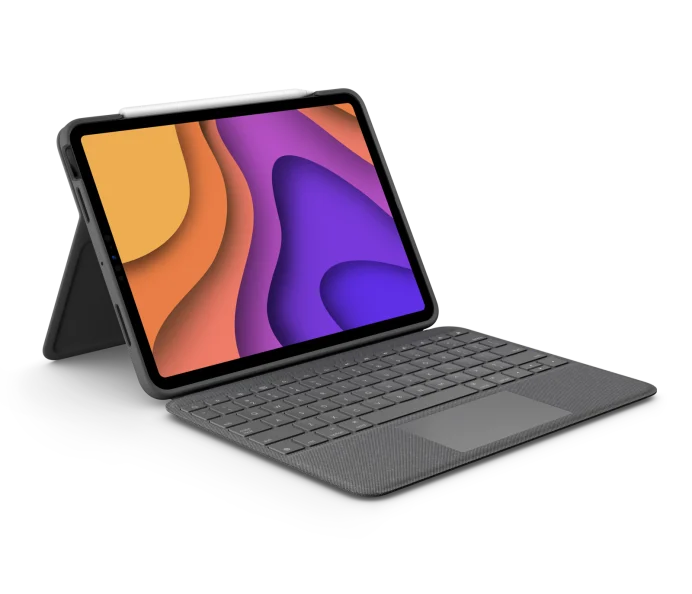
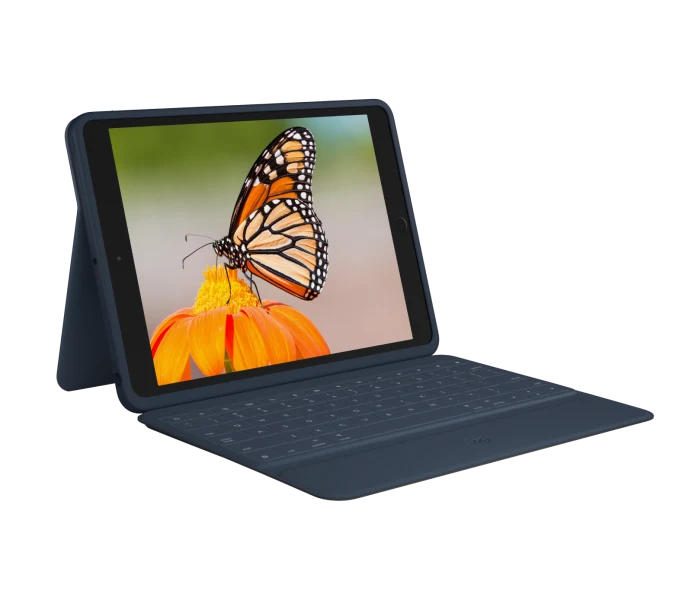
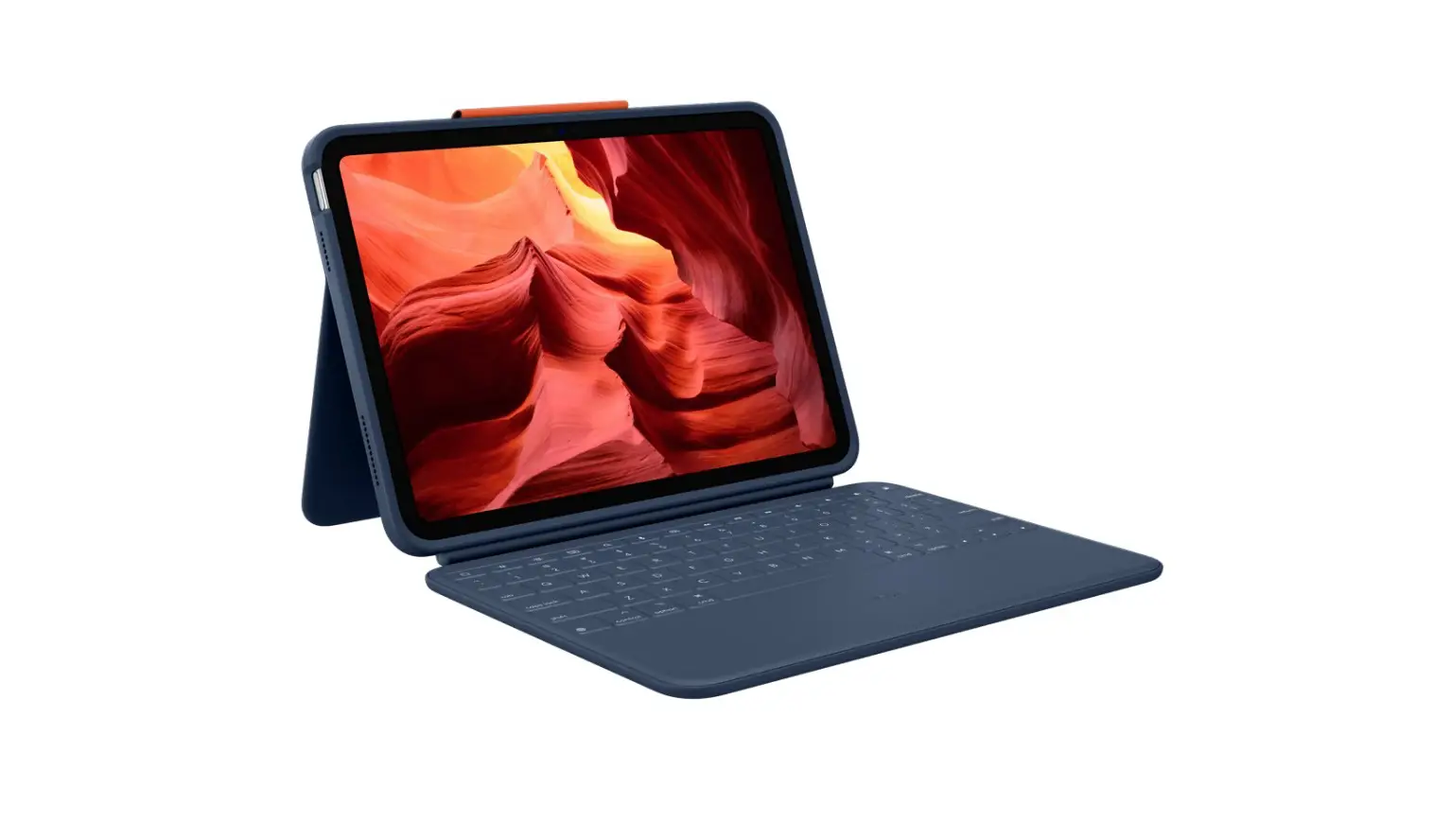
Combo Touch combines a precision trackpad with a full-size keyboard for your iPad.
Our Verdict
The Combo Touch also has several features the Folio Touch lacks, including a kickstand, a slightly larger trackpad, and a keyboard that’s detachable from its case.
Excellent keyboard and touchpad. Drains battery even when locked.
Logitech May have intended for this to work with just the 5th Gen iPad Pro, but it does work retroactively with the 3rd and 4th Gen versions. I hope this helps you and provides an actual answer to your question.
A slightly damp cleaning cloth or soft, dust-free cloth works best to remove fingerprints. Dust in hard-to-reach places is best removed with compressed air.
The Logitech Combo Touch has a weight of 610 g.
The Logitech Combo Touch keyboard links to your iPad via Apple’s Smart Connector. This means you’ll have an adequately reliable connection and won’t require Bluetooth. Plus, you won’t have to worry about the charging case as well.
Just quickly hold down commands. And then click on v. And then once you have pasted of course you can release the command key as well. And then of course we go like.
Go to “Settings” then to “General” and to “Keyboard”
Choose “Hardware Keyboard”
Slide the ‘Keyboard Brightness’ slider all the way to the right or somewhere in between to enable the backlit keyboard.
If you want to right-click on your iPad, all you need to do is press one finger on the screen and hold it there for a second or two (unmoving). This gesture opens the contextual menu for whatever application you’re using. However, there’s one aspect to understand about right-clicking on the iPad: It’s app contextual.
Insert your iPad in the iPad holder. Close the keyboard folio: Logitech Type + Status light indicators Your keyboard folio’s status light provides information about the battery power and Bluetooth connection: Light Description Blinking green The battery is charging.
Use the charging cable included with your keyboard. Plug the small end into the charging port on the back of the device, then plug the other end into the charger or your computer. If you don’t have the original charger, you can use any micro-USB connector.
VIDEO
www://logitech.com/
 Logitech Control on the App Store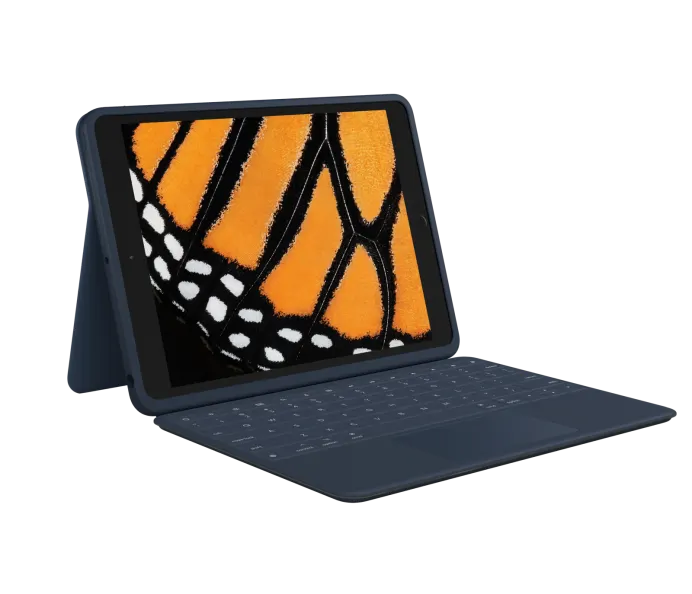


![Logitech Slim Folio Keyboard For Ipad [ 5th, 6th, 7th, 8th And 9th Gen ] User Manual](https://static-data1.manualsee.com/1/img/171/4594230/2022/09/Logitech-SLIM-FOLIO-Keyboard-for-iPad-5th-6th-7th-8th-and-9th-gen.webp "Logitech Slim Folio Keyboard For Ipad [ 5th, 6th, 7th, 8th And 9th Gen ] User Manual")