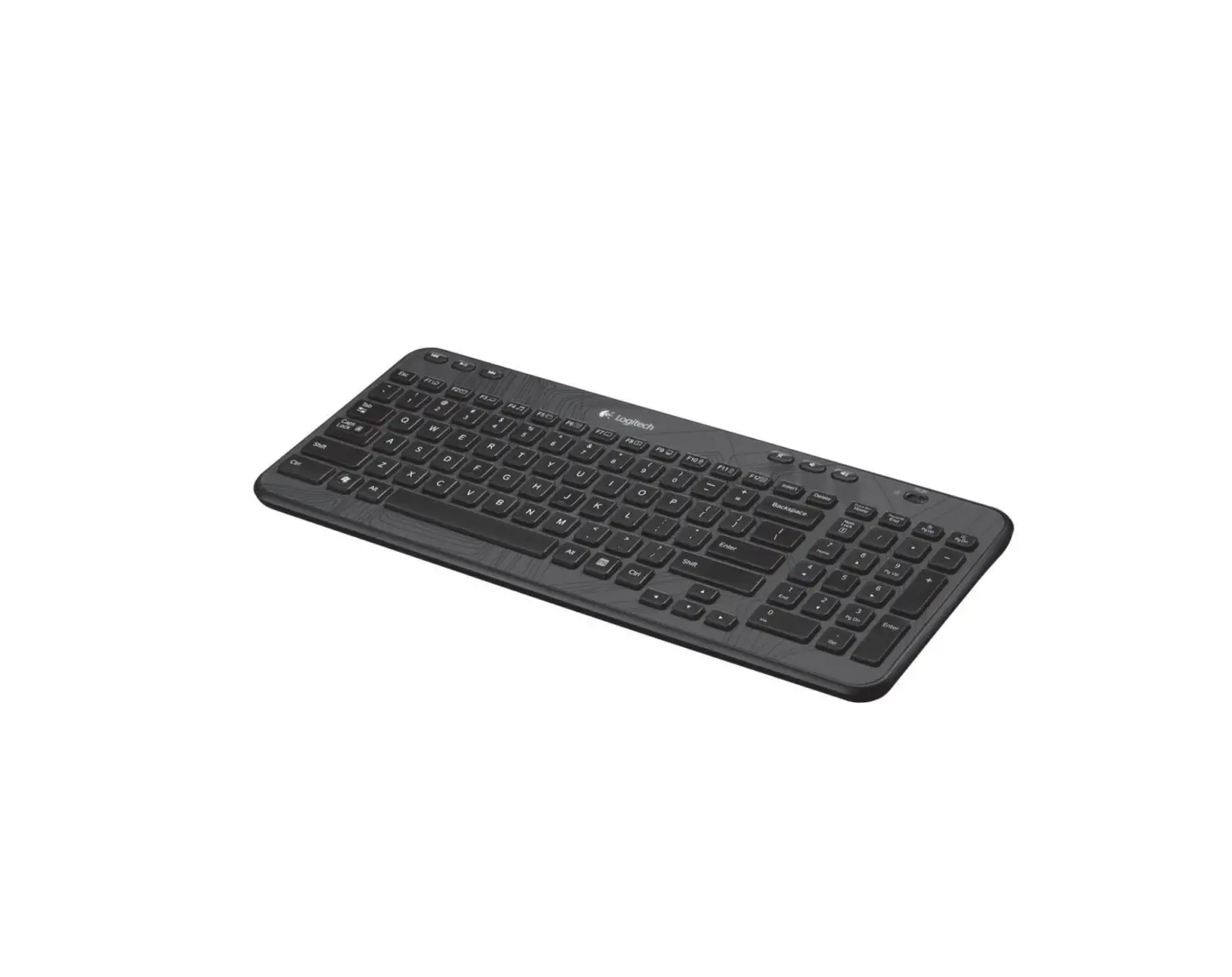
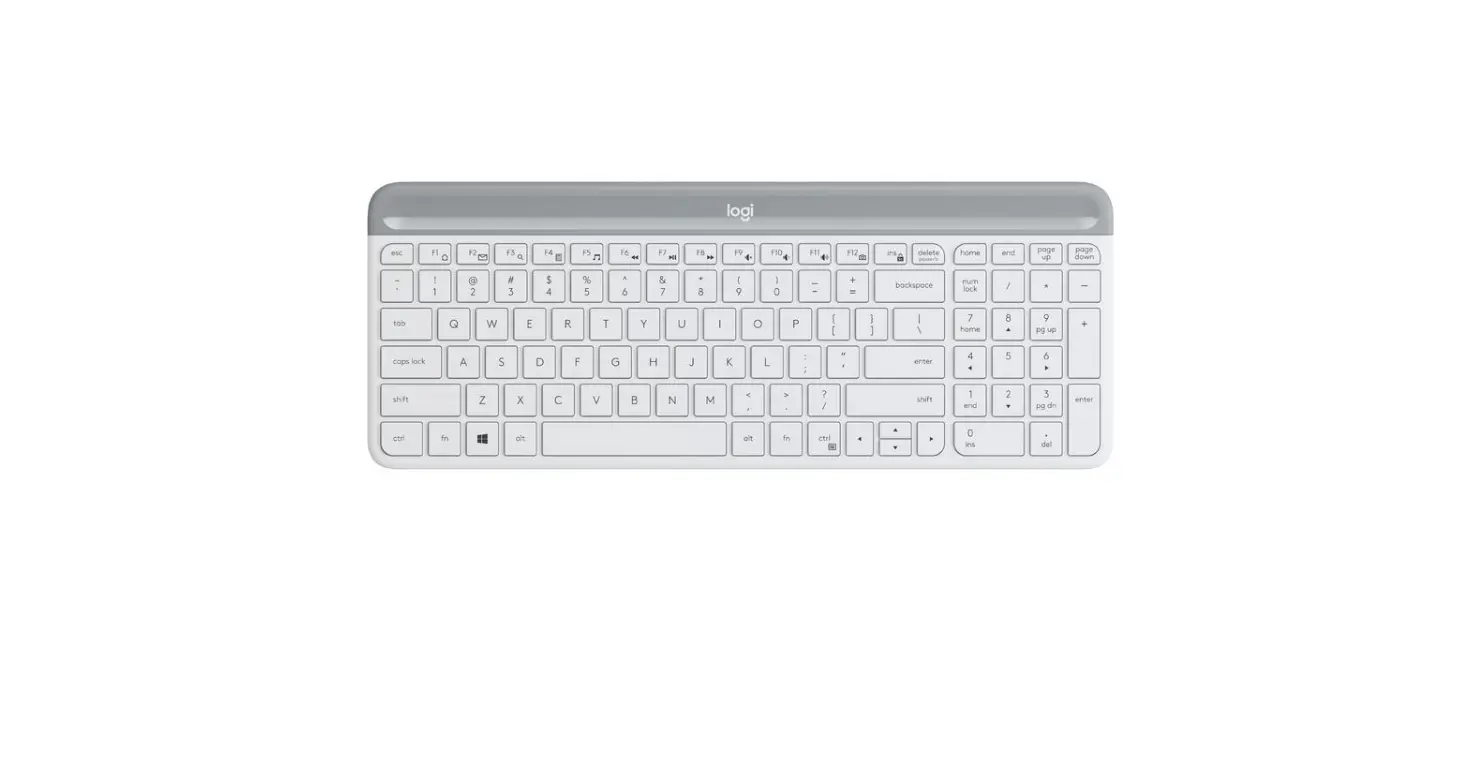
Logitech Wired Keyboard for iPad
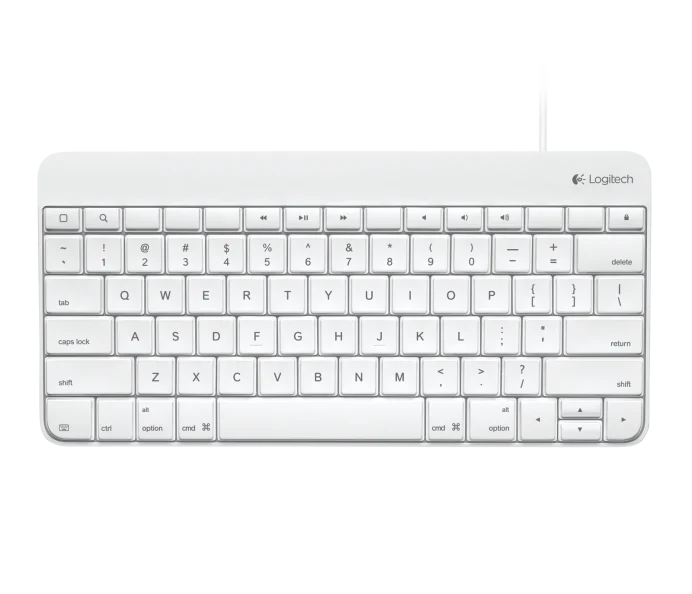
User Manual
Logitech® Wired Keyboard for iPad® 30-pin Connector
Logitech® Wired Keyboard for iPad® Lightning™ Connector
WIRED KEYBOARD for iPad
Set up your product
- Turn on your iPad/iPad mini.
- Take the cord from the keyboard and plug it into your iPad/iPad mini’s charging port (next to the Home button) and you are ready to go.
- If keyboard does not respond, please unplug the keyboard, press the iPad Home button and plug it in again. (Please note you cannot wake the iPad by pressing the keyboard keys. You need to wake the iPad by pressing the iPad’s Home button.)
Function keys introduction (from left to right)
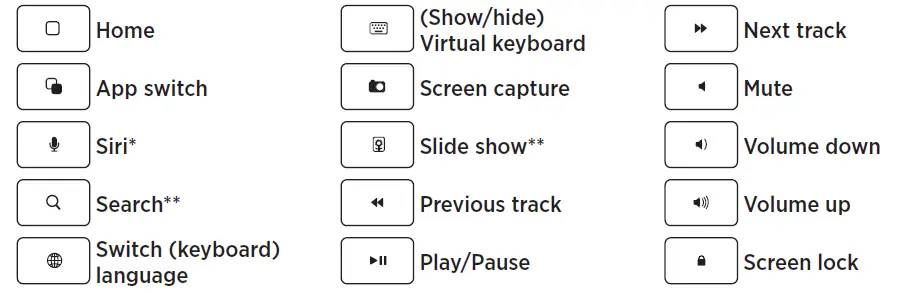
*Siri function key is only available for iPad mini, iPad (3rd generation) and its later generations.
**Search and Slide show function keys are only available for iOS6 and earlier versions.
Visit Product Central
There’s more information and support online for your product. Take a moment to visit Product Central to learn more about your new Wired Keyboard for iPad.
www.logitech.com/support/wired-keyboard-ipad
What do you think?
Thank you for purchasing our product.
Please take a minute to tell us what you think of it.
www.logitech.com/ithink
United States: +1 646-454-3200
Canada: +1 866-934-5644
© 2013 Logitech. All rights reserved. Logitech, the Logitech logo, and other Logitech marks are owned by Logitech and may be registered. Apple and iPad are trademarks of Apple Inc., registered in the U.S. and other countries. All other trademarks are the property of their respective owners. Logitech assumes no responsibility for any errors that may appear in this manual. Information contained herein is subject to change without notice.
620-005360.004
Specs & Details
FAQ – Frequently Asked Questions
If your iPad stops responding to the keyboard in apps such as Notes and Safari, try the following:
– Make sure your keyboard’s Lightning connector is firmly connected to your iPad.
– Restart your iPad:
For an iPad without a Home button
– Press and hold either the volume up or volume down button and the top button until the power off slider appears.
– Drag the slider, then wait 30 seconds for your device to turn off.
– To turn your device back on, press and hold the top button until you see the Apple logo.
For an iPad with a Home button
– Press and hold the top button until the power off slider appears.
– Drag the slider, then wait for 30 seconds for your device to turn off.
– To turn your device back on, press and hold the top button until you see the Apple logo.
For Logitech tablet Bluetooth keyboard users who have upgraded to iOS 7, the Spotlight Search (fn3) and Slide Show (fn6) keys will no longer work. This is due to functionality changes between iOS 6 and iOS 7, and isn’t unique to Logitech.
See your Apple product documentation for iOS 7 software for details on how to access these features.
NOTE: These keys work properly with devices using iOS 6 and earlier.
This product is designed for use with:
– iPad mini
– iPad 4th generation
The Logitech Wired Keyboard has special keys that perform iOS-specific functions.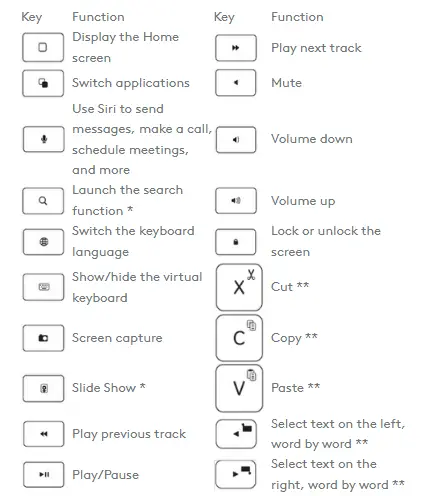
NOTES:
* iOS 6 and earlier.
** Press and hold the fn key to use these functions.
Read More About….
Logitech Wired Keyboard for iPad User Manual
Download:
Logitech Wired Keyboard for iPad User Manual – [ Download PDF ]

![Logitech Slim Folio Keyboard For Ipad [ 5th, 6th, 7th, 8th And 9th Gen ] User Manual](https://static-data1.manualsee.com/1/img/171/4594230/2022/09/Logitech-SLIM-FOLIO-Keyboard-for-iPad-5th-6th-7th-8th-and-9th-gen.webp "Logitech Slim Folio Keyboard For Ipad [ 5th, 6th, 7th, 8th And 9th Gen ] User Manual")