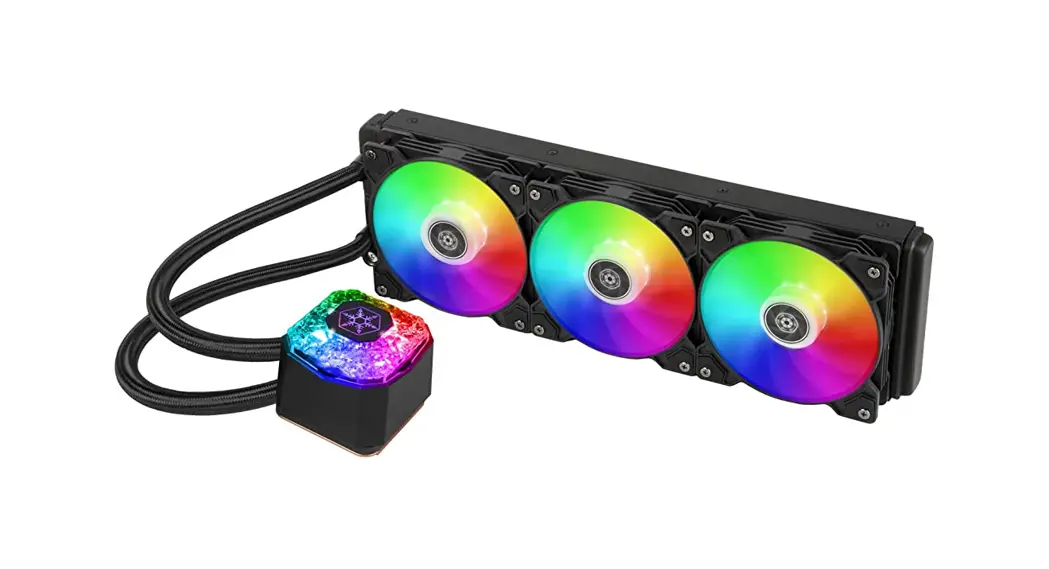

User’s Manual
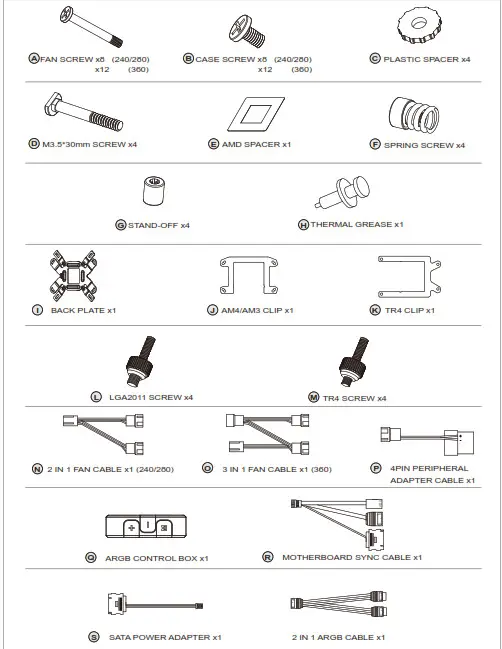
Accessories
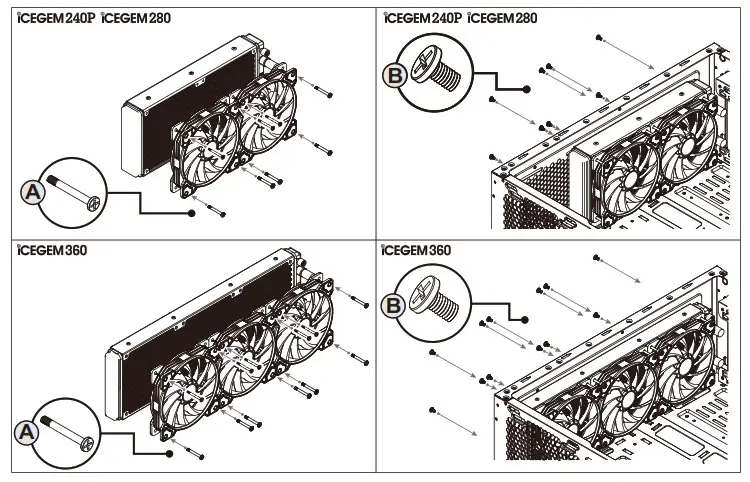
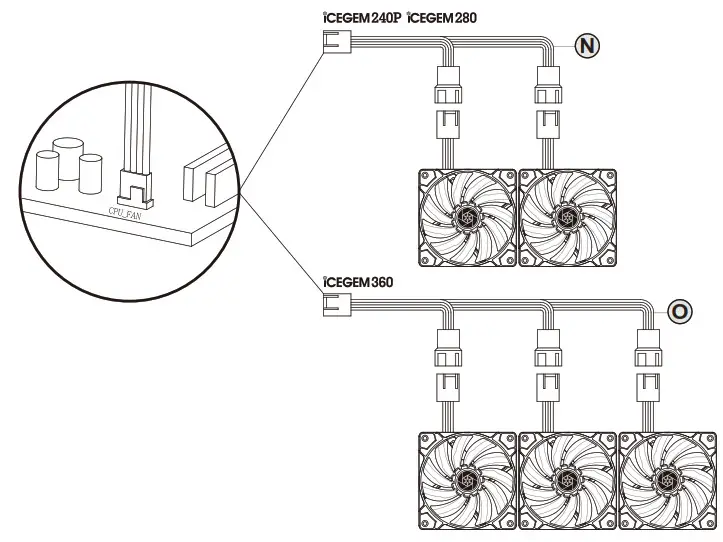
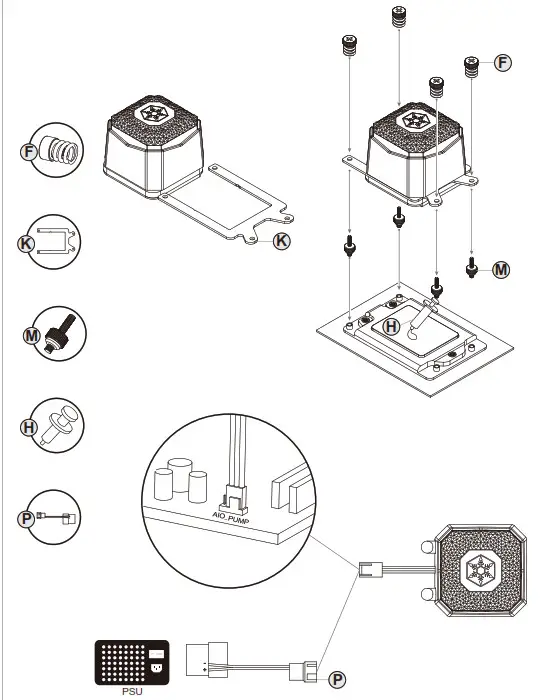
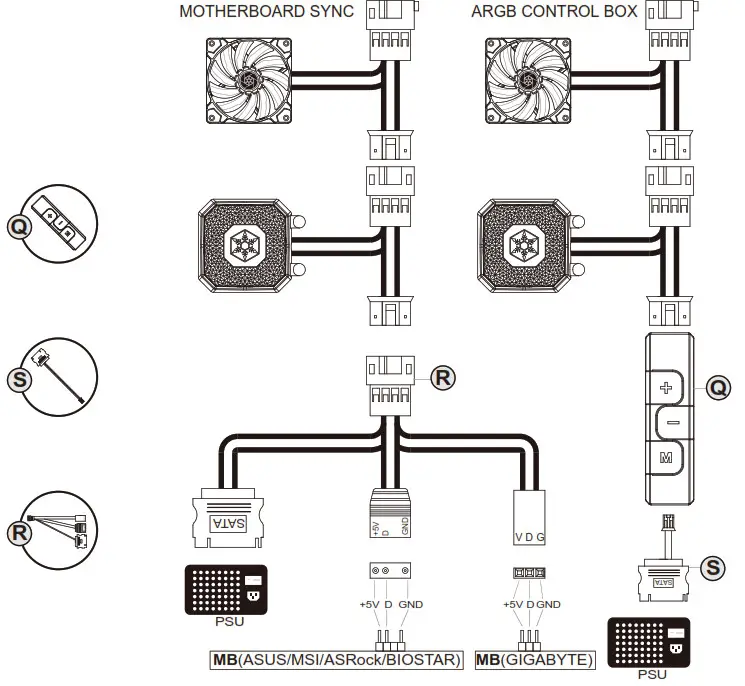
Please confirm the connector, the definition, and direction of your pin header when connecting cables
Ensure ARGB controller/motherboard has same +5V pin definition as iG240P/iG280/iG360 PSU
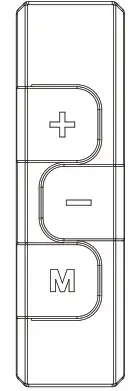
ARGB controller
Instructions for ARGB controller
- There are three buttons on this controller, “+ / – / M”
- M button: Press M button to switch to lighting effect mode, speed of lighting mode, brightness mode,
and demo mode
Press “+” or “–“ to adjust desired levels - Press M button for 3 seconds to turn off, press M button again to turn on and resume to the last
lighting effect mode before turning off - When powered on for the first time, the default lighting effect is “Rainbow”
- After turning off or sudden power loss, the controller will resume to the last set lighting effect mode and
level after power on - Press “–“ button for 3 seconds under any modes will reset to default effect (Rainbow)
- Lighting effect mode
1) Rainbow (default)
2) Breathing
3) Flashing
4) Layering (8 colors: white, indigo, violet, yellow, blue, red, green, orange)
5) Flowing
6) 256 colors auto-switching (8 colors: white, indigo, violet, yellow, blue, red, green, orange)
Press “+” for 3 seconds to lock the chosen color; press “–“ for 3 seconds to unlock color.
7) Radar
8) Color layering, red
9) Color layering, green
10) Color layering, blue - Press M button to switch mode
Press “+” or “–“ when the controller’s red indicator lights up to adjust the speed of lighting (fast/slow) - Press M button to switch mode
Press “+” or “–“ when the controller’s blue indicator lights up to adjust brightness - Press M button to switch mode
Under demo mode, the controller’s yellow indicator lights up and will display and recycle all 10 lighting effects continuously