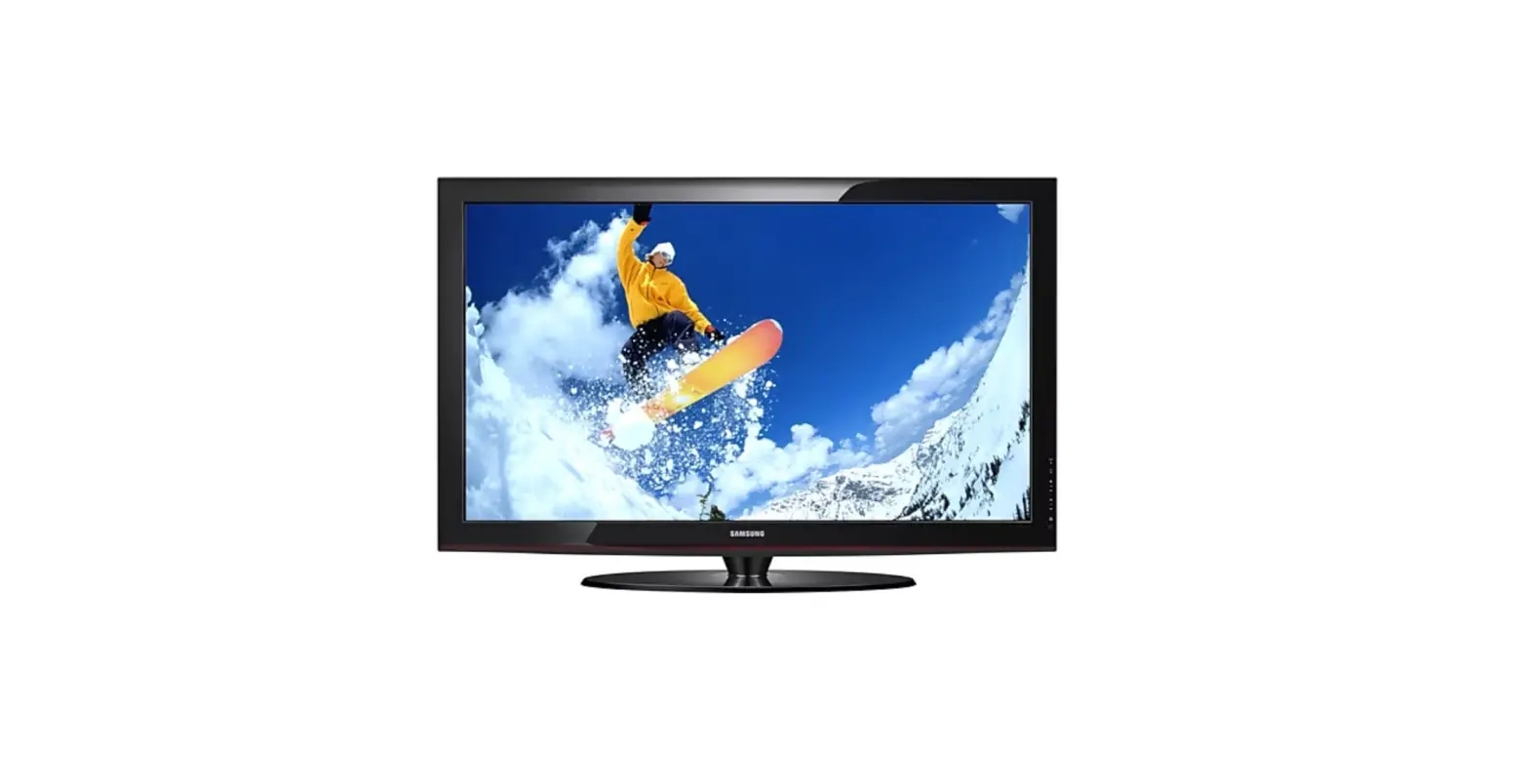
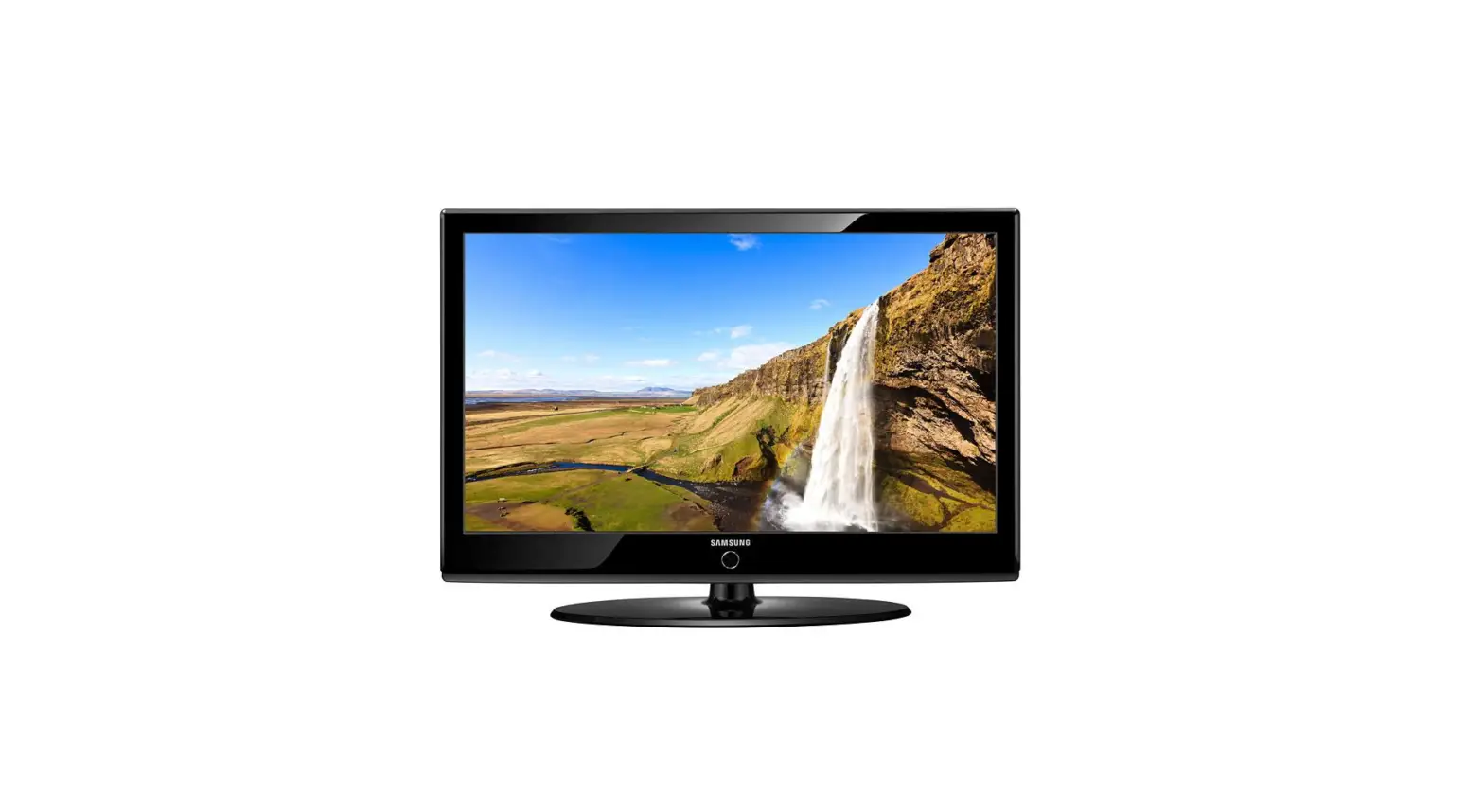
PS51D530 Plasma TV
Product Information: Plasma TV
Quick Start Guide
1. Accessories and Cables
The following accessories are included with your TV:
- Input Cables (Sold Separately)
You will need one or more of these cables to connect your TV to
your antenna or cable outlet and your peripheral devices (Blu-ray
players, DVD players, etc.). Make sure you have the correct cable
before plugging it in. Illustrations of common plugs and jacks are
below.
| Cable Plugs | Ports/Jacks |
|---|---|
| HDMI | |
| USB | |
| Optical |
Do not plug a cable in upside down. Make sure the orientation of
the plug is correct before plugging it in.
2. Getting Started
When you install your TV, maintain a distance of at least 4
inches between the TV and other objects (walls, cabinet sides,
etc.) to ensure proper ventilation. Failing to maintain proper
ventilation may result in a fire or a problem with the product
caused by an increase in its internal temperature. When using a
stand or wall-mount, use parts provided by Samsung Electronics
only. Using parts provided by another manufacturer may cause
difficulties with the product or result in injury caused by the
product falling. Be careful when you contact the TV because some
parts can be somewhat hot.
Installation with a stand:

Installation with a wall-mount:

Installing Batteries into the Remote (Battery size: AAA). Match
the polarity of the batteries to the symbols in the battery
compartment.
NOTE:
- Use the remote control within 23 feet of the TV.
- Bright light may affect the performance of the remote control.
Avoid use when near fluorescent lights or neon signs. - The color and shape of the remote may vary depending on the
model.
3. Making Connections
Connect your TV to an antenna or cable connection, and then
connect your peripherals. When done, connect the power cord to the
TV, and then connect the power cord to an AC wall outlet. If you
are connecting your TV to a cable or satellite box using HDMI,
Component, or Composite connections, you do not need to connect the
ANT IN jack to an antenna or a cable connection.
- For the best picture and audio quality, connect digital devices
using an HDMI cable. - If you connect an external device to the TV that uses an older
version of HDMI, the video and audio may not work. If this occurs,
ask the manufacturer of the device about the HDMI version and, if
it is out of date, request an upgrade. - Be sure to purchase a certified HDMI cable. Otherwise, the
picture may not display or a connection error may occur. - PC/DVI AUDIO IN input is not supported.
- For an HDMI to DVI cable connection, you must use the HDMI IN
1(DVI) jack. - For PCs with DVI video out jacks, use an HDMI to DVI cable to
connect the DVI out on the PC to the HDMI IN 1 jack on the TV. Use
the PC’s speakers for audio. - EX-LINK: Connector for service only.
- The PDP device may interfere with an amateur radio or AM
radio. - When using two-way radio mobile and portable units or amateur
radio or AM radio near by your TV, this may cause the TV to
malfunction.

VHF/UHF Antenna
Power Input
ANT OUT
Product Usage Instructions:
1. Make sure you have all the necessary input cables to connect
your TV to your antenna or cable outlet and peripheral devices such
as Blu-ray players, DVD players, etc. Refer to the illustrations of
common plugs and jacks in the manual to ensure you have the correct
cable before plugging it in. Do not plug a cable in upside down.
Make sure the orientation of the plug is correct before plugging it
in.
2. When installing your TV, maintain a distance of at least 4
inches between the TV and other objects such as walls or cabinet
sides to ensure proper ventilation. Use parts provided by Samsung
Electronics only when using a stand or wall-mount. Be careful when
you contact the TV as some parts can be hot.
3. Install batteries into the remote control (Battery size: AAA)
and match the polarity of the batteries to the symbols in the
battery compartment. Use the remote control within 23 feet of the
TV and avoid using it near fluorescent lights or neon signs as it
may affect the performance of the remote control.
4. Connect your TV to an antenna or cable connection and then
connect your peripherals. For the best picture and audio quality,
connect digital devices using an HDMI cable. If you are connecting
your TV to a cable or satellite box using HDMI, Component, or
Composite connections, you do not need to connect the ANT IN jack
to an antenna or a cable connection. Be sure to purchase a
certified HDMI cable to avoid any connection errors or display
issues. Refer to the manual for more information on connecting your
devices.
Plasma TV
quick start guide
1. Accesories and Cables
Accessories
The following accessories are included with your TV:
· Remote Control (AA59-00600A) & Batteries (AAA x 2) · Warranty Card / Safety Guide · Owner’s Guide · Quick Start Guide · Cleaning Cloth (BN63-01798B) · Power Cord
Input Cables (Sold Separately)
You will need one or more of theses cables to connect your TV to your antenna or cable outlet and your peripheral devices (Blu-ray players, DVD players, etc.)
· Audio
· Component
· HDMI
· Composite (AV)
· HDMI-DVI
· Coaxial (RF)
Make sure you have the correct cable before plugging it in. Illustrations of common plugs and jacks are below.
Cable Plugs
Ports/Jacks
HDMI
USB
Optical
Do not plug a cable in upside down. Make sure the orientation of the plug is correct before plugging it in.
2. Getting Started
Provide Ventilation for Your TV
When you install your TV, maintain a distance of at least 4 inches between the TV and other objects (walls, cabinet sides, etc.) to ensure proper ventilation. Failing to maintain proper ventilation may result in a fire or a problem with the product caused by an increase in its internal temperature.
When using a stand or wall-mount, use parts provided by Samsung Electronics only.
x Using parts provided by another manufacturer may cause difficulties with the product or result in injury caused by the product falling.
Be careful when you contact the TV because some parts can be somewhat hot.
Installation with a stand.
Installation with a wall-mount.
4inches
4inches
4inches 4inches
4inches
4inches
4inches
Installing Batteries into the Remote (Battery size: AAA)
Match the polarity of the batteries to the symbols in the batter compartment
NOTE
x Use the remote control within 23 feet of the TV. x Bright light may affect the performance of the remote control. Avoid use when near fluorescent lights or neon
signs. x The color and shape of the remote may vary depending on the model.
BN68-04422A-00
– 1 –
BN68-04422A
– 2 –
3. Making Connections
Connect your TV to an antenna or cable connection, and then connect your peripherals. When done, connect the power cord to the TV, and then connect the power cord to an AC wall outlet. If you are connecting your TV to a cable or satellite box using HDMI, Component, or Composite connections, you do not need to connect the ANT IN jack to an antenna or a cable connection.
y For the best picture and audio quality, connect digital devices using an HDMI cable.
y If you connect an external device to the TV that uses an older version of HDMI, the video and audio may not work. If this occurs, ask the manufacturer of the device about the HDMI version and, if it is out of date, request an upgrade.
y Be sure to purchase a certified HDMI cable. Otherwise, the picture may not display or a connection error may occur.
y PC/DVI AUDIO IN input is not supported.
y For an HDMI to DVI cable connection, you must use the HDMI IN 1(DVI) jack.
y For PCs with DVI video out jacks, use an HDMI to DVI cable to connect the DVI out on the PC to the HDMI IN 1 jack on the TV. Use the PC’s speakers for audio.
y EX-LINK: Connector for service only.
y The PDP device may interfere with an amateur radio or AM radio.
y When using two-way radio mobile and portable units or amateur radio or AM radio near by your TV, this may cause the TV to malfunction.
VHF/UHF Antenna
Power Input
ANT OUT
or
Cable
Media Play Using a USB Drive
(5V 0.5A)
R
B
GR
R
W
GR
OPTICAL
Digital Audio System Audio Device
Using an Optical (Digital) Cable
[PE535-ZA-QSG]BN68-04422A-ENG.indd 1
R
B
R
W
COMPONENT OUT
AUDIO OUT
PR
PB
Y
R-AUDIO-L
Blu-ray player
AV Device (3) Using a Component Cable (up to 1080p)
– 3 –
AV Device (1) Using an HDMI Cable (up to 1080p)
HDMI OUT
Blu-ray player / DVD / cable box / sat box
DVI OUT
PC
HDMI OUT
PC Using an HDMI Cable or an HDMI to DVI Cable. Use the PC speakers for audio.
RW
YR
RW
Y
AUDIO OUT VIDEO OUT
R-AUDIO-L
VCR
AV Device (2) Using Audio/Video Cables
4. The Remote Control
Learn where the function buttons are on your remtoe. Especially note POWER, SOURCE, VOL, CH, MENU, TOOLS, ENTER, CH LIST, RETURN and EXIT.
Turns the TV on and off. Press to access channels directly..
Displays and selects the available video sources.
Turns the remote control light on or off. When on, the buttons become illuminated for a moment when pressed. (Using the remote control with this button set to On will reduce the battery usage time.)
Press to select additional digital channels being broadcasted by the same station. For example, to select channel `54-3′, press `54′, then press
`-‘ and `3’. Adjusts the volume.
Displays the channel list on the screen.
Displays Media Play.
Quickly select frequently used functions.
ENTERE and Direction buttons. Select the on-screen menu items and change the values seen on the menu.
Returns to the previous menu.
MEDIA.P
P.SIZE: Lets you choose the picture size.
MTS: Press to choose stereo, mono or Separate Audio Program (SAP broadcast).
CC: Controls the caption decoder.
SLEEP
Returns to the previous channel. Cuts off the sound temporarily. Changes channels.
Displays the main on-screen menu. Automatically shuts off the TV at a preset time. Displays information on the TV screen.
Exit the menu.
Use these buttons according to the directions on screen.
Use these buttons in a specific feature.
This remote control has Braille points on the Power, Channel, and Volume buttons and can be used by visually impaired persons.
– 4 –
2012-02-21 9:51:32
Obsah je uzamcen
Dokoncete, prosím, proces objednávky. Následn budete mít pístup k celému dokumentu.
Proc je dokument uzamcen? Nahnvat Vás rozhodn nechceme. Jsou k tomu dva hlavní dvody: 1) Vytvoit a udrzovat obsáhlou databázi návod stojí nejen spoustu úsilí a casu, ale i financní prostedky.
Dlali byste to Vy zadarmo? Ne*. Zakoupením této sluzby obdrzíte úplný návod a podpoíte provoz a rozvoj nasich stránek. Teba se Vám to bude jest nkdy hodit. *) Mozná zpocátku ano. Ale vzte, ze dotovat to dlouhodob nelze. A rozhodn na tom nezbohatneme. 2) Pak jsou tady ,,roboti”, kteí se pizivují na nasí práci a ,,vysávají” výsledky naseho úsilí pro svj prospch. Tímto krokem se jim to snazíme pekazit. A pokud nemáte zájem, respektujeme to. Urgujte svého prodejce. A kdyz neuspjete, rádi Vás uvidíme!