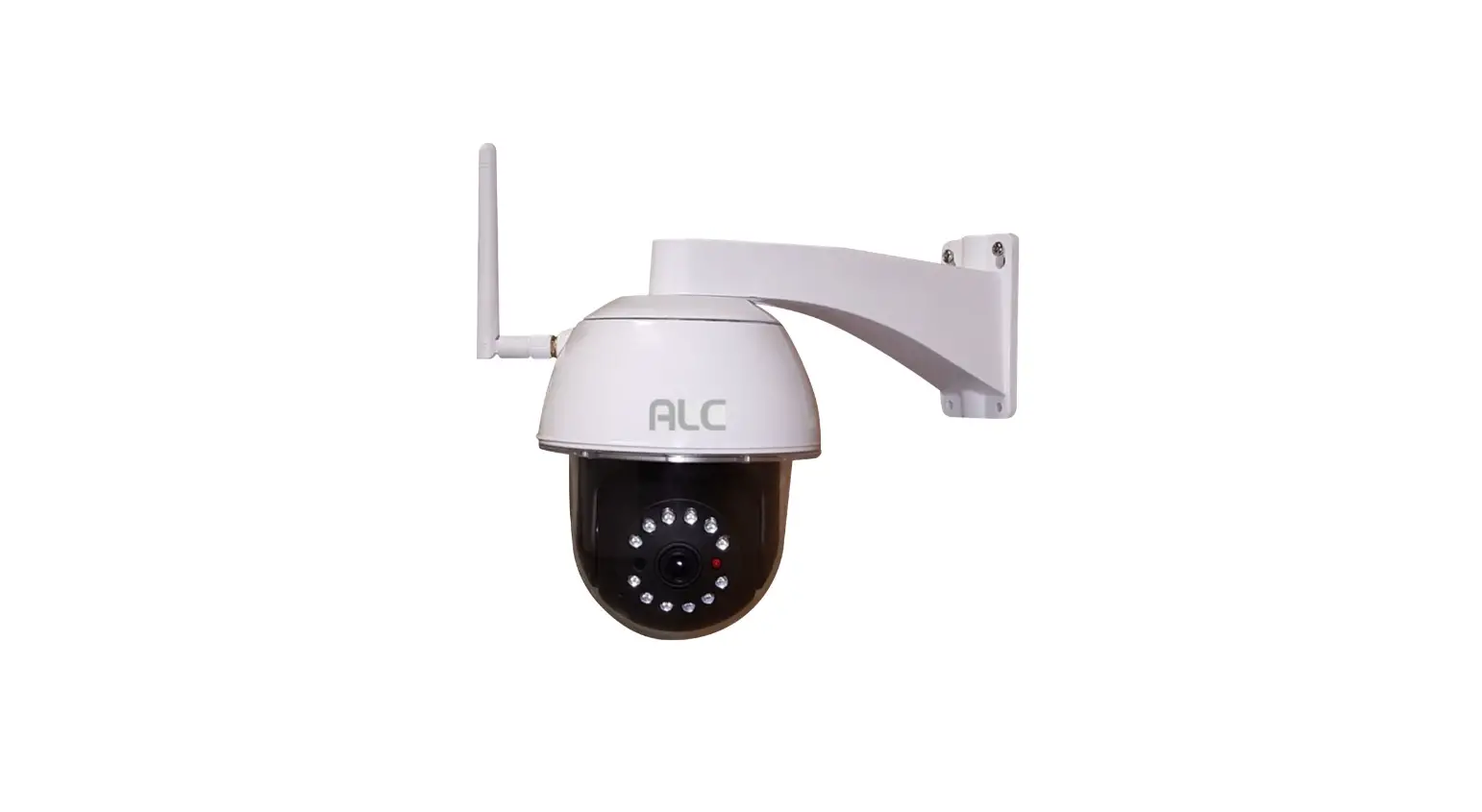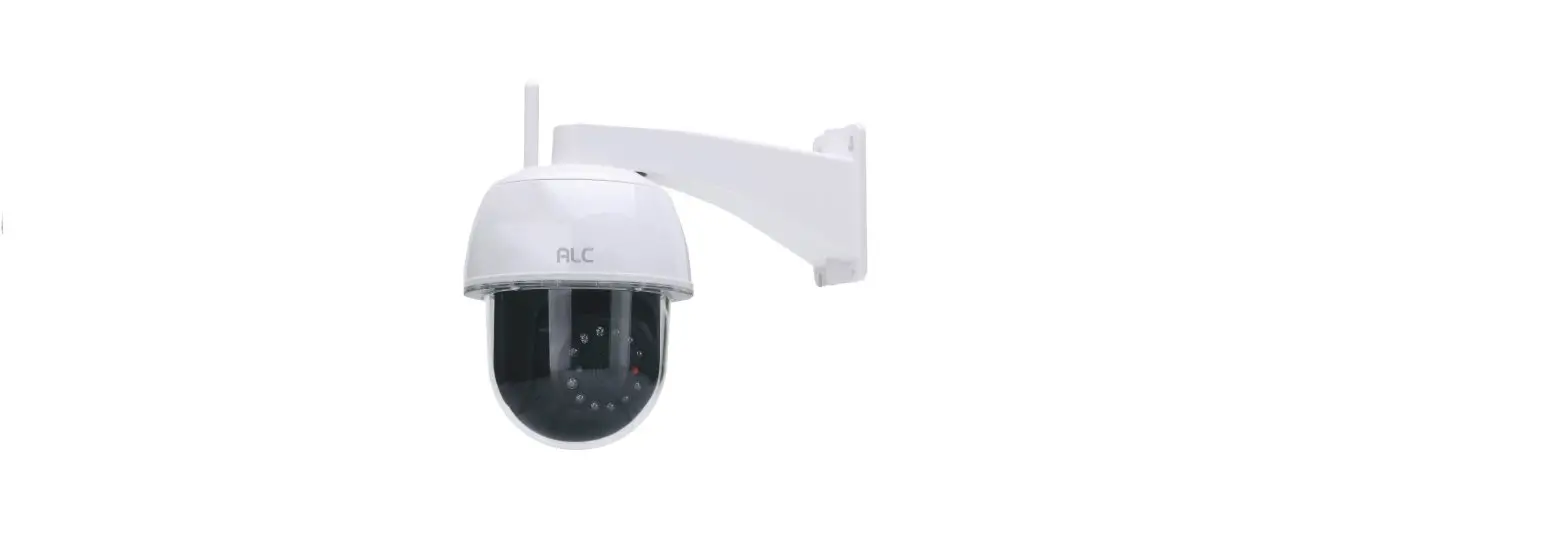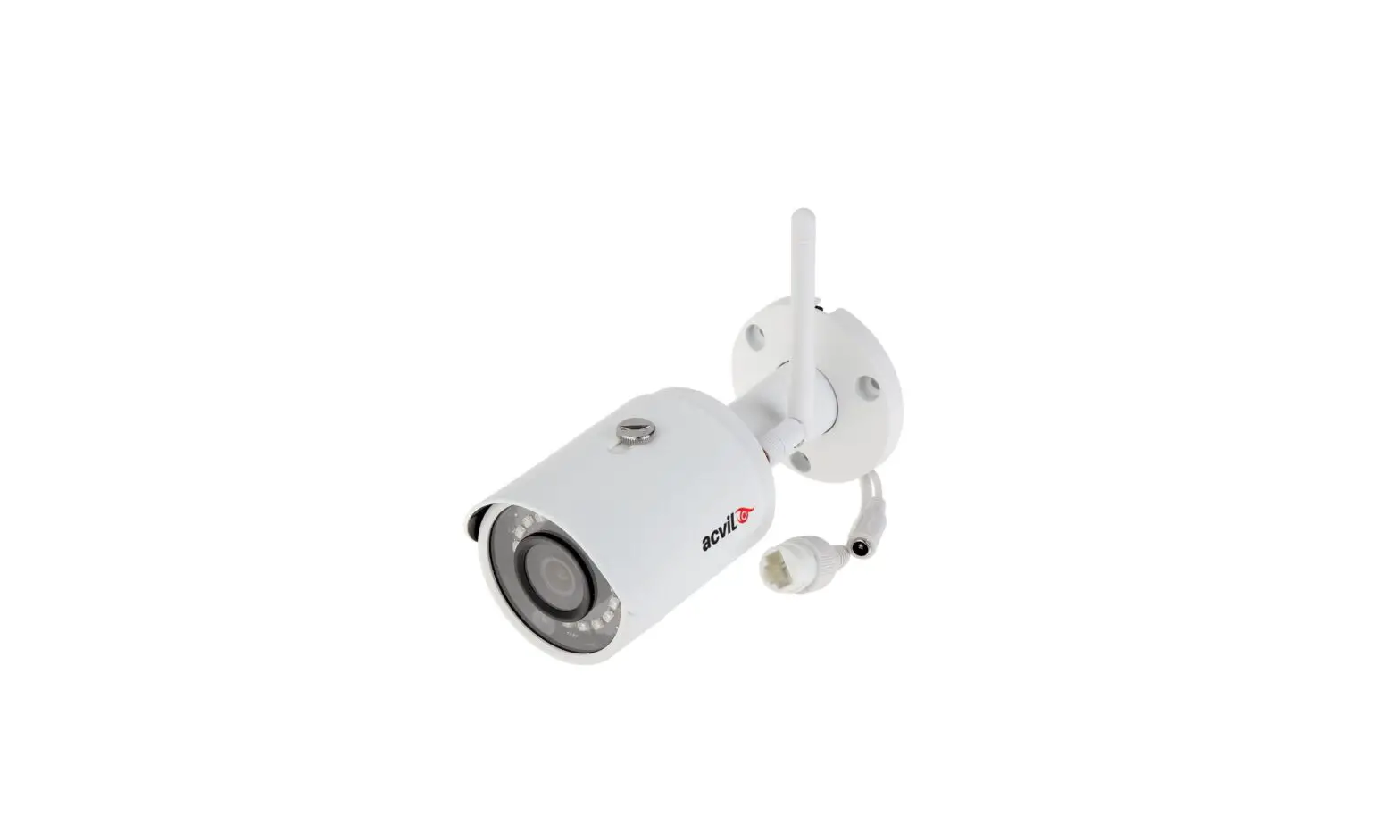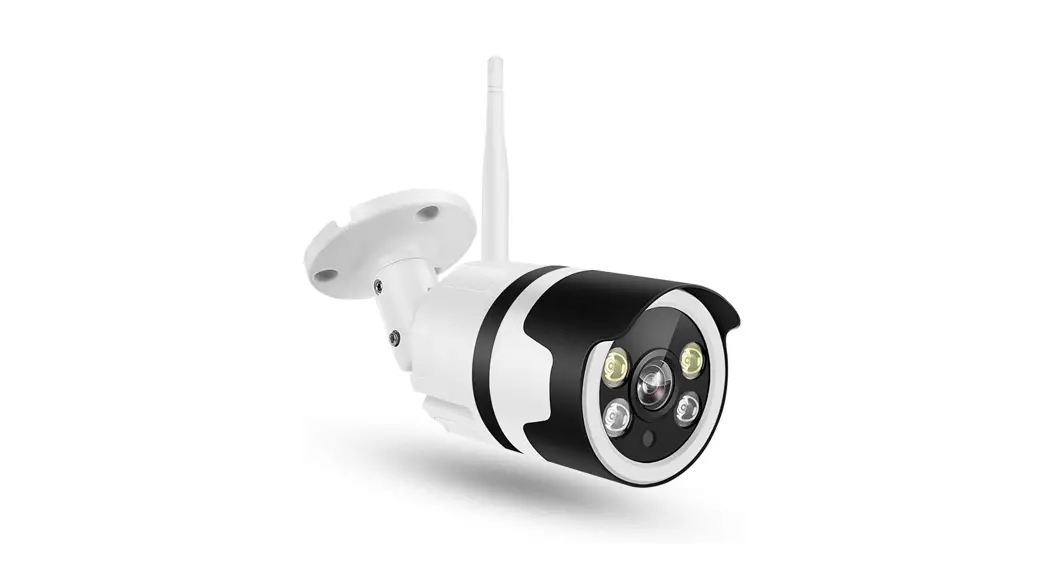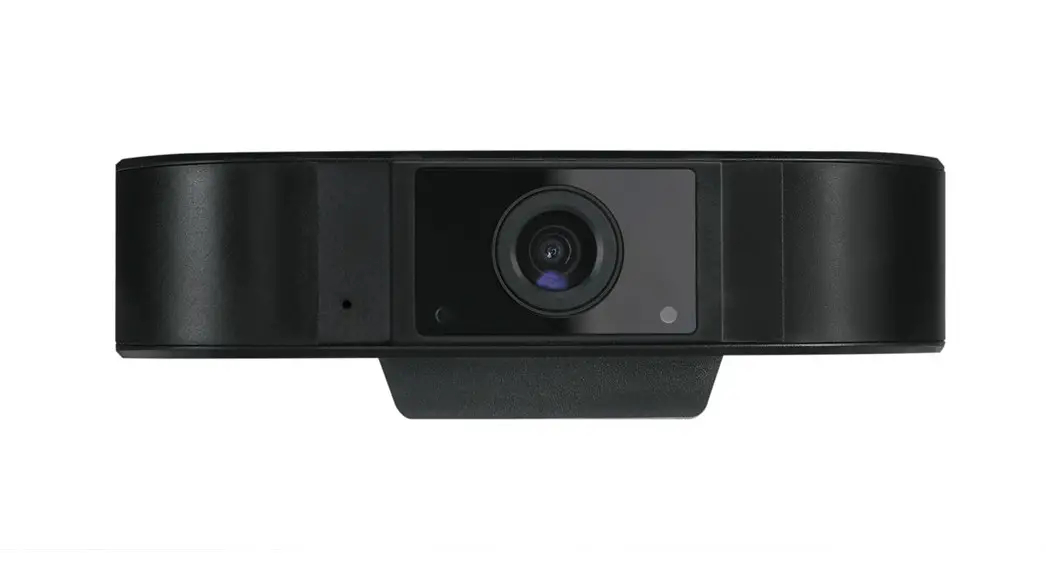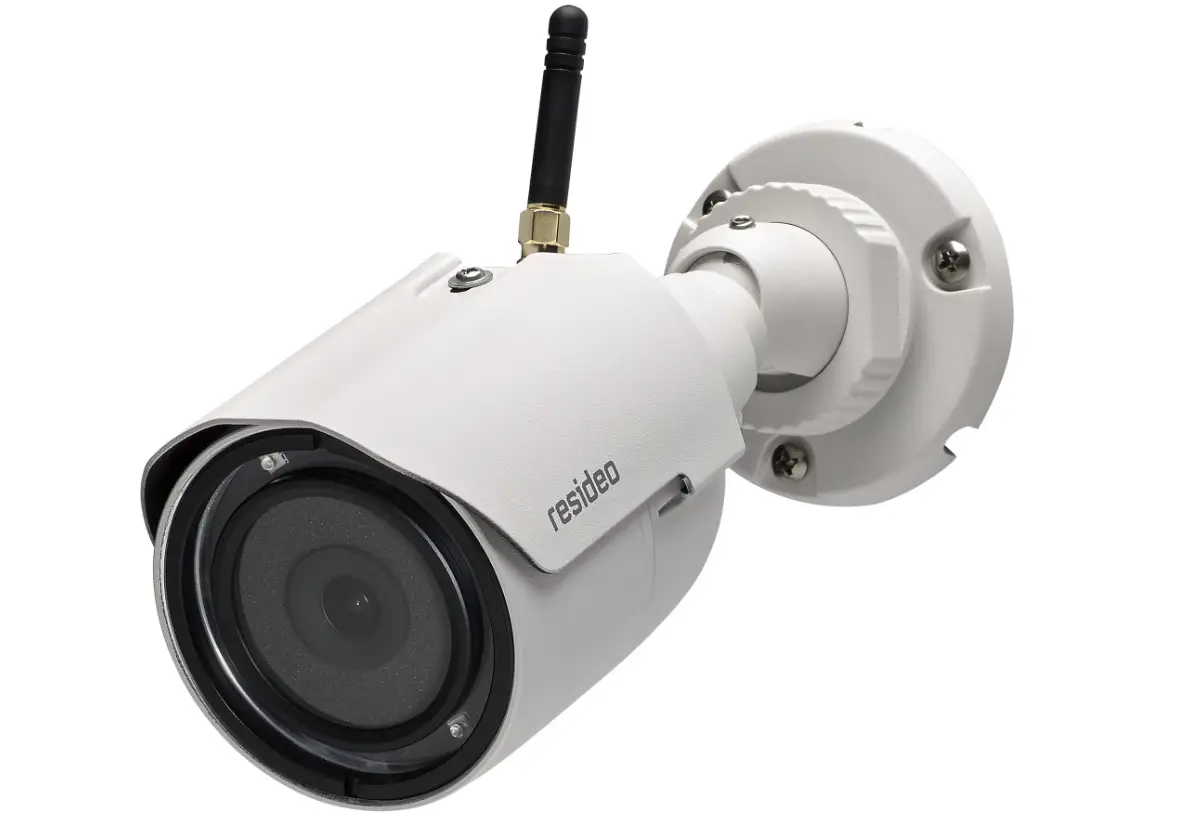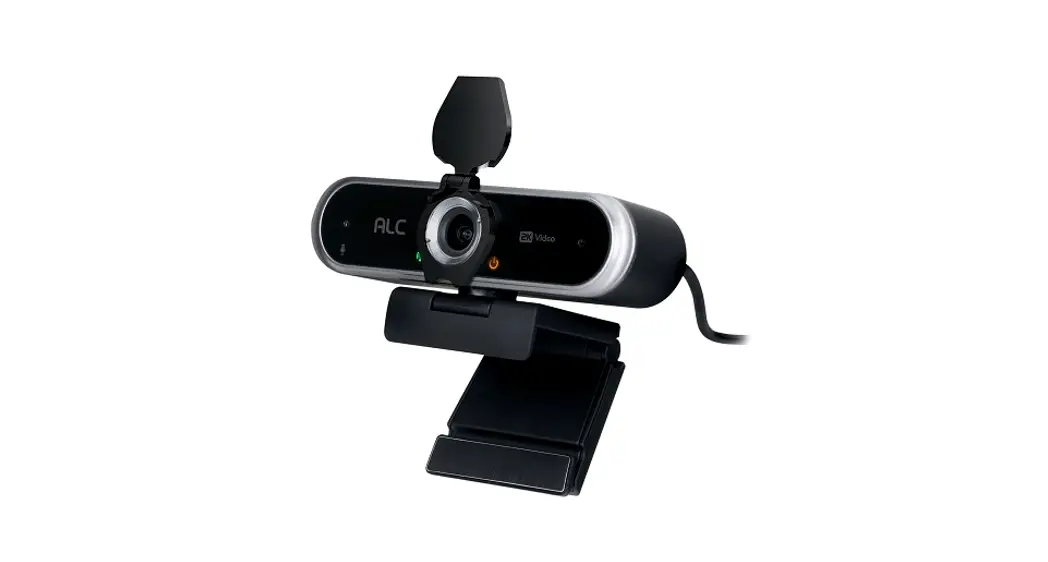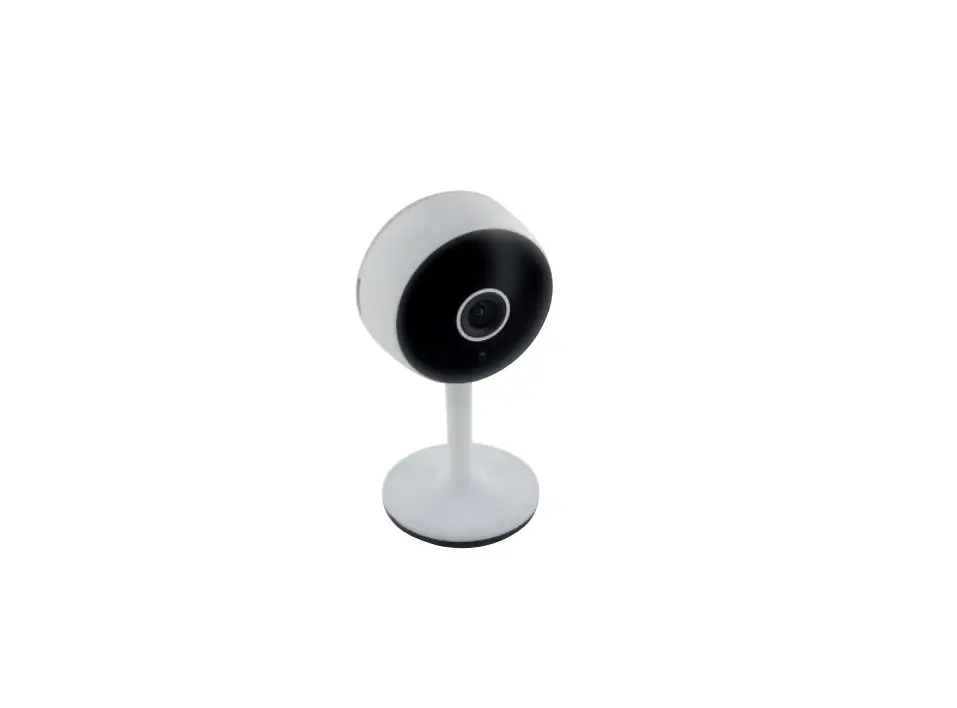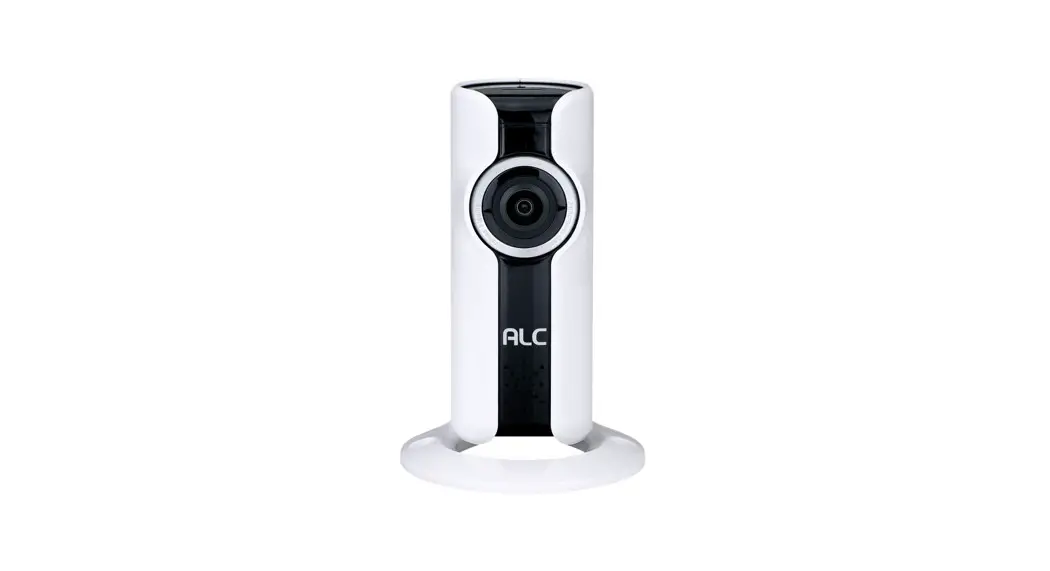
AWF08 Setup Android
SightHD Lite
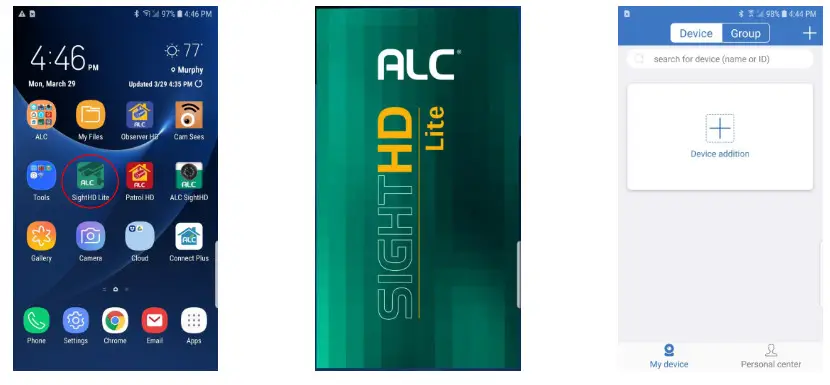 Download and install the ALC SightHD Lite app to your phone.
Start the app and select Device addition.
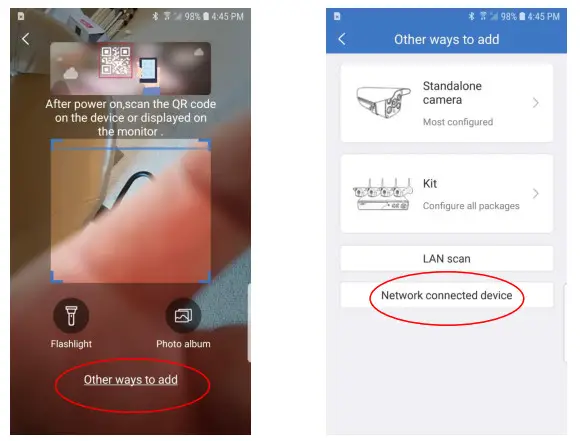
Ignore the audio from the camera and select “Other ways to add” at the bottom of the screen, then select “Network-connected device”
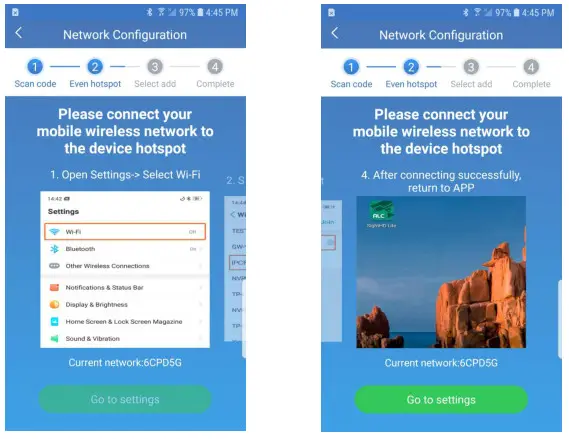
On this screen, swipe left a couple of times to get to last screen. Select “Go to settings” at the bottom to go to the phone’s Wi-Fi Settings menu.
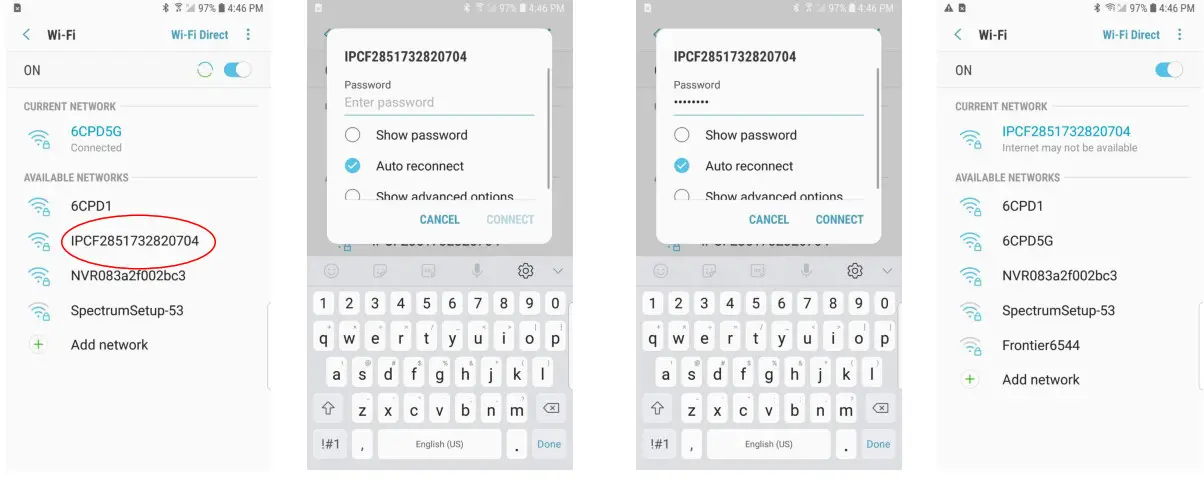
Once there, one of the available networks will show as “IPCxxxxxxxxxxxxxx”. This is the camera. Select this and enter the default password, 11111111.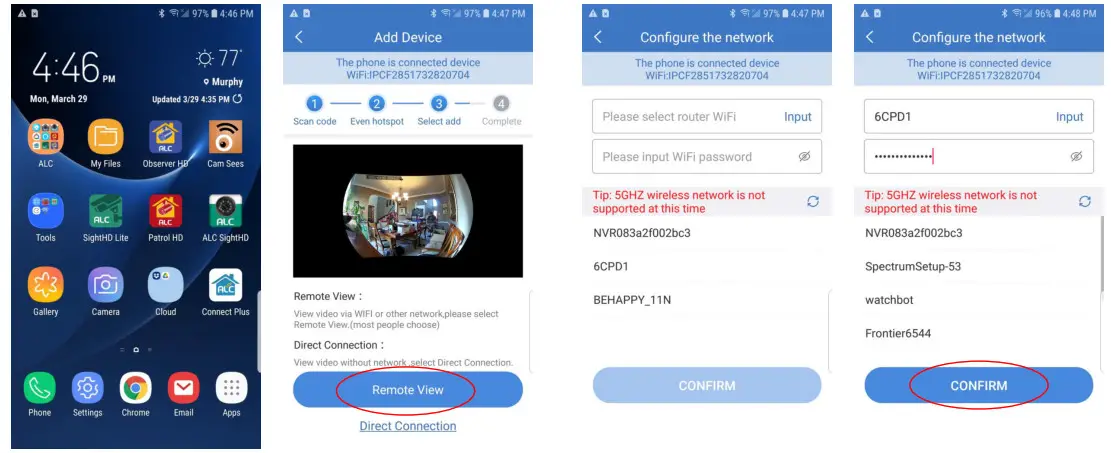
After that is complete, go back to the SightHD Lite app and select “Remote View” at the bottom. On the next screen, it should display available Wi-Fi networks. Select your network and enter your Wi-Fi password and select “Confirm”
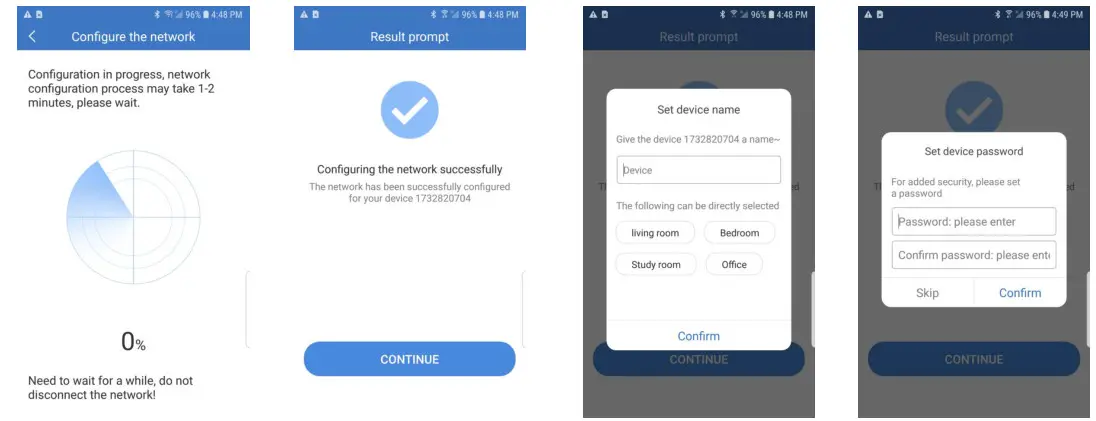
The phone will send your Wi-Fi information to the camera and it will connect to your network.
On the next screen type in a name for your camera and then “Confirm”. It will then ask you to create and confirm a password for your camera. Use letters and numbers only.
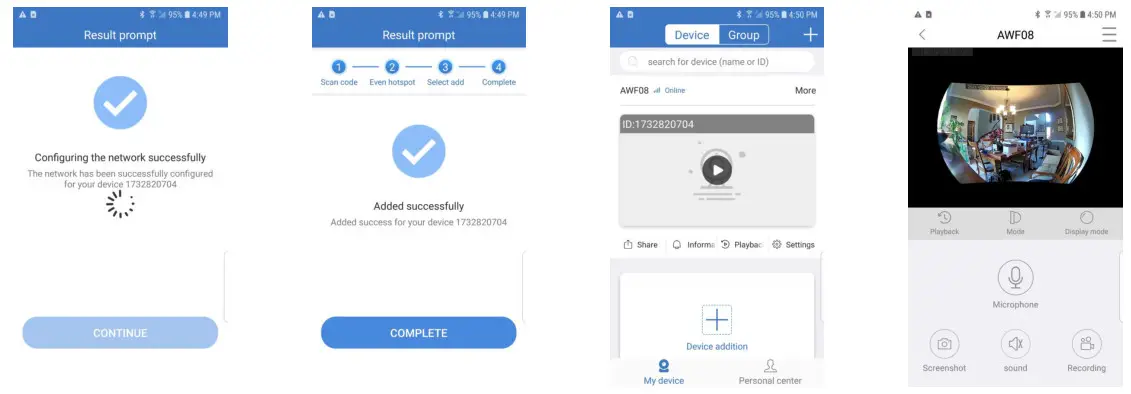
The camera will finish setup and will show you your camera. Select the Play button and it will go to a Live video.