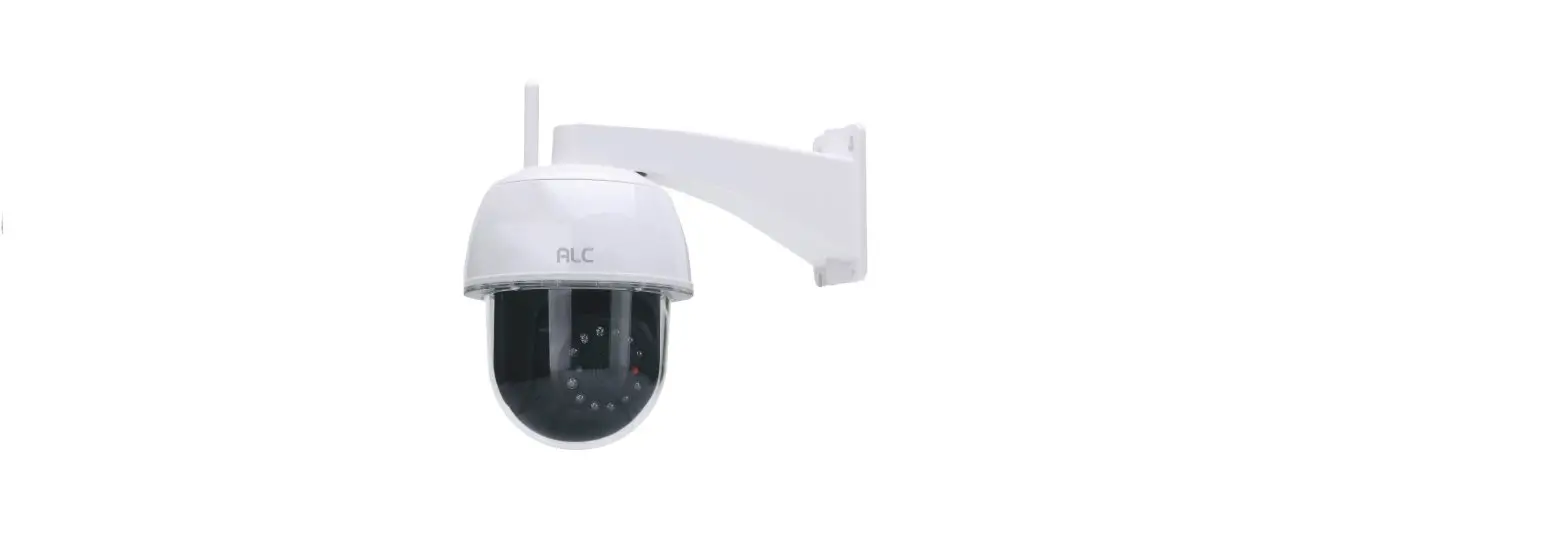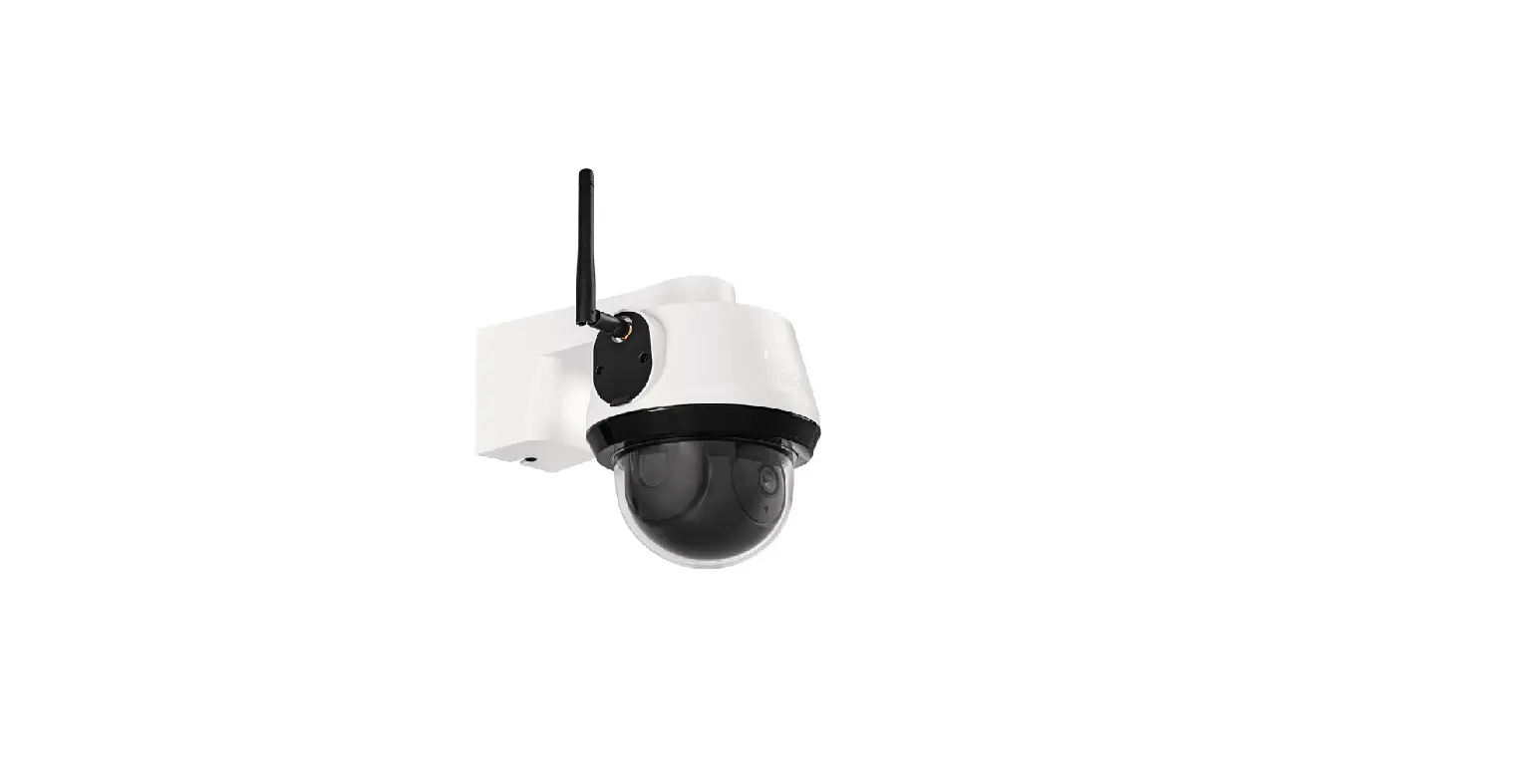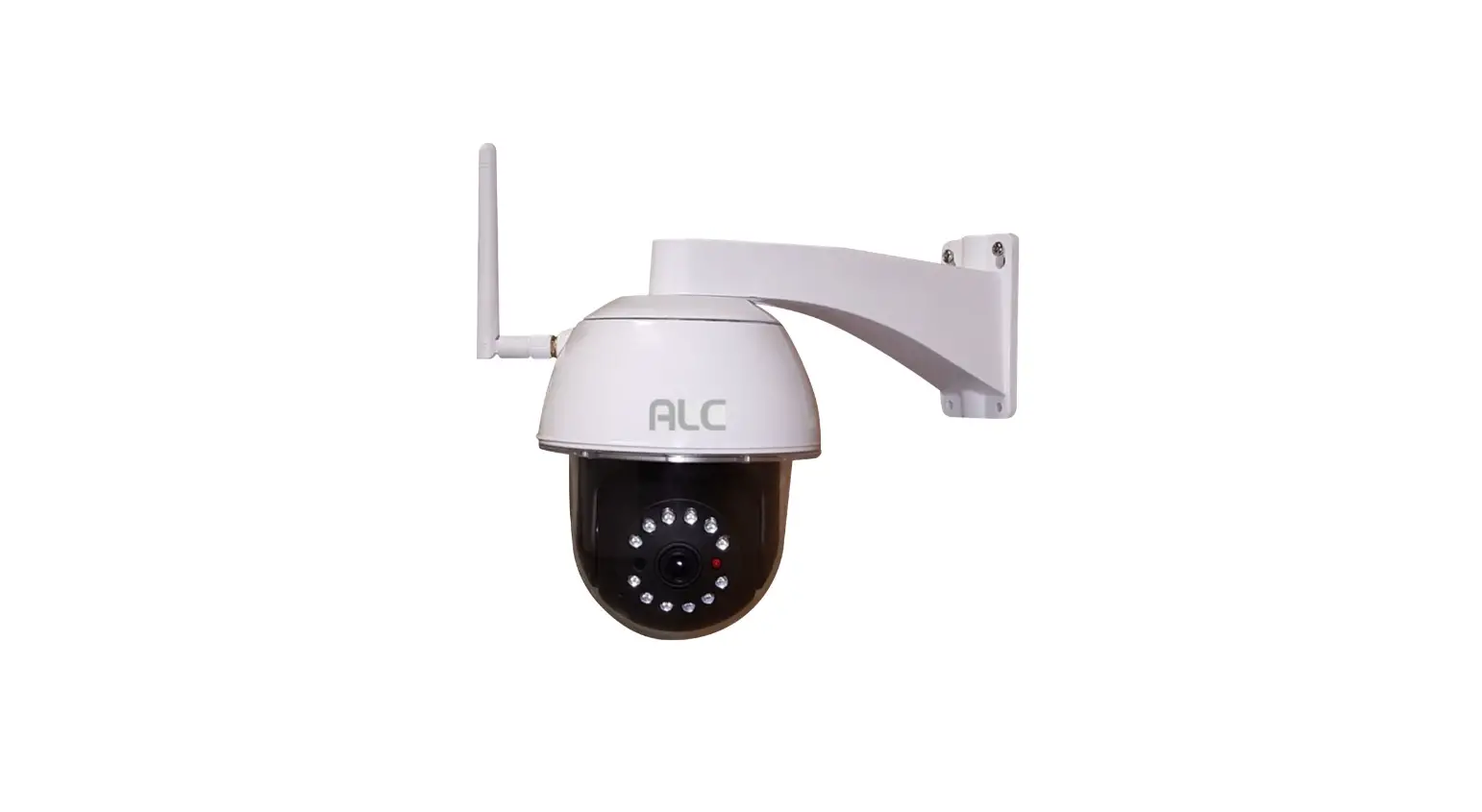

1080p Outdoor
Pan/Tilt Security
Wi-Fi Camera
with Siren
Model AWF53
QUICK START GUIDE
Let’s Get Started
IN THE BOX
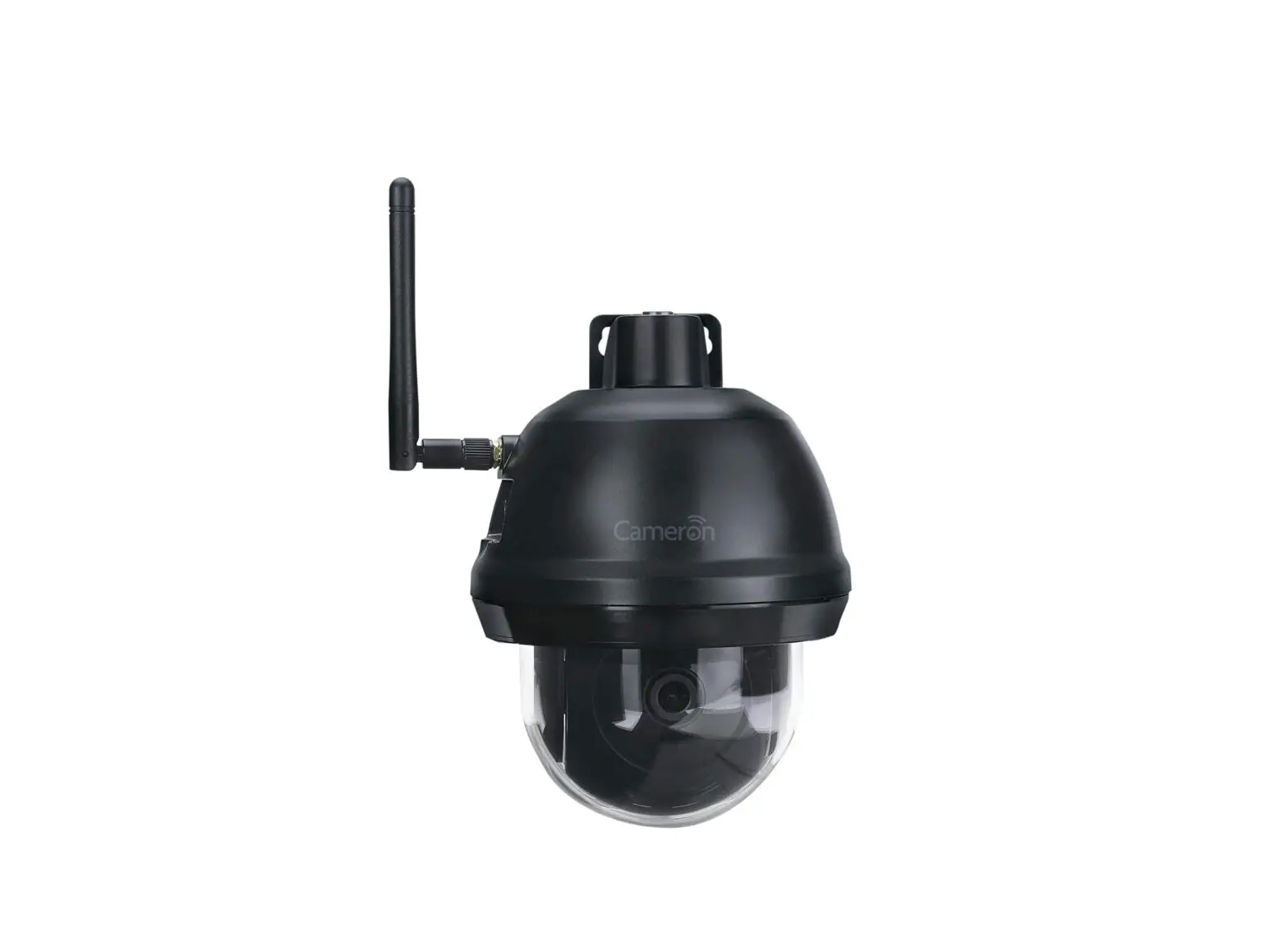
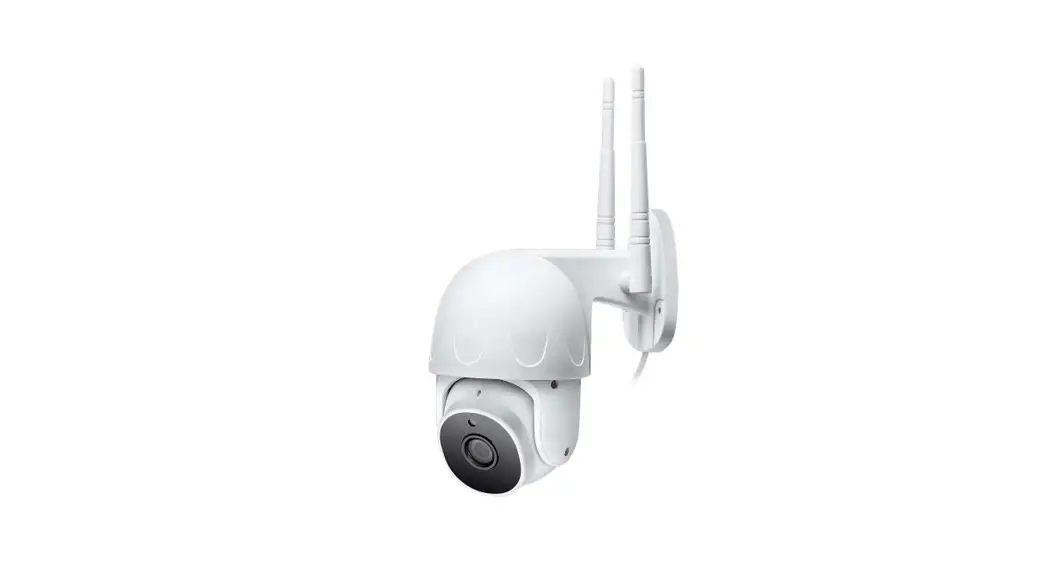
 Outdoor camera
 AC power adapter
 RJ45 Connector
 Camera Bracket
 Screw/Anchor Kit
 Antenna
 Allen Key
 Quick Start Guide
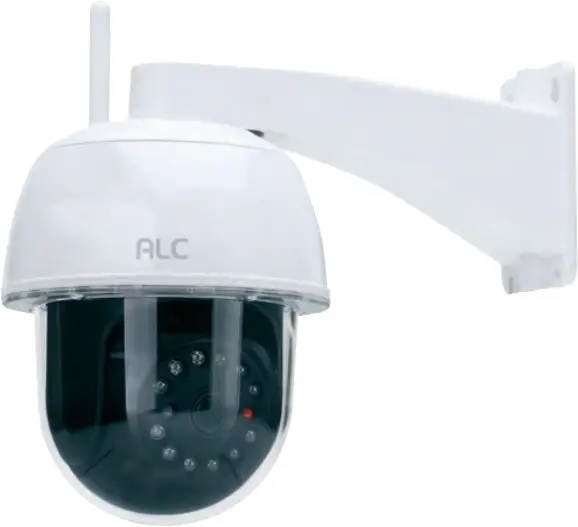
Model AWF53
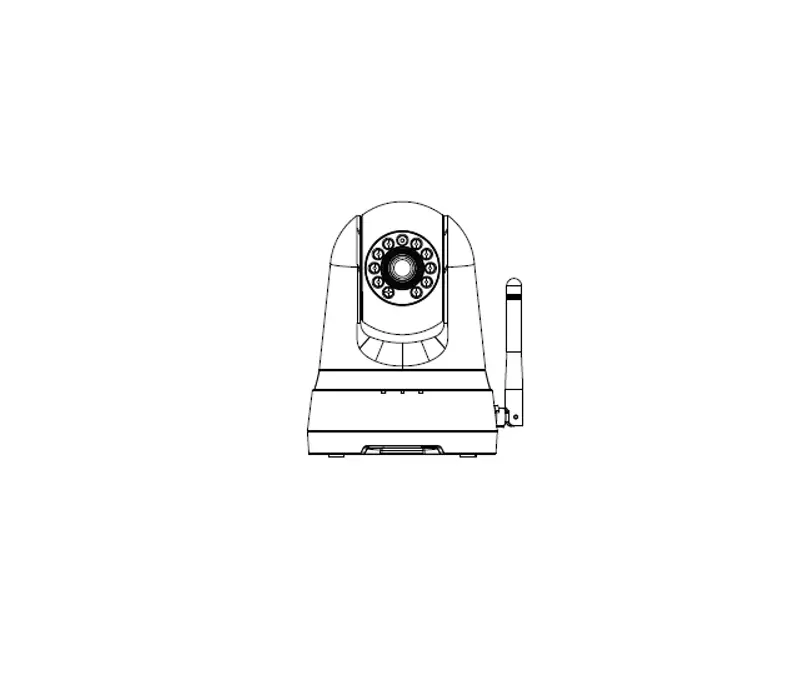
Outdoor Camera
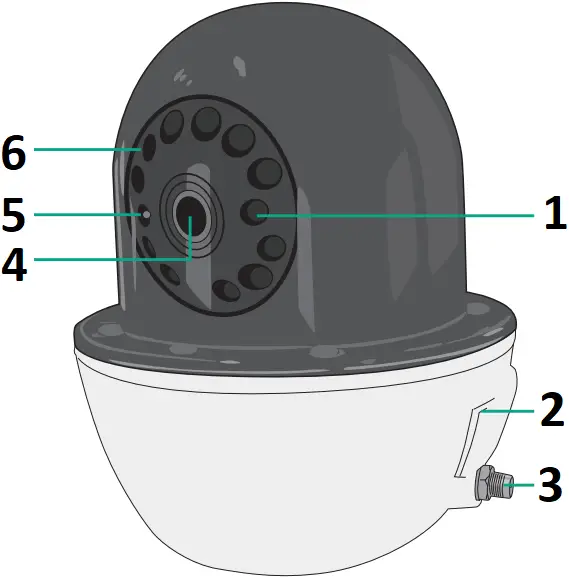
- Power Indicator
- Compartment (MicroSD Slot & Reset Button)
- Antenna Connector
- Lens
- Light Sensor
- Infrared LEDs
NOTE: Avoid installing in a location which requires the wireless signal to pass through cement, concrete and metal structures. This will reduce the transmission range.
CLOUD: When an SD card is inserted and the Cloud option is activated (in Advanced Setting), recorded videos will automatically be transferred onto the cloud, i.e. Google Drive.


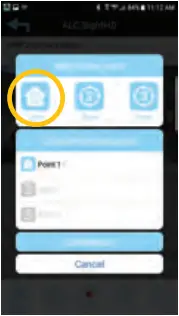
Setting up the Camera’s Home/Default Point(s)
(1) Install the ALC SightHD App as shown in this guide.
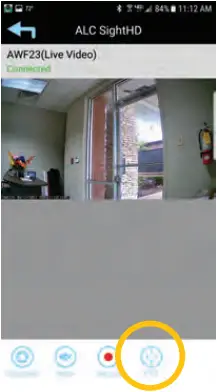
(2) To Set the Camera’s Home/Default Point:
Position the camera where you want for the Home position.
(3) Tap the PTZ icon, then 1 Save. You can add up to two more pre-programmed points.
CAMERA INSTALLATION + SETUP
 CAMERA INSTALLATION
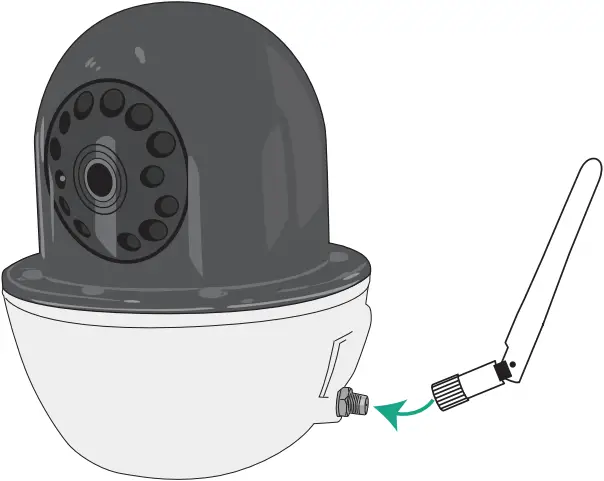
(1) Screw the Antenna clockwise into the rear of the camera.
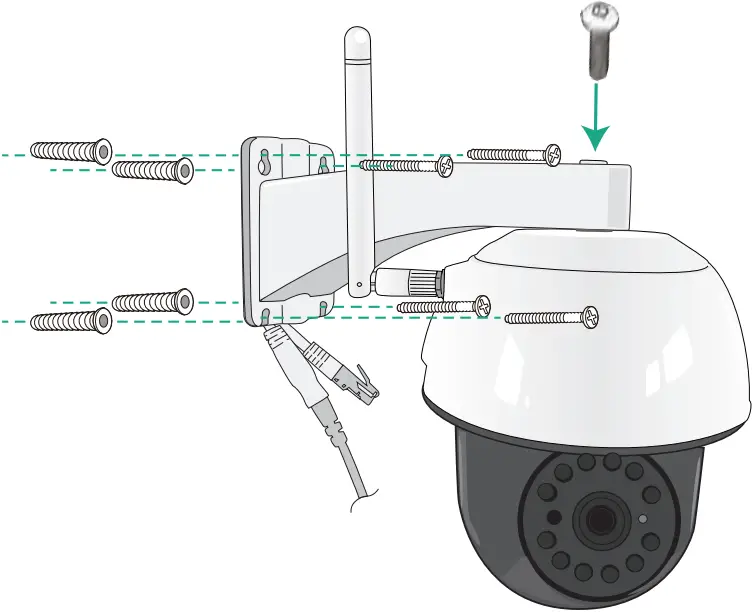
(2) Secure the multi-position Camera Bracket to a stable surface or wall using the four screws. If needed, four anchors are also included.
NOTE: Avoid pointing a camera directly at any bushes or tree branches or objects that may naturally move due to winds.
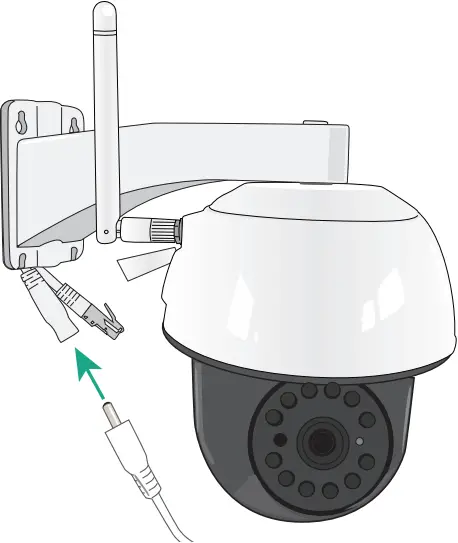
(3) Connect the small end of the AC adapter to the camera’s AC In Plug located at the end of the bracket.
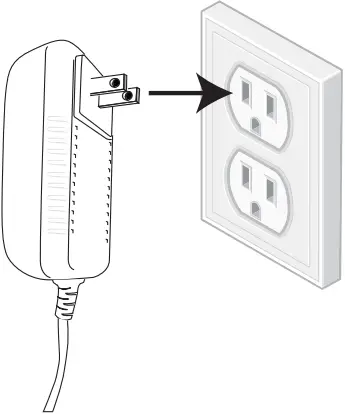
(4) Plug into electrical outlet when ready to install App.
Recommendations for best system performance:
- iOS 9.0 or above.
- Android: Android™ smartphone or tablet (version 4.4x or above).
- Storage: Class 10 MicroSD memory card (up to 128 GB).
- Bandwidth: 512Kbps or above upload/download speed suggested.
REMOTE VIEWING
 Wireless Made Simple.
ALCWireless.com
FREE APP DOWNLOAD



 DEVICE SETUP
(1) From your smart device, DOWNLOAD and INSTALL the free ALC SightHD App. 
(2) Plug camera into an electrical outlet (allow the camera up to 90 seconds to boot up).
(3) On your device, open the Settings App. Tap Wi-Fi and under Choose A Network, select the HD-XXXXXX Network (X represents the numbers located on the DID barcode sticker on the bottom of your camera).
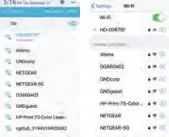
(4) If asked for a password, enter, “12345678”. Tap Join/Connect.
(5) Now Launch the ALC SightHD App and the Setup Wizard will appear.
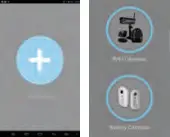
(6) Tap  to start the Wizard and select WiFi Cameras.
(7) iOS Only: Once the screen indicates the camera is connected, tap Live View.

(8) iOS Only: Once the camera is found, the screen will show a Live View briefly before moving to a setup screen.
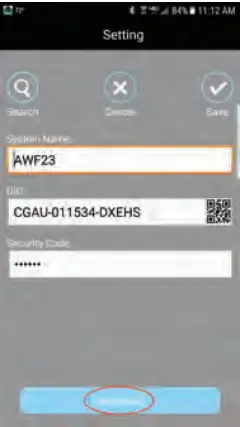
(9) At the next screen enter a new 9 password/security code and remember it or write it down. Tap Wi-Fi Setting or OK.
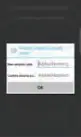
(10) Select your home network from the menu, 10 and then enter your home network’s Wireless Password. Tap OK.
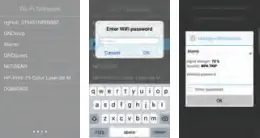
(11) Android Only: Tap Live View.

(12) Tap the Play icon for live video.
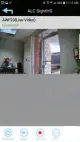
NOTE: Screen shots and icons may vary due to continuous updates to App and software development.
LIVE VIEWING
 LIVE VIEW
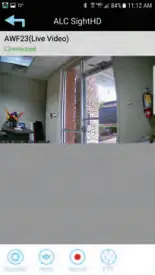
(1) Android: Tap the Play icon.
Apple: Tap on the preview picture.
PINCH AND ZOOM: To zoom in or out, use the simple pinch and zoom gesture with this app.
PAN AND TILT: To move the camera, simply slide your finger across the Android or Apple Device’s screen up and down or from side to side.
 FEATURES
 Tap to Snapshot screen images in Live View. Images automatically save to smartphone’s camera roll or gallery.
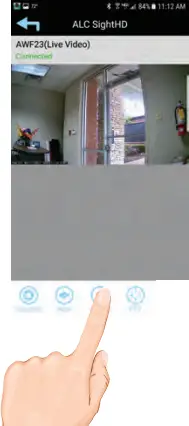
 Tap to RECORD. Recordings save to MicroSD card (pre-installed) and the Cloud if it was set up.
 Tap to turn volume On or Off in the Live View mode.
 Tap to RETURN to the main page.
 Tap to Set the Record Point or to Go to the Record Point.
 LIVE VIEW RECORDING on MicroSD CARD*
(1) Insert a MicroSD Card into the MicroSD Card Slot. You can also record/upload files automatically onto the Cloud, if set up.
(2) Manually RECORD video from Live View by tapping Record icon. The App will record for one minute.
 Motion Recording
If set to Software Sensitivity when motion is detected on the video camera, the camera will automatically record for one minute and then stop recording. To change the DETECT MODE, go to Edit Setting, tap Setting and then tap Advanced.
The Advanced Settings will ask for the admin password; default password is 123456. Select Sensitivity Setting to change.
 PLAYBACK
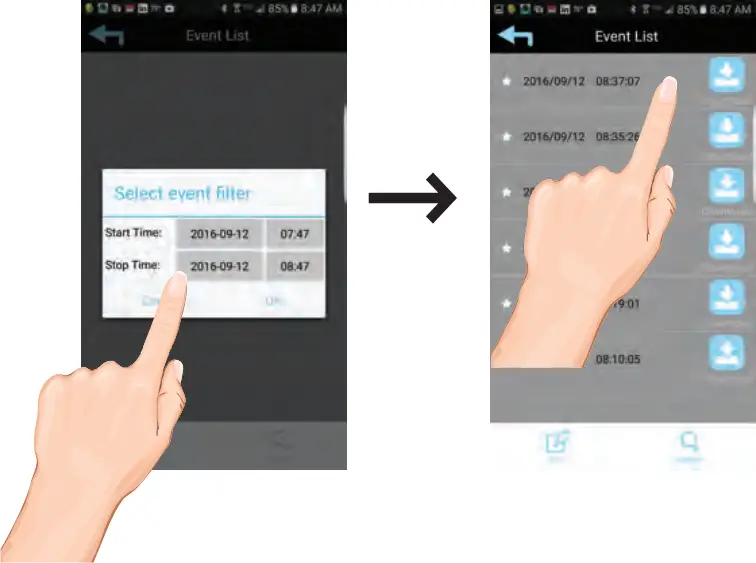
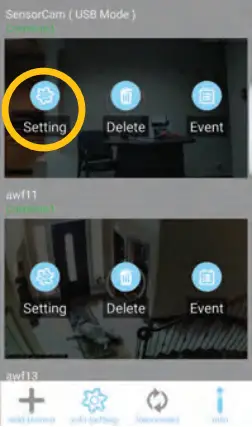
(1) Tap Edit Setting, tap Setting  and then EVENT
  icon.
icon.
(2) Select the Start and Stop date and time on the Select Event Filter and tap OK.
(3) Tap the FILE that you want to playback from the list.
ADVANCED SETTINGS
On the Home Page (not Live View) Tap EDIT SETTING at the bottom of the screen, then tap SETTINGS icon and then tap ADVANCED (the default password is 123456) to see the Advanced Feature options:
• Sensitivity Setting • Video Setting
• Cloud Setting • And much more
• SDCard Setting
NOTE: Do not submerge camera in water. STRANGULATION HAZARD: Infants have STRANGLED in power cords. Keep power cords more than 3 feet away from cribs. When using your equipment, always follow basic safety precautions to reduce the risk of fire, electric shock and injury to persons. Illustrations are for reference only. Actual product specifications may vary. For additional precautions and product information, please see owner’s manual at www.ALCWireless.com/support
For detailed installation and setup, please refer to the Model AWF53 complete User’s Guide available on our website:
www.ALCWireless.com/support

SCAN
TO VIEW
COMPLETE
USER’S GUIDE
 HOME - ALC Wireless Security
 Support - ALC Wireless Security