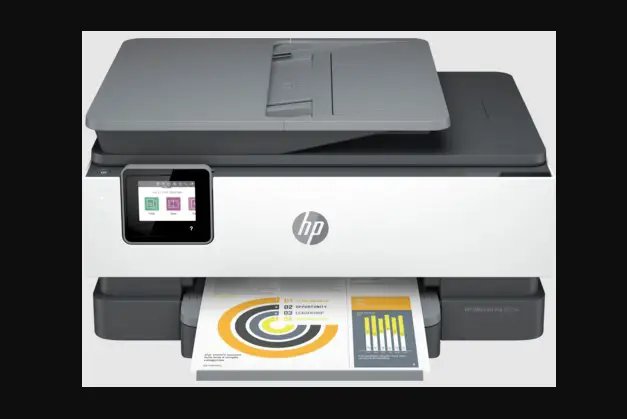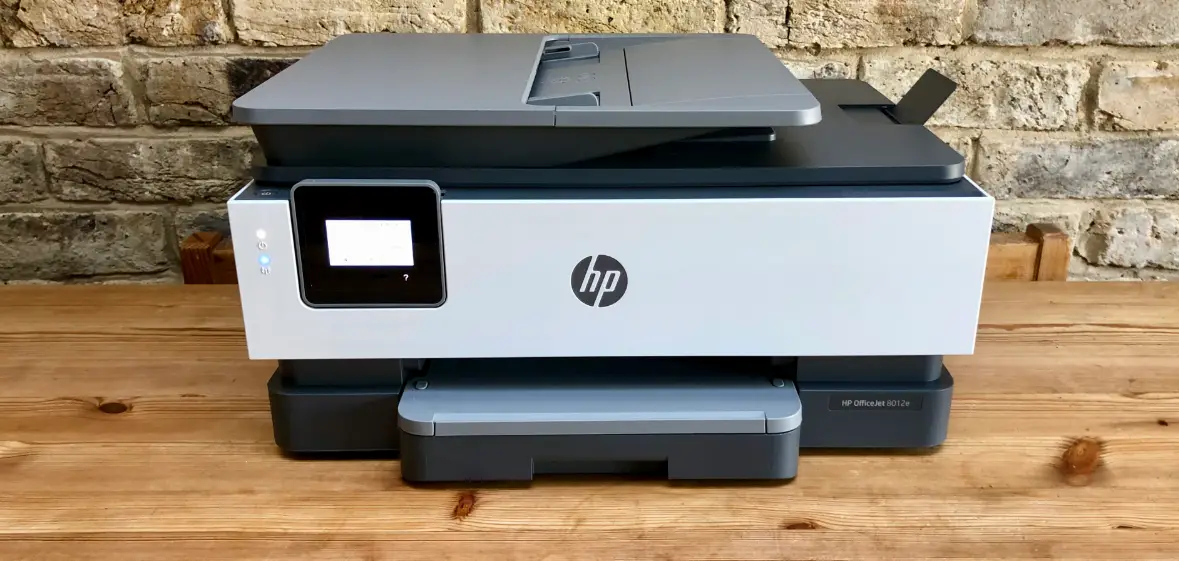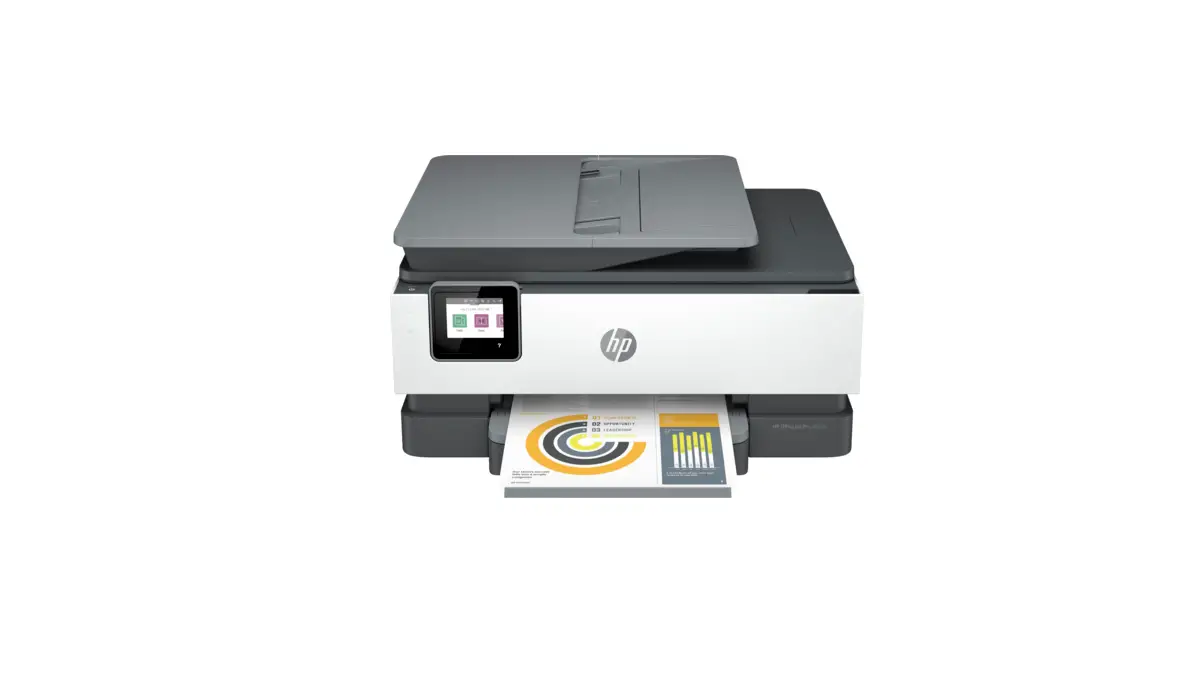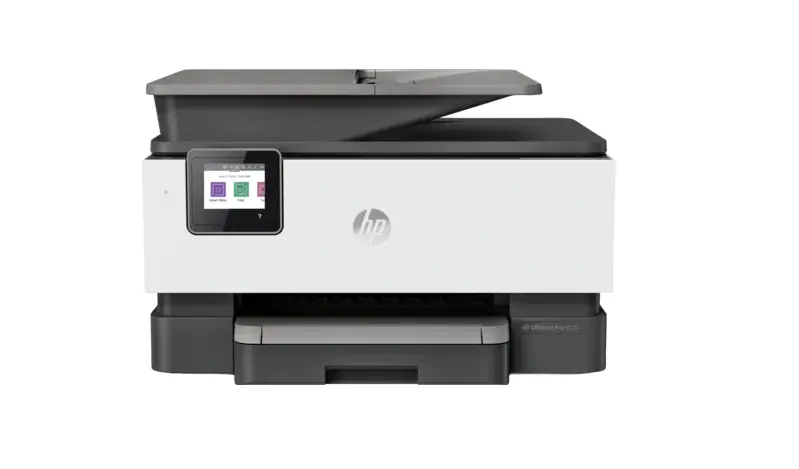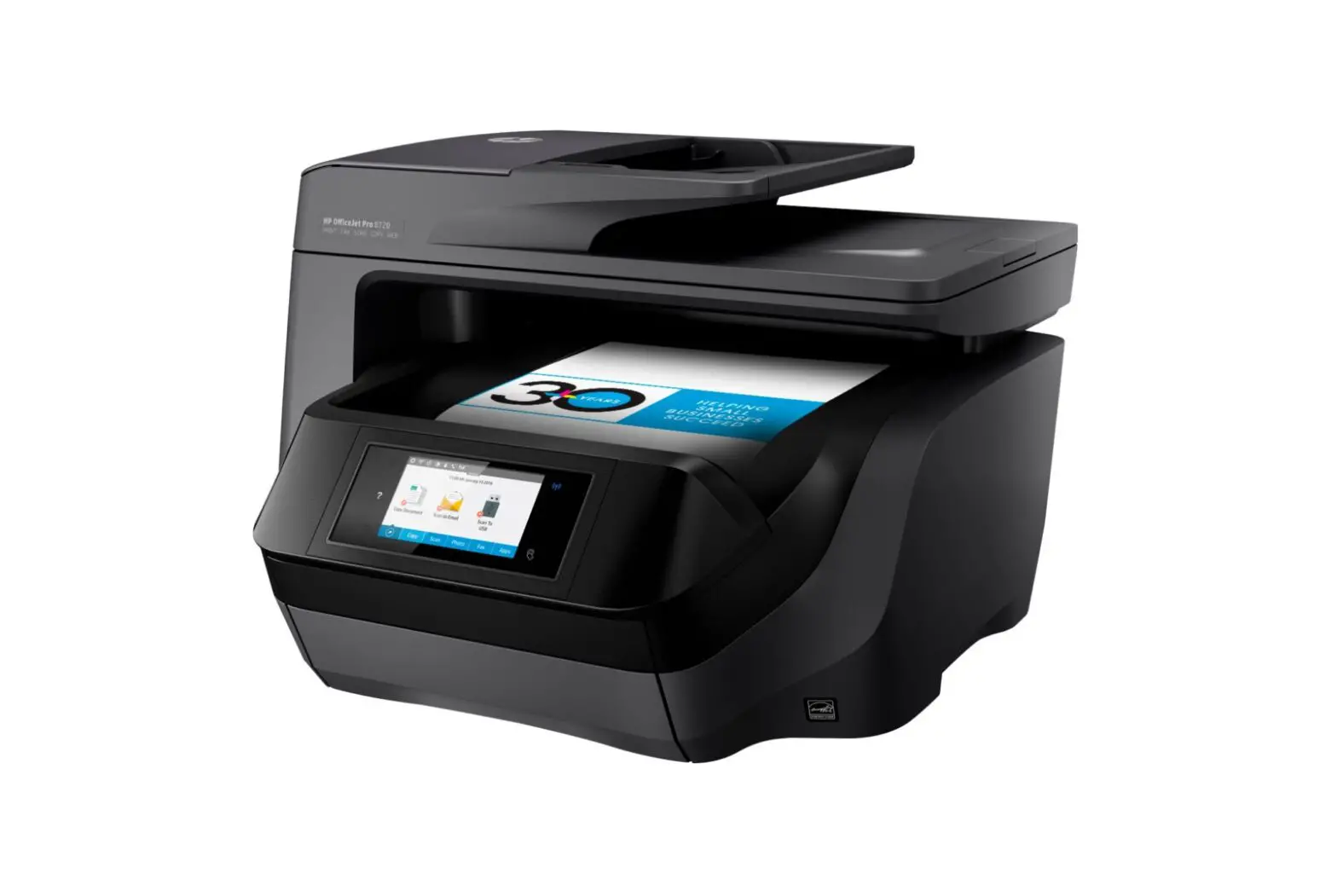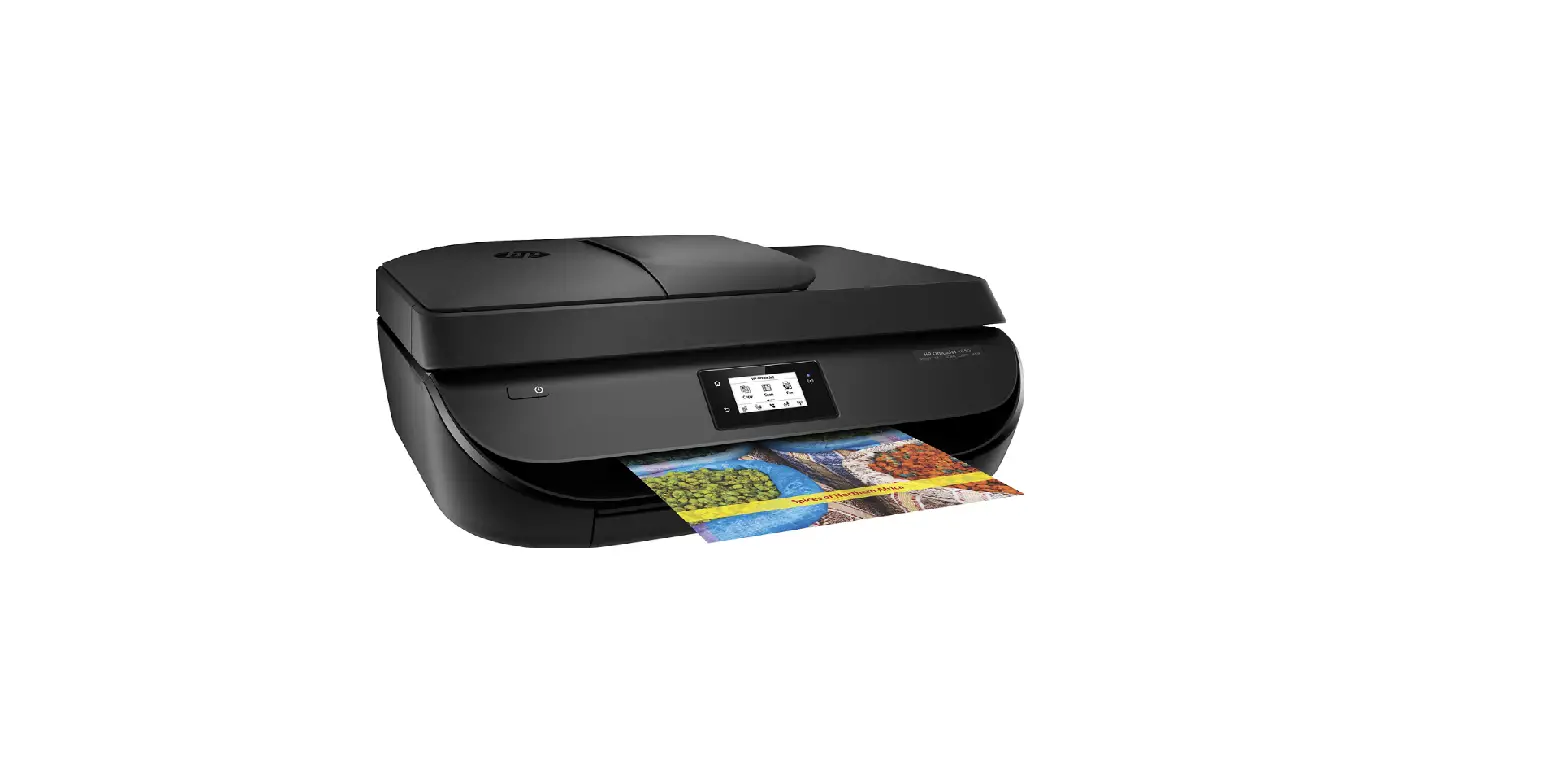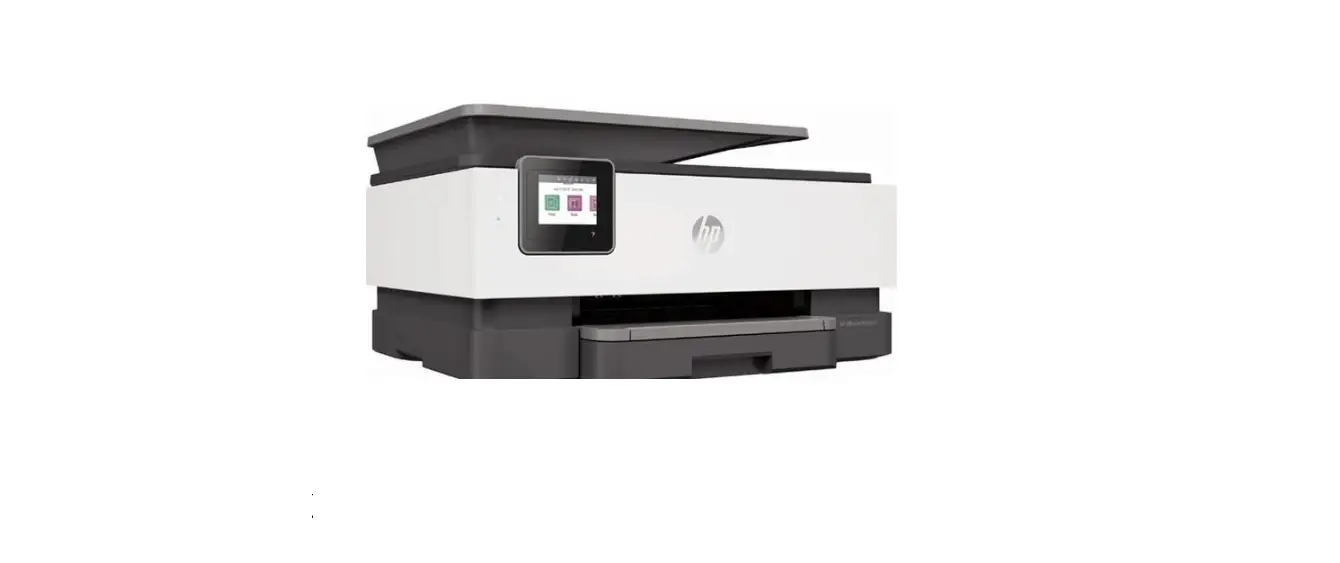

hp OfficeJet 8020 All-in-One Printer

Reference Guide
Follow the instructions in the poster to begin printer setup.
Set up a wireless connection
By following the instructions on the printer control panel and installing the HP printer software or the HP Smart app, you should have successfully connected the printer to the wireless network.
For more information, visit the HP Wireless Printing Center (www.hp.com/go/wirelessprinting).
Solve wireless problems
When the (Wireless light) remains lit, the printer has successfully connected to your wireless network. If not, please check the following solutions.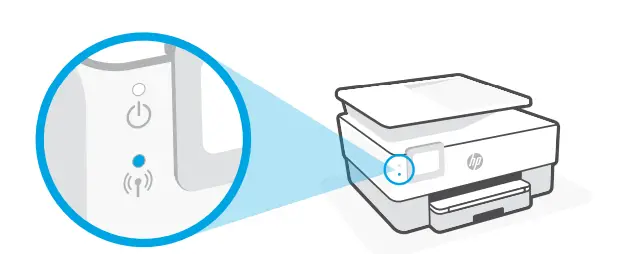
| Description | Possible cause | Solution |
| Blue light blinking
| The printer is not connected to a network. | Set up wireless: 1. Open the Dashboard on the printer control panel. 2. Touch (Wireless) > (Settings) > Wireless Settings. 3. Touch Wireless Setup Wizard, and then follow the onscreen instructions. |
| Blue light off | Wireless is turned off. | Turn on wireless: 1. Open the Dashboard on the printer control panel. 2. Touch (Wireless) > (Settings) > Wireless Settings. 3. Touch Wireless to turn it on. |
Convert from a USB connection to a wireless connection
Learn more: www.hp.com/go/usbtowifi
Use the printer wirelessly without a Wi-Fi network (Wi-Fi Direct) With Wi-Fi Direct, you can connect your computer or mobile device (such as smartphone or tablet) directly to a printer wirelessly—without connecting to an existing wireless network.
Note: To use Wi-Fi Direct, you need HP software installed on your computer or mobile device. For more information, visit 123.hp.com.
Tip: To learn about printing with Wi-Fi Direct, visit the Wi-Fi Direct Printing website (www.hp.com/go/wifidirectprinting).
Set up fax
Set up fax from the printer control panel. For more information, visit www.hp.com/support.
Learn more
Product support www.hp.com/support
HP mobile printing www.hp.com/go/mobileprinting
| Help | Get additional help and find notices, environmental, and regulatory information (including the European Union Regulatory Notice and compliance statements) in the “Technical Information” section of the user guide: www.hp.com/support. |
| Ink cartridge | Make sure you use the cartridges provided with the printer for setup. |
| Safety | Use only with the power cord and power adapter (if provided) supplied by HP. |
Limited warranty
HP one year hardware limited warranty.
For full terms and conditions, visit: www.hp.com/go/orderdocuments.
The information contained herein is subject to change without notice.