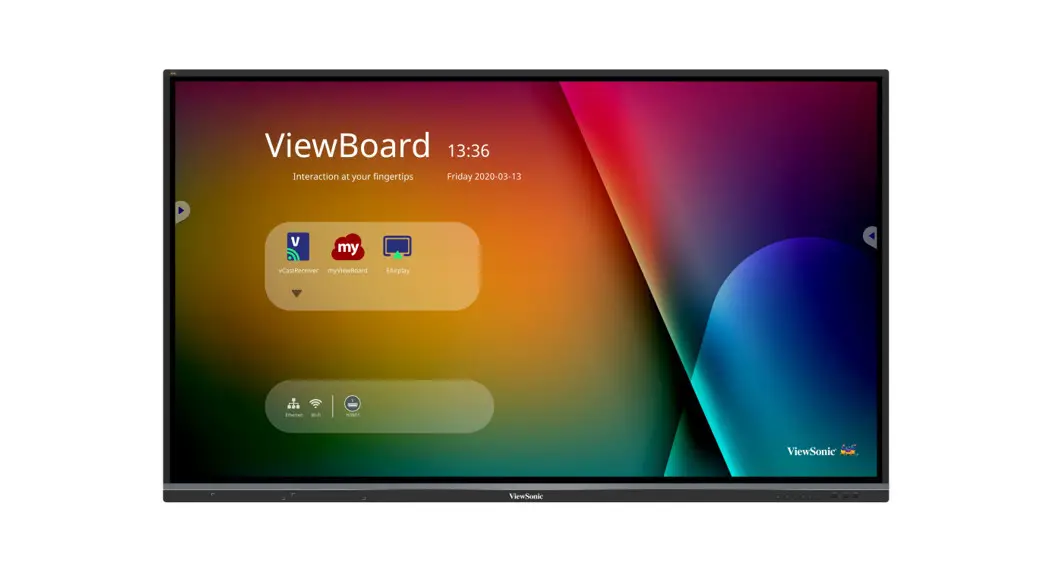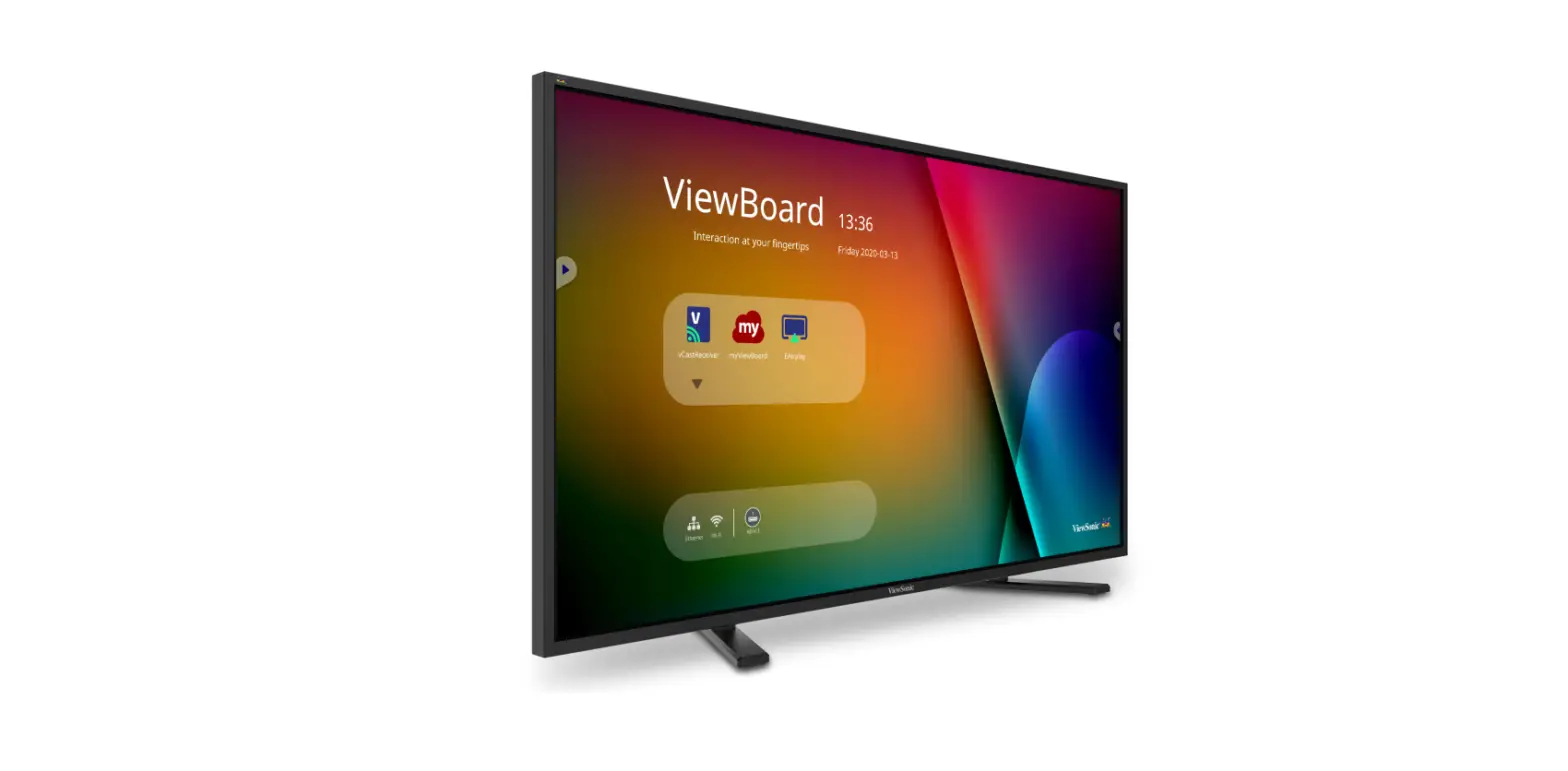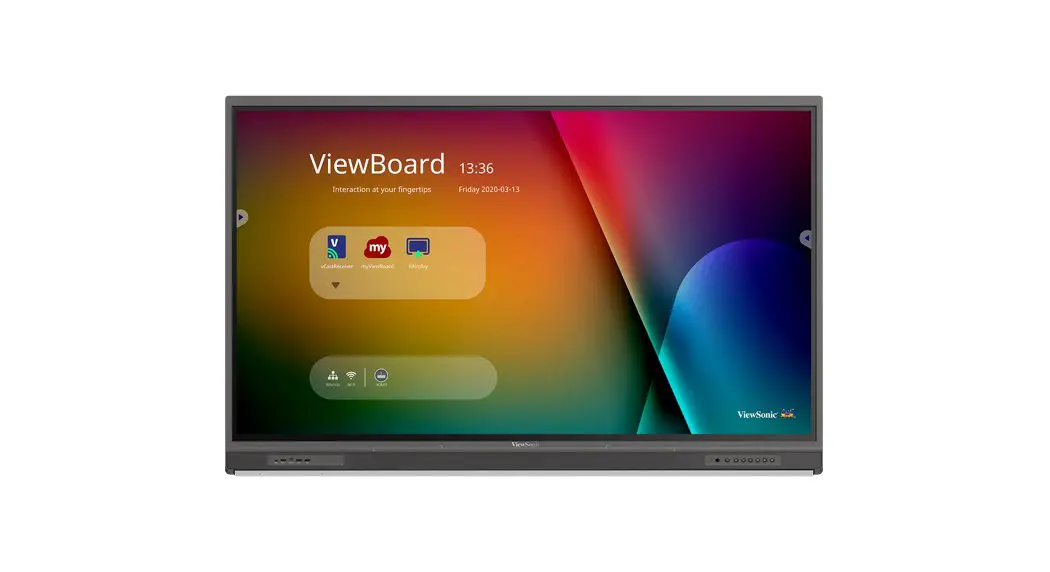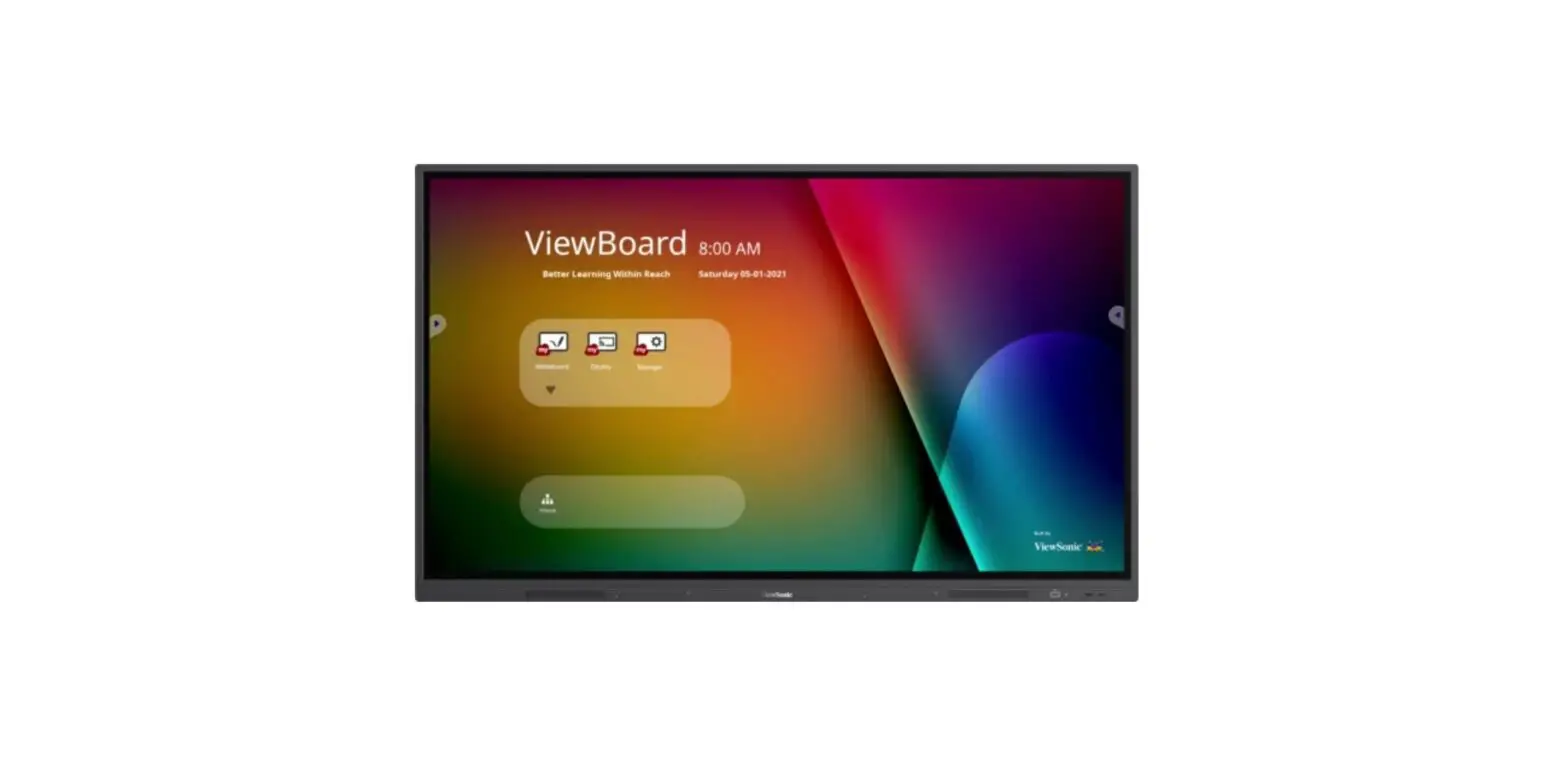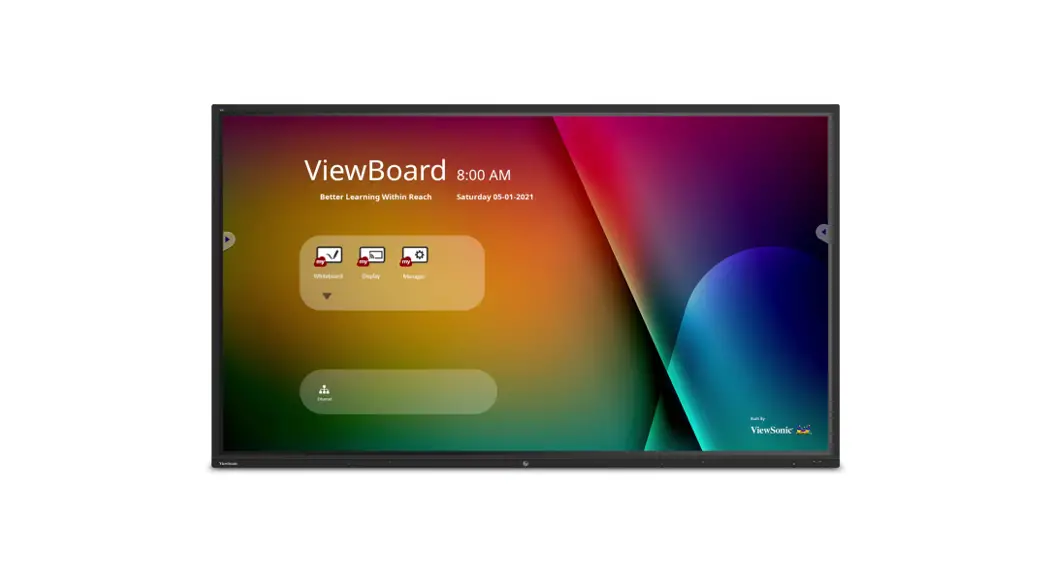
 IFP52 ViewBoard Commercial Touch Display
User Manual
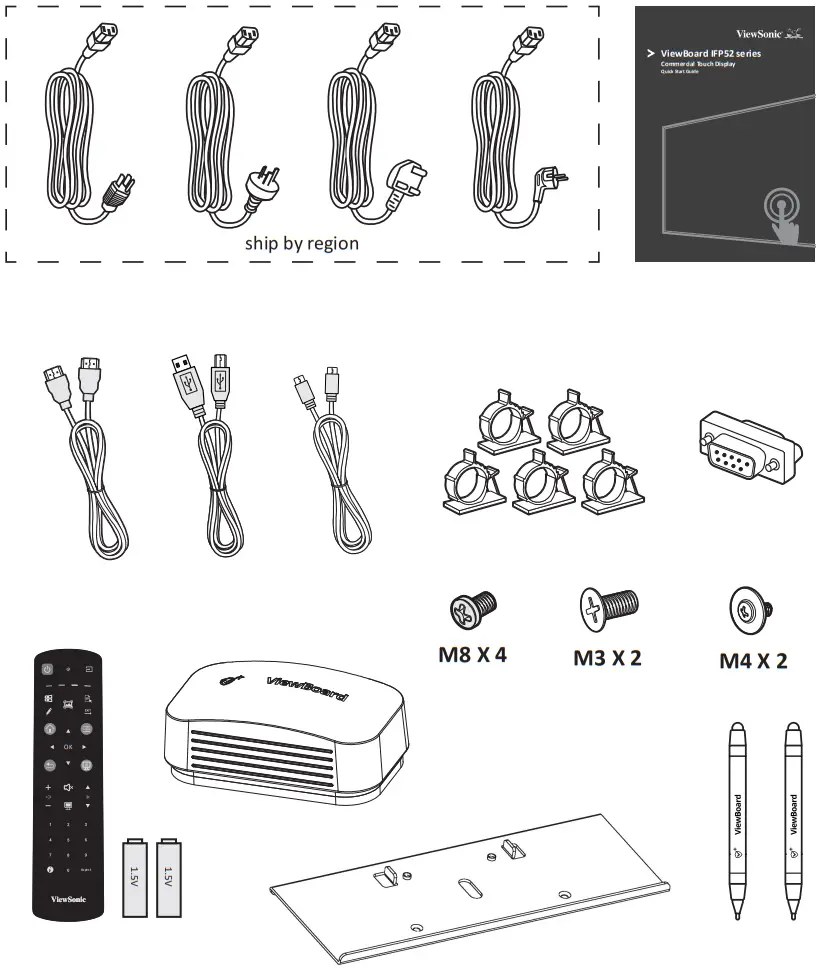
Package Contents
| • HDMI cable • Type-c cable • USB cable for touch • Clamp x 5 • Webcam plate • AM battery x 2 | • Touch pen x 2 • Remote control • Eraser • Webcam screws x 4 (M4x7mm x2, M3x6mm x2) • Quick start guide | • Compliance statement • RS232 adapter • Power cable (ship by region) • Wall mount screws x 4 (M8x2Omm x4) |
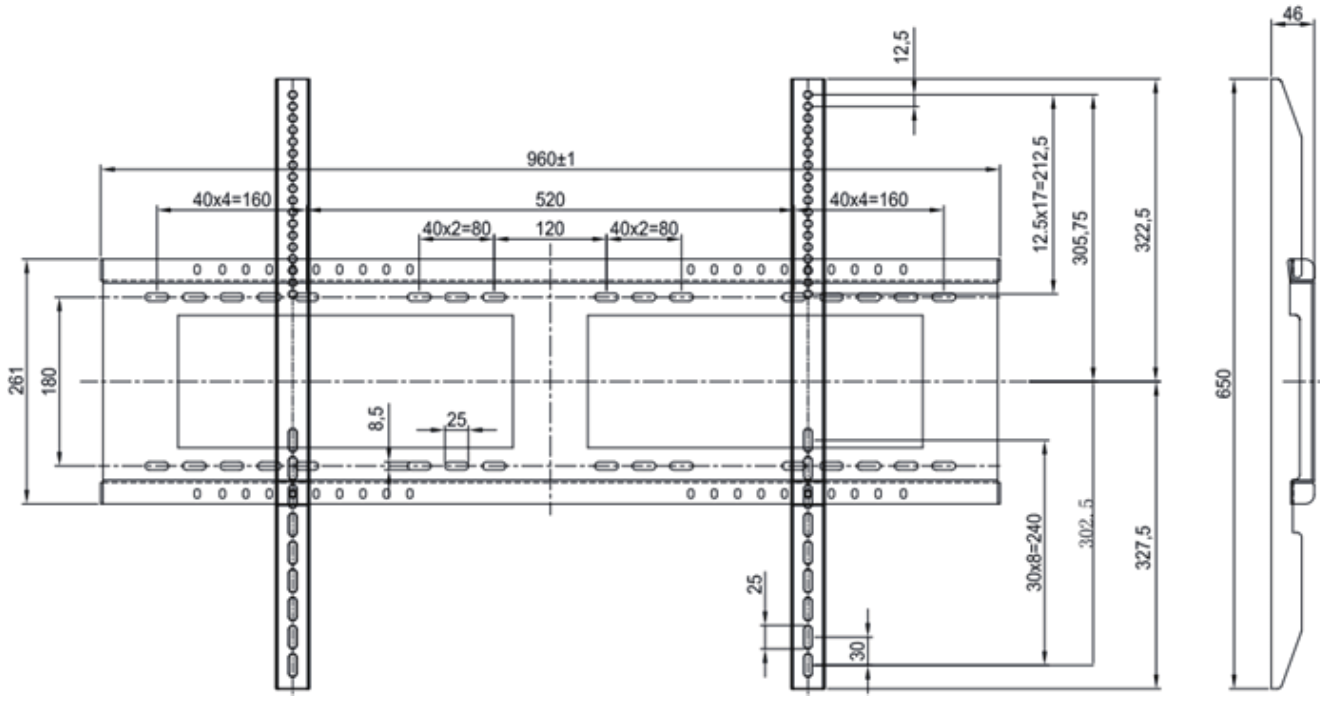
Wall Mount Kit Specifications (sold separately)
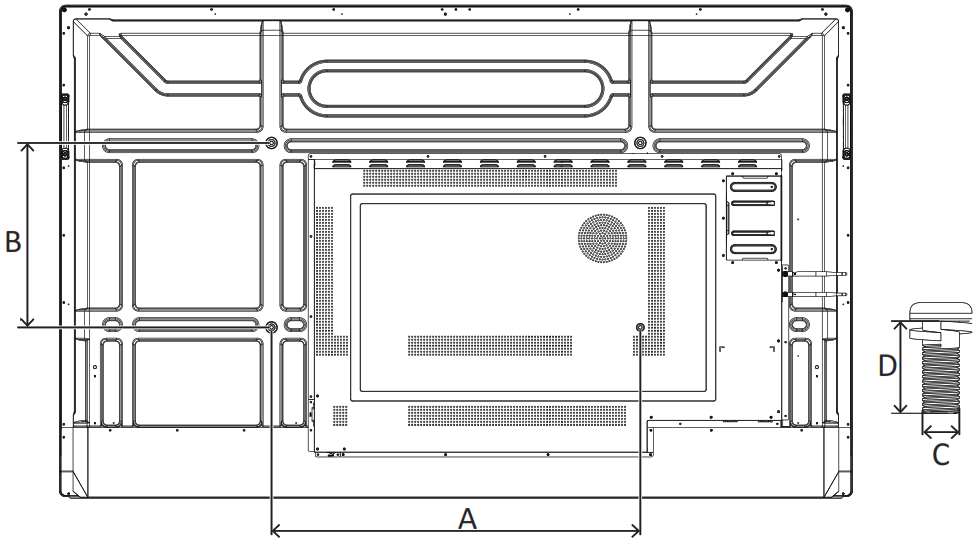
| Ind% | VESA Spec. (A x 11) | Standard Screw (C x tlij | Quantity |
| IFP6552 series | 600 x 400 mm | M8 x 20 mm | 4 |
| IFP7552 series | 800 x 400 mm | M8 x 20 mm | 4 |
| IFP8652 series | 800 x 600 mm | M8 x 20 mm | 4 |
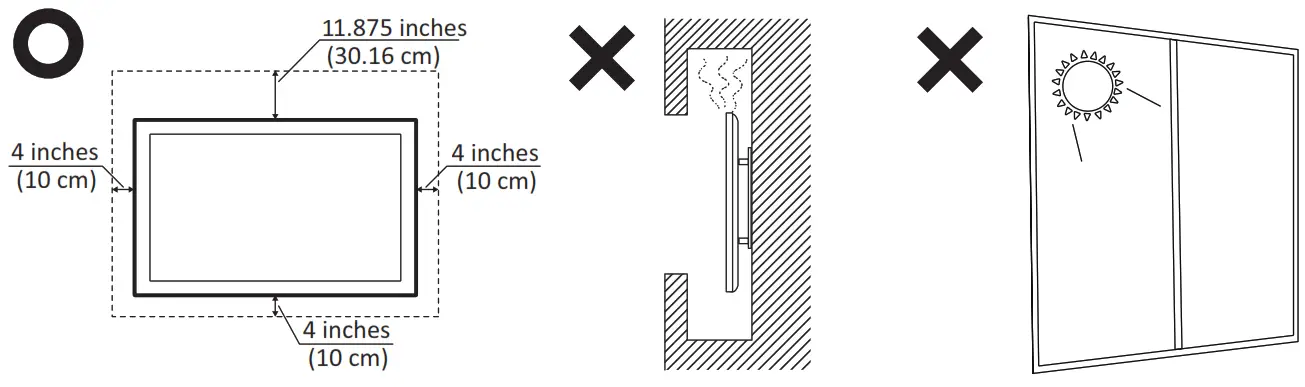
Installation Environment Attention
Control Panel Overview
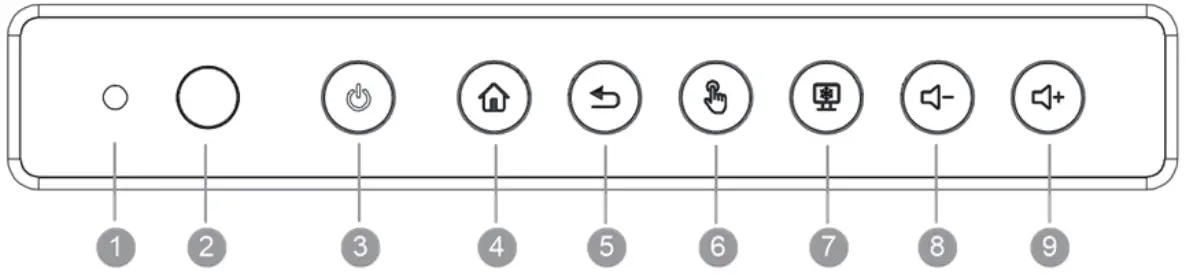
| Item | Description |
| 1 | Ambient light sensor to monitor the ambient light |
| 2 | Remote control receiver |
| 3 | Power indicator light Press the key to turn on the device Press the key to turn off/on the display backlight only Press and hold the key to turn off the device |
| 4 | Back to ViewBoard player main interface |
| 5 | Return to ViewBoard player previous level |
| 6 | Disable/enable the touch screen |
| 7 | Freeze the current image on the screen |
| 8 | Decrease Volume |
| 9 | Increase Volume |
Remote Control Overview
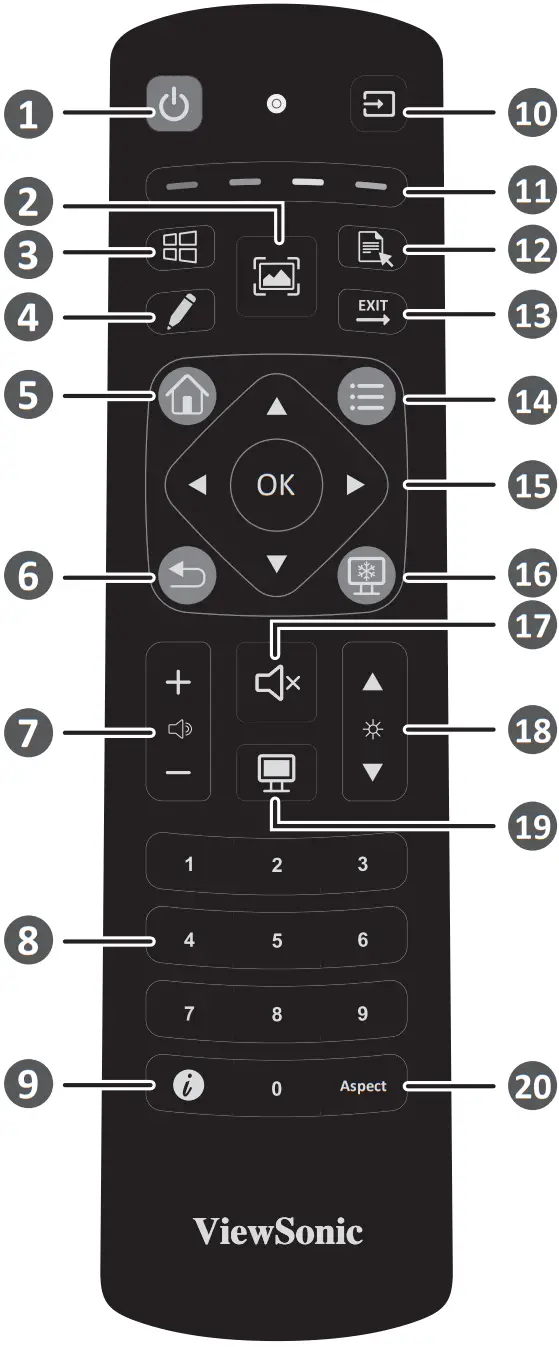 * PC button Not all models support these functions
| 1. Power on/off 2. Screen capture 3. ‘PC: “Windows” button 4. Startup Writing 5. Back to Embedded player Home Screen 6. Back / Return to the previous page 7. Increase / Decrease volume | 8. Numbers Keypad 9. Information 10. Input source selection 11. Media control button Red: PLAY/PAUSE Green: STOP Yellow: BACKWARD Blue: FORWARD 12. *PC: “Menu” button | 13. PC: Exit the dialog box 14. Setting menu 15. Up/Down/Right/Left/OK Keys 16. Freeze Screen 17. Mute / Unmute 18. Increase / Decrease brightness ‘PC: Page Up / Page Down 19. Blank Screen 20. Adjust aspect ratio |
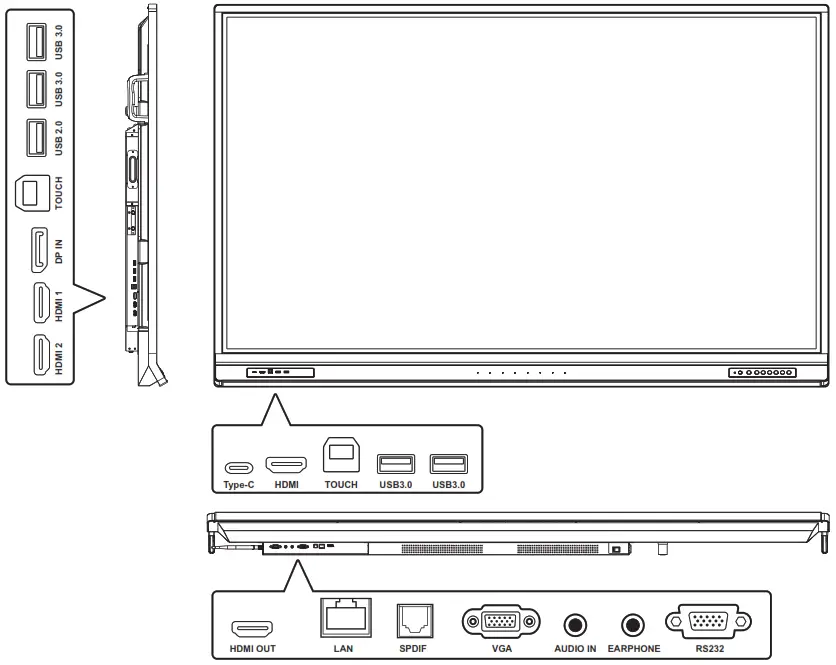
I/O port
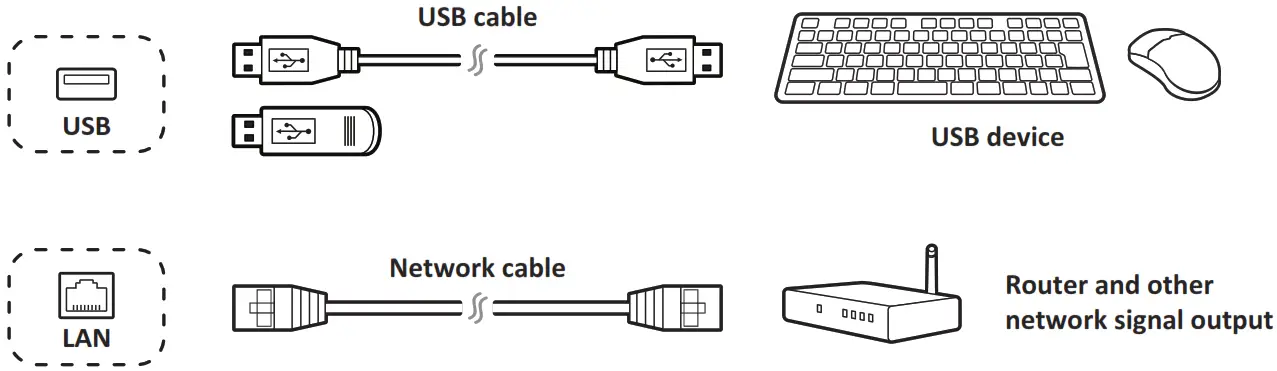
USB and Networking Connections
Just like any PC, it is easy to connect various USB devices and other peripherals to your ViewBoard.
USB Peripherals
Plug the USB device cable into the USB port.
Networking and Modem cables
Plug the router cable into the LAN port.
Connecting External Devices and Touch Connection
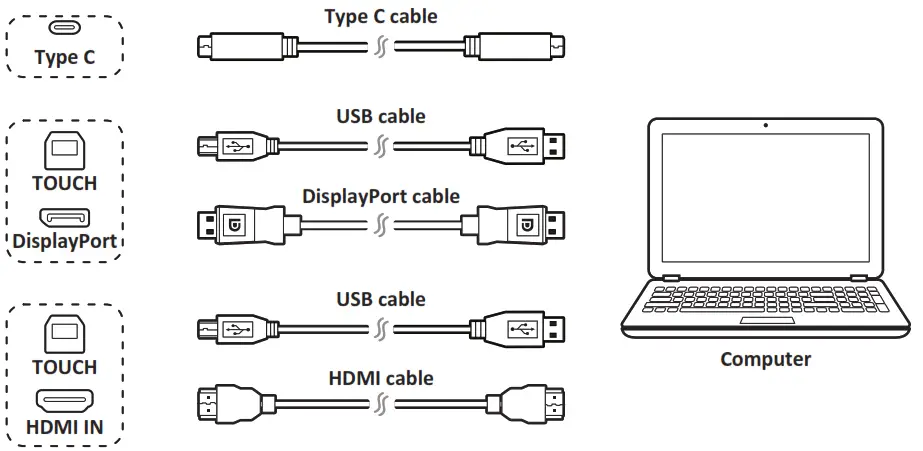
Your external device(s) can be connected in any of the following configurations:
Type C Connection
Connect a Type C cable from your external device to the Type C port on the ViewBoard.
DisplayPort Connection
- Connect a DisplayPort cable from your external device to the DisplayPort port on the ViewBoard.
- Connect a USB cable to the external device from the TOUCH port of the ViewBoard.
HDMI Connection
- Connect an HDMI cable from your external device to the HDMI IN port on the ViewBoard.
- Connect a USB cable to the external device from the TOUCH port of the ViewBoard.

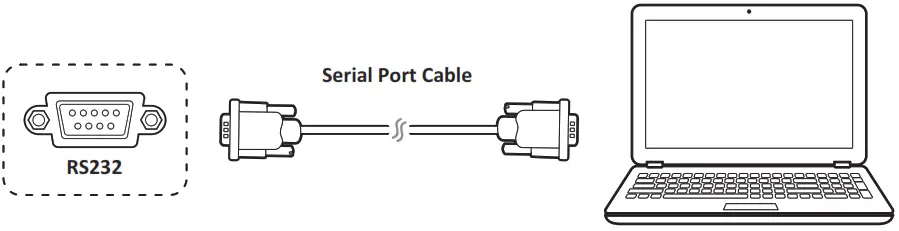
RS232 Connections
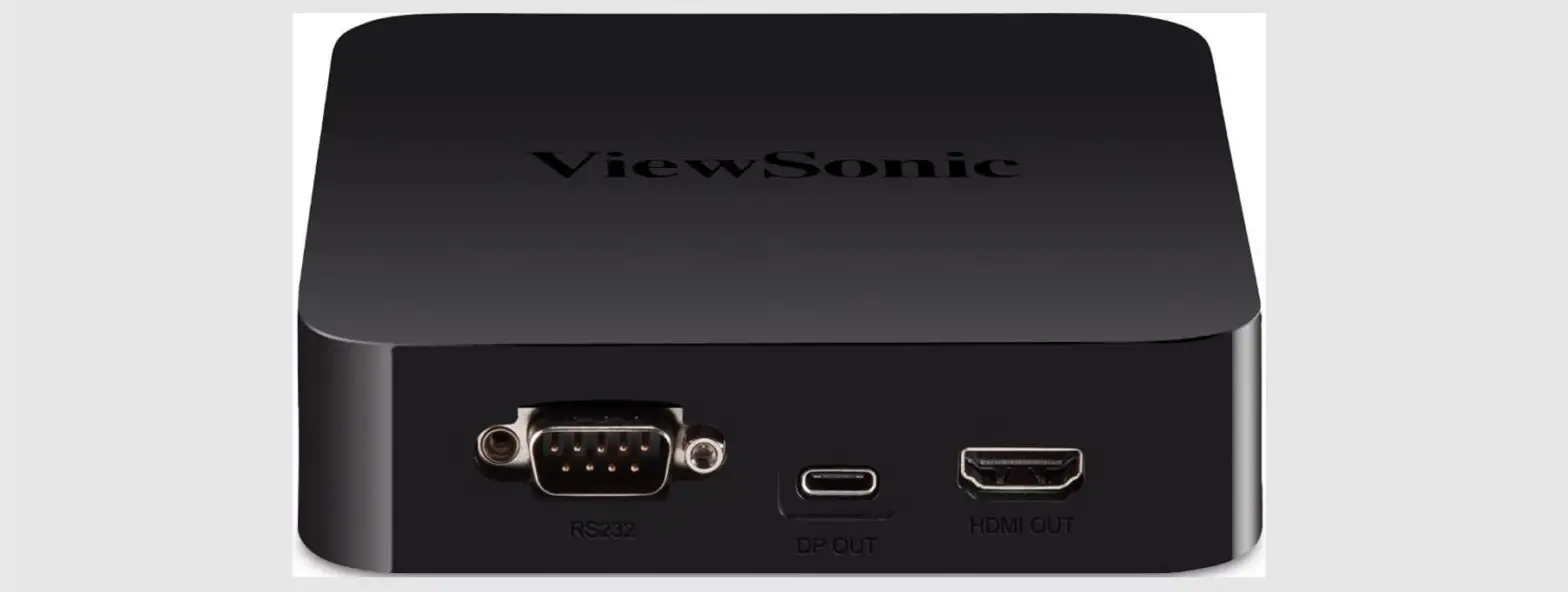
When you use an RS232 serial port cable to connect your display to an external computer, certain functions can be controlled by the PC, including power on/off, volume adjustment, and more.
Media Player (Audio and Video) Connection
To connect to a media player:
- Connect the HDMI cable to the HDMI ports on your ViewBoard and a peripheral device.
- Plug in the power cord of your ViewBoard, and turn on the rear-panel power supply switch.
- Press the Power button on the right-hand side of the ViewBoard to turn the screen on.
- Press the INPUT button on the remote control and switch to the “HDMI” input source.


SPDIF Connection
To connect to an external sound system:
- Connect an optical cable from the SPDIF port to your sound system’s optical connector.
- Plug in the power cord of your ViewBoard, and turn on the rear-panel power supply switch.
- Press the Power button on the right-hand side of the ViewBoard to turn the screen on.
Note: S/PDIF & Earphone audio output are working on ViewBoard Player, HDMI, and DP channel only. 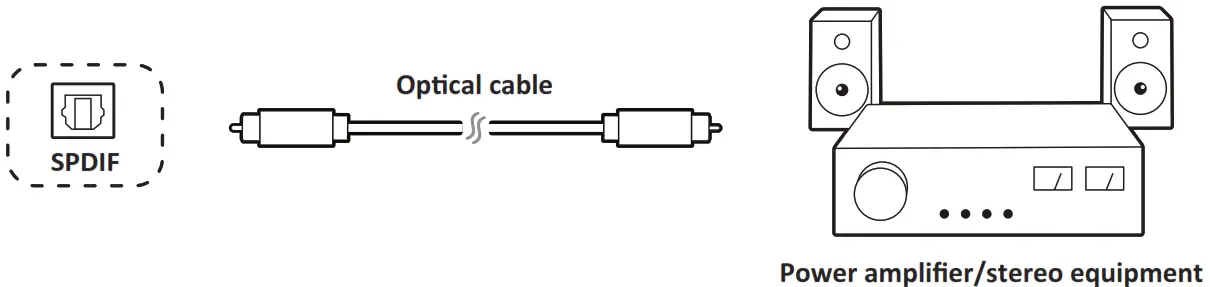 Video Output Connection
To output video via a display device:
- Connect an HDMI cable to the HDMI IN port of your display device, and the other end to the HDMI OUT port of your ViewBoard.
- For audio, connect one end of an audio cable to your ViewBoard’s EARPHONE port and the other end to your speakers.
- Plug in the power cord of your ViewBoard, and turn on the rear-panel power supply switch.
- Press the Power button on the right-hand side of the ViewBoard to turn the screen on.
Note: S/PDIF & Earphone audio output are working on ViewBoard Player, HDMI, and DP channel only. 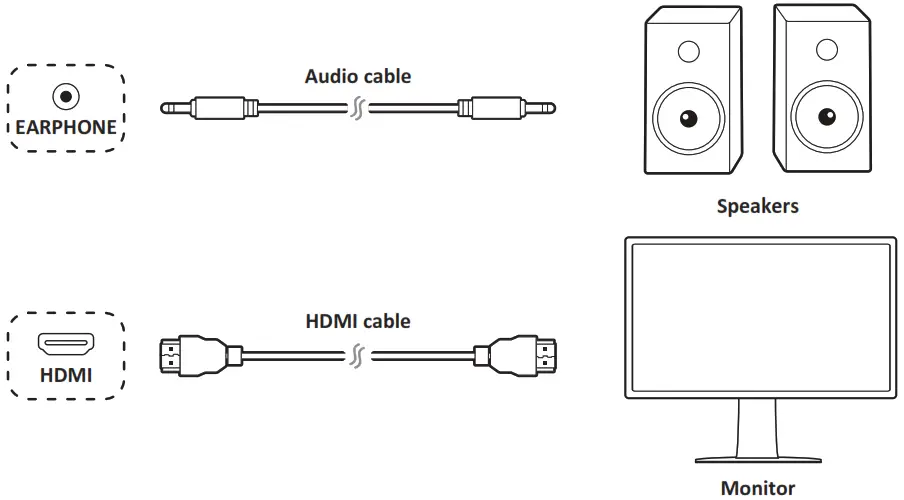 Start to Use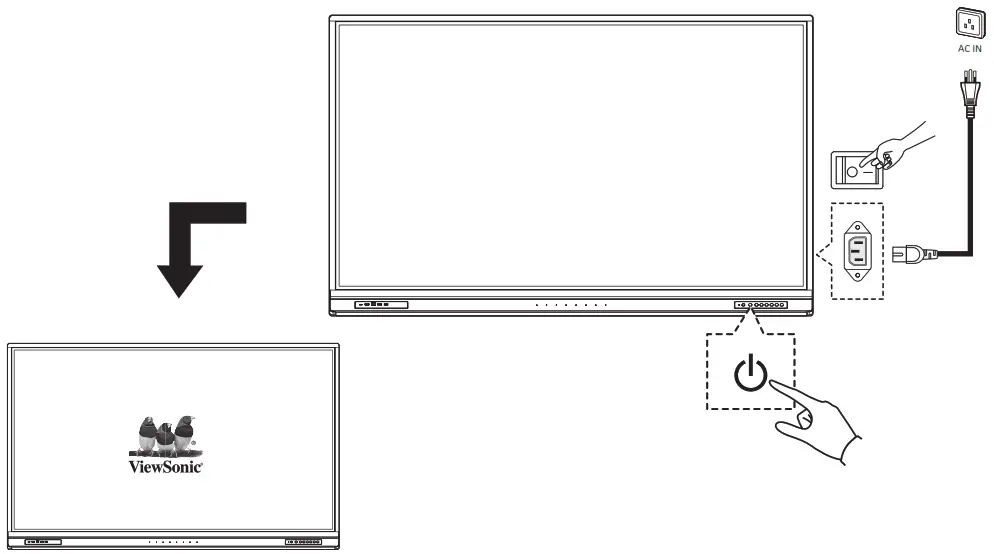
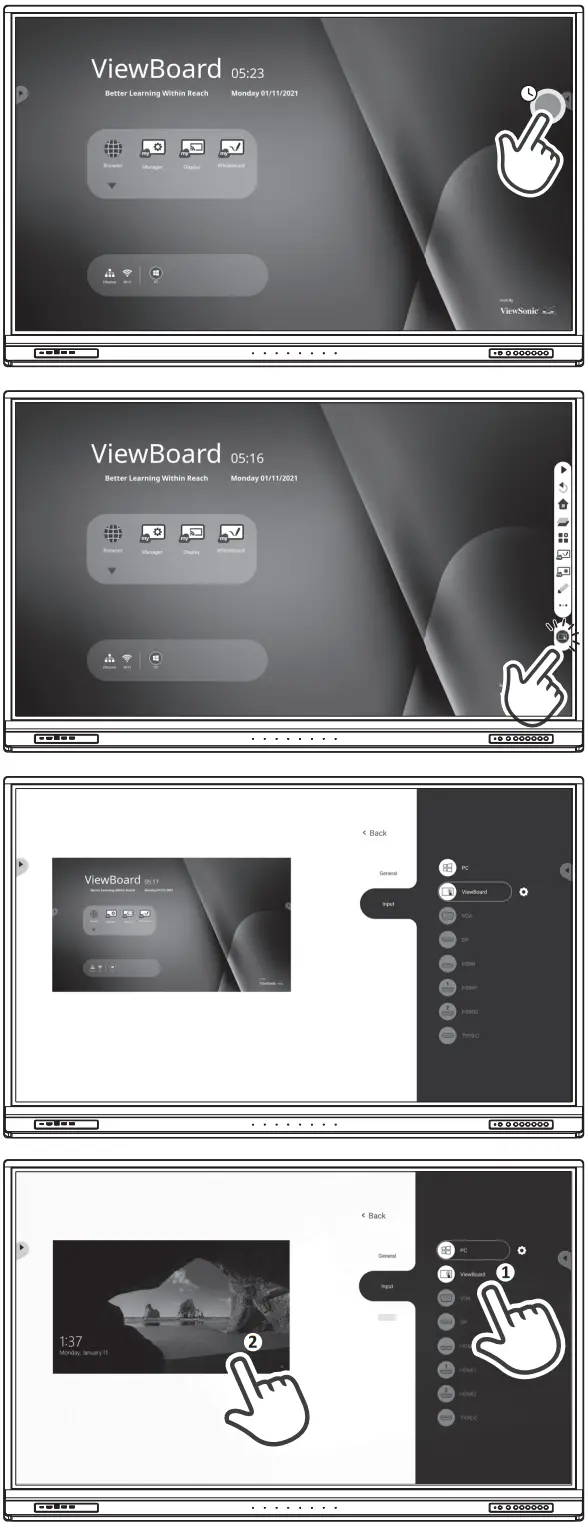
Compliance Statement
FCC Compliance Statement: This device complies with part 15 of FCC Rules. Operation is subject to the following two conditions:
- This device may not cause harmful interference, and
- This device must accept any interference received, including interference that may cause undesired operation.
Industry Canada ICES-003 Compliance: CAN ICES-003(B) / NMB-003(B)
 |  |
| https://www.viewsonic.com/us/products/shop/viewboard/viewboard-accessories.html | https://www.viewsonic.com/us/customer-service# |
IFP52 series_Cl5G_lb_ENG_20210826
Copyright © 2021 ViewSonic Corporation.
All rights reserved.