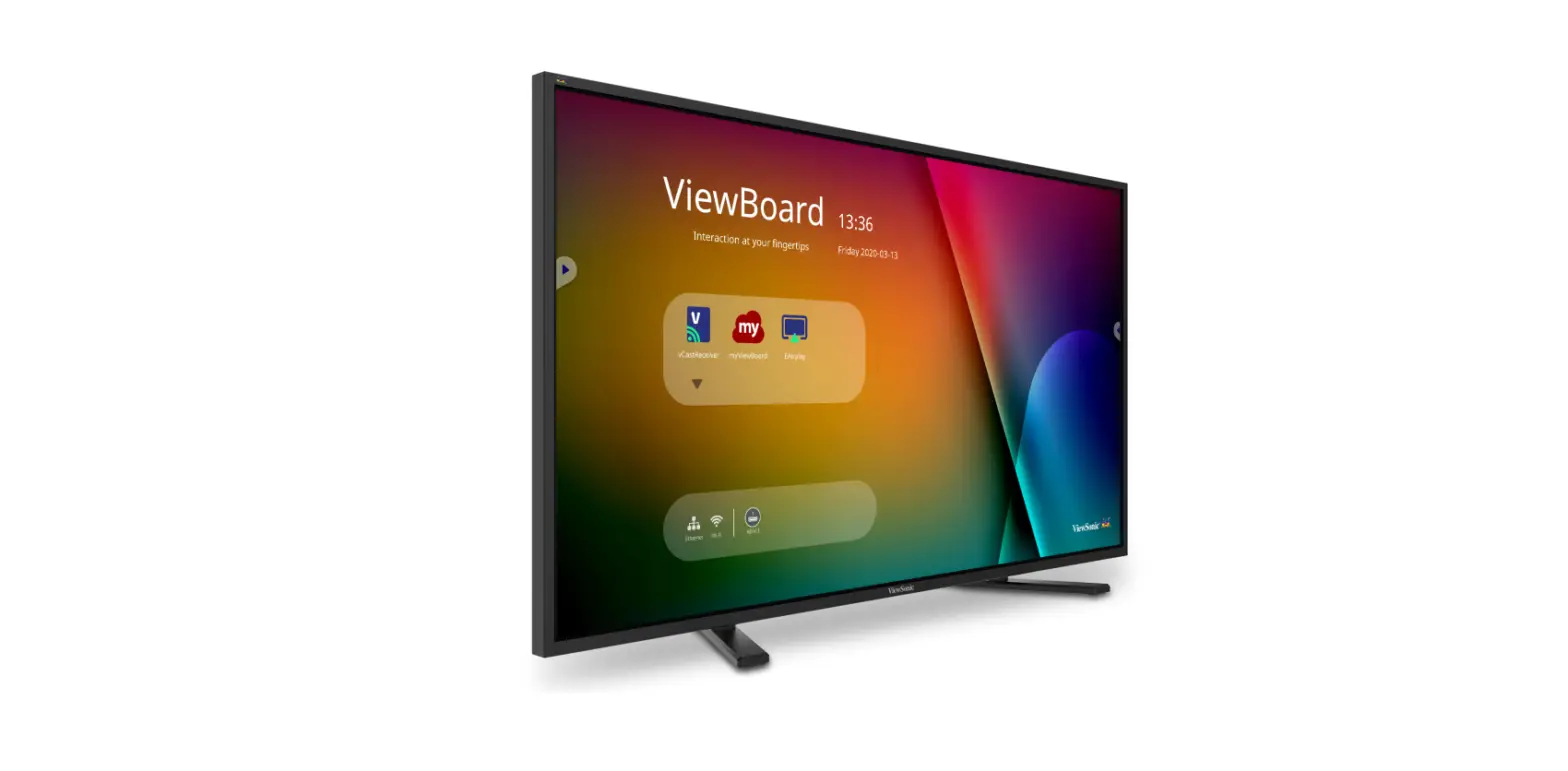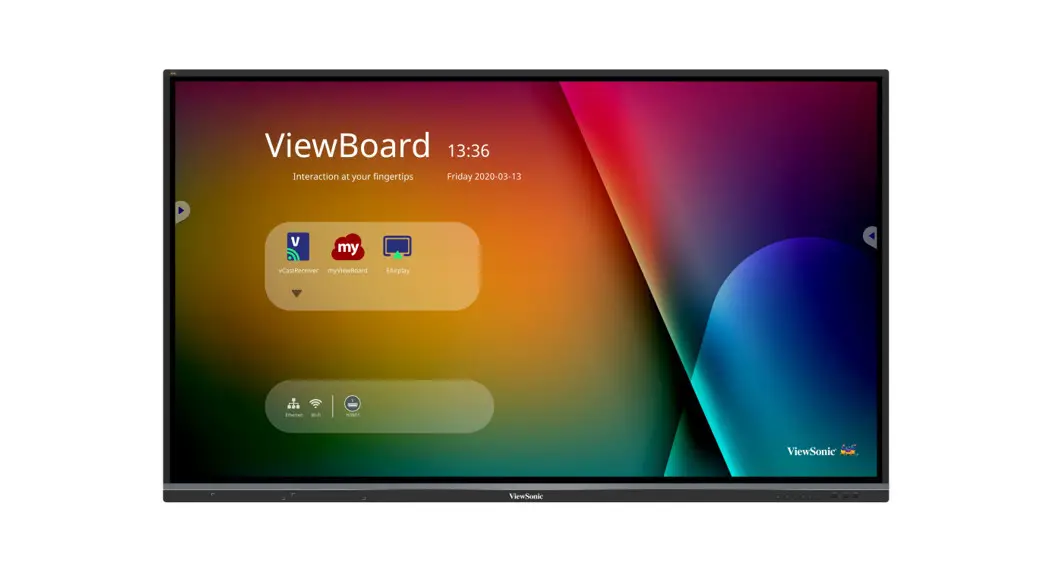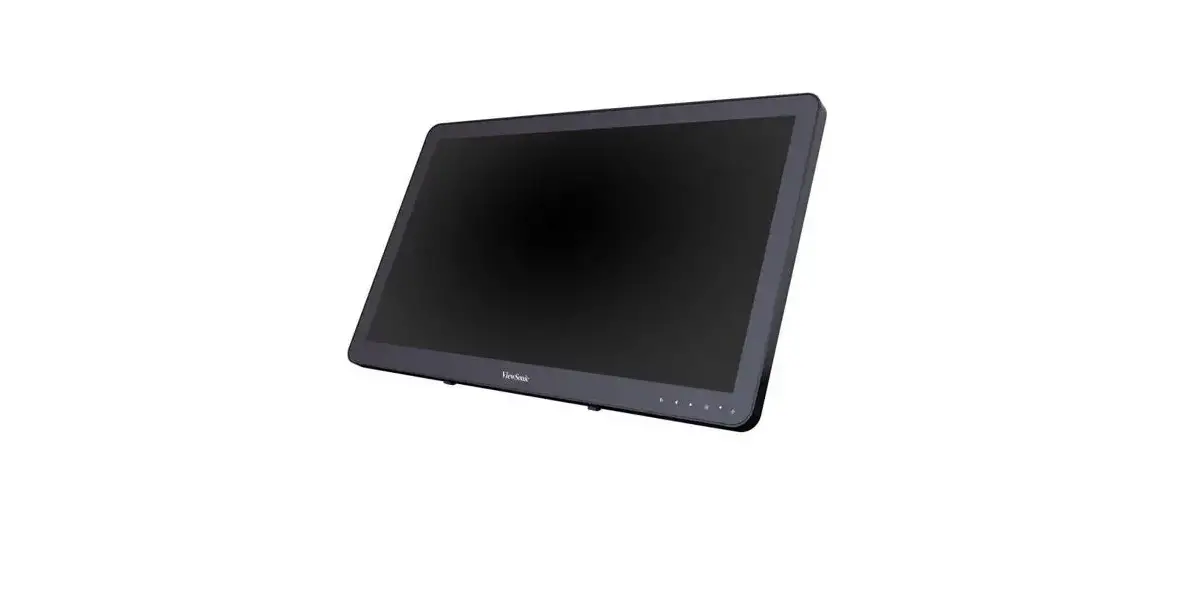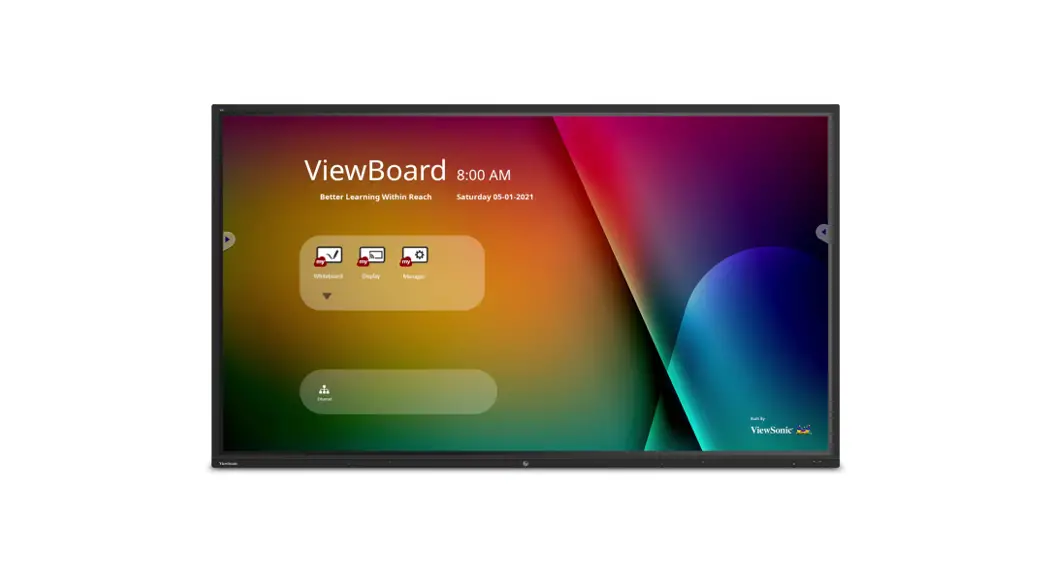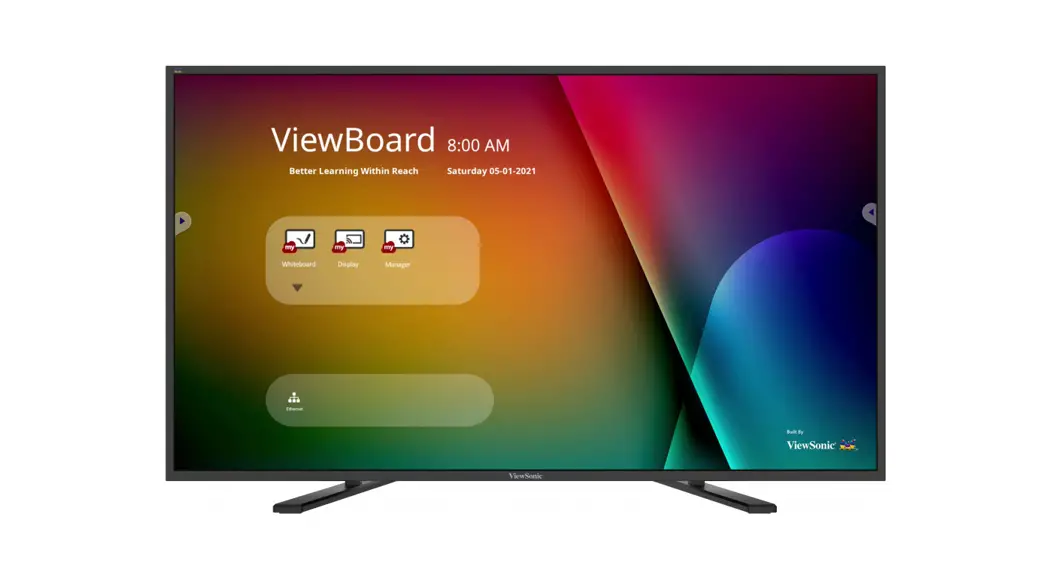

ViewBoard IFP4320 Series
Commercial Touch Display
Quick Start Guide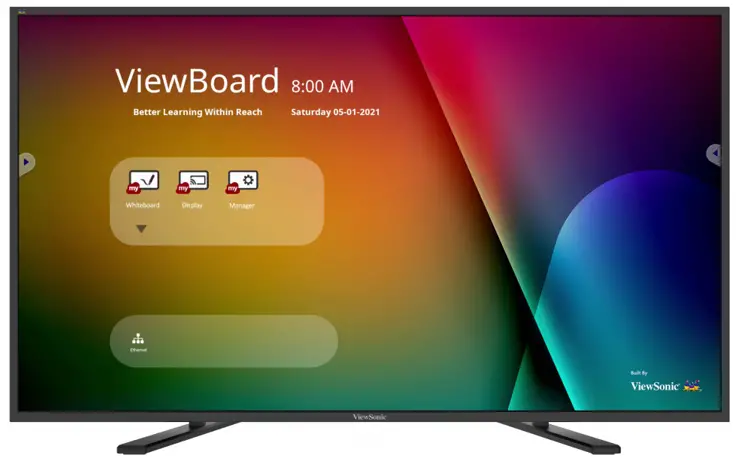
Package Contents
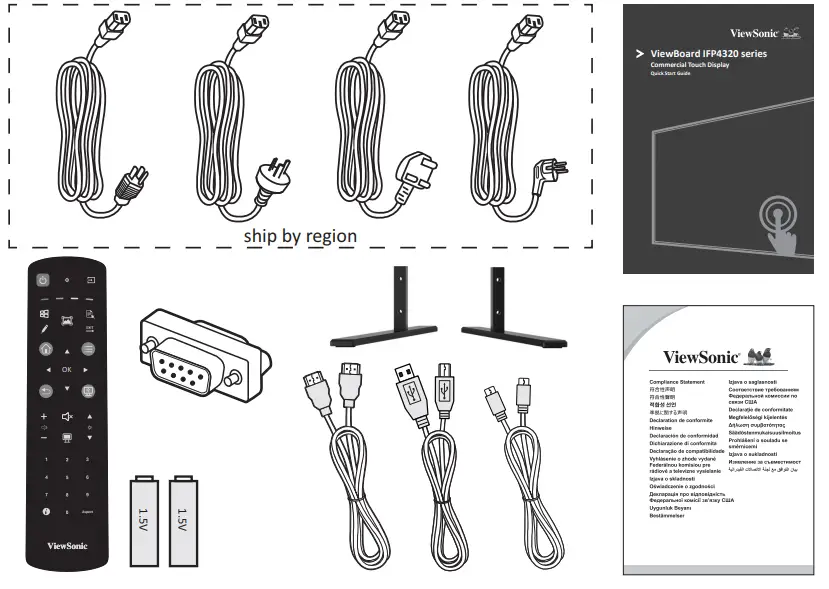
| • HDMI cable (1.0 M) • Type-c cable (1.8 M) • USB cable for touch (1.0 M) • STND-056 • AAA battery x 2 | • Remote control • Quick start guide • Compliance statement • RS232 adapter • Power cable (ship by region) |
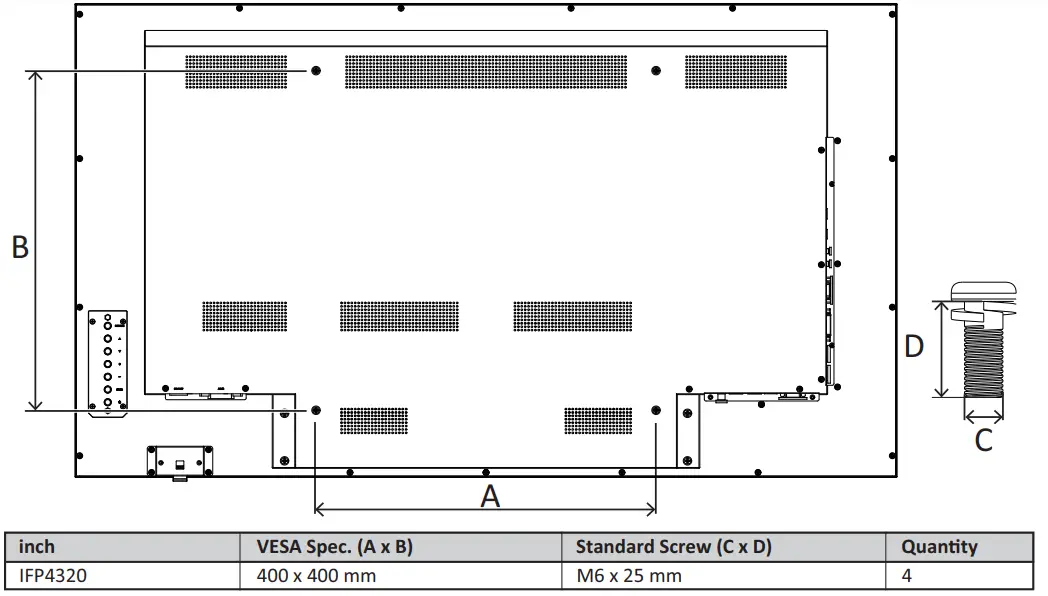
Wall Mount Kit Specifications (VESA)
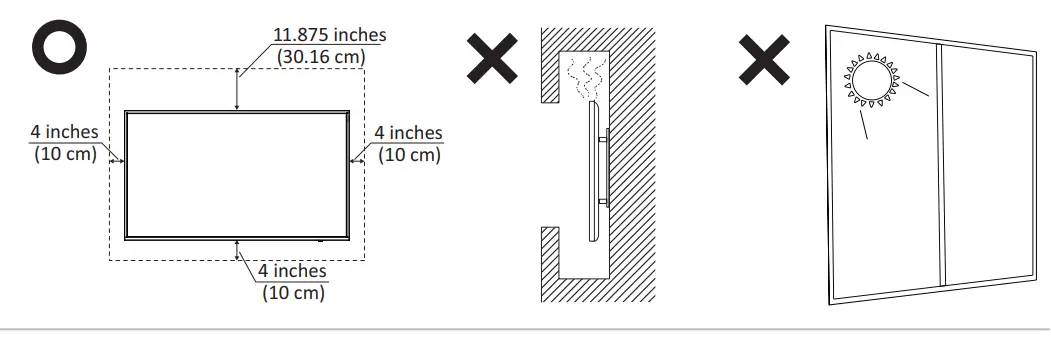
Installation Environment Attention
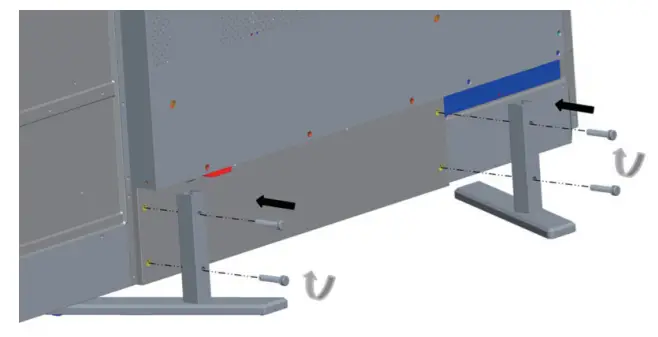
 Installation STND-056
 Installation STND-056
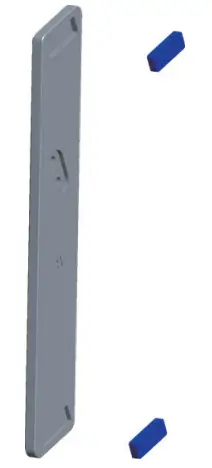
- First stick the silicone foot pad in the reserved slot of the base

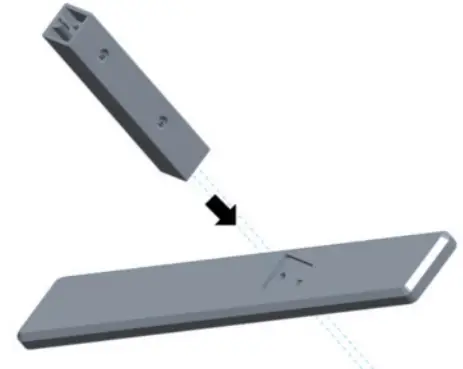
- The base support post is inserted into the reserved slot on the upper side of the base”

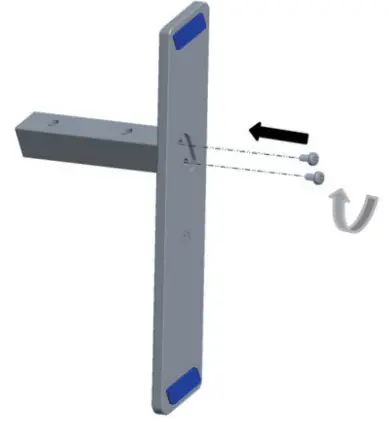
- The base support column and the base are fixed from the bottom of the base with screws

- After completing the first 3 steps, the left and right base steps are consistent.

- M6 screw connection support column is fixed on the whole machine

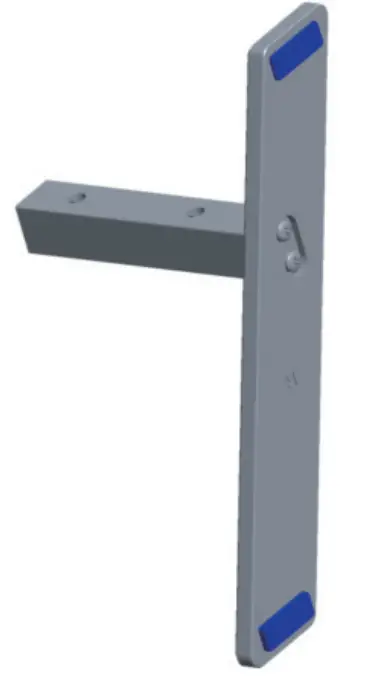
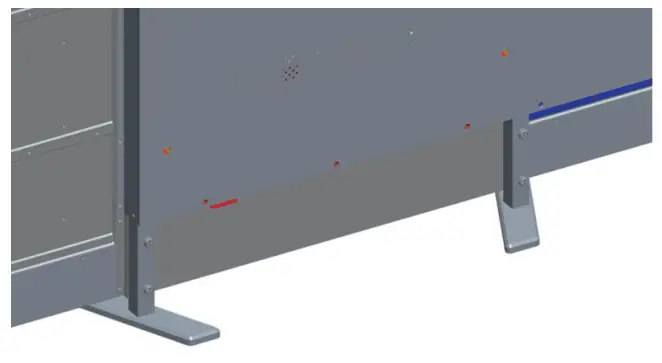
- Picture after the base is installed

Control Panel Overview
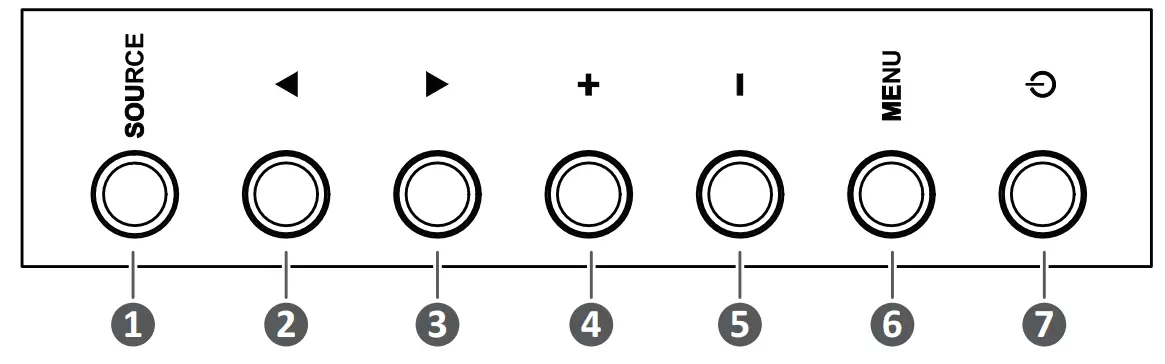
Item | Description |
| 1 | Enter the signal source selection menu, and select the signal source. It is used to confirm the operation under the MENU operations. |
| 2 |  / / : In the OSD menu, press the / key to select an item. : In the OSD menu, press the / key to select an item. |
| 3 | |
| 4 | +/-: It is used to adjust the volume. In the OSD menu, press the +1- key to adjust the value of the selected item. |
| 5 | |
| 6 | Enter the main menu, and it confirms the operation in the SOURCE menu. |
| 7 | Press the key to turn off/on the display backlight only Press and hold the key to turn off the device |
Remote Control Overview

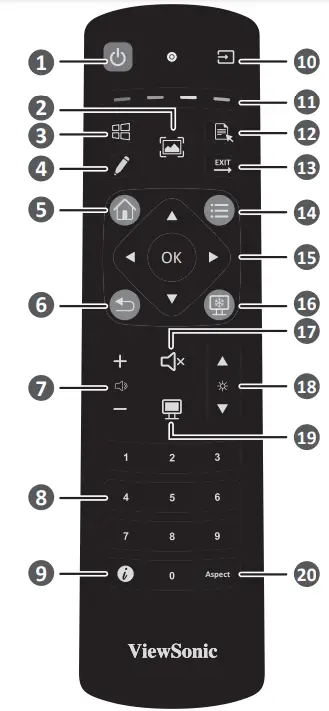
| 1. Power on/off 2. Screen capture 3. PC: “Windows” button 4 . Startup Writing 5. Back to Embedded player Home Screen 6. Back / Return to the previous page 7. Increase / Decrease volume 8. Numbers Keypad 9. Information 10 .Input source selection | 11 .Media control button Red: PLAY/PAUSE Green: STOP Yellow: FORWARD Blue: BACKWARD 12 .PC: “Menu” button 13 . PC: Exit the dialog box 14 .Setting menu 15 .Up/Down/Right/Left/OK Keys 16 . Freeze Screen 17. Mute / Unmute 18 .Increase / Decrease brighteness PC: Page Up / Page Down 19. Blank Screen 20 . Adjust aspect ratio |
PC Button Not all models support these functions
I/O port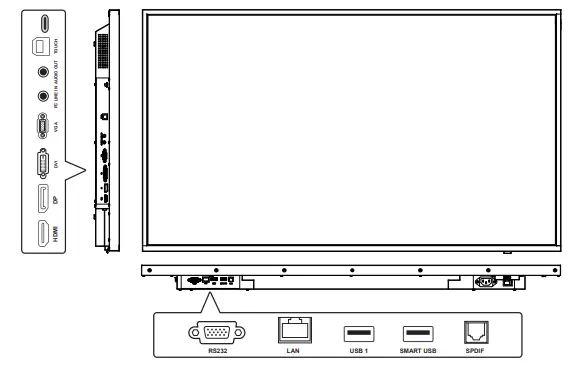
USB and Networking Connections
Just like any PC, it is easy to connect various USB devices and other peripherals to your ViewBoard.
USB Peripherals
Plug the USB device cable into the USB port.
Networking
Plug the router cable into the LAN port.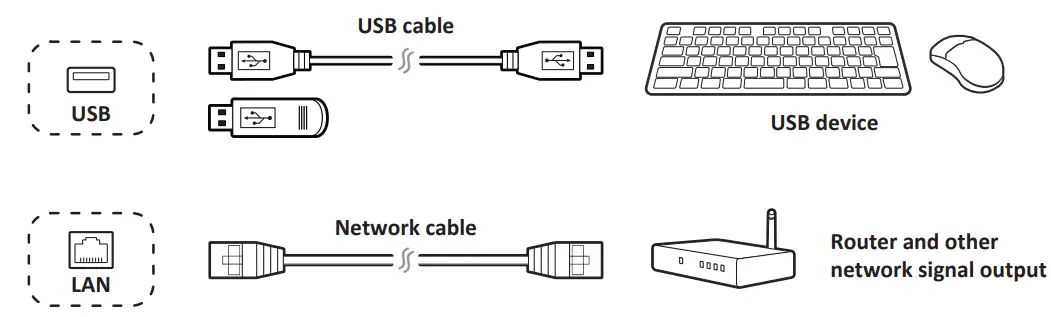
Connecting External Devices and Touch Connection
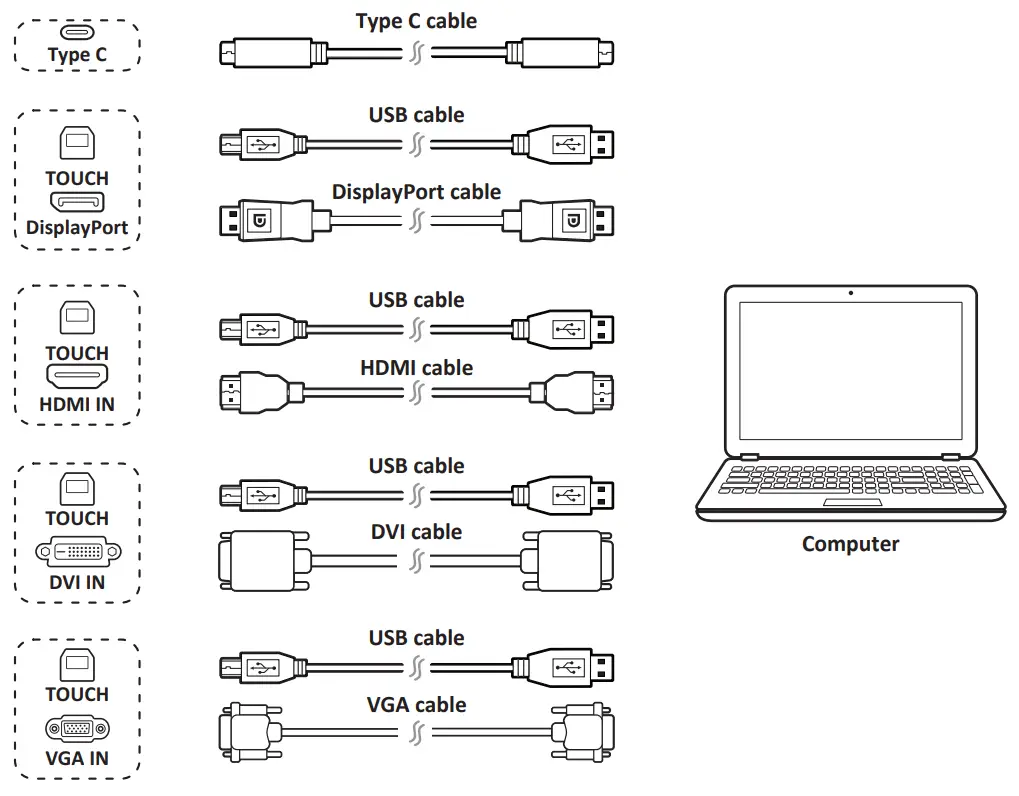
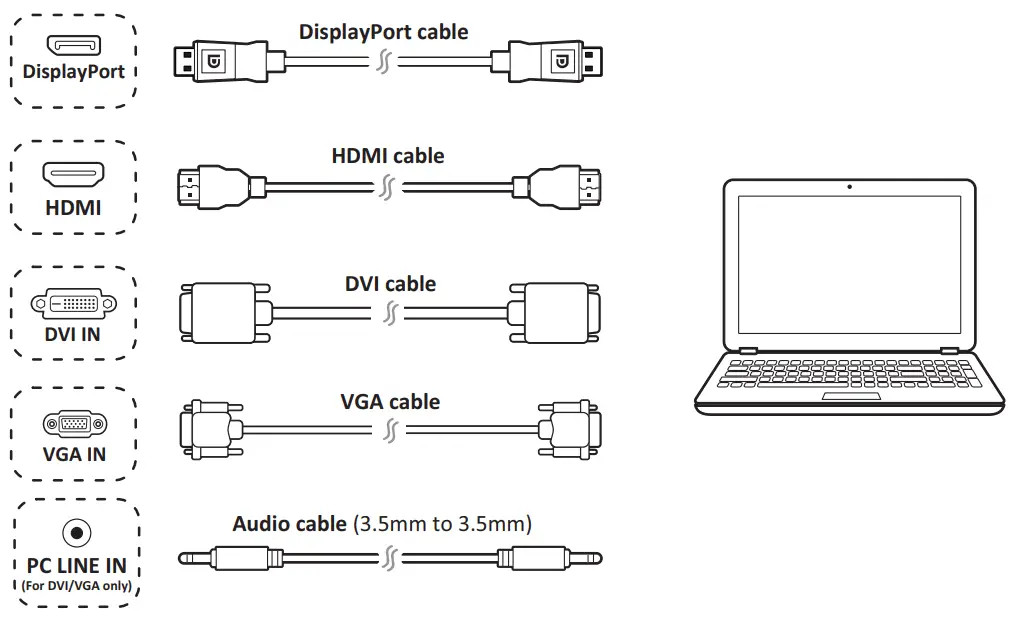
Your external device(s) can be connected in any of the following configurations:
Type C Connection
Connect a Type C cable from your external device to the Type C port on the ViewBoard.
DisplayPort Connection
- Connect a DisplayPort cable from your external device to the DisplayPort port on the ViewBoard.
- Connect a USB cable to the external device from the TOUCH port of the ViewBoard.
HDMI Connection
- Connect an HDMI cable from your external device to the HDMI IN port on the ViewBoard.
- Connect a USB cable to the external device from the TOUCH port of the ViewBoard.
DVI Connection
- Connect a DVI cable from your external device to the DVI IN port on the ViewBoard.
- Connect a USB cable to the external device from the TOUCH port of the ViewBoard.
VGA Connection
- Connect a VGA cable from your external device to the VGA IN port on the ViewBoard.
- Connect a USB cable to the external device from the TOUCH port of the ViewBoard.
 RS232 Connections
 RS232 Connections
When you use an RS232 serial port cable to connect your display to an external computer, certain functions can be controlled by the PC, including power on/off, volume adjustment, and more.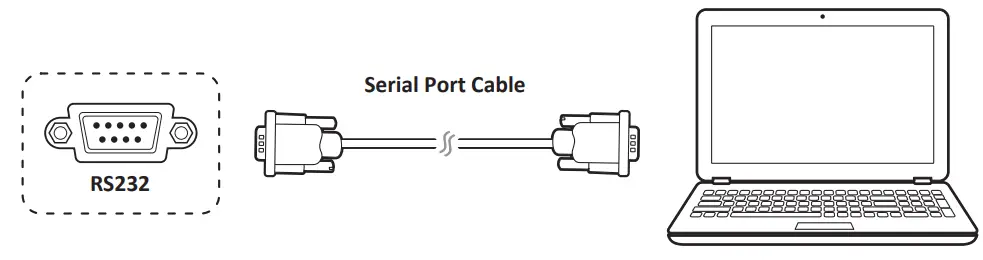 Media Player (Audio and Video) Connection
To connect to a media player:
- Connect the DP/HDMI/DVI/VGA cable to the DP/HDMI/DVI/VGA ports on your ViewBoard and a peripheral device.
- Plug in the power cord of your ViewBoard, and turn on the power supply switch.
- Press the remote control or keypad Power button to turn the screen on.
- Press the INPUT button on the remote control and switch to the “Video” input source.
Audio/SPDIF Connection
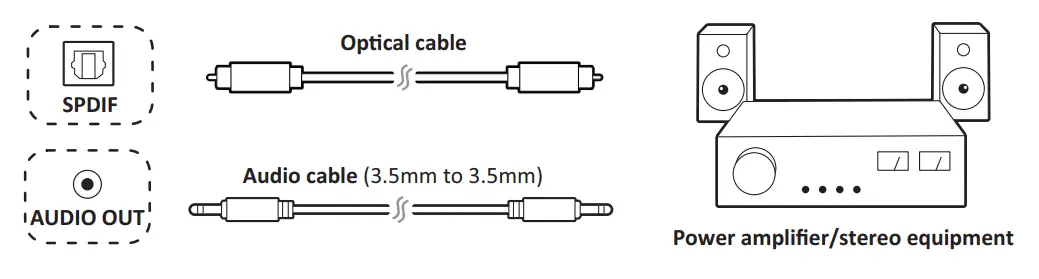
To connect to an external sound system:
- Connect an optical cable from the SPDIF port or Audio cable from AUDIO OUT to your sound system’s connector.
- Plug in the power cord of your ViewBoard, and turn on the power supply switch.
- Press the Power button remote control or keypad to turn the screen on.
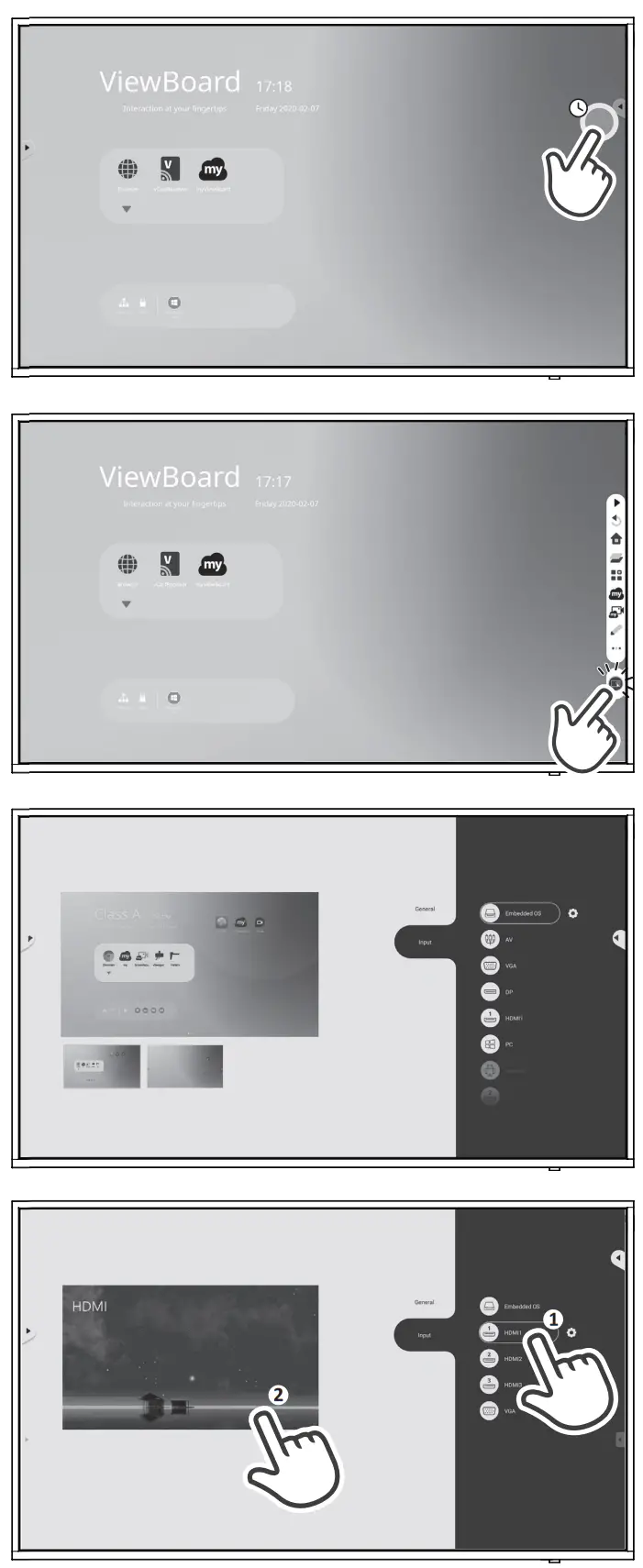
 Start to Use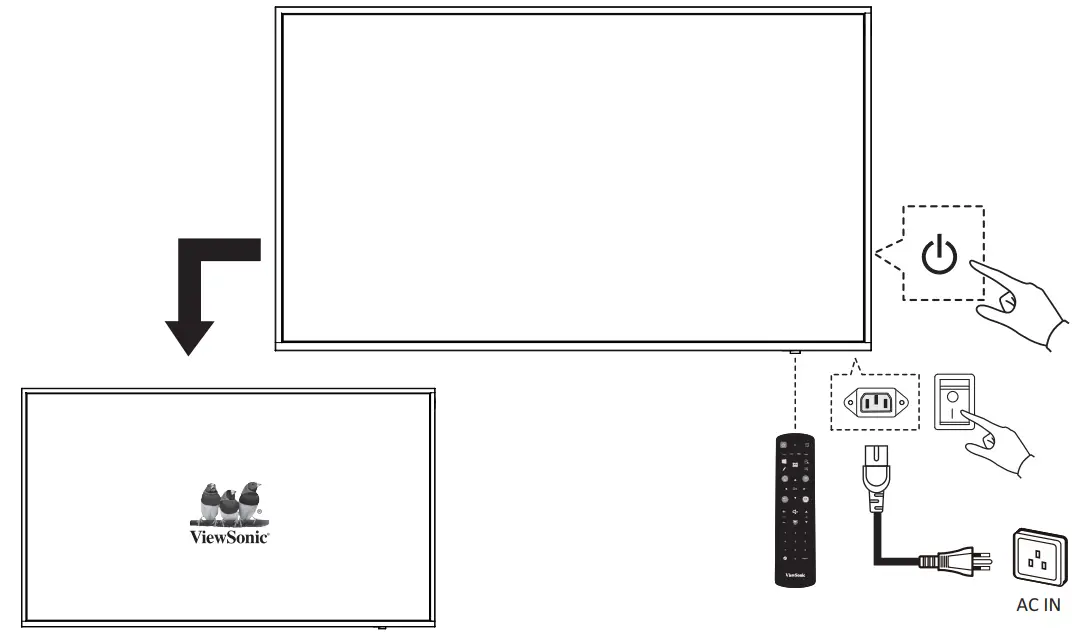
Compliance Statement
FCC Compliance Statement:
This device complies with part 15 of FCC Rules. Operation is subject to the following two conditions:
- this device may not cause harmful interference, and
- this device must accept any interference received, including interference that may cause undesired operation.
Industry Canada ICES-003 Compliance: CAN ICES-003(B) /NMB-003(B)
| Country/ Region | Website/ Phone |
| Hong Kong (English) | www.viewsonic.com/hk-en/ |
| United States | www.viewsonic.com/us |
| Latin America | www.viewsonic.com/la |
| United Kingdom | www.viewsonic.com/uk/ |
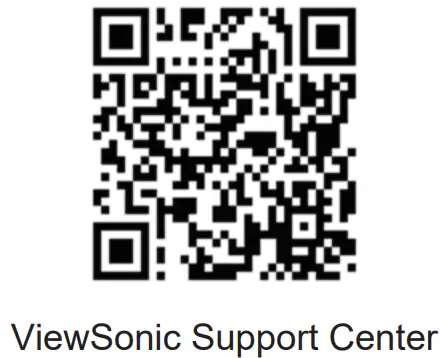 https://www.viewsonic.com/us/customer-service#
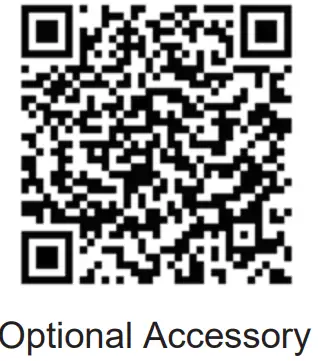 https://www.viewsonic.com/us/products/shop/viewboard/viewboard-accessories.html