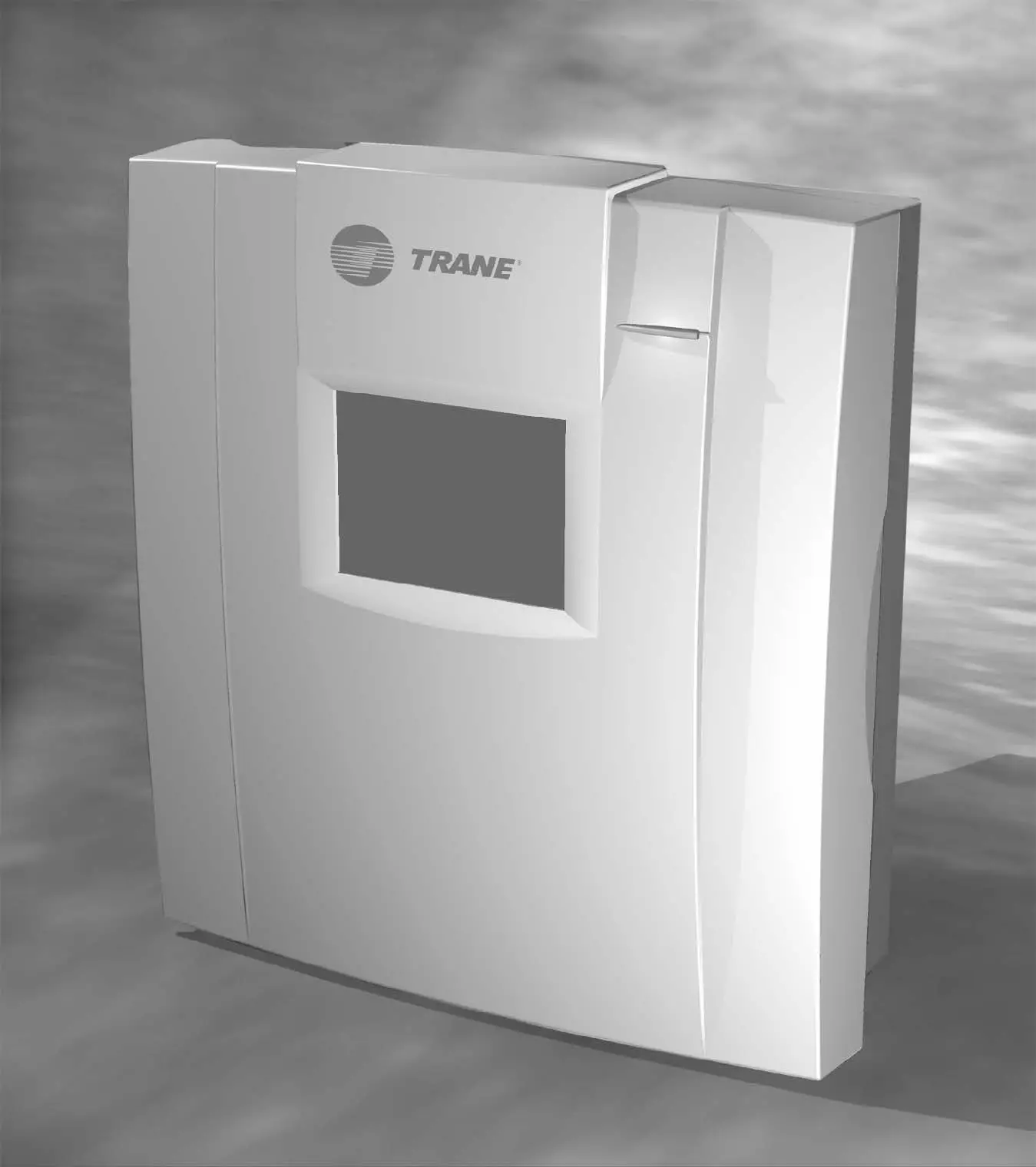
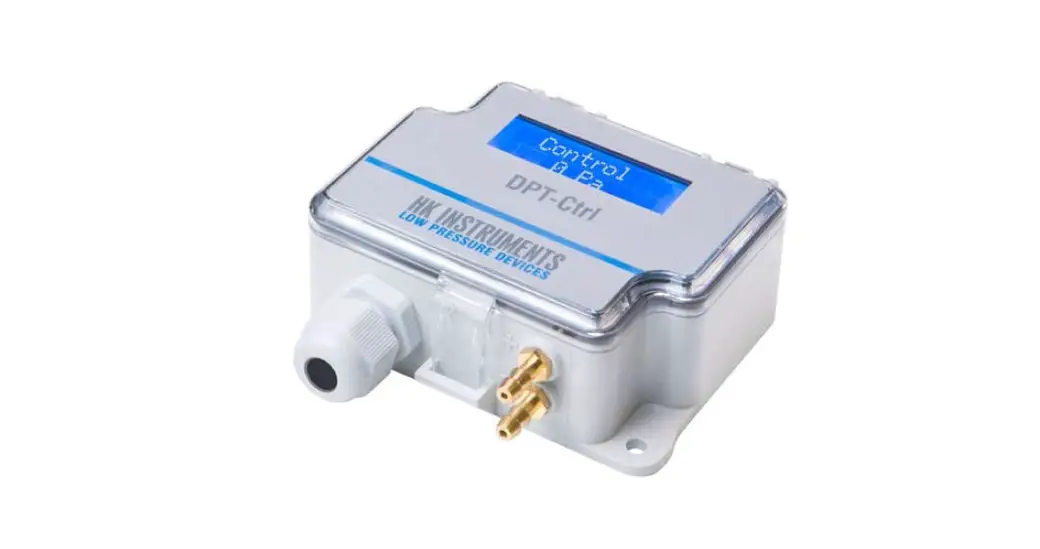
US5182 Air Handling Unit Controller
Product Information
The product is an Air Handling Unit Controller with the model
number US5182. It is used to control the air handling unit in a
HVAC system. The controller has various inputs and outputs for
monitoring and controlling different aspects of the unit.
The controller has the following features:
- +24VAC (R) -24VAC (C) power input
- DI1-DI6 digital inputs
- +P (24VDC) AI1-AI6 analog inputs
- 12VDC AV1 and AV2 analog voltage inputs
- DO6-DO8 digital outputs
- AO1-AO6 analog outputs
- RS-485 and Ethernet communication interfaces
- Temperature (RTD) inputs for return, discharge, outdoor, and
mixed air - USB-C and USB-A ports for connecting to a laptop
Product Usage Instructions
- Connect the US5182 to a laptop using the provided USB
cable. - Launch the TCS Insight software on the laptop.
- Follow the steps below to configure the network settings:
- Ensure that the US5182 is disconnected from the laptop.
- Power up the US5182.
- Connect the US5182 to the laptop using the USB cable.
- Click on the “Get Ports” button in the TCS Insight
software. - Select the new COM port that appears in the window.
- Select “UbiquiSTAT USB” as the Baud Rate.
- Open the selected COM port.
- Click on the “Poll” tab in the software.
- Click on the “Poll Network” button to detect the US5182
device. - Stop polling the network by clicking on the “Stop” button or
the US5182 icon.
| Configuration Guide
Air Handling Unit Controller
US5182
2800 Laura Lane · Middleton, WI 53562 | 800.288.9383 | www.tcsbasys.com
202305
Contents
Introduction ………………………………………………………………………………………………………………………….3 Getting Started………………………………………………………………………………………………………………………3
US5182-to-Laptop Connection…………………………………………………………………………………………………………………… 3
Using Insight………………………………………………………………………………………………………………………….4
Network Setup ……………………………………………………………………………………………………………………………………………. 4 Programming the US5182……………………………………………………………………………………………………………………………. 5
Systems and Setpoints ………………………………………………………………………………………………………………………………… 6 Analog Inputs ………………………………………………………………………………………………………………………………………………..7 Digital Inputs ……………………………………………………………………………………………………………………………………………….. 8 Digital Outputs…………………………………………………………………………………………………………………………………………….. 8 Analog Outputs……………………………………………………………………………………………………………………………………………. 9 Additional Functions (1 of 2) ……………………………………………………………………………………………………………………….. 9 Additional Functions (2 of 2) ……………………………………………………………………………………………………………………… 10 Exiting the Configuration Software ………………………………………………………………………………………………………….. 10
2
2800 Laura Lane · Middleton, WI 53562 | 800.288.9383 | www.tcsbasys.com
Configuration
Introduction
Congratulations on choosing the TCS US5182 Air Handling Unit Controller! The US5182 is a sophisticated, multi-function HVAC Air Handling Unit controller which must be configured to interact with your system after you have completed the installation, wiring, and basic setup. While this configuration process can be accomplished several different ways, the preferred method is to connect a laptop computer directly to the US5182 via a USB cable, and use TCS Insight software to program the unit. This manual will guide you through each step you must take when using this method. Refer to the US5182 Installation Manual for instructions on installing and wiring the unit into your system. Refer to the US5182 Quick Setup Guide for instructions on the basic setup of the unit via the unit’s LCD screen. If you have questions regarding your US5182, do not hesitate to contact TCS Technical Support at 800-288-9383, ext. 2. Our Technical Support Department hours are Monday Friday, 7:00 a.m. to 7:00 p.m. (CST).
Getting Started
To configure the US5182, you will need: · A laptop computer running Windows 7 or later. · A USB-A to USB-C cable (NOT a mini-USB or micro-USB cable) · TCS Insight configuration software version 2.5.0.7 or later, which can be downloaded from the TCS website. Earlier versions of Insight will not allow you to configure the US5182.
US5182-to-Laptop Connection
+24VAC (R) -24VAC (C)
POWER
US5182
AIR HANDLING UNIT CONTROLLER
GND DI1 DI2
GND DI3 DI4
GND DI5 DI6
+P (24VDC) AI1 AI2 GND +P (24VDC) AI3 AI4 GND +P (24VDC) AI5 AI6 GND 12VDC AV1 (0-5V) AV2 (0-10V) GND
BACK
ENTER
SCROLL
POWER OCC LINK
SERVICE ECONOMIZER
tcsbasys.com
COM W1 W2
COM Y1 Y2
COM G
DO6 COM DO7 DO8 GND AO1 AO2 GND AO3 AO4 GND AO5 AO6
A RS-485 B
REF
ETHERNET
SPACE
TEMPERATURE (RTD) INPUTS
RETURN DISCH
DISCH OUTDOOR MIXED
HOT
AIR
AIR
USB
USB-C
USB-A
USB Cable
3
2800 Laura Lane · Middleton, WI 53562 | 800.288.9383 | www.tcsbasys.com
Configuration
Using Insight
TCS Insight software allows you to configure available settings for the different types of inputs and outputs of the US5182. Each time you launch Insight, you must complete the following tasks before programming the US5182:
· Identify the COM port you will be using to communicate with the US5182 · Assign a unique device address to the US5182 (if more than one controller is connected to your system) · Populate the I/O tabs under the Programming menu
NOTE: TCS Insight software is a powerful service tool that works with a number of different devices and performs other functions which are beyond the scope of this manual. We recommend following only the steps described herein, as other steps may impact other controllers or your network.
Network Setup
STEP 1 With the US5182 disconnected from your laptop, launch Insight. You will see the following screen:
You may see no COM ports or several of them (e.g., COM3, in this example). You can ignore these ports.
STEP 2 Power up the US5182 (refer to the US5182 Installation Manual for more information).
STEP 3 Connect the US5182 to your laptop using the USB cable described on page 3.
STEP 4
Click on the Get Ports button. You will see a new COM port appear in the window (e.g., COM83). This is the port your US5182 is using to communicate with the laptop.
STEP 5 Under the Baud Rate list, select UbiquiSTAT USB.
STEP 6 Open the new COM port by clicking on its radio button.
STEP 7 Click on the Poll tab near the top of the window.
4
2800 Laura Lane · Middleton, WI 53562 | 800.288.9383 | www.tcsbasys.com
Configuration
STEP 8
In the Poll tab window, click on the Poll Network button. After a few seconds, an icon representing
the US5182 will appear. After the US5182 device icon appears, you can click on the Stop button or the US5182 icon to cease polling the network.
NOTE: When using a USB-C cable for communicating with the US5182, the address will always be zero.
Programming the US5182
STEP 1 Click on the US5182 device icon to bring up the device tabs in the main window (this can take several seconds).
STEP 2 Click on the Programming tab in the main window. This will open up a new set of tabs for:
· System and Setpoints · Analog Inputs · Digital Inputs · Digital Outputs · Analog Outputs · Additional Functions (two)
STEP 3
After expanding the Programming tab, click on each of the seven sub-tabs to populate their data fields. Allow several seconds for the US5182 to populate each sub-tab (the window will “blink” when populated.) Do this for every sub-tab, even if you are not going to configure all inputs/ outputs or functions, as some data points are interrelated.
5
2800 Laura Lane · Middleton, WI 53562 | 800.288.9383 | www.tcsbasys.com
Configuration
Systems and Setpoints
Under the System and Setpoints tab you can enable or monitor system settings for the following:
· Hot Deck/Cold Deck · Discharge Zone Control · Setpoints · Smart Recovery · Dehumidification · Space Control · System
STEP 1 Click on the desired section to activate the relevant settings and program the fields.
NOTE: Discharge Zone Control should be enabled only if the US5182 is being used as a master controller for a Ubiquity subsystem with a QD2040 or QD3041 building controller.
STEP 2 After programming the System and Setpoints, click on the Write Page button to save the settings.
STEP 3 (Optional) Click on the Read Page button to make sure all settings were entered.
6
2800 Laura Lane · Middleton, WI 53562 | 800.288.9383 | www.tcsbasys.com
Configuration
Analog Inputs
Under the Analog Inputs tab, you can enable or monitor settings for the following:
· Space Temperature · Return Air · Discharge Air · Discharge Hot · Outdoor Air · Mixed Air The folowing configurable values are available: · AI 1 6 · AV 1 2 · Input Source · Limits and Lockouts · Remote Occupied Setpoint
STEP 1 Click on the desired field to program the relevant settings.
STEP 2 After programming the Analog Inputs, click on the Write Page button to save the settings.
STEP 3 (Optional) Click on the Read Page button to make sure all settings were entered.
7
2800 Laura Lane · Middleton, WI 53562 | 800.288.9383 | www.tcsbasys.com
Configuration
Digital Inputs Under the Digital Inputs tab, you can enable or monitor settings for the following:
· DI 1 6 · DI Setpoint Setback · Fan Proving STEP 1 Click on the desired field to program the relevant
settings.
STEP 2 After programming the Digital Inputs, click on the Write Page button to save the settings.
STEP 3 (Optional) Click on the Read Page button to make sure all settings were entered.
Digital Outputs Under the Digital Outputs tab, you can enable or monitor settings for the following:
· Heat 1 5 · Cool 1 5 · Relay Minimum On/Off Times · Control Output Mapping/Relay Configurations · Fan Status · Fan Recirculation · P+I Relays STEP 1 Click on the desired field to program the relevant
settings.
STEP 2 After programming the Digital Outputs, click on the Write Page button to save the settings.
STEP 3 (Optional) Click on the Read Page button to make sure all settings were entered.
8
2800 Laura Lane · Middleton, WI 53562 | 800.288.9383 | www.tcsbasys.com
Configuration
Analog Outputs
Under the Analog Outputs tab, you can enable or monitor settings for the following:
· AO1 6 · Modulating Heat/Cool Control · Heat Error PID · Cool Error PID · Discharge Reset · Discharge Tempering · Outdoor Air Damper Control · Economizer Output PID · Pre-Occupancy Purge · Demand Ventilation · Face and Bypass · Aquastat · Midpoint
STEP 1 Click on the desired field to program the relevant settings.
STEP 2 After programming the Analog Outputs, click on the Write Page button to save the settings.
STEP 3 (Optional) Click on the Read Page button to make sure all settings were entered.
Additional Functions (1 of 2)
Under the first Additional Functions tab, you can enable or monitor settings for the following:
· Occupied · Override · Communication Loss Delay · Time Clock
STEP 1 Click on the desired field to program the relevant settings.
STEP 2 After programming the Additional Functions, click on the Write Page button to save the settings.
STEP 3 (Optional) Click on the Read Page button to make sure all settings were entered.
9
2800 Laura Lane · Middleton, WI 53562 | 800.288.9383 | www.tcsbasys.com
Configuration
Additional Functions (2 of 2) Under the second Additional Functions tab, you can enable or monitor settings for the following Display Options: STEP 1 Click on the desired field to program the relevant
settings.
STEP 2 After programming the Additional Functions, click on the Write Page button to save the settings.
STEP 3 (Optional) Click on the Read Page button to make sure all settings were entered.
Exiting the Configuration Software
STEP 1 Exit the Insight software by either closing the window or by clicking on the Exit command under the File tab.
STEP 2 Disconnect the laptop computer from the US5182.
10
2800 Laura Lane · Middleton, WI 53562 | 800.288.9383 | www.tcsbasys.com
 TCS Basys | Energy Management Simplified
 TCS Basys | Energy Management Simplified