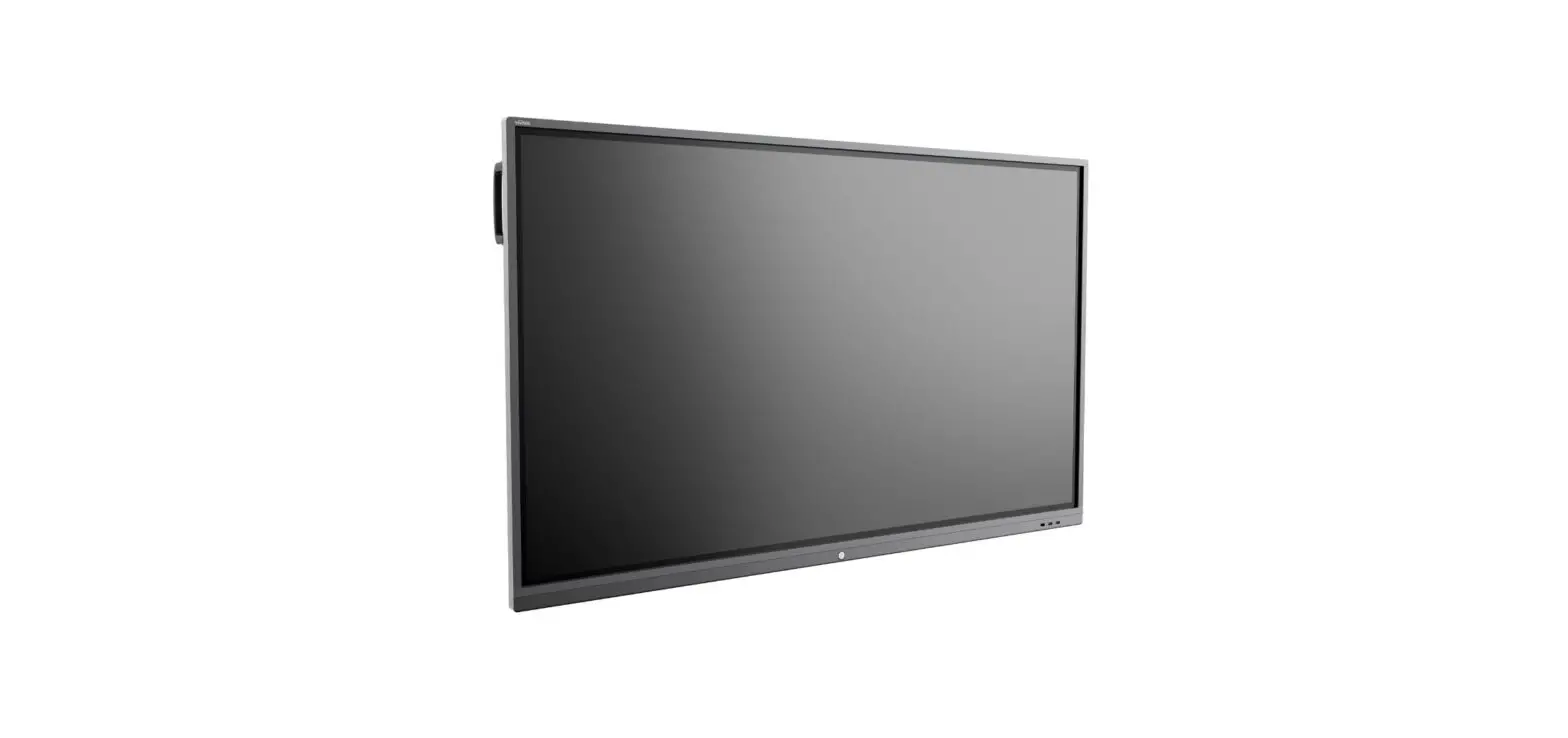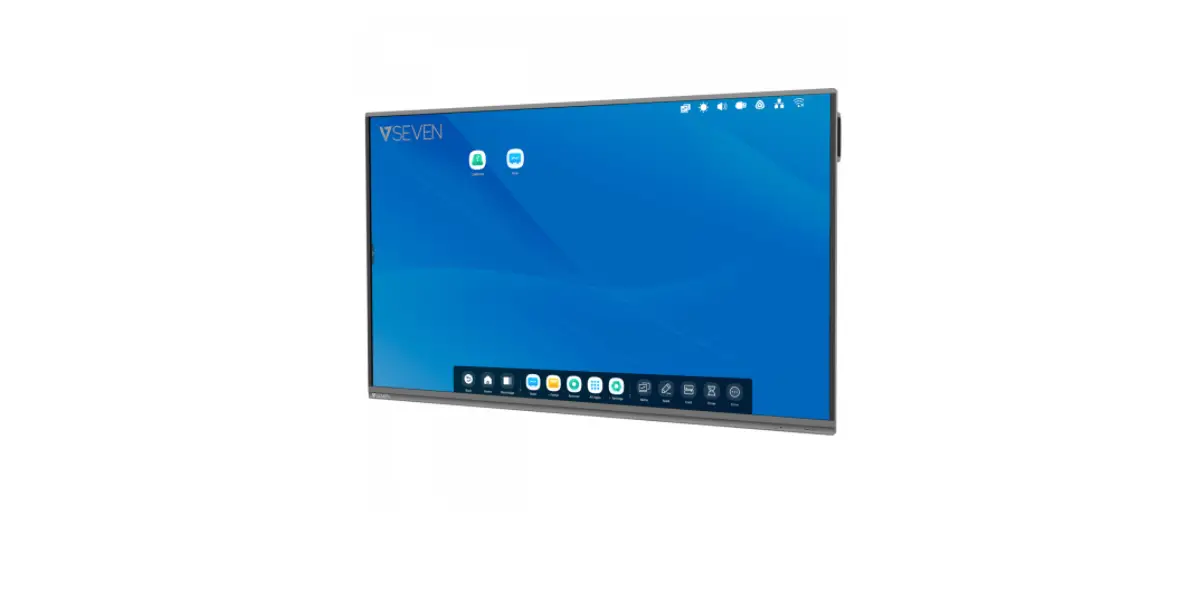

VSEVEN V7 Interactive Flat Panel 65 Inch 4K Android 9 Display
IFP Firmware Upgrades using USB
The V7 IFP has two options for the firmware update with the downloaded file using a USD Disk (note: you can also see if there are over-the-air (OTA) updates available in the IFP Settings>System menu)
IFP Power Button firmware update method
- Extract the contents and move the folder “upgrade_xxxx” to the root folder of a FAT formatted USB disk
- Insert the USB Drive to the IFP front right USB port
- Power off the IFP by holding down the power button for a few seconds
- Push and hold the power button for at least 5 seconds until the button blinks red.
IFP Admin menu firmware update method
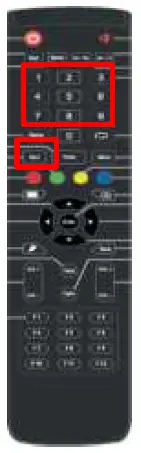
- Extract the contents and move the folder “upgrade_xxxx” to the root folder of a FAT-formatted USB disk
- Insert the USB Drive to the IFP front right USB port
- “Input 1 3 7 9” from the IFP remote to bring up the Admin DEBUG MENU
- Go to UPGRADE in the Admin Debug Menu, then choose “Upgrade All”
- It can take as much as 10 minutes to complete the entire installation and reboot.
The firmware update usually takes 5-10 minutes and may reboot multiple times. Please wait to make sure the firmware update is complete before touching anything on the IFP or problems can occur.