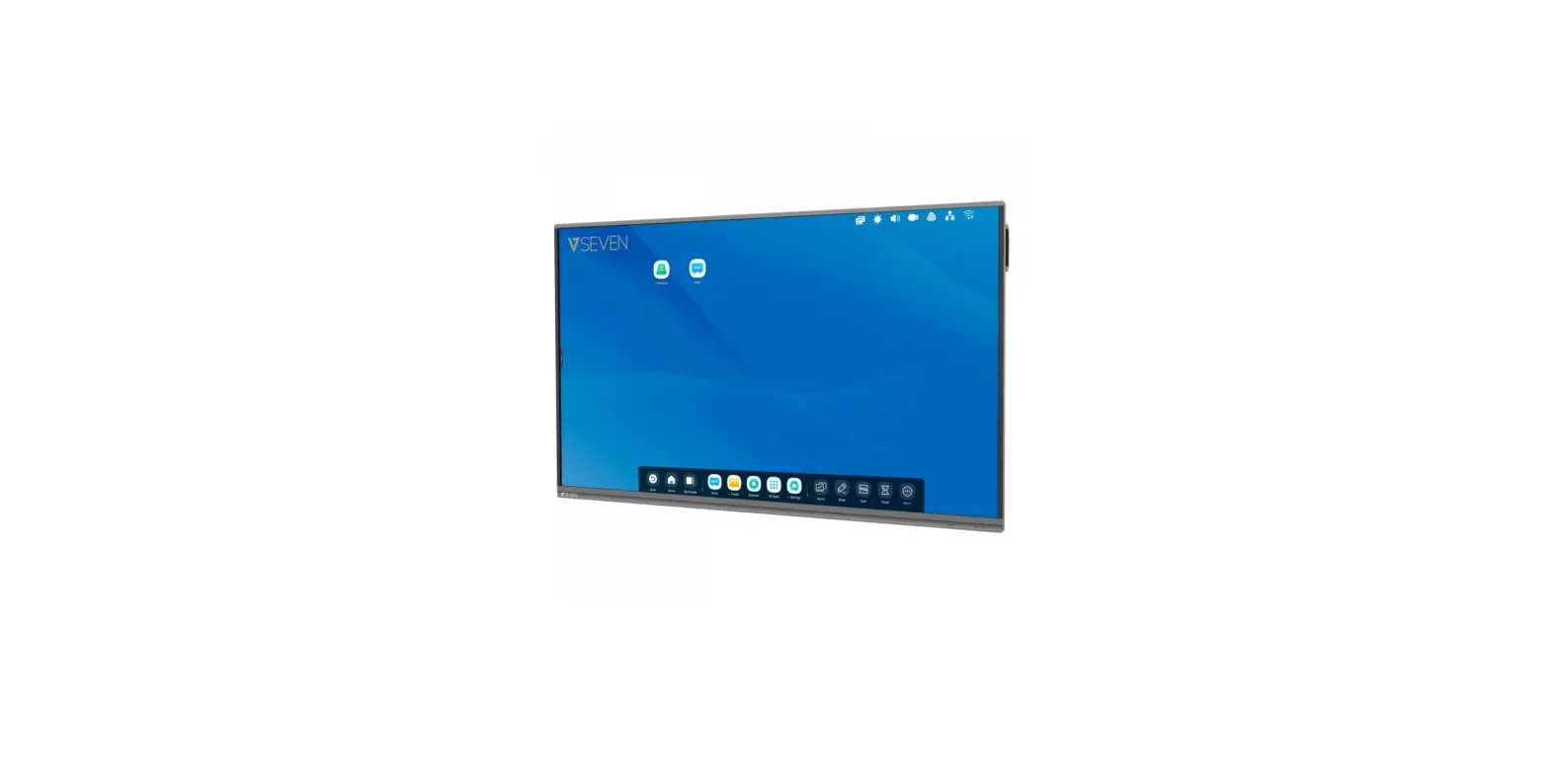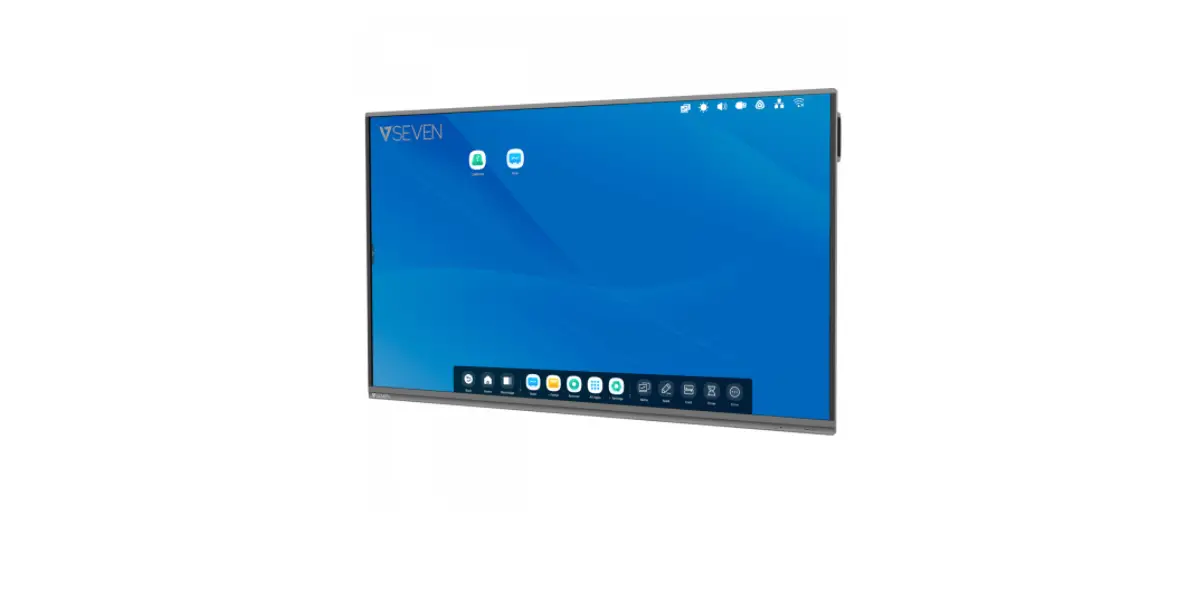
IFP6502-V7 Interactive Flat Panel 65 Inch 4K TV User Guide
INTRO
Copyright
This document contains proprietary information protected by copyright. All rights reserved. No part of this manual may be reproduced by any mechanical, electronic or other means, in any form, without prior written permission of the manufacturer.
Trademarks
All trademarks and registered trademarks are the property of their respective owners or companies.
Package Contents
- 3 m US/Schuko/UK power cord
- 5 m USB Cable
- 3 m HDMI cable
- 5 m VGA cable
- 2 Writing Pens
- 1 Remote Control with 2 AAA batteries
- Quick Start Guide
- Heavy Duty Wall Mount
- 802.11ac (2T2R) Wi-Fi Module
IMPORTANT
- Check www.v7world.com for the latest documentation and downloads for this product
Safety Warning
- Do not place heavy objects on top of the unit.
- Do not put the unit near appliances that generate magnetic fields
- Do not expose the unit to direct sunlight and other sources of heat
- Do not place the unit on an unstable cart, stand, tripod, bracket, table, or shelf
- Do not put any liquid near or on the unit
- Do not spill any liquid inside the unit
- Check and ensure AC source is grounded
- Only use the power cord that came with this product
- Do not use extension cords
- Unplug power during thunderstorm or lightning
- Make sure the unit’s operating voltage is compatible with the plug you will use
- Unplug the power cable if the unit will be idle for a long period of time
- Unplug the power cable before cleaning
- Clean the screen with a soft, dustless, dry cloth
- Never use water or spray type detergent to clean
- Never use any hard or sharp objects to replace the touch pen
- To ensure long life and display performance, do not keep brightness on high setting for long periods of time
- Do not place the unit near or over a radiator or a heater
- If your unit is suddenly moved from a cold to a warm location, please unplug the power cable and do not turn it on for at least 2 hours to be sure the moisture inside the unit has been evaporated
- Do not expose the unit to rain, or places of high humidity
- Make sure environment is dry, cool and well ventilated
- Check that you are following the environmental specifications for temperature and humidity
- Do not turn off the unit after the unit enters standby mode
- Make sure the remote control batteries are properly disposed or recycled after changing
- This machine should only be maintained by certified engineer
Having trouble?
Contact our customer service team at www.v7world.com
ENERGY STAR
ENERGY STAR is a U.S. Environmental Protection Agency voluntary program that helps businesses and individuals save money and protect our climate through superior energy efficiency. Products that earn the ENERGY STAR prevent greenhouse gas emissions by meeting strict energy efficiency criteria or requirements set by the U.S. Environmental Protection Agency.
This product qualifies for ENERGY STAR in the “Standard mode” setting and this is the setting in which power savings will be achieved. Changing the Standard mode picture settings or enabling other features will increase power that could qualify for ENERGY STAR rating.
Refer to Energy Star.gov for more information.

GETTING STARTED
 Plug the power cable into the wall socket
- Plug the power cable to the power supply connector on the bottom of this product
- Press the on/off button on the unit on the bottom of this product near the plug (“I” = power on, “O” = power off )
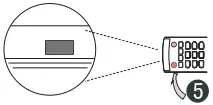
- Remove the cover on the rear of the remote control and insert two AAA batteries

- Press the power button on the remote control or on the front panel of the display to turn on the display.

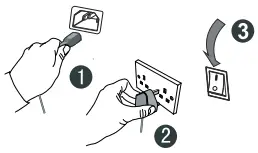 Plug the power cable into the wall socket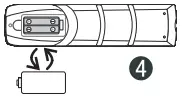
DISPLAY VIDEO FROM EXTERNAL DEVICES
For optimal results, make sure your source is using a resolution compatible with the device and make sure the cables you are using are working correctly.
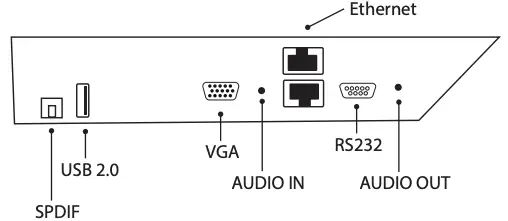
Side Panel Inputs
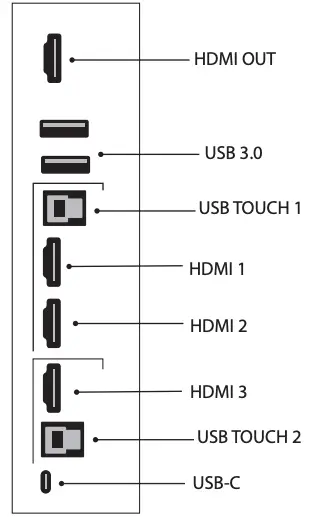
Bottom Panel Inputs
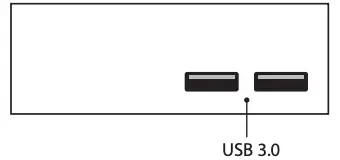
Front Panel Inputs
| HDMI IN | 3 |
| HDMI OUT | 1 |
| USB 2.0 | 1 (ONLY FOR SOFTWARE UPDATE) |
| USB 3.0 | 2 FRONT (WITH PASSTHROUGH IN/OUT) + 2 REAR |
| USB-C | 1 (65W PD, DP 1.4, TOUCH) PASS THROUGH |
| TOUCH OUT | 2 X USB 3.0 |
| VGA IN | 1 |
| AUDIO IN | 3.5 MM |
| AUDIO OUT | 1 |
| SPDIF | 1 |
| WI-FI | 802.11AC (2T2R) WI-FI MODULE INCLUDED WITH HOTSPOT |
| LAN(RJ45) | 10/100/1000MBPS LAN IN & OUT (PASS THROUGH) AUTO SWITCH |
| RS232 | 1 X DB9 |
 Welcome to V7 World