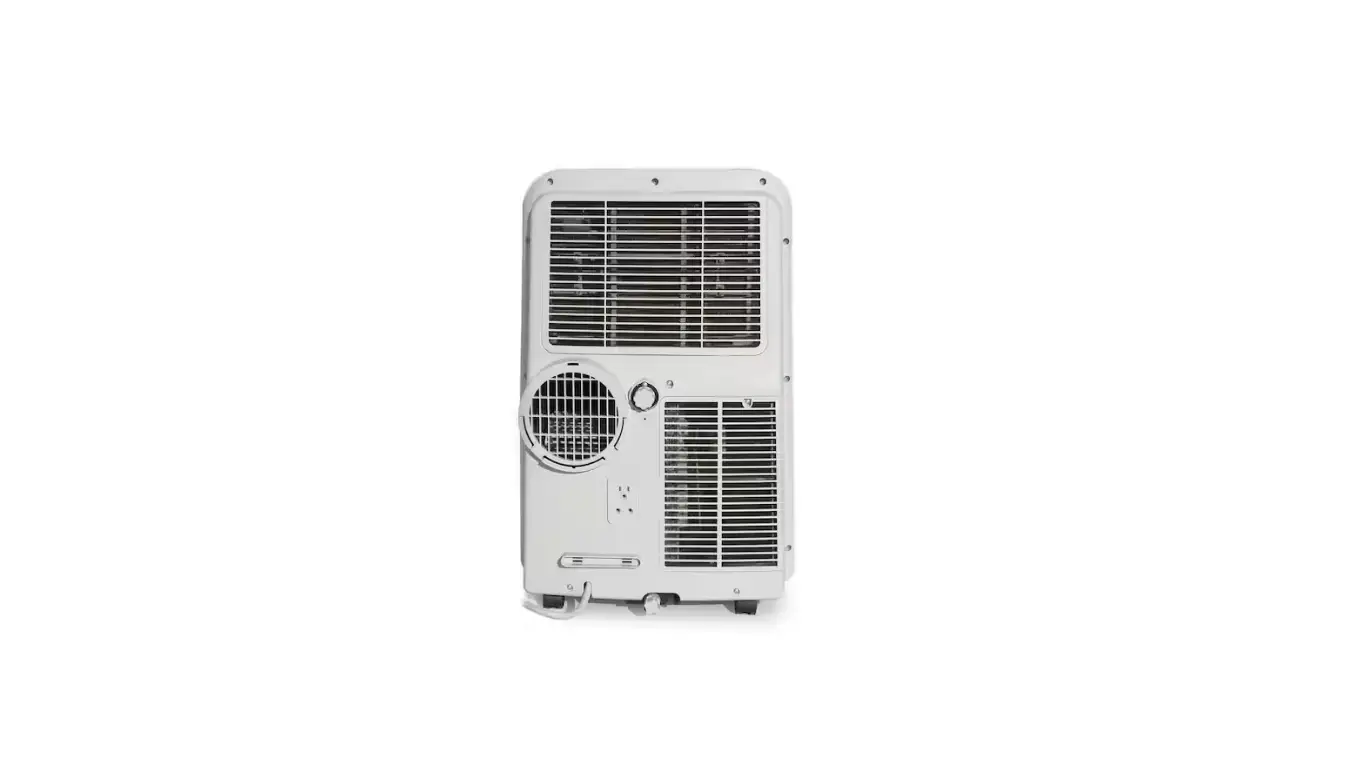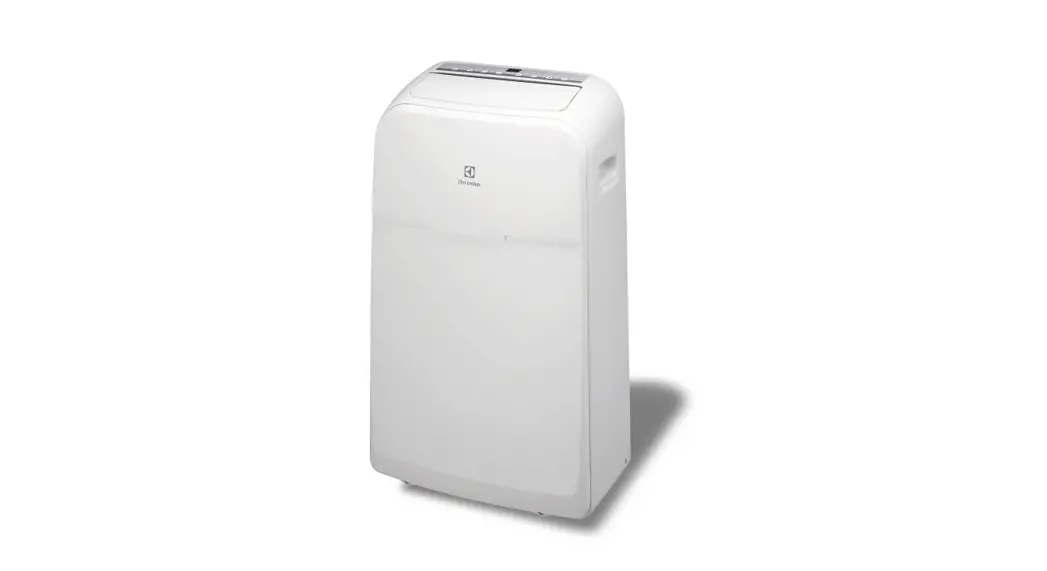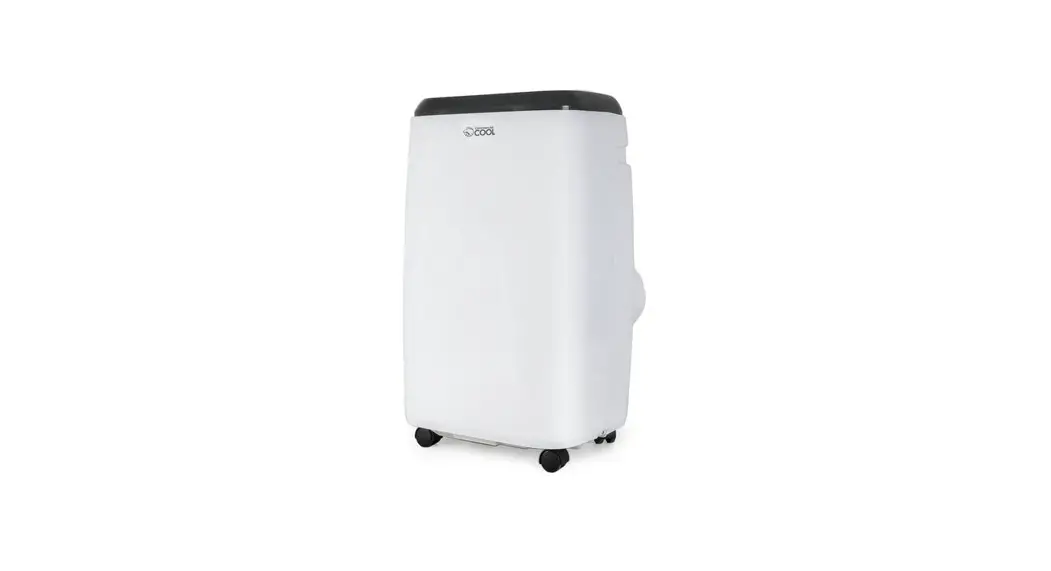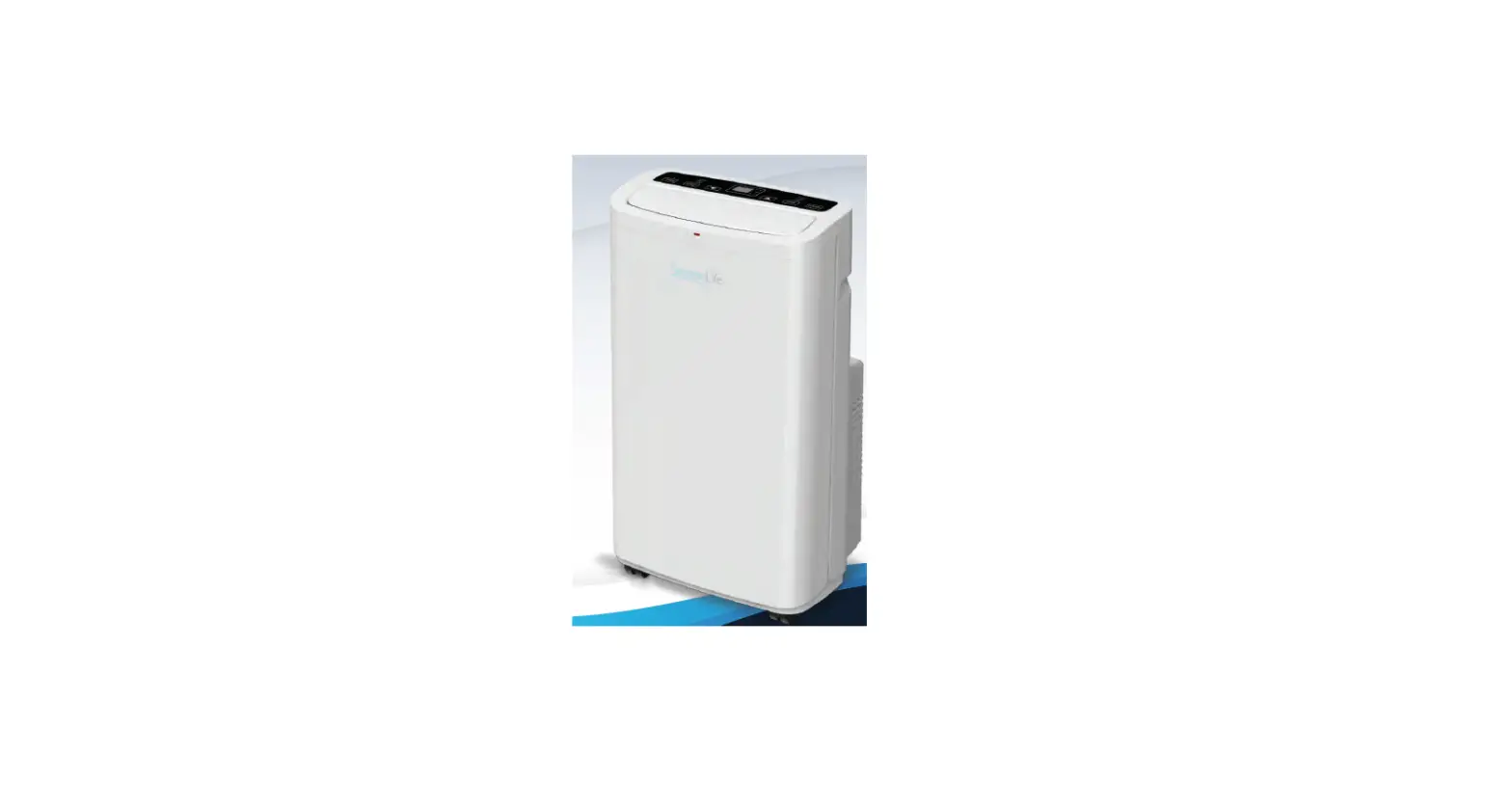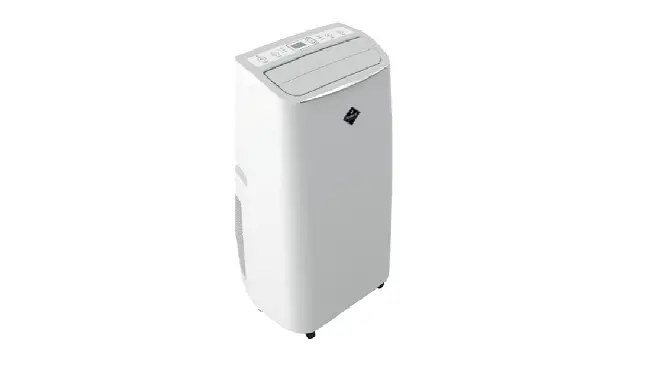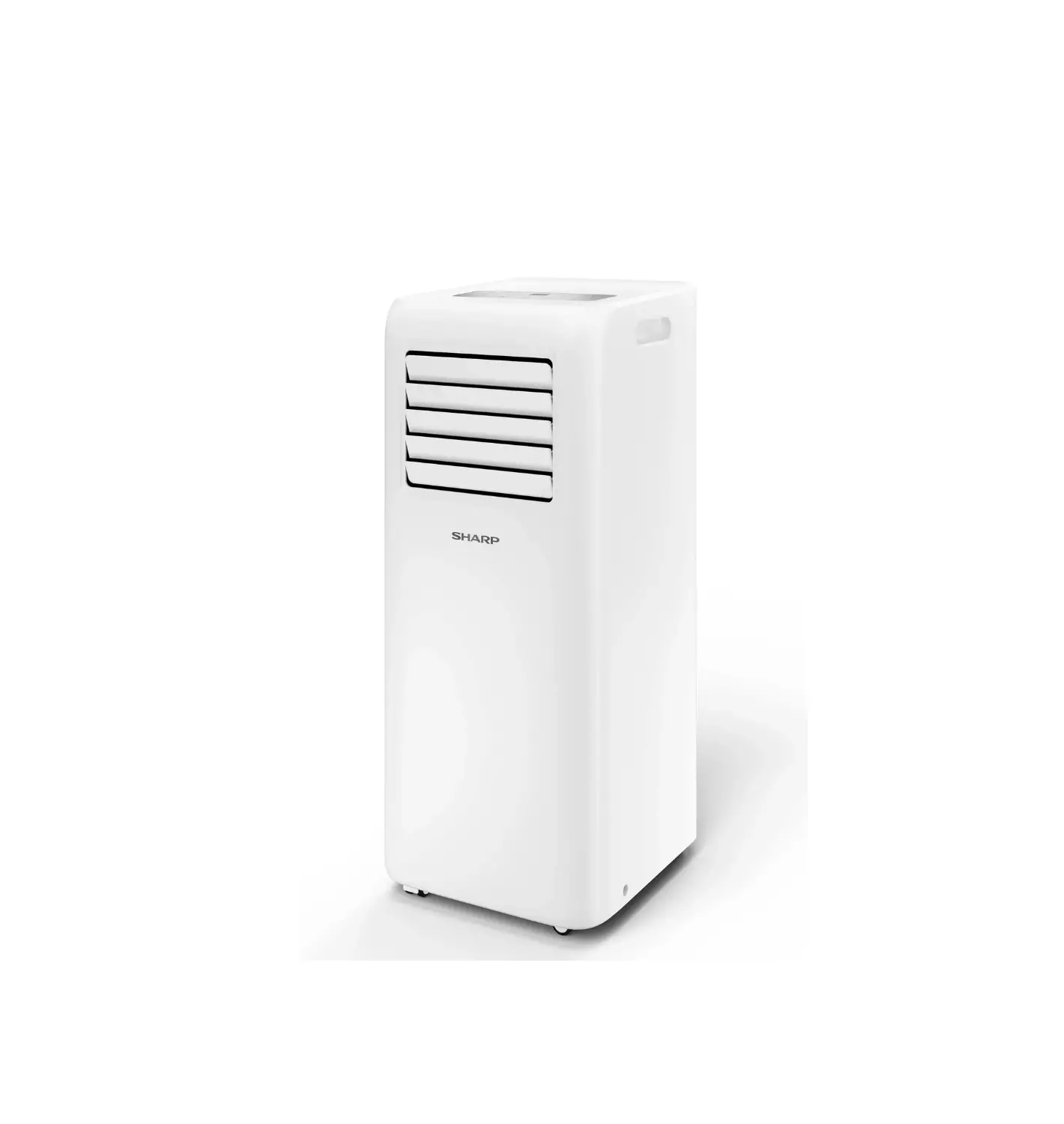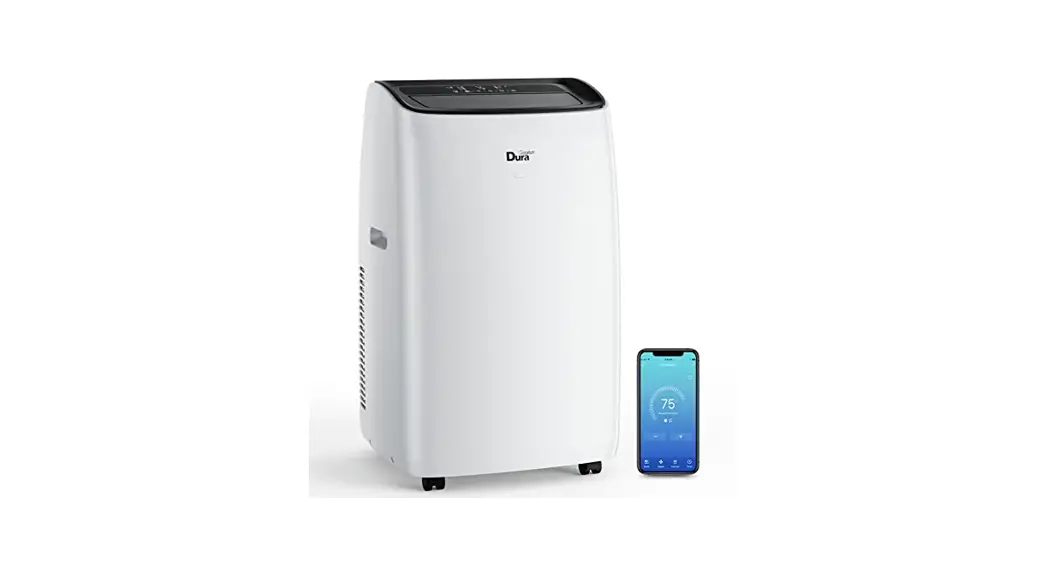

PORTABLE AIR CONDITIONER
Wi-Fi Connect User Manual
MW8LNPAC Portable Air Conditioner
This description is applied to appliance with Wi-Fi function. Please read the manual carefully before using the product and keep it for future reference. CAUTION! WARNING: Do not use this device before reading these instructions.
CAN ICES-3 (131/NM13-3(0) ID : 2ANDL-TYWEl S IC : 23243-TYWElS
FCC Caution.
This device complies with part 15 of the FCC Rules. Operation is subject to the following two conditions: (1) This device may not cause harmful interference, and (2) this device must accept any interference received, including Interference that may cause undesired operation. Any Changes or modifications not expressly approved by the party responsible for compliance could void the user’s authority to operate the equipment. Note: This equipment has been tested and found to comply with the limits for a Class B digital device, pursuant to part 15 of the FCC Rules. These limits are designed to provide reasonable protection against harmful interference in a residential installation. This equipment generates uses and can radiate radio frequency energy and, if not installed and used in accordance with the instructions. may cause harmful interference to radio communications. However, there is no guarantee that interference will not occur in a particular installation. If this equipment does cause harmful interference to radio or television reception, which can be determined by turning the equipment off and on the user is encouraged to try to correct the interference by one or more of the following measures: -Reorient or relocate the receiving antenna. -Increase the separation between the equipment and receiver. -Connect the equipment into an outlet on a circuit different from that to which the receiver is connected. -Consult the dealer or an experienced radio/TV technician for help. The distance between user and device should be no less than 20cm.
IC Warning This device complies with Industry Canada’s licence-exempt RSSs. Operation is subject to the following two conditions: (1) This device may not cause interference: and (2) This device must accept any interference, including interference that may cause undesired operation of the device. This equipment complies with FCC radiation exposure limits set forth for an uncontrolled environment. This equipment should be installed and operated with minimum distance 20cm between the radiator & your body.
Let’s get start!
Operation guideline. Please take below simple guideline instruction as reference.
| Operation Steps | Operation Items | New Account | Re-install APP (registered before) |
| Step 1 | Download and Install APP | YES | YES |
| Step 2 | Active APP | YES | YES |
| Step 3 | Registration Account | YES | NO |
| Step 4 | Login | YES | YES |
| Step 5 | Add Device to control | YES | Registered Device will remain. |
Wi-Fi MODULE SPECIFICATION AND BASIC INFORMATION
- Minimum specifications on a Smart phone: Android 5.0 version or higher IOS 10.0 version or higher
- Basic parameters for Wi-Fi:
Parameters Details Network frequency 2.400 – 2.500GHz Standards of WLAN IEEE 802.11 b/g/n(channels 1-14)
| Parameters | Details |
| Network frequency | 2.400 – 2.500GHz |
| Standards of WLAN | IEEE 802.11 b/g/n(channels 1-14) |
3. Wi-Fi module reset method On control panel, please press the ” FAN ” button 6 times within 4 seconds. 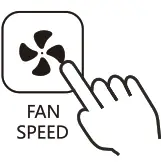
DOWNLOAD AND INSTALL THE APP
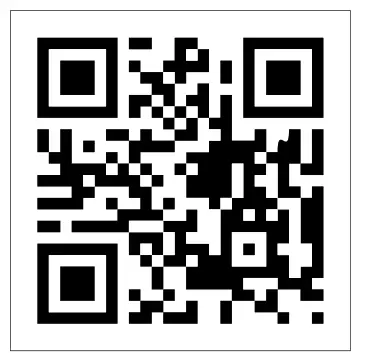
Methodl: Please scan the QR code with a browser scanner, download and install the APP.
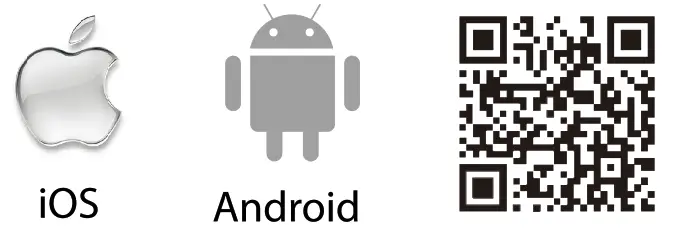
Method2: For Android smart phone, open the Google “Play Store” on your smart phone and search “SmartLife -SmartHome”, download and install the APP
 For IOS smart phone, open the Apple “App Store” on your smart phone and search ” SmartLife -SmartHome “, download and install the APP
  Note: Please enable the permissions of Storage/Location/Camera for this APP when installing. Otherwise it will have some problems when operating.
ACITIVE APP
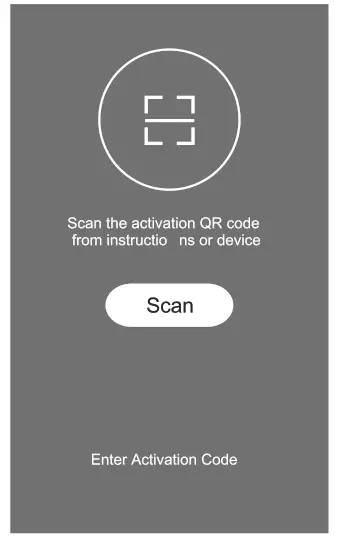
- When you first time enter the APP , it will display activation interface,you can select activation QR code(click “Scan”button and scan the activation QR code in below page)or input “activation code”words(in below page),click “activate”button to active it

- Activation QR code

- Activation code WORDS. DuraComfort
REGISTER USER ACCOUNT
When you first time use the App, you need to register an account. Click”Register” button to enter to the register interface. You can register with email or”Register with Mobile number 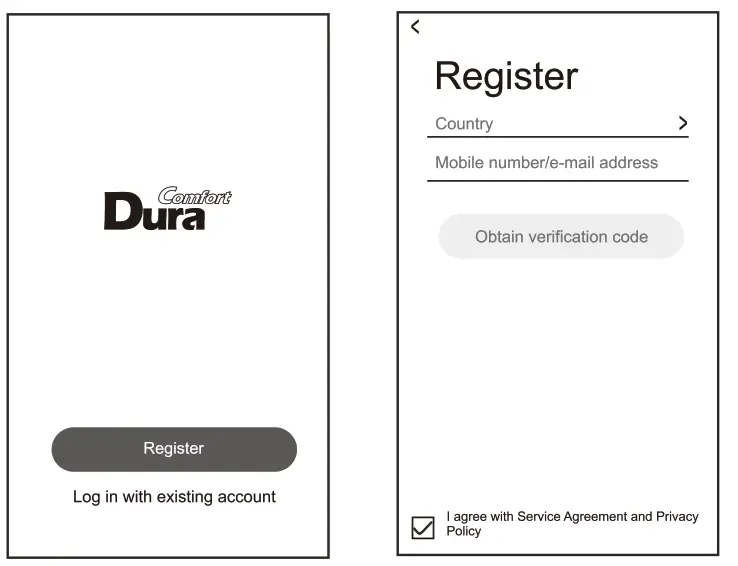
LOGIN USER ACCOUNT
- Register account login, fulfill the registered email or phone number account and password, press “Login” button.
- Phone number login, press”Sign in with SMS” button to enter the next page, fulfill the phone number and press”get” button to receive the confirm code, and fill in, then press “Login” button.

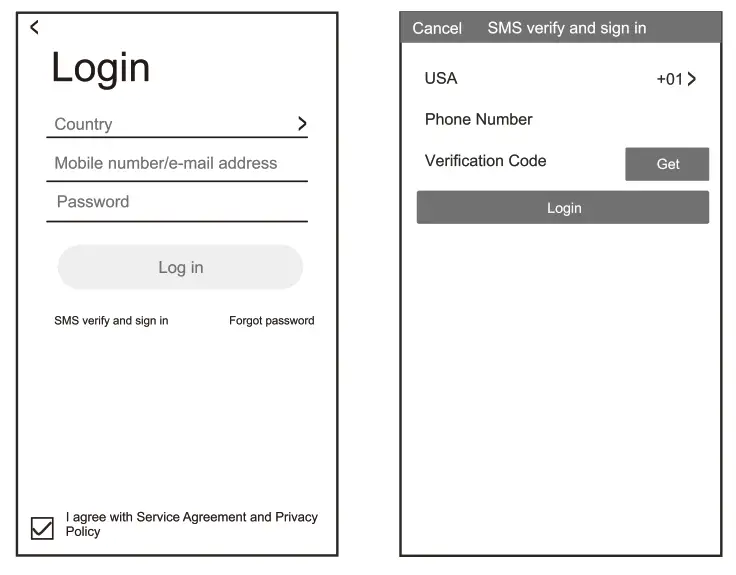
LOGIN USER ACCOUNT
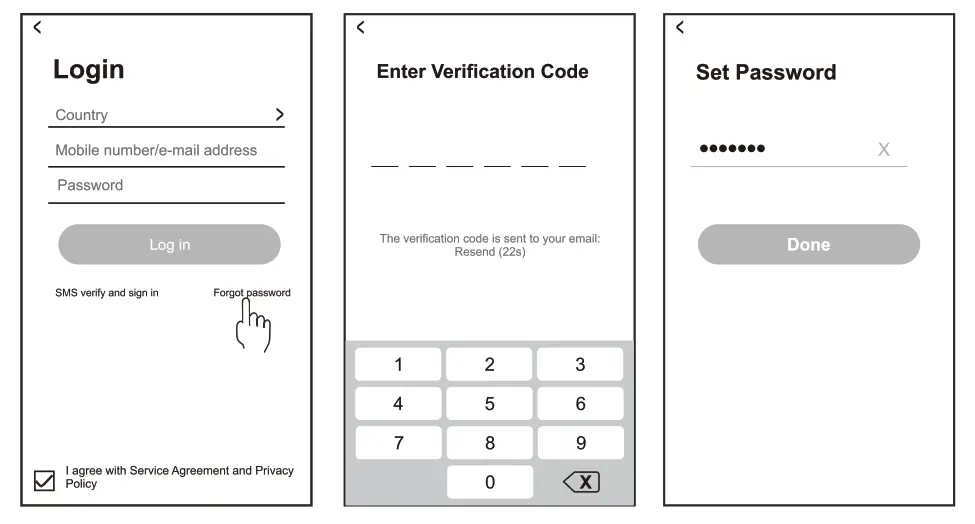
Forgot the password If you forgot the password or you want to reset the password, operate as below:
- Tap “Forgot password”.
- Enter your account(E-mail address) and tap button “Get verification code”.
- Enter the verification code received by your E-mail.
- Set the new password and tap button “Done”.
ACITIVE APP
There are 2 methods to add the device. 1-AP mode
1.1 Click ” 0 ” in the upper right corner of the “Home” screen or tap “Add device” on the room which has no device.
1.2 Tap the ” Portable Air Conditioner ” logo
1.3 Input the password of the Wi-Fi which the same as your smart phone connected, then tap “Next”. 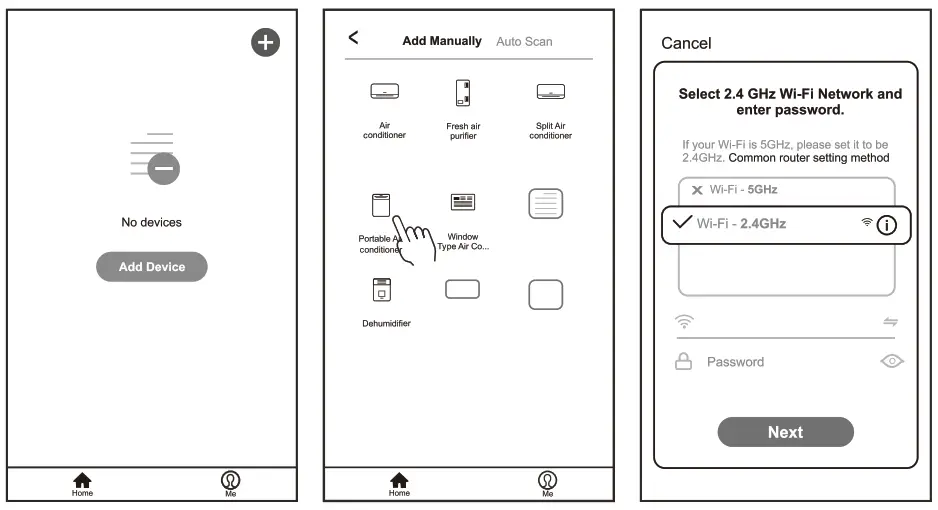 1.4 Power on the appliances, no need to launch the appliances. Follow the comments on the next screen to reset the Wi-Fi module, Click “SW in the upper right corner and select the “AP Mode” ,then check “Select circle to confirm the AP is blinking” and tap “Next”.
1.5 Select the device as name “Smartlife-XXXX” at the WLAN setting, then back to the APP interface,The APP will automatically do match. 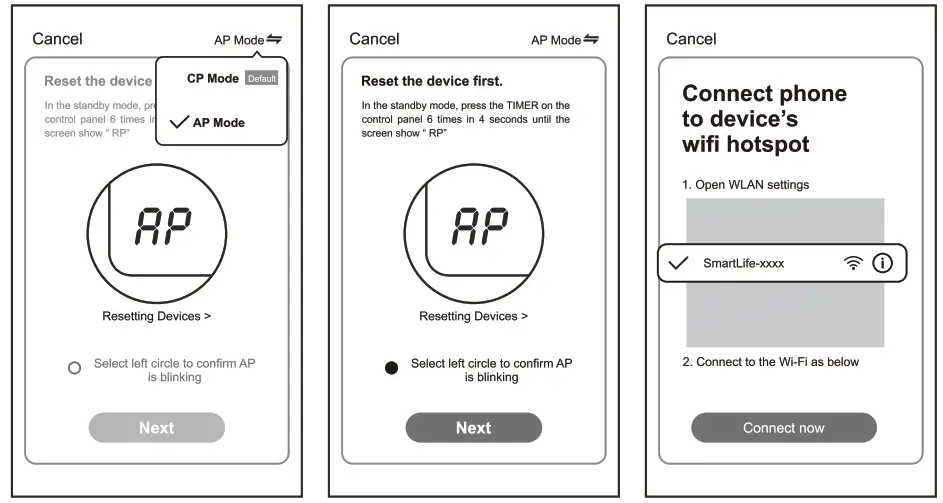
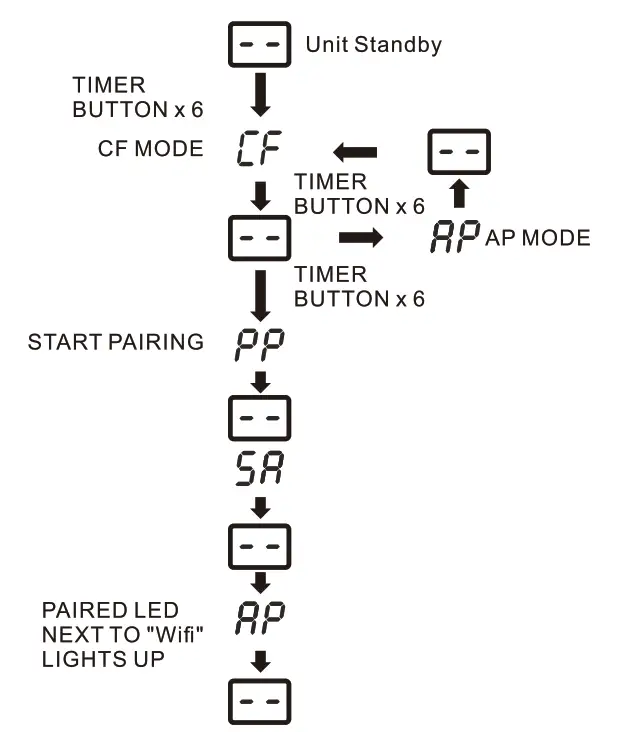
1.6 You can see the percent rate of connecting process, at the same time “PP”, “SA”, “AP” shining in turn on the appliances display.
“PP” means “Searching the router “SA” means “connected to the router “AP” means “connected to the server” 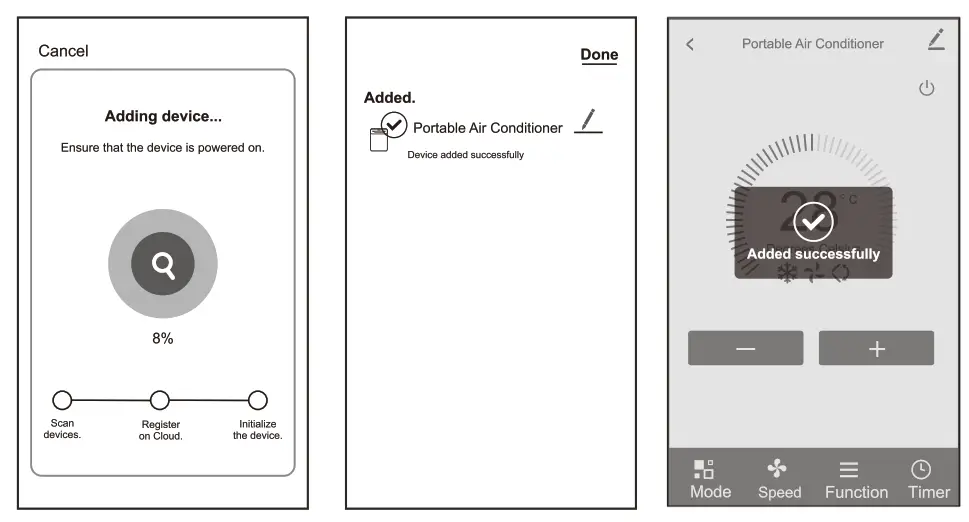 1.7 If connect Wi-Fi failure, please reset the Wi-Fi again. Press the ” FAN” button on the control panel 6 times within 4 seconds, until the LED screen show “AP”, which can make Wi-Fi reset. There will be switch between “CF” and “AP” if repeat press 6 times within 4 seconds. Note: Every time reset the Wi-Fi, must wait about 10 seconds, then the screen will display “CF” or ‘AP” 5 times.
Add device
2-CF mode 2.1 Click • 0 ” in the upper right corner of the “Home” screen or tap “Add device” on the room which has no device. 2.2 Tap the ” Portable Air Conditioner ” logo 2.3 Input the password of the Wi-Fi which the same as your smart phone connected, then tap “Next”. 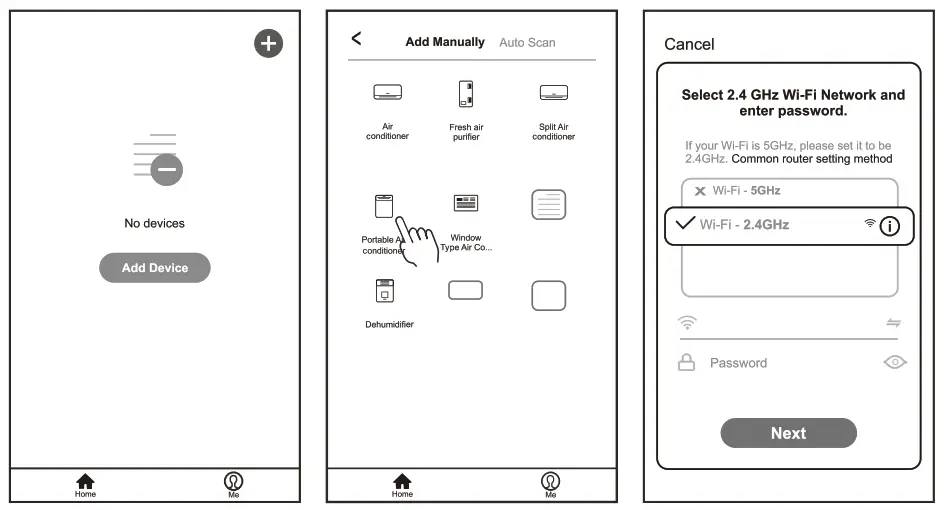 2.4 Power on the appliances no need to launch the appliances. Follow the comments on the next screen to reset the Wi-Fi module, Click “”—= ” in the upper right corner and select the “CF Mode” , then check “Select circle to confirm the CF is blinking” and tap “Next”.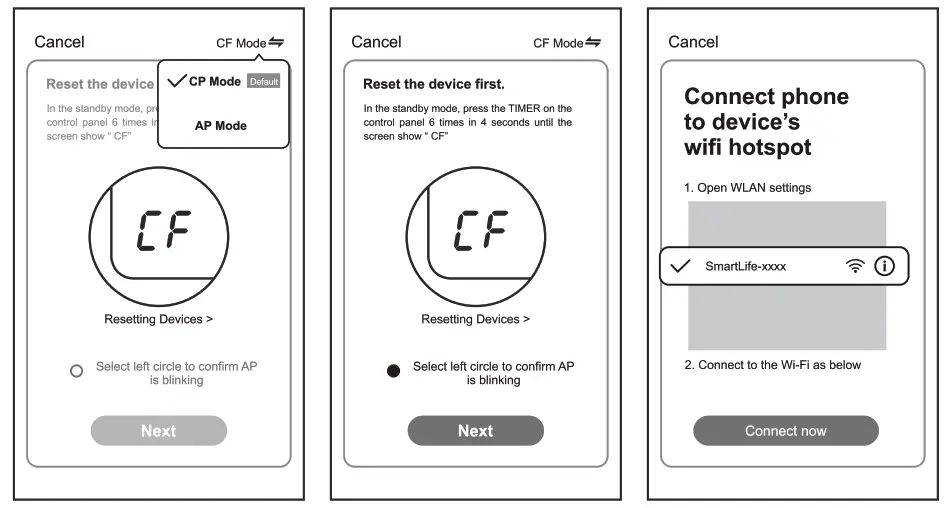
2.5 You can see the percent rate of connecting process, at the same time “PP”, “SA”, “AP” shining in turn on the appliances display.
‘PP” means “Searching the router ‘SA” means “connected to the router ‘AP” means “connected to the server 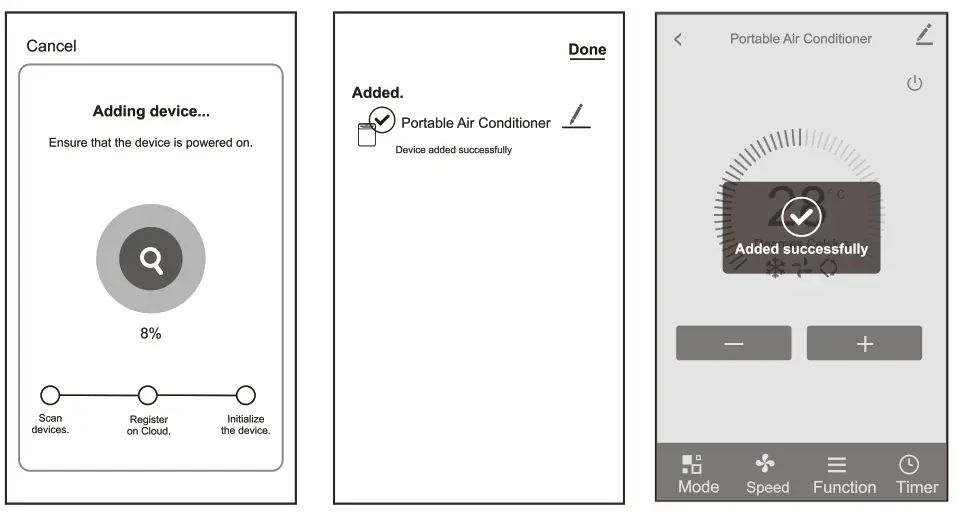 2.6 If connect Wi-Fi failure, please reset the Wi-Fi again. Press the ” FAN” button on the control panel 6 times within 4 seconds, until the LED screen show “CF”, which can make Wi-Fi reset. There will be switch between “CF” and “AP” if repeat press 6 times within 4 seconds.
Note: Every time reset the Wi-Fi, must wait about 10 seconds, then the screen will display “CF” or ‘AP” 5 times.
PAIRING PROCESS
 | Waiting pair after reset |
 | 1) Hotspot connect mode 2)Access to the Internet |
 | Searching and try to connect |
 | Connect sucessful |
PORTABLE AIR CONDITIONER CONTROL
- Click the dehumidifier name to enter the control interface, turn ON/OFF, adjust the setting humidity.
 ‘For App update, there maybe deviation of the actual items from what fs on the manual without prior notice. We express our apologies.
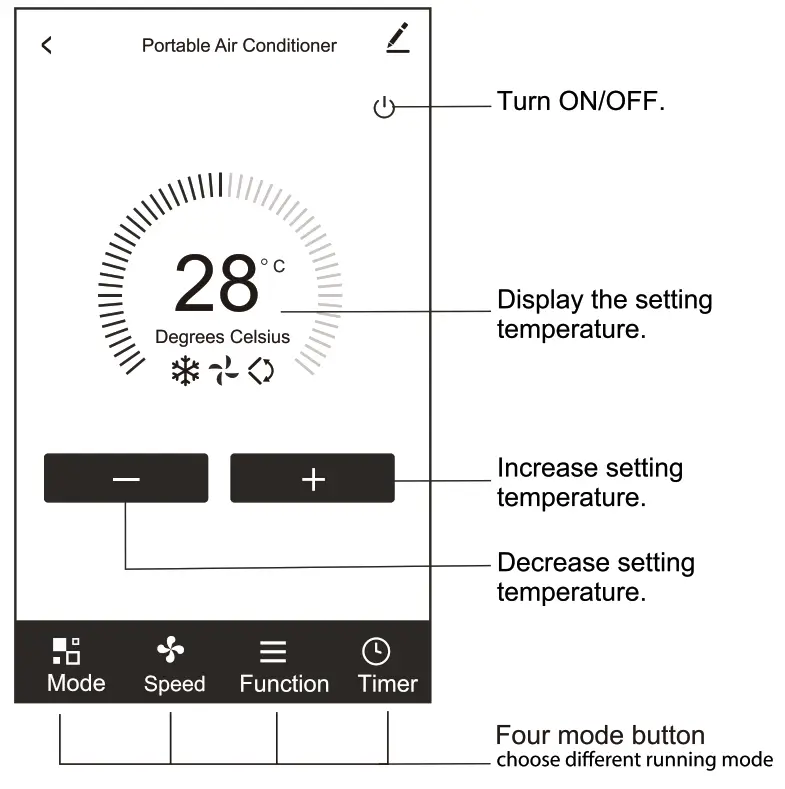 ‘For App update, there maybe deviation of the actual items from what fs on the manual without prior notice. We express our apologies.
Trouble Shooting
| Description | Analysis of cause |
| appliance can’t be configured successfully | 1.Check the mobile connected WLAN router SSID and password is correct; 2.Check whether there are additional settings of WLAN router as shown below. 1)Firewall by router itself or by PC 2)MAC address filtering 3)Hidden SSID 4)DHCP server Reboot WLAN router, mobile device and appliance (WLAN module) and connect appliance by CF mode again. Before rebooting, check nobody has already connected to same appliance. |
| Mobile can’t control appliance | 1.When appliance (WLAN module) is rebooted and app displays device remove, ignoring this confirmation will lead to mobile device losing control permission of the appliance. You will need to connect the appliance by CF mode again. 2.In case of power failure, mobile device will lose control permission of appliance for 3 minutes after power failure. (Notification will now show up on the mobile device.) If you cannot control the app (appliance) even after power restored, you will need to connect the appliance by CF mode again. |
| Mobile can’t find appliance | 1. App display appliance Device offline. Please check the following conditions. 1)The appliance has been reconfigured. 2)Appliance out of power. 3)Router out of power. 4)Appliance can’t connect to router. 5)Appliance can’t connect to network through the router. 6)Mobile device can’t connect to network. 2. After adding the device, it disappears in device list . Hold and slide down to refresh the device list. If it has no change, shut down the app and start again. |