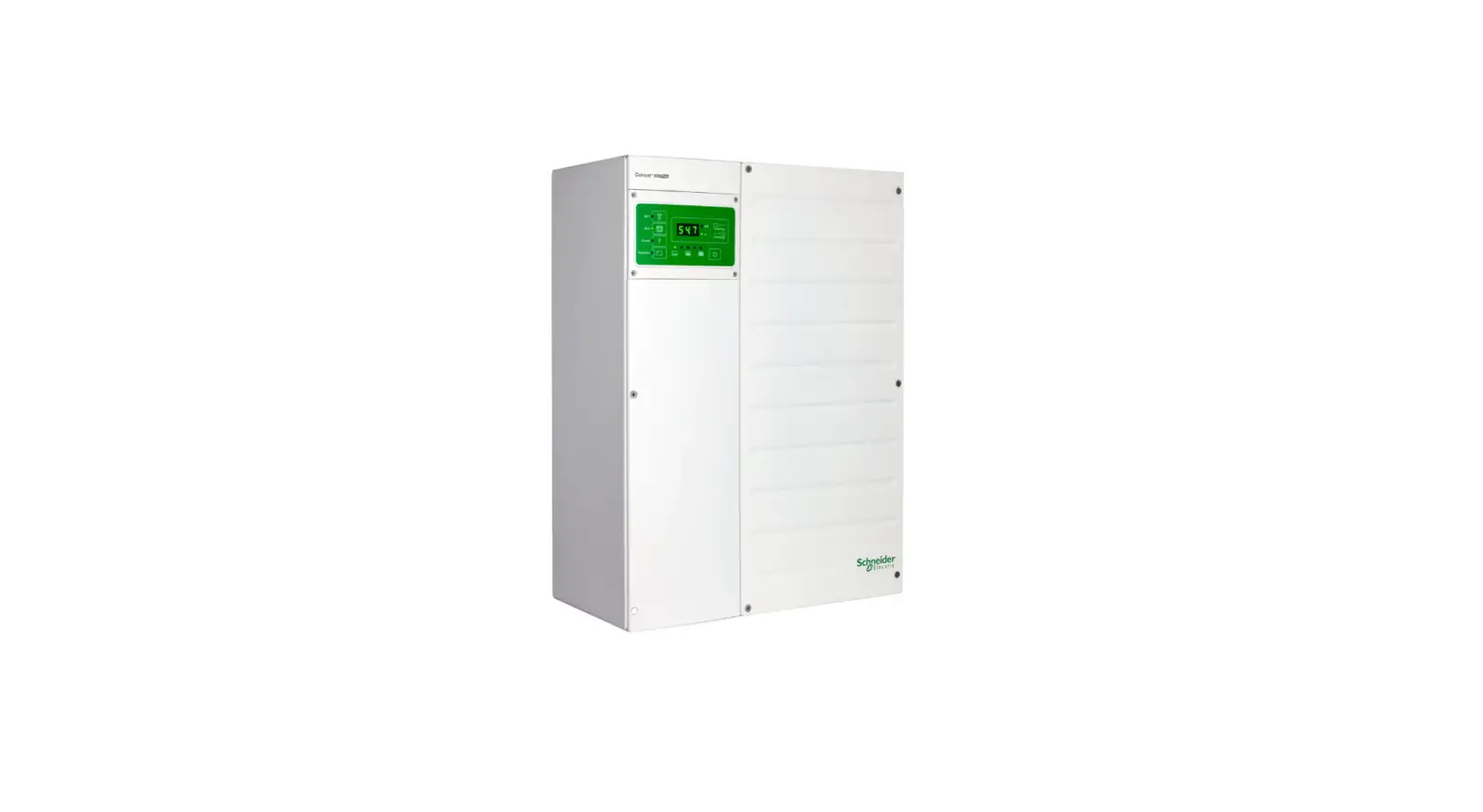
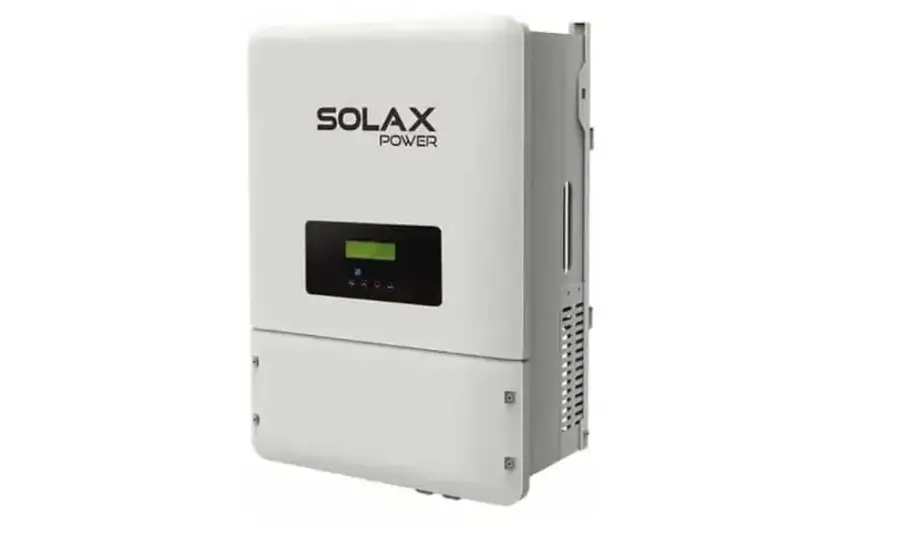
VFXR Series Hybrid Inverter Charger
Product Information:
- Specifications:
- Operational Temperature Range: Functions, but
not rated for operation; does not necessarily meet all component
specifications - Storage Temperature Range: Not specified
- IP (Ingress Protection) Rating of Enclosure:
IP20 Indoor, Unconditioned - Environmental Category: Not specified
- Wet Locations Classification: No
- Relative Humidity Rating: 93%
- Pollution Degree Classification: 2
- Maximum Altitude Rating: 6561′ (2000 m)
- Overvoltage Category (AC Input): 3
- Overvoltage Category (DC Input): 1
- Operational Temperature Range: Functions, but
- Contact Information:
- Mailing Address: 3767 Alpha Way Bellingham, WA
98226 USA - Web Site: www.outbackpower.com
- Mailing Address: 3767 Alpha Way Bellingham, WA
- Date and Revision:
- Date: September 2022
- Revision: B
- Warranty:
The warranty for this product can be downloaded from https://www.outbackpower.com/resources/warranty/procedures.
A copy is available by sending a self-addressed envelope to the
provided mailing address. - World Headquarters:
- 2366 Bernville Road Reading, PA 19605 USA
- +1 610-208-1991 / +1 800-538-3627
- EnerSys EMEA:
- EH Europe GmbH Baarerstrasse 18 6300 Zug Switzerland
- EnerSys Asia:
- 152 Beach Road Gateway East Building #11-08 Singapore 189721 /
+65 6508-1780
- 152 Beach Road Gateway East Building #11-08 Singapore 189721 /
Product Usage Instructions:
- Important Notes:
- This inverter is intended for indoor use only. Failure to
adequately protect the inverter will void the warranty. - Not intended for use with life support equipment.
- This inverter is intended for indoor use only. Failure to
- Quick Start Guide:
This Quick Start Guide provides instructions for the
installation and usage of the FXRTM and VFXRTM (A) Series
Inverter/Charger. It is recommended to read the pages in any order
or alongside one another. - Warnings:
- Fire/Explosion Hazard: Do not place combustible or flammable
materials within 12 feet (3.7 m) of the equipment. This unit
employs mechanical relays and is not ignition-protected. Fumes or
spills from flammable materials could be ignited by sparks. - Personal Injury: Use safe lifting techniques and standard
safety equipment when working with this equipment.
- Fire/Explosion Hazard: Do not place combustible or flammable
- Clearance and Access Requirements:
Clearance and access requirements may vary by location. It is
recommended to maintain a 36″ (91.4 cm) clear space in front of the
system for access. Consult local electric code to confirm clearance
and access requirements for the specific location. - Qualified Personnel:
These instructions are for use by qualified personnel who meet
all local and governmental code requirements for licensing and
training for the installation of electrical power systems with AC
and DC voltage up to 600 volts. This product is only serviceable by
qualified personnel. All system wiring must comply with national
and local codes and regulations. - Product Limitations:
This product is designed and tested for stationary applications
only. It is not listed or warranted for mobile use. - Note:
This document assumes the use of the MATE3s system display. For
menu navigation, refer to the system display product literature.
This document contains hyperlinks and QR codes leading to the
product literature at www.outbackpower.com.
Specifications
Environmental Specifications
Specification
Rated Temperature Range (meets component specifications; however, please note that the inverter output wattage is derated above 25°C)
Operational Temperature Range (functions, but not rated for operation; does not necessarily meet all component specifications) Storage Temperature Range
IP (Ingress Protection) Rating of Enclosure
Environmental Category
Wet Locations Classification
Relative Humidity Rating
Pollution Degree Classification
Maximum Altitude Rating
Overvoltage Category (AC Input)
Overvoltage Category (DC Input)
Value
4°F to 122°F (20°C to 50°C)
40°F to 140°F (40°C to 60°C) 40°F to 140°F (40°C to 60°C)
IP20 Indoor, Unconditioned
Wet locations: No 93% PD 2
6561′ (2000 m) 3 1
All FXR inverters can deliver their full rated wattage at temperatures up to 25°C (77°F). The FXR maximum wattage is rated less in higher temperatures. Above 25°C, each inverter model is derated by a factor of 1% of that model’s rated wattage for every increase of 1°C. This derating applies to all
power conversion functions (inverting, charging, selling, offsetting, etc.)
IMPORTANT:
This inverter is intended for indoor use only. Failure to adequately protect the inverter will void the warranty.
Contact Information
Mailing Address: Web Site:
3767 Alpha Way Bellingham, WA 98226 USA www.outbackpower.com
Date and Revision
September 2022, Revision B
Warranty
The warranty for this product can be downloaded from https://www.outbackpower.com/resources/warranty/procedures
A copy is available by sending a self-addressed envelope to the address noted to the left.
World Headquarters 2366 Bernville Road Reading, PA 19605 USA +1 610-208-1991 / +1 800-538-3627
EnerSys EMEA EH Europe GmbH Baarerstrasse 18 6300 Zug Switzerland
EnerSys Asia 152 Beach Road Gateway East Building #11-08 Singapore 189721 / +65 6508-1780
For more information visit www.enersys.com © 2017 EnerSys. All Rights Reserved. Trademarks and logos are the property of EnerSys and its affiliates unless otherwise noted. Subject to revisions without prior notice. E.&O.E.
900-0213-01-00 REV B Do not copy or distribute without permission.
IMPORTANT:
Not intended for use with life support equipment.
Quick Start Guide
FXRTM and VFXRTM (A) Series Inverter/Charger
This Quick Start Guide is printed in unbound format. The pages can be read in any order, or shown alongside one another.
WARNING: Fire/Explosion Hazard
Do not place combustible or flammable materials within 12 feet (3.7 m) of the equipment. This unit employs mechanical relays and is not ignition-protected. Fumes or spills from flammable materials could be ignited by sparks.
WARNING: Personal Injury
Use safe lifting techniques and standard safety equipment when working with this equipment.
IMPORTANT:
Clearance and access requirements may vary by location. Maintaining a 36″ (91.4 cm) clear space in front of the system for access is recommended. Consult local electric code to confirm clearance and access requirements for the specific location.
IMPORTANT:
These instructions are for use by qualified personnel who meet all local and governmental code requirements for licensing and training for the installation of electrical power systems with AC and DC voltage up to 600 volts. This product is only serviceable by qualified personnel. All system wiring must comply with national and local codes and regulations.
This product is designed and tested for stationary applications only. It is not listed or warranted for mobile use.
NOTE:
This document is for installation of a single inverter. For stacking of multiple inverters, product specifications, functions, applications, and programming instructions, see the FXR and VFXR product literature.
This document assumes the use of the MATE3s system display. For menu navigation, see the system display product literature. This document contains hyperlinks and QR codes leading to the product literature at www.outbackpower.com.
FXR (A Series) Sealed Inverter with Turbo Fan
Major System Components
FLEXpowerTM System Products
Inverter/Charger
AC Enclosure (with Bypass Assembly)
DC Enclosure (with Inverter Disconnect) System Display and Controller (MATE3sTM)
PV Charge Controller
Communications Manager
Battery Monitor
Remote Temperature Sensor (RTS)
Surge Protector
Other Components
AC Source
Utility Grid, or AC Generator
Main Electrical Panel and Distribution Subpanel (Load Panel)
Photovoltaic (PV) Array and Combiner
Battery Bank
1
Installation
Requirements
o The FXR and VFXR inverter/chargers are intended for
indoor installation only.
IMPORTANT:
While sealed FXR models are more tolerant of incidental dust and moisture than VFX models, none of these products are intended for installation outdoors. Failure to adequately protect the inverter from weather will void the warranty.
o Ensure the mounting surface is strong enough to
handle 3 times the total weight of all the components.
o The inverter has four 0.313″ (8 mm) mounting holes
( A ), one in each corner. Use fasteners in all corners.
IMPORTANT:
Use correct fasteners to secure the inverter to the mounting surface. OutBack cannot be responsible for damage to the product if it is attached with inadequate fasteners.
Materials in Box
o Inverter
o AC plate
o Quick Start Guide
(this document)
o Battery terminal
covers, red/black
o DC Cover (DCC) or Turbo Fan o Remote Temp. Sensor (RTS) o Silicone grease packet
o “WARNING ELECTRICAL SHOCK” sticker
Tools Required
o Wrench and socket sets; should include Torque and ratchet wrenches
o Wire cutters/strippers
o Insulated screwdriver set (flat and Phillips);
should include
Miniature flat screwdriver for AUX connections o Long-nose pliers
o High-resolution voltmeter
DC Cover or Turbo Fan Attachment
FXR inverters are equipped with either the DC Cover or the Turbo Fan. To attach either cover, put the cover in place and insert a screw at each corner using a Phillips screwdriver. Make certain the red and black battery terminals are installed before attaching the cover.
As part of attaching the Turbo Fan, follow the wiring instructions below.
o Due to the variance in other mounting methods, OutBack
Power only endorses the use of FLEXware mounting products. Use M6 × 20 mm machine screws, one per corner, to attach the inverter to the mounting plate. Follow the instructions with each mounting system.
o Mount and secure each component before attaching any
wiring.
o When the inverter is used with other metal chassis, make
sure that all chassis are grounded. Use either metal-tometal contact or separate ground wires as appropriate.
o For more information, see the FXR Installation Manual. 1
See QR code above.
15.5″ (39.4 cm)
A
A
12.0″ (31.8 cm)
14.0″ (35.6 cm) Height with Turbo Fan
12.0″ (31.8 cm)
A
900-0213-01-00 REV B Do not copy or distribute without permission.
7.5″ (19.0 cm)
Height with DCC
12.0″ (31.8 cm)
A
Install the wires in the AC Wiring Compartment to make the Turbo Fan operational. The AUX+ and AUX terminals receive the red (+) and black () wires. Tighten with a Phillips screwdriver.
To safely run the wires into the AC compartment, pass the wires through the notch in the compartment cover.
Make certain the AUX programming is correct for proper fan operation.
If necessary, the green terminal block can be unplugged by pulling it gently away from the AC board.
Notch
Edge of Cover Compartment
If it becomes necessary to remove the Turbo Fan:
1. Remove the screws at the four corners of the Turbo Fan.
2. Remove the compartment cover.
3. Unscrew the AUX+ and AUX terminal screws.
4. Remove the wires.
5. Remove the Turbo Fan.
1
Wiring Data
! CAUTION: Equipment Damage
When connecting battery cables to the inverter, observe the proper polarity. Incorrect connection can damage or destroy the equipment and void the product warranty.
3 1
2
1 Battery Negative Stud
2 Battery Positive Stud
3 Ground Lug
4 AC Hot Out Terminal
5
AC Neutral Terminals
6 Ground Terminals
7 AC Hot In Terminal
8 Inverter On/Off Jumper
9 Inverter On/Off Terminals
10 Auxiliary Terminals
11 Temperature Sensor Port
12 Communication Port
13 Battery LED Indicators
14 Status LED Indicators
8
9 10
4 5 6 6 5 7
11 12
!
CAUTION: Fire Hazard
Do not stack battery terminal hardware
in any other order than shown here.
Stacking terminal hardware in any other
order can overheat the terminals.
Other devices may be installed on
the same inverter studs above the
hardware shown here.
Battery Cable Connections
13 mm Nut
Lock Washer
Battery Cable Lug
Flat Washer
13
14
IMPORTANT
This product requires batteries for operation. The required nominal voltage is either 12, 24, or 48 Vdc, depending on model.
The default inverter/charger settings assume a deep-cycle stationary lead-acid battery, such as OutBack Power’s EnergyCell RE or NC series batteries. Ensure the settings are appropriate for the specific batteries used in the system.
Protection for the battery circuit external to this product must be provided by the installer.
Protection for the AC circuit external to this product must be provided by the installer.
For more information, see the FXR Installation Manual. 1
Mounting Surface
M8 x 1.25 Stud
Insulator Battery Terminal Post
Inverter
(Wattage/Voltage)
FXR2012A VFXR2812A FXR2524A VFXR3524A FXR3048A VFXR3648A
Nominal DC Amps
(Derated 125%)
Conductor Size
(Minimum)
200
4/0 AWG (120 mm2) or 0.186 in2
280
4/0 AWG (120 mm2) or 0.186 in2
125
2/0 AWG (70 mm2) or 0.109 in2
175
4/0 AWG (120 mm2) or 0.186 in2
75
1/0 AWG (70 mm2) or 0.109 in2
90
1/0 AWG (70 mm2) or 0.109 in2
Breaker Size
(Minimum)
250 Adc 250 Adc 175 Adc 250 Adc 125 Adc 125 Adc
Terminal Location
Torque Requirements
Inverter DC Terminals
60 in-lb (6.9 Nm)
Battery Terminals
See battery manufacturer’s recommendations
900-0213-01-00 REV B Do not copy or distribute without permission.
AC Wiring Notes
o Recommended conductor size is #6 AWG (16 mm2) or 0.021 in2. o Inverter output varies with model. Size the loads accordingly. o The transfer relay is rated 60 Aac; AC input and output may need to be protected with branch-rated circuit breakers of
maximum 60 Aac size to meet applicable code requirements.
o The neutral terminals are common. Typically only one is used. o Only one AC source can be wired at a time. Use an external selector switch if more than one source is available.
Generator Notes A generator should be sized to provide enough power for maximum loads and charging at the same time. Minimum generator size is recommended to be twice the power of the inverter(s) due to overload and/or
balancing issues.
Grounding Notes
o This product meets the IEC requirements of Protection Class I. o This product must be connected to a permanent wiring system that is grounded according to the IEC 60364 TN standard. o The input and output circuits are isolated from ground. The installer is responsible for system grounding according to all
applicable codes.
o The central AC ground terminals are common. Typically only one is used.
WARNING: Shock Hazard
For safety, the neutral and ground conductors should be mechanically bonded. OutBack Power does not bond these conductors within the inverter. Some codes require the bond to be made at the main panel only. Make sure that no more than one bond is present in the AC system at any time.
For all installations, the negative battery conductor should be bonded to the grounding system at only one point. If the OutBack Power GFDI is present, it can provide the bond.
Terminal Location Central AC Terminals
DC Box Lug
Minimum Conductor Size #10 AWG (0.009 in²) or 6 mm² #6 AWG* (0.025 in²) or 16 mm²
Torque Requirements 25 in-lb (2.8 Nm) 45 in-lb (5.1 Nm)
*Accepts up to 1/0 AWG (70 mm² or 0.109 in²) wire. The DC Cover or Turbo Fan must be removed before making the ground connection.
DC Wiring Notes
o Battery cables should be no longer than 10 feet (3 m) each to minimize voltage loss and other possible effects. o Turn off DC circuit breakers before proceeding. o Tie, tape, or twist cables together to reduce self-inductance. Run positive and negative cables through the same
knockouts and conduit.
o Each inverter battery terminal is a threaded stud which accepts a ring terminal lug. Use crimped and sealed copper ring
lugs with 5/16 inch (0.79 cm) holes, or use compression lugs.
o Install overcurrent devices according to applicable codes. o The DC terminals must be installed in an enclosure to meet the requirements of some local or national codes.
Energize/Startup Procedures
12
5
6
6
3a 3b 4b 4a
1
2
234 1
900-0213-01-00 REV B Do not copy or distribute without permission.
!
CAUTION: Fire Hazard
Before energizing, confirm that all hardware
is installed as shown on the Installation page.
Stacking battery terminal hardware in any
other order can overheat the terminals.
Pre-startup Procedures After opening the AC and DC enclosures: 1. Double-check all wiring connections. Ensure all torque values are met.
See Wiring Data on the other side of this sheet. 2. Inspect any enclosures to ensure no tools or debris were left inside. 3. Disconnect all AC loads at the backup (or critical) load panel. 4. Disconnect the AC input to the inverter system at the source. 5. If a mechanical interlock is used, place it in the normal (non-bypass) position. 6. Using a digital voltmeter, verify 12, 24, or 48 Vdc at the battery source. Confirm the polarity. These instructions assume the use of AC and DC wiring boxes of OutBack Power models.
CAUTION: Equipment Damage
!
Incorrect battery polarity will damage the equipment.
To energize or start up the OutBack Power devices:
1. Close the DC circuit breaker from the battery bank to the inverter. 1
2. Using a digital voltmeter, verify 12, 24, or 48 Vdc on the DC input terminals by placing the DVM leads on 1 and 2 . Confirm that the voltage and polarity are correct for the inverter and charge controller models.
3. If PV is installed, verify the correct voltage and polarity at the charge controller terminals.
4. Close the ground-fault circuit breaker, if present. 2
5. Close the PV input circuit breakers, if present. 3
6. Close the circuit breaker for the FLEXnet DC, if present. 4
7. Using the system display, perform any necessary programming, particularly for the size of the AC input source(s). See Sheet 3 for the Profile Wizard.
8. The factory default state for all FXR inverters is OFF. Using the system display, turn the inverter to the ON state.
9. Using the DVM, verify the inverter AC output on the AC output circuit terminals 4a and 4b .
10. Without closing the inverter system’s AC input circuit breakers: Using the DVM, test the voltage of any input AC source(s).
11. Connect the AC source. Close the inverter system’s AC input circuit breakers. 5 Using the DVM, verify 120 Vac on the AC input circuit terminals 3a and 3b .
NOTE: After a brief delay, the inverter’s transfer relay will activate unless the inverter’s settings have been changed. Using the system display, verify the input source and the inverter’s charging function. After verification, disconnect the AC source.
12. Replace the covers on the AC and DC enclosures.
13. Close the AC output circuit breakers. 6 Turn on the AC disconnects at the load panel and test the inverter’s output while operating loads.
NOTES:
o If a system display is not present, the inverter must be
turned off or on using an external switch or the ON/OFF jumper. See the Installation Manual for more instructions. 1
o If any of these tests do not function as described, or for other
troubleshooting, see the Operator’s Manual. 2
De-energize/Shutdown Procedures
WARNING: Lethal Voltage
Review the system configuration to identify all possible sources of energy. Ensure ALL sources of power are disconnected before performing any installation or maintenance on this equipment. Confirm that the terminals are de-energized using a validated voltmeter (rated for a minimum 1000 Vac and 1000 Vdc) to verify the de-energized condition.
WARNING: Lethal Voltage
The numbered steps will remove power from the inverter and charge controller. However, sources of energy may still be present inside the wiring boxes and other locations. To ensure absolute safety, disconnect ALL power connections at the source.
WARNING: Burn Hazard
Internal parts can become hot during operation. Do not remove the cover during operation or touch any internal parts. Be sure to allow them sufficient time to cool down before attempting to perform any maintenance.
To de-energize or shut down the OutBack Power devices: 1. Open the AC circuit breakers. 1 2. Open the DC circuit breaker for the battery. 2 3. Open the PV circuit breaker, if present. 3 4. Open the ground-fault circuit breaker, if present. 4 5. Open the FLEXnet DC circuit breaker, if present. 5 6. Verify 0 Vdc on the DC input terminals of the inverter by placing the
voltmeter leads on 1 and 2 . 7. Verify 0 Vdc on the PV charge controller terminals, if present. 8. Verify less than 5 Vac on the AC output circuit terminals
4a and 4b . 9. Verify less than 5 Vac on the AC input circuit terminals
3a and 3b .
Functional Test Points
1 Battery Positive (+) Terminal
2 Battery Negative () Terminal
3a AC HOT IN Terminal
3b AC NEUTRAL IN Terminal*
4a AC HOT OUT Terminal
4b AC NEUTRAL OUT Terminal*
*Terminals 3b and 4b are electrically common.
1
1
3a 3b 4b 4a
1
2
345 2
Wiring
AC Main Panel, Grounded,
with AC Source
L1 N
AC Subpanel with Loads
N L1
AC Bypass Interlock
(if used)
MATE3s System Display
Auxiliary Device or Generator Start
(if used)
On/Off Switch
or Rapid Shutdown
Also Remove On/Off Jumper
900-0213-01-00 REV B Do not copy or distribute without permission.
FXR Inverter
With Shunt (if used)
3
2
2
When installing a shunt for use with the FLEXnet DC or a similar battery monitor, remove the ground lug 1 . Attach the shunt using the threaded holes 2 . The shunt connects to the negative terminal as in 3 . The negative cable connects to the shunt.
1
2
RTS
Battery Bank
Setup and Programming
1
2
3
4
5
!
CAUTION: Equipment Damage
These procedures should be done by a qualified installer who is trained on programming inverter power systems. Failure to set accurate
parameters for the system could potentially cause equipment damage. Damage caused by inaccurate programming is not covered by the
limited warranty for the system.
IMPORTANT
Ensure all settings are correct for the system. The Profile Wizard can be used for rapid setup. For Grid Support functions it may be necessary to load a .GIP file. This document assumes the use of the MATE3s System Display.
Verify the firmware revision of all OutBack Power devices before use. The FXR inverter and system display may not communicate or operate correctly unless their firmware is above a specified revision number. Radian inverters with firmware revision 001.006.061 or higher must use the MATE3s system display.
For firmware and .GIP file installation, see the Installation Manual. 1 For settings and functions, see the Operator’s Manual. 2
Profile Wizard
In the MATE3s system display, the Profile Wizard allows quick setup of parameters that apply to all systems. The Profile Wizard is reached from the Main Menu as shown in B .
The Profile Wizard is useful for rapid setup of multiple parameters including date, time, battery charging, AC source size and limits, and System Type. It can also configure functions such as High Battery Transfer and Grid Use times. Note that these two functions are not available if the System Type is set to Off Grid.
NOTE: The Wizard does not configure the entire system. It does not select AC input modes for the FXR inverter, parameters for automatic generators, or “fully charged” parameters if the FLEXnet DC battery monitor is in use. If settings are made in the wrong order, the Wizard can overwrite some customized settings. See MATE3s Programming Guide for more information. 3
The firmware revision of all devices can be confirmed by navigating from the Main Menu as shown in A . Upgrades to the firmware revision can be downloaded from the OutBack Power website. 4
Main Menu
Settings
>>
A
Profile Wizard
>>
Device Data Logs
>>
Event Logs
>>
Firmware Update
>>
Main Menu
Settings
>>
B
Profile Wizard
>>
Device Data Logs
>>
Event Logs
>>
Firmware Update
>>
Settings Menu
System
>>
Inverter
>>
Charge Controller
>>
Battery Monitor
>>
MATE3s
>>
Profile Wizard
New Profile
>>
Existing Profile
>>
Restore Profile
>>
System Configuration
System Information
>>
Save / Store Configuration >>
Firmware Version
>>
Date and Time
>>
LCD Display
>>
Profile Wizard
New Profile Initialized
Back
Continue
Firmware Versions
MATE3s
001.001.000
1:VFXR3648A
001.006.063
2:VFXR3648A
001.006.063
A
If the System Type is Grid Tied or Backup, the display advances to the Grid Use Schedule
screens. If the System Type is Off Grid, see B .
B
If the FLEXnet DC is installed, the display advances to the Shunt screens.
If the FLEXnet DC is not installed, see C .
C
This advances the display to the Setup Complete screen.
900-0213-01-00 REV B Do not copy or distribute without permission.
Wizard Date & Time
16:56
13 May 2022 Fri
Back
Continue
Wizard System Type
System Type Grid Tied
System Voltage 48 VDC
Array Wattage 1000
Battery Type FLA Capacity 500 Ah
Back
Continue
Wizard Battery Charging
Absorb Voltage 57.6 VDC Time 1.0
Float Voltage 54.4 VDC Time 1.0
Equalize Voltage 60.0 VDC Time 3.0
Re-Float Voltage 44.0 VDC
Back
Continue
Wizard AC Configuration
AC Output Voltage 120 VAC
AC Phase
Single
AC Input Breaker Size 60 A
Maximum Output Load 33 A
Back
Continue
Wizard AC Input Limits
Grid Lower Voltage Limit 105 VAC
Grid Upper Voltage Limit 132 VAC
Gen Lower Voltage Limit 108 VAC
Gen Upper Voltage Limit 140 VAC
Back
Continue
Wizard Generator Configuration
Generator Installed N
Generator Type
AC Size 5.0 kW
Generator Start
Manual
AUX Output Device Port 1
Back
Continue
A
Monitoring
If System Type
A
is Grid Tied or
Backup…
Wizard Grid Use Schedule
Period 1 Enable N
Weekday Use 0:00 Drop 0:00
Weekend Use 0:00 Drop 0:00
Back
Continue
Wizard Grid Use Schedule
Period 2 Enable N
Weekday Use 0:00 Drop 0:00
Weekend Use 0:00 Drop 0:00
Back
Continue
Wizard Grid Use Schedule
Period 3 Enable N
Weekday Use 0:00 Drop 0:00
Weekend Use 0:00 Drop 0:00
Back
Continue
Wizard High Battery Transfer
Mode Disabledd
Grid Connect 48.0 VDC Delay 60 Min
Grid Disconnect 52.0 VDC Delay 60 Min
Grid Connect SOC 60% Disconnect SOC 95%
Back
Continue
If FN-DC
is installed…
B
Wizard Battery Monitor
Shunt A Connection Inverter
Back
Continue
Wizard Battery Monitor
Shunt AB Connection Inverter
Back
Continue
Wizard Battery Monitor
Shunt AC Connection Inverter
Back
Continue
C
Profile Wizard
Exit
Setup Complete
Program Save
FLEXnet DC Battery Monitor
The FLEXnet DC (FN-DC) is a battery monitor which measures DC current flow on one or more shunts. It provides battery state-of-charge (SoC) information.
Exact measurements and programming are performed with the system display. (See the system display and FLEXnet DC literature.) The LED indicators shown below provide approximate measurements of the battery state of charge.
FN-DC LED Indicators
Color
Battery State of Charge
Green > 90% (blinks if charge parameters are met)
Yellow 80%
Yellow 70%
Yellow 60%
Red 60% off, < 60% solid, < 50% blinks
After commissioning and programming the FXR system, perform a full battery charge. Reset the FN-DC by unplugging the communications cable and then plugging it back in. (The system must be energized at the time.) The FN-DC will reset to 100% SoC, matching the batteries if they have been charged.
NOTE: The user must program the FN-DC with correct values for battery capacity and charging requirements. The factory default values may not be correct. If not programmed accurately, the FN-DC readings and LED indicators will not be accurate. The same is true if the shunt(s) are not wired correctly. See the FLEXnet DC Overview Guide for more information. 5
LED Indicators
The inverter has two sets of LED indicators. (See Sheet 2 for locations.)
The BATTERY indicators show the approximate battery state.
NOTE: Due to different system states, battery voltage does not always indicate an accurate state of charge. The FN-DC is more accurate.
o A green indicator (FULL) means the batteries have an adequate charge. It does
not always mean they are full.
o A yellow indicator (OK) means the batteries are somewhat discharged.
o A red indicator (LOW) means the batteries are greatly discharged and may require
attention. A low battery error may be accompanied by a red STATUS indicator.
The STATUS indicators show the inverter’s operating condition as shown below.
Color Green Yellow Red
Green Yellow
Red
Battery Status LED Indicators
12 V Inverter
24 V Inverter
48 V Inverter
12.5 Vdc or higher 25.0 Vdc or higher 50.0 Vdc or higher
11.5 to 12.4 Vdc 23.0 to 24.8 Vdc 46.0 to 49.6 Vdc
11.4 Vdc or lower 22.8 Vdc or lower 45.6 Vdc or lower
Inverter Status LED Indicators
Inverter on (solid) or standing by (flash)
AC source in use (solid) or standing by (flash)
Inverter error or warning (see manual)
See the inverter Operator’s Manual for full descriptions of these LED indicators. 2
 EnerSys
 Residential & Commercial Solar Solutions with Energy Storage - OutBack Power Inc