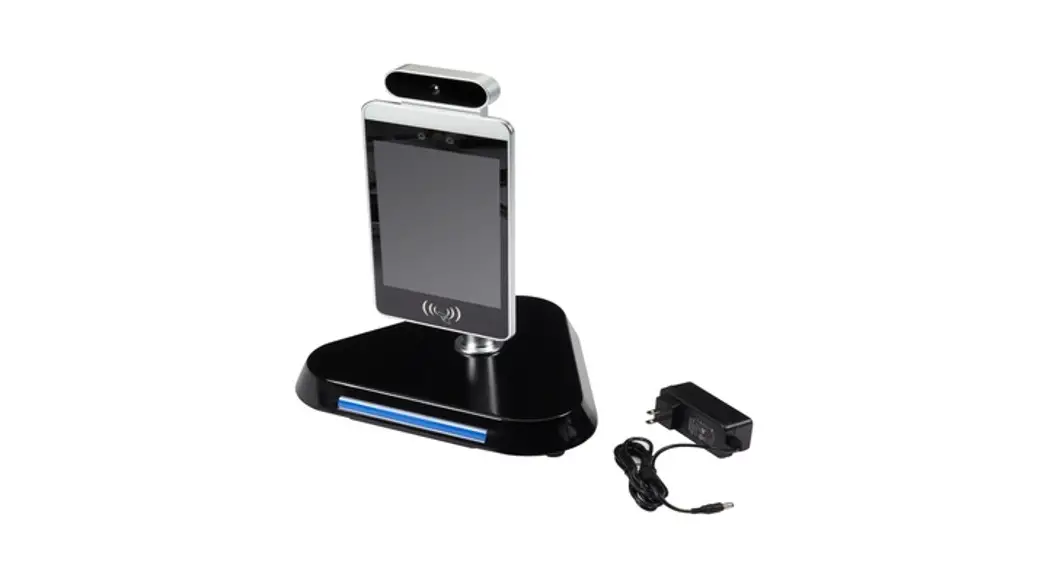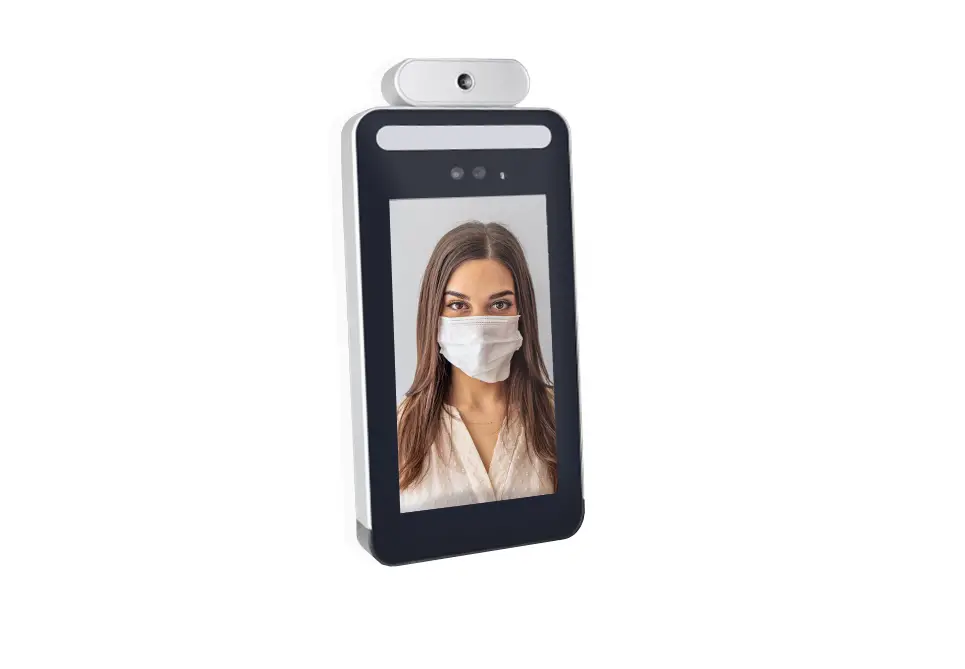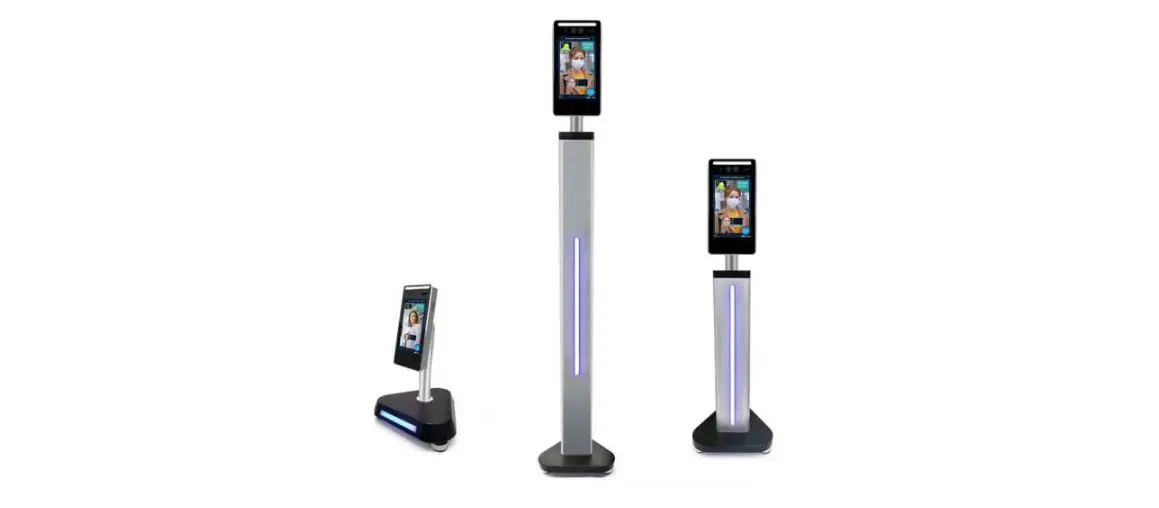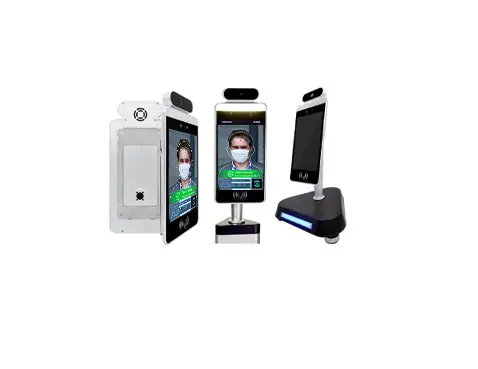
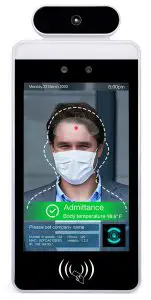
BLACK BOX BDS Temperature Kiosk User Guide
INSTALLATION STEPS
This quick start guide explains how to install the BDS Temperature Kiosk. Follow the steps listed next.
NOTE: Upon first use, the BDS unit may display inconsistent temperature readings until the unit boots up and the Infrared Sensors warm up.
NOTE: The BDS supports two languages: English and Chinese. Adding custom language support may require APK and firmware updates that could potentially take up to one month.
STEP 1. CONNECT THE GATE
Connect the tablet relay cable to the door open button terminal of the gate control board. If the door opening action is reversed, reverse the line order. If there is no response, set in the BDS (EZ-Pass) app as follows: Mode 0: Indicates non-automatic closing mode. The relay will not close automatically after opening the relay. Mode 1: Represents the auto-closing mode (active high-default low level, then high level for X seconds, last low level). The relay will
automatically close after a delay of X seconds after opening the relay. Mode 2: Represents the auto-closing mode (active low-default low, then high for X seconds, and finally low). The relay will automatically
close after a delay of X seconds after opening the relay.
STEP 2: REVIEW THE PORTS DEFINITION
WIRE INTERFACE DEFINITION VERSION 1
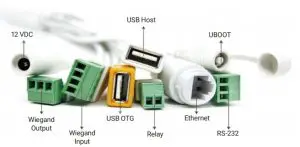
FIGURE 1
TABLE 1. DELAY
Pin Number | Terminal Electrical Definition |
1 | COM |
2 | NO |
TABLE 2. WIEGAND INPUT
Pin Number | Terminal Electrical Definition |
1 | DO_IN |
2 | D1-IN |
3 | 12V |
| 4 | GND |
TABLE 3. WIEGAND OUTPUT
Pin Number | Terminal Electrical Definition |
1 | DO_OUT |
2 | D1-OUT |
3 | GNG |
TABLE 4. RS-232
Pin Number | Terminal Electrical Definition |
1 | 232_RX1 |
2 | 232_TX1 |
3 | GND |
WIRE INTERFACE DEFINITION VERSION 2
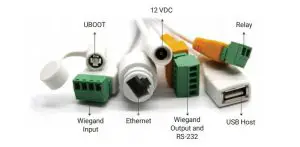
FIGURE 2
STEP 3. APP INSTRUCTIONS
How to install the app:
The BDS Management software install U disk has two modes:
- Installation mode and update mode. Installation Mode: The filename is BDS-8 MGNT_Setup_v2.4.0.6.exe This file can be automatically installed by putting it in the root directory of a USB flash drive.
- Update Mode: The filename is BDS-8 MGNT_Setup_v2.4.0.6.exe under the “resource” folder.
You can use the U disk to automatically update the installation package. You can also connect the mouse and U disk at the same time, select the file on the resource manager and click install.
ENTER THE SETTING INTERFACE
Connect a mouse. Press the Middle mouse button and enter the password 123456 to enter the setting interface. (The right mouse button is is used to exit on an Android device.)
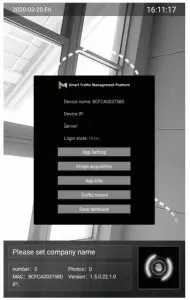
FIGURE 3
APPLICATION SETTINGS
- Device name setting: Set the device name.
- Body temperature setting: Body temperature detection, body temperature alarm, mask detection function switch on and body
temperature threshold. - Recognition parameter setting: The lower the threshold, the higher the recognition accuracy, the more the recognition times, the slower the stranger is reported.
- Volume setting: Set the volume.
- Startup settings: Auto-start after booting, and the application will automatically start after exiting.
- Identification effect display: Setting of the LED light, green light for success (settable display image name), red light for failure, fill light.
- Apply password setting: Set password, initial password is 123456
- Camera preview resolution setting: Set the resolution.
- Screen saver brightness setting: Set brightness.
- Device restart time setting: Setting of the device restart time.
- Relay mode.(See Step 1, Connect the gate.)
- Application initialization: restore the initial application settings.
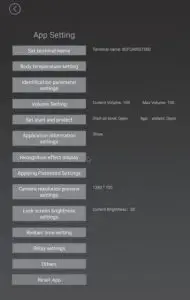
FIGURE 4
FACE IMAGE ACQUISITION
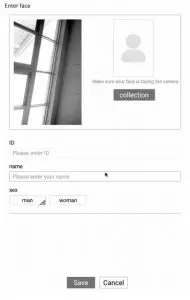
FIGURE 5
APPLICATION INFORMATION: VIEW THE BASIC INFORMATION OF THE DEVICE
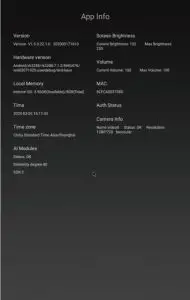
FIGURE 6.
PASS RECORD
Save and view the information of a pedestrian’s face and temperature, can be exported with U disk.
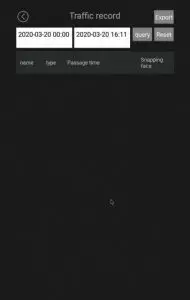
FIGURE 7
FACE LIBRARY: INFORMATION OF FACE
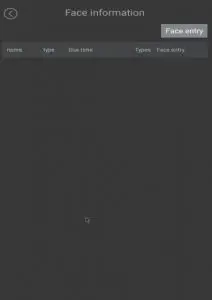
FIGURE 8
APPENDIX: DISCLAIMER/TRADEMARKS
A.1 DISCLAIMER
Black Box Corporation shall not be liable for damages of any kind, including, but not limited to, punitive, consequential or cost of cover damages, resulting from any errors in the product information or specifications set forth in this document and Black Box Corporation may revise this document at any time without notice.
A.2 TRADEMARKS USED IN THIS MANUAL
Black Box and the Black Box logo type and mark are registered trademarks of Black Box Corporation. Any other trademarks mentioned in this manual are acknowledged to be the property of the trademark owners.
 Global IT Products & Network Solutions Provider | Black Box