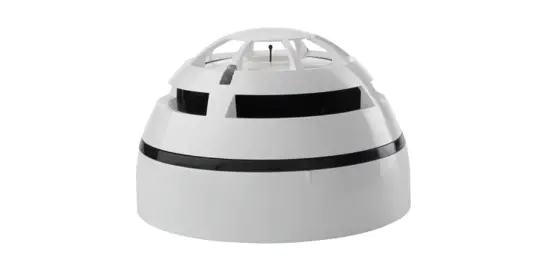
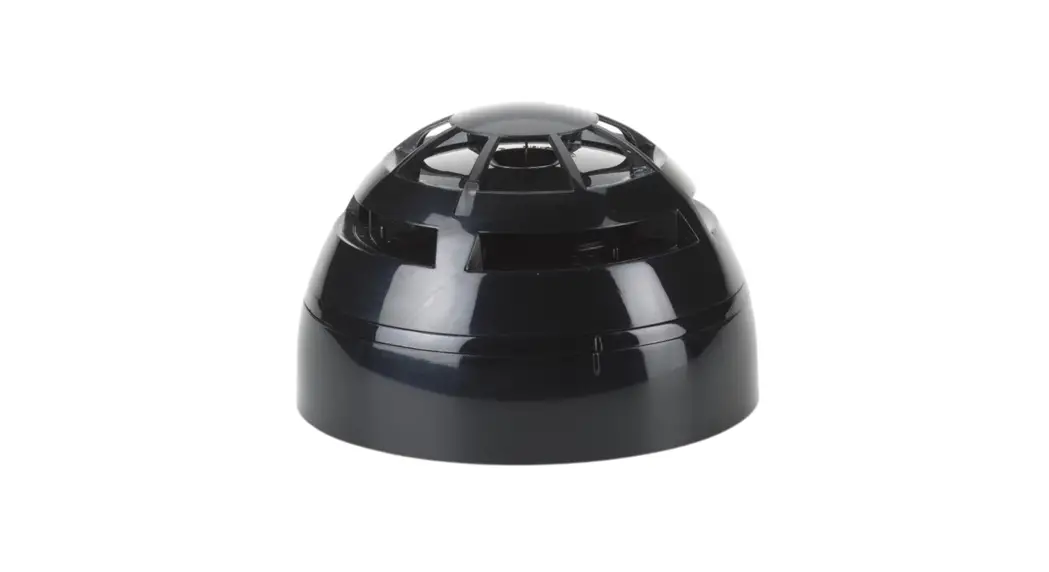
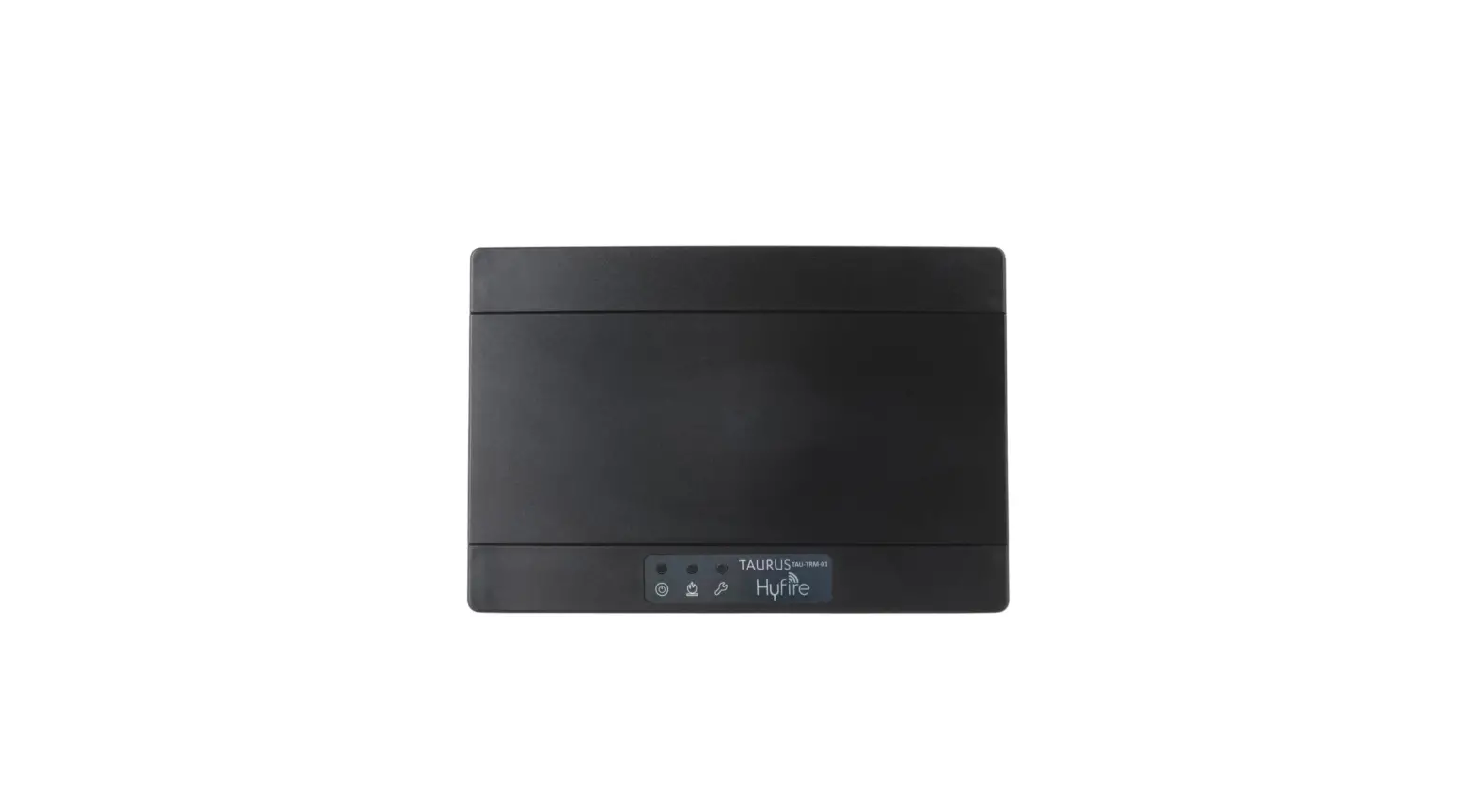
TAU-STK-01 Hyfire Taurus Survey Kit
Hyfire Taurus Survey Kit
The Hyfire Taurus Survey Kit (TAU-STK-01) is a diagnostic system
used to test the wireless channels or frequency bands that are used
by Taurus systems. The aim of the test is to determine the degree
of reliability of the various channels, select the less congested
ones, and use those for building up the Taurus wireless system in
the installation phase.
Warnings and Limitations
- Devices should be replaced after 10 years of continuous
operation to minimize the risk of reduced performance caused by
external factors. - Ensure that this device is only used with compatible control
panels. - Detection systems must be checked, serviced, and maintained on
a regular basis to confirm correct operation. - Smoke sensors may respond differently to various kinds of smoke
particles, thus application advice should be sought for special
risks. - Sensors cannot respond correctly if barriers exist between them
and the fire location and may be affected by special environmental
conditions. - Refer to and follow national codes of practice and other
internationally recognized fire engineering standards. - Appropriate risk assessment should be carried out initially to
determine correct design criteria and updated periodically. - Use only for Taurus fire detection and alarm systems.
Warranty
All devices are supplied with the benefit of a limited 5-year
warranty relating to faulty materials or manufacturing defects,
effective from the production date indicated on each product. This
warranty is invalidated by mechanical or electrical damage caused
in the field by incorrect handling or usage. Product must be
returned via your authorized supplier for repair or replacement
together with full information on any problem identified. Full
details on our warranty and product’s returns policy can be
obtained upon request.
Survey Kit Main Parts
A survey kit is always composed of the following fundamental
components:
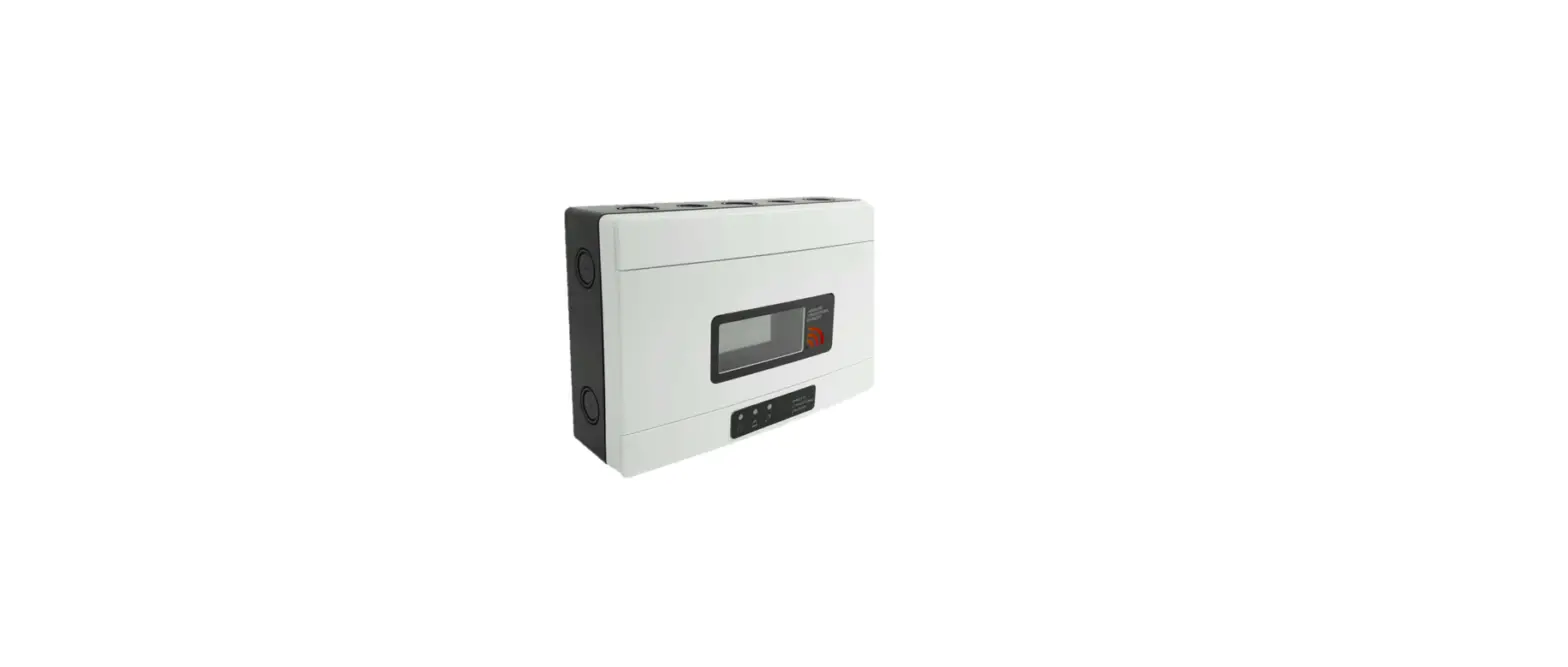
- A survey network device.
- A survey detector device.
- A dongle interface device.
The TAU STK-01 survey kit model has these fundamental elements.
Additionally, you need an Android tablet or cellular phone for
controlling and receiving feedback from the survey system.
The Unique Identifier
The unique identifier is a sequence of 8 alphanumeric characters
that univocally identifies every Taurus device that comes out of
the factory. It is written in every device’s permanent memory.
Product Usage Instructions
- Ensure that the device is only used with compatible control
panels. - Check, service, and maintain the detection system on a regular
basis to confirm correct operation. - Carry out an appropriate risk assessment initially to determine
correct design criteria and updated periodically. - Use only for Taurus fire detection and alarm systems.
- Connect the dongle device to the detector and network devices
of the survey system. - Pair the dongle device with an Android tablet or cellular phone
through Bluetooth wireless protocol. - Control and receive feedback from the survey system through the
Android tablet or cellular phone. - Use the survey system to test the wireless channels or
frequency bands used by Taurus systems to determine their degree of
reliability and select the less congested ones for building up the
Taurus wireless system in the installation phase.
Note: Smoke sensors may respond differently to various kinds of
smoke particles, thus application advice should be sought for
special risks. Sensors cannot respond correctly if barriers exist
between them and the fire location and may be affected by special
environmental conditions. Refer to and follow national codes of
practice and other internationally recognized fire engineering
standards.
TAU-STK-01
GUIDE TO THE HYFIRE TAURUS SURVEY KIT
WARNINGS AND LIMITATIONS
Our devices use high quality electronic components and plastic materials that are highly resistant to environmental deterioration. However, after 10 years of continuous operation, it is advisable to replace the devices in order to minimize the risk of reduced performance caused by external factors.
Ensure that this device is only used with compatible control panels.
Detection systems must be checked, serviced and maintained on a regular basis to confirm correct operation.
Smoke sensors may respond differently to various kinds of smoke particles, thus application advice should be sought for special risks.
Sensors cannot respond correctly if barriers exist between them and the fire location and may be affected by special environmental conditions.
Refer to and follow national codes of practice and other internationally recognized fire engineering standards.
Appropriate risk assessment should be carried out initially to determine correct design criteria and updated periodically.
Use only for Taurus fire detection and alarm systems.
WARRANTY All devices are supplied with the benefit of a limited 5 years warranty relating to faulty materials or manufacturing defects, effective from the production date indicated on each product.
This warranty is invalidated by mechanical or electrical damage caused in the field by incorrect handling or usage.
Product must be returned via your authorized supplier for repair or replacement together with full information on any problem identified.
Full details on our warranty and product’s returns policy can be obtained upon request.
Hyfire Wireless Fire Solutions Ltd – Unit B12a, Holly Farm Business Park, Honiley, Warwickshire, CV8 1NP – United Kingdom
www.hyfirewireless.com 2
THE PURPOSE OF THE SURVEY KIT
A survey kit is a diagnostic system that is used to test the wireless channels or frequency bands that are used, in general, by Taurus systems.
The aim of the test is to determine the degree of reliability of the various channels, select the less congested ones and use those for building up the Taurus wireless system in the installation phase.
SURVEY KIT MAIN PARTS
A survey key is always composed by the following fundamental components:
–
A survey network device.
–
A survey detector device.
–
A dongle interface device.
The TAU STK-01 survey kit model has these fundamental elements.
Additionally, you need an Android tablet or cellular phone for controlling and receiving a feedback from the survey system.
You need an Android tablet or cellular phone for controlling and receiving a feedback from the survey system.
Tablet / Cell
Detector
Bluetooth
Dongle
Taurus
Network device
Picture 1
The tablet / cell communicates to the dongle device through the Bluetooth wireless protocol.
Dongle, detector and network devices of the survey system communicate between each other through the Taurus wireless protocol.
3. THE UNIQUE IDENTIFIER
The unique identifier is a 8 alphanumeric character sequence that univocally identifies every Taurus device that comes out of the factory; it is written in every device’s permanent memory.
Unique identifier can be indicated as UID, UUID or Unique ID. It is labelled below the QR code on each Taurus device and it is encoded in the QR code. Survey kit’s dongle, detector and network devices all carry a Unique ID number.
Survey kit’s dongle, detector and network devices all carry a Unique ID number.
L20-TWSKX-14EN (P.5) 3
TECHNICAL SPECIFICATIONS
Survey detector
Taurus RF frequency
868 MHz
Taurus RF channels
66
Taurus RF radiated power
Batteries type, number, voltage and capacity
Maximum allowed humidity
14 dBm (25 mW) 2 x CR123A (3 V, 1.25 Ah) 95% RH (non condensing)
Table 1
Survey network device
Taurus RF frequency
868 MHz
Taurus RF channels
66
Taurus RF radiated power
External power supply voltage
Maximum current load
14 dBm (25 mW) 12 Vdc 36 mA (12 Vdc)
Batteries type, number, voltage and capacity
4 x CR123A (3 V, 1.25 Ah)
Humidity range
5% RH to 90% RH (non condensing)
Device dimensions Device weight
235 mm x 160 mm x 70 mm 700 g
Table 2
Dongle device Taurus RF frequency Taurus RF channels Taurus RF radiated power
Bluetooth standards
Batteries type, number and voltage
868 MHz 66 14 dBm (25 mW) IEEE 802.15.1 Bluetooth low energy (BLE) 4.2 specification
2 x LR6 AA (1.5 V)
Maximum load
65 mA (peak impulsive)
Allowed temperature range -10 °C to +55 °C
Maximum allowed humidity 95 % RH (non condensing)
Dimensions
80 mm x 120 mm x 25 mm
Weight
100 g (without batteries)
Table 3
Hyfire Wireless Fire Solutions Limited – Unit B12a, Holly Farm Business Park, Honiley, Warwickshire, CV8 1NP – United Kingdom
www.hyfirewireless.com 4
POWERING UP – SURVEY DETECTOR 1) Remove the survey detector from its wall adapter base. Keep the base still and rotate the detector counter-clockwise; separate the detector
from its base. 2) Under the detector, push the closing clip and extract the battery cover. 3) Insert both CR123A batteries, the first one in the Secondary or B lodgement, the second one in the Primary or A lodgement.
Batteries’ polarities must match the + and signs printed on the detector.
4) Detector’s LEDs will flash for some seconds: wait that their blinking stops. 5) Reinstall the battery cover. 6) Reinstall the detector on the adapter base. 7) The survey detector is powered on.
Always remember to remove the batteries after you have finished using the survey test system: this will avoid discharging them.
POWERING UP – DONGLE DEVICE 1) From the back of the dongle device, slide off the batteries’ cover. 2) Insert both AA into the batteries’ lodgement.
Batteries’ polarities must match the + and signs printed in the lodgement.
3) Reinstall the batteries’ cover. 4) Switch on the device.
Picture 2
ON/OFF SWITCH LED INDICATOR
5) Dongle’s LED performs some red-green blinking for a few seconds. 6) Dongle’s LED starts blinking red every second: the device is now powered on.
Always remember to switch off the dongle after you have finished using the survey test system: this will avoid discharging the batteries. If you intend not to use the dongle for a long period, remove the batteries.
L20-TWSKX-14EN (P.5) 5
POWERING UP – SURVEY NETWORK DEVICE The survey network device can be power supplied either externally or by batteries. If the survey network device has batteries installed and is connected to the wall power supply, priority is given to the external source, so as to prolong batteries’ lifespan. INSTALLING THE BATTERIES 1) Remove the two plastic screw covers from the front side. Lifting the protective covers using the gaps at their angles makes this operation
easier. Picture 3
2) Remove the four sealing plastic screws.
Picture 4 3) Remove the front protective cover.
Hyfire Wireless Fire Solutions Limited – Unit B12a, Holly Farm Business Park, Honiley, Warwickshire, CV8 1NP – United Kingdom
www.hyfirewireless.com 6
4) Insert the four CR123A batteries into their lodgements.
Batteries’ polarities must match the + and signs printed on the batteries’ board.
Picture 5 5) Reinstall the front cover.
If you intend not use the network device for a long period, and you have batteries in it, remember to remove them.
6) Screw the front cover.
7) Reinstall the plastic screw covers.
Plugging in the device
Survey kit provides a 12 V wall adapter power supply; its output jack can be inserted into the socket on the side of the network device.
Picture 6 Switching on Survey network device’s on/off switch is located on the top side. 1) Switch on I. All three LED blink once. After, the power on LED blinks green every second: the survey network device is powered on. 2) Finished using the device, switch to O.
When you have finished using the network device, switch it off, especially if you are using batteries’ power supply; this will avoid running them out.
[email protected] 7
Picture 7 L20-TWSKX-14EN (P.5)
ELEVATING THE TEST DEVICES
If a wireless network or a child device are intended to be installed at a certain height from the floor, to test the signal ‘s reliability from that position it is necessary to elevate the test survey’s devices to the planned installation height. For this purpose, the survey kit provides an elevating assemblable pole.
For the survey detector’s height extension assemble the supplied pole as follows in the picture:
Picture 8 Pole’s end has to be inserted into the survey detector’s lodgement as follows:
Please mind that the pole’s assemblable segments are fitted in but not blocked !
Picture 9
Make sure the pole is well and safely inserted into the survey detector’s adapter.
Make sure the detector’s wall base and the network device’s cover are safely installed and blocked.
For safety reasons, do not elevate the survey devices more than 2 meters from the floor.
Hyfire Wireless Fire Solutions Limited – Unit B12a, Holly Farm Business Park, Honiley, Warwickshire, CV8 1NP – United Kingdom
www.hyfirewireless.com 8
OVERVIEW OF TAURUS SYSTEMS Taurus systems are always composed by a central node device (TAU-TRM-01 or TAU-CEM-01), a certain number of child devices (detectors, call points, sounders, etc.) and, if the wireless coverage area needs to be extended, one or more expansion nodes (TAU-EXM-01). The model of the central node selected by the installer depends by the control panel’s type; if the control panel is intelligent and uses the Vega protocol, a TAU-TRM-01 model has to be chosen; if the control panel is conventional, the choice must fall on the TAU-CEM-01 model. Communication ranges of the wireless devices are limited: add TAU-EXM-01 devices to the system to cover completely the fire protected area. Child devices are linked to TAU-TRM-01, TAU-CEM-01 and TAU-EXM-01 network devices. Purpose of the installation process is to integrate the wireless Taurus system with the control panel. WIRELESS CHANNELS The Taurus system has a total of 66 wireless channels or frequency ranges that can be used for communicating data. These channels are paired in fixed predefined patterns (see appendix A at the end of this manual for their list). Channel pairs have specialized uses: – Field channels: used by network devices (TAU-TRM-01, TAU-CEM-01 and TAU-EXM-01) for communicating with their own child devices
(detectors, call points, etc.). – Network channels: used by network devices (TAU-TRM-01, TAU-CEM-01 and TAU-EXM-01) to communicate between each other. All child devices use a local field channel pair. All network devices use a local field channel pair and a global network channel pair.
Field channel pair 2 / 38
TAU-EXM-01 # 4 Device Device
Device Device
In this example channel pair 2 / 38 is used only by TAU-EXM-01 # 4
and its child devices
TAU-TRM-01 TAU-CEM-01 TAU-EXM-01 TAU-EXM-01
Picture 10
Network channel pair 9 / 45
In this example channel pair 9 / 45
is used by ALL network devices but by no child device
Picture 11
The reason for this channel’s pairing system policy stems from the necessity to grant wireless connection security by having a “spare channel” in case the other one fails.
L20-TWSKX-14EN (P.5) 9
THE PURPOSE OF SURVEYING The purpose of using the survey kit and performing this type of surveying in general, is to test and determine which wireless channels are best to be used for a wireless Taurus system. Channels that undergo survey are: – Network channels (used by network devices, only, throughout the system). – Field channels (used locally by network devices and their child devices). – Wireless channels used for the “discovery” operation (wireless channels used only during installation). PERFORMING THE SURVEY This paragraph gives you general guidelines on how to perform a survey test. The survey procedure is well described in the HOW TO PERFORM A SURVEY paragraph, but here an introduction to the procedure is given. Central node 1) Place the dongle in the position where you want to install the central node. 2) Position yourself with the tablet / cell near the dongle. 3) The network device and survey detector are not involved in this operation.
Central node area
Picture 12 Central node’s child device 1) Place the survey network device where you want to install the central node. 2) Place the survey detector in the location where you want to install the child device. 3) Position yourself with the table / cell and dongle device near the survey detector.
Central node area
Child device area
Picture 13
Hyfire Wireless Fire Solutions Limited – Unit B12a, Holly Farm Business Park, Honiley, Warwickshire, CV8 1NP – United Kingdom
www.hyfirewireless.com 10
Child expander 1) Place the survey network device where you want to install the central node or the parent expander. 2) Place the dongle and the survey detector in the position where you want to install the “child” expander. 3) Position yourself with the table / cell near the dongle and the survey detector.
Central node / parent expander area
Child expander area
Picture 14
Expander’s child device 1) Place the survey network device where you want to install the parent expander device. 2) Place the survey detector in the location where you want to install the child device. 3) Position yourself with the table / cell and dongle device near the survey detector.
Parent expander area
Child device area
Picture 15
L20-TWSKX-14EN (P.5) 11
THE TAURUS SURVEY Taurus Survey is the app software used on the Android tablet / phone to drive the survey system. Survey tests and their results are started and gathered through this app. INSTALLING THE TAURUS SURVEY If not already installed on your Android tablet / phone, the Taurus Survey app can be downloaded from the “Google Play Store”. 1) Tap the “Play Store” icon on your table / phone. 2) Look for Taurus Survey. 3) Select Taurus Survey. 4) Download and install the Taurus Survey app. LAUNCHING THE TAURUS SURVEY To launch the Taurus Survey, tap its icon on the screen. TAURUS SURVEY – THE MAIN WINDOW Once launched, the main window appears:
Taurus Survey
Sites
Settings
You have the following options:
Sites Settings
This option gives you access to the management of the installation sites you have added (My Sites window). This option permits you to configure the survey system in the settings window.
Hyfire Wireless Fire Solutions Limited – Unit B12a, Holly Farm Business Park, Honiley, Warwickshire, CV8 1NP – United Kingdom
www.hyfirewireless.com 12
ADD A NEW INSTALLATION SITE To add a new site to your app, press Sites on the Taurus Survey main window; the My Sites window appears:
My Sites No available sites
Add a new site Tap Add a new site; the New site window appears on the screen:
New site Name Address Building Floor Description
Save
Tap on the single lines to add specific site’s data:
Name Address Building Floor Description
The name of the installation site. The address of the installation site. The building number or name of the installation site. The floor number where the installation site is located. The description of the installation site.
Press Save to generate the new virtual site.
L20-TWSKX-14EN (P.5) 13
MANAGING THE INSTALLATION SITES 1) From the Taurus Survey main window press Sites:
My Sites
Site 1
Add a new site
2) Tap on the arrow at the left of the desired site’s line:
My Sites
Site 1
Address: Site 1 address. Building: Building of installation of site 1. Floor: Floor of installation of site 1. Description: Description of site 1.
Surveys
Reports
Edit
Remove
Add a new site
Information about the selected site is spread under the line, together with three command options:
Surveys Reports
Edit Remove
You can add, remove, manage and perform surveys; you can generate survey reports.
Detailed data on performed surveys is given in survey reports. Reports can be shared and exported. This option gives you access to the reports generated for the surveys related to this site.
You can modify the site’s data you entered before (Edit site window).
You can remove the virtual site from the device. Confirmation will be requested.
Removing a site, removes all its surveys related to it. Generated reports are not deleted.
Hyfire Wireless Fire Solutions Limited – Unit B12a, Holly Farm Business Park, Honiley, Warwickshire, CV8 1NP – United Kingdom
www.hyfirewireless.com 14
ADD A NEW SURVEY 1) From the Taurus Survey main window press Sites. 2) Tap on the arrow at the left of the desired site’s line. 3) Tap the Surveys option:
Site 1 – My Surveys No available surveys
Add a new survey Generate site report 4) Tap Add a new survey: New survey Site TX/EXP Name Description Location
Save
The following fields can be edited:
Site TX/EXP
Name Description Location
The name of the virtual site. This field cannot be edited directly. The model of the central node of the system. TRSL (Translator) if you are using an intelligent Vega control panel. C_EXP (Conventional expander) if you are using a conventional control panel. The name identifying this specific survey. A more detailed description of this survey. Where this survey test will take place.
Press Save to generate the new virtual survey.
A survey always requires the definition of a site.
An installation site can have more than one survey.
L20-TWSKX-14EN (P.5) 15
MANAGING SURVEYS 1) From the Taurus Survey main window press Sites. 2) Tap on the arrow at the left of the desired site’s line. 3) Tap the Surveys option. 4) Tap on the arrow at the left of the desired survey’s line:
Site 1 – My Surveys
Survey 1
Site: Site 1 Description: Survey 1 description Location: Location of the central node
Select
Edit
Remove
Add a new survey Generate site report
Information about the selected survey is spread under the line, together with three command options:
Select Edit Remove
Press this command icon to perform effectively the survey. This operation will be explained later in detail. You can modify the survey’s data you entered before (Edit survey window). You can remove the virtual survey from the device. Confirmation will be requested.
Removing a survey, will not delete the corresponding generated reports.
Hyfire Wireless Fire Solutions Limited – Unit B12a, Holly Farm Business Park, Honiley, Warwickshire, CV8 1NP – United Kingdom
www.hyfirewireless.com 16
SETTING THE SURVEY SYSTEM Before launching the application, make sure that: 1) Tablet / cell’s Bluetooth is activated. 2) Tablet / cell’s localization is activated. 3) Launch the Taurus Survey app. 4) Press the Settings options on the main window:
Taurus Survey
Associate your dongle
Bluetooth state: Enabled Position state: Enabled Dongle is: not associated
Dongle UID
Network Device UID
Child Device UID
Save
The following lines indicate the actual configuration state:
Bluetooth state
Indicates whether the required Bluetooth connection is activated or not. Disabled: Bluetooth is not activated. Enabled: Bluetooth is activated.
Position state
Indicates whether the required localization feature of the tablet / cell is activated or not. Disabled: localization is not activated. Enabled: localization is activated.
Dongle is
The association status with the tablet / cell device with the dongle interface device. Associated: the device is associated to the dongle. Not associated: the device is not associated to the dongle.
5) To make the survey system work, the tablet / cell device has to be associated with the dongle, the network device and the “detector” supplied with the TAU STK-01; fill out the following fields:
Dongle UID
Network Device UID Child Device UID
Insert here the Unique Identifier of the dongle device; UID is written under the QR code label placed on the device itself.
Insert here the Unique Identifier of the network device; QR code labels are located internally and externally of the device.
Insert here the Unique Identifier of the “detector” device of the kit. QR code and UID are placed under the device.
6) Check that the dongle device is switched on. 7) Tap the Associate your dongle button. The Trying to connect to dongle… message appears on the screen. 8) Wait a few seconds that the dongle’s association completes. 9) Tap the Save button. 10) Return to the app’s main screen.
During association, check that the dongle device is switched on.
At the end of the configuration, state lines must indicate as follows: Bluetooth state: Enabled Position state: Enabled Dongle is: associated
L20-TWSKX-14EN (P.5) 17
HOW TO PERFORM A SURVEY Central node’s survey
Central node area
Picture 16 1) From the Taurus Survey main window press Sites. 2) Tap on the arrow at the left of the desired site’s line. 3) Tap the Surveys option. 4) Tap on the arrow at the left of the desired survey’s line. 5) Press Select:
Survey 1
TRSL Add device
Location: TRSL’s location
Select
Add expander Complete survey 6) Press Select on the survey TRSL’s line.
Make sure the dongle is powered on, so also the survey detector and the survey network device. These devices are to be set and associated in the Settings window.
Hyfire Wireless Fire Solutions Limited – Unit B12a, Holly Farm Business Park, Honiley, Warwickshire, CV8 1NP – United Kingdom
www.hyfirewireless.com 18
The following window appears: Survey 1 Device Description Location Note Last modifications Edit Remove Start scan
Scan result: UNKNOWN
Photo
giving you the following options:
Edit Start scan Scan result Photo
By tapping this button you can go to the Edit device window (central node device). Tap here to trigger the central node’s survey scan. Gives the result of the survey scan. In this case, UNKNOWN means that it has not been performed yet. You can snap a photo illustrating the location of the central node. This photo will be integrated in the final report.
7) Place the dongle in the position where you want to install the central node.
8) Position yourself with the tablet / cell near the dongle.
The network device and the survey detector are not involved in this operation.
9) Tap Start scan.
The Dongle will scan all Network channels in order to estimate the best pair at the end of Survey. Also the dongle will start to scan the field channels until to find the first pair free in order to assign those channels to the Network Device for communication with its child devices.
A Scanning… section of the window will appear, indicating the scanning progress.
The purpose of this scan is to give an evaluation of the degree of freeness of all network channels.
This scan is performed by the dongle device.
At the end of the test, Scan result visualizes one of the following:
Channel Survey Result GOOD MARGINAL BAD
Evaluation
One or more Network channels have a Good evaluation. First pair of Field channels available have a Good evaluation.
All Network channels have a Marginal evaluation. First pair of Field channels available have a Marginal evaluation. ALLOWED
All Network channels have a BAD evaluation. All Field channels have a BAD evaluation. NOT ALLOWED
L20-TWSKX-14EN (P.5) 19
10) Go back:
Survey 1
TRSL Add device
Location: TRSL’s location
Select
Add expander Complete survey
Hyfire Wireless Fire Solutions Limited – Unit B12a, Holly Farm Business Park, Honiley, Warwickshire, CV8 1NP – United Kingdom
www.hyfirewireless.com 20
Central node child device’s survey
Central node area
Child device area
Picture 17 Starting from this window:
Survey 1
TRSL Add device
Location: TRSL’s location
Select
Add expander Complete survey
1) Tap Add device on the TRSL row: New device Device Description Location Note
The correspondence between the visualized Taurus Survey generic device type and the specific commercial product code is to be found in appendix B of this manual.
Save
where:
Device
Description Location Note
The child device type. You can select the child device type by tapping on the upside-down triangle on the right; a child device list will drop down on the screen: tap and select the device type you want to insert.
A description of this child device.
The location of this child device.
Any other note about this child device.
2) Tap the Save button to save the edited child device’s data.
L20-TWSKX-14EN (P.5) 21
This screen appears: Survey 1 Device Description Location Note Last modifications
Edit Remove Start scan
Scan result: UNKNOWN
Photo
Where:
Edit Remove Start scan Scan result Photo
You can go to the child device edit window tapping here (Edit device window). Tap here to remove this child device. Tap here to trigger the child device’s survey scan. Gives the result of the survey scan. In this case, UNKNOWN means that it has not been performed yet. You can snap a photo illustrating the location of the child device. This photo will be integrated in the final report.
3) Place the survey network device where you want to install the central node. 4) Place the survey detector in the location where you want to install the child device. 5) Position yourself with the table / cell and dongle device near the survey detector. 6) Tap Start scan. The survey Network and the survey detector will communicate in order to evaluate the LINK QUALITY. A Scanning… section of the window will appear, indicating the current progress of the operation.
The purpose of this scan is to give an evaluation of the degree of the wireless communication quality between the parent network device and its child device.
The scan is performed by the survey detector with the aid of the survey network device.
Hyfire Wireless Fire Solutions Limited – Unit B12a, Holly Farm Business Park, Honiley, Warwickshire, CV8 1NP – United Kingdom
www.hyfirewireless.com 22
At the end of the test, Scan result visualizes one of the following:
GOOD
Wireless communication quality has a GOOD final evaluation.
MARGINAL Wireless communication quality has a MARGINAL final evaluation.
BAD
Wireless communication quality has a BAD final evaluation.
7) Go back:
Survey 1
TRSL Add device
Location: TRSL’s location
Select
OPT
Select
Location: child device’s location
Add expander Complete survey
Survey Result GOOD GOOD MARGINAL BAD
Mark indication Taurex
4 3
2
1
Evaluation
Wireless communication quality has an Excellent evaluation
Wireless communication quality has a Good evaluation
Wireless communication quality has a Marginal-Poor evaluation NOT ALLOWED
Wireless communication quality has a Bad evaluation NO COMMUNICATION
L20-TWSKX-14EN (P.5) 23
Child expander’s survey
Central node / parent expander area
Picture 18 Starting from this window:
Survey 1
TRSL Add device
Location: TRSL’s location
Select
OPT
Select
Location: child device’s location
Add expander Complete survey 1) Tap Add expander: New device Device Description Location Target device Note
Save
Child expander area
Hyfire Wireless Fire Solutions Limited – Unit B12a, Holly Farm Business Park, Honiley, Warwickshire, CV8 1NP – United Kingdom
www.hyfirewireless.com 24
2) Edit:
Device
Description Location
The expander device type. Click on the upside-down triangle to have a drop-down list of the selectable device types (EXP).
A description of the expander device.
Where this expander device is intended to be installed.
Target device Note
Which device, of the virtual system, is the parent device. It can be the central node TRSL / C_EXP or an expander EXP. For better identifying the target / parent device it is warmly suggested to add its location, so options come out with TRSL – Corridor, EXP – Office and so on. Any useful note you want to add to this virtual device.
3) Tap Save to add this new expander device.
For better identifying the target / parent device it is warmly suggested to add its location, so target device options come out with TRSL – Corridor, EXP – Office and so on.
Survey scan window for the expander appears:
Survey 1
Device
Description
Location
Target device
Note
Last modifications
Edit Remove Start scan
Scan result: UNKNOWN
Photo
L20-TWSKX-14EN (P.5) 25
Edit
You can go to the expander edit window tapping here (Edit device window).
Remove
Tap here to remove this expander.
Start scan
Tap here to trigger the expander’s survey scan.
Scan result
Gives the result of the survey scan. In this case, UNKNOWN means that it has not been performed yet.
Photo
You can snap a photo illustrating the location of the expander device. This photo will be integrated in the final report.
4) Place the survey network device where you want to install the parent expander or the central node.
5) Place the dongle and the survey detector in the position where you want to install the “child” expander.
6) Position yourself with the table / cell near the dongle and the survey detector.
7) Tap Start scan.
The Dongle will scan all Network channels in order to estimate the best pair at the end of Survey. Also the dongle will start to scan the field channels until to find the first pair free in order to assign those channels to the Network Device for communication with its child devices. When channel scanning finish, the survey Network and the survey detector will communicate in order to evaluate the LINK QUALITY.
A Scanning… section of the window will appear, indicating the current progress of the operation.
The purpose of this scan is to give an evaluation of the degree of freeness of all network channels, then evaluate the wireless communication quality between the parent network device and the child expander.
This scan is performed by the dongle device and the survey detector, with the aid of the survey network device.
At the end of the test, Scan result visualizes one of the following:
Channel Survey Result GOOD MARGINAL BAD
Evaluation
One or more Network channels have a Good evaluation. First pair of field channels available have a Good evaluation. Wireless communication quality has an Excellent/Good (Mark 4/3) evaluation
All Newtork channels have a Marginal evaluation. First pair of Field channels available have a Marginal evaluation. Wireless communication quality has a Marginal-Poor (Mark 2) evaluation NOT ALLOWED
All Network channels have a BAD evaluation. All Field channels have a Bad evaluation. Wireless communication quality has a Bad (Mark 1) evaluation NO COMMUNICATION
8) Go back:
Survey 1
TRSL Add device
Location: TRSL’s location
EXP Add device
Location: EXP’s location
Select Select
Add expander Complete survey
Hyfire Wireless Fire Solutions Limited – Unit B12a, Holly Farm Business Park, Honiley, Warwickshire, CV8 1NP – United Kingdom
www.hyfirewireless.com 26
Expander child device’s survey
Parent expander area
Child device area
Picture 19 Starting from this window:
Survey 1
TRSL Add device
Location: TRSL’s location
EXP Add device
Location: EXP’s location
Select Select
Add expander Complete survey
1) Tap Add device on the EXP line: New device Device Description Location Note
Save
2) Edit:
Device Description
The child device type. You can select the child device type by tapping on the upside-down triangle on the right; a child device list will drop down on the screen: tap and select the device type you want to insert.
A description of this child device.
Location
The location of this child device.
Note
Any other note about this child device.
3) Tap the Save button to save the edited child device’s data.
L20-TWSKX-14EN (P.5) 27
This screen appears: Survey 1 Device Description Location Note Last modifications
Edit Remove Start scan
Scan result: UNKNOWN
Photo
where:
Edit Remove Start scan Scan result Photo
You can go to the child device edit window tapping here. Tap here to remove this child device. Tap here to trigger the child device’s survey scan. Gives the result of the survey scan. In this case, UNKNOWN means that it has not been performed yet. You can snap a photo illustrating the location of the child device. This photo will be integrated in the final report.
4) Place the survey network device where you want to install the parent expander device. 5) Place the survey detector in the location where you want to install the child device. 6) Position yourself with the table / cell and dongle device near the survey detector. 7) Tap Start scan. The survey Network and the survey detector will communicate in order to evaluate the LINK QUALITY. A Scanning… section of the window will appear, indicating the current progress of the operation.
The purpose of this scan is to give an evaluation of the degree of the wireless communication quality between the parent network device and its child device.
The scan is performed by the survey detector with the aid of the survey network device.
Hyfire Wireless Fire Solutions Limited – Unit B12a, Holly Farm Business Park, Honiley, Warwickshire, CV8 1NP – United Kingdom
www.hyfirewireless.com 28
At the end of the test, Scan result visualizes one of the following:
GOOD
Wireless communication quality has a GOOD final evaluation.
MARGINAL Wireless communication quality has a MARGINAL final evaluation.
BAD
Wireless communication quality has a BAD final evaluation.
8) Go back:
Survey 1
TRSL Add device
Location: TRSL’s location
Select
OPT
Select
Location: child device’s location
EXP Add device
Location: EXP’s location
Select
OPT
Select
Location: child device’s location
Add expander Complete survey
Survey Result GOOD GOOD
Mark indication Taurex
4
3
MARGINAL
2
BAD
1
Evaluation
Wireless communication quality has an Excellent evaluation
Wireless communication quality has a Good evaluation
Wireless communication quality has a Marginal-Poor evaluation NOT ALLOWED
Wireless communication quality has a Bad evaluation NO COMMUNICATION
L20-TWSKX-14EN (P.5) 29
SINGLE SURVEY TESTS’ AND GENERAL SURVEY’S FINAL EVALUATION Consider this example:
Survey 2
TRSL Add device
Location: TRSL’s location
Select
OPT
Select
Location: child device #1 location
MULTI
Select
Location: child device #2 location
BSND
Select
Location: child device #3 location
Add expander Complete survey
The icon at the right of every single survey test indicates its final evaluation: GOOD MARGINAL BAD UNKNOWN
The whole survey needs to be given a final evaluation: 1) Press Complete survey. Considering the example above, the whole Survey 2 instance will indicate the worst result of the single tests, in this case BAD:
Site 1 – My Surveys Survey 2
Add a new survey
Generate site report
2) Perform again the failed test, implementing the adequate corrections. Survey 2 global instance will achieve again the UNKNOWN status. 3) Tap again Complete survey. If all single tests have a final GOOD evaluation, Survey 2 global instance will have a GOOD rating too.
Hyfire Wireless Fire Solutions Limited – Unit B12a, Holly Farm Business Park, Honiley,
Warwickshire, CV8 1NP – United Kingdom
30
www.hyfirewireless.com
GENERATING REPORTS Having done a Complete survey action: 1) From the Taurus Survey main window press Sites. 2) Tap on the arrow at the left of the desired site’s line. 3) Tap the Surveys option:
Site 1 – My Surveys
Survey 1
Add a new survey Generate site report 4) Tap the Generate site report option. This generates a single report comprising all the surveys of the site. Report is generated in Adobe’s Portable Document Format (pdf).
Perform the site’s report generation only after having performed a “Complete survey” action.
In order to generate a report, it is not necessary to have all survey tests done (UNKNOWN status) or have all survey tests and the survey global instance evaluated to GOOD.
L20-TWSKX-14EN (P.5) 31
READING REPORTS Open a specific survey report. Every report starts with the following title:
Site survey report
Site: Survey Test
Site details are given:
Site details
Name:
Site name.
Address:
Address of the site.
Building:
Building number or name.
Floor:
Floor number.
Description: Site’s description.
Surveys:
The name of the surveys attached to the site.
Where:
Name Address Building Floor Description Surveys
The name of the installation site. The address of the installation site. The building number or name of the installation site. The floor number where the installation site is located. The description of the installation site. The survey’s name made in this site.
The Site high level summary paragraph gives a summed-up list of the devices of the Taurus system:
Site high level summary
1
INTELLIGENT TRANSLATOR MODULE
2
EXPANDER MODULE
10
OPTICAL DETECTOR
Refer to appendix B for a correspondence between the report’s device indication and its specific commercial model indication.
Link quality legend GOOD, MARGINAL, BAD, UNKNOWN
Link quality legend is just a reference legend paragraph relating to the wireless link quality between the devices. Gives you the following indications and colour associations:
GOOD MARGINAL
BAD UNKNOWN
The wireless link quality is good.
The wireless link quality is on the acceptable limit. If you really can’t do nothing to make the link quality GOOD, accept it, but you can have problems.
Not acceptable wireless link quality.
The wireless link quality has not been evaluated yet.
GREEN YELLOW
RED GREY
Colour indications will be used throughout the report.
Hyfire Wireless Fire Solutions Limited – Unit B12a, Holly Farm Business Park, Honiley, Warwickshire, CV8 1NP – United Kingdom
www.hyfirewireless.com 32
Summary report on: Survey 3
Channels selection TX/EXP: Central node, Waiting room Infrastructure channels: 9-45, 10-46, 11-47, 12-48, 13-49, 14-50, 15-51, 16-52 Device channels: 57-27 Expander: Expander #1, Corridor Infrastructure channels: 9-45, 10-46, 11-47, 12-48, 13-49, 14-50, 15-51, 16-52 Device channels: 17-53 Recommended infrastructure channels: 9-45 Autodiscovery: available on channel A, B, C Wake-up link: available
L20-TWSKX-14EN (P.5) 33
Summary report on: Survey 3
Network channels and device channels analysis is reported in this section. Survey 3 written in the title above is the name given to the survey. You have two paragraphs: Infrastructure channels and Device channels; the first is about the analysis of network channels, the other one is about the analysis of field channels. TX/EXP: refers to the central node. At its right there is the description given to the central node and its location. Infrastructure channels TX/EXP: Central node, Waiting room. 9-45, 10-46, 11-47, 12-48, 13-49, 14-50, 15-51, 16-52 Expander: Expander #1, Office #1. 9-45, 10-46, 11-47, 12-48, 13-49, 14-50, 15-51, 16-52 Recommended infrastructure channels: 9-45 Autodiscovery: available on channel A, B, C Recommended autodiscovery channel: A Wake-up link: available
Expander: refers to an expander device. At its right there is the description given to the expander and its location. Under TX/EXP and Expander there is a list of scanned channel pairs, each of them coloured with the corresponding link quality colour. In the above example, channel pairs are all green (GOOD rating). Recommended infrastructure channels: this is the channel pair that is best suitable to be used. Autodiscovery: gives the available channels for the discovery operation and their link quality evaluation. In this example A, B and C in green colour (GOOD rating). Recommended autodiscovery channel: the discovery channel recommended to be used. Wake-up link: it is possible to use the “wake-up” feature to link the child devices to their network devices. TX/EXP: refers to the central node. At its right there is the description given to the central node and its location.
Device channels TX/EXP: Central node, Waiting room. 55-25 Expander: Expander #1, Office #1. 56-26
Expander: refers to an expander device. At its right there is the description given to the expander and its location. The channel pairs under TX/EXP: and Expander: refer to the field channels (or child device channels) of the network devices. – Assign a distinct field channel pair to every network device. – Make sure the channel pair you use has a GOOD rating or at least MARGINAL (if GOOD is not possible). Expect a minor degree of
reliability from a MARGINAL channel pair (if compared to a GOOD one). As previously said, MARGINAL means that the wireless link quality is on the acceptable limit. If you really can’t do nothing to make the link quality GOOD, accept it, but you can have problems.
Hyfire Wireless Fire Solutions Limited – Unit B12a, Holly Farm Business Park, Honiley, Warwickshire, CV8 1NP – United Kingdom
www.hyfirewireless.com 34
READING REPORTS (CONTINUED)
Connected devices – link quality summary report on: First survey
This section reports a verbose evaluation of the link quality between the network devices and their respective child devices:
TX/EXP: Central node, Waiting room. OPTICAL DETECTOR, Meeting room.
OPTICAL DETECTOR, Meeting room #2. OPTICAL DETECTOR, Waiting room.
GOOD GOOD GOOD
Expander: Expander #1, Office #1.GOOD CALL POINT (RED), Meeting room # 3.
GOOD GOOD
TX/EXP: refers to the central node. At its right there is the description given to the central node and its location. Expander: refers to an expander device. At its right there is the description given to the expander and its location. As seen in this example, every child device has a GOOD link quality evaluation with its parent network device; this GOOD evaluation is furtherly stressed by the green colour of the link quality indication. Every child device line has the report’s child device indication (see appendix B), its location and the link quality evaluation.
Infrastructure channel selection – detailed report: First survey This section reports a specific technical wireless evaluation for every system’s network device.
CENTRAL NODE
Type:
INTELLIGENT TRANSLATOR MODULE
Location:
Waiting room
Connected devices: Number of devices connected to network
Where: Description Type Location
The description you entered for the network device. Appendix B’s standard device denomination. Where the device is located, as you specified in the software.
Follows an evaluation of the network channels:
Infrastructure channels:
9
45
Background noise average:
-119 -120
Background noise variability: 2.367 2.078
Channels:
GOOD GOOD
Where:
Infrastructure channels Background noise average Background noise variability Channels
The recommended and best network channels that resulted from the survey. Wireless background noise average value in dBm. Wireless background noise variability value in dBm. GOOD, MARGINAL, BAD link quality evaluation for the first and second channel of the pair.
L20-TWSKX-14EN (P.5) 35
READING REPORTS (CONTINUED)
Device channels:
55
25
Background noise average:
-120 -119
Background noise variability: 3.031 8.256
Channels:
GOOD GOOD
This is an evaluation of the field / child device’s channel pair; this pair is the best one found during the survey. Lines inform you of the following:
Device channels
The recommended and best field / child device’s channels that resulted from the survey.
Background noise average
Wireless background noise average value in dBm.
Background noise variability
Wireless background noise variability value in dBm.
Channels
GOOD, MARGINAL, BAD link quality evaluation for the first and second channel of the pair.
Notes:
Date recorded: 25/08/2020 16:24:17 Last in this section: Date recorded gives the date and time of the recording of the technical wireless evaluation.
Connected devices – link quality detailed report: First survey
This section is about the specific link quality between the Taurus devices; this means the link quality between the network and their child devices, the central node and its expanders, and the expanders and their child expanders. General data is given:
DETECTOR 1
Type:
OPTICAL DETECTOR
Location:
Waiting room
Connected to: INTELLIGENT TRANSLATOR MODULE – Waiting room
Where: Description Type Location Connected to Number of connected devices
The description you entered for the device. Appendix B’s standard device denomination. Where the device is located, as you specified in the software. The parent device and its location. Applies to network devices only: the numerical count of child devices and child expander devices.
Hyfire Wireless Fire Solutions Limited – Unit B12a, Holly Farm Business Park, Honiley, Warwickshire, CV8 1NP – United Kingdom
www.hyfirewireless.com 36
READING REPORTS (CONTINUED) The between-devices’ link quality evaluation follows: Scan results:
RSSI Avg:
-31
RSSI Var:
Background Avg:
-109 Background Var:
Packet loss:
0%
Status:
GOOD
2.159 0.815
Where:
RSSI Avg RSSI Var Background Avg Background Var Packet loss Status Last in this section: Notes:
Average link quality evaluation in dBm units. Link quality variation in dBm units. Background noise average value in dBm units. Background noise variation value in dBm units. Percentage of lost data packets during the survey. Link quality’s final evaluation.
Date recorded: 25/08/2020 16:36:16
Date recorded gives the date and time of the recording of the technical wireless evaluation.
L20-TWSKX-14EN (P.5) 37
APPENDIX A – STANDARD CHANNEL PAIRS In this appendix section you can find the lists of the standard channel pairs used by the Taurus system.
Field channel pairs
1
37
2
38
3
39
4
40
5
41
6
42
7
43
8
44
17
53
18
54
55
25
56
26
57
27
58
28
59
29
60
30
61
31
62
32
63
33
64
34
65
35
66
36
Table 4
Network channel pairs
9
45
10
46
11
47
12
48
13
49
14
50
15
51
16
52
Table 5
Hyfire Wireless Fire Solutions Limited – Unit B12a, Holly Farm Business Park, Honiley, Warwickshire, CV8 1NP – United Kingdom
www.hyfirewireless.com 38
APPENDIX B – TAURUS DEVICES INDICATIONS IN THE APP AND IN THE REPORTS
The Taurus Survey app visualizes generic device type codes; these codes correspond to specific commercial device models:
Taurus Survey’s device type Report’s device indication
TRSL
INTELLIGENT TRANSLATOR MODULE
C_EXP
CONVENTIONAL EXPANDER MODULE
EXP
EXPANDER MODULE
OPT
OPTICAL DETECTOR
MULTI
MULTICRITERIA DETECTOR
THERM
THERMAL DETECTOR
MCP
CALL POINT (RED)
INP_M
SUPERVISED INPUT MODULE
WSND
WALL SOUNDER
WSND_BW
WALL SOUNDER BEACON
BSND
BASE SOUNDER
BSND_BR
BASE SOUNDER BEACON (RED LIGHT)
BSND_BW
BASE SOUNDER BEACON (WHITE LIGHT) Table 6
L20-TWSKX-14EN (P.5) 39