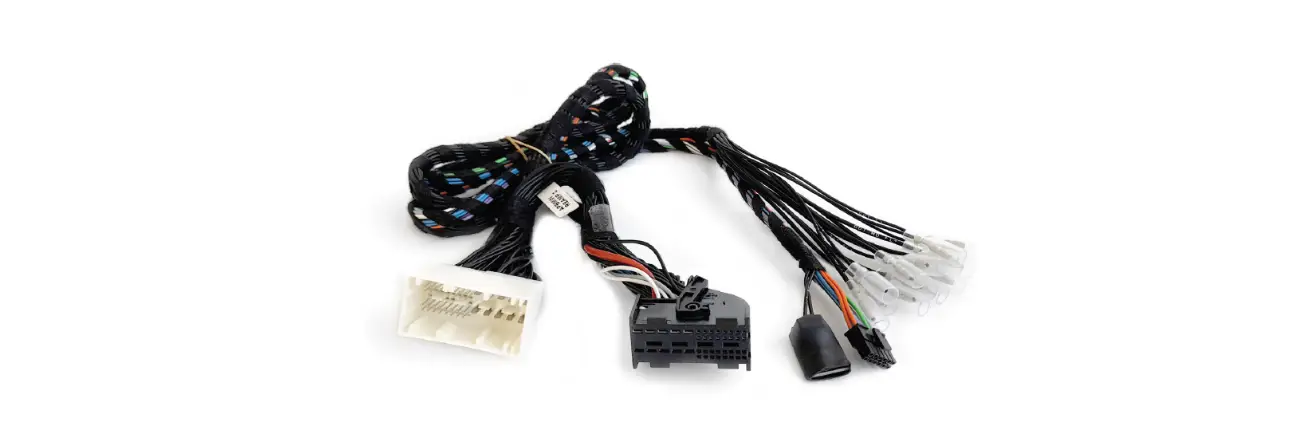
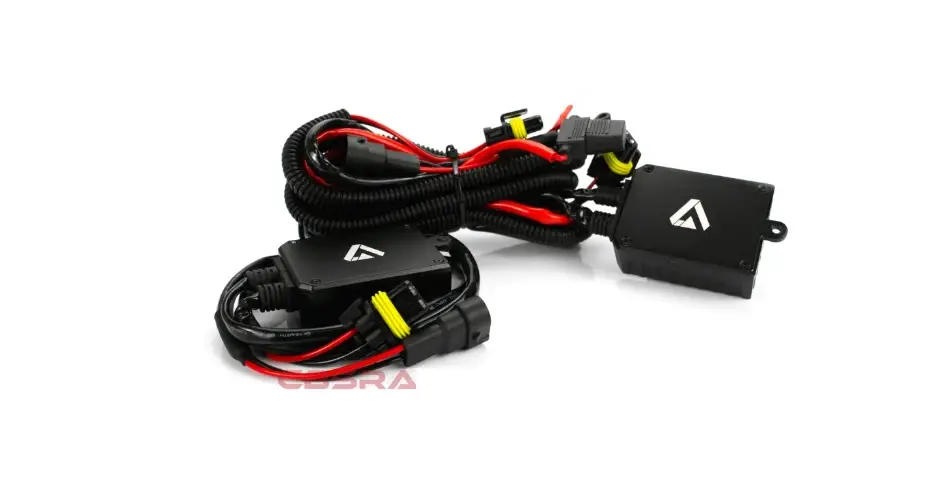
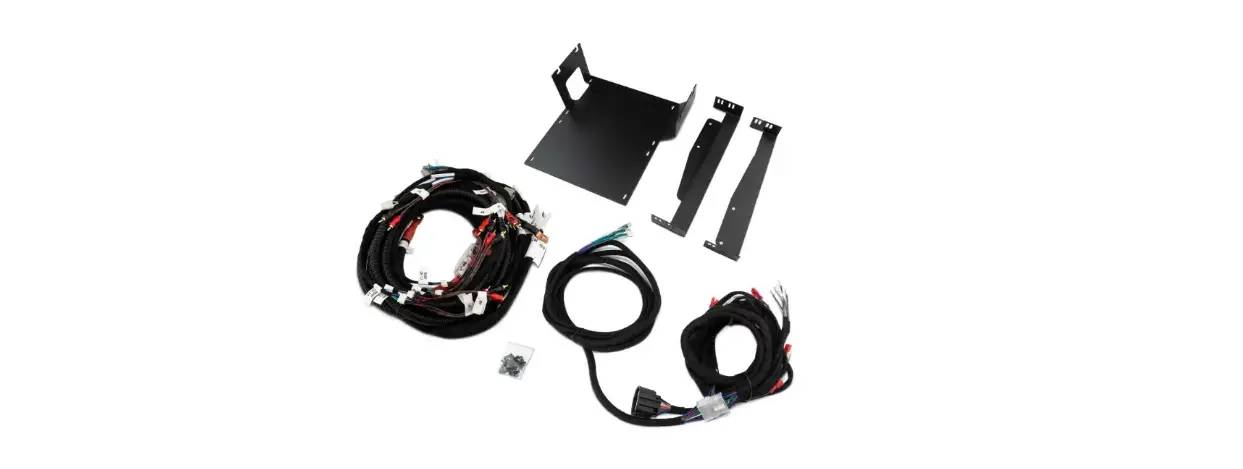
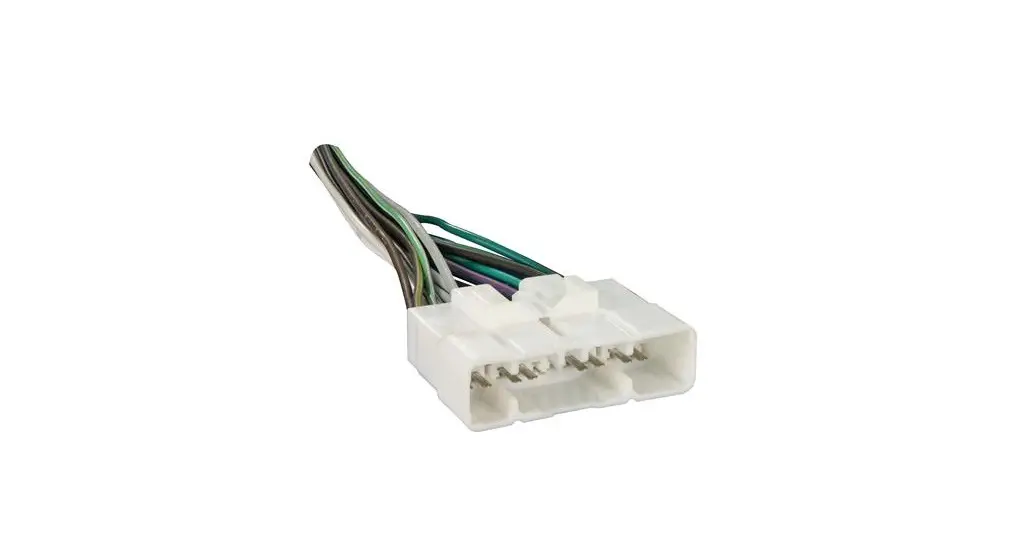
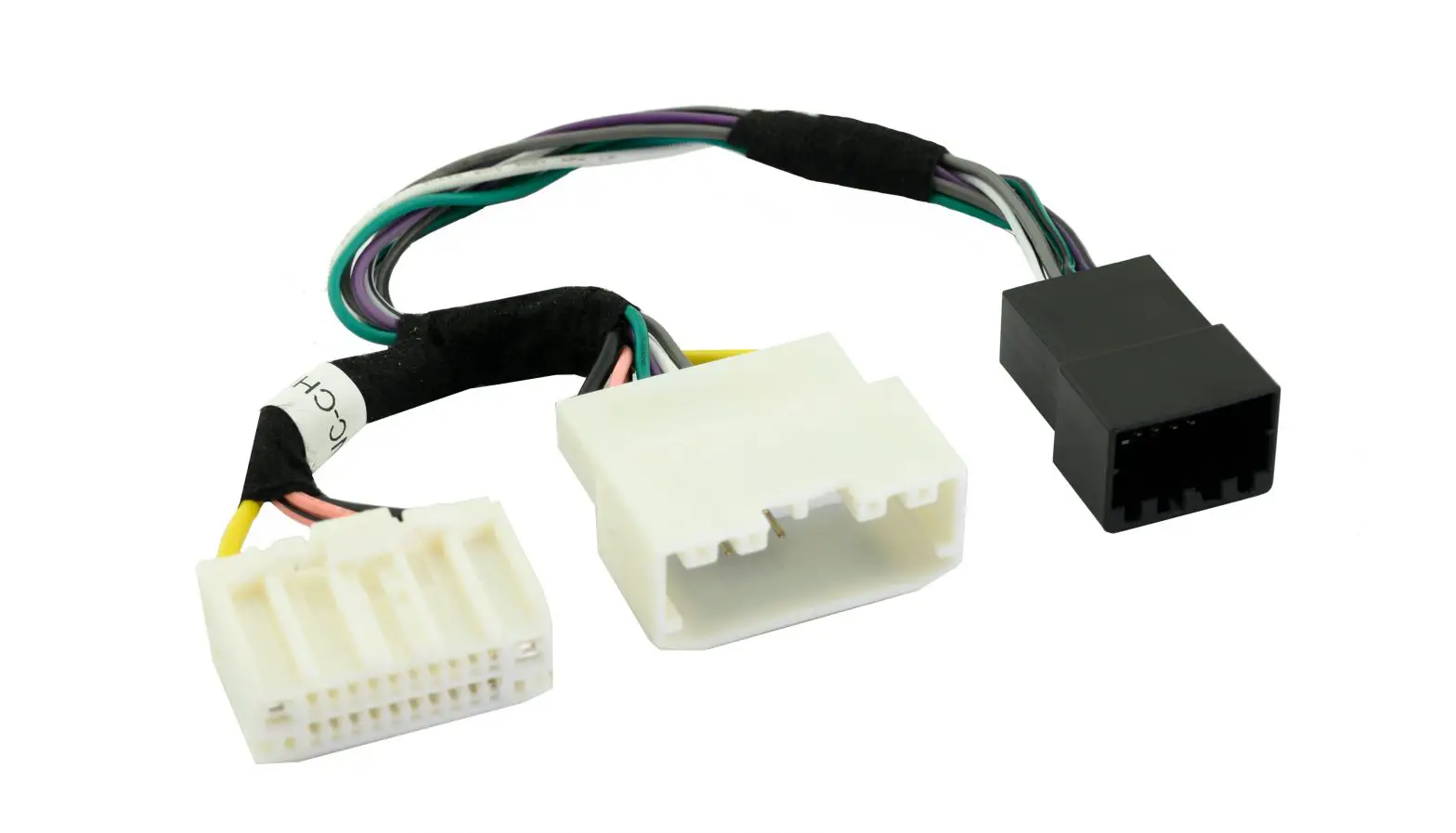
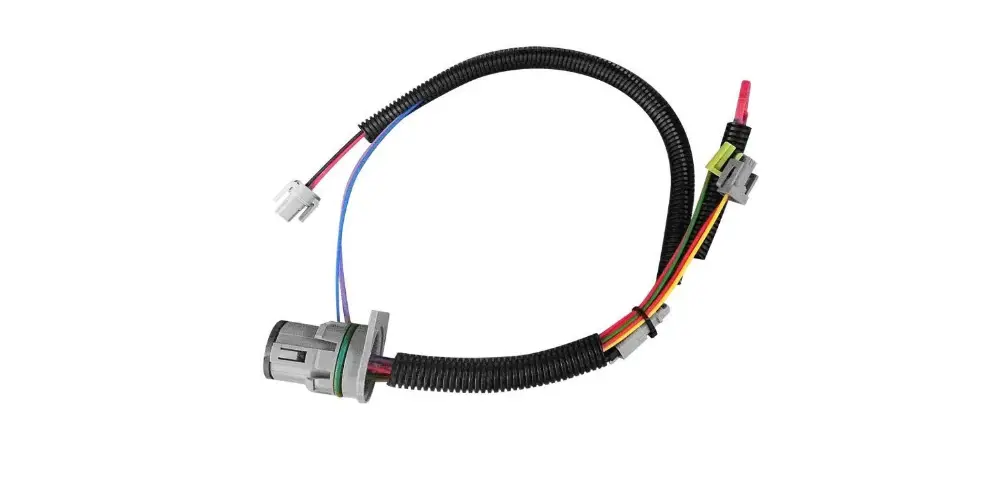
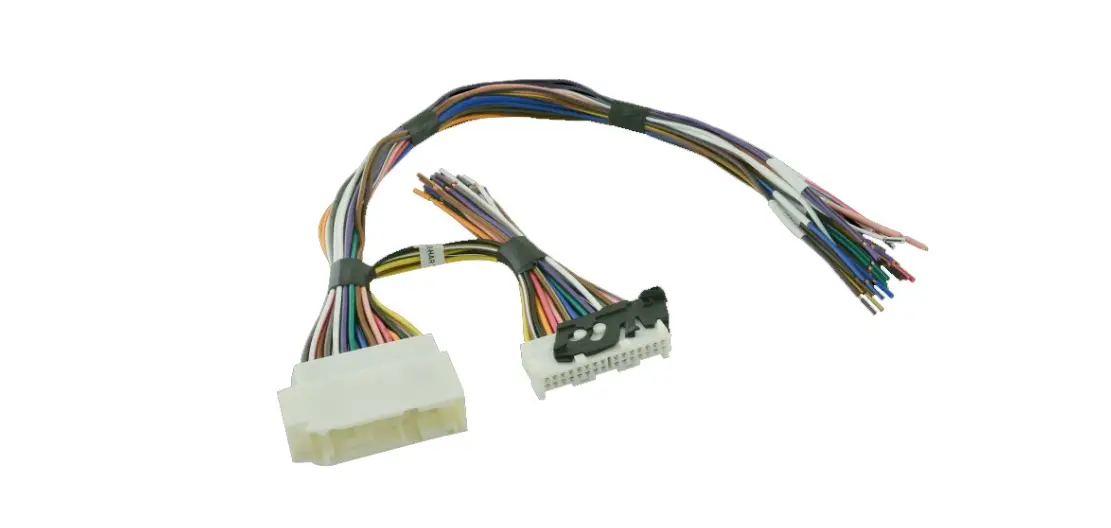
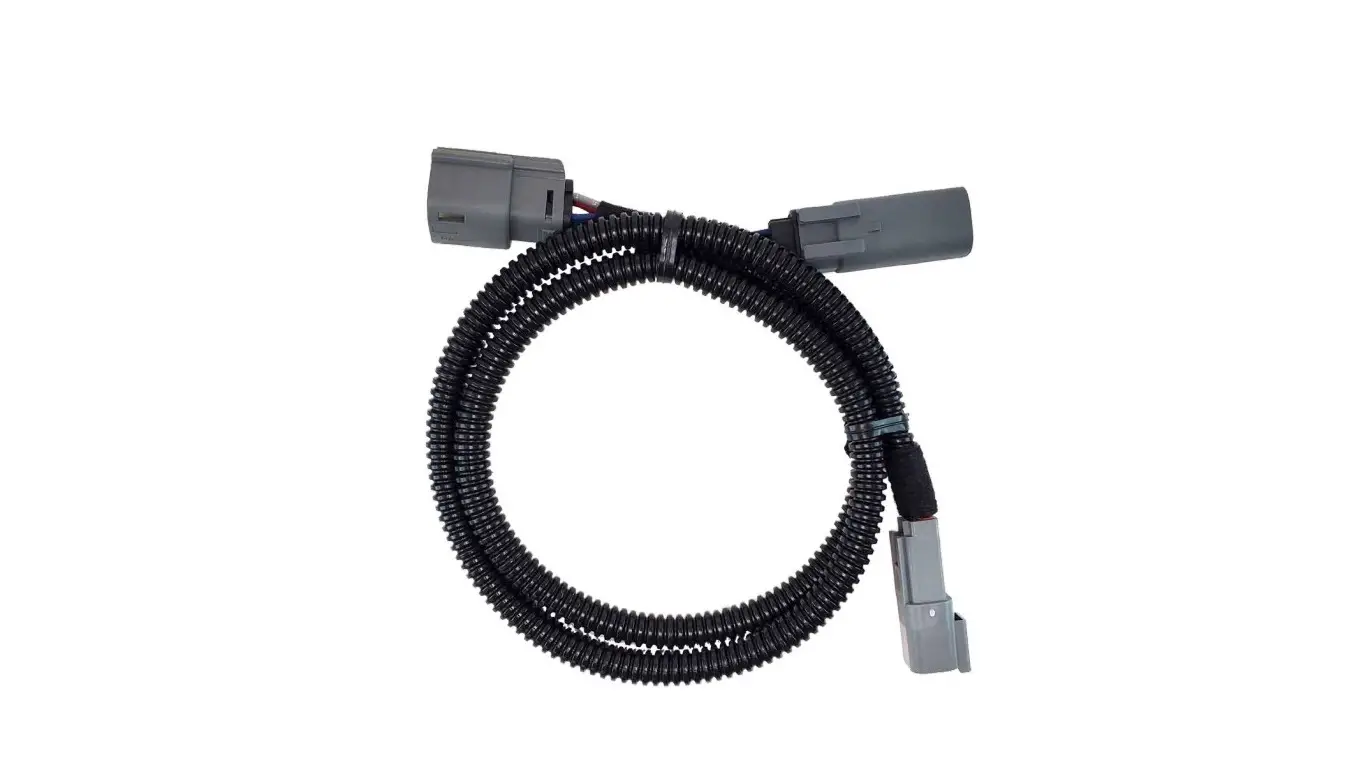
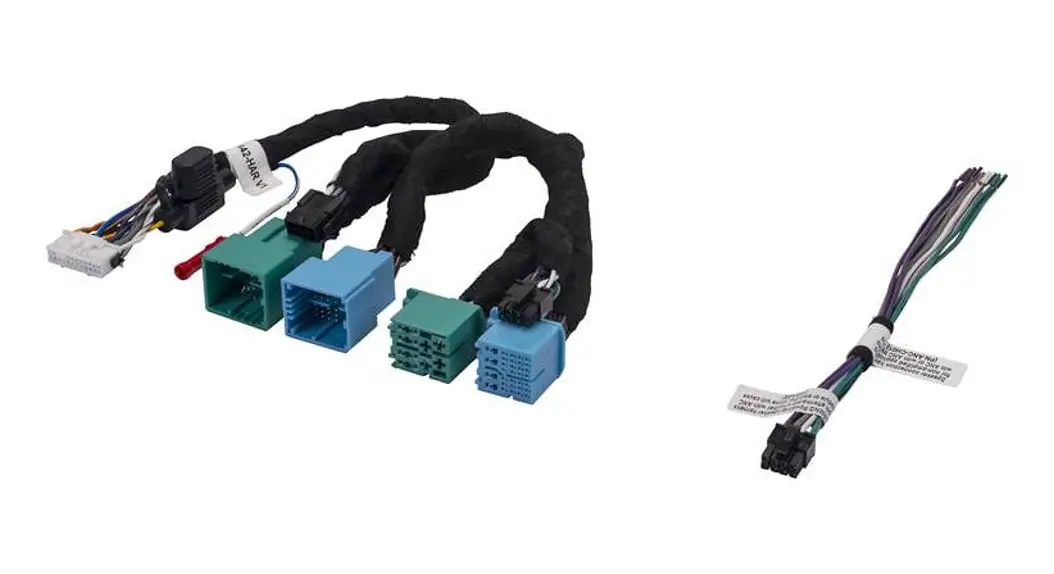
CP1-FRD2 Audio Select Ford CAN Bus Plug and Play Harness
Product Information: Product Name: CP1-FRD2 Product Type: CANPRO
Harness Compatibility: Select Ford Vehicles Features: – Factory
matched plug & play harness – Designed for use with the CANPRO
CP1-S CAN-Bus Interface Module – Compatible with select Ford Model
applications – Connects to the Gateway Module using a 24pin data
harness – Provides access to vehicle information, status, and
triggers from the CAN-Bus – Suitable for aftermarket uses such as
radar detectors, camera activation, sound system upgrades,
lighting, etc. – Outputs are low current (250mA) – Can be used with
a separate relay if additional current is required Product Usage
Instructions: 1. Important Notes: – Any unused outputs should be
insulated to prevent shorting. – The outputs of the CANPRO are low
current (250mA) and require the use of a separate relay if
additional current is required. – The vehicle should be in a
resting state prior to opening connection to the 24pin Gateway data
harness. Refer to the installation note for further information. 2.
Wiring Connection: – Connect the CP1-FRD2 to the factory harness
using the provided wiring connection chart. – Set the DIP switches
on the CP1-S module as shown. 3. Installation Steps: Note: Ensure
that the vehicle is turned off before proceeding with the
installation. a) Locate the OBDII connector at the bottom of the
driver’s side of the dash. b) Remove the two bolts holding the
Gateway in place (7mm or 9/32) for easier installation. c) On the
opposite side of the OBDII connector, you will find a 24pin Gateway
harness. d) Power off the vehicle and unplug the 24pin Gateway CAN
data harness. e) Connect one end of the CP1-FRD2 harness to the
matching connector in the vehicle. f) Connect the remaining vehicle
connector from the CP1-FRD2 to the other end of the vehicle’s
Gateway harness. g) Choose a suitable mounting location for the
CANPro module, ensuring it does not interfere with any vital
vehicle equipment, and secure the module. h) Connect the 16pin
CP1-FRD2 connector into the CANPro module. i) Lengthen and route
any Output wires as needed. j) Insulate any unused Output wires to
prevent shorting. Note: For further details and specific
illustrations, refer to the product manual or installation guide
provided.
CP1- FRD2
CANPRO Harness for Select Ford Vehicles
Introduction and Features
The CP1-FRD2 is a factory matched plug & play harness for use with the CANPRO CP1-S CAN-Bus Interface Module for select Ford Model applications that use a 24pin data harness for connection at the Gateway Module. The harness and module allow a simple and safe way to access vehicle information, status and triggers from the CAN-Bus for a wide range of aftermarket uses such as radar detectors, camera activation, sound system upgrades, lighting and more!
Important Notes
1. Any unused outputs should be insulated to prevent shorting. 2. The outputs of the CANPRO are low current (250mA) and require the use of a separate relay if additional current is required. 3. The vehicle should be in a resting state prior to opening connection to the 24pin Gateway data harness. See Installation note
for further information.
Wiring Connection Chart
To Factory Harness
DIP Switches
Status LED
16pin Interface Connector
CANPRO CP1-S
OuOtpuOutOuptOtuu8OpttuPuOup7OOottutpusPp6uu.tout2uttP5pst5pp.ot0uP42uus3mo5t.Ptt202sAS1o.m95pPs20PAoe.N5mo2es0e5s.Admg.202PA.5mu520A0l5msm0eAmAA
Output Wires 1-9
Outputs
To Vehicle’s Gateway Module
Output 1 Output 2 Output 3 Output 4 Output 5 Output 6 Output 7 Output 8 Output 9
Description Accessory Illumination Speed Pulse Reverse Ignition* Left Turn Signal Right Turn Signal High Beam Parking Brake
Polarity + Positive (250mA) + Positive (250mA)
Pulse + Positive (250mA) + Positive (250mA) + Positive (250mA) + Positive (250mA) + Positive (250mA) – Negative (250mA)
Wire Color White-Red Blue Green-Black Violet-Black Yellow-Black Red-Black Gray-Red Blue-Black Brown-Black
* In Electric Vehicles, Output 5 provides a positive output when the vehicle is in a “Ready to Drive” state.
P ifi A
C
ti
© 2023 AAMP Global. All rights reserved. PAC is a Power Brand of AAMP Global. PAC-Audio.com
Rev: V1 Date: 021323
Page 1
CP1- FRD2
Installation
NOTE! Verify the vehicle is off prior to disconnecting the 24pin vehicle harness and do not turn on the accessory or ignition until the 24pin male and female
connectors from the CP1-FRD2 are connected.
1. Set the DIP switches on the CP1-S as shown in below.
ON
1 2 3 4 5 6 7 8
2. To access the vehicle’s CAN data harness, locate the OBDII connector at the bottom of the driver’s side of the dash. To simplify installation, remove the two bolts holding the Gateway in place (7mm or 9/32″). (FIG A)*
3. The OBDII connector is part of the vehicle’s Gateway module. On the opposite side of the OBDII connector is a 24pin Gateway harness. Photo shows the front of the Gateway after being unbolted from the vehicle. (FIG B)*
4. Ensure the vehicle is Powered Off and unplug the 24pin Gateway CAN data harness.
5. Connect one end of the CP1-FRD2 harness to the matching connector in the vehicle. Connect the remaining vehicle connector from the CP1-FRD2 to the other end of the vehicle’s Gateway harness. (FIG C)*
6. Determine a mounting location for the CANPro module in a place where it does not interfere with the movement of any vital vehicle equipment and secure the module.
7. Connect the 16pin CP1-FRD2 connector into the CANPro and lengthen and route any Output wires needed. Insulate any unused Output wires!
8. After wire connections and testing are complete, secure the CP1-S module and reinstall the Gateway Module.
*2020 Ford Ecosport used for photos. Other CP1-FRD2 applications may vary slightly.
CANPRO Harness for Select Ford Vehicles
FIG A
FIG B
FIG C
P ifi A
C
ti
© 2023 AAMP Global. All rights reserved. PAC is a Power Brand of AAMP Global. PAC-Audio.com
Rev: V1 Date: 021323
Page 2
CP1- FRD2
LED Status Information
CANPRO Harness for Select Ford Vehicles
ACTION/COLOR
Description
Fast Flashing RED
Update mode, for updating of the application or resource files.
Slow Flashing (0.5sec) GREEN Normal Operation
Slow Flashing (0.5sec) GREEN, plus additional 0.5sec RED
System Fault. The number of times the interface flashes RED indicates the channel (output) with a fault condition. For example, if the LED flashes GREEN, then flashes RED twice, then back to Green, Channel 2 has a fault condition. To check the fault, see Troubleshooting section below.
Troubleshooting
1. No LED activity: Disconnect and reconnect the CP1, does the LED flash? If not, check the 3 amp fuse in the fuse-holder that is located 2 inches from the 16pin connector on the Yellow wire.
2. No Outputs: Verify the DIP switch setting is correct (Installation section, FIG A). If the DIP switch setting needs to be changed, unplug the CP1, change the DIP setting and then reconnect. If the LED is flashing green, test the outputs using a multimeter. If the multimeter is showing the proper output, add a relay to the output to increase current capability.
3. System Fault: Disconnect the faulty output (1-9), disconnect and reconnect the 16pin connector to the CP1 so that it loses and gains back power and ground, does it stop flashing red? Check wiring to faulty output to make sure it is not shorted to ground, or add a relay.
Technical Support
Email: [email protected] Phone: 727-592-5991 Chat: PAC-Audio.com
P ifi A
C
ti
© 2023 AAMP Global. All rights reserved. PAC is a Power Brand of AAMP Global. PAC-Audio.com
Rev: V1 Date: 021323
Page 3
 audio.com - a better way to upload and share audio online
 PAC – Connecting cars and technology. Your total installation solution.