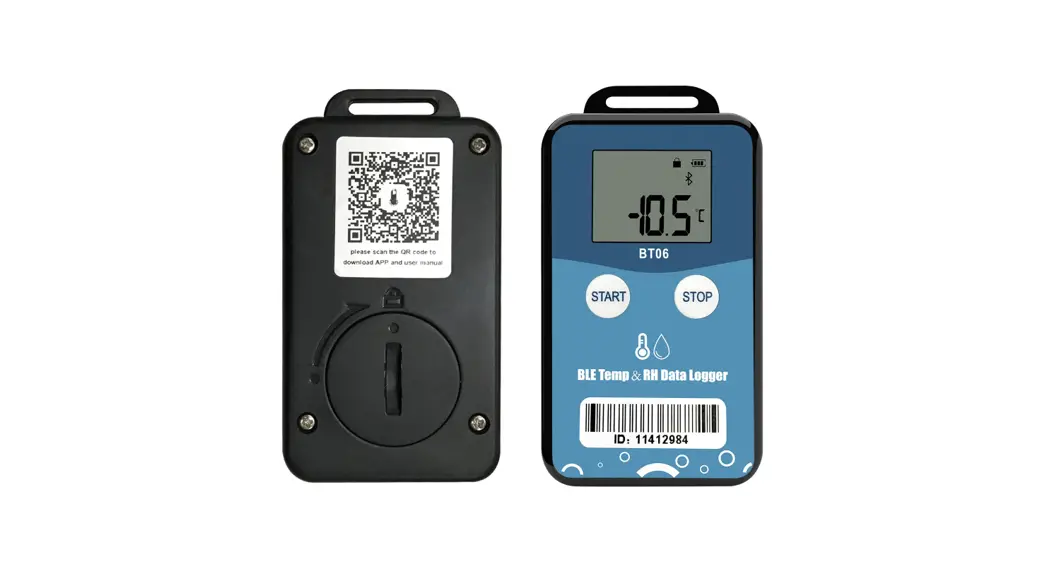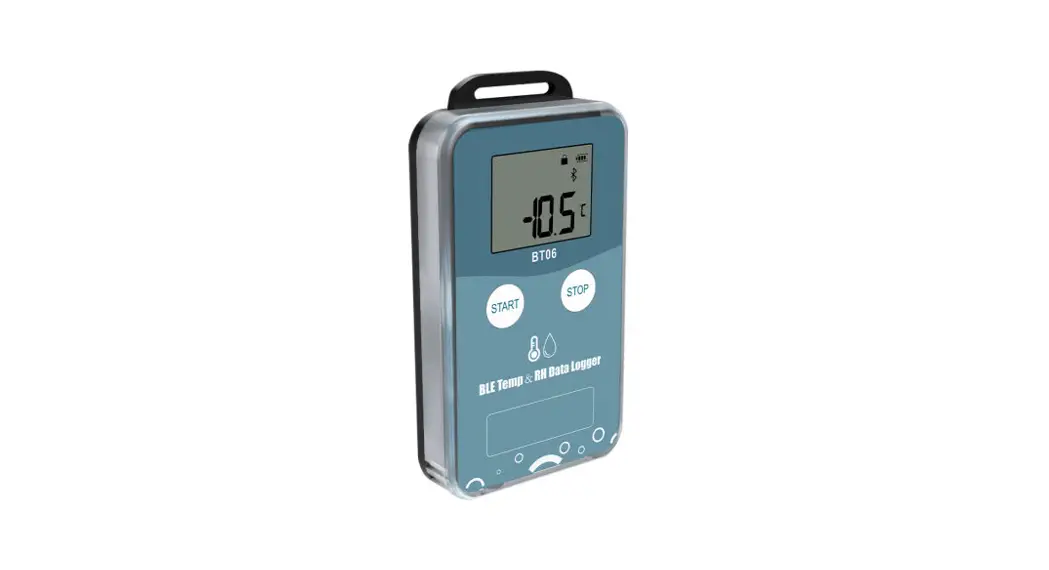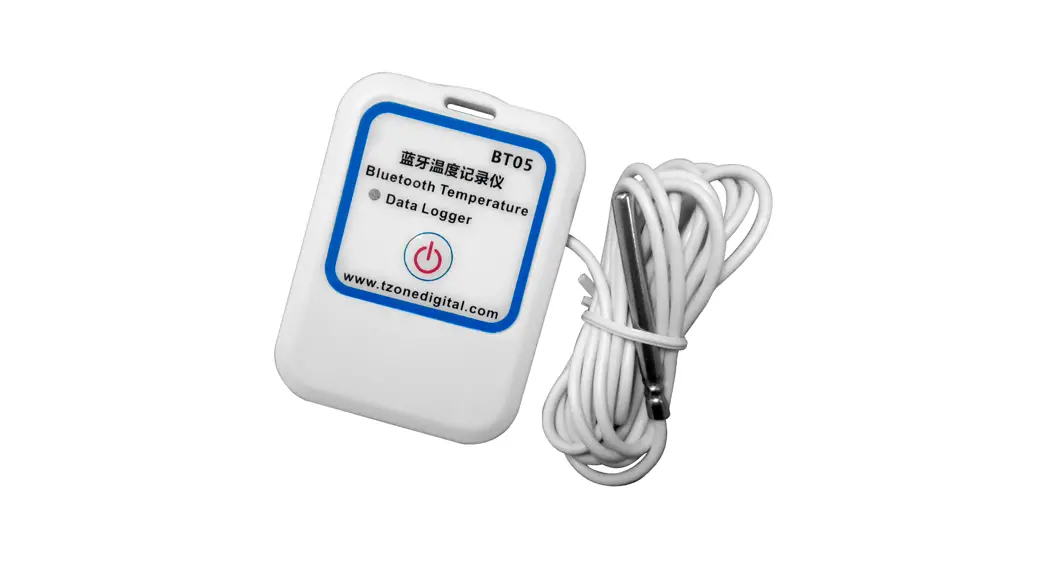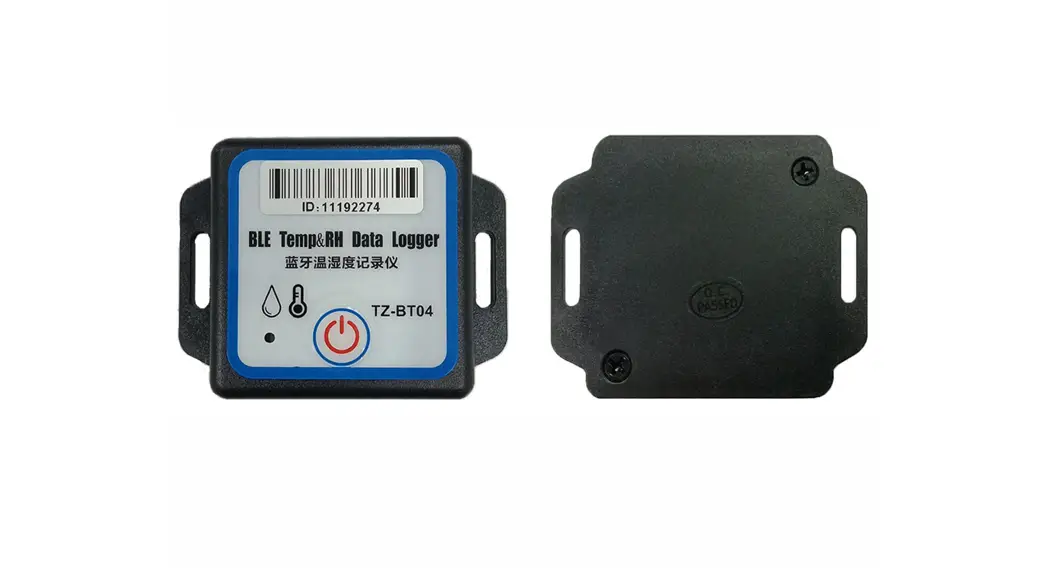
 TZ-BT03 Bluetooth Low Energy Temperature Data Logger
User Manual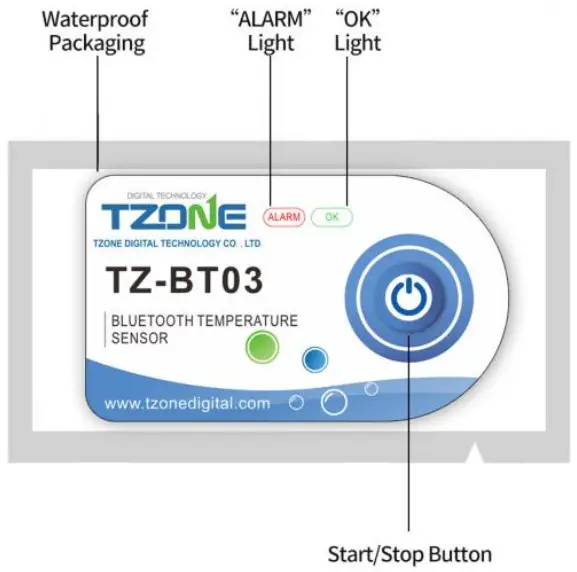
Product overview
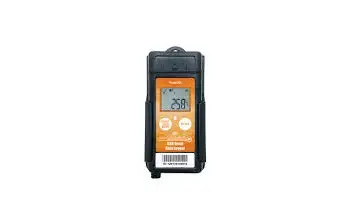
TZ-BT03 is Bluetooth Low Energy temperature data logger with the latest Bluetooth 5.0 technology. It can collect temperature of the surrounding environment. Such data can be recorded as history data. BT03 can store up to 53248 pieces of the temperature data.Mobile phone with Bluetooth 4.0 or above can download and install App.It can store and monitor temperature of the environment comprehensively. Its characteristics are small-sized, low-weighted, easily portable and highly accurate for wide use in cold chain logistics, archives, labs, museums, etc.
Product application
- Refrigerated storage and transportation;
- Archives;
- Experimental (test) rooms;
- Workshop;
- Museums;
- Pharmaceutical environment;
- Fresh transport.
Product features
- High accuracy and stability;
- Bluetooth 5.0;
- Built-in highly sensitive temperature sensor;
- Real-time broadcast temperature;
- It can store 53248 pieces of temperature data(when the storage space is full, the first 512 pieces of data will be overwritten);
- Can be set the scope of temperature alarm;
- History report can be sent to specified email;
- By pairing Bluetooth printer to print the data report;
- Can by OTA update version.
Product specification
| Item | Specification |
| Protocol standard | Bluetooth 5.0 |
| Send interval | 1S, adjustable |
| Built in battery | 620mAh /3V(can’t replaceable) |
| Output power | 0dBm, adjustable |
| Transmission distance | 0dbm:100 meters 4dbm:120 meters |
| Storage | Can be save 53248 temperature data |
| Operating temperature range | -20℃~ +60℃ |
| Temperature detection accuracy | ±0.5℃(-20~40℃),±0.5℃(other) |
| Temperature resolution | 0.1℃ |
| Record Interval | 10min(10s~180h) |
| Alarm Range | Temperature alarm: 2℃~8℃,adjustable |
| battery life | 1 year(Normal temperature 25℃) |
| Protection grade | IP67(Contains waterproof bag) |
| Net weight | 14g |
| Outline size | 62mm*36mm*5mm |
Caution
- Being close to a metal object will interfere with the signal, causing the signal to be weaken;
- Note the distance between TZ-BT03 and the receiver to guarantee the accuracy of receiving
- Keep away from water and corrosive objects.
Switch Instructions
| Device status | Operation | Indicator Status | Instructions |
| Turn on | Under unopened state, long press button for 3 seconds | Green light bright for 3s | Turn on the device, start send the real-time data„then start record the data.(the recording isenabled by default. If the recording is disabled through the APP, also needs to be enabled through the APP) |
| Turn Off | Open state, long press the button for 3 seconds | Red light bright for 3s | Turn off the device |
| initialization | Open state,short press the button for less than 3 seconds | Green and red lights bright once at the same time | The device has been started and is in the initialization state after the configuration is saved.need to start recording data through APP |
| Device status | Operation | Indicator Status | Instructions |
| Query data record status | Open state, short press the button for less than 3 seconds | Green light bright once | The device has been started and is inthe recording or stopping state, and does not alarm |
| Shorten the broadcast time | Red light bright once | The device has been started and is inthe recording or stopping state, and alarms | |
| Green and red lights bright once at the same time | The broadcast is switch to 0.1 second interval to speed up the connection for 15 seconds, then back to the preset broadcast interval |
APP
‘Temp Logger’ is a free mobile applications which provided by our company to the users, can connect the BT03 through the Bluetooth of the mobile devices and do the settings,data transmission, recording, synchronization, send to email. Apply the Bluetooth BLE way, so you can use phone for temperature monitoring. download the Android APP, please do as follows:
Android download: Scan the following QR code;
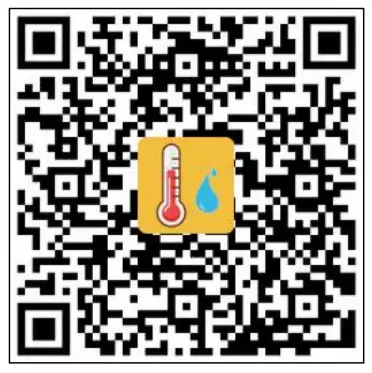 http://www.tzonedigital.com/app_download/btlogger_en-us.html
7.1 Device Registration
7.1.1 Open the APP, enter the device ID directly to register on the homepage, or scan the QR code to get the device ID, or do not enter any ID and directly click search to find the device .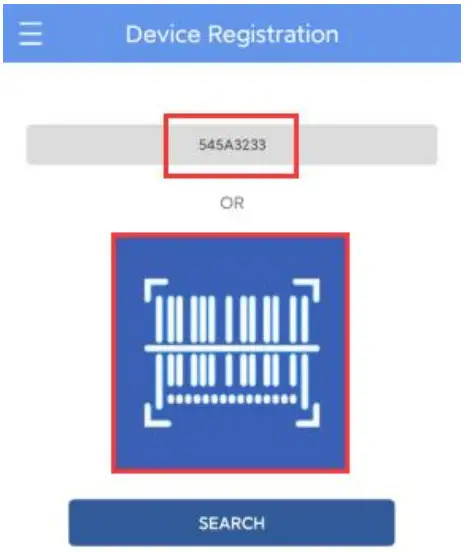 7.1.2 Enter the device connection page and click Connect. After a successful connection, the device ID will be displayed on the “Devices” page, indicating that the device has been registered successfully .
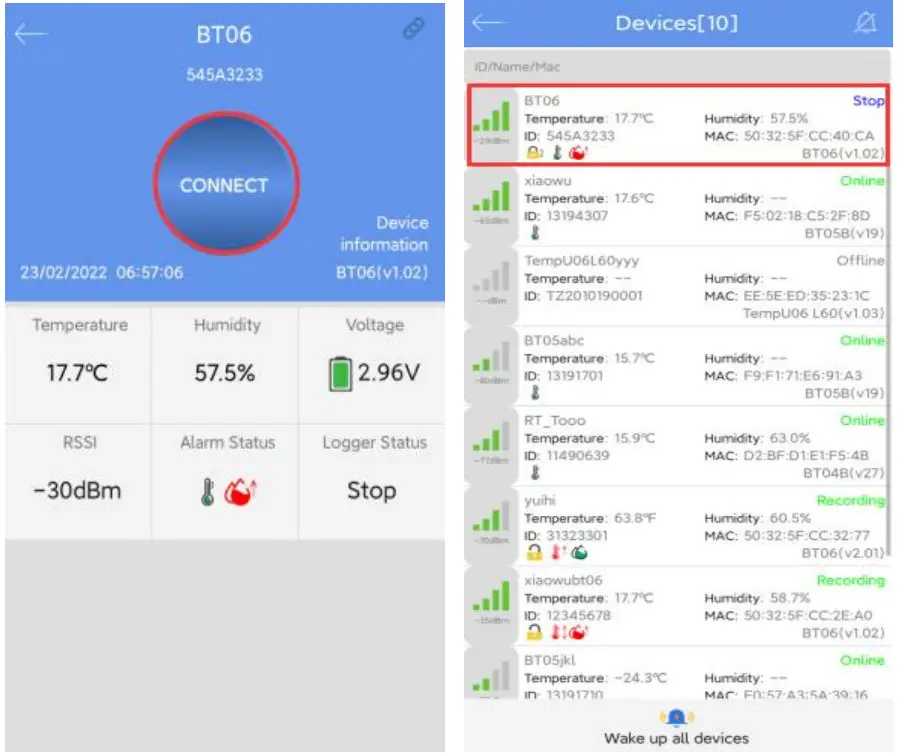 7.2 Device View
Click the icon in the upper left corner of the home screen to expand the main menu. You can select the menu function and click “device” to enter the multidevice interface. The functions of the device interface are as follow: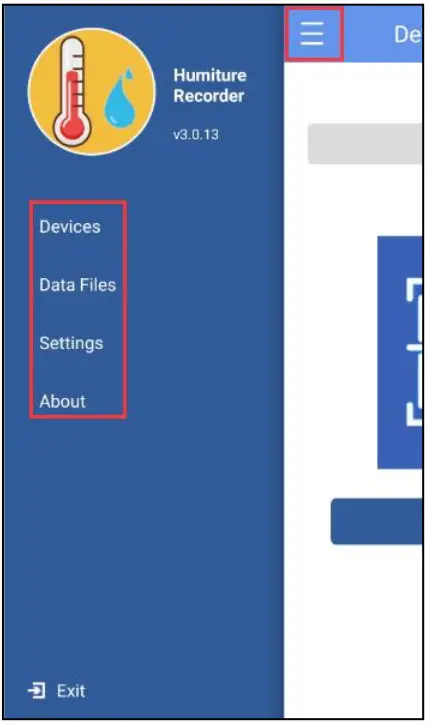 7.2.1 To view device information
The name, ID, MAC, temperature data, model, and status of all the current devices can be viewed, or you can view the specific device information by ID, name, and MAC.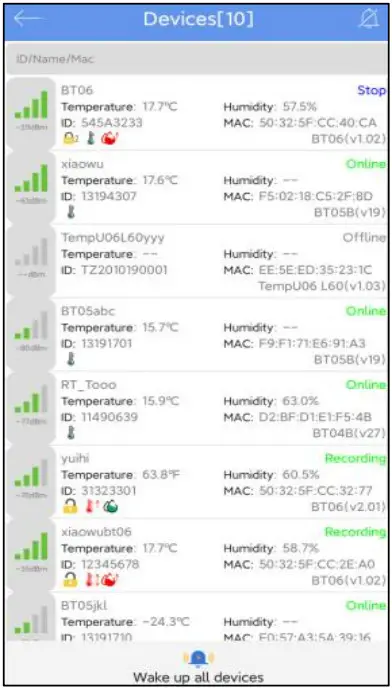 Status description of the device in different symbols:
| Temperature icon display | Status |
 | Temperature normal |
 | Upper temperature alarm |
 | Lower temperature alarm |
 | Upper and lower temperature alarm |
7.2.2 Delete the device:
Long press to delete the device: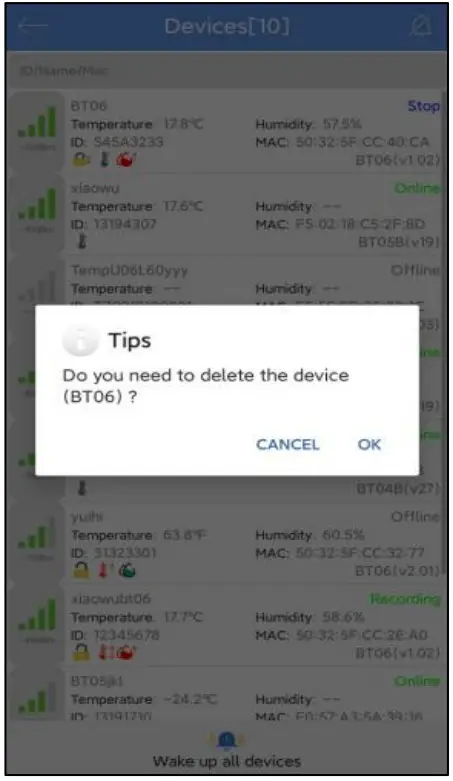 7.2.3 Device alarm:
When the device exceeds the preset upper or lower limit, the alarm information will be displayed, and the alarm bell will ring. Clicking “CLOSE ” to turn off the alarm information and alarm bell.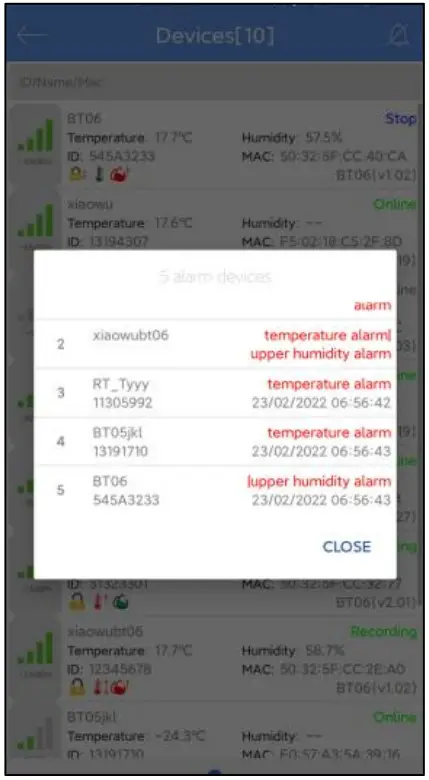 7.3 Device connection
Click a single device quickly to enter the connection interface. It will display the temperature, voltage, RSSI, alarm status and logger status of the device. Click “CONNECT,” and jump to update after the connection is successful, indicating that the device has been successfully connected and read the current data content. After the connection is successful, it will prompt you whether to view the report, or the access key and flight mode of the device will be displayed. Four buttons will be displayed at the bottom of the interface: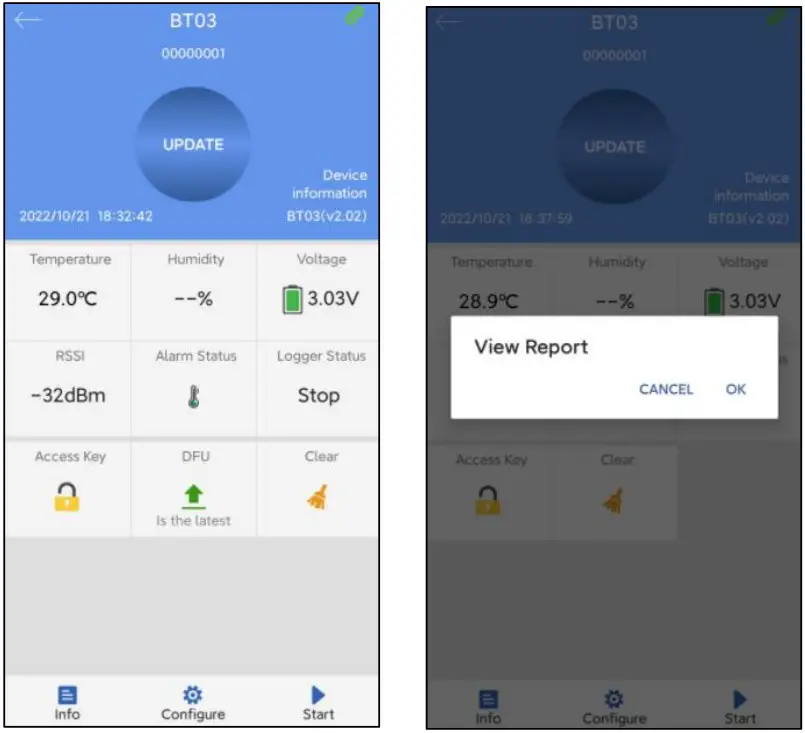 Note: The device will not update the data in the connection process. By default, the device will be disconnected after 1 minute and the four buttons at the bottom will become gray and cannot be clicked again.
7.3.1 Device access key
Click “Access Key” to encrypt the device, and set the level-1 and level-2 access keys.
7.3.2 Clear data
Click “Clear” to delete all data stored on the device.
7.3.3 Firmware upgrade
The firmware upgrade function is disabled by default. If this function is enabled in system Settings, click Firmware Upgrade to upgrade the current version to the latest version. If the current version is the latest version, it cannot be upgraded.
Note: Please do not exit the APP interface during the upgrade process, otherwise the device may be damaged.
7.3.4 Detail and email/print/selection period report function
Click “Detail” to view all information reports of the device. Click “EXPORT” to generate PDF and CSV reports, and send the reports to the designated mailbox by email,Click “Print” to automatically search the name of Bluetooth printer. Click the name to automatically pair and print the data report.Click the upper right corner to select the time period to generate the report.
A: Details summary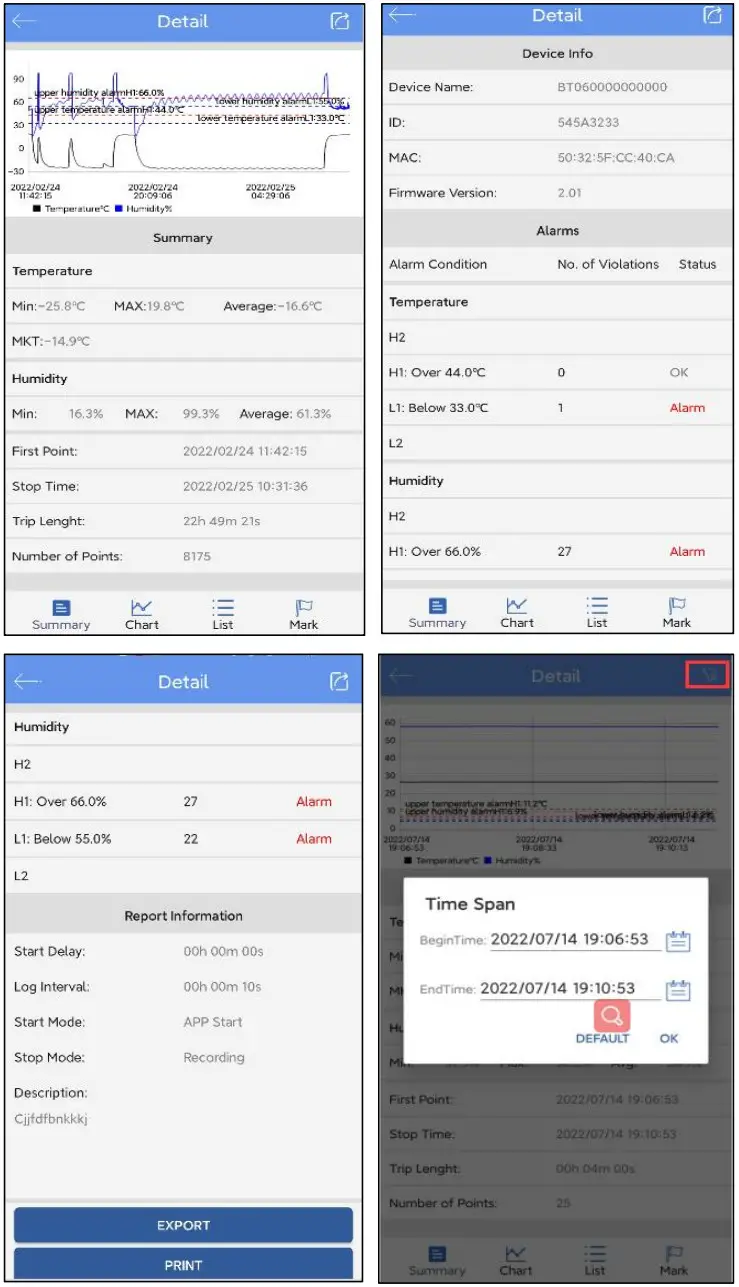 Note:
Note:
- The smartphone must have a mailbox APP and login account to send email.
- The Bluetooth printer designated by our company must be connected.the Bluetooth name is “MTP-II” and the password is “0000”.
- Only the Android APP has print and select time to generate the report function.
B: Chart: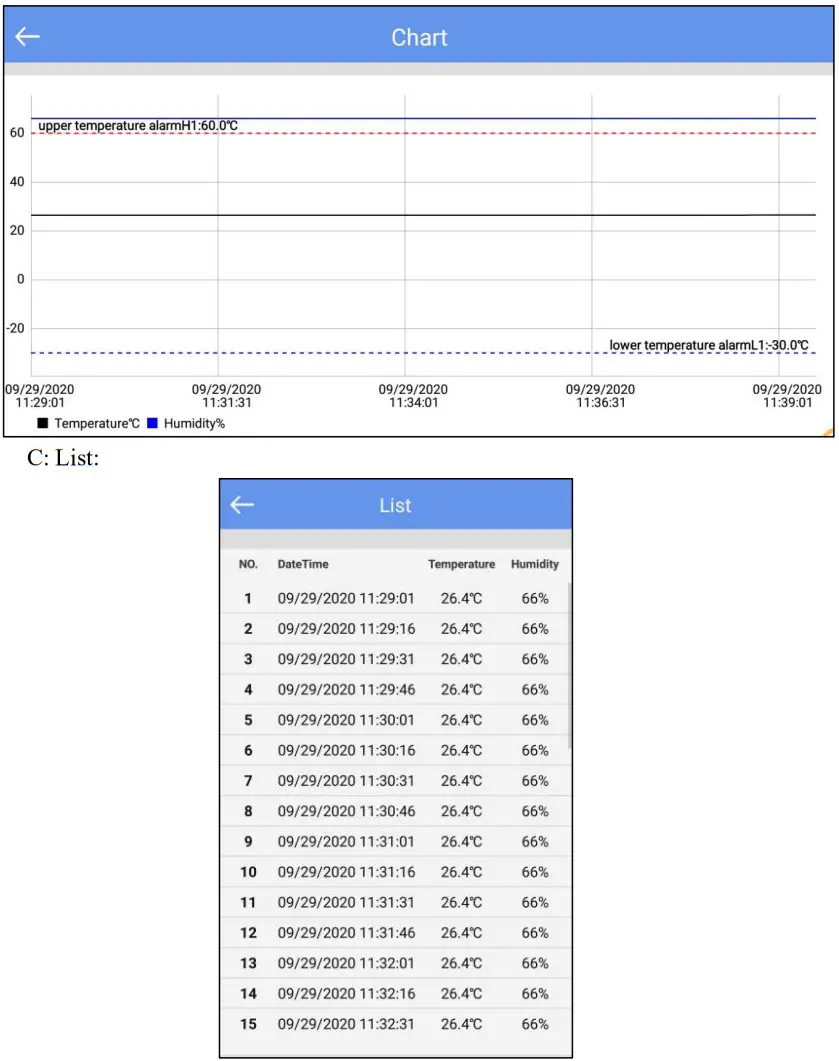
7.4 Configure device
After connection, when the device does not start recording, you can click “Configure” to set the device.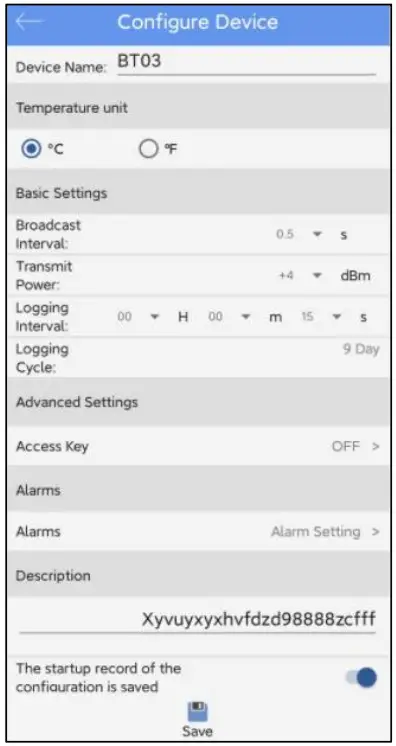 7.4.1 Device name: The device name can be modified (up to 15byte) by users.
7.4.2 Temperature unit: Celsius(℃ )/Fahrenheit(℉)
7.4.3 Basic settings:
A: Broadcast interval: The device broadcast interval (range: 0.5s ~30s, default:4dbm),
B: Transmission power: The device transmission power(range:0dbm~4dbm, default:4dbm).
C: Logging interval: Record time of the stored data (range:10s~18h, default:10mins).
D: Logging cycle : It changes with the logging interval.
7.4.4 Advanced settings:
A: Access key: The password is configurable and disabled by default (Range: 6digits).
7.4.5 Alarms:
Temperature(Range: -20~60 ℃)
H1: High temperature limit:8℃
L1: Low temperature limit:2℃
7.4.6 Description: You can set a description for this device (up to 56 characters).
7.4.7 Save the configuration and then start the record:
Select Enable:Click “Save” will automatically start the record.
Select Disable:Click “Save” will not automatically start the record.
Note: Click save, historical data will be deleted.
7.5 Start/Stop recording
To start/stop recording by clicking “Start”/”Stop” on the APP.
Note: Once clicking “Start”, historical data will be deleted.
7.6 Data files
Click the “Data Files” menu bar to enter to the data files interface. The functions of the device interface are as follows: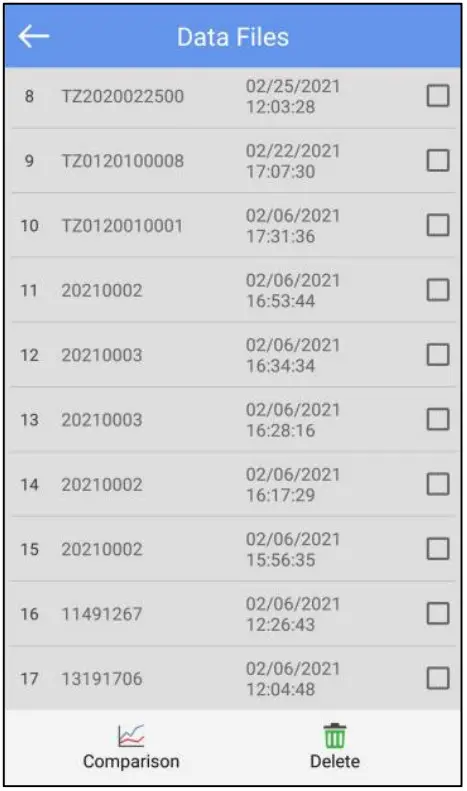 7.6.1 To View a single data file
The time displayed in this file is the time when the device data is read for the first time. The information will be updated after each read until the machine stops recording.
7.6.2 Chart report comparison supporting up to 5 files
Check the data file and click “Comparison” to compare the temperature chart reports of different data files.
7.6.3 Delete data file
Check the data file and click “Delete” to delete the data file.
7.7 System setting
Click the “System setting” menu bar to enter the system setting interface. The functions of the system setting interface are as follows: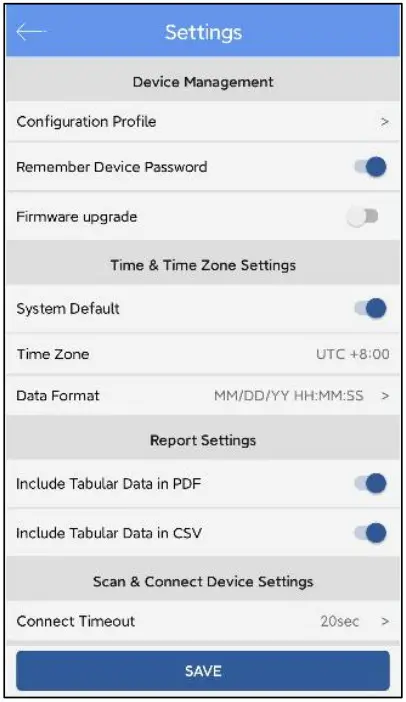 7.7.1 Device Management:
- Configuration file:You can view the configuration file saved in “Configure”.
- Remember the device access key:
Don’t turn on the switch: enter the access key every time you connect the device Turn on the switch: when connection the device, you only need to input the access key once (default: remember the key) - The firmware update:
Don’t turn on the switch: Firmware upgrades are not allowed
Turn on the switch: After connection, there is firmware upgrade function(default)
7.7.2 Time&Time zone Setting(Only for generating reports through the APP):
- System default/Time Zone:
Don’t turn on the switch: is UTC time zone or another time zone as you choose Turn on the switch:is the current time zone of the system (default: system default) - Data Format: MM/DD/YY HH:MM:SS(default) or DD/MM/YY HH:MM:SS
7.7.3 Report settings(Only for generating reports through the APP):
- Include Tabular Data in PDF: Select include or exclude (default: include).
- Include Tabular Data in CSV: Select include or exclude (default: include).
7.7.4 Scan and connect device Settings:
A. Connection Timeout: If there is no connection within the specified time, it is considered as connection timeout(default: 20 seconds).