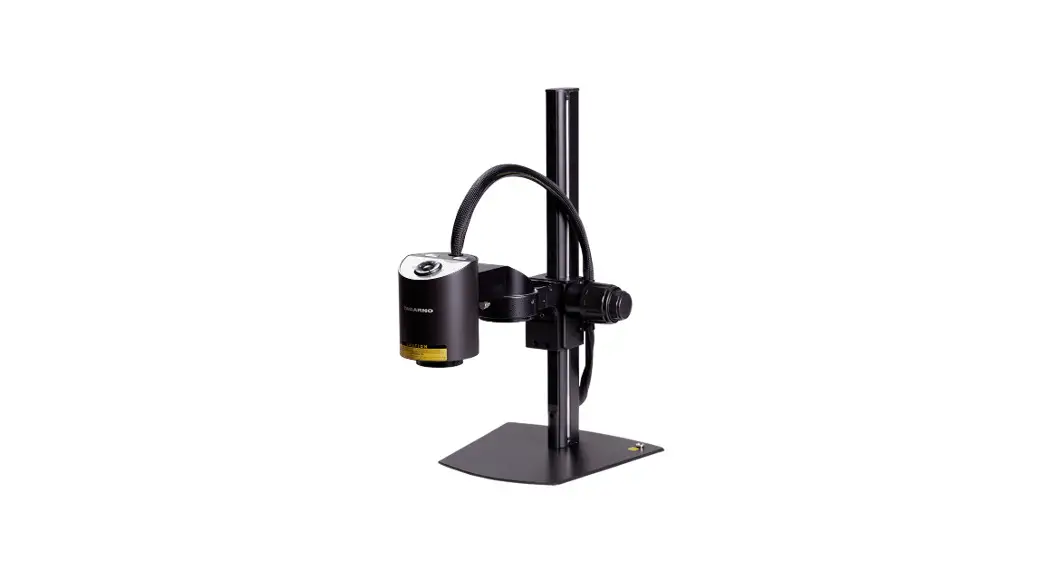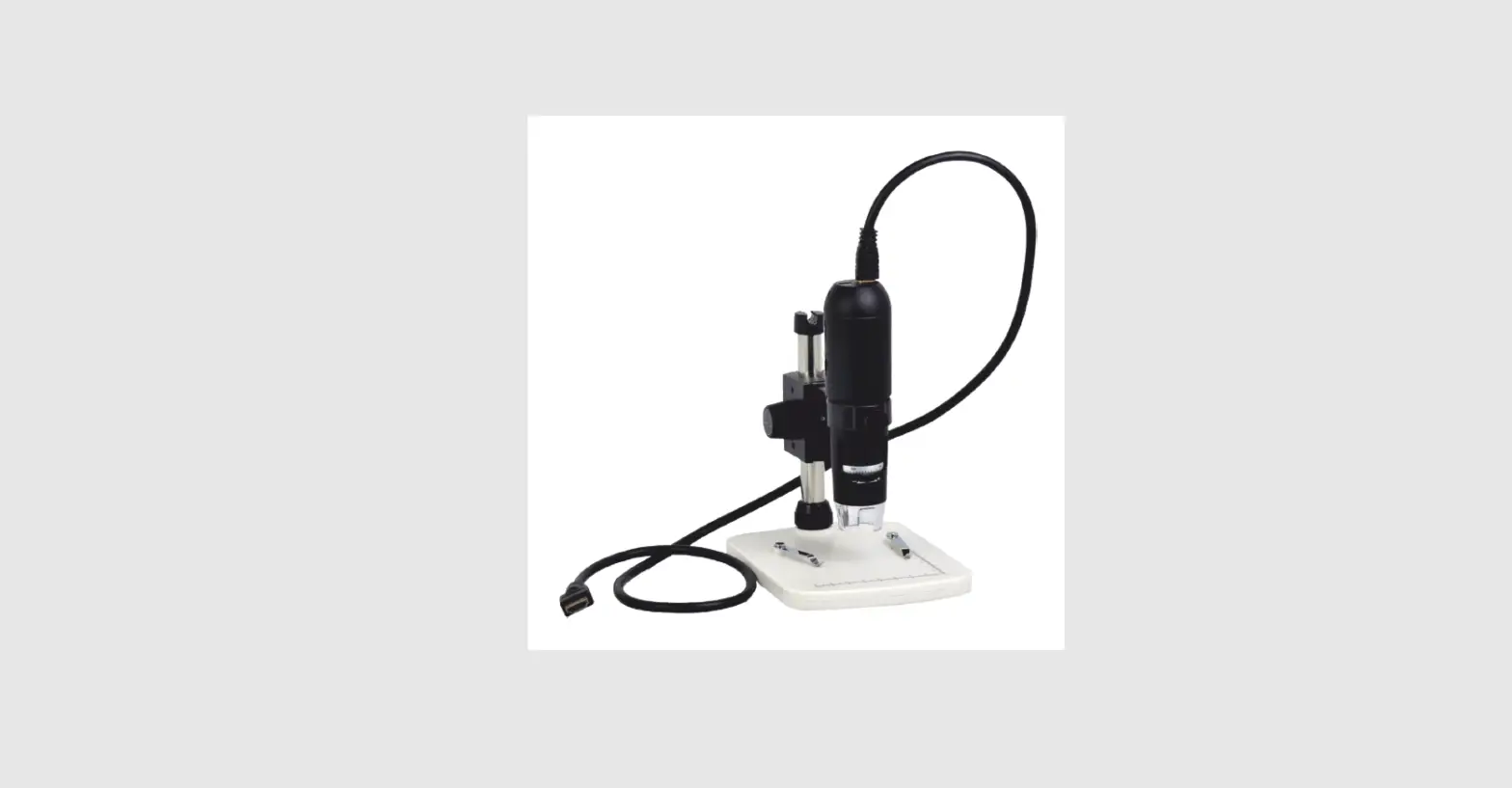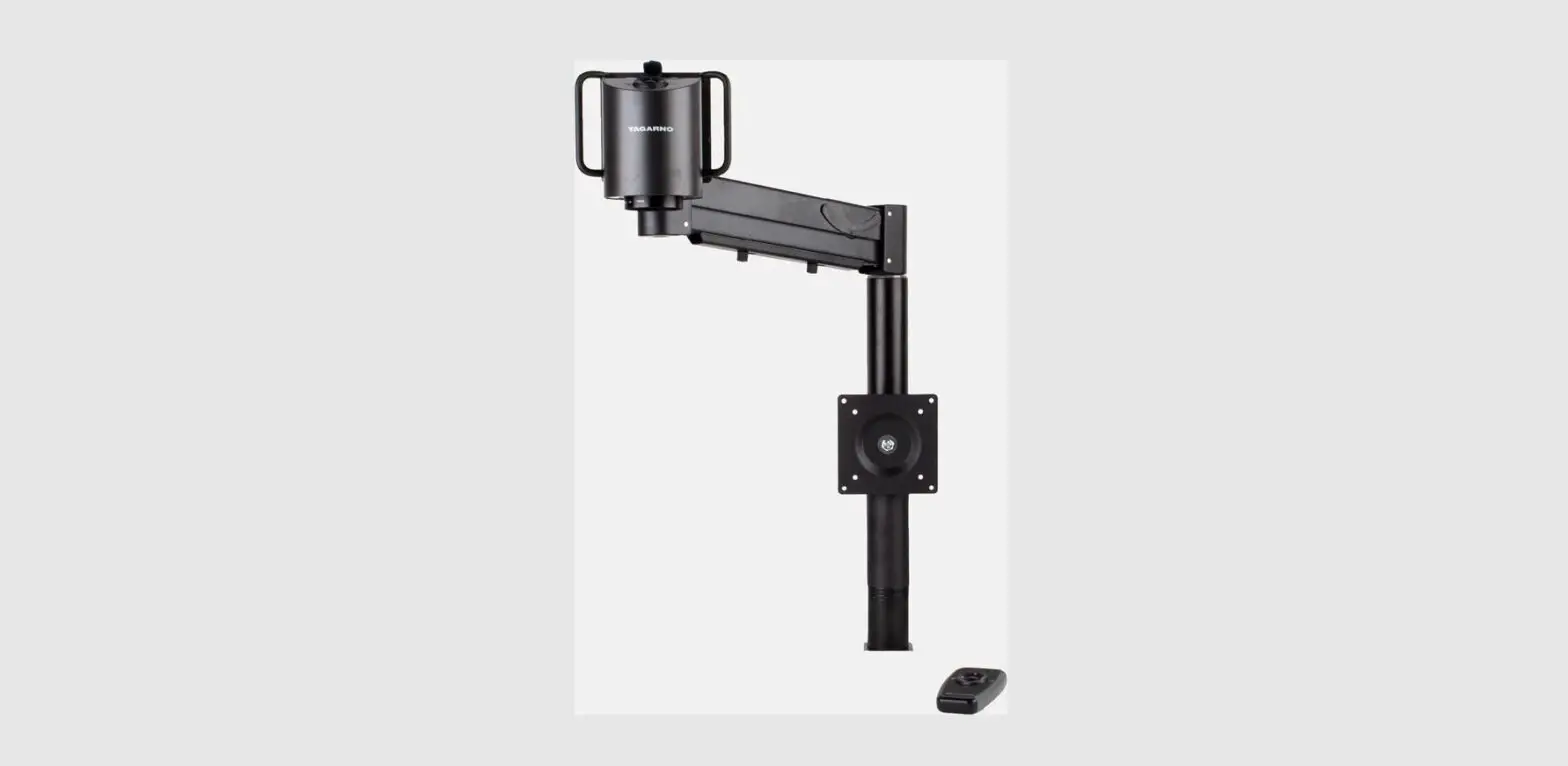

TAGARNO FHD ZAP Digital Video Microscope

INTENDED USE
The product is a digital magnifying system consisting of a camera unit, PCBs, mechanical parts, and a power supply. The product is intended for marketing worldwide and is designed for manual visual inspection.
WARNINGS
Read all safety information before you use the product. Please pay attention when you see a warning label on the product. This product is for indoor use only. You must not discard this electrical/electronic product in domestic household waste. Please dispose at your local recycling center.
- Read the manual before you use the product
- Use the product only as specified, or the protection supplied by the product can be compromised
- Do not position the equipment so that it is difficult to operate the disconnecting device (appliance inlet of external power supply, equipment input connector)
- If fluids are spilled on the product, turn the system off immediately by pulling the power supply out of the electrical outlet
- In case of fire close to the microscope, please turn off and disconnect the system
- Avoid subjecting the lens to sharp or hard objects
- Please do not connect the microscope, if visible damages appear
- Do not dismantle any parts of the microscope, except where noted in the manual
- Never disassemble or clean internal optical surfaces
- Use only the power supply provided by TAGARNO
- Always turn off the system before unplugging, when possible
TIPS
- When applicable, use both hands to move the XY Table
- When applicable, use both hands to adjust the height of the product
- Avoid touching the lens
LASER POINTER WARNING
This product is equipped with a red laser pointer to enable easy alignment of the camera and areas of interest during the inspection process. This product is a Class 2 laser product that complies with the IEC60825-1 international standard for lasers.
CAUTION
Follow these safety instructions when using the product.
- Never look directly into the laser aperture
- Do not point toward anyone deliberately
- Leave the laser on only when necessary
- always turn off the power during service and maintenance
- service may only be performed by trained personnel appointed by TAGARNO
These labels appear visible on the product:
- This label is placed near the laser aperture
- The label below is placed on the camera head
YOU HAVE RECEIVED

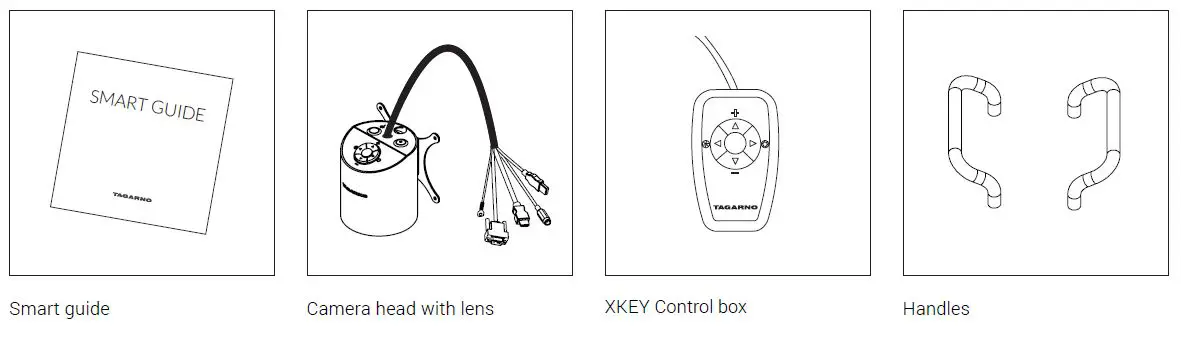
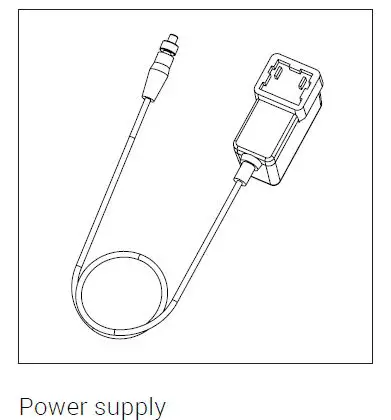
OPTIONS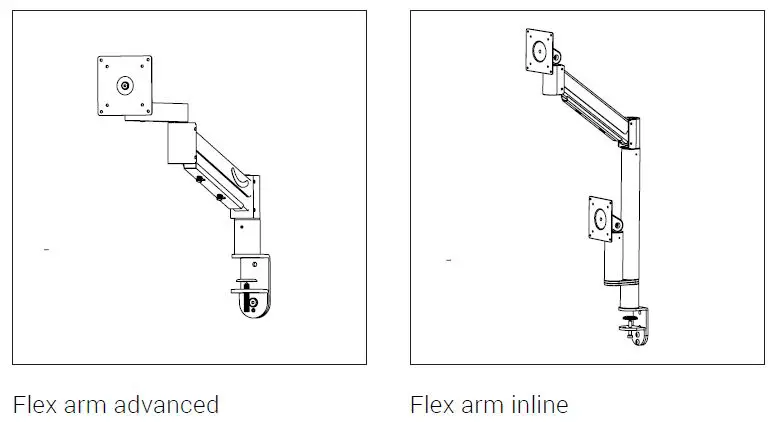
ASSEMBLING – FLEX ARM
ASSEMBLING FLEX ARM (1/2)
TIP
Find the “How to Install” tutorial video here: www.tagarno.com/installzap
Mount the table mount using the table clamp. Assemble the bottom of the flex arm and the table mount.
NB: For maximum stability at all magnification levels, make sure to mount the microscope on a sturdy table.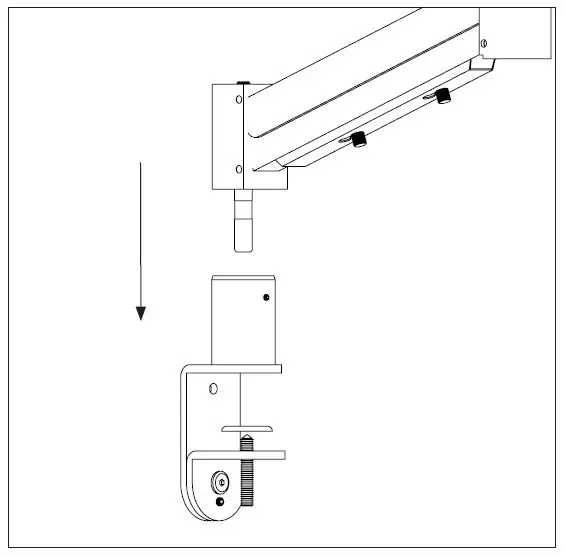
Mount the microscope to the top of the flex arm using the VESA bracket, screws, and handles.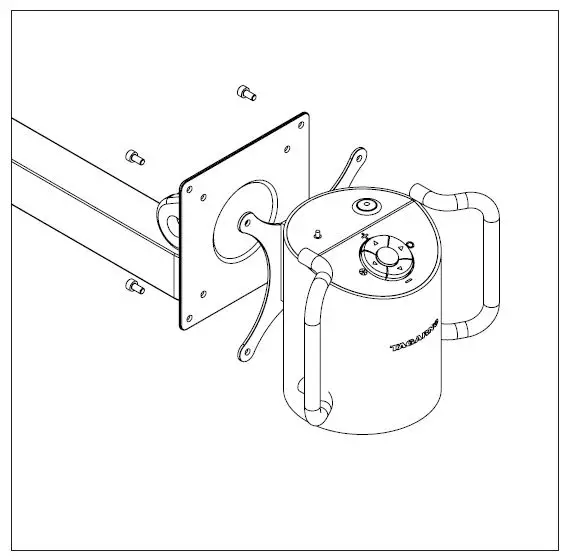
Assemble the flex arm by slotting the two arms together.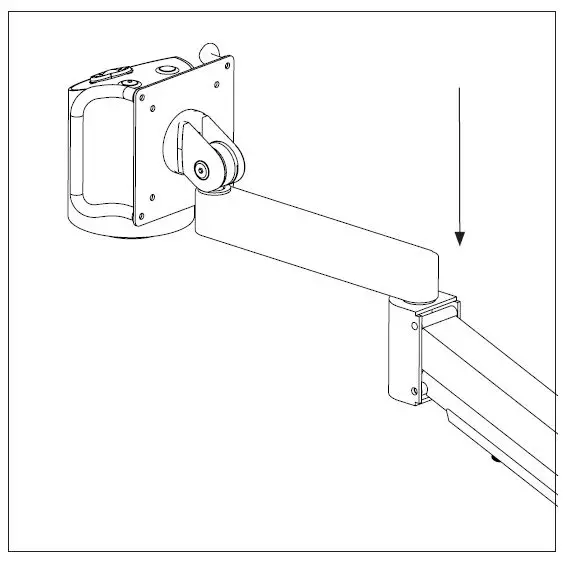
Press the cables into place in the slot on the flex arm and secure them by screwing the cable holder into place on top.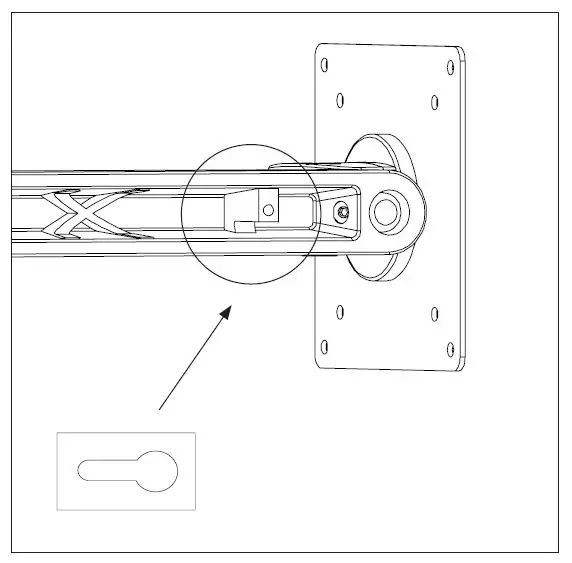 ASSEMBLING | FLEX ARM (2/2)
To increase stability, adjust the flex arm weight with the included Allen key. Turn it clockwise to decrease stability or counterclockwise to increase stability.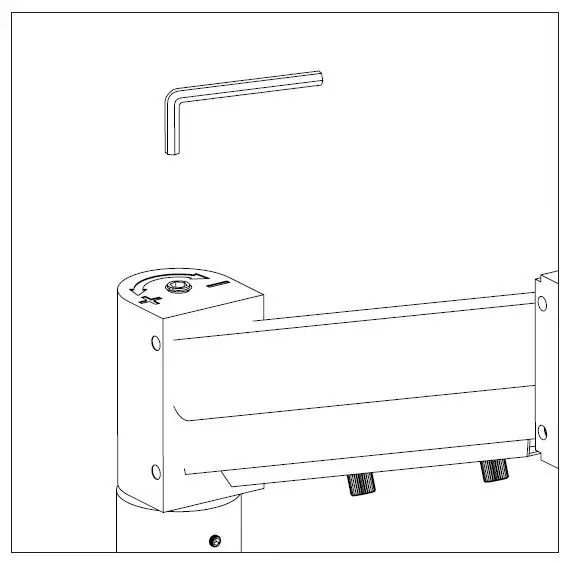
For extra stability in locked positions, remove the rubber covering on the side of the flex arm.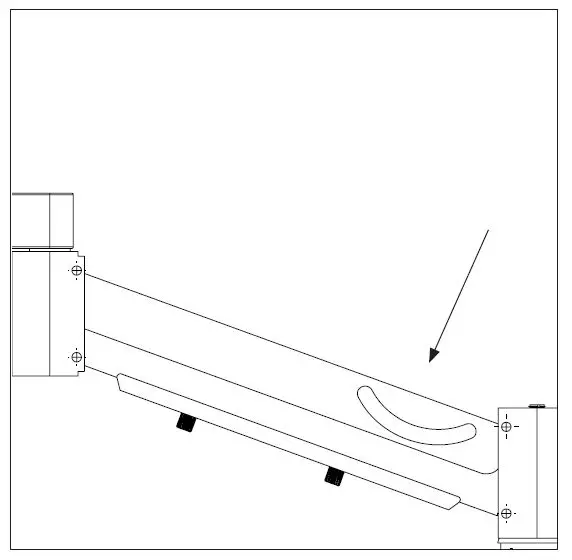
Then, use the included finger screw to lock vertical movement.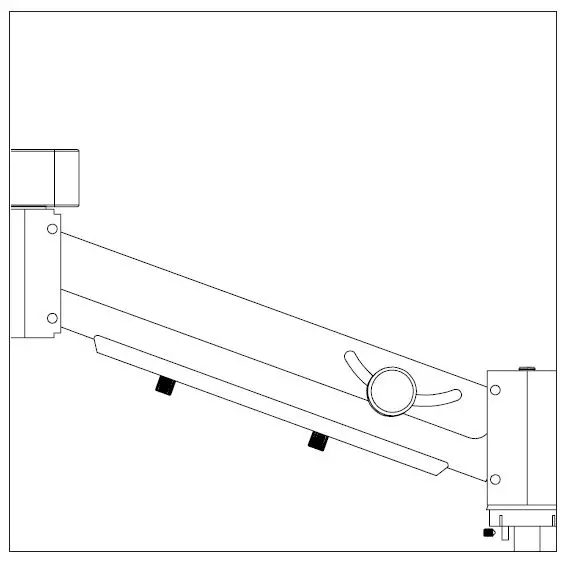
For further stability, tighten screws in numbered areas.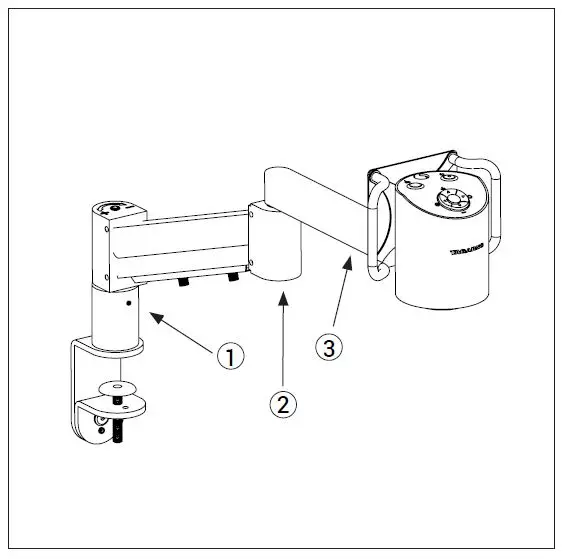
ASSEMBLING – OTHER MOUNTING OPTION
ASSEMBLING/OTHER MOUNTING OPTIONS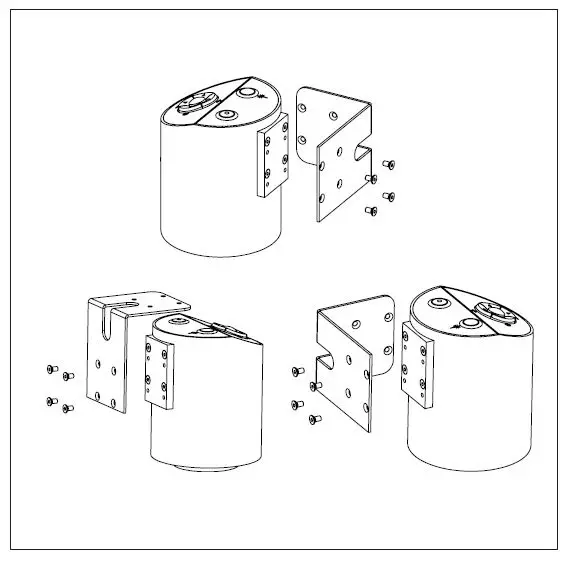
Alternatively, mount the microscope on a wall with an angle bracket or similar solution suitable for your process environment. These mounting options are not included with your delivery. To use an angle bracket, detach the Vesa mount and mount the angle bracket to the microscope. For safe operation, mount only the microscope on support equipment capable of bearing a load of at least 6kg (3 times the weight of the microscope).
ASSEMBLING – LASER BEAM (US ONLY)
IMPORTANT: Laser beam attenuator. Unmount the lens protection cap when using this microscope.
ASSEMBLING & CONNECTING (2/3)
Connect HDMI cable (1), USB 3.0 cable (2), control box (3), power supply (4), and ESD – Electro Static Discharge (5).
WARNING: Do not use force when ainserting the cable plugs.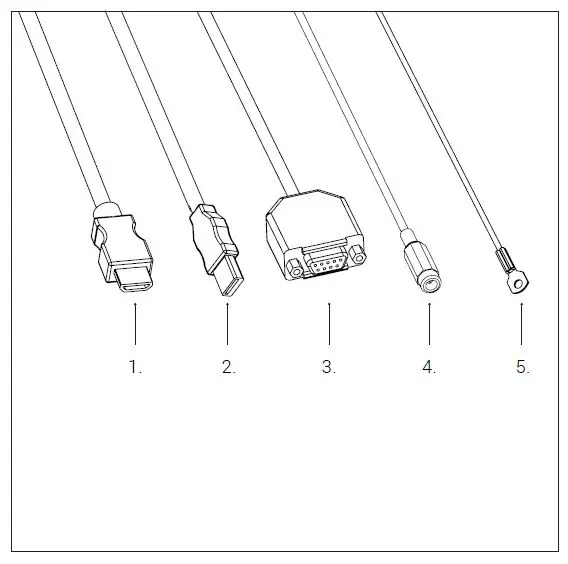
Connect HDMI cable from the microscope to a monitor.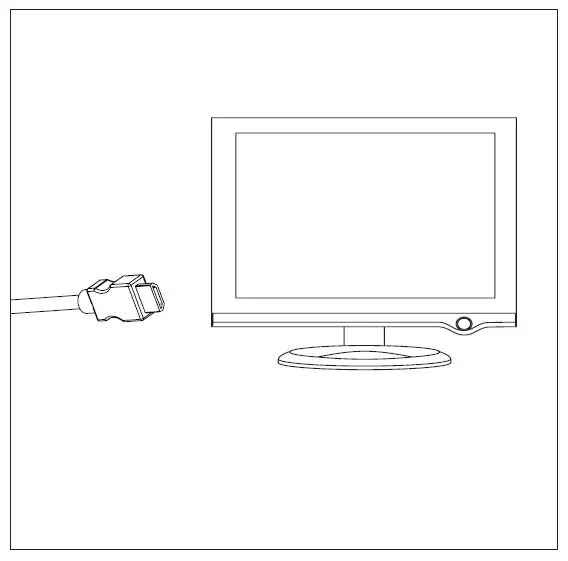
WARNING: Do not connect the HDMI cable to a PC.
| Wire | Description | Type | Connect to | Cable length | Specification |
| 1 | Output | HDMI Type A | Monitor | 2700mm | HDMI out 720p50, 720p60, 1080p25, 1080p30, 1080p50, 1080p60 |
| 2 | USB 3.0 output | USB 3.0 Type A | Computer | 2700mm | USB 3.0 Device, Self-powered |
| 3 | Control box | D-SUB 9-Pin Female | Control box | 3000mm | Output: 3.3V 330µA Use only control boxes supplied by TAGARNO |
| 4 | Power supply (DC) | DC Jack | Power socket | 3000mm | Input: 12V 0.5A Use only the power supply provided by TAGARNO: Brand/Model: Mean Well/GEM18I12 Protection class II Input: 100-240V 0.45-0.2A, 50/60Hz Overvoltage category ll Output: 12V 1.5A Max |
| 5 | ESD | Ring Terminal Connector | ESD Grounding point | 3000mm | ESD Grounding point |
ASSEMBLING & CONNECTING (3/3)
Connect USB 3.0 cable from the microscope to a PC.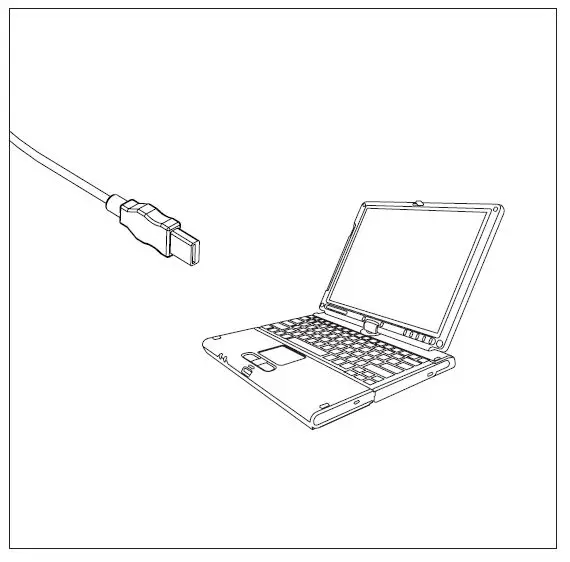
Connect the microscope to the XKEY Control box.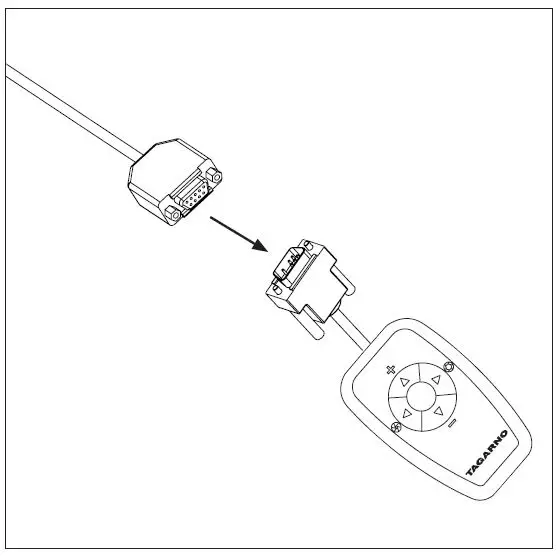
Connect grounding cable to a grounding point, to ensure ESD of the microscope.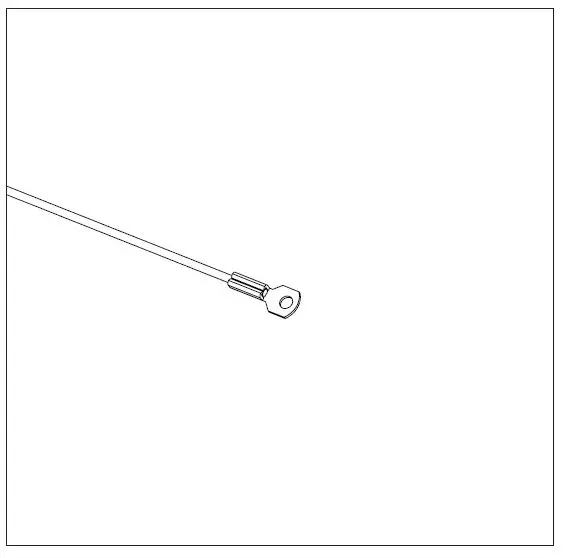
Connect the power supply cable to the power supply battery and then to an electrical outlet.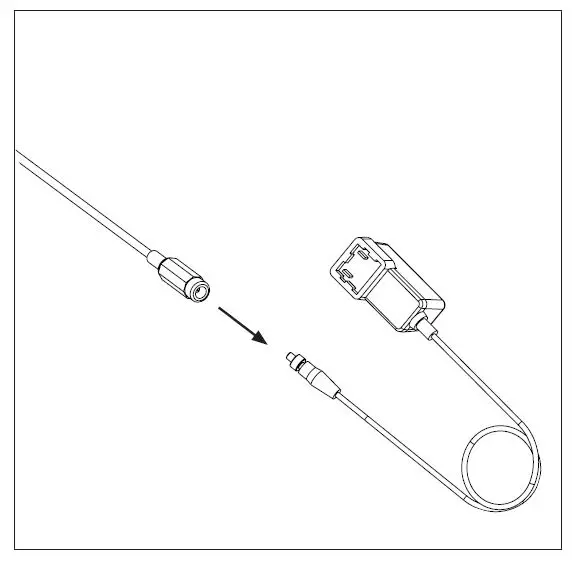
OPERATION
OPERATION (1/2)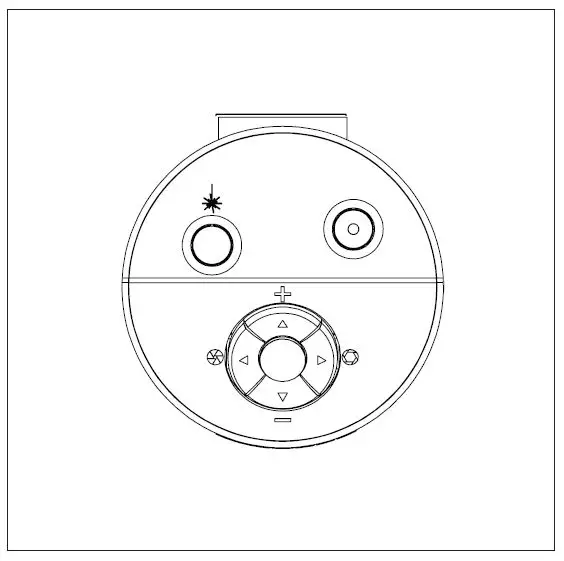
Control buttons for TAGARNO functions. Do only connect equipment distributed by TAGARNO.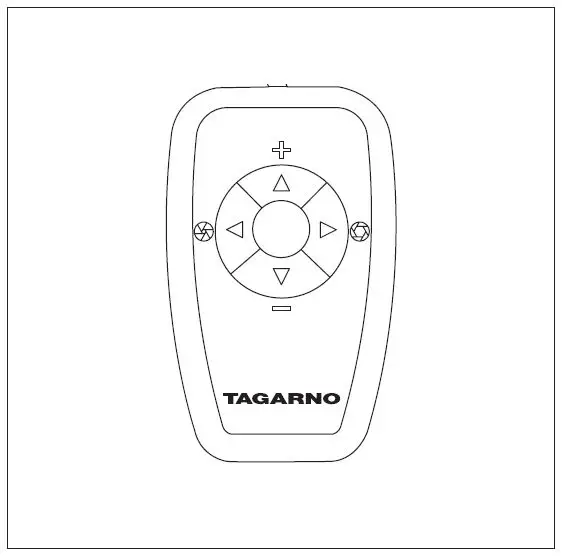
XKEY Control box for TAGARNO functions. Do only connect equipment distributed by TAGARNO.
 Turn off/on
 Laser on/off (WARNING! Laser radiation when turned on) Zoom in
- Zoom out
- Push both plus and minus to change from autofocus to manual focus. You can now adjust the focus manually by using the plus/minus buttons
- If you wish to focus on something close
- If you wish to focus on something further away
 Short push switches between Iris, Gain, and Preset mode.
 Increase Iris/Gain or switch between zoom preset 1, 2, or 3.
 Decrease Iris/Gain or switch between zoom preset 1,, 2 or 3.
- To change and save a zoom preset, use zoom buttons to select a zoom level and simultaneously press the left/right buttons. OSD will show STORED: PRE(X)
- Hold for 3 sec. to use auto exposure mode
 Turn off/on
 Laser on/off (WARNING! Laser radiation when turned on) Zoom in
 Short push switches between Iris, Gain, and Preset mode.
 Increase Iris/Gain or switch between zoom preset 1, 2, or 3.
 Decrease Iris/Gain or switch between zoom preset 1,, 2 or 3.
RESET TO FACTORY SETTINGS
Follow this procedure to change back to factory setting 1080P60.
- Turn the microscope off
- Press and hold the center button down while turning the power on
- Keep holding the center button down for 25 seconds
- Release the center button and turn the power off
- Turn the power back on and the microscope is set to factory setting 1080P60
ON-SCREEN DISPLAY (OSD)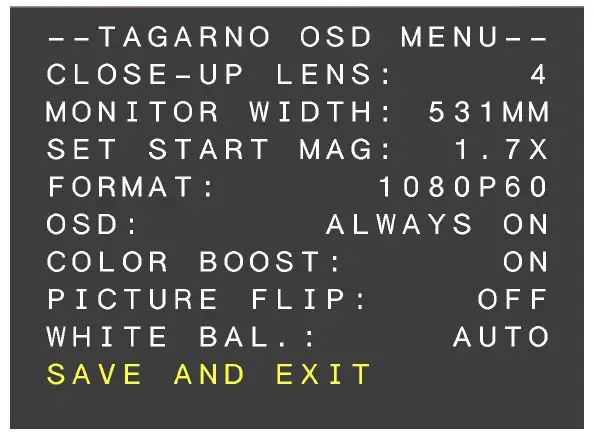
When turning on your FULL HD system, you are informed of the given units, serial number (SN), versi,on and resolution.
- Open the OSD menu
To open the TAGARNO On-Screen Display Menu, press and hold the center button for approximately 5 seconds. - Choose lens
Set the current close-up lens by using the left/right arrows on the CONTROL BOX XKEY. On a TAGARNO FULL HD system, the choice naturally is between LENS +2, +3, +4, +5, or +10. LENS +4 is the factory default. Continue using the down arrow. - Choose monitor width
Press the center button to set up the width of the monitor. You need to measure the horizontal width of the monitor panel on your monitor, Select one digit at a time by using the left/right arrows and adjust the digits with the up/down arrows. Switch between millimeters and inches via the up/down buttons. Monitor 24” FHD is the factory default. To store changes in settings press the center button. - Set start magnification
Select which magnification level you need your system to use as the start-up level. Press the center button and select one digit at a time at the bottom of the page, by using the left/right arrows and adjusting the digits with the up/down arrows. By pressing the center button one more time, you have selected the values chosen. Press the down arrow to choose the format. - Choose format
You have the option to switch between different video formats, 1080p 60fps being the highest quality. Select the required format by pressing the center button, and use the arrow keys left/right to select between 6 different formats. - Select OSD presets
You need to choose between respectively ALWAYS ON, OFF or TIMEOUT using the left/right arrows in order to have the OSD Menu displayed continuously, never, or for 3 seconds at a time.
Continue by pressing the down arrow. - Color boost
The OSD menu gives you the possibility to choose between two color settings; Color boost on or off, by using the left/right arrows. Which setting is chosen, is a matter of individual preferences and the object projected on the screen. Continue by pressing the down arrow. - Flip picture
In the menu, you have the possibility to rotate the screen image 180 degrees or choose the standard view by using the left/right arrows. Choose between the two views by pressing the left/right buttons. Continue by pressing the down arrow. - White balance
Choose between these settings: AUTO and POWER UP by using the left/right arrows. In AUTO mode the white balance is continuously adjusted to achieve the best color reproduction. In POWER UP mode the white balance calibration is performed only once when the system is turned on. In this mode, it’s important that a white sheet of paper is visible in the field of view when the microscope is switched on. Continue by pressing the down arrow. - Save presets
To save your presets and exit the menu, press the center button and thereby return to the image displayed on the monitor, using your recently saved presets.
If you have changed the various formats, your FULL HD system needs to be restarted. This will be indicated in the bottom if needed.
TECHNICAL SPECIFICATIONS
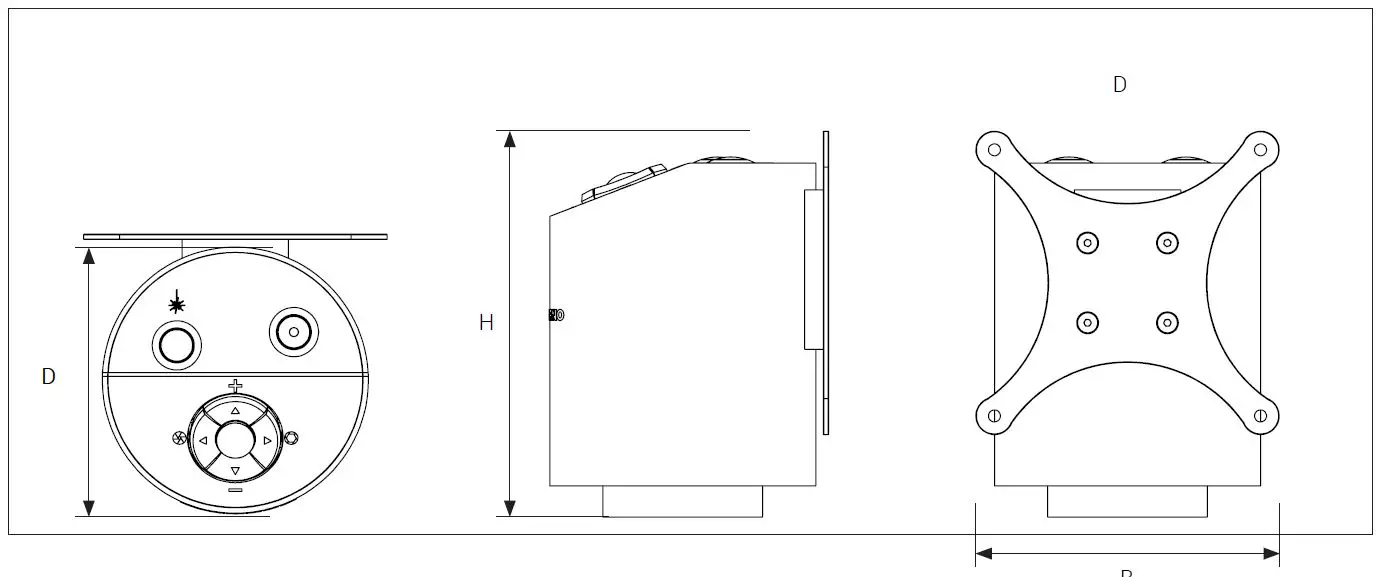
TECHNICAL SPECIFICATIONS (1/2)
| Dimensions | H: 121mm/4.76”, D: 100mm/3.94” | |
| Weight | 1.5 kg/3.3 lbs | |
| Camera resolution | FHD 1080p, 1920x1080p at 59,94/50/29,97/25Hz | |
| HD 720p, 1280x720p at 59,94/50Hz | ||
| Camera zoom | 30x optical | |
| Autofocus | Yes | |
| Work height | Min: 78mm/3.07” Max: 645mm/25.39’’ (depends on flexarm) | |
| Work depth | Adjustable (depends on flexarm and mounting) | |
| Auto Monitor Detect | No | |
| Power requirements | Line voltage | 100 – 240V 10% |
| Line frequency | 50/60Hz | |
| AC current consumption (typ.) | 70mA/100V 30mA/240V | |
| DC current consumption (typ.) | 0.5A/12V | |
| Environmental conditions | Temperature | Storage -5 to 60oC / 23 to 140oF Operation 5 to 40oC / 41 to 104oF |
| Humidity range | Storage 20 to 90% RH non-condensing Operation 20 to 80% RH non-condensing | |
| Altitude | 0 to 2000m / 0 to 6500ft above sea level | |
| Pollution degree | 2 | |
TECHNICAL SPECIFICATIONS (2/2)
| LENS | Lens to object distance | Magnification on 24″ monitor | Work depth |
| +2 | 500 mm/19.67’’ | 0.8x – 26.2x | 420 mm/16.53’’ |
| +3 | 333 mm/13.22” | 1.3x – 40.1x | 590-740 mm/ 23.23-29.13’’ |
| +4 (Included) | 250 mm/9.84” | 1.7x – 53x | 630-760 mm/ 24.80-29.92’’ |
| +5 | 200 mm/7.87” | 2.2x – 66x | 640-760 mm/ 25.20-29.92’’ |
| +10 (Plan – 1x) | 78 mm/3.07” | 4.3x – 133x | 635 mm/ 25’’ |
| FIELD OF VIEW | MAXIMUM | MINIMUM | ||
| Lens | X-Direction | Y-Direction | X-Direction | Y-Direction |
| +2 | 600 mm / 23.62’’ | 337.50 mm / 13.29’’ | 21 mm / 0.83’’ | 11.80 mm / 0.46’’ |
| +3 | 409 mm / 16.10’’ | 230.10 mm / 9.06’’ | 13.40 mm / 0.53’’ | 7,54 mm / 0,02’’ |
| +4 | 290 mm / 11.42’’ | 163.10 mm / 6.42’’ | 10.50 mm / 0.41‘‘ | 5,91 mm / 0,02’’ |
| +5 | 245 mm / 9.65’’ | 137.80 mm / 5.43’’ | 8 mm / 0.32’’ | 4,50 mm / 0.18’’ |
| +10 (Plan – 1x) | 87 mm / 3.42’’ | 48.94 mm / 1.93’’ | 4 mm / 0.16’’ | 2,25 mm / 0.089’’ |
| RECOMMENDED MONITOR FORMAT | |
| Panel format | 16:9 (Widescreen) |
| How to link | HDMI input |
| Response time | 2 ms |
| Signal format | FHD 1920×1080 |
| ACCESSORIES | ||
| Lens +2, +3, +4, +5 and +10 (Plan – 1x) | TAGARNO Ring light White | Height Adjustment Table |
| Magnetic lens ring | TAGARNO Ring light IR | XY table |
| XKEY Control Box | TAGARNO Ring light UV | Glass table |
| Foot switch | Backlight kit | Cleaning kit |
| FHD monitors per request | Coaxial light | Angle brackets |
| Flex arms | Circular tilting table |
PC REQUIREMENTS
| FULL HD 1080P @ 59,94/50HZ | ||
| OS | Desktop | Laptop |
| Windows 7, 8 or 10 (with DirectX 11) | ||
| Memory | 8GB | |
| CPU | Intel® Core™ i5 or i7 @2.4GHz, (4th generation named 4xxx or newer) | CPU: Intel® Core™ i5 or i7 @2.4GHz (4th generation named 4xxx or newer) |
| Hard Disc Space | 1GB required (SSD type recommended) | |
| Connections | USB 3.0 xHCI host controller (Intel chipset recommended) | |
| Integrated Graphics | Intel® HD Graphics 4000 | Intel® HD Graphics 4400 |
| Dedicated graphics card | AMD Radeon™, HD 7xxx Series with 2GB RAM | nVidia GeForce GT 740M with 2GB RAM |
| Monitor resolution | 1920×1080 (recommended) | |
| FULL HD 1080P @ 29,97/25HZ AND HD 720P @ 59,94/50/30/25HZ | ||
| OS | Desktop | Laptop |
| Windows 7, 8 or 10 (with DirectX 11) | ||
| Memory | 4GB | |
| CPU | Intel® Core™ [email protected] or [email protected], (4th generation named 4xxx or newer) | Intel® Core™ i3 @ 3.2GHz, (4th generation named 4xxx or newer) |
| Hard Disc Space | 1GB required (SSD type recommended) | |
| Connections | USB 3.0 xHCI host controller (Intel chipset recommended) | |
| Integrated Graphics | Intel® HD Graphics | |
| Dedicated graphics card | AMD Radeon™, 1GB ram | nVidia GeForce GT 1GB RAM |
| Monitor resolution | 1920×1080 (recommended) | |
MAINTENANCE
- Store and use the pre and use product in a product in dry, clean and, clean and ventilated room.
- Do not place pro not place the product in the product in direct sunlight, next to text sunlight, next to a radiator/heater, or someplace where/heater or someplace where the system may be subjected ty be subjected to liquids.o liquids.
- All plugs are designed te designed to be used in one way only. Ther. Therefore, ye, you should never u use force when you connect the system.
- Remember to disconnect all elements if yo disconnect all elements if you intend to moo move the pre the product.
- If you more the pre the product produced from a cold tom a cold to a hot or a hot room, you, you must wait at least an hour before ye you turn it on, turn it on, to ao avoid choroid short cart circuits due to condensation.o condensation.
- Remove the cables be the cables by pulling the plug itself – ney pulling the plug itself – never ber by pulling the cable.y pulling the cable.
- If the product needs product needs repair, never do it yer do it yourself, contact yourself, contact your distributor
- When cleaning the phone cleaning the product, please turn off the system and wait until the system has duct, please turn off the system and wait untill the system has cooled off.
- Clean the porcelain the product with a damp cloth. Product with a damp cloth. Never use steer use strong cleaning agents or chemicals on cleaning agents or chemical these may damage the micro damage the microscope.
- Clean the lens Clean the lens regularly with is regularly with isopropyl alcohol and micro alcohol and a microfiber cloth or with the Tofiber cloth or with the TAAGAGARNORNO cleaning kit. cleaning kit.
WARRANTY
warranty terms for the product shall be as follows: warranty terms for the product shall be as follows:
TTAAGAGARNO warrants that the prRNO warrants that the product will coproduct will correspond with the specification at the time respond with the specification at the time of deliverer and will be fry and will be free free from deforming defects in material and workmanship for a period of 24-month sets in material and workmanship for a period of 24 months ((2 y2 years) frears) from date of income date of invoice force from Supplierom Supplier.
This warranty covers
- a. The replacement of defectivective pares parts.ts.
- b. All labor costs to Exo exchange de change defectivective pare parts in parts in the product.
- c. Complete functions test of product beforE duct before re return to end user’s site.
- d. Return transport costs of product from Tom TAAGAGARNO tRNA to end user’s site.s
The warranty only applies if The warranty only applies if the product is packed, shipped, sted, shipped, s, handled maintained corrcorrectly
- Failurailures due to due to impro improper packing and transporter packing and transport art are not covered
- Failurailures due to dro drops and sudden blows drops and sudden blows are not covered.
- Failurailures due to storage and handling in storage and handling in extremely high or low temperament high or low temperatures are not covered.
- Failurailures due to storage or handling in storage or handling in extremely high humidity areas high humidity are not covered.
ERGONOMICAL RECOMMENDATIONS
- Please be careful when carrying the product from one place to another.
- Please do not lift the microscope by grabbing the camera arm.
DECLARATION OF CONFORMITY
PRODUCT
- MODEL ART TTAAGAGARNO FHD ZRNO FHD ZAAP P Type no: 690600ype n: 690800 Inspection camera unit
- MANUFACTURER NAME TAGARNO A/S
- ADRESS Sandøvej 4
- ZIPCODE/CITY 8700 Horsens
- COUNTRY Denmark
- PHONE +45 76251111
DESCRIPTION
TAGARNO A/S hereby declares that the product listed above, consisting of a camera unit and a 12V power supply, is in compliance with the following European directives:
- 2006/25/EU Artificial Optical Radiation
- 2014/30/EU Electromagnetic Compatibility
- 2014/35/EU Low Voltage Directive
By conforming to the following harmonized standards:
- IEC 60825-1:2014 Class 2
- N 61326-1:2013 Class B / Basic Electromagnetic Environment
- EC 61010-1:2010 IECEE CB Scheme Ref. Certif. No. NO104184
THE DECLARATION IS ISSUED BY MANUFACTURER TAGARNO A/S
COMPLIANCE STATEMENTS
INDUSTRY CANADA COMPLIANCE STATEMENT CAN ICES-3 (B)/NMB-3(B)
This Class B digital apparatus meets the requirements of the Canadian Interference-Causing Equipment Regulations.
FCC COMPLIANCE STATEMENT (UNITED STATES)
Federal Communications Commission (FCC) Statement This equipment has been tested and found to comply with the limits for a Class B digital device, pursuant to part 15 of the FCC Rules.
These limits are designed to provide reasonable protection against harmful interference in a residential installation. This equipment generates, uses, and can radiate radio frequency energy and, if not installed and used in accordance with the instructions, may cause harmful interference to radio communications. However, there is no guarantee that interference will not occur in a particular installation. If this equipment does cause harmful interference to radio or television reception, which can be determined by turning the equipment off and on, the user is encouraged to try to correct the interference by one or more of the following measures:
- Reorient or relocate the receiving antenna.
- Increase the separation between the equipment and receiver.
- Connect the equipment into an outlet on a circuit different from that to which the receiver is connected.
- Consult the dealer or an experienced radio/TV technician for help.
 Manuals for TAGARNO digital microsocpes and apps - Tagarno
 Boost efficiency with a TAGARNO microscope and 660x magnification