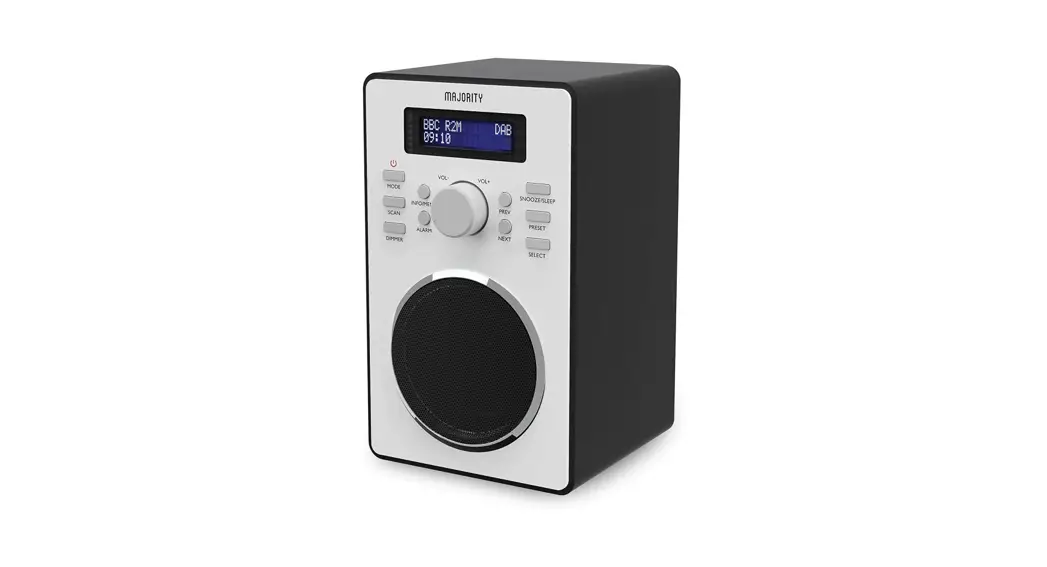
 BARTO N 2
DIGITAL RADIO & ALARM CLOCK
BAR-DAB-WDN | WAL-2
3 YEAR WARRANTY
Register your product online for a FREE 3 year extended warranty at: www.majority.co.uk
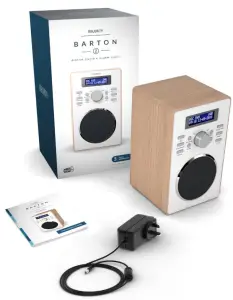
What’s In The Box?
Box Contents
- Majority Barton Radio
- UK Power Supply
- User Guide
Controls And Functions
Front View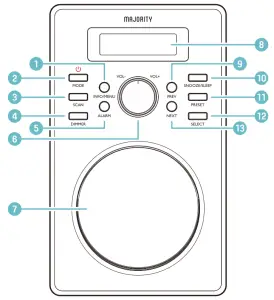
| 1. Info/Menu 2. Power/Mode 3. Scan 4. Dimmer 5. Alarm 6. Volume -/+ 7. Speaker | 8. Display Screen 9. Previous 10. Snooze/Sleep 11..Preset 12. Select 13. Next |
Back View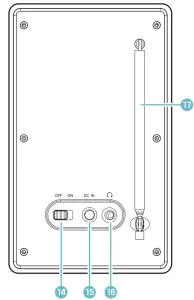
14. Off/On Switch
15. DC Power Input
16. Headphone Jack
17. Antenna
Instructions Guide
Basic Operation: DAB
Please note all (Ref.) refer to Page 1 Controls and Functions mapping guide. Plug the connector into the back of the system labelled DC 5V (Ref.15) Ensure the antenna (Ref.17) is extended as far as possible so that you can rotate it which will enable you to get the best possible signal Switch the button on the rear of the unit to “On” Ref.14)Press and hold the ‘Power/Mode’ button to turn on the unit (Ref.2)The unit will automatically take you to either DAB radio mode or the previous mode you were using
To change the mode (DAB/FM), press the ‘Power/Mode’ button (Ref.2) The display screen will dim automatically after 10 seconds if left in standby or working mode DAB
When DAB Radio is activated for the first time it will automatically start scanning and storing all stations that have a good signal In DAB/DAB+ mode, the radio will synchronize with the time and date of the station
If the radio does not automatically scan, or you would like to rescan for available stations, press the ‘Scan’ button (Ref.3) and then release Once the scan is complete, the first available DAB station will play.
To scroll through the stored stations, use the ‘Prev’ (Ref.9) and ‘Next’ buttons (Ref.13) to browse through stations Press ‘Select’ (Ref.12) to listen to a station
Basic Operation: FM
FM Scan Setting
The first time you switch to FM mode, the FM frequency “87.5 MHz” will be displayed on the screen Choose between scanning strong and weak signals (All) or only the strong stations (Only)
Press and hold the ‘Info/Menu’ button (Ref.1 Use the ‘Prev’ or ‘Next’ buttons (Ref.9/Ref.13) to scroll to “FM Scan Setting” and press the ‘Select’ button (Ref.12)Press the ‘Prev’ (Ref.9) or ‘Next’ (Ref.13) buttons to scroll between “All” or “Only Press the ‘Select’ button (Ref.12) to confirm your choice.
Manual Tuning
To listen to a specific frequency, press and hold the ‘Next’ or ‘Prev’ button (Ref.13/Ref.9) to search forward or back quickly, or press individually to search slowly
To scan for stations with good signal, press the ‘Scan’ button (Ref.3) for the radio to begin scanning up the frequency band. The next available station with a good signal will then begin to play To scan down the frequency band, press and hold the ‘Scan’ button (Ref.3) for a few seconds for the radio to scan down the frequency band for a good signal The radio will display station information when you press the ‘Info/ Menu’ button (Ref.1), press multiple times to view all available information (See page 13).
Station Information for DAB Radio
DAB/DAB+ Radio
When you are listening to a DAB/DAB+ radio station with a good signal, you can press the ‘Info/Menu’ button (Ref.1) repeatedly to show the different programme information.
Bit Rate: This shows the data rate at which the signal is being transmitted
Bit Error Rate (BER): Provides details of the signal error rate
Channel and Frequency: Displays the station’s transmission channel number and frequency.
PTY (Programme Type): Shows the type and description of the program provided by the DAB station
Time and Date: Displays the time and date information provided by the broadcaster
Bit Rate: The data rate which the signal is being transmitted
Dynamic Label Segment (DLS): Displays scrolling text information supplied by the broadcaster
FM/DAB Radio Presets
How to store a preset station
To be able to quickly access your favourite stations, you can preset them. Up to 10 different preset stations can be set.
To store a station as a preset, first, ensure the station is playing. Once listening to a station, press and hold the ‘Preset’ button (Ref.11) for 2-3 seconds until Preset Store settings open, and “Preset Store <1: (Empty)” displays Release the ‘Preset’ button
Press the ‘Prev’ (Ref.9) or ‘Next’ (Ref.13) buttons to change the number
you want to store the station as Press the ‘Select’ button (Ref.12) to save the preset Once saved, the display will show “Preset (x) stored”
How to play a preset radio station
To play your preset radio stations, press the ‘Preset’ (Ref.11) button to open Preset Recall settings Hold down the button to open Preset Store settings
Press the ‘Prev’ (Ref.9) or ‘Next’ (Ref.13) buttons to scroll through your preset stations from 1-10 Press the ‘Select’ button (Ref.12) to select your choice station will now begin to play
Station Information for FM Radio
FM Radio
When you are listening to an FM radio station with a good signal, you can press the ‘Info/Menu’ button (Ref.1) repeatedly to show the different programme information
Signal Strength: Displays a signal bar with the strength of the current station
Time and Date: Displays the time and the date
Frequency: Displays the station’s transmission frequency.
Audio Type: Displays the audio type of the station you are listening to It will either be Stereo or Mono
Radio Text: Displays scrolling text information supplied by the broadcaster
Programme Type: Displays a description of the type of programme provided by the broadcaster
Clock & Date Settings
Once the radio has been put into DAB/DAB+ mode, the time and date should be automatically set If this does not occur or you wish to alter the time and date, follow the steps below:
Manually Setting the Date and Time
To enter the radio settings, press and hold the ‘Info/Menu’ button Ref.1)
To make your selection, use the ‘Prev/Next buttons (Ref.9/Ref.13) to scroll through to “Time/Date” and press the ‘Select button to confirm your choice (Ref.12)
The hour will then flash on the display screen. You can now change the hour by pressing the ‘Prev’ (Ref.9) or ‘Next’ (Ref.13) button
To confirm, press the ‘Select’ button (Ref.12)
The minutes will flash on the display screen. Follow the same steps as above to change the minutes
The time is now set and the next step will enable you to change the date Follow the same steps as above to change the day, month and year
Dual Alarm Settings
- Press the ‘Alarm’ button (Ref.5) once for Alarm 1 or twice for Alarm 2 Press the ‘Select’ button (Ref.12) to confirm the alarm you wish to set.
- Once alarm 1 or 2 is selected, the screen will display the word “OFF” To turn the alarm on, use the ‘Next’ (Ref.13) button. “ON” will then flash on the display Press the ‘Select’ button (Ref.12) to confirm.
- The hour digits for the alarm will then flash. To set the hour you want the alarm to sound, press the ‘Prev’ or ‘Next’ buttons (Ref.9/Ref.13) to change the hour and press ‘Select’ (Ref.12) to confirm.
- Use the ‘Prev’ or ‘Next’ buttons (Ref.9/Ref.13) to edit the minutes and press the ‘Select’ button (Ref.12) to confirm.
- Now select the alarm frequency by using the ‘Prev’ or ‘Next’ buttons to scroll through the alarm options: ‘Once/Daily/Weekends/Weekdays Use the ‘Select’ button to confirm the selection.
- Now set the alarm volume by pressing the ‘Prev’ or ‘Next’ buttons (Ref.9/Ref.13) Press the ‘Select’ button (Ref.12) to confirm.
- You can now choose the alarm sound. Press the ‘Prev’ or ‘Next’ buttons (Ref.9/Ref.13) to select the alarm sound: Alarm, DAB or FM Radio and press ‘Enter’ (Ref.12) to confirm.
Cancel/Snooze Alarm
To Cancel Alarm 1 or Alarm 2
To cancel the alarm, press the ‘Alarm’ button (Ref.5) once for Alarm 1 or twice for Alarm 2 Press the ‘Select’ button (Ref.12) to confirm the alarm you wish to cancel
To turn the Alarm off, press the ‘Next’ button (Ref.13) so that the screen flashes “OFF” and press the ‘Select’ button (Ref.12) to confirm.
Snooze/Switch off Alarm when Sounding
When the alarm sounds, press the ‘Snooze/Sleep’ button (Ref.10) to snooze for 9 minutes The radio will go on standby mode
To turn the alarm off completely when sounding, press the ‘Power/ Mode’ button (Ref.2)
Other Functions
Sleep Setting
This enables you to program the radio to switch off at a specific time, up to 120 minutes from activation
Press the ‘Snooze/Sleep’ button (Ref.10)
Using the ‘Prev’ or ‘Next’ buttons (Ref.9/Ref.13), choose the sleep timer length: OFF/5 mins/15mins/30mins/45mins/60mins/90mins or 120mins
When your choice is displayed press the ‘Select’ button (Ref.12)The the system will automatically start the timer
To turn the sleep timer off, follow the above instructions and select “OFF”
Once the timer has been set, the minutes will count down on the display screen. For example, if set to turn off in 5 minutes “S5” will flash, counting down to “S0”, then the radio will go into standby mode
Other Functions
System Reset
To erase all settings and preset options, perform a factory reset This would also be advisable if you are having any functionality issues with your radio
To perform a factory reset, press and hold the ‘Info/Menu’ button (Ref.1) Use the ‘Prev’ or ‘Next’ buttons (Ref.9/Ref.13) to select “Factory reset” and press the ‘Select’ button (Ref.12) to confirm.
The display screen will then show “Factory reset?”. To confirm, use the ‘Next’ button (Ref.13) to choose “Yes”. Press the ‘Select’ button (Ref.12) to initiate the factory reset
SW Version – Software Version Display
To view the software version, press and hold the ‘Info/Menu’ button (Ref.1) Use the ‘Prev’ or ‘Next’ buttons (Ref.9/Ref.13) to navigate to “SW Version” and press ‘Select’ (Ref.12) to confirm. The software version will be displayed
Dimmer
Press the Dimmer button (Ref.4) repeatedly to switch between low, medium and high brightness options The dimmer button can be used in either standby or working mode
Troubleshooting
Observation | Potential Cause/Solution |
| No sound | The station may not be tuned properly. Please perform a rescan for available stations or manually scroll through available stations. |
| Cannot preset stations | Ensure that you are pressing and holding down the Preset button for 2-3 seconds to open Preset Store settings. Press, do not hold down, to open Preset Recall. |
| FM: Static sound DAB: Burbling/ intermittent cut-out | Signal reception is low. Adjust the aerial or move the unit to a stronger signal location. Perform a rescan. Re-scan stations and/or a factory reset. |
| Cannot locate DAB/DAB+ mode | FM mode is indicated by “FM” and the station frequency. DAB mode does not display “DAB” on the screen. Instead, the first available DAB station name will display. |
| Desired station not found | Weak signal. Use the manual tune function and try rescanning in a different area. |
| The display shows “No Service” | There is no DAB coverage in your area or poor reception. Adjust the position of the aerial, or move the unit to a stronger signal location. |
| Display is blank | This may occur if the broadcaster changes the label of service or removes a label while tuning. The radio will try to retune or perform a scan. |
| Time and Date not set automatically | To automatically set the time and date, turn on the system and switch to DAB radio. Alternatively, you can edit these in radio settings. |
Support
If you require further assistance with your new radio, please contact our support team on the Majority website: www.majoritycouk/support
Specifications
| Power supply | DC 5V 1A Power Input |
| Modes | FM (87 5MHz – 108MHz) |
| Output Connector | DAB/DAB+ (174-240MHz) |
| Dimensions | 35mm Earphone jack |
| Net Weight | 19 x 12 x 12 cm |
| No-load power consumption | 1kg |
| Average active efficiency | 007W |
| Output | 7526% |
| Input | 50V ⎓ 10A 50W |
| Model no | 100-240V~, 50-60Hz, 02A Max |
| Brand | AD0600501000UK |
| Manufacturer | Adition |
Warranty
All products come with a standard 12-month warranty All items must be registered on www.majority.co.uk for the warranty to be valid once also, be given the chance to extend your warranty for an additional 24 months, free of charge
Safety Information
- Read these instructions
- Keep these instructions Instructions are also available for download at www.majority.co.uk
- Heed all Warnings
- Follow all instructions
- Do not clean the apparatus near or with water
- Do not block any ventilation openings install in accordance with the manufacturer’s instructions
- Do not install near any heat sources such as radiators, heat registers, stoves, or other apparatus (including amplifiers) that produce heat.
- Protect the power from being walked on or pinched particularly at plugs, convenience receptacles, and the point where they exit from the apparatus
- Only use attachments/accessories specified by the manufacturer
- Unplug this apparatus during light storms or when unused for long periods of time
- Refer all servicing to qualified service personnel. Servicing is required when the apparatus has been damaged in a way, such as power-supply cord or plug is damaged, liquid has been spilled or objects have fallen into the apparatus, the apparatus has been exposed to the rain or moisture, does not operate normally, or has been dropped
- No naked flame sources, such as lit candles, should be placed on the apparatus.
- Dispose of used electrical products and batteries safely according to your local authority and regulations

ADDITIONAL WARNINGS
The apparatus shall not be exposed to dripping or splashing and no objects filled with liquid, such as vases, shall be placed on the apparatus
The mains plug is used to disconnect the device and it should remain readily operable during intended use In order to disconnect the apparatus from the main mains completely, the mains plug should be disconnected from the main socket outlet completely.
The battery shall not be exposed to excessive heat such as sunshine, fire, or the like.
RECYCLING ELECTRICAL PRODUCTS
You should now recycle your waste electrical goods and in doing so help the environment This symbol means an electrical product should not be disposed of with normal household waste
Please ensure it is taken to a suitable facility for disposal when finished with.
IMPORTANT: Please read all instructions carefully before use and keep them for future reference. Risk of electric shock Do not open
 Read all instructions carefully before use and keep them for future reference
 When servicing, use only identical replacement parts
IMPORTANT: Please read all instructions carefully before use and keep them for future referencewww.majority.co.uk
![Emerson Alarm Clock [cks1507 W/ Radio] User Manual](https://static-data1.manualsee.com/1/img/275/8730/2020/10/Emerson-Alarm-Clock-CKS1507.png "Emerson Alarm Clock [cks1507 W/ Radio] User Manual")