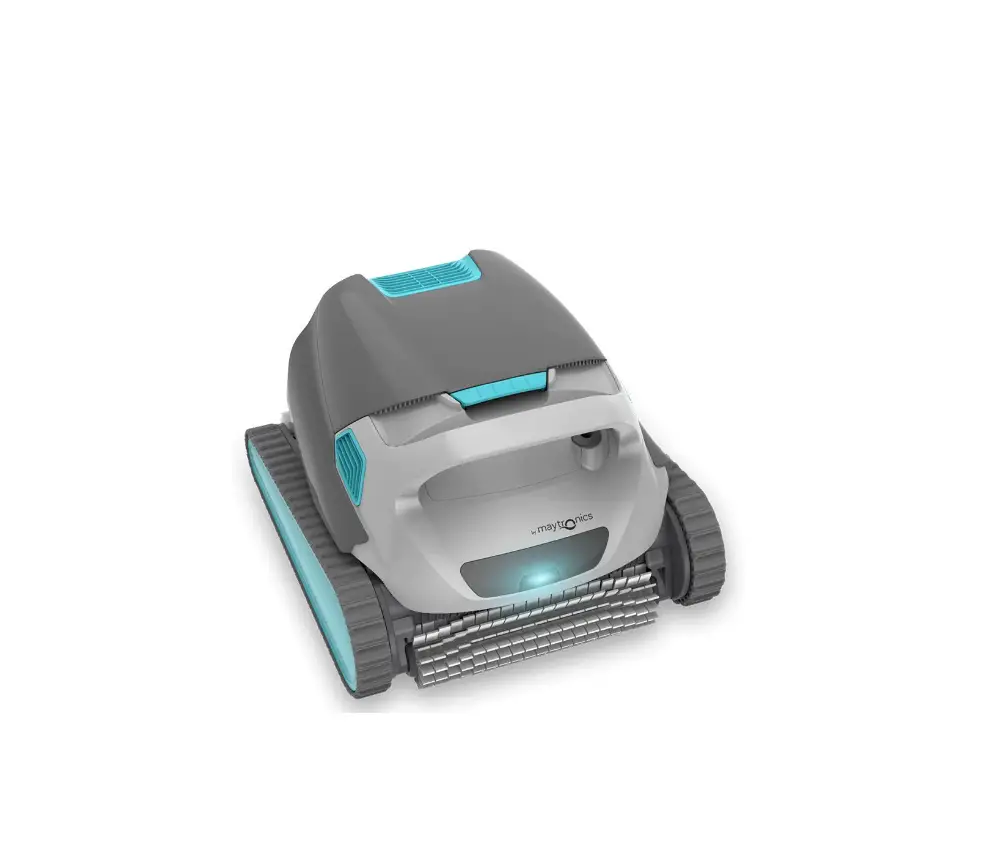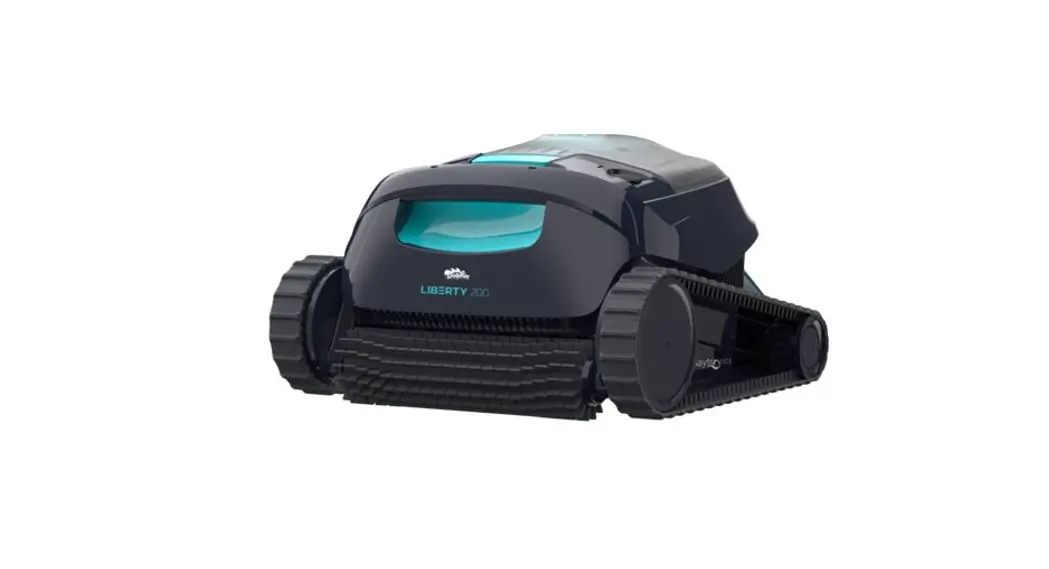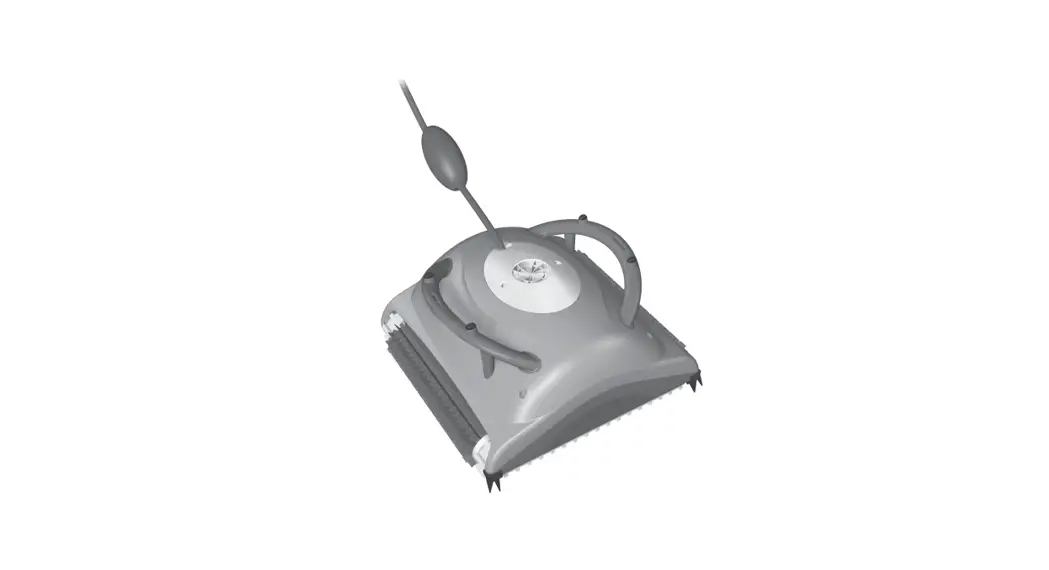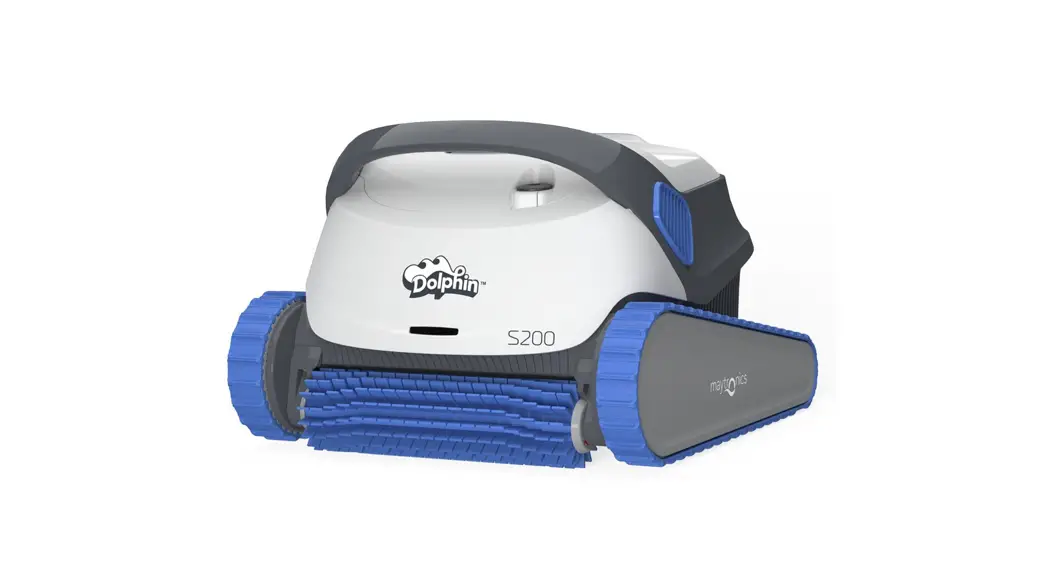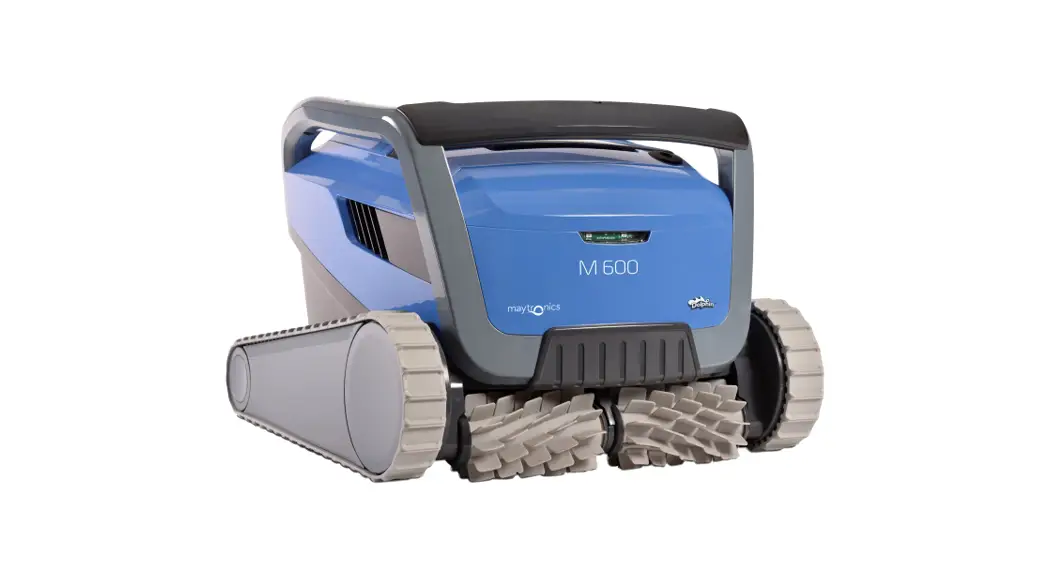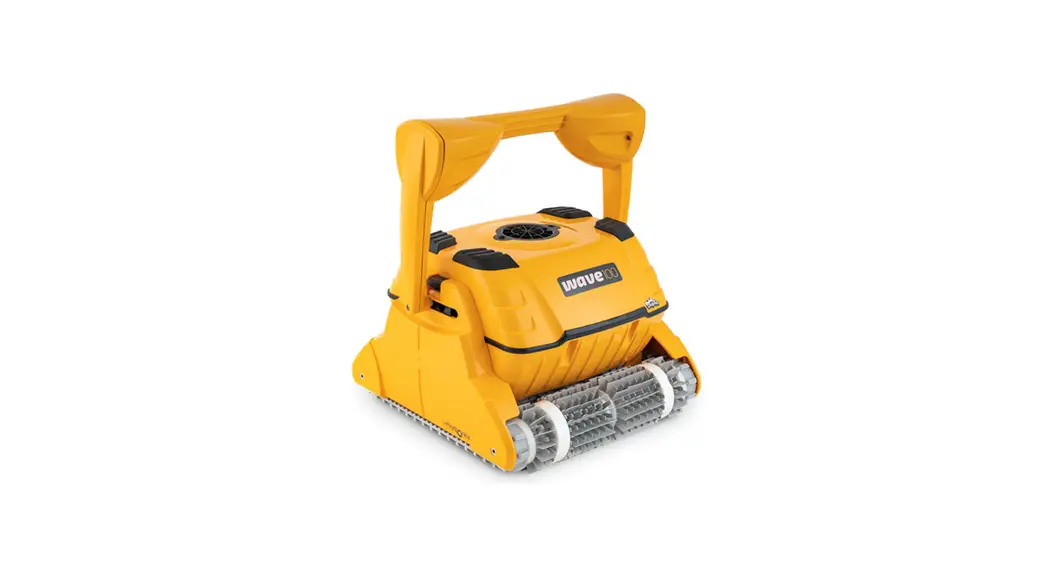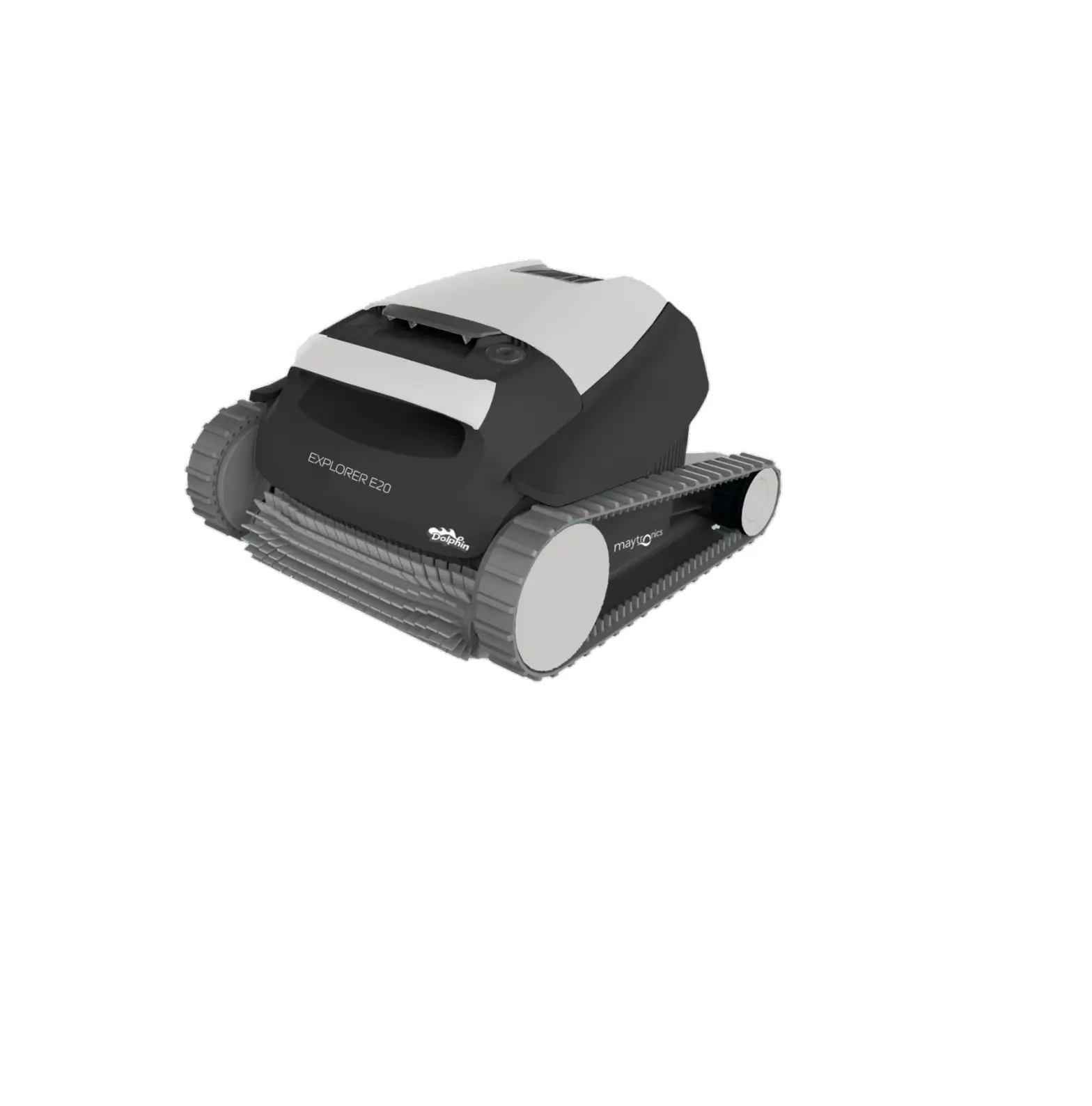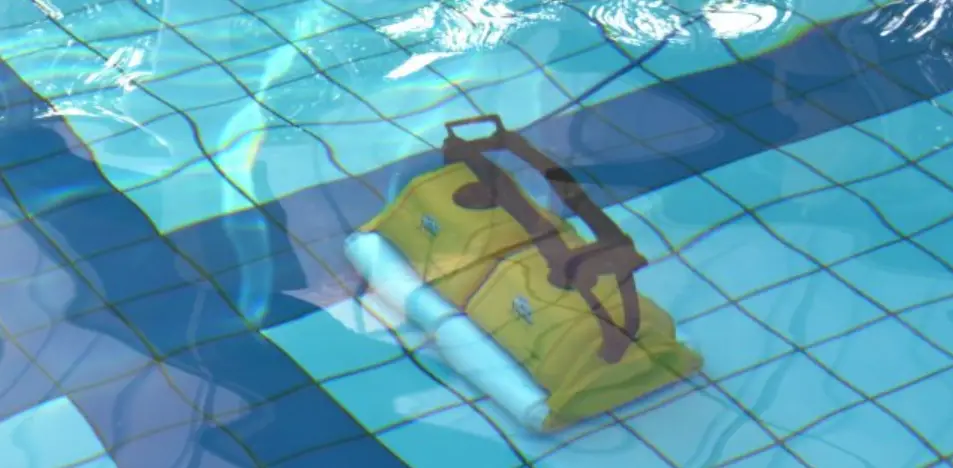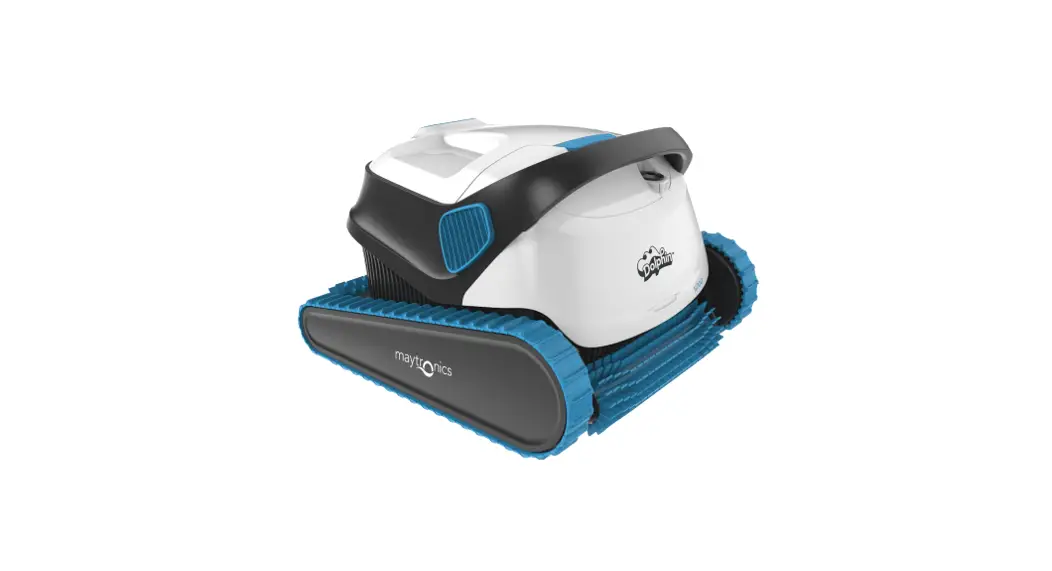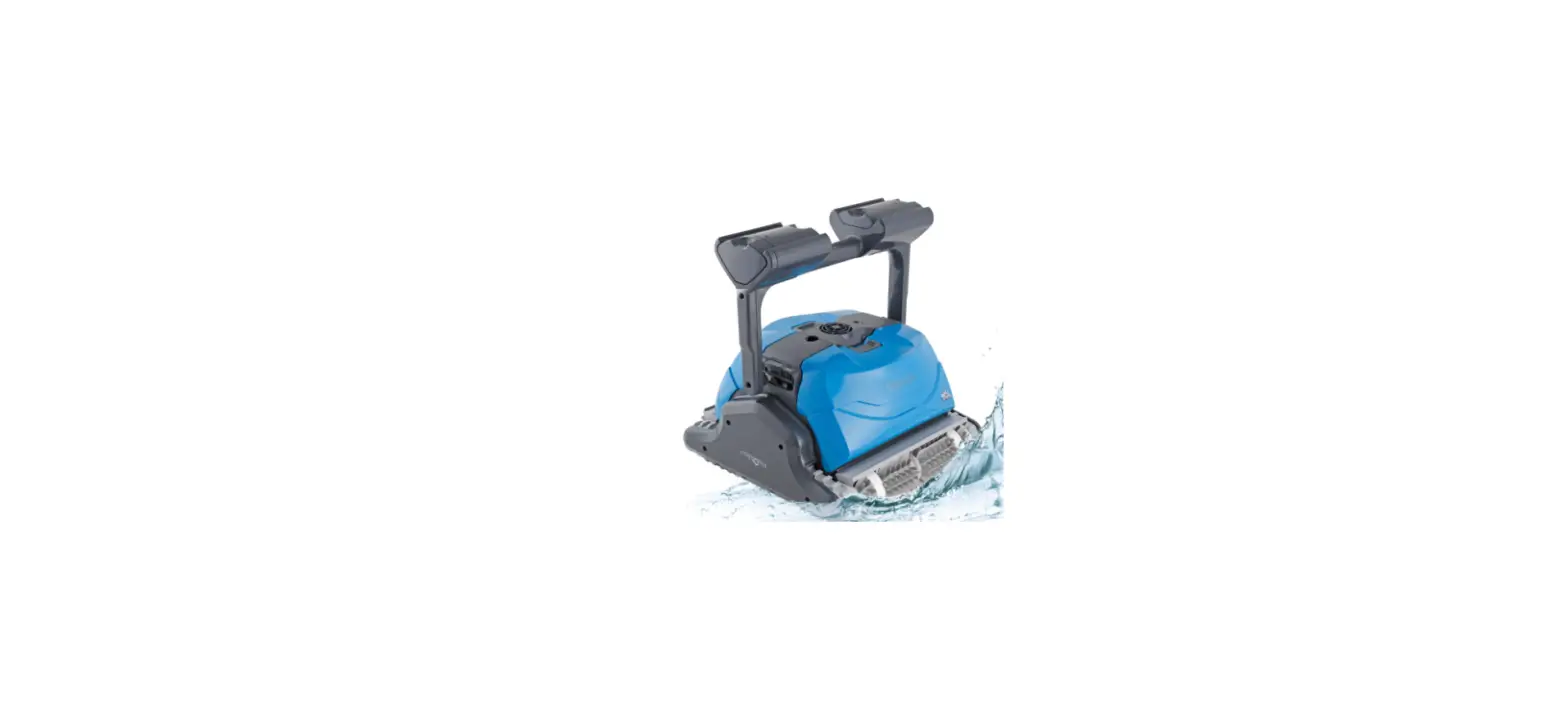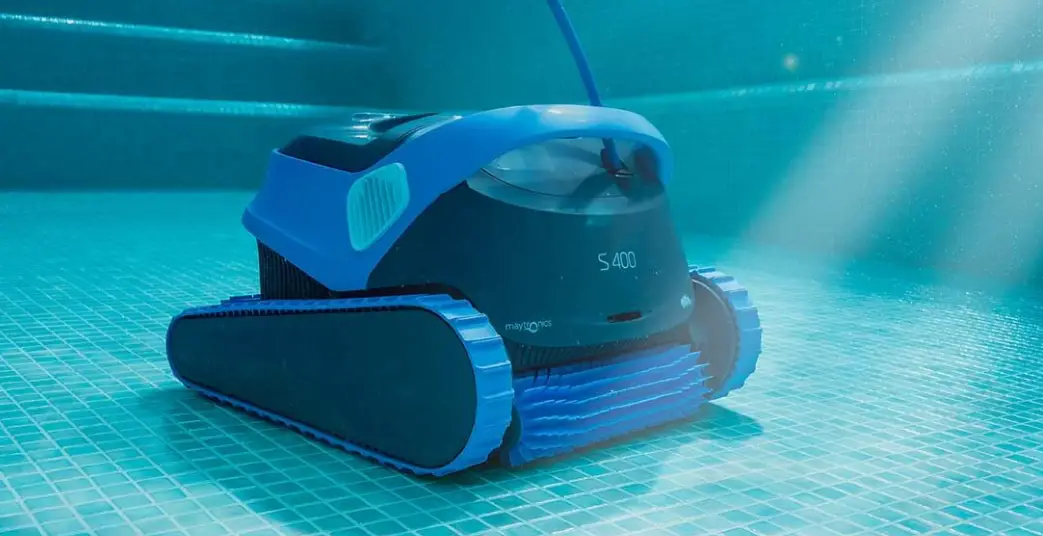

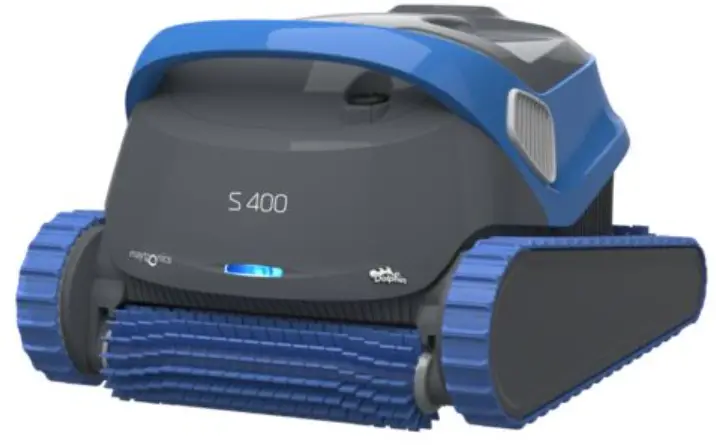
maytronics S400 Dolphin Robotic Pool Cleaner
Product Information
Introduction
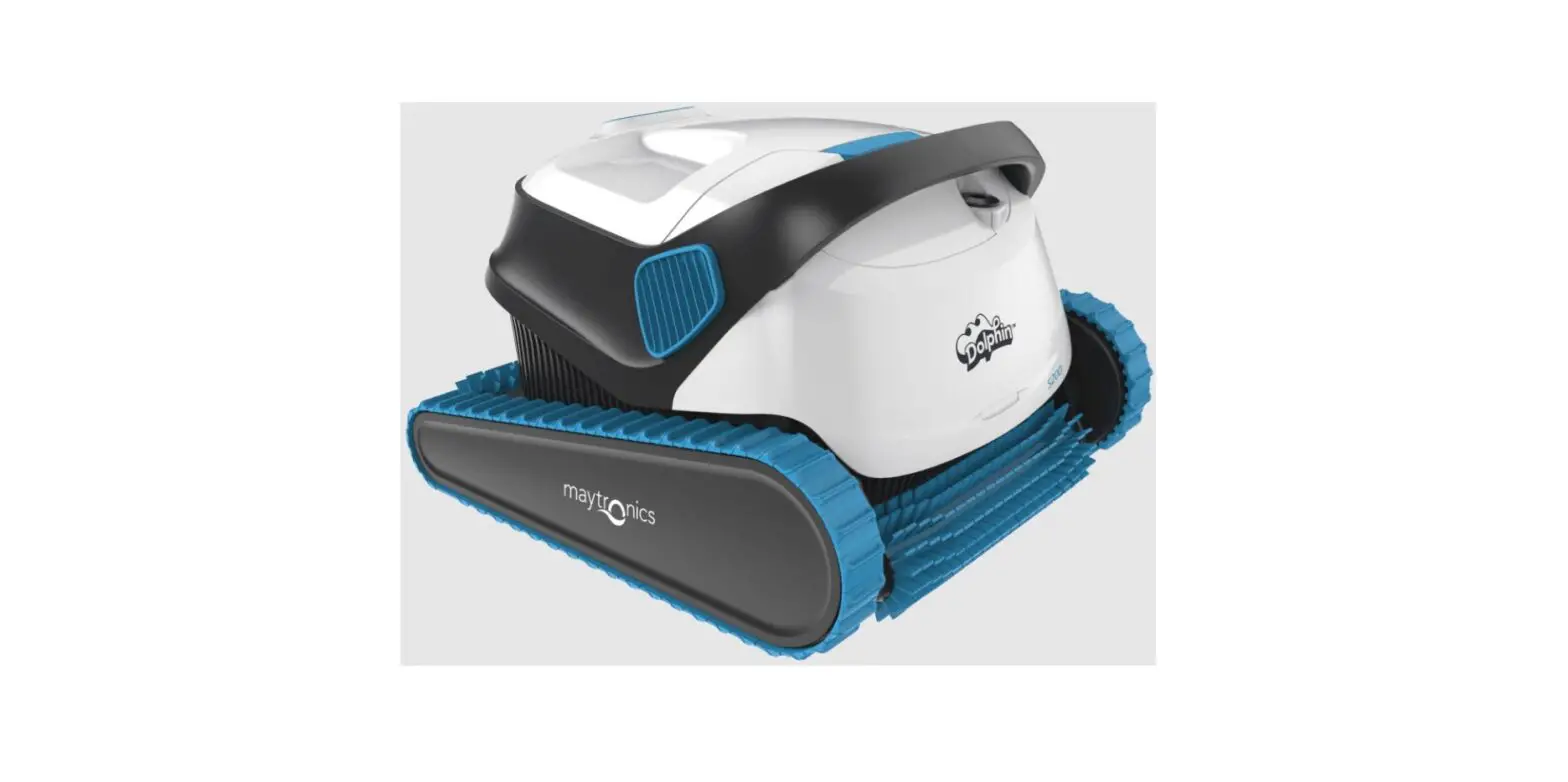
The S400 Maytronics Dolphin robotic pool cleaner is a state-of-the-art cleaning machine for your swimming pool. Designed to deliver superior performance, the S400 is easy to use and maintain, and comes with a range of advanced features that ensure it cleans your pool effectively every time.
Specifications
- Robot Motor protection: IP 68
- Minimum depth: 0.4m / 1.33ft
- Maximum depth: 5m / 16.4ft
- Digital switch-mode power supply
- IP 54 Input: 100-125 AC Volt, 200-230 AC Volt, 50-60Hertz, 120 Watt output
Product Usage
To use the S400 Maytronics Dolphin robotic pool cleaner, follow these simple steps:
- Make sure the pool surface is free of large debris such as leaves, sticks or stones.
- Plug in the power supply and connect it to the S400.
- Lower the S400 into the pool, making sure the cable is fully extended.
- Press the power button on the power supply to turn on the S400.
- The S400 will automatically start cleaning your pool. You can leave it unattended while it cleans.
- Once the cleaning cycle is complete (typically 2-3 hours), turn off the power supply and remove the S400 from the pool.
- Clean the S400’s filter bag and brush to remove any debris.
- Store the S400 in a dry, cool place until the next use.
Please note that the S400 is not designed to clean stairs or walls. For best results, we recommend using the S400 on a regular basis to keep your pool clean and free of debris.
PRODUCT INTRODUCTION
Thank you for purchasing a Maytronics Robotic Pool Cleaner.
We are sure that your Maytronics Robotic Pool Cleaner will provide you with reliable, convenient and cost-effective pool cleaning.
Its reliable filtration in all pool conditions, active brushing, and all-surface climbing brush enhance maximum pool hygiene.
The Robotic Pool Cleaners by Maytronics deliver advanced cleaning technology, long lasting performance and easy maintenance. You and your family will be free to enjoy swimming with full confidence that your pool is completely clean.
PRODUCT SPECIFICATIONS
Robot
Motor protection: IP 68 Minimum depth: 0.4m / 1.33ft Maximum depth: 5m / 16.4ft
Digital switch-mode power supply
IP 54
Input: 100-125 AC Volt, 200-230 AC Volt, 50-60Hertz, 120 Watt output: <30 VDC
Bluetooth®/Wifi® Max tras power 10mW EIRR, 2,4 GHz frequency
This product is in accordance with EU Regulation & Directive 2014/531EU.
For full information, please contact us at www.maytronics.com/contact-us-en and ask for the EC declaration of conformity.
WARNINGS AND CAUTIONS
IMPORTANT SAFETY INSTRUCTIONS READ AND FOLLOW ALL INSTRUCTIONS
Please adhere strictly to the following WARNINGS:
- WARNING
Ensure the electrical outlet is protected by a Ground Fault Interrupter (GFI) or an Earth Leakage Interrupter (ELI). - WARNING
Keep the power supply out of standing water. - WARNING
Position the power supply at least 3.5m/12ft away from the edge of the pool. - WARNING
Do not enter the pool while the Pool Cleaner is in the water. - WARNING
Unplug the power supply before servicing. - WARNING
Take the Robot Pool Cleaner out of the pool before allowing people to enter the pool. - WARNING
When examining the Robot Pool Cleaner, disconnect the main power supply. - WARNING
Ensure that children do not attempt to access Robot Pool Cleaner while it is operating. - WARNING
Keep the Robot Pool Cleaner out of the reach of children or persons with reduced physical, sensory or mental capabilities, or lack of experience and knowledge, unless they have been given supervision or instruction. - WARNING
The unit must be connected only to a supply circuit that is protected by a ground-fault circuit interrupter (GFCI). This GFCI should be tested on a routine basis. To test the GFCI, push the test button. The GFCI should interrupt power. Push the reset button. Power should be restored. If the GFCI fails to operate in this manner, the GFCI is defective. If the GFCI interrupts power to the power unit without the test button being pushed, a ground current may be flowing, indicating the possibility of an electric shock. Do not use the power unit. Disconnect the power unit and contact the manufacturer for assistance. - WARNING
Only an original power cable must be used, at all times. Replaced by a Robot Pool Cleaner certified technician, in case of need to avoid hazard. - WARNING
To reduce the risk of electric shock replace damaged cord immedietely.
Do not use extension cord to connect unit to electric supply; provide a properly located outlet. - WARNING
Use the originally supplied power supply only
Please ensure that the following PRECAUTIONS are implemented:
- CAUTION
Operator should keep hands away from driving belt mechanism. - CAUTION
Position the Caddy and power supply at least 3.5m/12ft from pool’s edge – during operation. - CAUTION
For continued protection against possible electric shock, the power supply unit should be placed at least 11cm/4in above ground. - CAUTION
When lifting the Robot Pool Cleaner, take care to prevent back injury. - CAUTION
Do not bury cord – locate cord to minimize abuse from lawn mowers, hedge trimmers and other equipment.
When not in use, store the Pool Cleaner on its Caddy in a shaded area. Use the Pool Cleaner in the following water conditions only.
| Chlorine | Max 4 PPM |
| pH | 7.0-7.8 PPM |
| Temperature | 6-35°C / 43-95°F (below 15°C / 59°F climbing performance may be affected) |
| NaCl | Maximum = 5000 PPM |
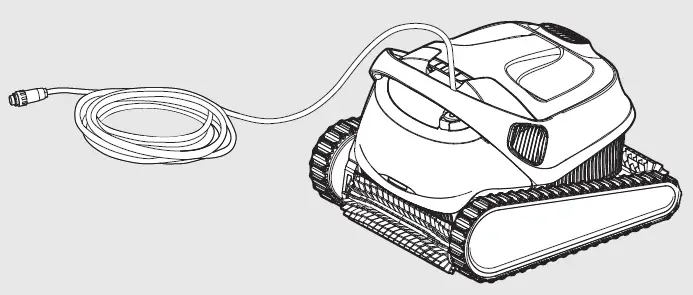
ROBOTIC POOL CLEANER PARTS
- Robotic Pool Cleaner

- Power supply

- Filtration

- Caddy kit

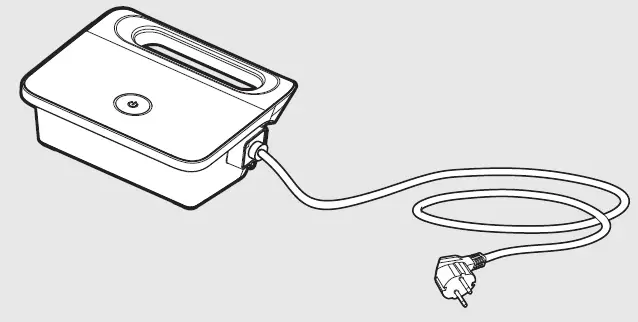
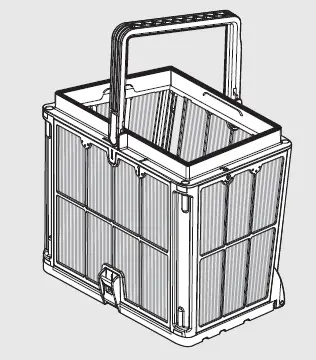
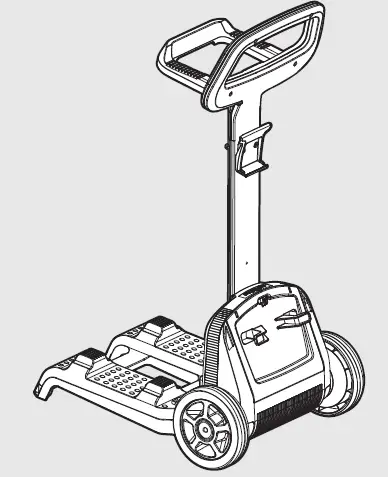
USE THE POOL CLEANER
Setup
The Pool Cleaner is very simple to use. Simply place it in the pool and make sure that it is correctly positioned on the floor of the pool.
Turn it ON and enable it to complete the task.
Before using the Pool Cleaner for the first time, perform the following steps:
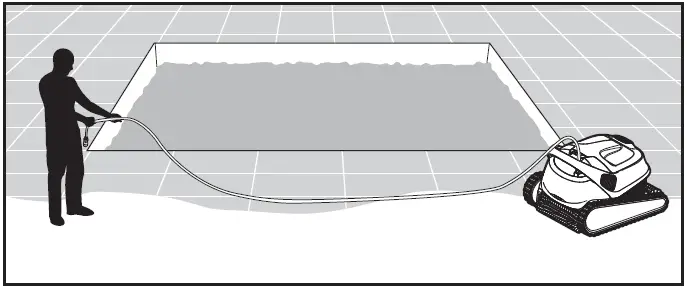
- Position the power supply so that it is approximately in the middle of the long side of the pool at a distance of 3.5m/12ft.

- Unwind the blue cable and stretch it out completely so that it has no kinks.

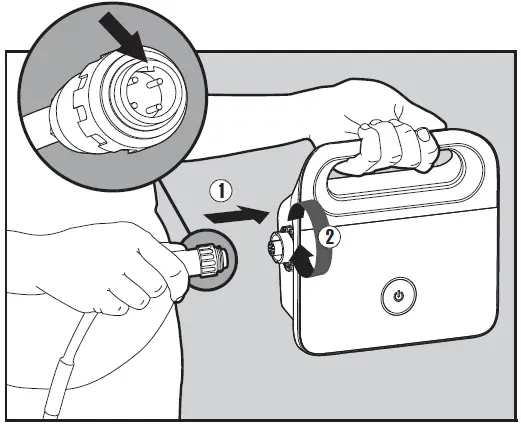
- Attach the blue cable to the power supply by inserting it with the notch on the connector (1) lined up to the groove in the socket on the power supply. Turn it clockwise (2).

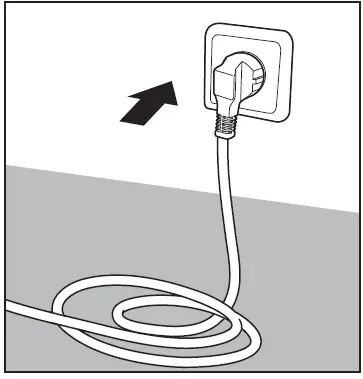
- Plug in the power supply and leave it in the OFF position.

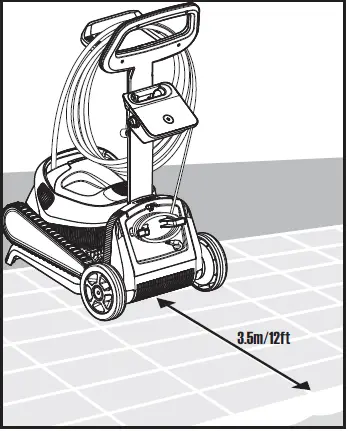
Place the Pool Cleaner in the Water
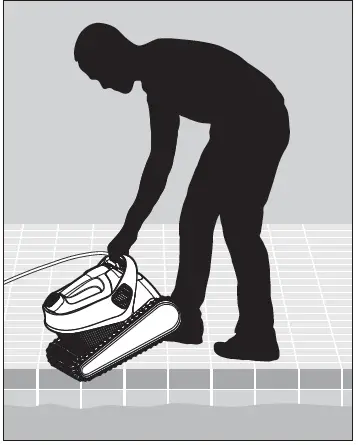
- Place the Pool Cleaner into the pool. Release the Pool Cleaner and let it sink to the floor of the pool. Make sure that the blue cable is free of any obstructions.

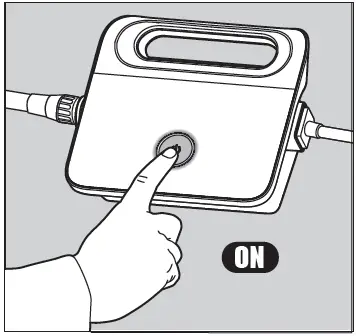
- Turn the power supply ON.
The Pool Cleaner will now operate until it has reached the end of the cleaning cycle.
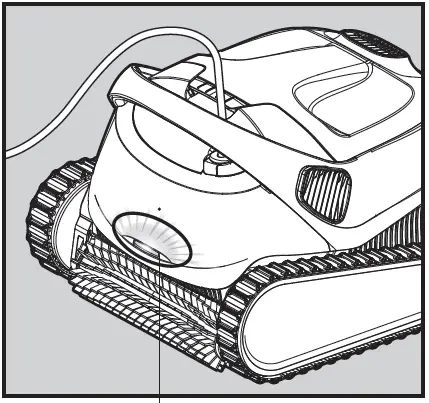
Robot Indicator Lights – For eligible models only
| Light | Indication |
| Blue blinking | Normal operation (additional options available in the App) |
| Green blinking | Smartphone communication with Pool Cleaner – manual driving navigation |
- Indicator lights.

Remove the Pool Cleaner from the Water
Option A
The easiest and most fun way to get the robot out of the water:
- Log into the MyDolphin™ Plus app and click “Pick-up mode”.
- The robot will reach the wall closest to it, and will rise, and will wait for 3 minutes above the water surface.
- Grab the robot by the handle and pull it out the water.
Option B
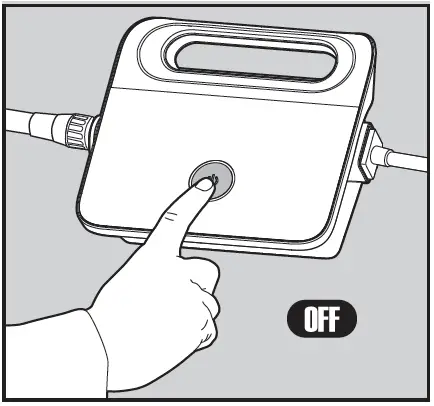
Turn OFF the power supply.
- Using the blue cable, bring the Pool Cleaner to the pool edge.
Use the handle to remove the Pool Cleaner from the pool. Please use the cable to pull the robot to the surface, then use the handle.
 - Place the Pool Cleaner on the edge of the pool to let the water drain out.

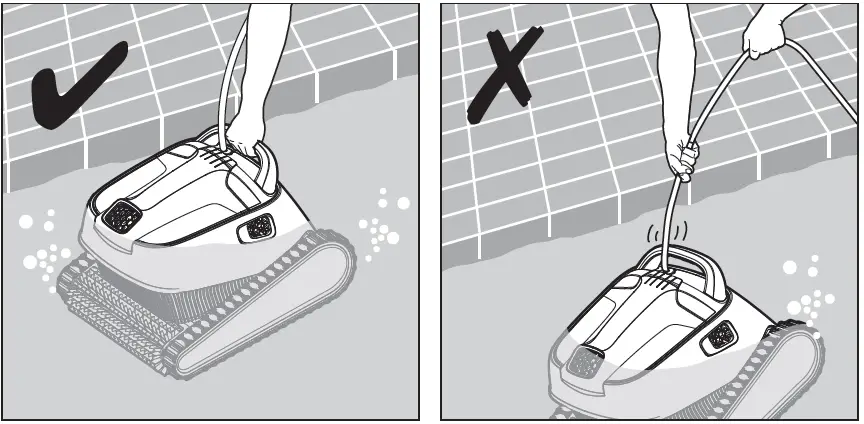 Please use the cable to pull the robot to the surface, then use the handle.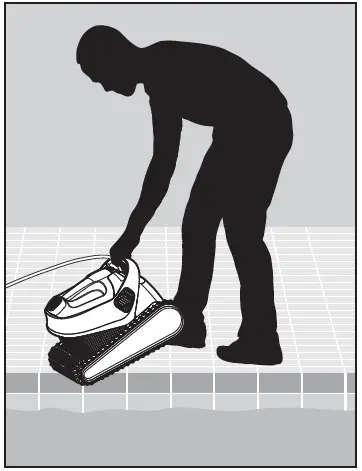
USE THE MyDolphin™ Plus IOT MOBILE APP
Please download the Maytronics MyDolphin™ Plus app to your mobile smart device from either Google Play for Android or the Appstore for iOS.
The Maytronics MyDolphin™ Plus app is cloud-connected, enabling control from anywhere at anytime, with real-time connectivity.
Getting Started with the MyDolphin™ Plus App
The app is compatible with the following smart devices:
- Apple (iOS) – version 10 and up – iPhone, iPad, iPod
- Android – version 5 and up operating system
- Make sure your mobile smart device (phone/tablet) is connected to your home/pool Wi-Fi® network.
- Make sure you have your Wi-Fi® network name and password in reach.
- Ensure Bluetooth® is enabled on your smart device.
- Android users – please make sure your GPS and Location Services are ON.
- For iOS 13 only – while the app is working, enable Bluetooth® & location.
- Please make sure your router is on 2.4Ghz Wi-Fi® frequency only.
Prepare the Pool Cleaner for Connection
- Connect the Pool Cleaner to the power supply.
- The connectivity LED light indicator on your power supply will start flashing blue.
- Place the Pool Cleaner in the water.
- Press the ON button on your IoT power supply, to start the Pool Cleaner.
Activate the Pool Cleaner Using your Mobile Smart Device
- Activate the MyDolphin™ Plus app.
- Click Agree and allow all the required permissions.
- Sign up by creating an account or use your Gmail/Facebook accounts.
- Scan the QR code located on the side of the power supply.
- Alternatively, press “Search for your robot manually” to pair with your Pool Cleaner. The app will start pairing with your power supply.
- Wait for the steady blue connectivity LED light and a success message in the app.
- Connect to your home/pool Wi-Fi® network.
- Enter the password of your home Wi-Fi® network, and press CONTINUE
After a short while, your power supply will flash green and blue. - Wait for the steady green connectivity LED light and a success message in the app.
NOTE: Please make sure to fill in the Warranty details and name your Dolphin Pool Cleaner.
LED Lights
Connectivity LEDs 
The connectivity LED light on the power supply has several modes:
- Flashing blue light – waiting for Bluetooth® connection.
- Steady blue light – connected via Bluetooth®.
- Flashing green light – power supply is trying to connect to your home/pool Wi-Fi® network and cloud, or a weak internet signal.
- Steady green light – power supply is now connected to the Wi-Fi® network and to the cloud.
- Alternating blue and green light – power supply is connected via Bluetooth® and trying to connect to your home/pool Wi-Fi® network & cloud.
On/Off LEDs 
- Steady blue light – The pool cleaner is ON.
- Flashing green light – waiting for the next operation (delay mode or weekly timer).
- Alternate blue/green/red lights – program updating remotely.
Please wait until process is completed. - Steady red light – fault. Refer to troubleshooting.
Tips
- If the app is stuck on the same screen for over 2 minutes, close the app and re-open it.
- To test your Wi-Fi® signal strength and quality, play a video via your smart device browser.
OFF SEASON STORAGE
If the Pool Cleaner will not be in use for an extended period, perform the following storage steps:
- Make sure that no water is left in the Pool Cleaner.
- Thoroughly clean the filter basket and insert them in place.
- Roll up the cable so that it has no kinks and place on the Caddy.
- Store the pool cleaner upright on the Caddy in a protected area out of direct sun/rain/frost at a temperature of between 5˚-45˚C / 41˚-113˚F.
CLEANING THE DUAL FILTER BASKET
Clean the Dual Filter Basket
Unplug the power supply before any servicing activity.
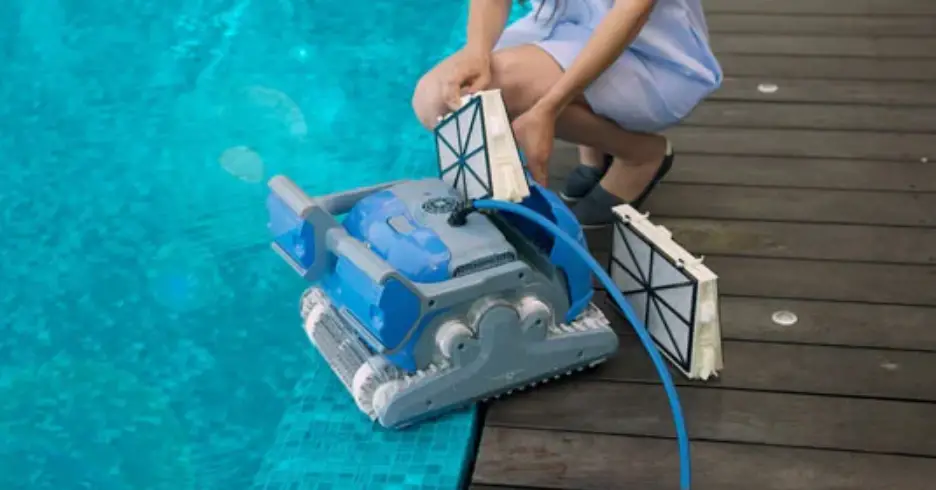
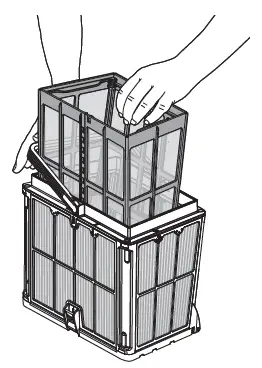
Cleaning after use – removing and cleaning the dual filter basket
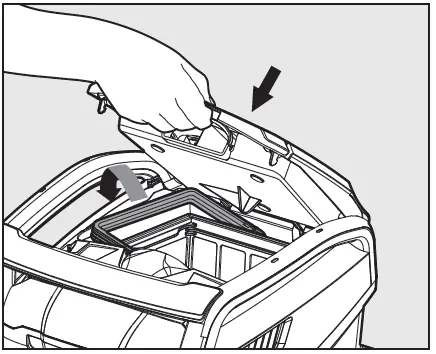
- Open the filter cover.

- The handle will lift up independently. Lift up the basket.

- Open the latch to release the bottom lid.

- The debris can then be removed.

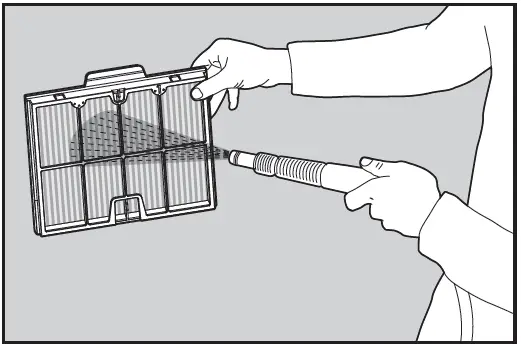
- Clean the filter basket with a hose.

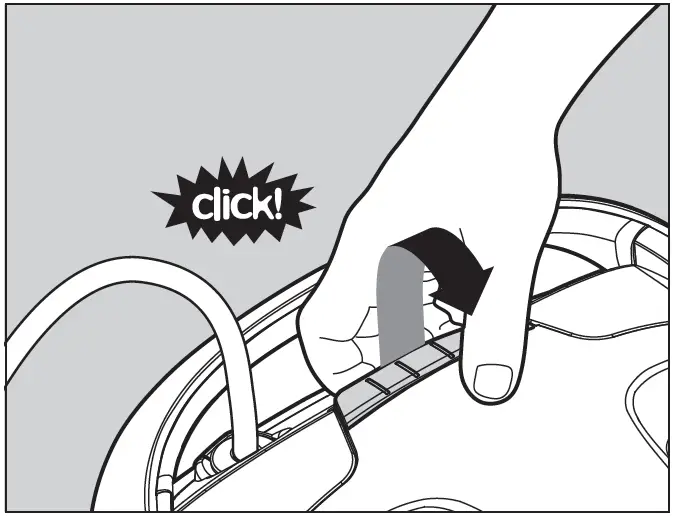
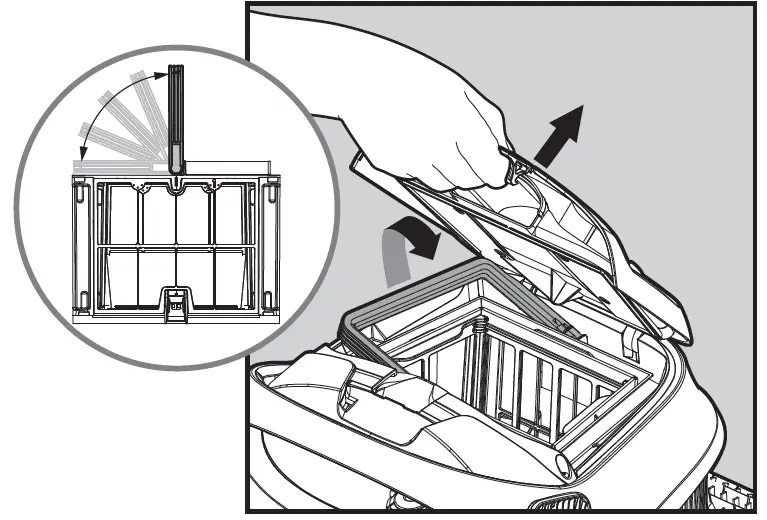
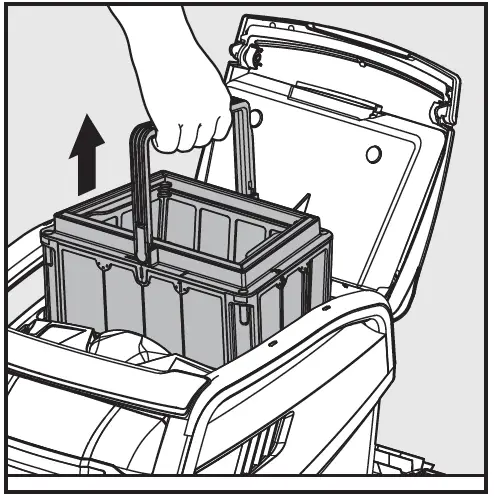
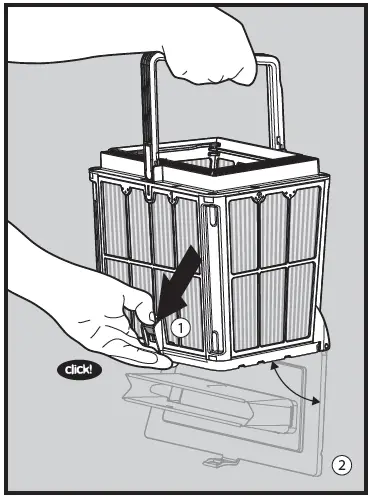
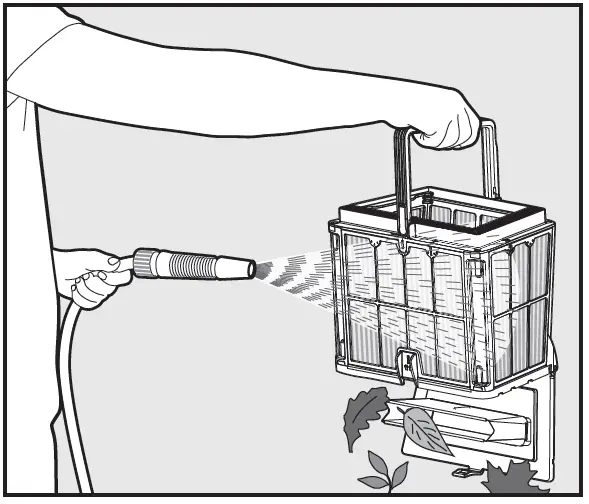
Filter indicator
This Dolphin robotic pool cleaner has a unique feature that shows you the filter status, and when its need to be cleaned.
This is highly important for the efficient operation of the filter and its preservation over time.
The feature can be activated through the “MyDolphin Plus” app.
Periodic filter cleaning – Recommended at least once a month
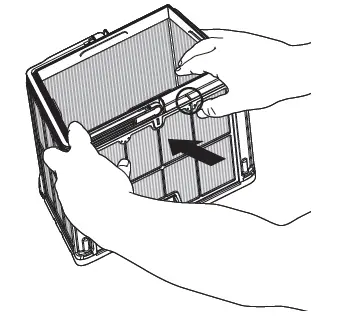
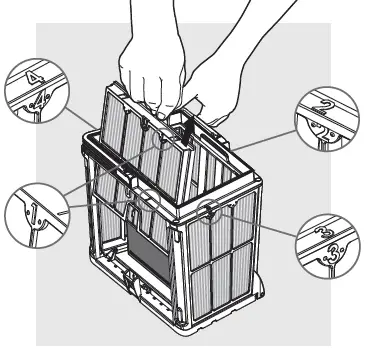
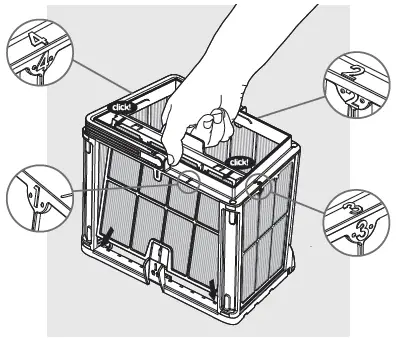
Dismantle the 4 ultra-fine filter panels of the outer basket, according to the following steps:
- Hold down the handle to remove the inner net basket.

- Dismantle the panels; start by pressing on panel 1, using your thumbs.

- Continue to dismantle the panels in order: 2 —> 3 —> 4.

- Clean the filter panels with a hose.

- Assemble the filter panels according to the following order: Panel 4 —> 3 —> 2 —> 1.

- Insert the clean filter basket and close the filter cover.
Do not force the filters into place.
Clean the Impeller
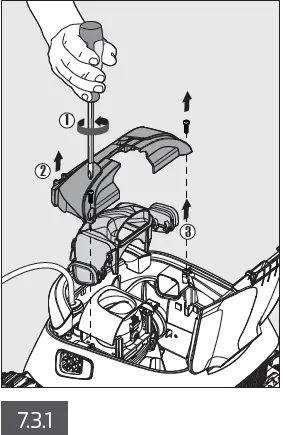
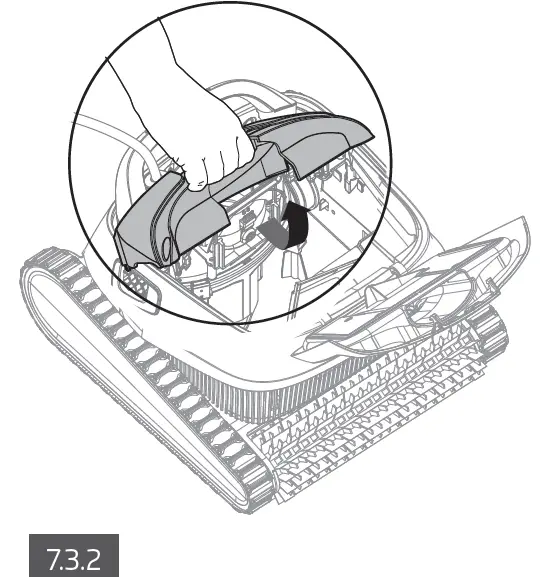
If you notice debris trapped in the impeller:
Unplug the power supply before any servicing activity.
WARNING
Clean the debris trapped in the impeller opening, according to the following steps:
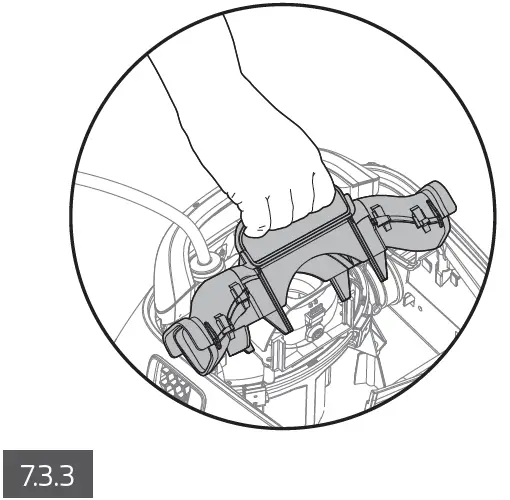
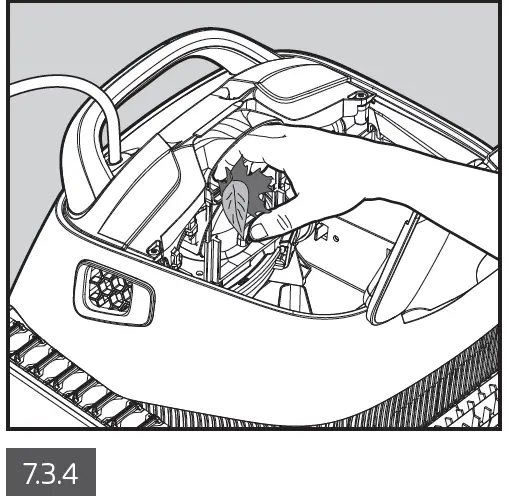
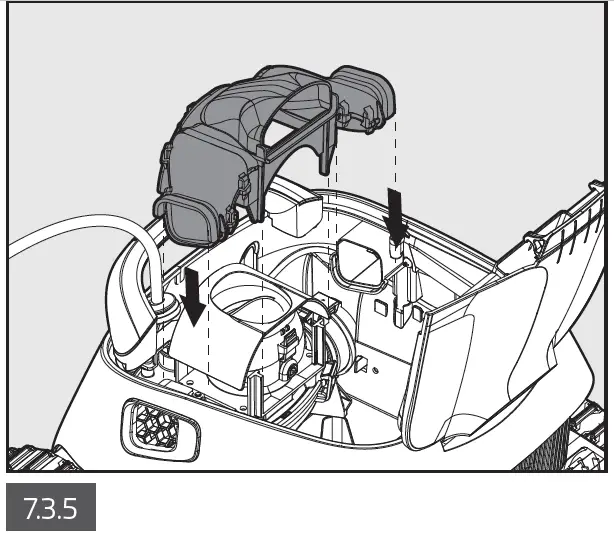
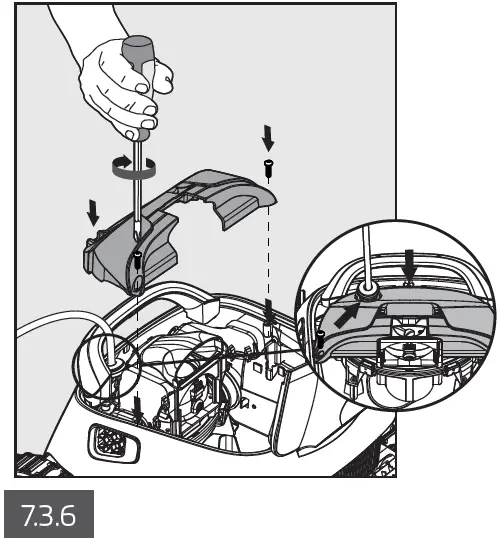
TROUBLESHOOTING
Unplug the power supply before performing any action.
| Symptom | Possible reason | Corrective action |
| Power-supply or switch is not working. |
|
|
| Pool Cleaner does not move / Red light on the power supply. |
|
|
| Pool Cleaner is moving in circles. |
|
|
| Pool Cleaner does not turn or moves in one direction only. |
|
|
| Pool Cleaner moves but does not clean the pool. |
|
|
| Pool Cleaner cleans only part of the pool. |
|
|
| Blue floating cable has kinks. |
|
|
| Pool Cleaner does not climb the walls. |
|
|
MyDolphin™ Plus – TROUBLESHOOTING
Before using the app, make sure you have:
- Cellular connection 3G/4G/5G or Wi-Fi®, with strong signal strength
- Power supply support 2.4Ghz ONLY
- Bluetooth® enabled
| Action | What To Do |
| Pool cleaner does not connect to Wi-Fi®, and the power supply is Flashing green light | power supply is trying to connect to your home/pool Wi-Fi® network and cloud.
|
| Second connection after losing router/ Wi-Fi®: How to change to Bluetooth® after first Wi-Fi® /3G connection. | Losing router/ Wi-Fi®:
|
| Initial connection. How to connect with Bluetooth® only. | Before you start: CONNECT VIA Wi-Fi®, 3G/4G MUST BE OPEN
|
| How to change to Wi-Fi® after initial Bluetooth® connection. |
|
| Changing your Wi-Fi® network. | Router was replaced
|
| For Android users. Power supply replacement for new Wi-Fi® connection. | New power supply for a robot connected through Wi-Fi®
|
| Action | What To Do |
| For iOS users. Power supply replacement for new Wi-Fi® connection | New power supply for a robot connected through Wi-Fi®
|
| Motor unit replacement for unit that was not reported to the support system by the technician. |
If you do not recognize the serial number, press to add the robot s/n manually or scan the QR Code. |
If these solutions do not solve your problem,
contact Maytronics Customer Care:
Australia, NZ, South Africa
1 300 693 657
[email protected]
For full information and additional troubleshooting please visit us at: www.maytronics.com.au
 Robotic Swimming Pool Cleaners & Vacuums | Maytronics