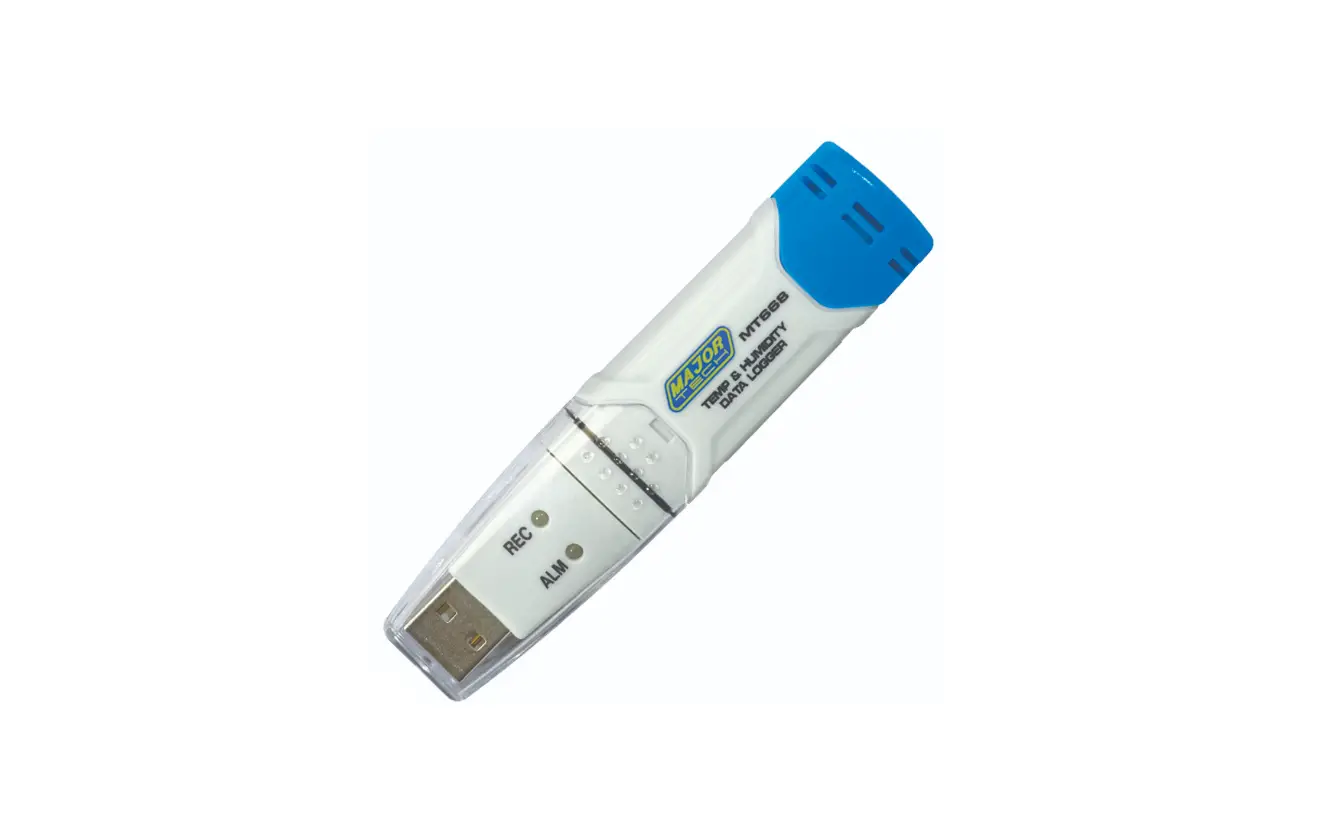
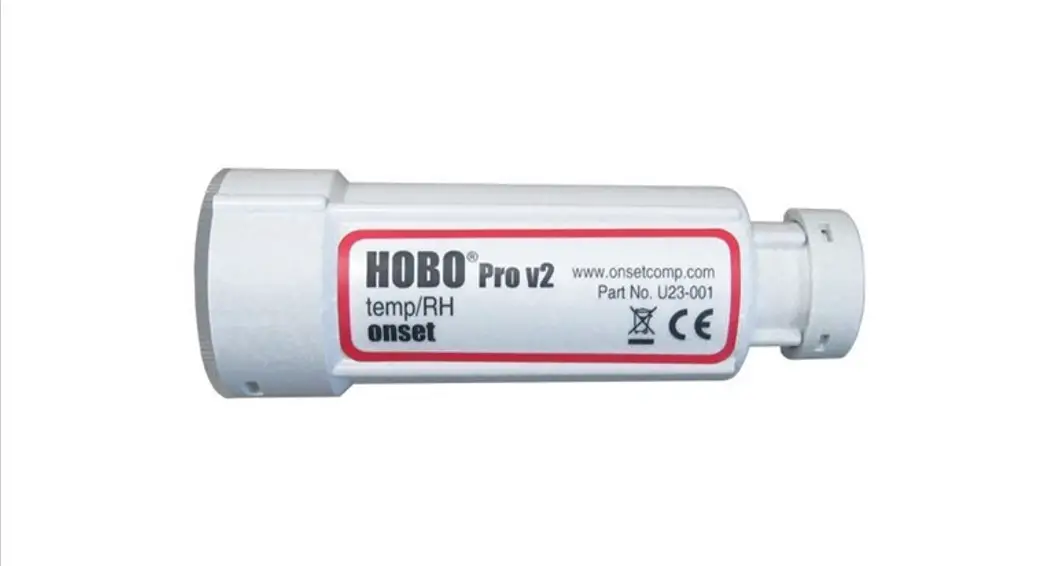
S380-WS Explosion-Proof Temperature Humidity Data Logger
S380WS Series User Manual
Chapter 1: S380WS Data Logger Hardware
1.1 Introduction
The HUATO S380-WS data logger has a large capacity of up to
120,000 readings and can record data for up to one year based on a
sampling frequency of 10 minutes. It comes with matched software
for data download and transfer to a computer. The user can set the
log time, sampling interval, and logging interval by software.
1.2 Features
- Logging interval: 60 seconds to 6 hours
- Logging protection: Logging will stop when the battery is low.
The value can be saved forever safely. - Display Resolution: temperature: 0.1 / humidity: 0.1%RH
- Interface: USB Port
- Dimension: 97 * 68 * 32 mm
- Wireless antenna: Built-in
- Installation: Wall-mounted with fixed support, easy to use and
convenient to maintain - Battery: 2 x ER14505 (3.6V AA Size) Non-rechargeable Lithium
Battery
1.3 Model
| Model | Measurement Accuracy | Measurement Range | Probe Type (T:Temperature; H:Humidity) | Capacity of Records |
|---|---|---|---|---|
| -20~70 ℃ / 0~100%RH | N/A | -20~70 ℃ / 0~100%RH | T&H | 120,000 |
1.4 Appearance (S380WS)
The S380WS data logger has an LCD display with ON/OFF(Log) and
ON/OFF(Power) options, a USB interface, a wall-mounted back cover,
a power back cover, and various symbols for power, signal,
wireless, display RH, DC power, LOG (Recording) status,
selectable/humidity symbols.
1.5 Screen (S380WS)
The S380WS screen displays various symbols for power, signal,
wireless, display RH, DC power, LOG (Recording) status,
selectable/humidity symbols.
1.6 Install battery
- Take out the back cover as indicated by the symbol.
- Install 2 x ER14505 (3.6V) Lithium batteries.
Chapter 2: Logpro Software
2.1 The Requirement of the Computer Hardware
- OS: Windows XP/Vista/7/8 (32/64bit)
- CPU: 1.6GHz
- Physical Memory: 512MB
- Hard-drive Space: 4 GB
- USB Port: 1
2.2 Install Driver & Software
- Install Driver Notice: Windows 64bit please install
64bit-driver. - Install Logpro Software Notice: Please Install Logpro Software
in D:
2.3 Setting the Logger’s Properties
- Connect the data logger to the computer.
- Run Logpro software on the PC.
- From the toolbar, select Connect.
- Read the logger’s properties.
- Set the properties.
- Sync the properties & time. (The PC time will be
synchronized to the logger as well.) Now, the data logger is in
Standby mode. - Press Log button on Menu, start recording.
- From the toolbar, select Disconnect.
- Unplug the logger from the Computer USB Port.
2.4 Properties Description
| Property | Text |
|---|---|
| Name | English Letters or Numbers |
| SN | 10 Characters |
Please refer to Chapter 3 (Attention) and Chapter 4 (FAQ) in the
user manual for additional information and troubleshooting
tips.
Chapter 3: Attention
- LCD Screen Dim
- Recording (LOG) are Automatically Stop
- Software Runtime Error
- Check COM Port Number
Chapter 4: FAQ
- LCD Screen Dim
- Recording (LOG) are Automatically Stop
- Software Runtime Error
- Check COM Port Number
Product Usage Instructions
- Remove the back cover of the data logger and install two
ER14505 (3.6V) Lithium batteries. - Connect the data logger to the computer using the USB
port. - Install the driver and Logpro software on the computer.
- Run Logpro software and select Connect from the toolbar.
- Read the logger’s properties and set them accordingly.
- Synchronize the properties and time.
- Press Log button on Menu to start recording.
- Select Disconnect from the toolbar and unplug the logger from
the computer USB port when finished. - Refer to Chapter 3 and Chapter 4 in the user manual for
troubleshooting tips.
S380WS Series
User Manual
S380WS
Chapter 1. S380WS Data Logger Hardware ………………………………………………………………….. 3 1.1 Introduction ……………………………………………………………………………………………………. 3 1.2 Features ……………………………………………………………………………………………………….. 3 1.3 Model ……………………………………………………………………………………………………………. 3 1.4 Appearance (S380WS)……………………………………………………………………………………. 4 1.5 Screen (S380WS) ………………………………………………………………………………………….. 4 1.6 Install battery …………………………………………………………………………………………………. 5
Chapter 2. Logpro Software ………………………………………………………………………………………… 6 2.1 The Requirement of the Computer Hardware …………………………………………………….. 6 2.2 Install Driver & Software ………………………………………………………………………………….. 6 2.3 Setting the Logger’s Properties ………………………………………………………………………… 7 2.4 Properties Description …………………………………………………………………………………….. 8
Chapter 3. Attention ……………………………………………………………………………………………………. 9 Chapter 4. FAQ ………………………………………………………………………………………………………….. 9
4.1 LCD Screen Dim ……………………………………………………………………………………………..9 4.2 Recording (LOG) are Automatically Stop …………………………………………………………… 9 4.3 Software “Runtime Error” ………………………………………………………………………………… 9 4.4 Check COM Port Number ……………………………………………………………………………….. 9
Chapter 1. S380WS Data Logger Hardware
1.1 Introduction
HUATO S380-WS data logger comes with large capacity, up to 120,000 readings. It can record at last for one year’s data base on sampling frequency of 10minutes, also very safe. It comes with matched software for data download and transfer to computer when needed. Besides user can set the log time, sampling interval, and logging interval by software.
1.2 Features
Logging interval: 60 second ~ 6 hours. Logging protection: Logging will stop when battery is low. The value can be saved forever
safely. Display Resolution: temperature: 0.1 / humidity: 0.1%RH Interface: USB Port. Dimension: 97 * 68 * 32 mm. Wireless antenna: Built-in InstallationWall-mounted with fixed support, easy to use and convenient to maintain. Battery: 2 x ER14505 (3.6V AA Size) Non-rechargeable Lithium Battery
1.3 Model
Model
Measurement Accuracy
S380WS ±0.5/±5%RH
Measurement Range
-2070 0100%RH
Probe Type (T:Temperatur; H:Humidity)
T&H
Capacity of Records
120000
3
1.4 Appearance (S380WS)
LCD Display ON/OFF(Log) ON/OFF(Power)
1.5 Screen (S380WS)
USB Interface Wall-mounted Back Cover Power Back Cover
Power Symbol Signal Symbol Wireless Symbol / Display RH Display
DC power Symbol LOG (Recording) Status Symbol Selectable / Symbol Humidity Symbol
4
1.6 Install battery
1. Take out the back cover as the indication symbol , 2. Install 2 x ER14505 (3.6V) Lithium batteries .
5
Chapter 2. Logpro Software
2.1 The Requirement of the Computer Hardware
1. OS: Windows XP/Vista/7/8 (32/64bit) 2. CPU: 1.6GHz 3. Physical Memory: 512MB 4. Hard-drive Space: 4 GB 5. USB Port: 1
2.2 Install Driver & Software
1. Install Driver Notice: Windows 64bit please install 64bit-driver.
2. Install Logpro Software Notice: Please Install Logpro Software in D:
6
2.3 Setting the Logger’s Properties
1. Connect the data logger to the computer.3 2. Running Logpro software on the PC. 3. From the toolbar select Connect.4 4. Read the logger’s properties. 5. Set the properties. 6. Sync the properties & time. (The PC time will be synchronized to the logger as well.)
Now, the data logger is in Standby mode5.
3
4 6 5
7. Press Log button on Meun, start recording.
7
8. From the toolbar select Disconnect
8
9. Unplug the logger from the Computer USB Port.
3 The windows operating system cannot handle USB devices being unplugged and plugged back too fast. When unplugging the logger, wait for about 5 seconds before plugging it in again. If you unplug and plug back a device too quickly, the computer may stop recognizing any USB devices on that port. If this happens you will have to restart the computer. This is a windows USB problem and is not related to Logpro. 4 If more than one logger is connected to your computer at the same time, the program will ask you to choose COM port manually. 5 The logger has three modes: 1.LOG: In the mode, the logger samples and records data timely. 2.Standby: In the mode, the logger stops to sample and record, and the LCD display is ON. 3.OFF: In the mode, the logger stops to sample and record, and the LCD display is off. Logpro cannot connect to the logger also.
7
2.4 Properties Description
Property
Text
Name
English Letters or Numbers
SN
10 Characters
Sampling Interval (s) Logging Interval (s) Down Mode Start Mode Delay Time Stop Mode
Number from 1 to 240 Number from 2 to 86400
First In First Out
Stop When Full
Logs Total Alarm
LCD Power High & Low Limit
Offset6
CH1: Temperature CH2: Humidity / Temperature2
Description Name of the logger Must be the same as the one in the label of logger. Sampling frequency in LCD screen Logging frequency / S400 Upload frequency (Cannot be changed) (Cannot be changed) (Cannot be changed) When recording memory is full, the logger will delete the earliest data When recording memory is full, the logger will stop record new data The count of records in the memory. The total capacity of the logger’s storage. Turn ON / OFF the Data Logger’s Over Limit Alarm Please choose ON Please choose Normal When the value over the limit, the buzz will sound / red LED will flash an alarm. Input positive number to decrease the value. Input negative number to increase the value.
6 Calibrate the logger: The logger is factory calibrated to an accuracy given in the device specifications. However, there may be times when you wish to adjust the calibration of your logger. Logpro provides you with the ability to perform a single point offset calibration. This calibration can be used to increase the accuracy of the logger for a restricted data range.
8
Chapter 3. Attention
S400W / S380WS Series Data Logger are not waterproof. Do not connect loggers with computer when the logger is on water.
S400W / S380WS Series Data Logger plastic shell is ABS, flame retardant, not resistant to acid and alkali.
If repair is needed, only authorized technician could do the repair. AA alkaline battery (1.5V) is not rechargeable. ER14505 lithium battery (3.7V) is not rechargeable. USB power supply (5V) cannot let the Data Logger work.
Chapter 4. FAQ
4.1 LCD Screen Dim
Reason: Insufficient battery or the environment temperature is too low or too high. Solution: In the case of insufficient battery, please replace the battery. If resulted from environment
temperature, please immediately take the logger out of the environment.
4.2 Recording (LOG) are Automatically Stop
Reason: When the battery level is low, there will not be sufficient power to support recording
function of the logger. Solution: Replace the battery.
4.3 Software “Runtime Error”
Reason: OS forbid software creating files. Solution: Run the program (software) as an administrator. Install software in Disk D: A data logger name cannot contain any of the following characters: / : * ? ” < > | Software’s installation path cannot include Chinese character or garbage character.
4.4 Check COM Port Number
Press “Win” + “R” in keyboard -> Run “devmgmt.msc” to Open “Device Manager” in Windows-> Expand “Ports (COM & LPT)” -> “USB-SERIAL CH340 (COM No.)” is the Data Logger
9