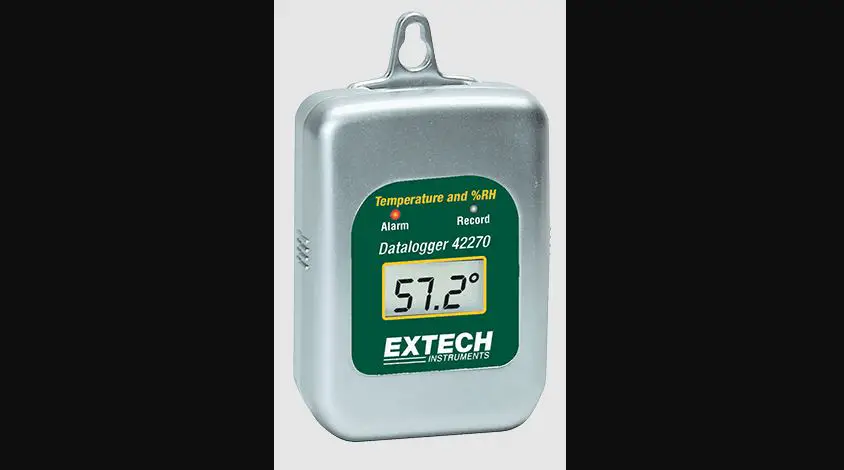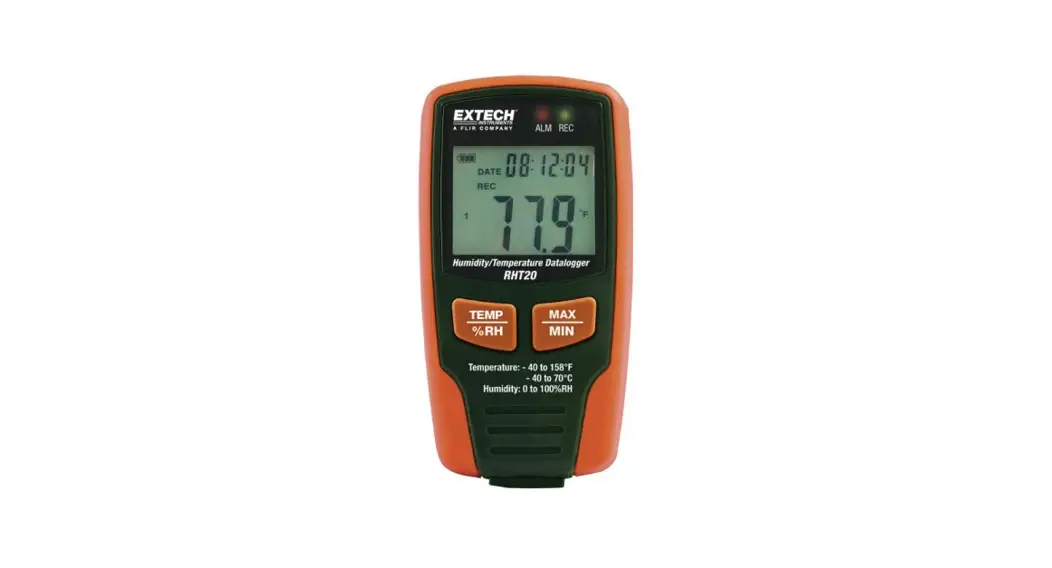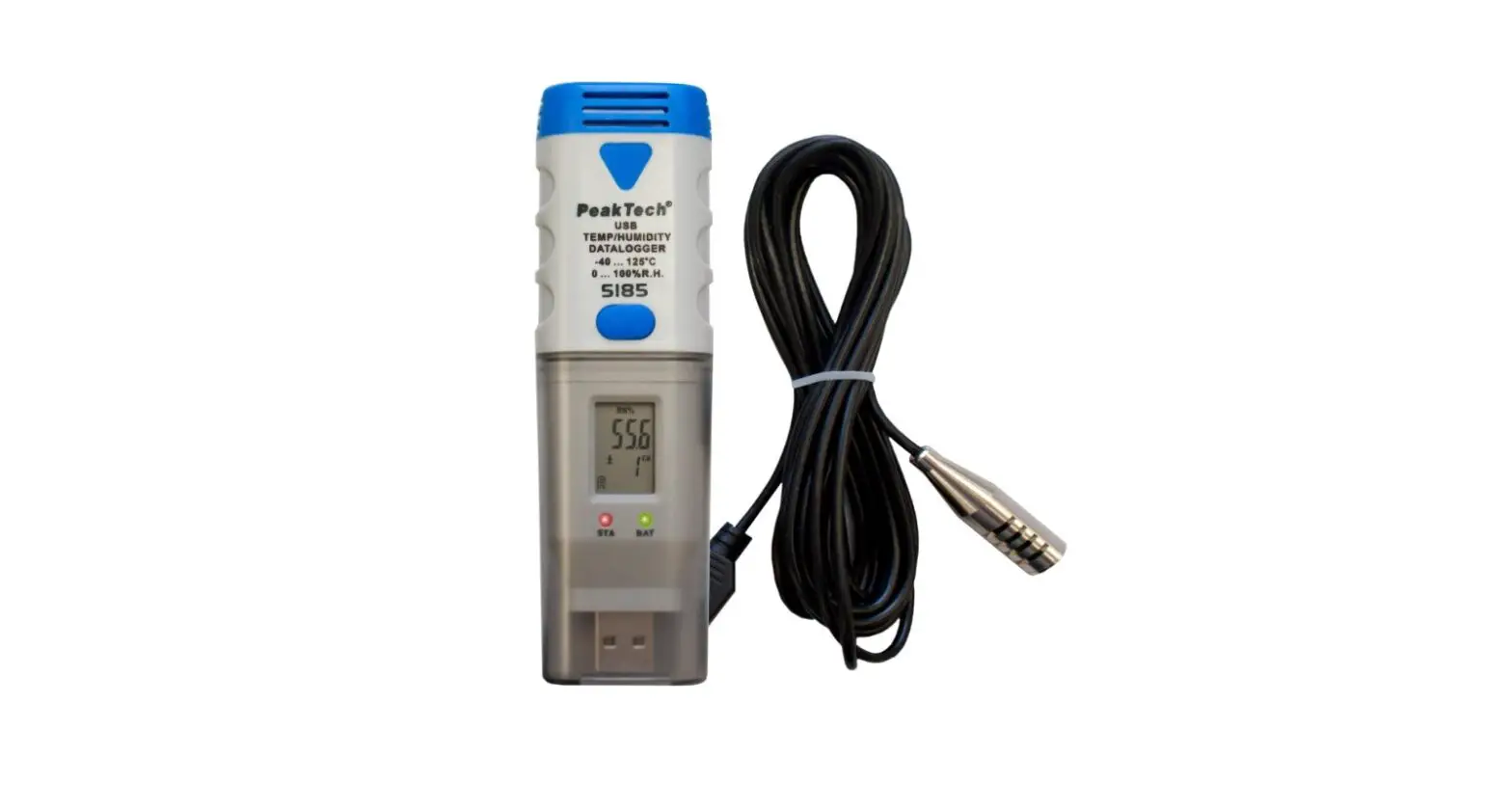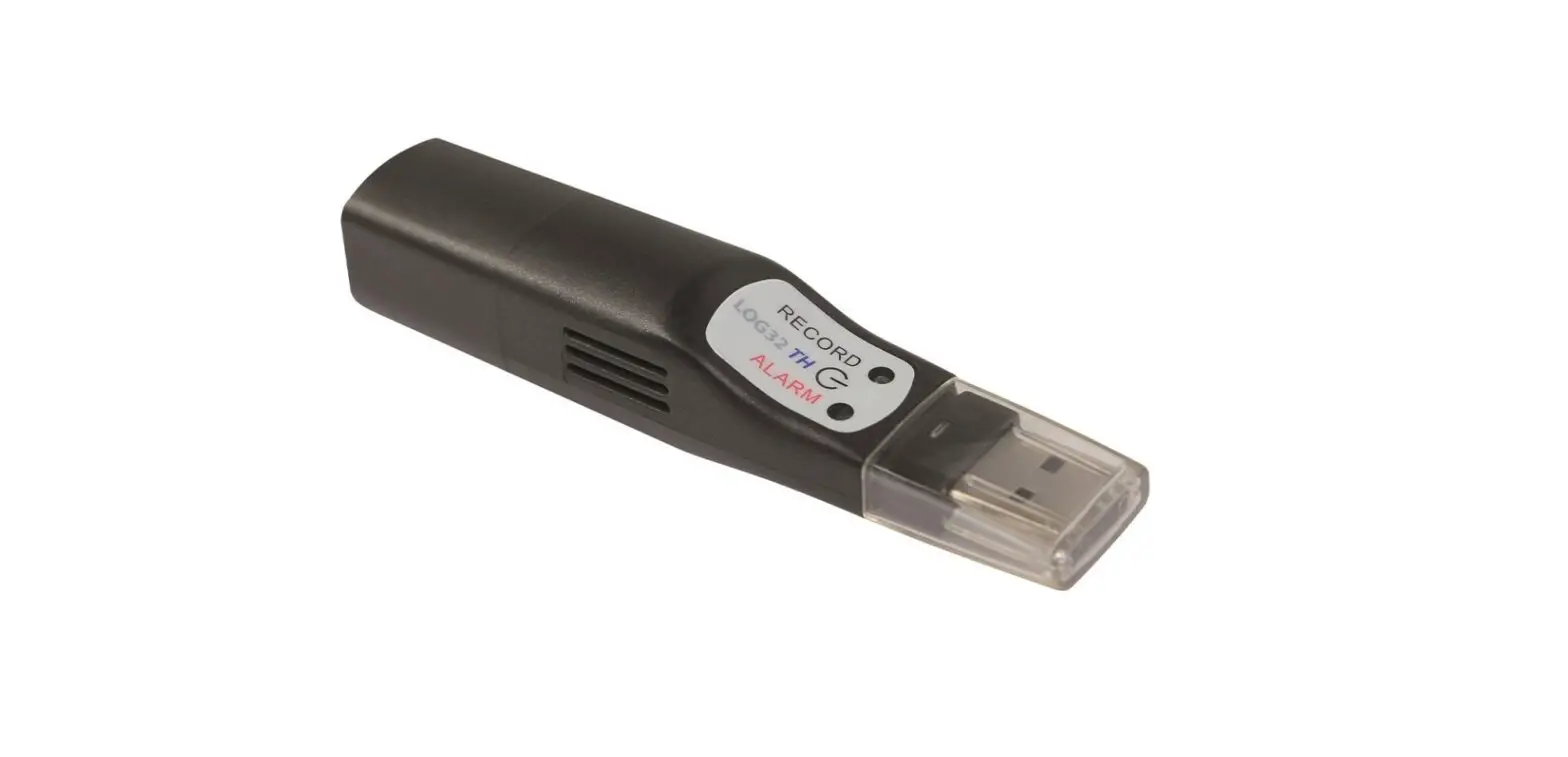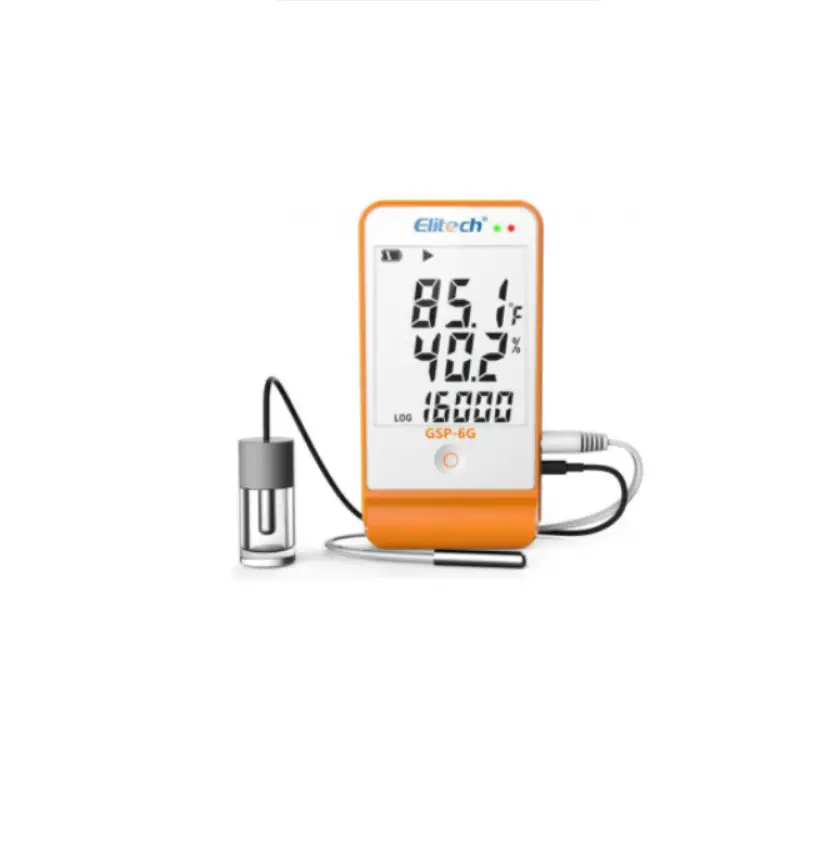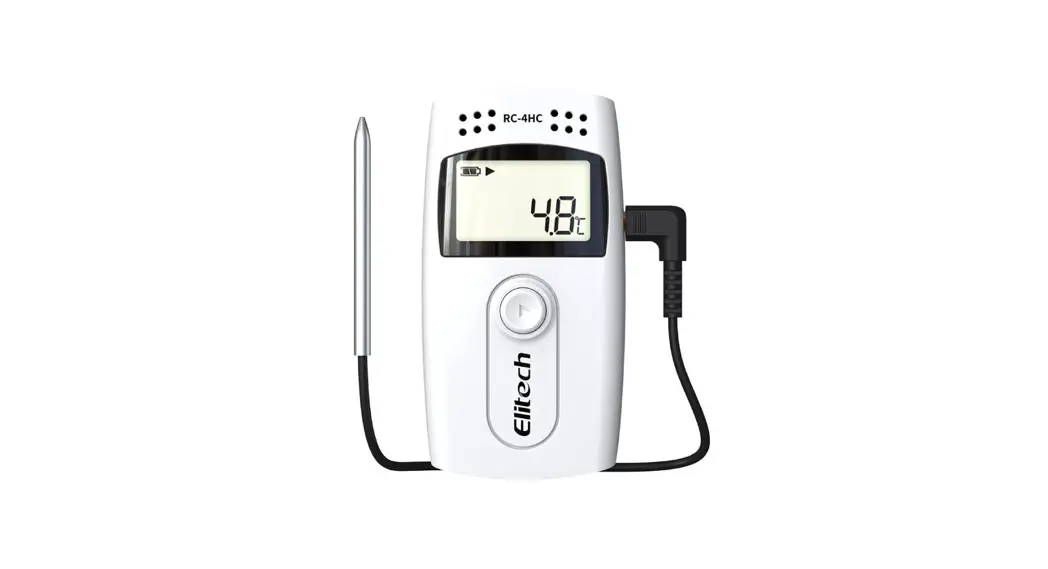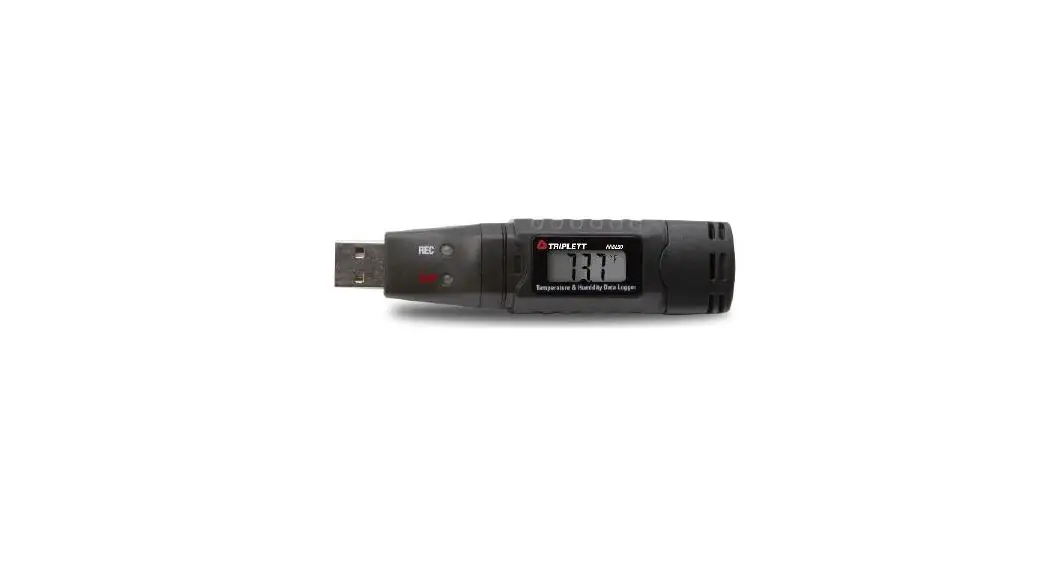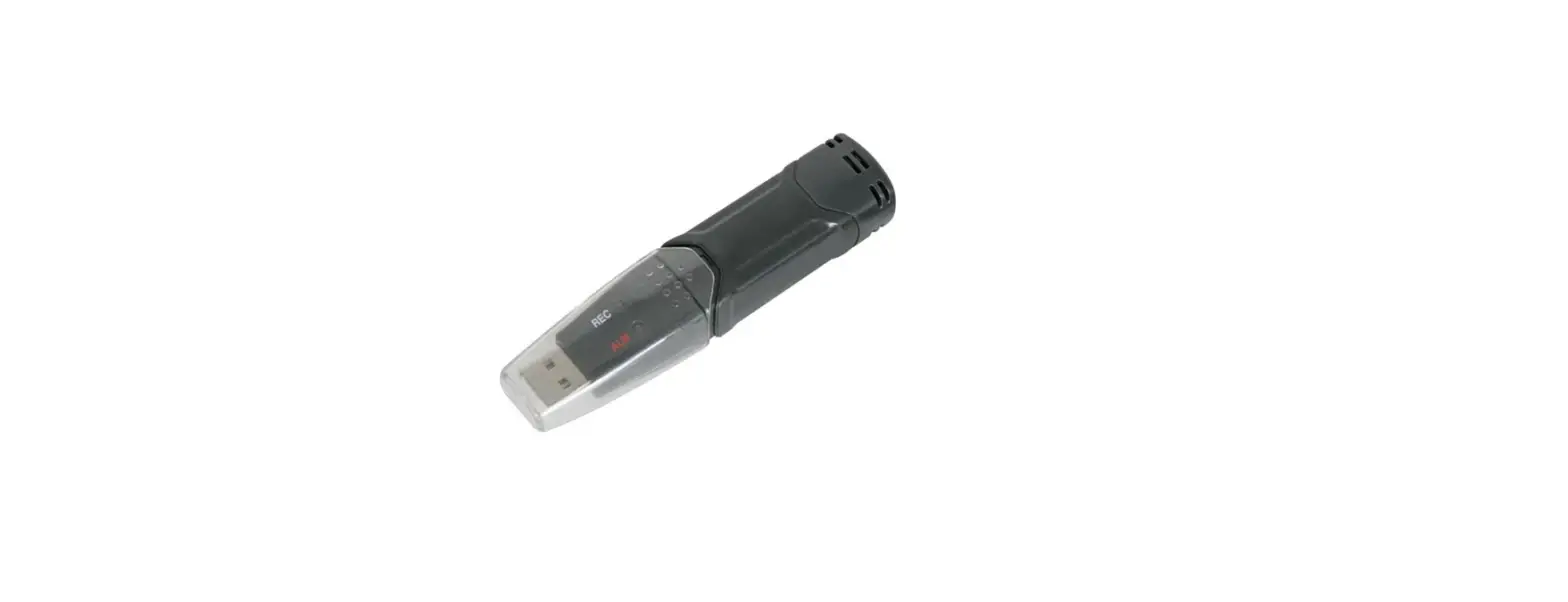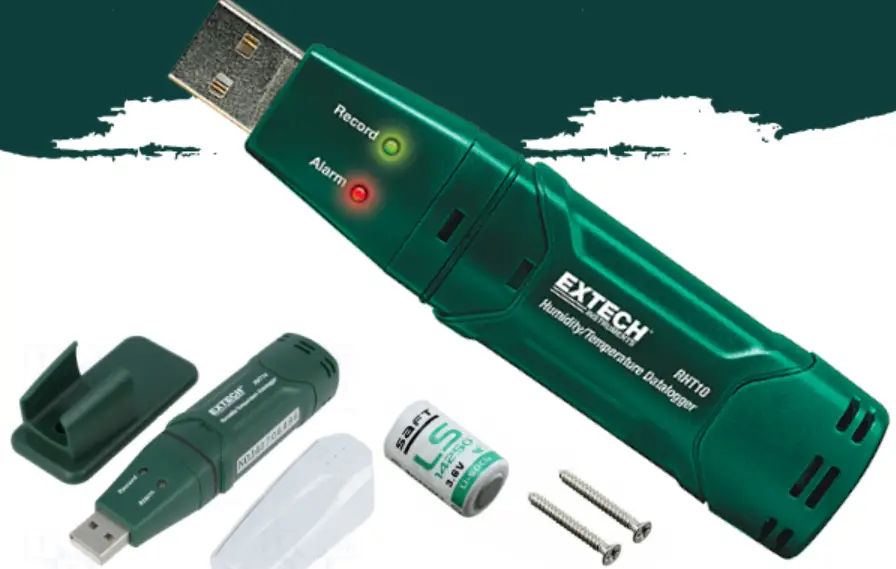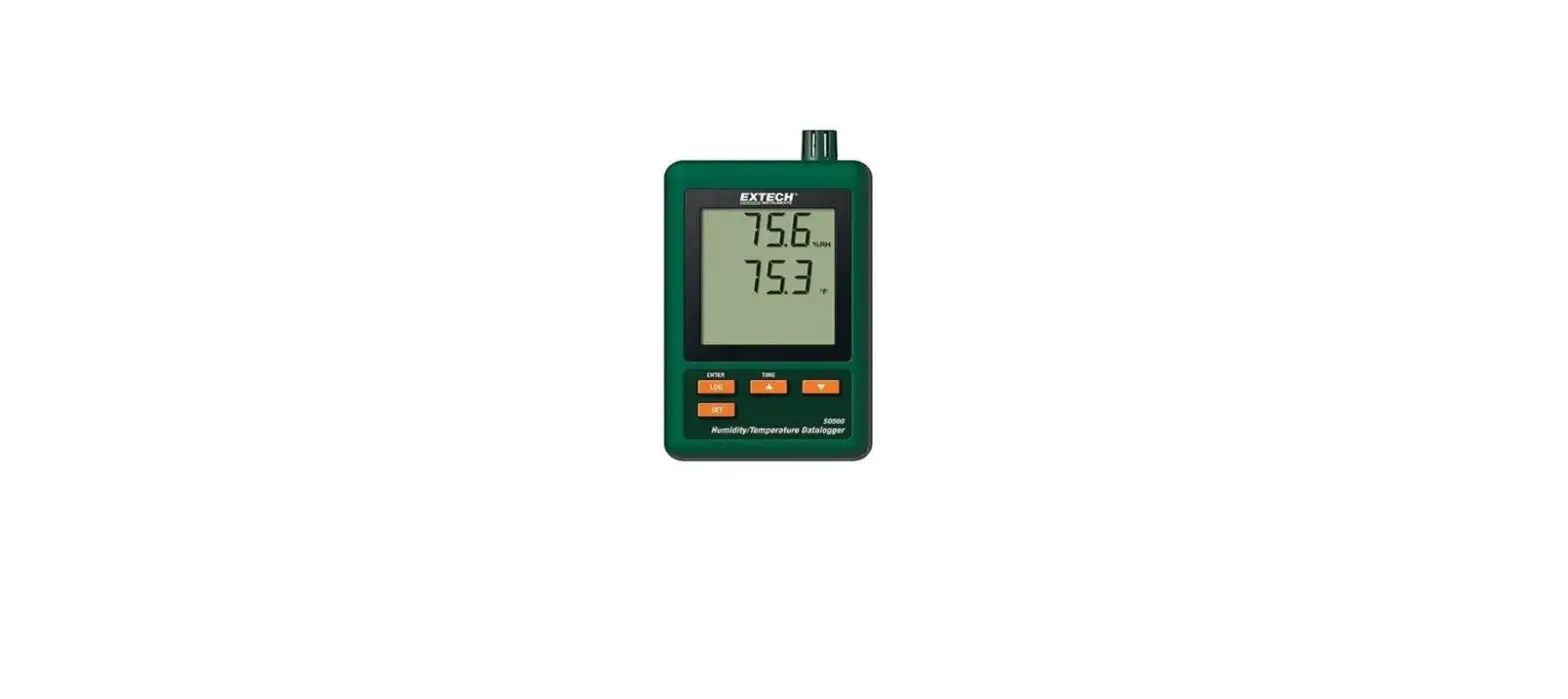

EXTECH 42280A Temperature and Humidity Datalogger
Introduction
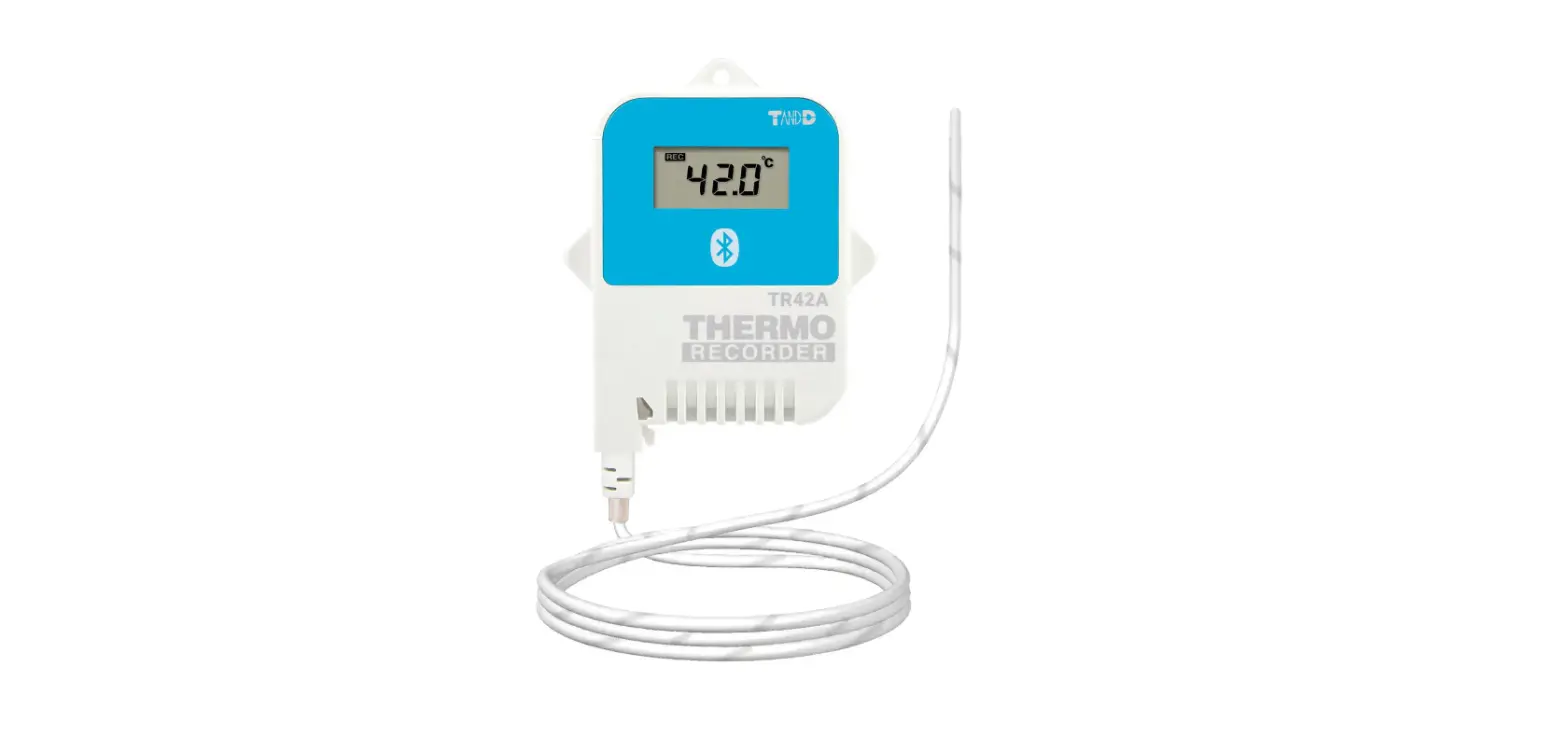
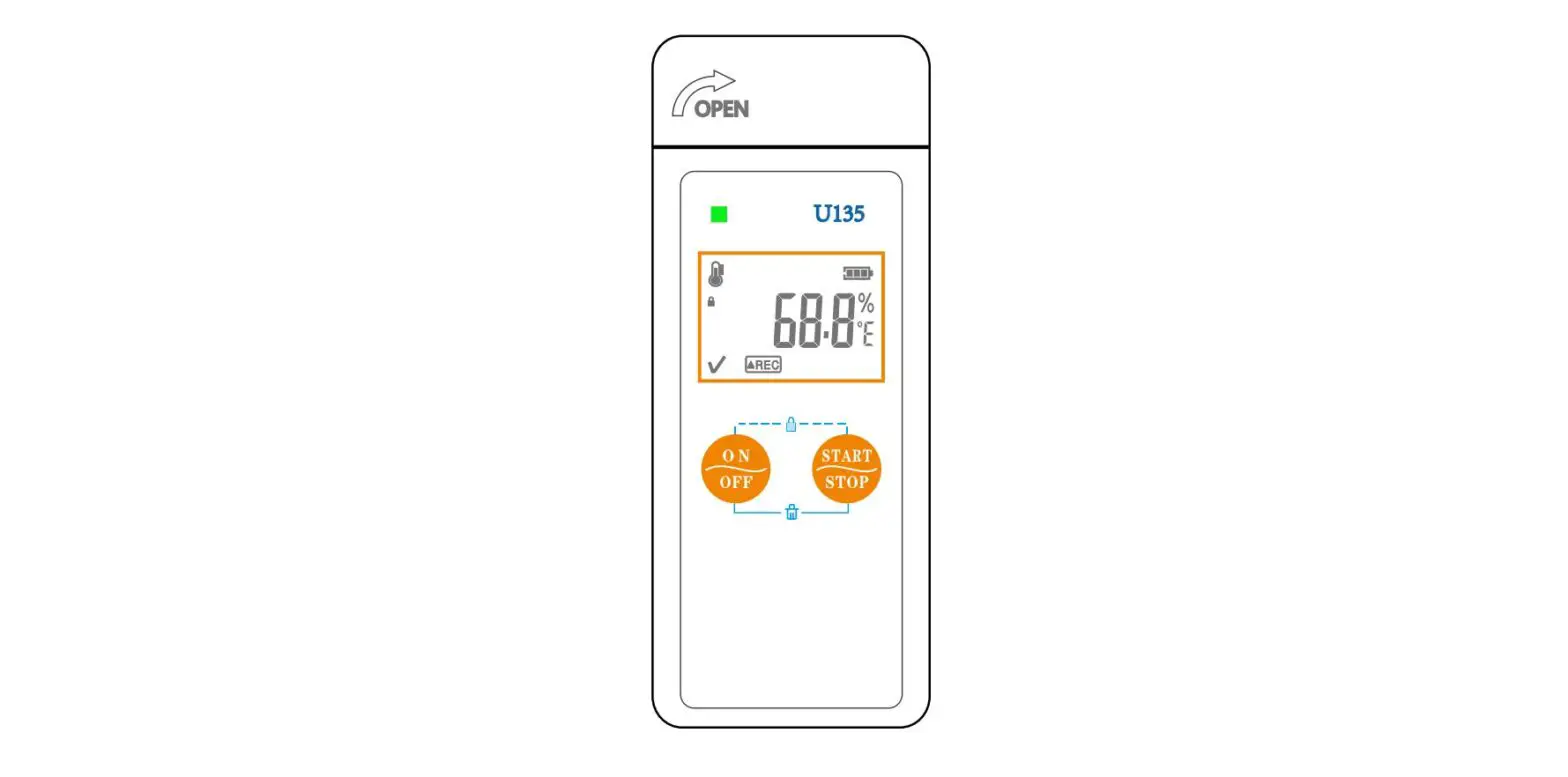
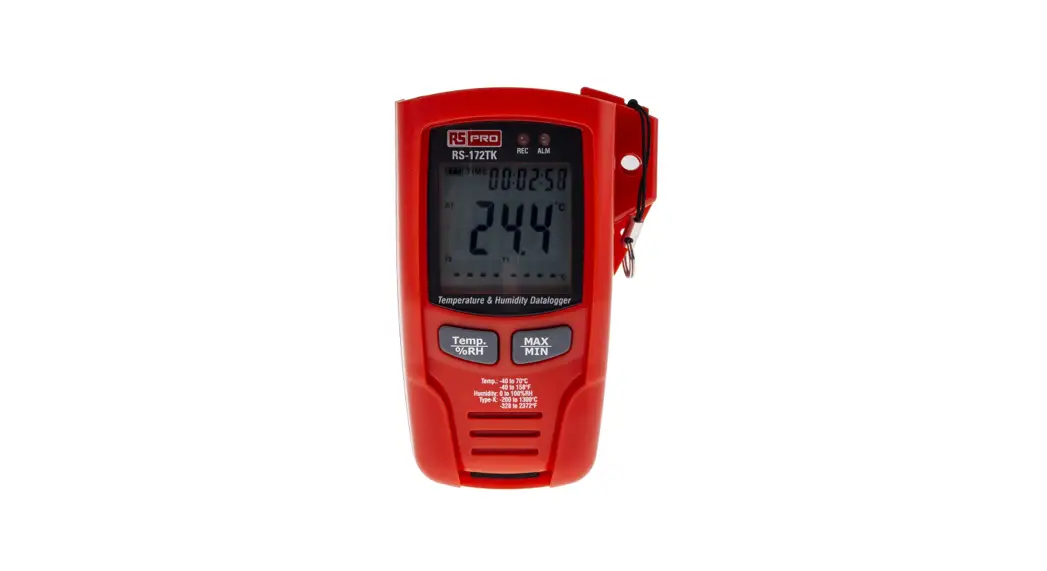
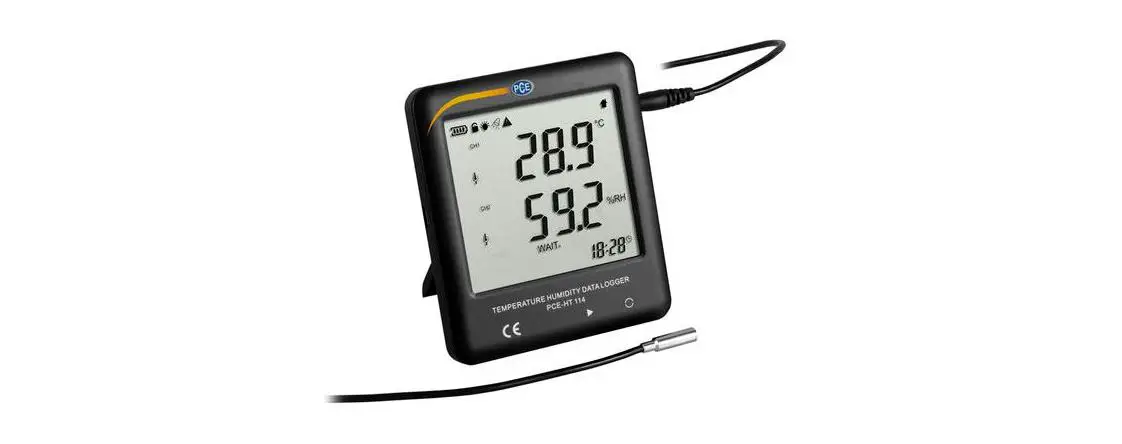
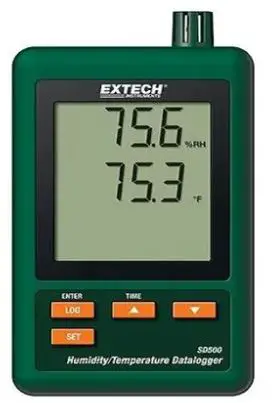
The 42280A is a portable, battery operated instrument that moni-tors, displays, and logs Temperature and Relative Humidity (RH). The 42280A can monitor environmental conditions in a variety of residential and commercial storage and in-transit locations. The 42280A logs up to 48,000 readings for later PC transfer and generates comprehensive reports that include detailed statistical analyses with high/low alarms. Download the User Manual from the support site for detailed in-structions and additional language translations:
https://support.flir.com
Quick Steps
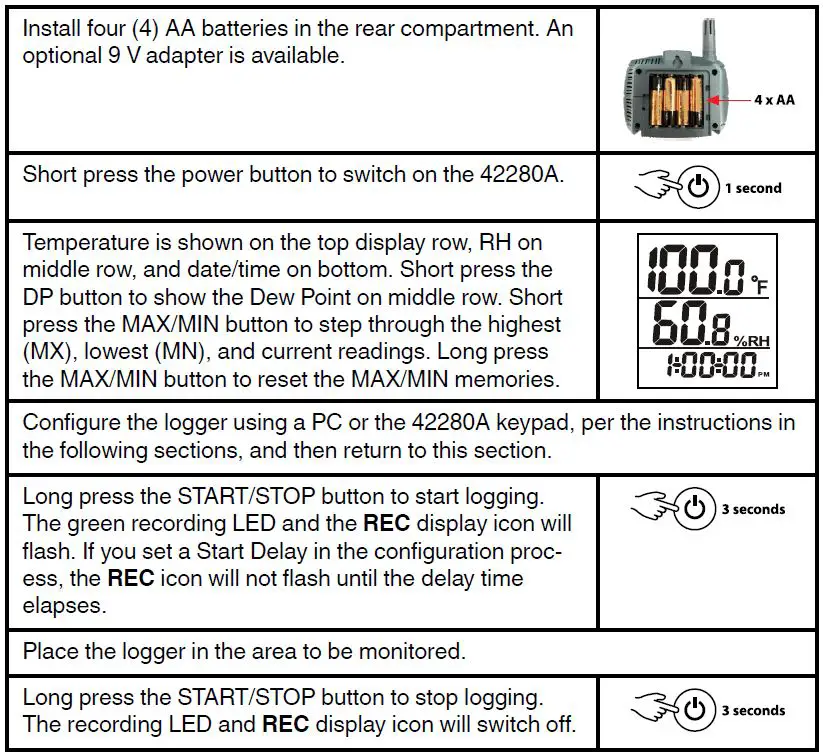
- Connect to the PC to generate log reports. Open the supplied application, click the PDF or Excel tab, and follow the on-screen prompts.
- Short press the power button to switch off the 42280A.


Logger Configuration (PC)
With 42280A power on, connect to a PC using the supplied USB cable. The PC recognizes the 42280A as an external drive. The drive contains the ‘PDF Logger Configuration Tool’ software. Open the program and configure the logger as explained below.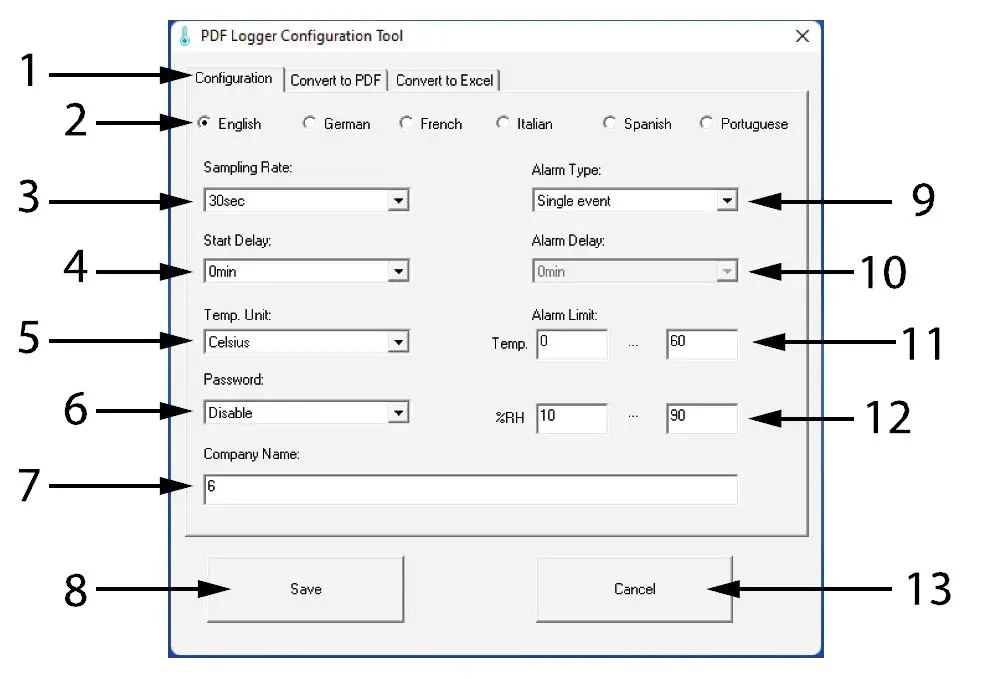
| Parameter | Description | |
| 1 | Tabs | Click ‘Configuration’ to start. After logging, click the PDF and Excel tabs to create reports. |
| 2 | Language | Set the report language. |
| 3 | Sampling Rate | Rate at which readings are logged. |
| 4 | Start Delay | Set a timer to delay logging start. |
| 5 | Units | Select ℃ or ℉ temperature units. |
| 6 | Password | Set a 16 character (max.) password. |
| 7 | Company Name | Add a 20 character (max,) text string to reports. |
| 8 | SAVE | Click SAVE to complete the configuration. |
| 9 | Alarm Types | Select Single (sin), Cumulative (acc), or No Alarm (dis). See User Manual for alarm details. |
| 10 | Alarm Delay | Set an alarm trigger delay. |
| 11 | Temp. Alarm Limit | Set temperature alarm threshold. |
| 12 | RH Alarm Limit | Set RH alarm threshold. |
| 13 | Cancel | Click to abort the configuration. |
Close the application when done, eject the 42280A (right-click the drive icon on the PC and select ‘Eject’), and physically disconnect the logger from the PC. Continue with the Quick Steps section above.
Logger Configuration (Keypad)
- Short press the SET button to access the configuration mode.
- Use the up/down arrow buttons to step through the parameters.
- Short press the SET button to open a parameter.
- Use the up/down arrow buttons to change a setting.
- Short press SET to confirm a setting.
- Long press SET to exit the configuration. A parameter code (P1 to P8) must be displayed in order to exit.
Note: If the display shows ‘dlF’, when you press SET, this indicates that a log file is in meter memory and must be downloaded before the keypad configuration can be performed.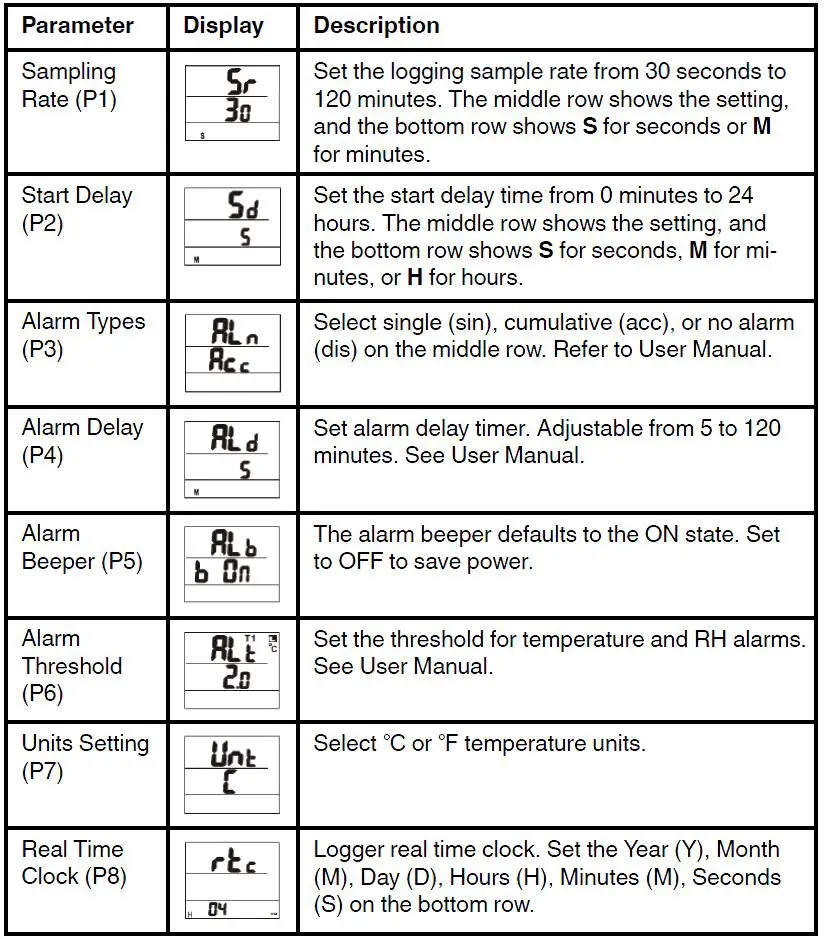
- After configuration continue with the Quick Steps section above.
Basic Specifications
| Range | Resolution | Accuracy | |
| Temperature measurements | -22 to 158℉ (-30 to 70℃)* | 0.1° | ± 0.9℉ (0.5℃) |
| RH measurements | 0.1 to 99.9% | 0.1% | ± 3% (10 to 90%) |
| Dew Point calculation | 32 to 122℉ (0 to 50℃) | 0.1° | n/a |
| Meter power | 4 x AA batteries (supplied). Optional 9 V adapter. | ||
| Ambient conditions | For operation and storage: -4 to 158℉ (-20 to 70℃)* < 90% RH, non-condensing. | ||
Basic Specifications
- Note that the temperature sensor can measure down to -22℉ (–30℃) but the meter should not be used below -4℉ (–20℃).
Two-Year Warranty
FLIR Systems, Inc. warrants this Extech brand instrument to be free of defects in parts and workmanship for two years from date of shipment (a six-month limited warranty applies to sensors and cables). To view the full warranty text please visit: http://www.extech.com/support/warranties. Customer Support
Customer Support
Telephone List: https://support.flir.com/contact Calibration, Repair, and Returns e-mail: [email protected] Technical Support: https://support.flir.com
Wlastebsitepage
http://www.flir.com
Customer support
http://support.flir.com
Copyright
© 2022, FLIR Systems, Inc. All rights reserved worldwide.
Disclaimer
Specifications subject to change without further notice. Models and accessories subject to regional market considerations. License procedures may apply. Products described herein may be subject to US Export Regulations. Please refer to [email protected] with any questions.
- Publ. No.: NAS100130
- Release: AA
- Commit: 88663
- Head: 88663
- Language: en-US
- Modified: 2022-12-01
- Formatted: 2022-12-01
 support.flir.com
 Thermal Imaging, Night Vision and Infrared Camera Systems | Teledyne FLIR