Genie Overhead Door Genie & Overhead Door Fixed Code Dip
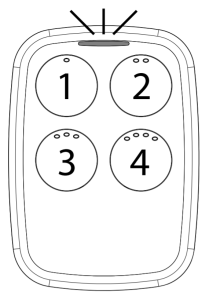
Genie & Overhead Door Fixed Code Dip Switches
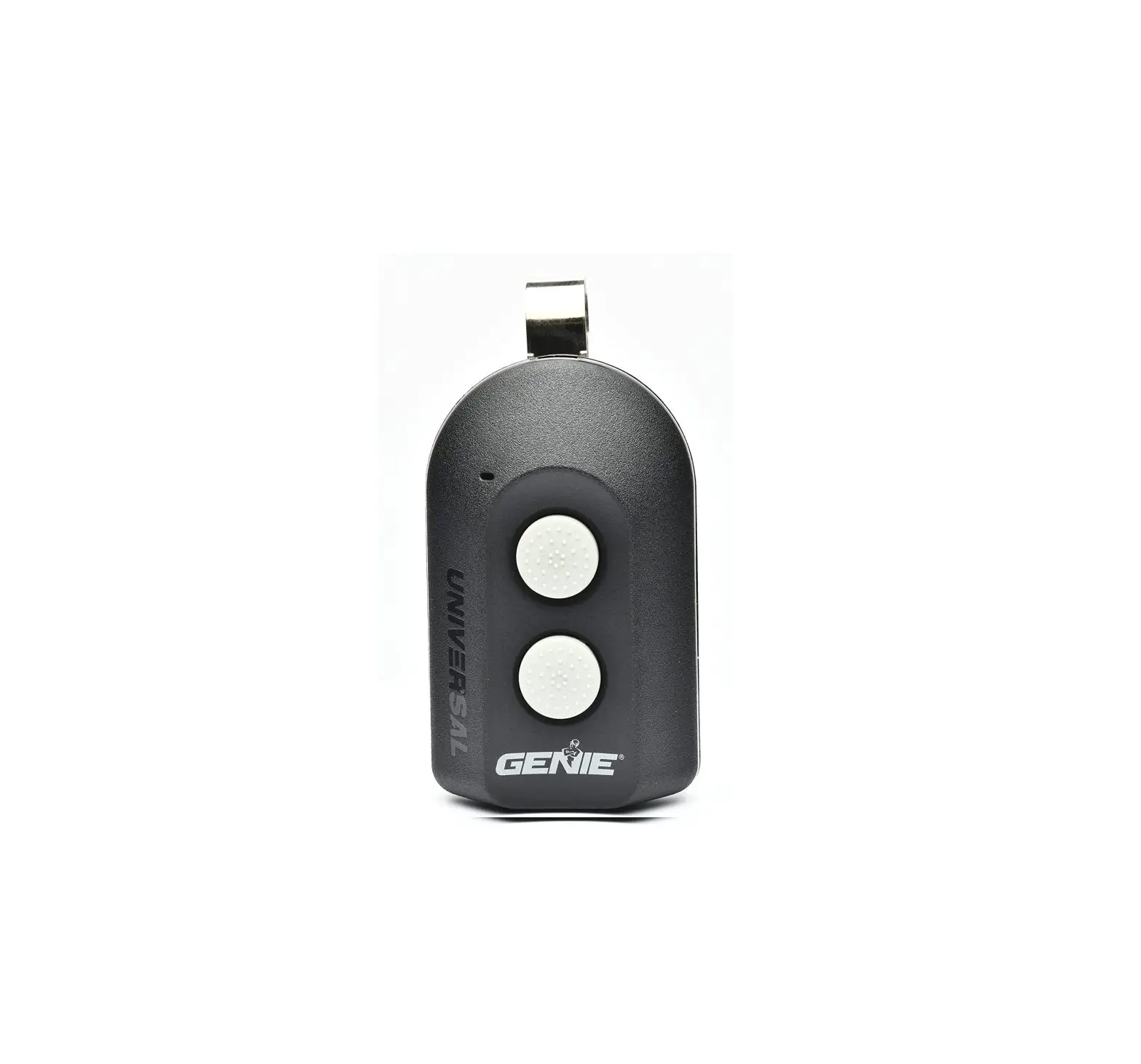
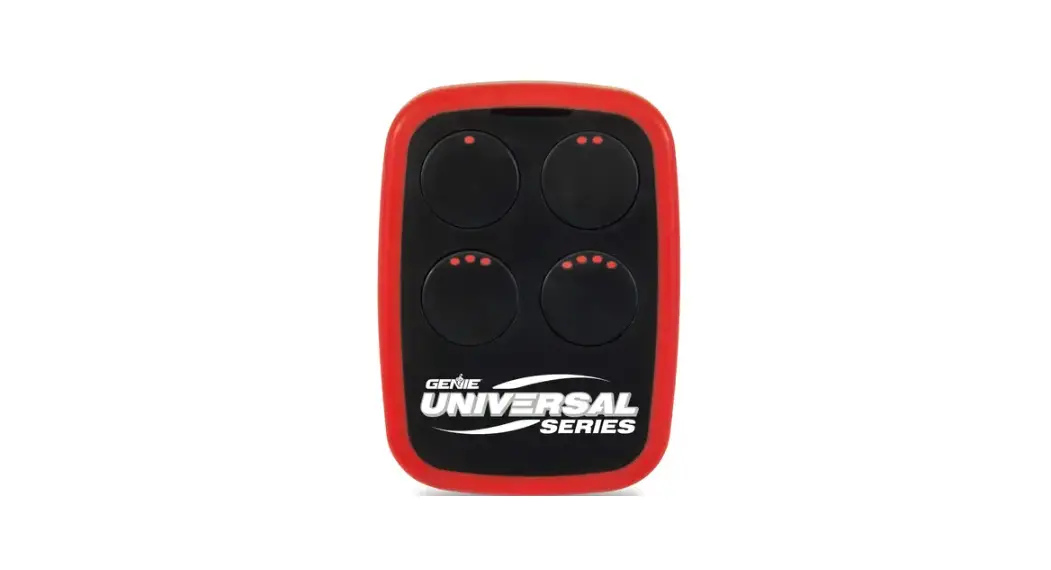
What do fixed code dip switches look like and how do I convert them to button presses on my new universal remote?
If you have a group of 9 switches with 3 positions per switch (TRINARY):
- Switch in the UP position = Press button 1
- Switch in the MIDDLE position = Press button 2
- Switch in the DOWN position = Press button 4
In this example, the button presses would be: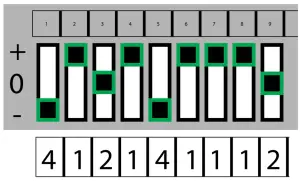
If you have a group of 9-12 switches with 2 positions per switch (BINARY):
- Switch in the UP position = Press button 1
- Switch in the DOWN position = Press button 4
In this example, the button presses would be: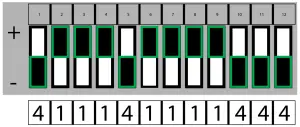
STEP 1: Each shaded box below represents a DIP switch position. In these boxes, write in the number 1, 2 or 4 as it corresponds to the UP, MIDDLE or DOWN switch position you see on the remote, opener head or receiver.
|
Each box should contain a 1, 2, or 4. Each box should correspond to the position of the switch on your remote opener head or receiver. If you have less than 12 switches, only fill in what you have.
* You will need to reference this section in STEP 3.4 below.
STEP 2: Determine which specification/combination you have from the CHART B below:
CHART B
BRAND NAME | NUMBER OF SWITCHES/POSSIBLE POSITIONS | NUMBER OF TIMES TO PRESS THE BUTTON OF YOUR CHOICE |
| Genie® | 12 switches with 2 possible positions (UP, DOWN) | 1 |
| 9 switches with 2 possible positions (UP, DOWN) | 2 | |
| Overhead Door® | 9 switches with 3 possible positions (UP, MIDDLE, DOWN) | 3 |
| Stanley® | 310 MHz, 10 Switch/2 Position Dip Switch | 4 |
| Chamberlain® | 390 MHz, 9 Switch/3 Position Dip Switch | 5 |
Circle the number of button presses in Chart B above or write it below. This will tell your remote what brands/spec’s you have.
This box should say 1, 2, 3, 4 or 5.
*You will need to reference this section in STEP 3.9 below.
STEP 3: Programming the Universal Remote:
ENTER LEARN MODE:
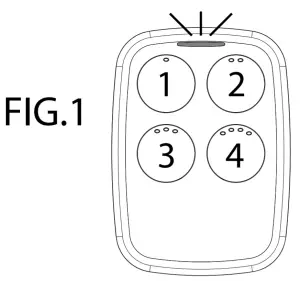
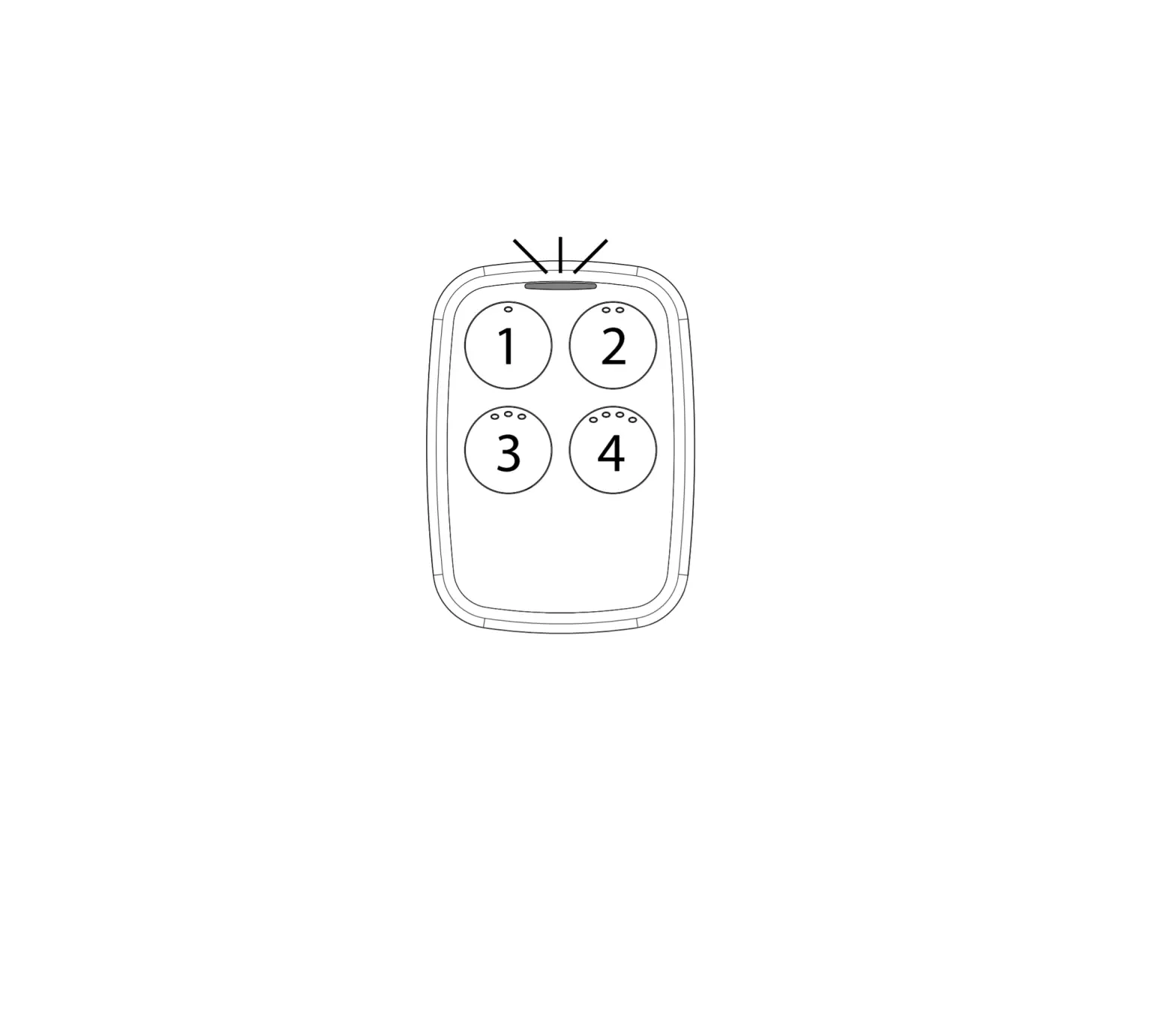
- On the universal remote, press and hold down button #1.
- While still holding down button #1, press button #4 on the universal remote four times.
- Release both buttons – The WHITE LED on the remote will quickly flash 4 times.
ENTER DIP SWITCHES: - *On the universal remote, enter in order the numbers 1, 2 or 4 as you have written in STEP 1. The LED lights with each button press.
- After the last DIP switch position entry, simply wait for the BLUE LED to quickly flash 4 times and go out.
ENTER BUTTON SELECTION MODE: - On the universal remote, press and hold down button #2.
- While still holding down button #2, press button #3 on the universal remote four times.
- Release both buttons – the BLUE LED on the remote will begin flashing.
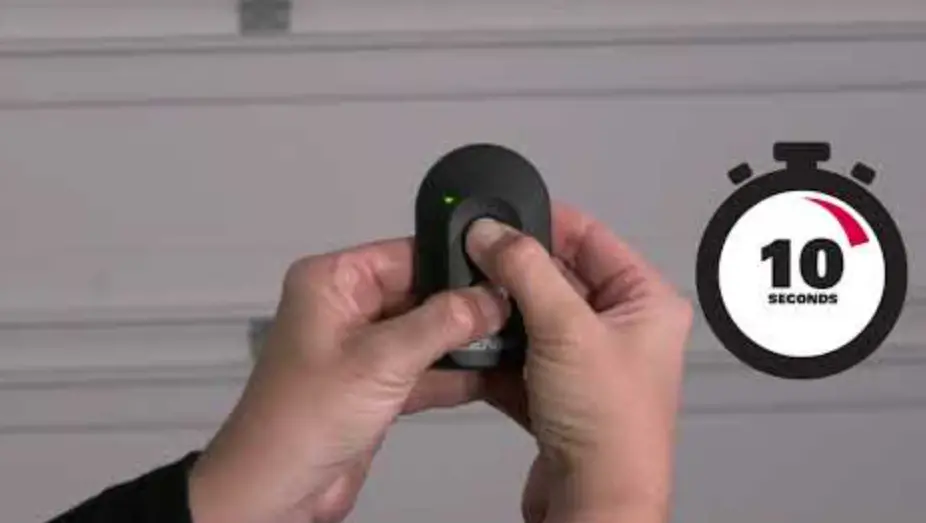
- *Press the button of your choice on the universal remote the required number of times indicated from Chart B in STEP 2 above. You will have 10 seconds to complete your entry.
- After your press(es), simply wait the remainder of the 10 seconds – the BLUE LED will give a long blink and then go out.
- Test the remote.