GRBL 40W Laser Engraver Controller
Product Information: 40W Laser Engraver Controller
The 40W Laser Engraver Controller is an electronic device that
allows you to operate your laser engraver directly from its control
panel or through a direct connection with your computer. It comes
with a separate manual for safe use of your laser and operating
your engraving software.
Overview
Once you have fully connected this control board to your
engraver, you will be able to operate your laser directly from its
control panel or through a direct connection with your
computer.
Symbol Guide
The following symbols are used on this machine’s labeling or in
this manual:
- These items present a risk of serious property damage or
personal injury. - These items address similarly serious concerns with regard to
electrical components. - This product is sold in conformity with applicable EU
regulations. - This product contains electrical components that should not be
disposed of with regular garbage.
Designated Use
This product is intended to be used with a laser engraver and
its engraving software in accordance with local and national laws
and regulations.
Technical Specifications
| Model | CPU Type | Board Dimensions | Input Power | Output Power | Signal Output | Max. Clock Frequency | Firmware Compatible | Software Compatible | File Systems | Maximum USB Speed |
|---|---|---|---|---|---|---|---|---|---|---|
| 40W Laser Engraver Controller | N/A | N/A | N/A | N/A | N/A | N/A | Yes | Yes | FAT32 | USB 2.0 (480 Mbit/sec.) |
Product Diagram
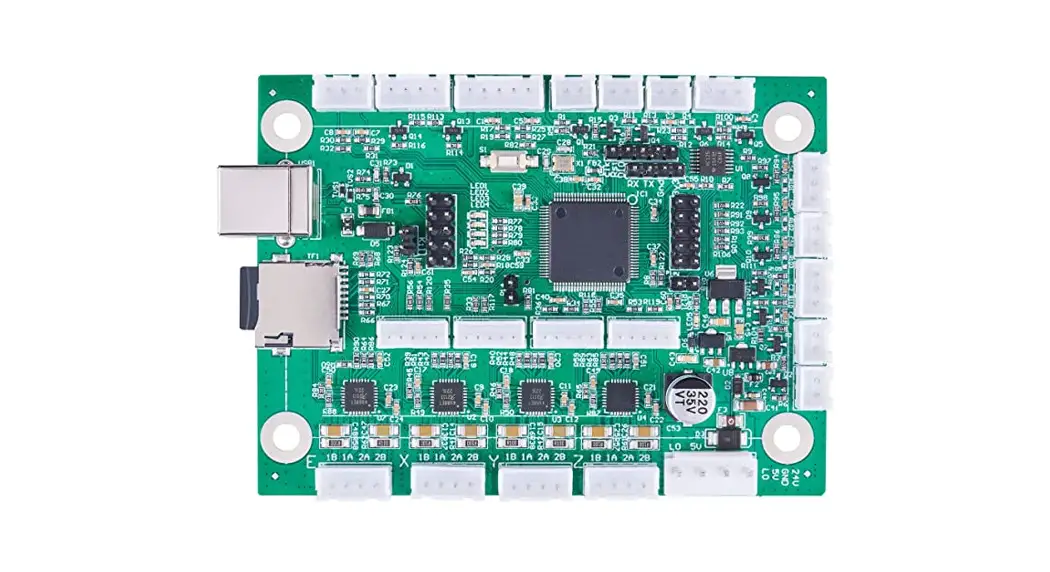
The product diagram shows the different connections on the
control board:
- Limit switches
- Laser control line
- PWR Air assist switches Control Laser Y Motor X Motor
- Integrated control
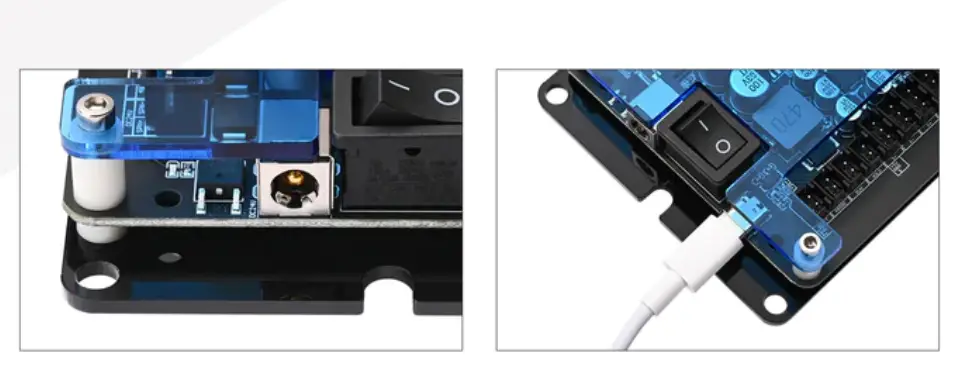
- USB Type-c
- Type c line
Product Usage Instructions: 40W Laser Engraver Controller
Installation
Step 1: Unpacking Your Control Board
Your control board should arrive protected by an antistatic bag
and insulating foam. If you find any damage during unboxing or
installation, please contact customer service immediately. Do not
continue with installation until customer service can confirm the
devices’ safety or provide safe replacement(s).
Step 2: Preparation
Before installation, ensure that the device is turned off and
disconnected from its power supply. Read and understand the
instruction manual for your laser engraver, engraving software, and
this control board.
Step 3: Replacing the Old Control Board
If you are replacing an old control board, follow the
instructions in your laser engraver manual to remove the old board.
Then, follow the instructions in this manual to install the new
control board.
Step 4: Electrical Connections
Follow the instructions below to connect the control board to
your laser engraver:
- Control Board Power
- Laser Tube Connection
- Control Laser Connection
- X-MOTOR & Y-MOTOR Connection
- Limit Switch Connection
- Air Assist Switch Connection
- Integrated Control Connection
Step 5: Software Configuration
Configure your engraving software to work with the new control
board following the instructions in the software manual.
Maintenance
Maintain the control board according to the instructions in this
manual and the instruction manual for your laser engraver. Only
undertake maintenance and repair when the device, your engraver,
and any connected accessories are turned off and disconnected from
their power supplies.
Common Problems
If you encounter any problems with your control board, refer to
the troubleshooting section in this manual or contact customer
service for assistance.
Contact Info
If you have any questions or concerns about your control board,
contact customer service at [insert contact info here].
40W Laser Engraver Controller User Manual
Read Carefully Before Use And Keep For Future Reference
PREFACE
Thank you for choosing MONPORT laser control board. Read this manual carefully before operation. It covers the details of correct installation, adjustment, and safe operation of your laser’s new control board. It is intended to be used in conjunction with the manuals for your laser engraver and its engraving software. You and any other users of your laser should thoroughly understand ALL these manuals before attempting to install this control system or operate the laser. When correctly installed and used in accordance with these instructions, your laser should operate safely but some components remain extremely dangerous. Be sure that you have correctly connected your laser’s preinstalled safety devices. Never disable or deactivate them. Always use your laser safely and responsibly. This manual should be included with the others if your engraver is given or sold to a third party. If you have any questions or require more information after reading this manual, please contact us and our support department will address your concerns as soon as possible.laser safely and responsibly.
CONTENTS
1.Introduction 1.1 Overview 1.2 Symbol Guide 1.3 Designated Use 1.4 Technical Specifications 1.5 Product Diagram
2. Safety Information 2.1 Disclaimer 2.2 General Safety Instructions 2.3 Electrical Safety Instructions 2.4 Fire Safety
3 Installation 3.1 Unpacking Your Control Board 3.2 Preparation 3.3 Replacing the Old Control Board 3.4 Electrical Connections
3.4.1 Control Board Power 3.4.2 Laser Tube Connection 3.4.3 Control Laser Connection 3.4.4 X-MOTOR & Y-MOTOR Connection 3.4.5 Limit Switch Connection 3.4.6 Air Assist Switch Connection 3.4.7 Integrated Control Connection
3.5 Software Configuration 4 Maintenance 5.Common Problem
Contact Info
4 4 4 4 5 5 6 6 6 6 7
7 7 8 8 9
9 9 10 10 11 12 12
13 14 15 15
1.Introduction
1.1 Overview
Once you have fully connected this control board to your engraver, you will be able to operate your laser directly from its control panel or through a direct connection with your computer. For details on safe use of your laser, see its separate manual. For details on operating your engraving software, see its separate manual.
1.2 Symbol Guide
The following symbols are used on this machine’s labeling or in this manual:
These items present a risk of serious property damage or personal injury.
These items address similarly serious concerns with regard to electrical components.
This product is sold in conformity with applicable EU regulations.
This product contains electrical components that should not be disposed of with regular garbage.
1.3 Designated Use
This control board is intended for use with MONPORT’s low-wattage laser engravers and cutters using glass (DC) or metal (RF) carbon dioxide (CO) tubes. Its firmware and ports can also be used to control similar engravers from other manufacturers and some CNC machines, although such configurations are outside the scope of this manual and must be done at the user’s own risk. This board must be installed, operated, maintained, and repaired by personnel familiar with its field of use and the dangers both of the machine and its components. Laser engravers and CNC machines are dangerous. The manufacturer and/or seller bear(s) no responsibility and assume(s) no liability for any improper use of this device or for any damage or injury arising from such use. The operator is obliged to use this control system only in accordance with its designated use and to use its engraver only in accordance with the instructions in all its manuals and all applicable local and national laws and regulations.
1.4 Technical Specifications
Model CPU Type Board Dimensions Input Power Output Power Signal Output Max. Clock Frequency Firmware Compatible Software Compatible File Systems Maximum USB Speed
40w laser engraver&cutter 2.0 ARM 2.4¤x3.7¤x0.3¤ (6.1cmx9.4cmx0.8cm) 24V DC 24V DC 0-5V 120 MHz GRBL LightBurn (Windows/Linux/MacOS)
FAT32 USB 2.0 (480 Mbit/sec.)
1.5Product Diagram
Limit switches
Laser control line
PWR Air assist switches Control Laser Y Motor X Motor
Integrated control
USB Type-c
Type c line
2.Safety Information
2.1 Disclaimer
Your control board may differ somewhat from those shown in this manual due to options, updates, etc. Please contact us if your device came with an outdated manual or if you have any other questions.
2.2 General Safety Instructions
Use this device only in accordance with this instruction manual, the manuals for your laser engraver and its engraving software, and all applicable local and national laws and regulations. Only allow this device to be installed, operated, maintained, repaired, etc. by others who are familiar with these manuals and have read and understood all their warnings and safety information. Ensure that this manual is also included with your engraver if it is ever given or sold to a third party
· DO NOT install this control board if it arrives or becomes damaged. Contact customer service for help with repair or replacement.
· DO NOT leave this device separate from your engraver or loosely housed within it. Make all connections securely and then firmly secure the device to your engraver’s casing.
· After any adjustment of this device’s electrical connections with your engraver and its accessories, carefully test that the connections have been made correctly and the engraver and accessories are responding properly to your commands. Be especially careful of any connections to the water cooling system, heat sensors, and other safety equipment. If your engraver did not come with an interlock sensor that automatically cuts power to the laser when the work bay’s protective cover is opened, it is highly recommended that you get and install one.
2.3 Electrical Safety Instructions
· ONLY use this device with a compatible and stable power supply with less than 5% fluctuation in its voltage. If your engraver’s power supply is unable to maintain such consistency, replace the power supply before further use.
· Adjustment, maintenance, and repair of this device and other electrical components of your engraver must be done ONLY by trained and skilled professionals to avoid fires and other malfunctions, including potential radiation exposure from damage to the laser components. Because specialized techniques are required for testing the electrical components of your engraver, it is recommended such testing only be done by the manufacturer, the seller, or a specialized repair service.
Unless otherwise specified, ONLY undertake adjustment, maintenance, and repair of this device and its electrical connections when it, your engraver, and any connected accessories are turned off and disconnected from their power supplies.
· ALWAYS check that the electrical polarities are correct at every stage of installation. Reversing the polarity of power inputs can damage or destroy your board and other components. Use of a multimeter to ensure correct installation is recommended, especially for use with custom projects. Also ensure that new connections are properly grounded. · DO NOT allow anything metallic to come into contact with this device while it is powered. Allowing a metal tool or fastener to fall against the board during use can cause short circuits, damaging or destroying the board.
2.4 Fire Safety
· NEVER leave your engraver alone during use. · Always keep a fire extinguisher, water hose, or other flame retardant system nearby in case of accidents. Ensure the local fire department’s phone number is clearly displayed nearby. In the case of a fire, cut electrical power before dousing the flame. Familiarize yourself with the correct range of your extinguisher before use, as its high pressure can produce blowback.
3.Installation
3.1 Unpacking Your Control Board
Your control board should arrive protected by an antistatic bag and insulating foam. If you find any damage during unboxing or installation, please contact us immediately. Do not continue with installation until customer service can confirm the devices’ safety or provide safe replacement(s).
You may keep the packaging in case of future return but, if you dispose of it or any part of these devices, be sure to do so in compliance with applicable waste disposal regulations.
3.2 Preparation
DO NOT install this device while your engraver is connected to its power supply.
Turn off your laser engraver and fully disconnect it from its power supply. Open the part of your engraver’s casing that holds its control panel. Place the cover to the side while taking care not to pull or damage its wiring.
IIt is recommended that you use a few pieces of tape to join the various sets of wires connected to your engraver’s current control board. Add labels similar to those shown in the picture below. Here, “PWR” is used for the main power input, “Y” and “X” for the motor drivers, and “END” for the limit switches. Any clear phrasing is fine. If your old board already has other connections in addition to these, use its manual or the board’s markings and the diagram in §1.5 as well.
3.3 Replacing the Old Control Board
1.Remove the 3 bolts(Marked with A, B, C) which is holded on your engraver.
2.Remove the plate and remove the four bolts(Marked with a,b,c,d) at the corners
of the old control board.
#
$
B
C
D
E
”
You can mount the new control board into place now (being careful to position its USB port beside your casing’s access hole) or make all the necessary electrical connections first before bolting it into place.
3.4 Electrical Connections
Only install this board while your engraver and all components are turned off and disconnected from power. Always check that the polarities of your connections are correct, with a multimeter if needed.
3.4.1 Control Board Power
As shown below find the “PWR” terminal on the control board. Connect the “PWR” terminal block previously removed from your old board to this terminal.
PWR
3.4.2 Laser Tube Connection
This control board does not directly connect to your laser tube. 3.4.3Control Laser Connection As shown below find the “Control Laser” terminal on the control board. Connect the “Control Laser” terminal block previously removed from your old board to this terminal.
Control Laser
3.4.4 X-MOTOR & Y-MOTOR Connection
As shown below find the “X-MOTOR” terminal on the control board. Connect the “X-MOTOR” terminal block previously removed from your old board to this terminal. If there is no such terminal, please ignore it.
X-MOTOR
1A 1B 2A 2B
As shown below find the “Y-MOTOR” terminal on the control board. Connect the “Y-MOTOR” terminal block previously removed from your old board to this terminal.
If there is no such terminal, please ignore it.
Y-MOTOR
1A 1B 2A 2B
3.4.5 Limit Switch Connection
As shown below find the “Limit Switch” terminal on the control board. Connect the “Limit Switch” terminal block previously removed from your old board to this terminal.
Limit Switch
Y-limit Y-limit
GND
GND
3.4.6 Air Assist Switch Connection
As shown below find the “Air Assist Switch” terminal on the control board. Connect the “Air Assist Switch” terminal block previously removed from your old board to this terminal.
Air Assist Switch
3.4.7 Integrated Control Connection
As shown below find the “Integrated Control” terminal on the control board. Connect the “Integrated Control” terminal block previously removed from your old board to this terminal. If there is no such terminal, please ignore it.
Integrated control
It does not need to be connected,if your original machine does not have some terminal listed above. Please connect the terminals according to the actual situation.If you have any questions, please do not hesitate to contact us as soon as possible, and we will solve the problems you encounter as soon as possible.
3.5 Software Configuration
Step 1: Check out whether the USB cable is connected to the PC.
Step 2: Open the Lightburn Software.
Step 3: Choose the device
Step 4: Find my laser
Step 5: Add devices
Step 6: Name whatever you like.
Step 7: Enjoy your new journey
4.Maintenance
Always disconnect your engraver from its power source before any adjustment, cleaning, or other maintenance of these devices.
You can remove dust from these devices with a soft cloth. Do not use harsh chemicals or allow any electrical components or connections to become wet. If they accidentally become wet, immediately use your engraver’s emergency stop button, disconnect your engraver from its power source, and leave it disconnected until all water has completely dried.
For maximum safety and best results, leave all other adjustment, maintenance, and repair to trained and skilled professionals. If this control system is ever damaged or malfunctions during use, immediately use your engraver’s emergency stop button, disconnect your engraver from its power source, and leave it disconnected until all damage or malfunctioning equipment has been fully repaired or replaced.
5.Common Problem
FAQ 1: The software controls the movement direction to be opposite to the actual movement direction.
ANSWER1:
Option 1:Move the axis in the opposite direction, exchange its 1A and 1B. Option 2:Modify the grb1 parameter $3. If the x-axis motion is opposite, adjust $3=0. If the Y-axis motion is opposite,adjust $3=3.
FAQ 2: The hard limit cannot be used correctly.
ANSWER2:
Check that the limit connection wire is correct and confirm that the limit is a normally open switch or a normally closed switch.
If the normally open switch confirms that the jumper cap on the controller is in PuUP, modify $5=0. If the normally closed switch confirms that the jumper cap on the controller is in PuUP, modify $5=1.
FAQ 3: Prompt ERROR: Travel exceeded.
ANSWER3:
Confirm the grbl parameter $20=1. FAQ 4: How to view grbl parameters?
ANSWER4:
Option 1:Use Lightburn Software by default, edit – machine settings. Option 2:Console Window Send $$.
Contact Info
Thank you for choosing this controller to upgrade your 40w machine! Welcome to join in the official facebook group or visit our Monport website at www.monportlaser.com for more information! If you need any after-sale support, please do not hesitate to contact customer service with your order number at help [email protected] or visit https://app.helpdesk.com/tickets.Our teams will respond within 12 hours to make things right. Thank you and we hope you will choose us again for all your laser needs.
 Laser Engraver and Cutter Machines — Monportlaser
 HelpDesk