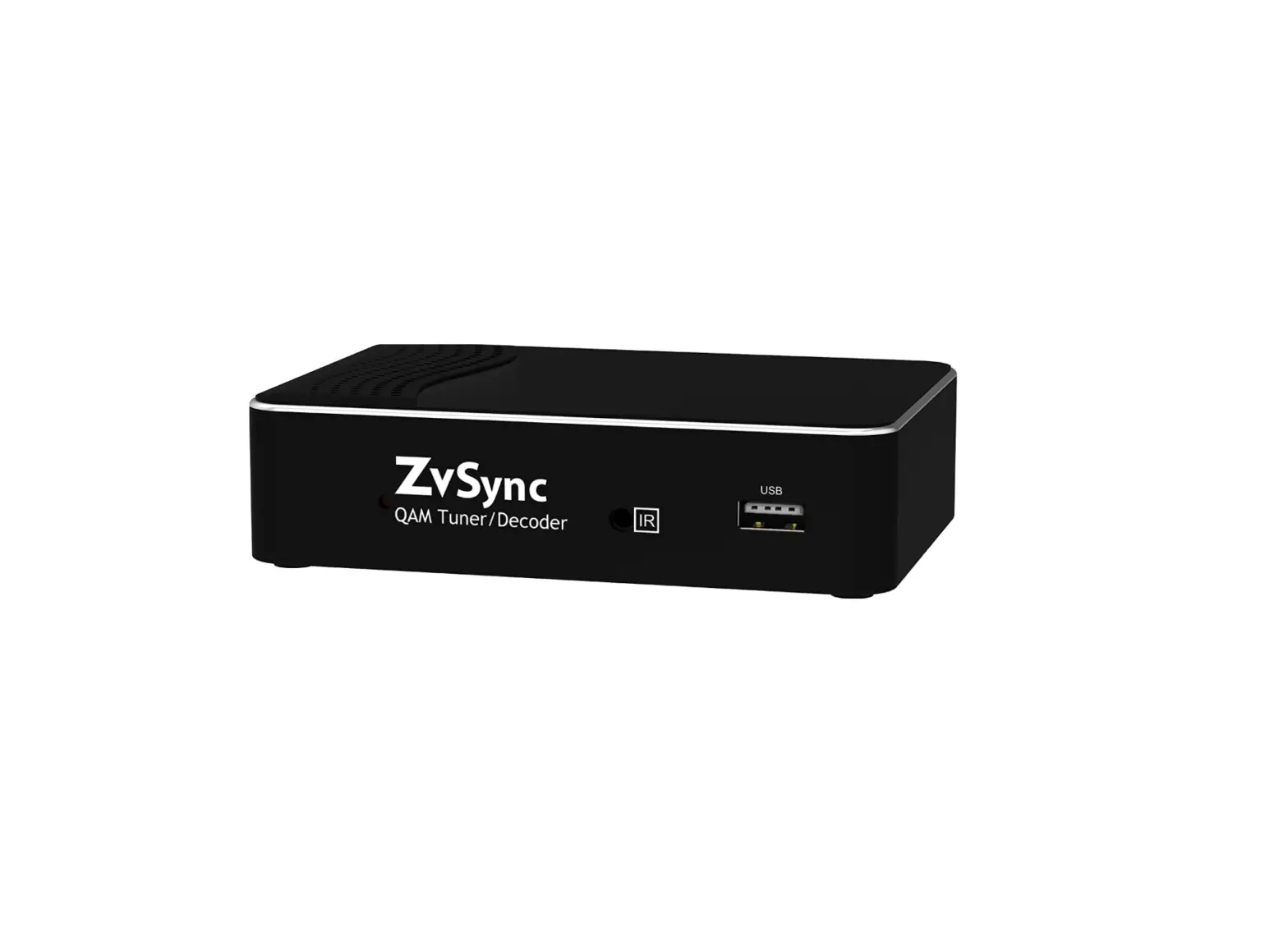

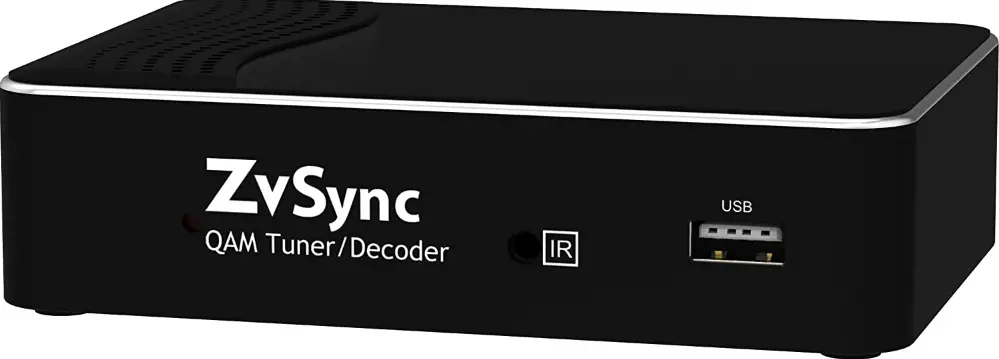
ZeeVee ZvSync-NA HD Digital Tuner-Decoder QAM
INSTRUCTION
- Main Supply (100-240V ~50-60Hz AC)
- Operate this product only from the type of power source indicated on the marking label. If you are not sure of the type of power supplied to the location where the receiver is to be used, consult your local power company. Disconnect the product from the main power source before you start any maintenance or installation procedures.
- Connection to the Cable Feed or Aerial
- Disconnect the product from the AC mains before connecting or disconnecting the cable from the aerial jack.
- Connection to the Television
- Disconnect the product from the AC mains before connecting or disconnecting a cable from the receiver to the attached television. Failure to do so can damage the television.
- Overloading
- Do not overload a wall outlet, extension cord or adapter as this may result in electric fire or shock hazard.
- Liquids
- This product should not be exposed to liquid of any kind. In addition, no objects filled with liquid should be placed on the apparatus.
- Cleaning
- Disconnect the product from the wall outlet prior to cleaning.
- Use a light, damp cloth (no solvents) to dust or clean the product.
- Ventilation
- The slots and openings on the case of the product must be left uncovered to allow for air to pass in and out for proper cooling.
- Do not operate the product on soft furnishings or carpet.
- Do not stack anything on top of the product.
- Attachments
- Do not use unsupported attachments as these may be hazardous or cause damage to the product.
- Extraneous Objects
- Do not insert anything into the openings of the unit.
- Location
- Place the product indoors and avoid exposing it to lightning, rain, or direct sunlight.
- Do not place the product near a radiator or heat register.
- Try to place the unit at least 2 inches (~10cm) from any appliance susceptible to electromagnetic influences, such as a television or radio.
- Insure the ventilation considerations are followed when the unit is in service.
- Do not place the product on an unstable cart, stand, tripod, or bracket where it can fall. A falling object can cause injury and may cause serious damage to the product.
- Lightning, Storm, or Not in Service
- Unplug the product from the wall outlet and disconnect the aerial during a thunderstorm or when left unattended and unused for long periods of time. This will prevent damage due to lightning or power surges.
Replacement Parts
Replacement parts should be purchased through an authorized ZeeVee distributor and approved by the manufacturer. Unauthorized parts may result in damage to the units and will void any warranty
Before Using the Product
This section provides detailed descriptions of the product and included accessories.
Front Panel
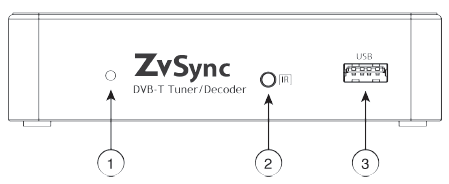
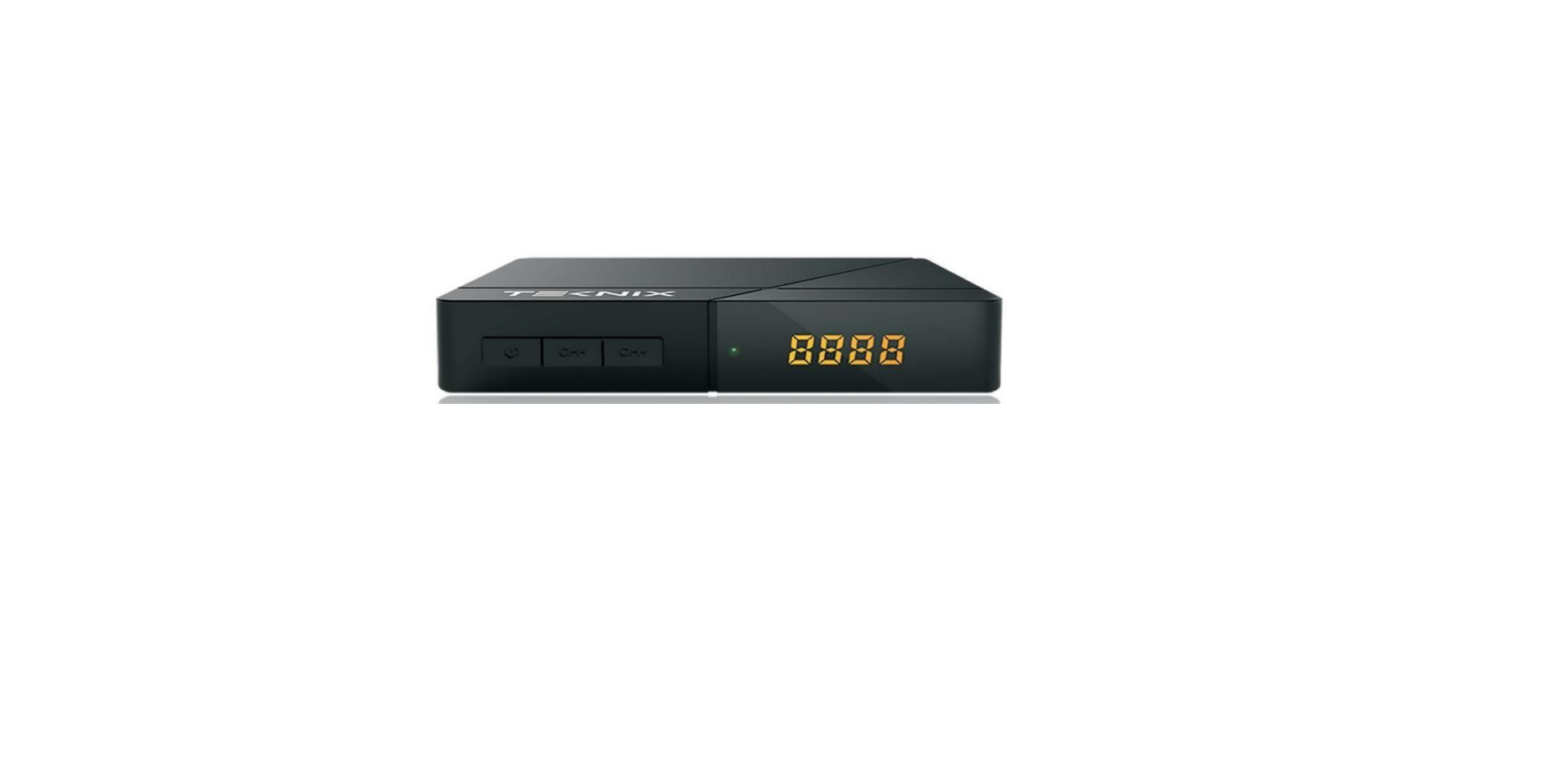
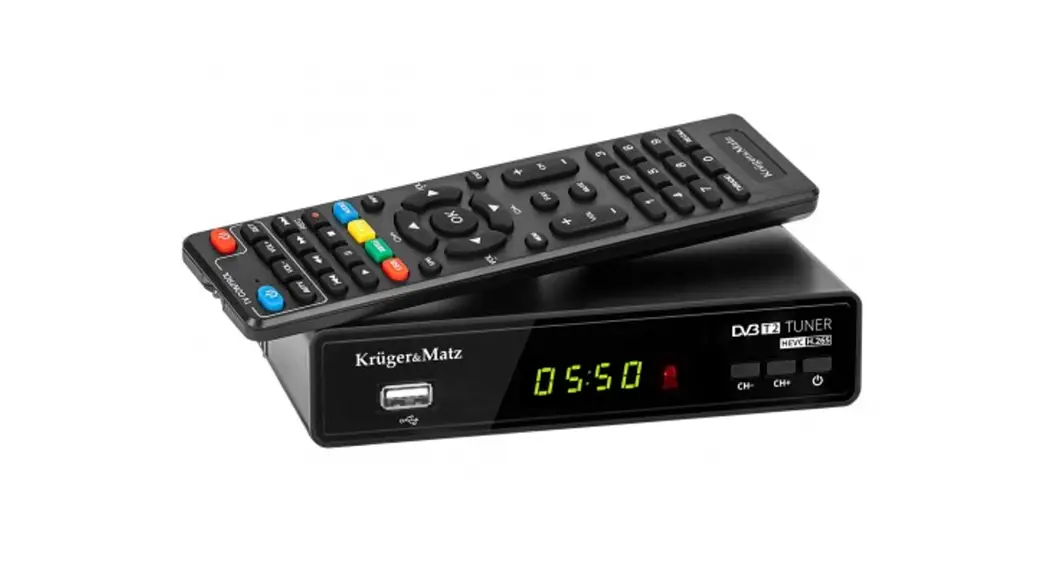
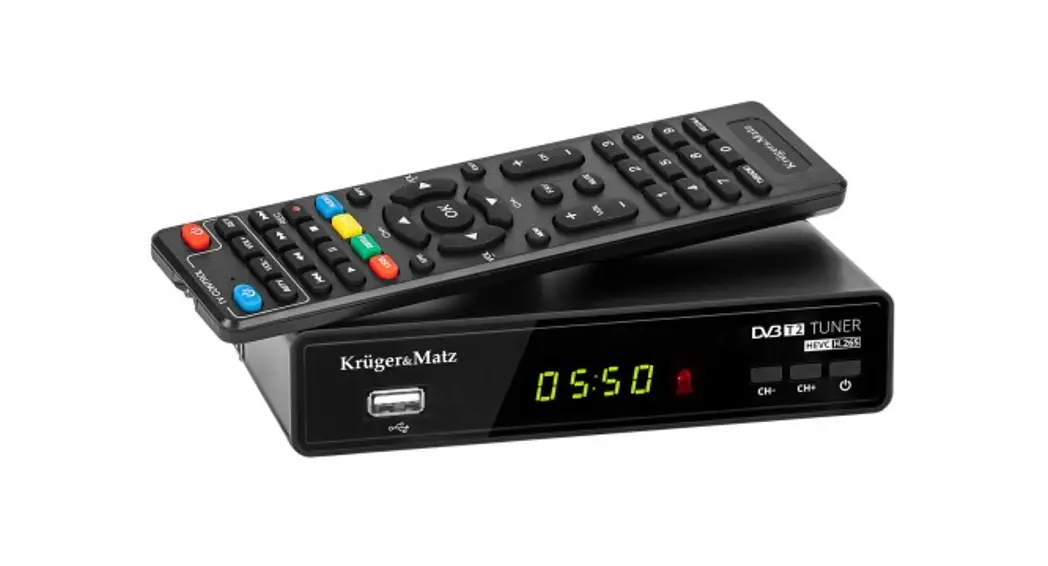
- LED Status Indicator – Indicates state of unit.
- RED – Power is available, but the unit is DEACTIVATED.
- GREEN – The unit is powered-up and ACTIVATED.
- Infrared Jack – Input for installation of the remote infrared sensor.
- USB – Input for installation of USB storage device used for firmware upgrade or activation of the advanced media functions. Use is strictly optional.
Rear Panel
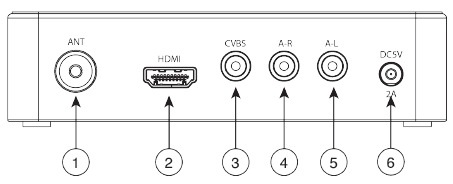
- Aerial/Cable/RF Input – Connect to the antenna for over-the-air reception or to a cable feed for DVB-T reception
- HD Video Output – The video output most commonly used from the receiver unit. Connect to the HDMI digital input of the display device (typically a television). Both high definition video and digital audio are carried.
- CVBS Video Output – For composite video output, connect the CVBS
- Video output to the appropriate composite video input of the display device (typically a television or monitor).
- Right Audio Output – For analog audio, connect to the appropriate ‘Right’ analog audio input on the display device (typically a television or amplifier)
- Left Audio Output – For analog audio, connect to the appropriate
- ‘Left’ analog audio input on the display device (typically a television or amplifier).
- Power Connector – Connect to the plug on the supplied wall-mount power supply
Remote Control
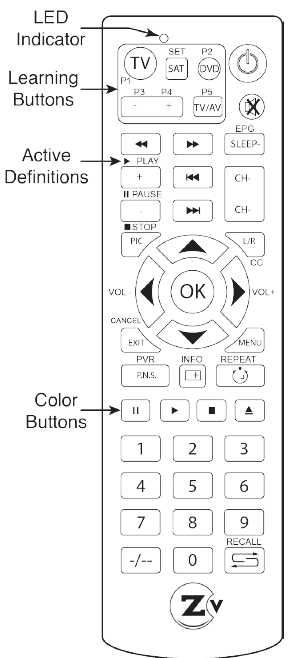
Button Definitions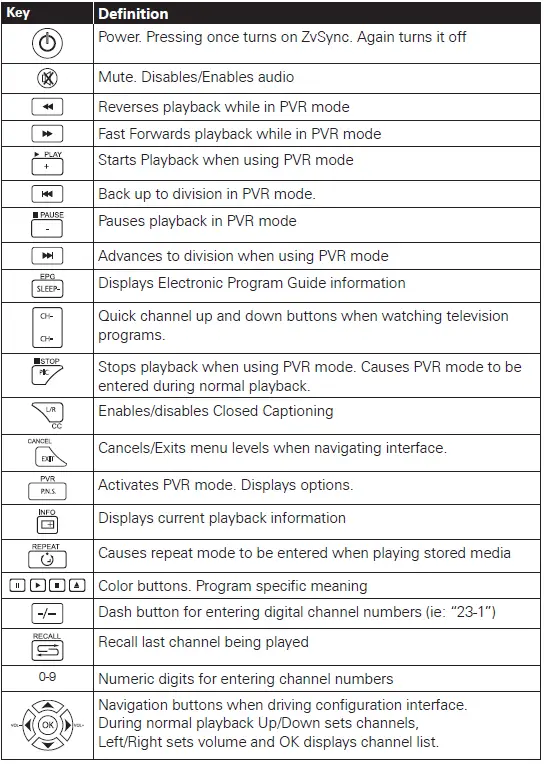
Programmable Buttons
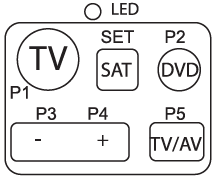
The upper-left portion of the remote houses a set of programmable keys. The intent is to allow for common television functions to be programmed so the user only needs to use a single remote control device to manage their television experience when using the ZvSync receiver/decoder. Keys P1 though P5 can be set to any function the user desires. The labeling is present only to provide visual cues the user may use to help remember which key has been programmed to which function. The “SET” key has a fixed function that is not programmable. It initiates the programming process for setting the P1-P5 key functions.
Programming P1-P5 Buttons
The ZvSync remote has been tested to be compatible with a large number of remotes. However, some manufacturers use infrared codes that are obscure and cannot be “copied” into the programmable keys of the ZvSync remote.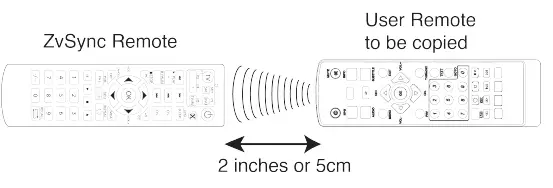
- Step1: Press and hold the “SET” button for three seconds
- The RED LED lights immediately when the button is pressed
- After 3 seconds the LED changes to a very bright state
- Step 2: Press the key you wish to program (P1-P5)
- The RED LED changes to a slow flash (1/second)
- Step 3: Press the key on the remote that you are copying
- The RED LED performs three quick flashes to acknowledge
- RED LED turns on solid again.
- Repeat steps 2 and 3, or simply wait for light to extinguish
- Step 4: Test Programmed key on television or device to be controlled
- If command is not executing properly, repeat steps 1-3
Setup
This chapter describes how to connect your ZvSync Receiver to the television and receiving apparatus appropriately. The receiver has various options and interface for connectivity. Select the method appropriate to your application.
Connecting to an Aerial
Should over-the-air reception be desired, connect your antenna to the ZvSync receiver’s ‘RF IN’ jack for over-the-air reception, as follows: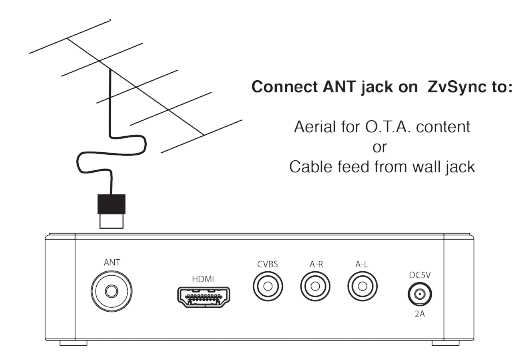
Connecting to a Cable Feed
To receive a cable signal (or a channel generated by ZeeVee’s encoder/ modulator products) connect to the ‘ANT’ jack on the rear face with a cable to the source feed.
Connecting to the Television
HDMI Cable
A connection to the HDMI input of a television, if so equipped, is the recommended method to get visual content on to the displaying television. Both visual content and audio content are carried over the single cable from the ZvSync to the television display. The digital connection presents the highest resolution, sharpest picture possible from the ZvSync receiver.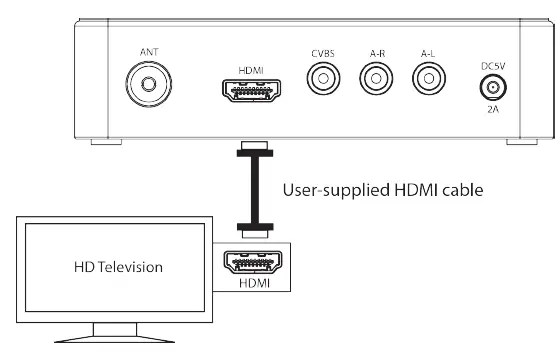
RCA Cables
Certain televisions or applications do not have digital video inputs. If so, then the ZvSync will output standard definition representations of the programming over the CVBS port. Both the CVBS output and the HDTV digital output are active simultaneously. All content will be scaled down to 576i regardless of the incoming resolution prior to being sent out the CVBS port.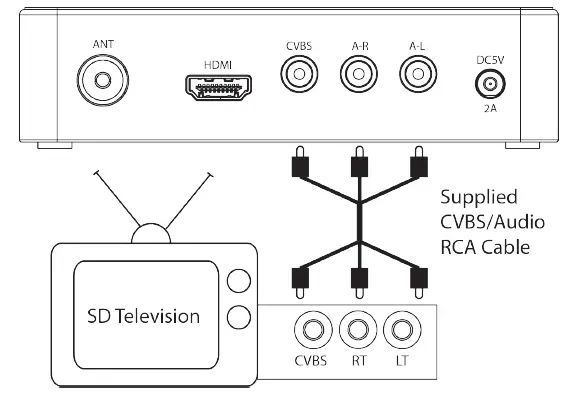
Infrared Remote Control Receiver
The ZvSync-EU receiver/decoder is supplied with an external IR receiver. This is in the form of a cable with an IR receiver at the end. The pigtail MUST be installed for the ZvSync to receive commands from the remote and is required for proper operation. By separating the infrared receiver from the base unit, the main body of the ZvSync receiver/decoder can be installed in an unobtrusive location with only the IR sensor showing.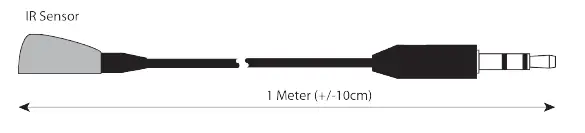
Connecting to ZvSync
The 3.5mm plug on the infrared pigtail must be plugged in to the front “IR” port on the ZvSync main unit for proper operation.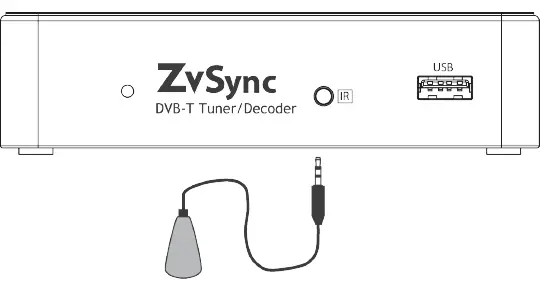
Usable Angles
The remote control must have a relatively unobstructed “line-of-sight” to the infrared sensor. The usable angles are quite flexible, yielding many possible mounting options. Common is to use the included double-sided tape to mount the IR sensor to bottom or side bezel of the attached television. At the user’s discretion the main body of the ZvSync-EU receiver/decoder may be placed out of sight, providing the proper ventilation considerations are observed.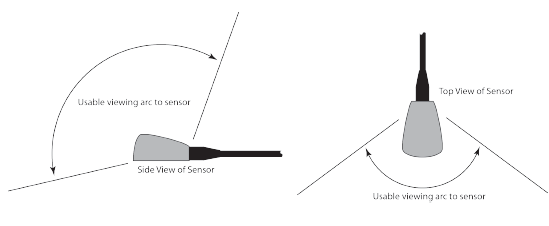
Connecting to THE Power Supply
The wall-mount power supply (included) provides the power for the ZvSync receiver. Any other method of powering the ZvSync may void the warranty.
Configuring the Power Supply
The AC wall mount power supply has a number of adapter plates for use in a variety of locations with different provisions for connections to the AC mains. Before deployment, select the appropriate adapter and install it securely on the supply body.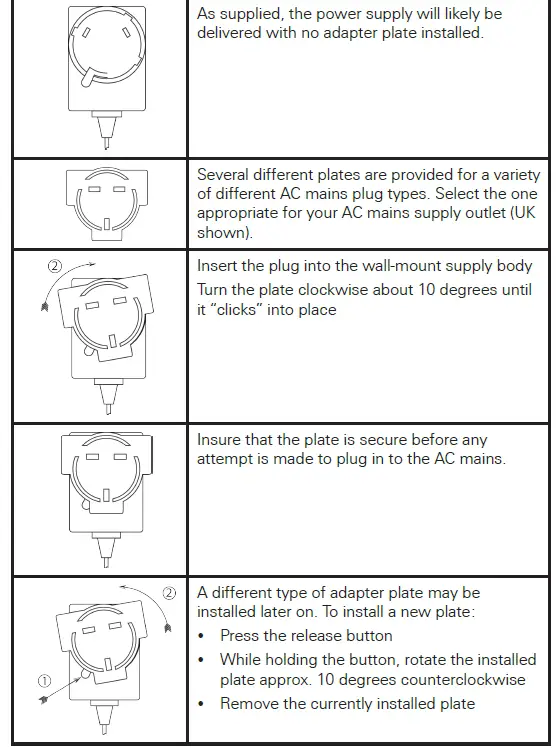
Connecting Power Supply to ZvSync
The wall-mount power supply (included) provides power for the ZvSync receiver. Other methods of powering the ZvSync may void the warranty. The DC input is rated at 5VDC at a maximum peak consumption of 10W, nominal consumption of 6W during operation, and a standby power draw of 0.8W.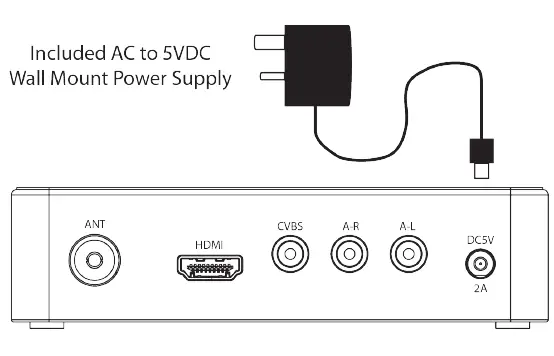
Installation Wizard
If you are using the receiver for the first time, or have restored it to factory defaults, the installation guide menu will appear on your screen.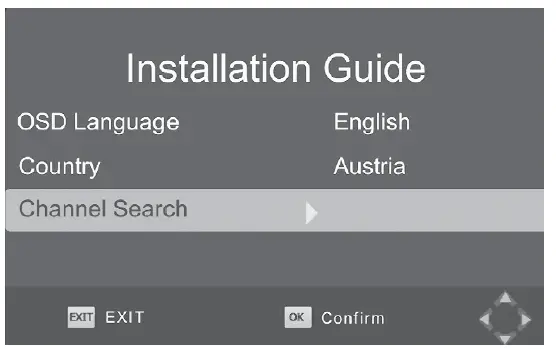 After exiting the “Installation Guide” screen, the following screen will appear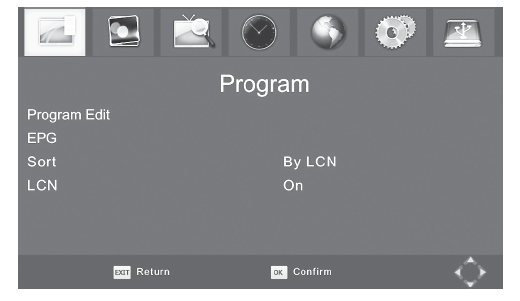
- Use the RIGHT arrow key to navigate to the “Channel Search” page
- Use the DOWN arrow key to navigate to “Country
A scanning status screen showing the progress of the initial channel scan will appear.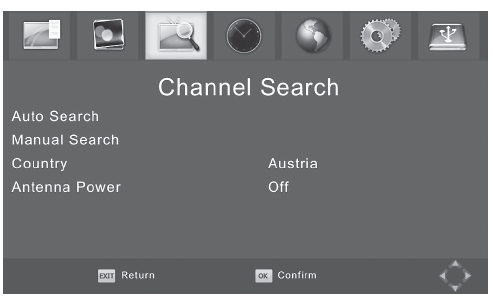
Basic Operation
To access the general setup menu, press the “Menu” button. The user will see with this top-level navigation screen. Major categories may be selected by navigating left and right using the arrow keys. Once a category is selected, the options may be explored by navigating down into the page and selecting the appropriate page item. After selecting a page item, “step into” it by navigating to the RIGHT. The function will execute or a sub-menu will be presented with additional options
Program Management
Program Edit
To edit your program preferences (lock, skip, favorite, move, or delete), you will need to enter the Program Edit Menu item. This menu requires a password to access. The default password is ‘000000’, while the master unlock password is ‘888888’.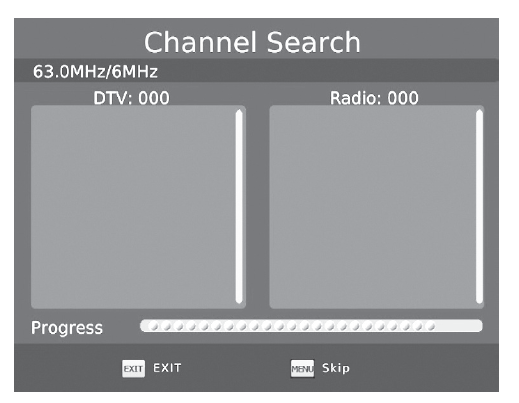
Picture Settings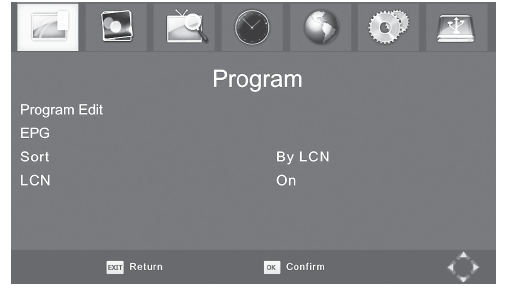
Channel Search
The “Channel Search” top-level navigation page allows the ZvSync tuner/ decoder to rescan for channels and change settings relevant to the attached reception method.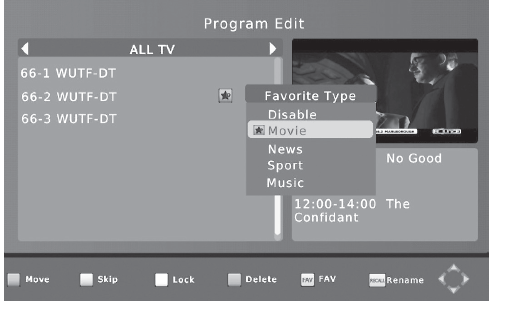
Time Setting
World Option Settings
System Setting
USB & Multimedia
The ZvSync device supports a rich set of features enabled through the use of a USB device. In order to support the PVR functions of time shifting and recording, a storage device (not provided) must be present. It is recommended that a high-performance USB storage device be used if these functions are to be utilized. The format must be FAT32. N TFS is not supported. Use of the PVR and media storage functions is freely available and encouraged. This set of features is not actively supported by ZeeVee and support is not available for the time-shifting, media playing, or PVR functions. Media types of AVI, M P3, WM A, JPEG , BMP, etc. are supported.
Troubleshooting
| Problem | Potential Reason | Possible Action |
| No picture | Power is not connected | Connect power supply Check wall source |
| The power is switched off | Switch on power to ZvSync | |
| Screen shows “no signal” | Cable feed is not connected | Check/Connect power cable |
| Aerial cable is faulty | Check aerial and connections | |
| No sound from speaker | Incorrect or faulty connection with audio cable | Correctly connect the audio cables |
| Sound on mute | Select the mute/unmute on the remote | |
| Only sound, no image on screen | Incorrect A/v cable connection | Check cable connections |
| Program is a radio program | The program being tuned may be audio only | |
| Incorrect setting in digital audio | Set a different audio type in world Options | |
| Remote control is not working | The battery is exhausted | Replace the remote control’s batteries. |
| Remote control is not facing or visible to ZvSync sense window | Reorient Zvsync sense window and remote control | |
| The picture is breaking up | The input signal is too weak | Check aerial cable and connections |
Technical Specifications
| Item | Sub-Item | Parameter |
| Tuner | Input Frequency | 48-862MHz |
| RF Input level | -20 to -82dBm | |
| IF Bandwidth | 6,7, and 8MHz | |
| Modulation | QPsK, 16QAm, 64QAm, 256QAm, DvB-T, DvB-T2 | |
| Video | Decoder Format | mPeg4 AvC/h.264 hP@l4 mPeg2 mP@ml/hl |
| Output Format | 480i, 480p, 576i, 576p, 720p, 1080i, 1080p60hz | |
| Aspect Ratio | 4:3, 16:9, Auto | |
| Output Port | hDmI(v1.3C), CvBs | |
| Audio | Decoder Format | mPeg-1(layer 1 & 2 & 3), wmA, AC-3 |
| Audio Output | Digital Audio over hDmI, RCAx2(l/R) | |
| UsB2.0 | Supported Capacity | Unlimited |
| Supported Media | mP3, wmA, JPeg, BmP, AvI | |
| Power | supply voltage (wall) | 100-240vAC 50-60hz |
| Supply Voltage (Zvsync unit) | 5VDC | |
| maximum Power Consumption | 10w | |
| Standby Power Consumption | <0.8w | |
| Nominal Power Consumption | 5w |
Declaration of Conformity
The Original Equipment Manufacturer herewith declares the conformity of the product with the following directives and standards:
Low Voltage Directive 2006/95/EC
- EN 60065:2002+A1:2006
EMC Directive 2004/108/EC
- EN 55 013:2001+A1:2003+A2:2006
- EN 55 020:2007
- EN 61 000-3-2:2006
- EN 61 000-3-3:2008
- FCC, CE, C-Tick
Contact ZeeVee
Support
For support, repairs, and warranty service contact the distributor where you purchased the product. For additional questions call +1(877) 4-ZEEVEE (1.877.493.3833) or e-mail [email protected].
Representatives are available from 9:00 AM to 6:00 PM, Monday through Friday (Eastern Time).
Sales
- North America:
- +1 (347) 851-7364 Phone
- [email protected]
- EMEA:
- +44 1494 956677 Phone
- [email protected]
FAQS
Can i record a movie from a xfinity cable box live?
No this is just a tuner
Can this tuner be used with cable company service?
yes for QAM signals
Coax in has digital antenna signals and analog cable signals will this display both on a monitor and audio?
Yes in has digital antenna signals and analog cable signals will this display both on a monitor and audio
Will this get 12.1 from a Zv modulatior. I tries a best buy hd tuner and it would not?
No this get 12.1 from a Zv modulatior. I tries a best buy hd tuner and it would not
Is this a “clear ” QAM tuner?
This modulator modulates clear QAM but is not a tuner
Will this box decode scramble channels?
No this box decode scramble channels
How does QAM tuner work?
it receives and processes digital television transmissions through a cable.
What is a QAM digital tuner?
In North American digital video, a QAM tuner is a device present in some digital televisions
How do I know if my TV has a QAM tuner?
If you already have a television with a digital tuner the best way to determine if you have a QAM 256 tuner is to run the Auto Program or Re-Scan feature on the television.
What is the purpose of QAM?
QAM (quadrature amplitude modulation) is a modulation scheme used by network operators when transmitting data.
Why do we use QAM?
QAM is used to achieve high levels of spectrum usage efficiency
How many channels will fit into a QAM?
QAM channels are designed to travel over wires, capable of supporting 38.4 Mpbs (megabits per second) of data, about 2 full HD programs or 7-12 SD programs.
Most major brand flat screen TVs manufactured after 2006 support both ATSC (Advanced Television Systems Committee) and QAM (quadrature amplitude modulation) digital tuners.
Most televisions today are digital/QAM compliant, however less expensive or budget televisions may not be. To find out if your television has a QAM tuner