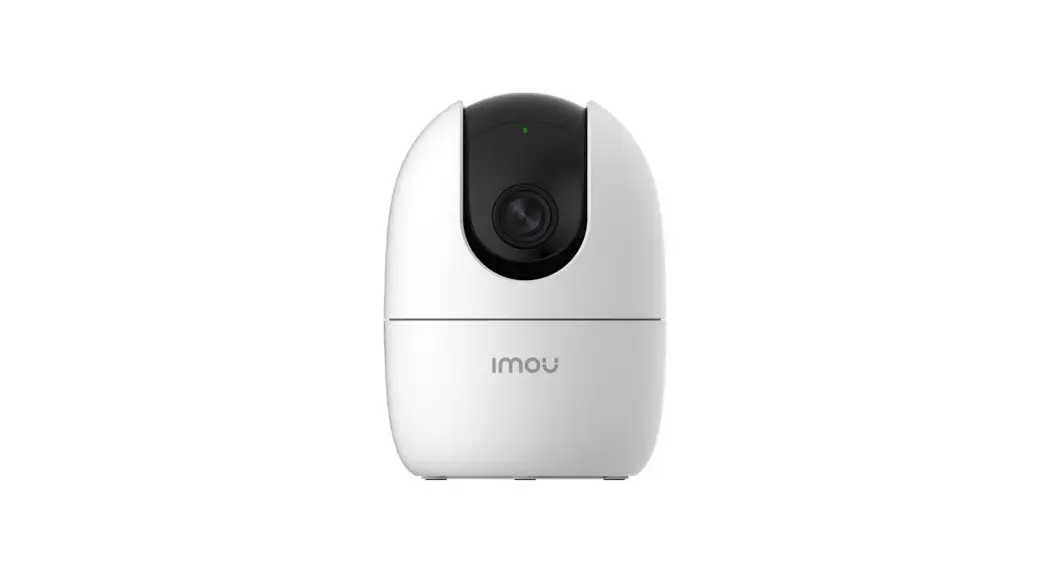

User Guide
Welcome
Thank you for choosing Imou. We are devoted to providing you easy smart home products. If you have problems using the product, please contact our service team before returning your product.
Our service mail: [email protected].
Detailed installation instructions & videos, frequently asked questions can be found at: imoulife.com/support/help or scan this QR code to help page.
http://www.imoulife.com/web/support/help

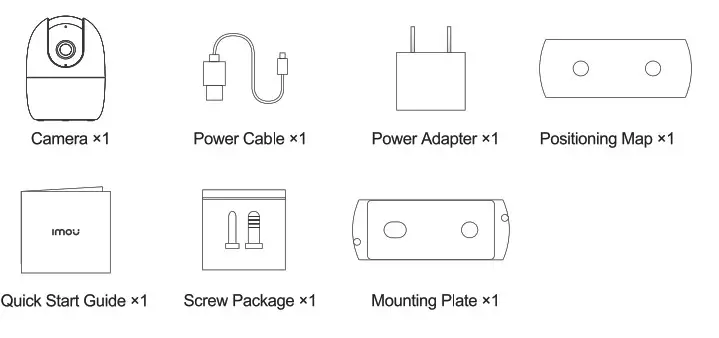
Package content
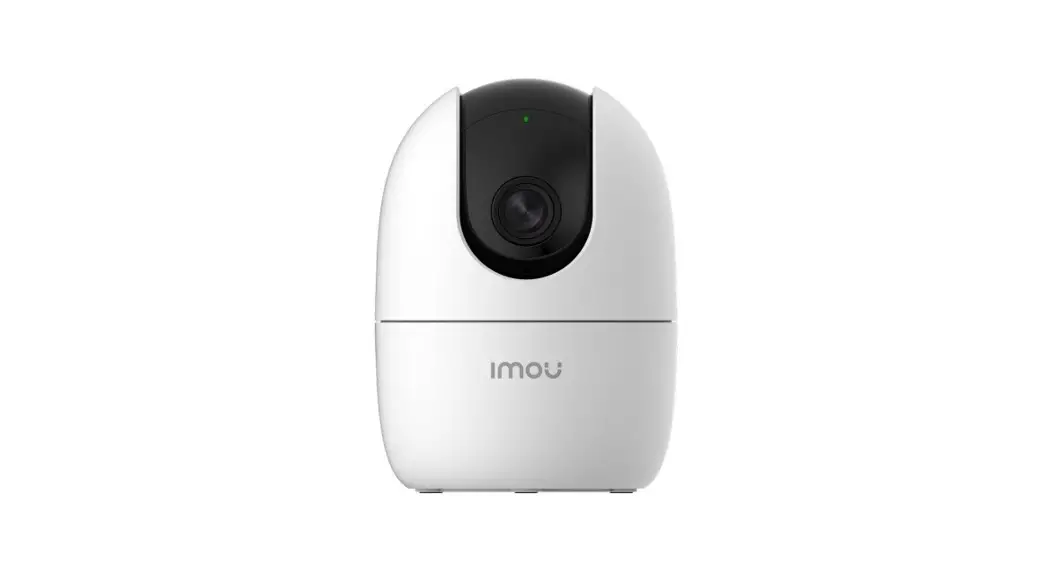
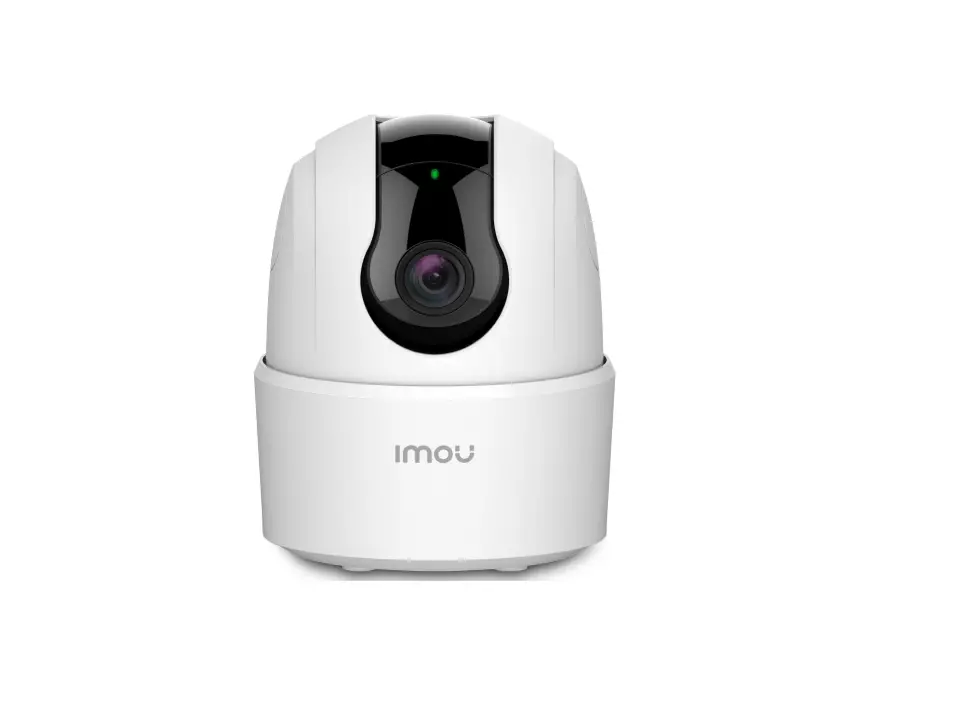
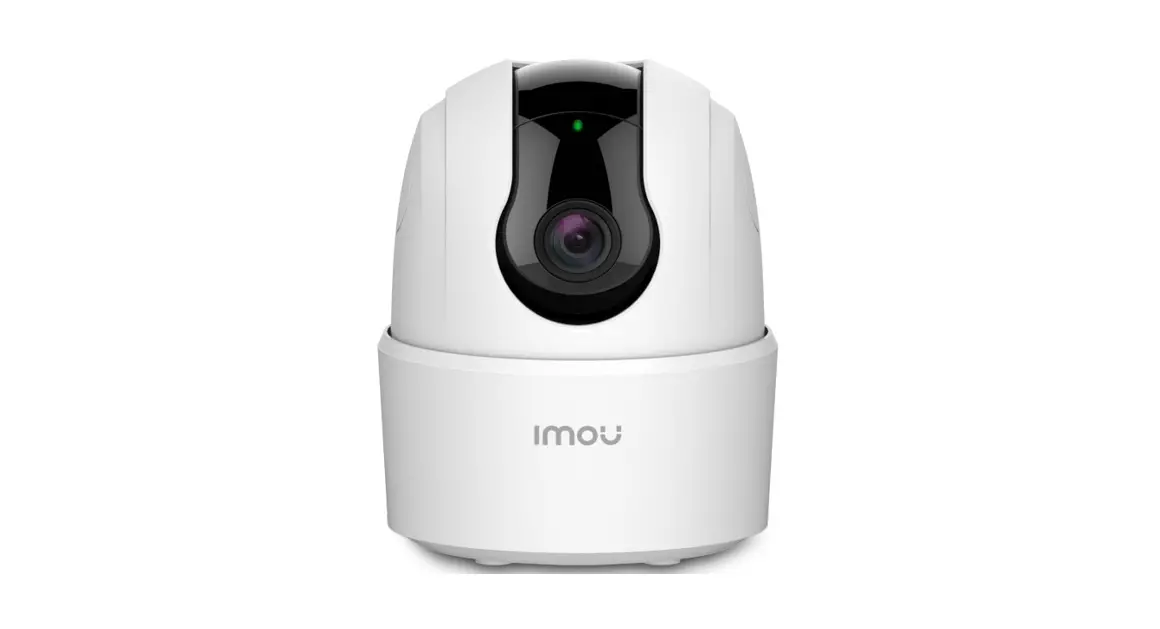
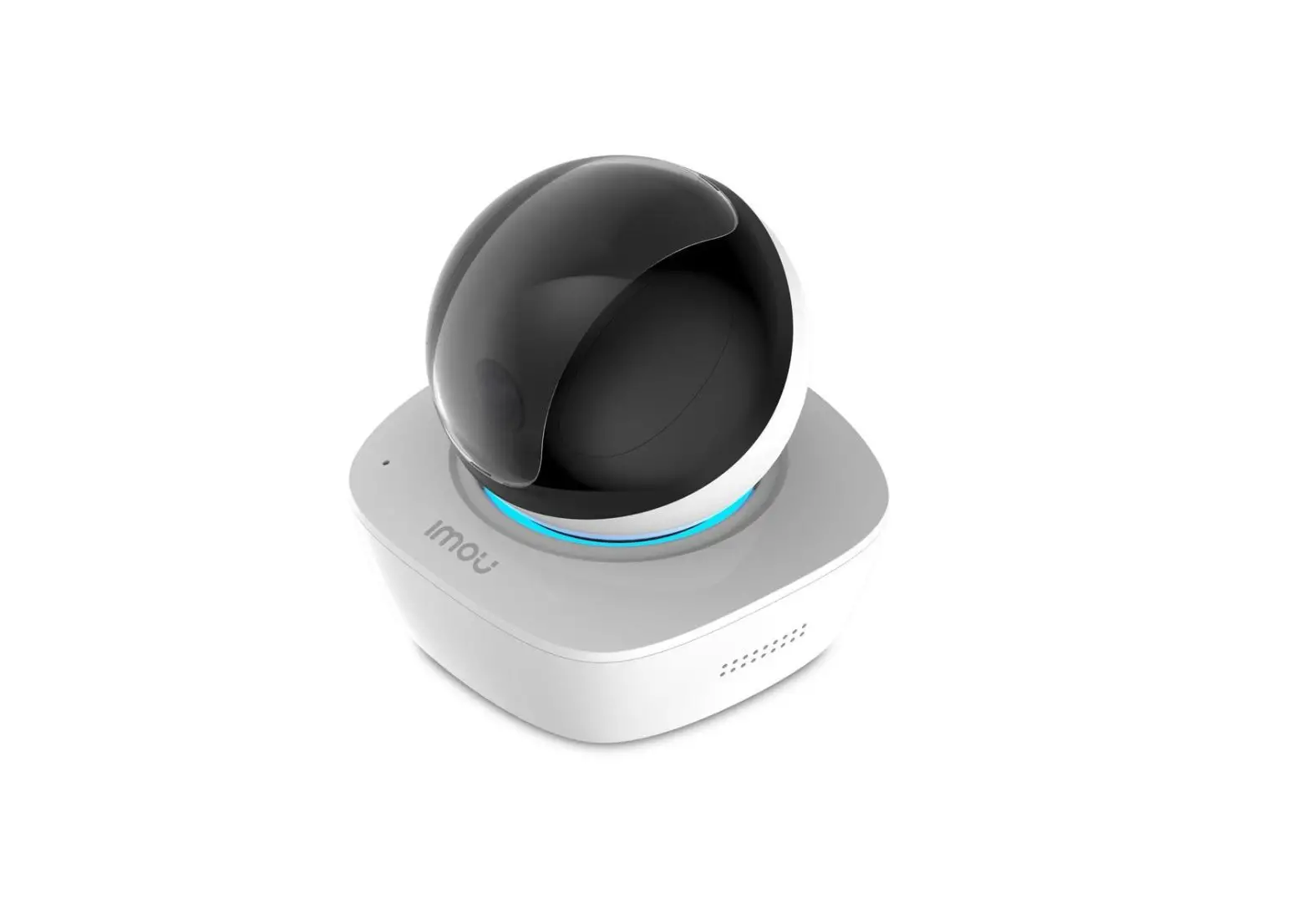
Camera Introduction
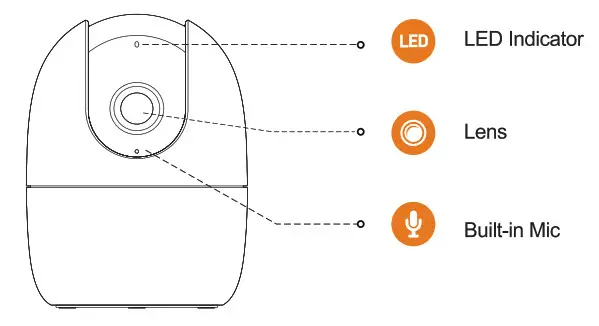
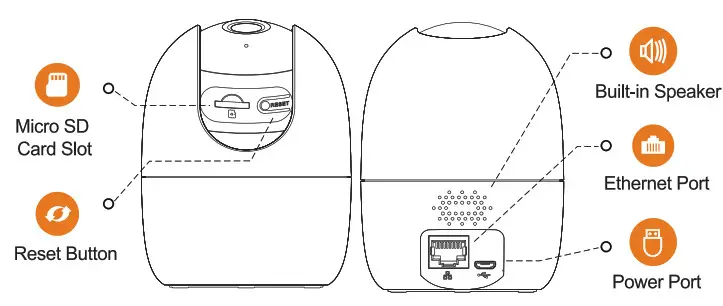
| LED Status | Device Status |
| Off | Powered off/LED turned off Rebooting after reset |
| Red light on Booting | Device malfunction |
| Greenlight flashing | Waiting for network |
| Greenlight on | Operating properly |
| Red light flashing | Network connection failed |
| Green and red light flashing alternately | Firmware updating |
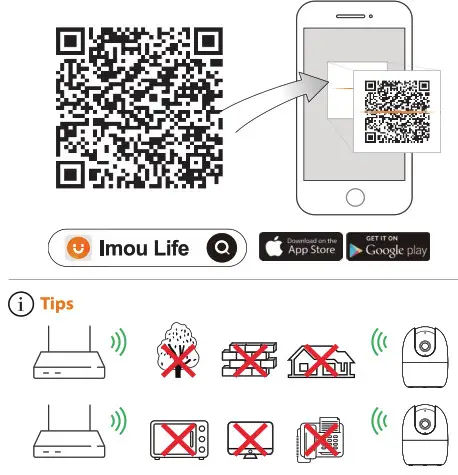
http://mobile.easy4ipcloud.com/imou/detect.html
To ensure the best possible wireless performance, please make sure that there are no obstacles and electromagnetic interference between the camera and router.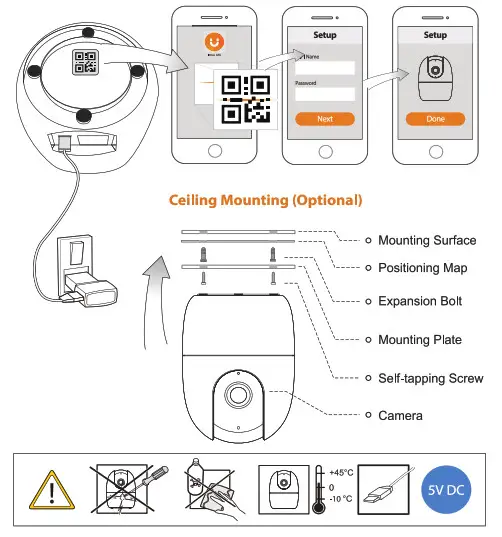
Troubleshooting
| Problem | Solution |
| Cannot configure the camera |
|
| How to find the camera WI-Fl password | It is the safety code on the device label. |
| No picture or device is offline |
|
| Picture is not clear |
|
| No audio |
|
| Human detection does not work | Make sure that you have enabled Human Detection in the Device Settings interface of you Life App. |
| Camera stuck downwards | Check Privacy Mode setting on Irnou Life App. |
| Fail to scan QR code |
|