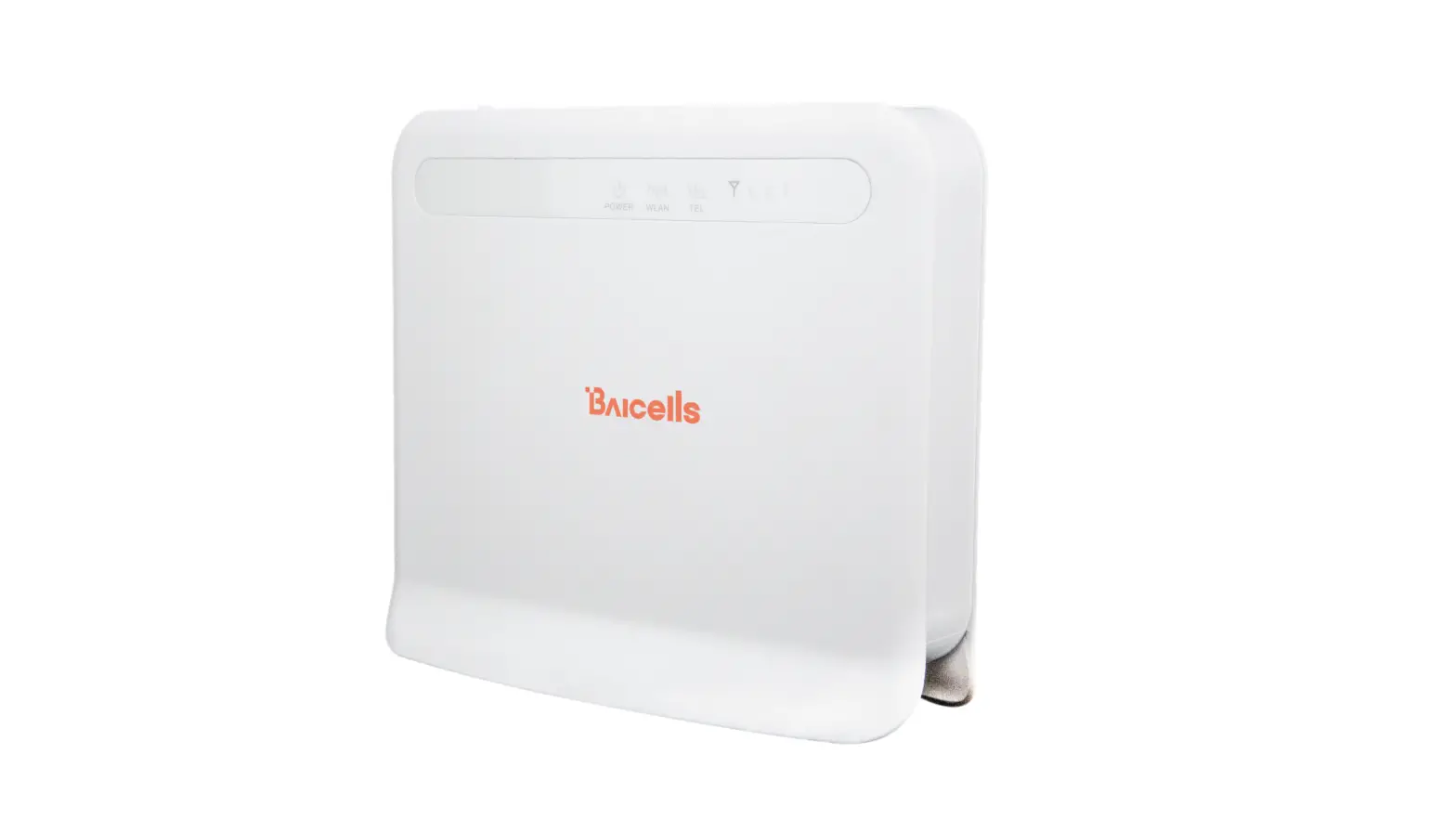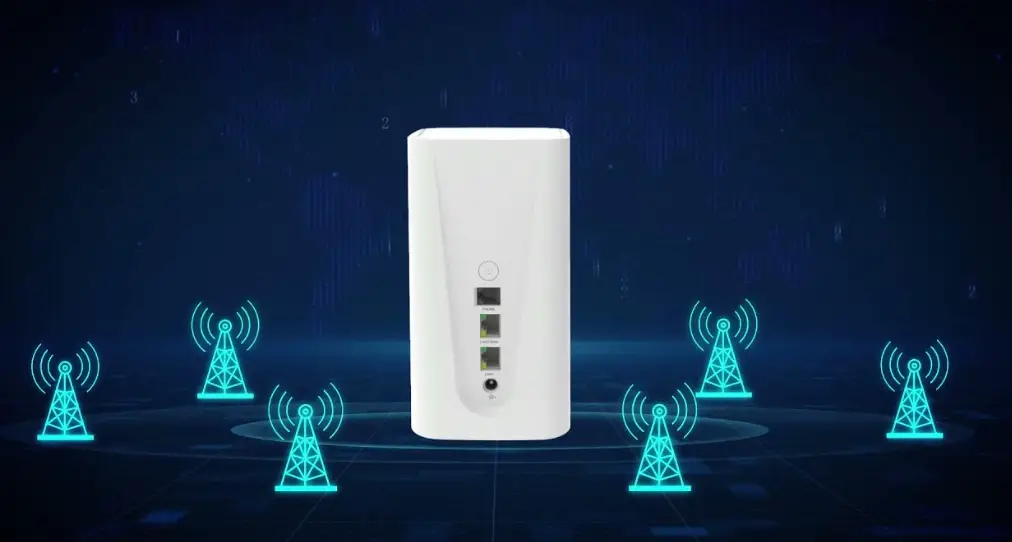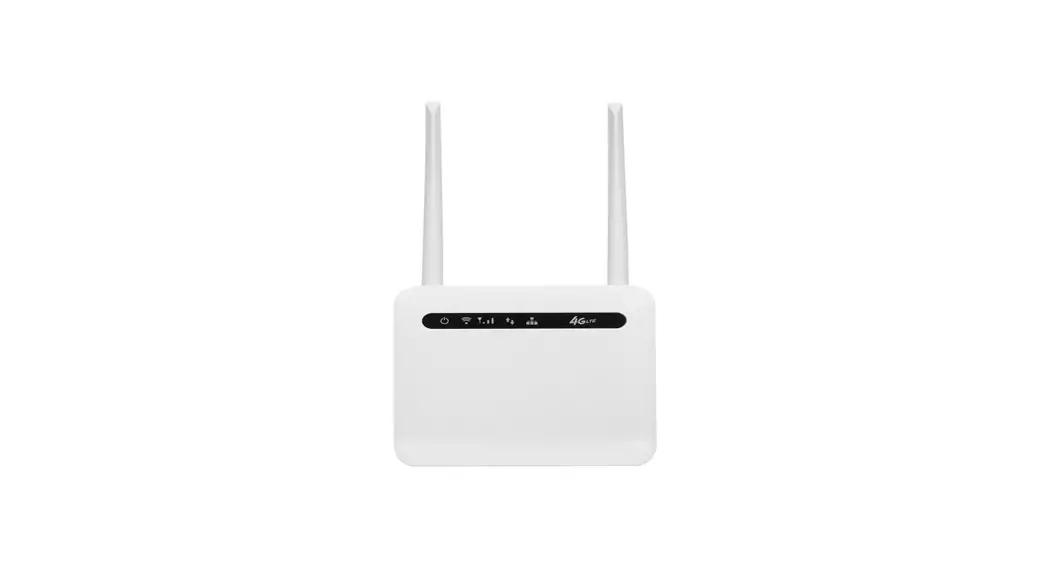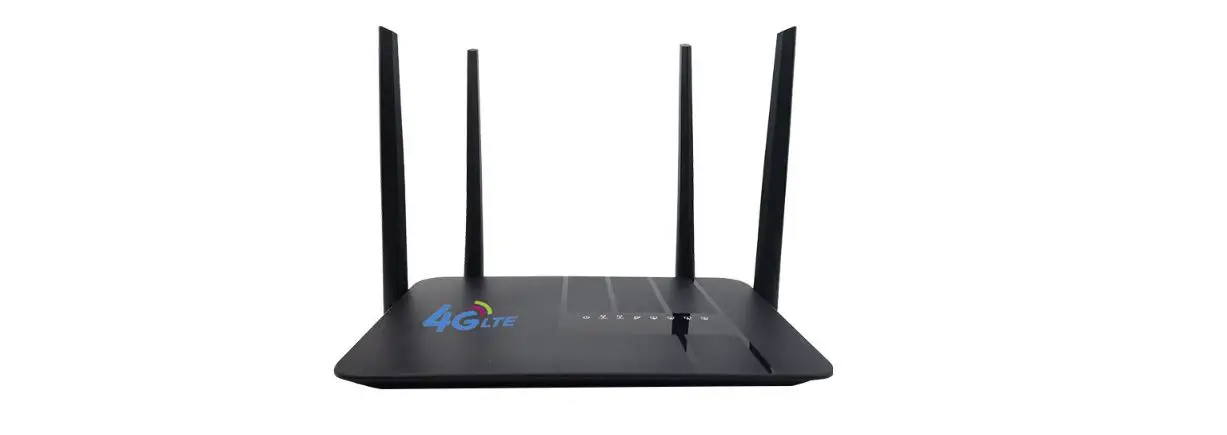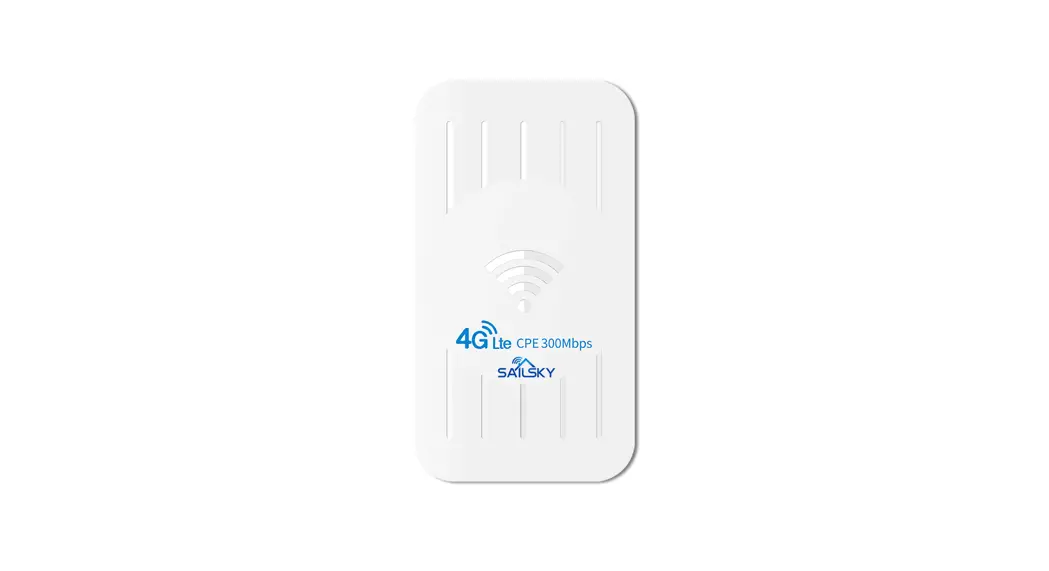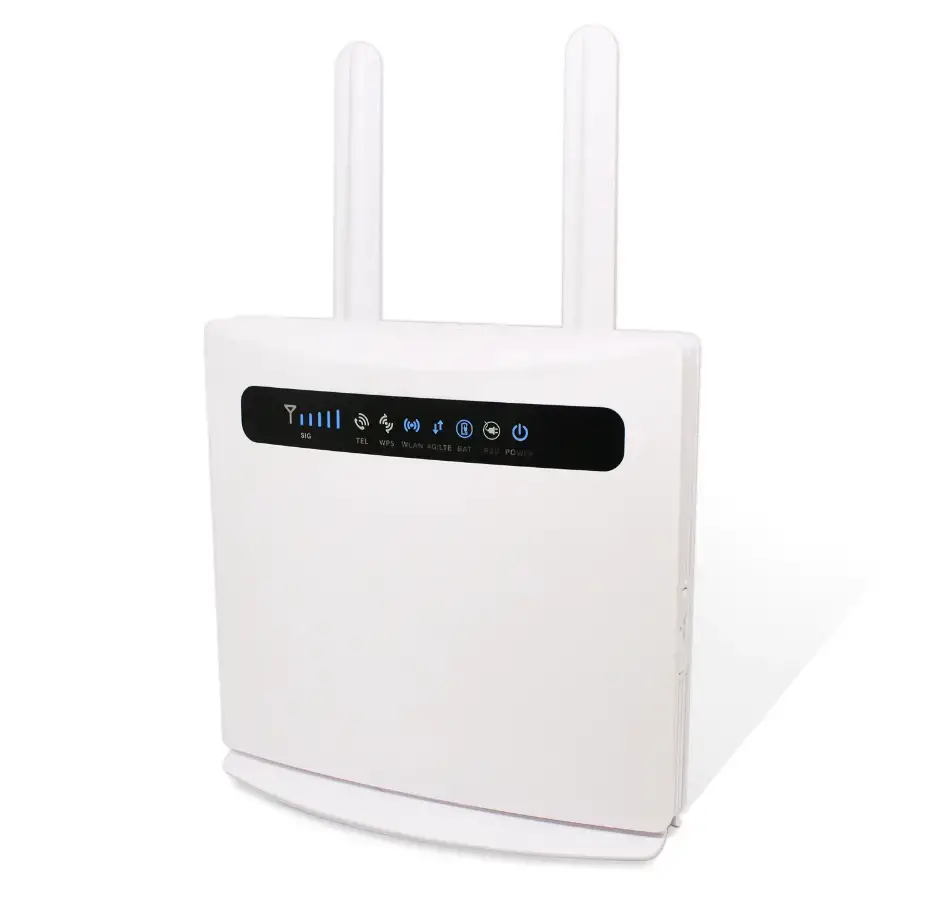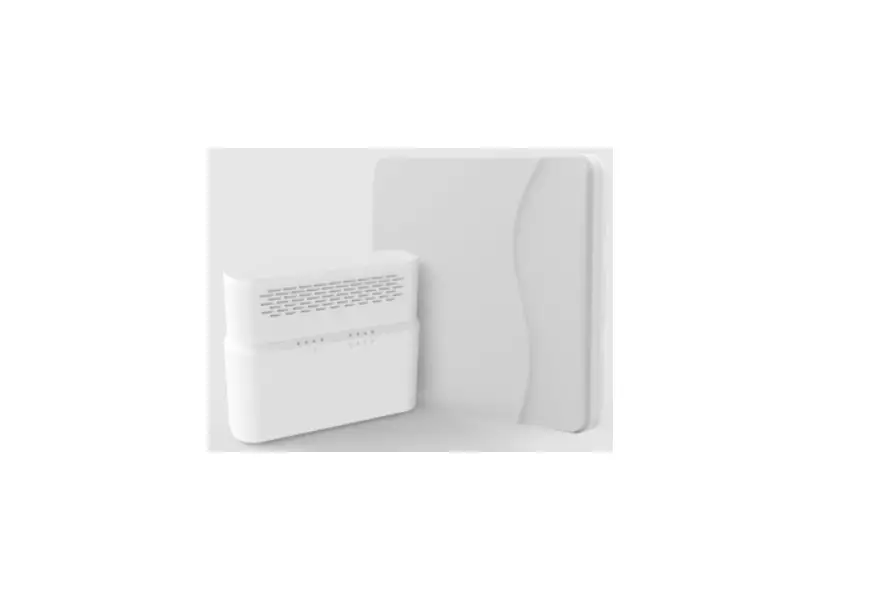
 Baicells EG2013B-M11 LTE Indoor CPE
 Baicells EG2013B-M11 LTE Indoor CPE
INTRODUCTION
About This Document
This document introduces the installation of Baicells LTE Indoor CPE.
Copyright Notice
Baicells copyrights this specification. No part of this specification may be reproduced in any form or means, without the prior written consent of Baicells.
Disclaimer
This specification is preliminary and is subject to change at any time without notice. Baicells assumes no responsibility for any errors contained herein. For more information, please consult our technical engineers.
Revision Record
| Date | Version | Description |
| 10 Aug,2020 | 01 | Initial released. |
Contact Us
Baicells Technologies Co., Ltd.North America
Address: 555 Republic Drive, Suite 200 Plano, TX 75074 E-mail: [email protected]
Phone: +1-972-800-1157
Website: http://www.baicells.com
Shipping List
Make sure you have got the following parts: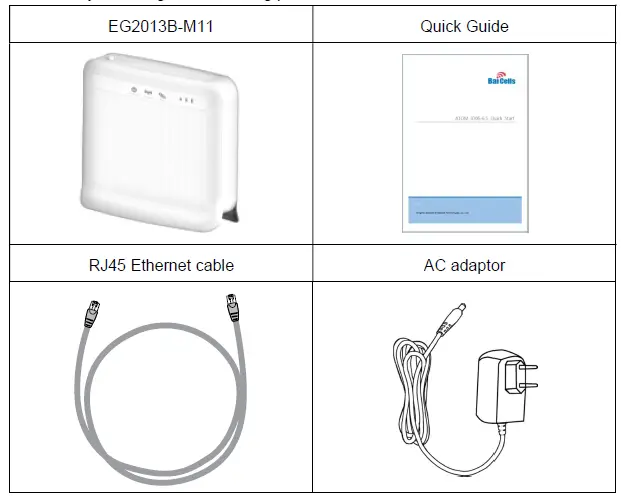
Hardware Introduction
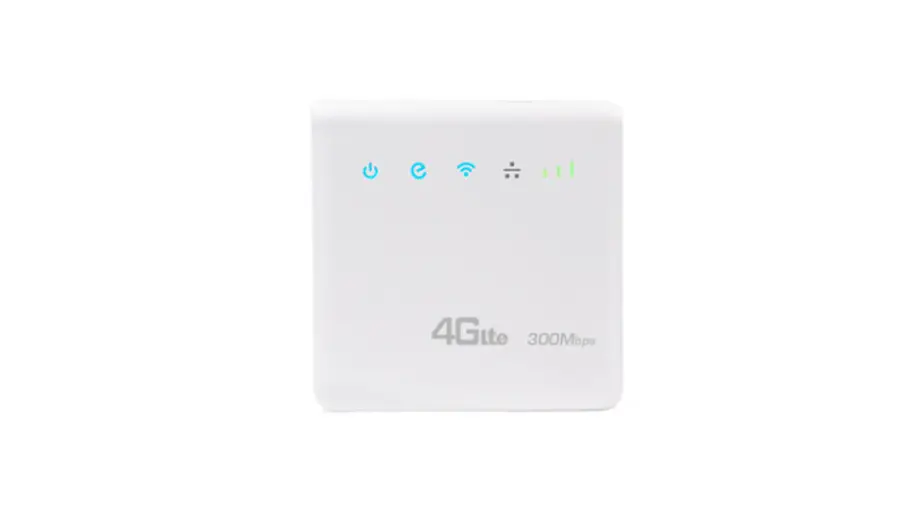
Indicators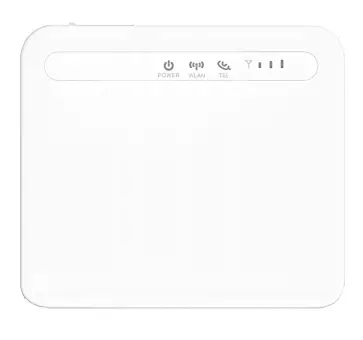
| No. | Name | Status | Description |
| 1 | Power | Steady On | Power On |
| OFF | No Power Supply | ||
| 2 | WLAN | Steady On | WiFi enabled |
| OFF | WiFi disabled | ||
| Blanking | Data is transmitting. | ||
| 3 | TEL | Steady On | VoIP having registered |
| OFF | VoIP having not registered | ||
|
4 |
SIGNAL | Steady On | The more turn light up, the stronger signal |
| OFF | The signal is too weak or no signal | ||
| Blanking | The page reload, restore to the factory setting by page, restore to the factory setting by reset button or software upgrade |
Interface and Buttons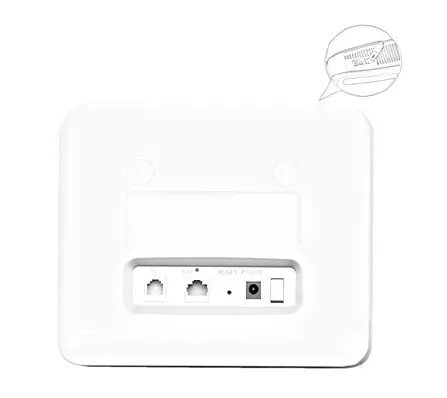
| No. | Name | Description |
| 1 | USIM card slot | Insert the USIM card to the slot. |
| 2 | Reset Button | Press “Reset” button for 3s~20s, the CPE will restore to the factory settings. Press “Reset” button over 20 seconds, the CPE will enable the escape mechanism. |
| 3 | TEL (RJ-11) | TEL interface connects to Telephone by RJ-11 cable. |
| 4 | LAN (RJ-45) | LAN interface connects to PC or other network devices (such hub or switch) by RJ-45 Ethernet cable. |
| 5 | DC-5V (power interface) | Connect to the DC-5V AC adaptor. |
| 6 | ON/OFF | ON/OFF the CPE. |
RF Specification
| Item | Description |
| Mode | TDD LTE |
| Channel Bandwidth | 10MHz/15MHz/20MHz | |
| MAX Output Power | 23±1 dBm | |
| LTE Standard | 3GPP R9 | |
| LTE Band | Band48 | |
| LTE Antenna Gain | 6.5 dBi | |
| Wi-Fi Specification | 802.11b/g/n | |
| Frequency | 2400MHz~2483.5MHz | |
| Wi-Fi Antenna Gain | 2 dBi |
Connect Device
Insert USIM Card
Install USIM card according to following steps: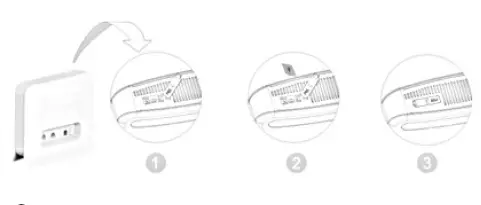
- Open the protective cover of the card slot.
- Insert USIM card into card slot according to the following figure.
a) Close the protective cover of the card slot.
CAUTION
DO NOT install or uninstall USIM card when the CPE is running. This operation will interrupt the performance of the CPE and the data stored in the USIM card may be lost.
Connect Cable
Install CPE according to following steps: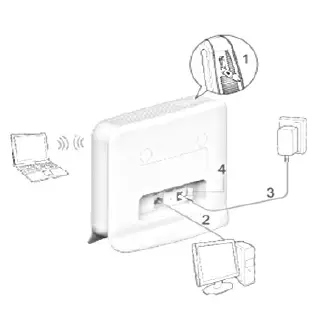
- Check whether the USIM card installation is correct.
- Connect one end of the RJ-45 cable to LAN interface of the CPE, and the other end connect to PC.
- Insert DC-5V AC adaptor to the power interface.
- Power on.
Set CPE according to following steps:
- Open Internet Browser and type in the default IP address: https://192.168.1.1
- In the user name/password text box, type in the default user name and password, admin/admin.
On the right corner of the page, there is the icon of signal strength, the two different status is as follows:- LTE connects to Internet successfully. The signal indictor indicates the strength of the LTE signal. The more bars turn light up, the stronger signal, otherwise, the weak signal.
- LTE does not connect to the Internet, please check whether the setting is connect.
Connect Wi-Fi
Set CPE according to following steps in web page:
- Before establishing Wi-Fi connection, make sure your wireless terminal devices (such as notebook, ipad, smart phone) have the WLAN function.
- When is steady on, the WLAN function of CPE has enabled. If you need to enable or disable the WLAN function, refer to help information in the web management page.
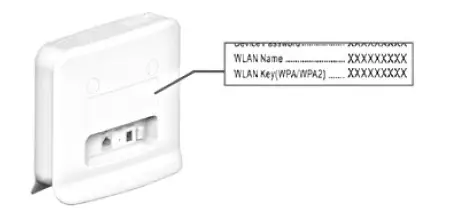
- On the label of back view of the CPE, view the “WLAN Name” and “WLAN Key (WPA/WPA2)” and record the value.

To avoid unauthorized user access to the WLAN, please modify the “WLAN Name” and “WLAN Key (WPA/WPA2)”. For more detail information, refer to help information in the web management page. - Enable WLAN function on wireless terminals, and these devices start to search nearby available wireless network.
- Choose the network that the name is the same as “WLAN Name”.
- Input “WLAN Key (WPA/WPA2)” according to hint. Note the capital and small letter. When the connection is complete, the page will display whether the connection is successful.
Regulatory Compliance
FCC Compliance
This device complies with part 15 of the FCC Rules. Operation is subject to the following two conditions: (1) This device may not cause harmful interference, and (2) this device must accept any interference received, including interference that may cause undesired operation.
Any Changes or modifications not expressly approved by the party responsible for compliance could void the user’s authority to operate the equipment.
This equipment has been tested and found to comply with the limits for a Class B digital device, pursuant to part 15 of the FCC Rules. These limits are designed to provide reasonable protection against harmful interference in a residential installation. This equipment generates uses and can radiate radio frequency energy and, if not installed and used in accordance with the instructions, may cause harmful interference to radio communications. However, there is no guarantee that interference will not occur in a particular installation. If this equipment does cause harmful interference to radio or television reception, which can be determined by turning the equipment off and on, the user is encouraged to try to correct the interference by one or more of the following measures:
- Reorient or relocate the receiving antenna.
- Increase the separation between the equipment and receiver.
- Connect the equipment into an outlet on a circuit different from that to which the receiver is connected.
- Consult the dealer or an experienced radio/TV technician for help.
Warning:
This equipment complies with FCC radiation exposure limits set forth for an uncontrolled environment. This equipment should be installed and operated with minimum distance 20cm between the radiator & your body.
 Baicells