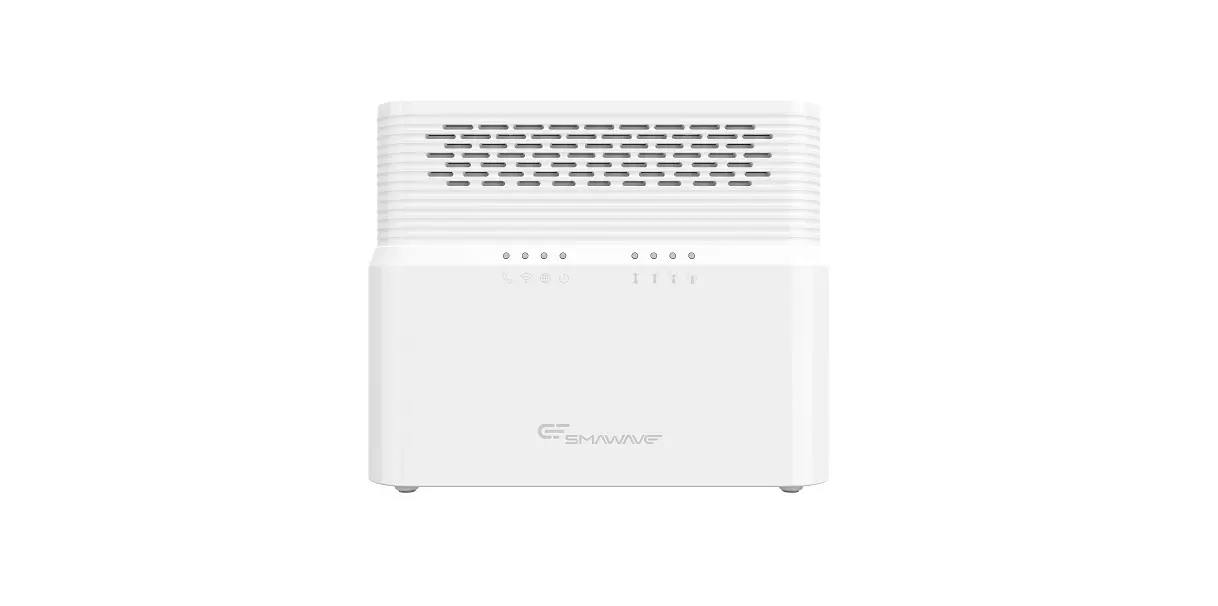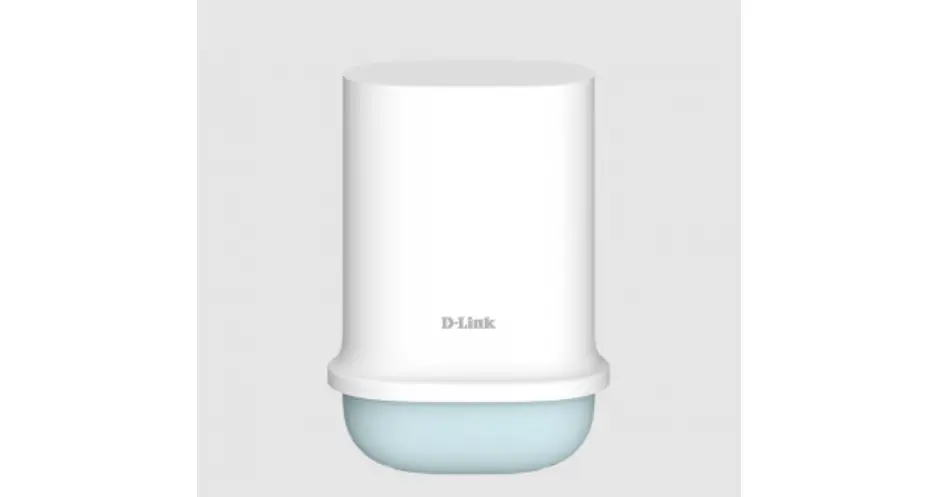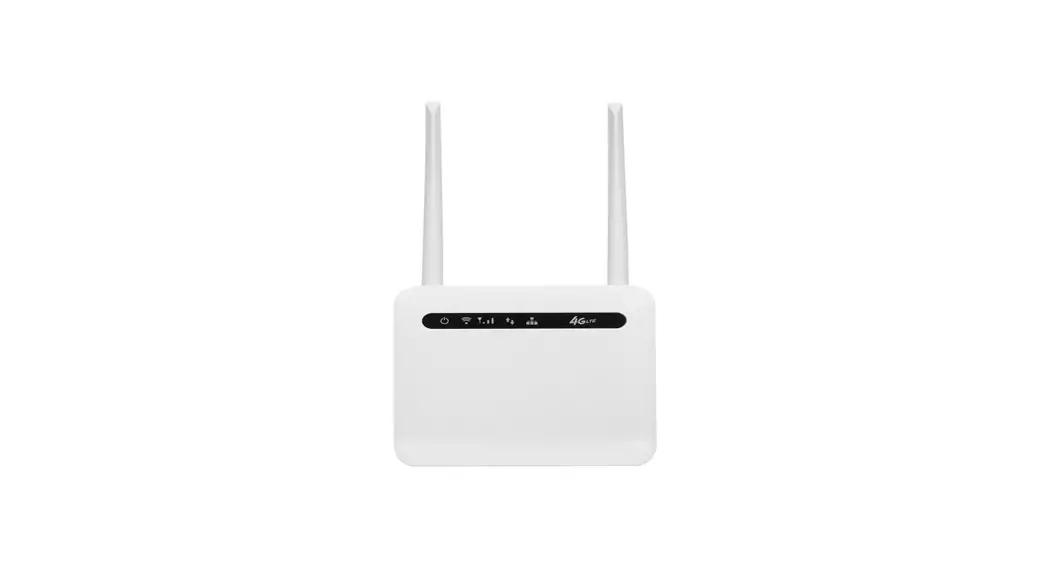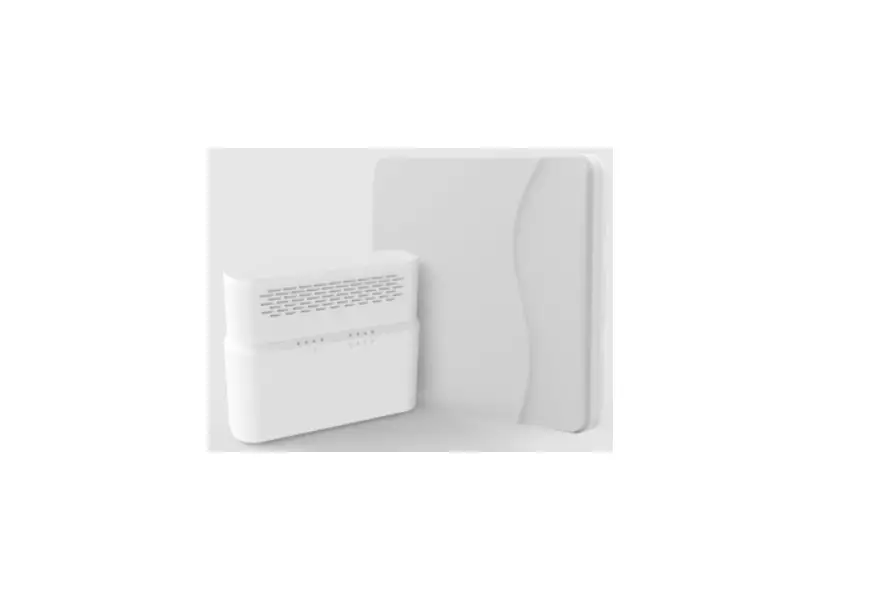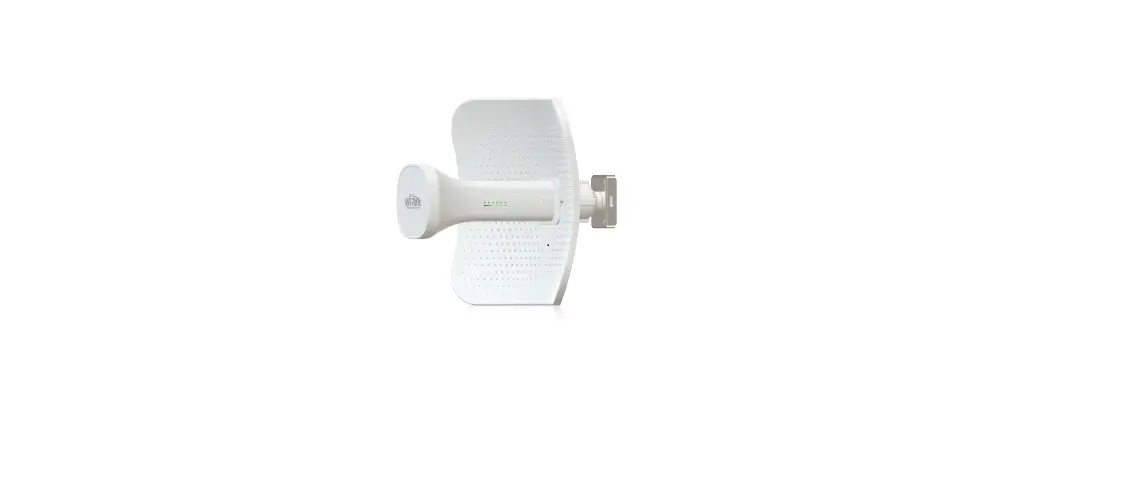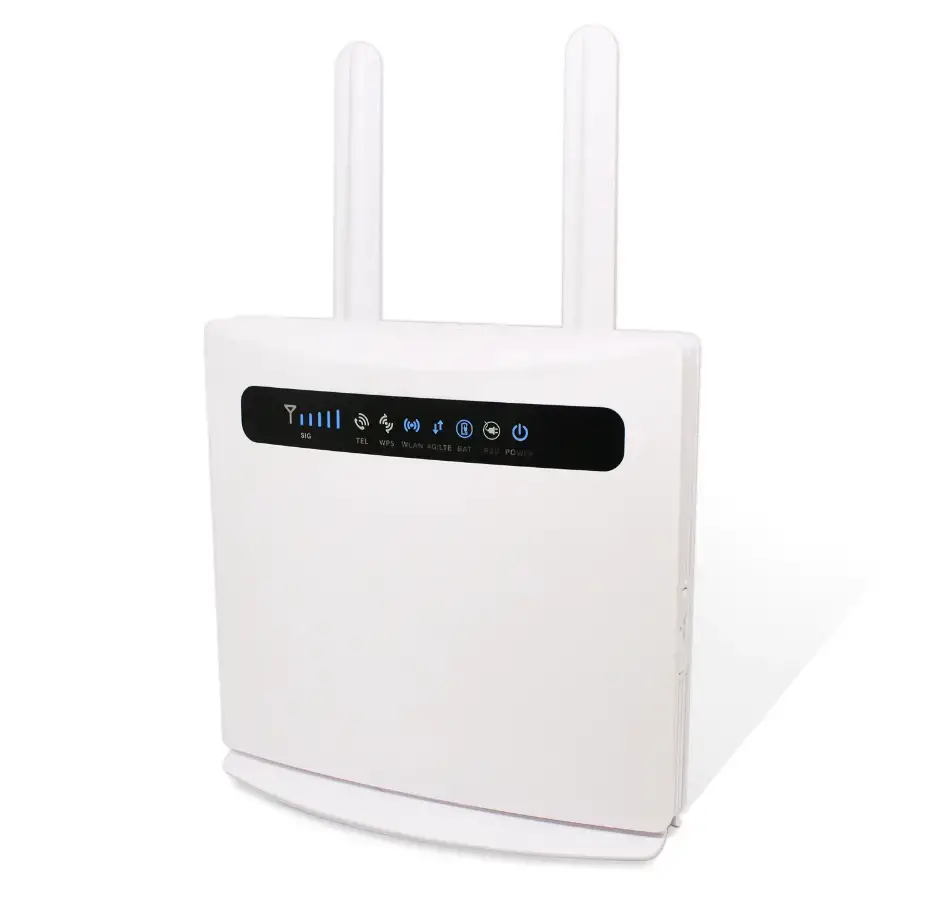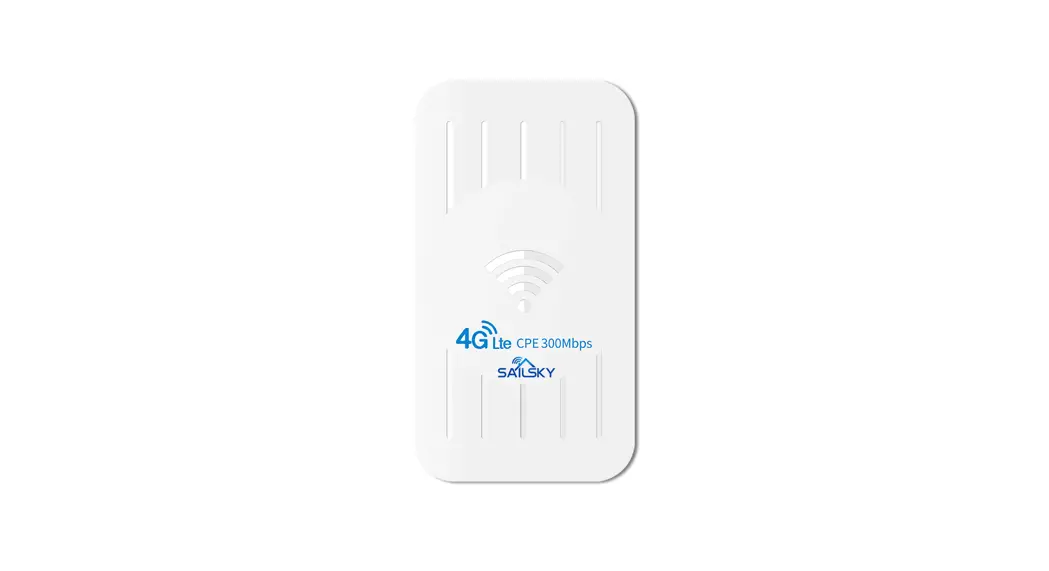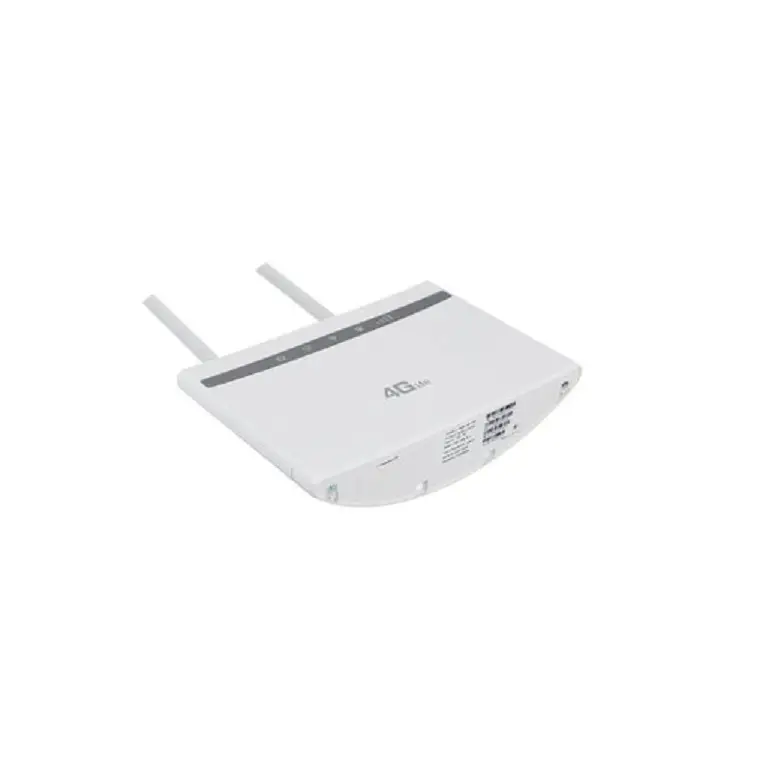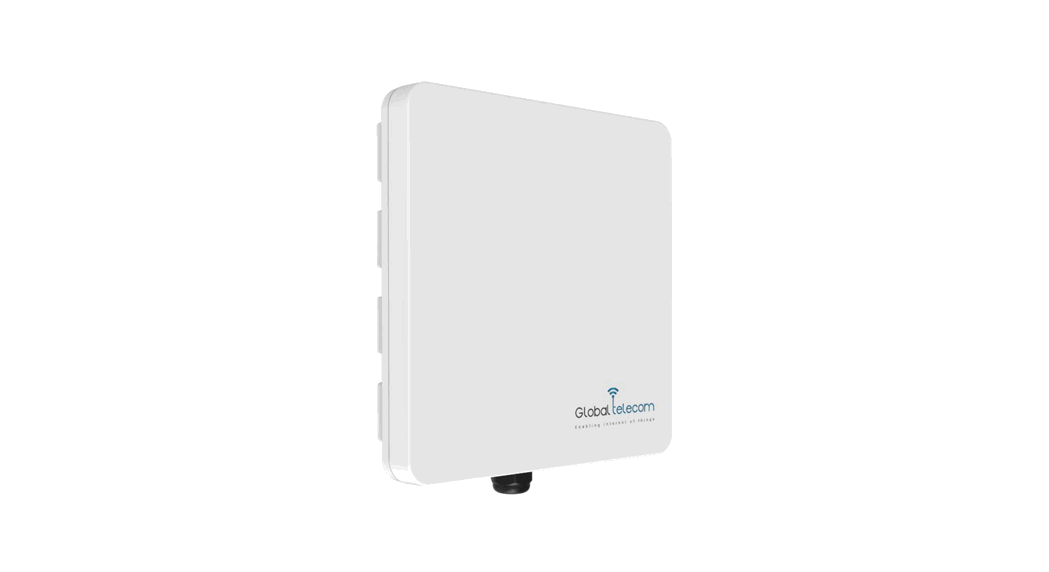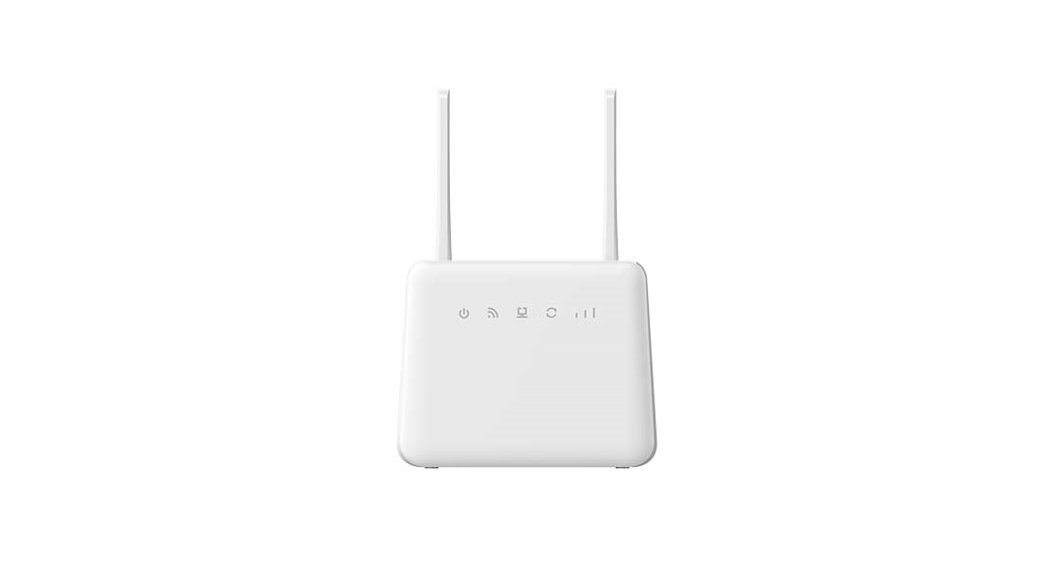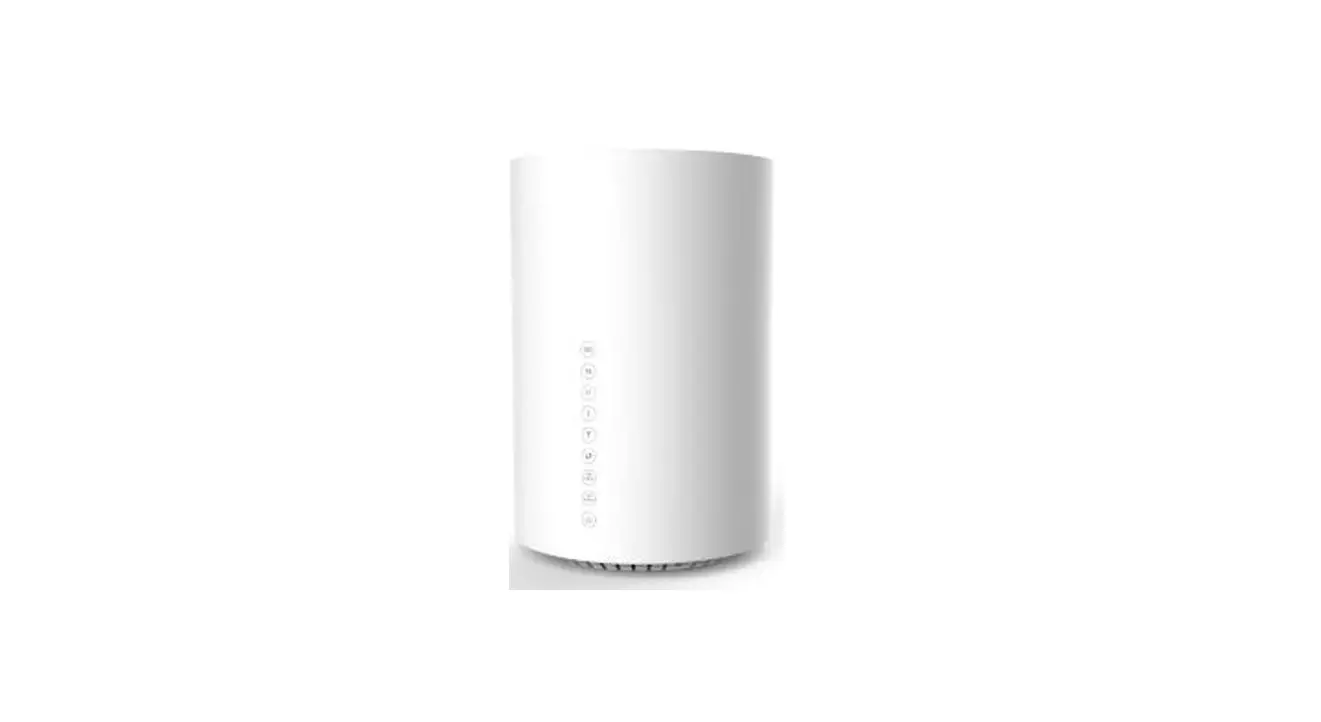
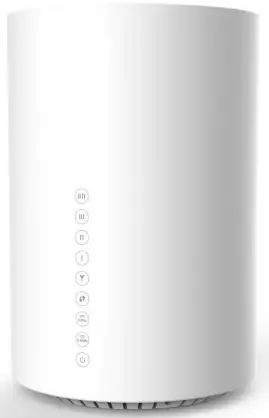
 WLTFGT-145ACN LTE Indoor CPE
Installation Guide
Copyright
This DOCUMENT is copyrighted with all rights reserved. No part of this publication may be reproduced, transmitted, transcribed, stored in a retrieval system, or translated into any language in any form by any means without the written permission of Gemtek Technology Co. Ltd.
Notice
Gemtek reserves the right to change specifications without prior notice. While the information in this document has been compiled with great care, it may not be deemed an assurance of product characteristics. Gemtek shall be liable only to the degree specified in the terms of sale and delivery.
The reproduction and distribution of the documentation and software supplied with this product and the use of its contents are subject to written authorization from Gemtek.
About this Guide
This document provides information and procedures on the installation and configuration of LTE Indoor CPE. You could utilize the theoretical information in this guide to set up your device. This Quick Installation Guide covers the basic installation of the LTE Indoor Gateway.
What’s in the box?
Here’s a quick checklist of everything inside your box.
Before installing the CPE, verify that you have all the items listed in the packing checklist. If any of the items are missing or damaged, contact your LTE service
provider.
 | The LTE Indoor CPE |
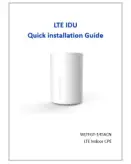 | Quick Installation Guide |
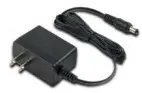 | Power Adapter |
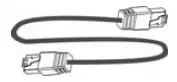 | CAT5e 8-wire Ethernet cable for connecting IDU and computer |
LED Indicators
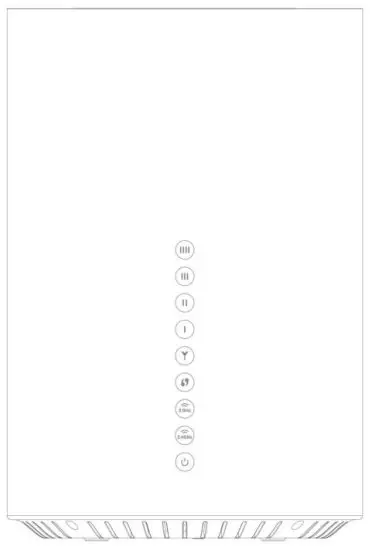
| LED Indication | Icon | Status | Description | |
| 1 | Power |  | ON | Power ON |
| OFF | Power OFF | |||
| 2 | 2.4 WiFi |  | ON | Wi-Fi ON |
| Blinking | Transmitting data | |||
| OFF | Wi-Fi OFF | |||
| 3 | 5 WiFi |  | ON | Wi-Fi ON |
| Blinking | Transmitting data | |||
| OFF | Wi-Fi OFF | |||
| 4 | WPS |  | Blinking | Searching for Connection |
| ON | Connection confirm (will be off after 5 seconds) | |||
| 5 | Signal Strength | Display signal strength | ||
 | ON | SINR < 7dB (Blinking: No SIM Card) | ||
 | 1 LED: 7dB SINR < 11dB | |||
 | 2 LED: 11dB SINR < 18dB | |||
 | 3 LED: 18dB SINR < 23dB | |||
 | 4 LED: 23dB < SINR | |||
| OFF | LTE OFF | |||
| 6 | Firmware Upgrade | Electronic scrolling marquee | ||
| 7 | Reset | All LEDs are blinking | ||
Connectors
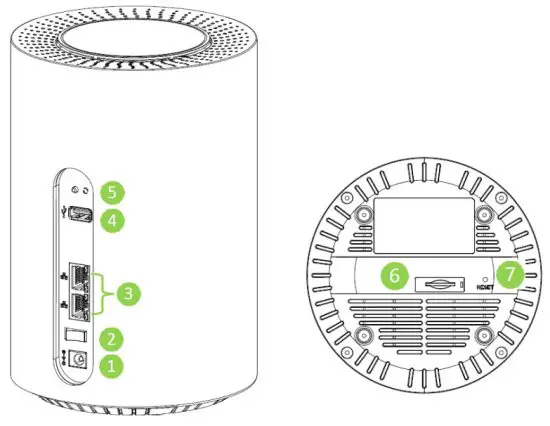
| Connector | Description | |
| 1 | Power (DC-12V Port) | The power port is where you connect the power adapter. |
| 2 | Power On/Off Switch | The on/off switch support to turn on device |
| 3 | LAN — RJ -45 | The LAN port allows you to connect Modem to your PC or Hub using a Cat.5/6 Ethernet network cable. |
| 4 | USB Type-A Host | Support USB 2.0 Host |
| 5 | WPS | Holds down the button for 5 seconds to enable WPS function. |
| 6 | USIM Slot | Support 2FF size; 1.8V/3.3V USIM for LTE Mode |
| 7 | Reset | Press the button for 5 seconds to reset the setting back to factory default. |
Installation
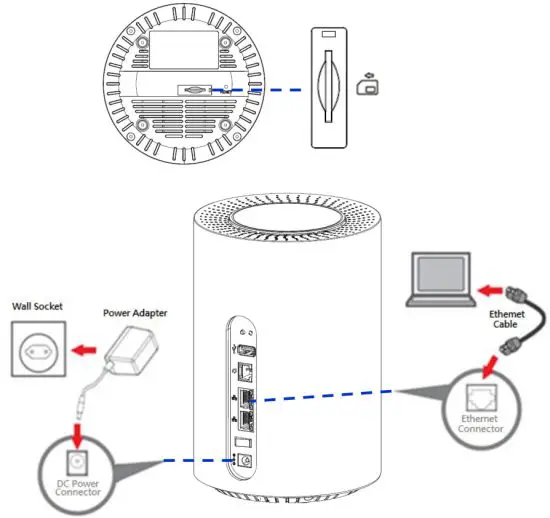
Please follow the steps below to install the device:
Step1: Insert SIM card into the device with the right direction.
Step2: Connect the device LAN port to your PC with an RJ-45 Ethernet cable that is supplied.
Step3: Insert the power cord into the LTE Indoor CPE’s DC-12V power jack, and insert the plug into a power outlet.
Step4: Switch ON the power. The device will start the booting process. After a few seconds, the LED lights will start blinking.
Easy Setup
Please follow the steps below to configure your device through the web interface:
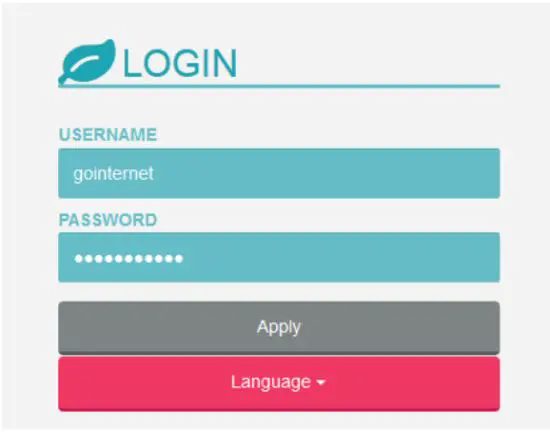
Step1: Open the Web browser (Internet Explorer) and enter the default IP address of the IDU CPE: http://192.168.15.1
Step2: Enter username/password to access the web management interface.
Username: admin
Password: admin
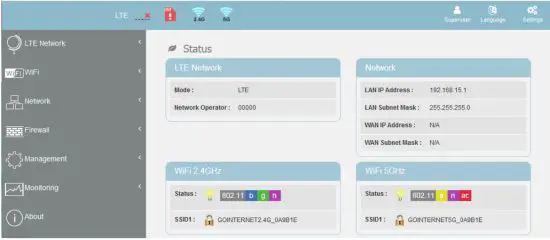
Step3: The page displays in your browser after login; you can simply configure the device settings.
Signal strength indicator on the upper-left corner of the webpage.
WiFi Setting
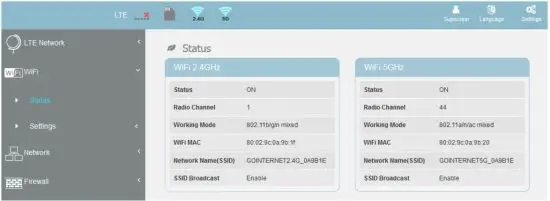
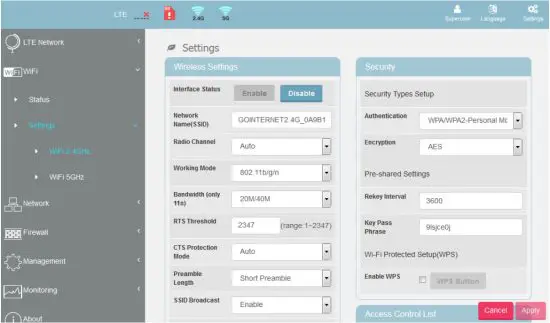
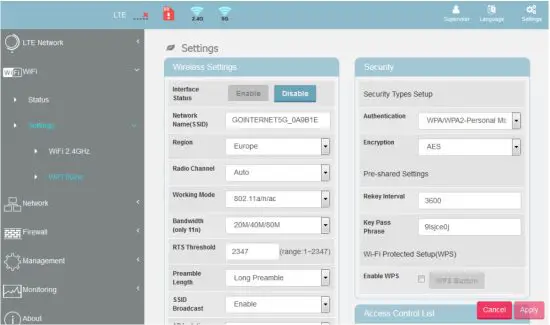
Select WiFi from the main menu. Then the screen will display the default setting of SSID, radio channel, working mode, and SSID broadcast.
WiFi Status:
WiFi 2.4G Settings:
WiFi 5G Settings:
Federal Communication Commission Interference Statement
This equipment has been tested and found to comply with the limits for a Class B digital device, pursuant to Part 15 of the FCC Rules. These limits are designed to provide reasonable protection against harmful interference in a residential installation. This equipment generates, uses, and can radiate radio frequency energy and, if not installed and used in accordance with the instructions, may cause harmful interference to radio communications. However, there is no guarantee that interference will not occur in a particular installation. If this equipment does cause harmful interference to radio or television reception, which can be determined by turning the equipment off and on, the user is encouraged to try to correct the interference by one of the following measures:
- Reorient or relocate the receiving antenna.
- Increase the separation between the equipment and receiver.
- Connect the equipment into an outlet on a circuit different from that to which the receiver is connected.
- Consult the dealer or an experienced radio/TV technician for help.
FCC Caution: Any changes or modifications not expressly approved by the party responsible for compliance could void the user’s authority to operate this equipment.
This device complies with Part 15 of the FCC Rules. Operation is subject to the following two conditions: (1) This device may not cause harmful interference, and (2) this device must accept any interference received, including interference that may cause undesired operation.
FCC Caution: Any changes or modifications not expressly approved by the party responsible for compliance could void the user’s authority to operate this equipment.
IMPORTANT NOTE:
FCC Radiation Exposure Statement:
This equipment complies with FCC radiation exposure limits set forth for an uncontrolled environment. This equipment should be installed and operated with
a minimum distance of 20cm between the radiator & your body.
This transmitter must not be co-located or operating in conjunction with any other antenna or transmitter.