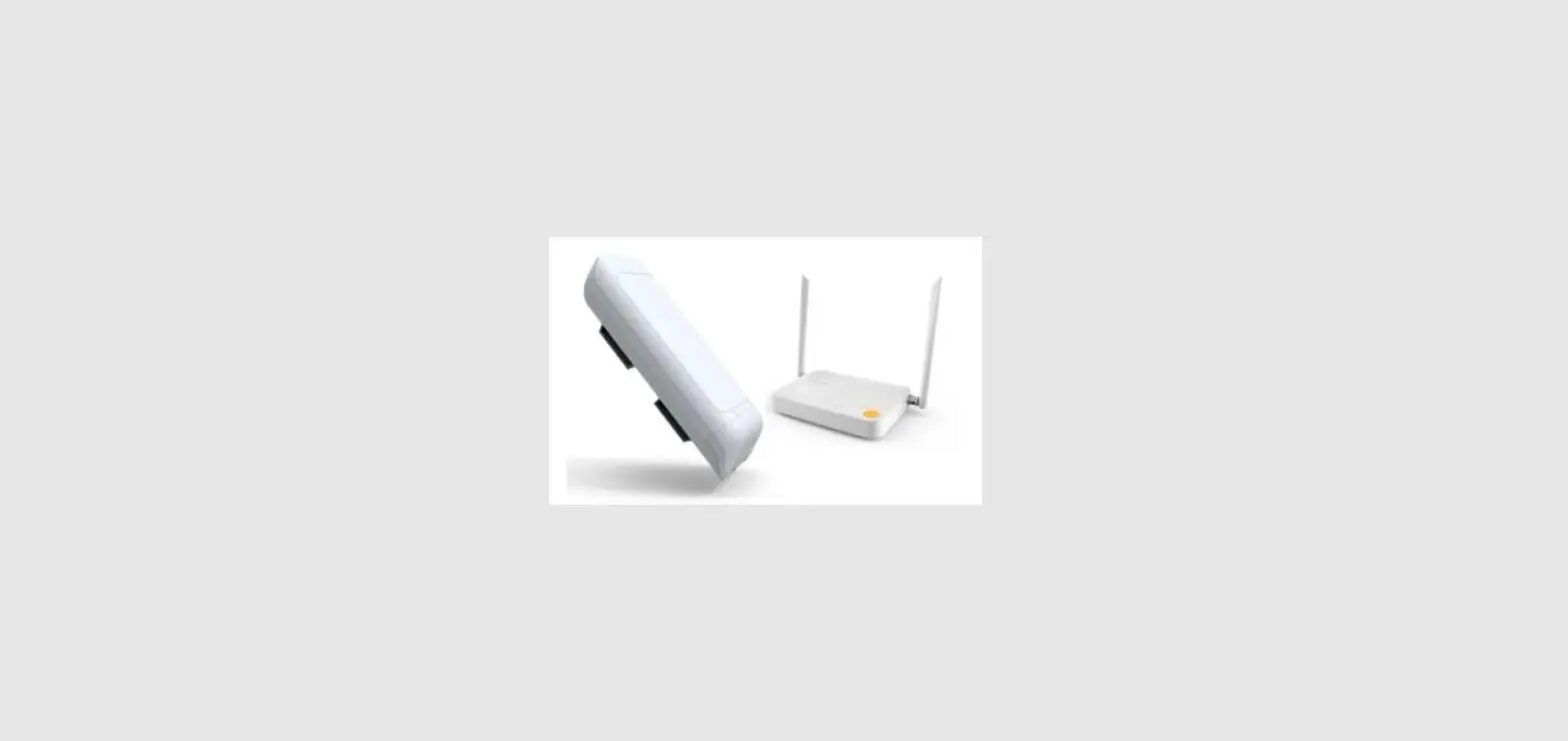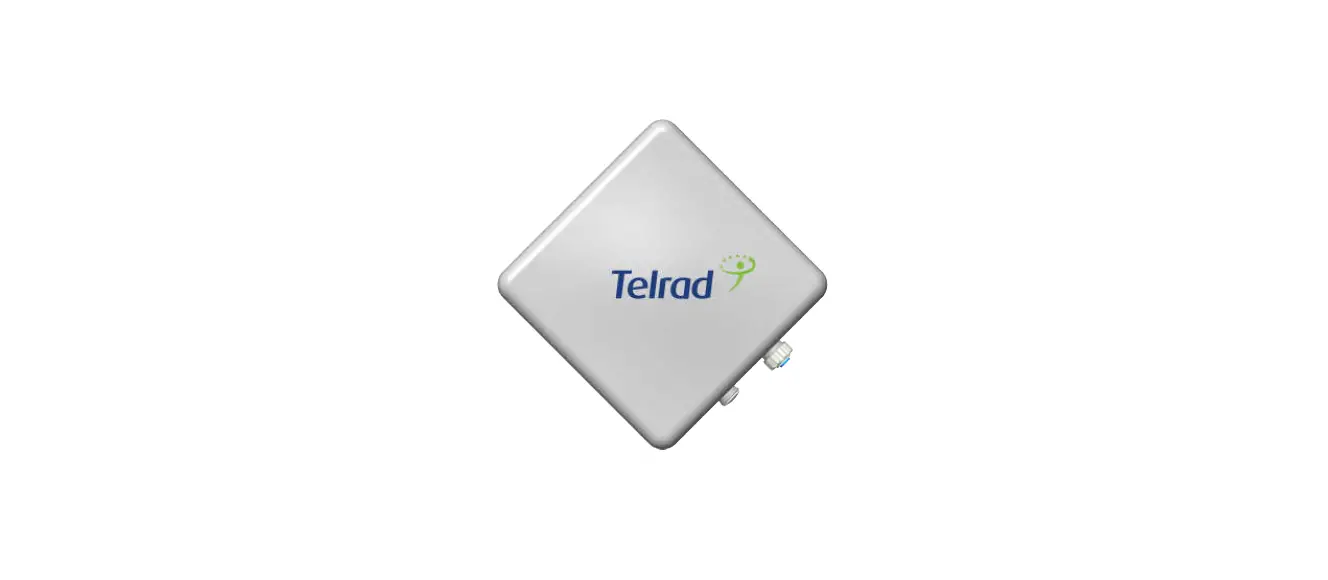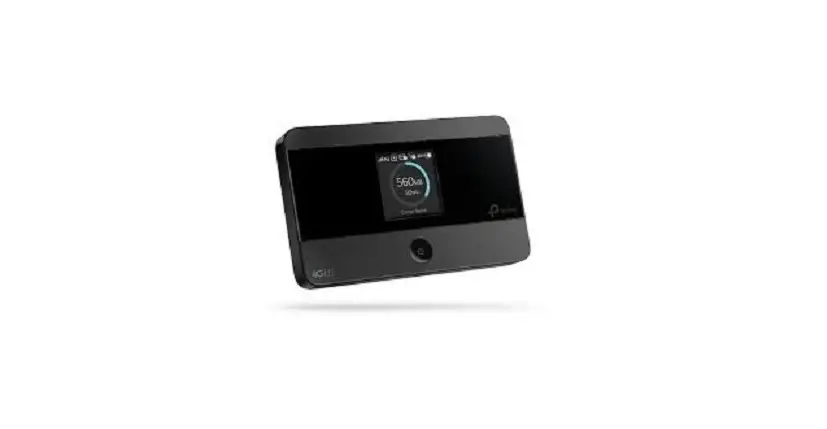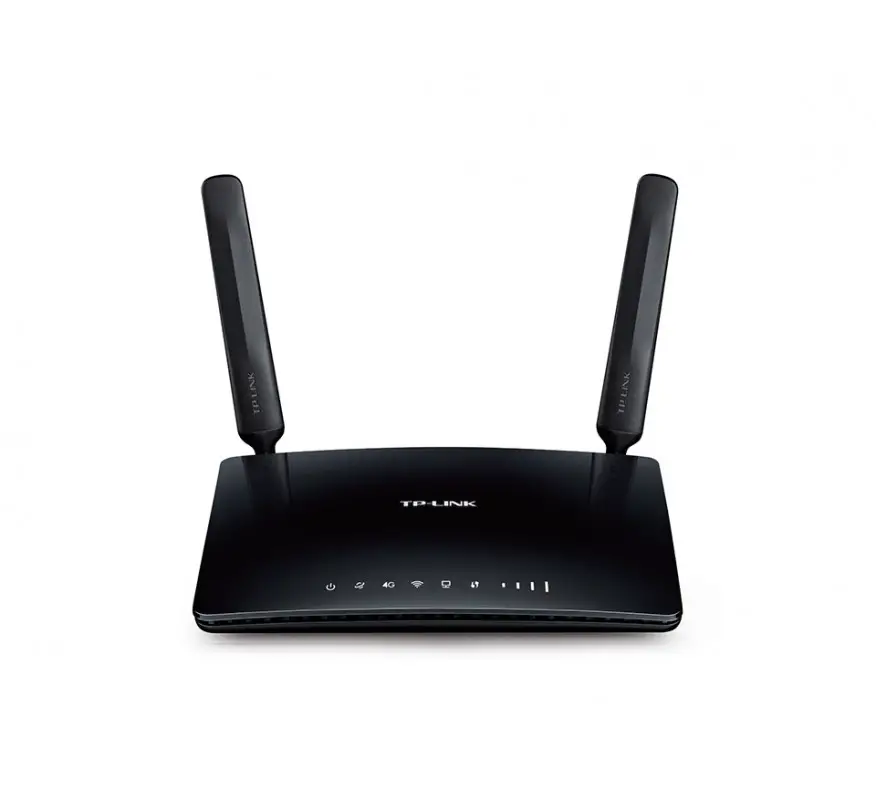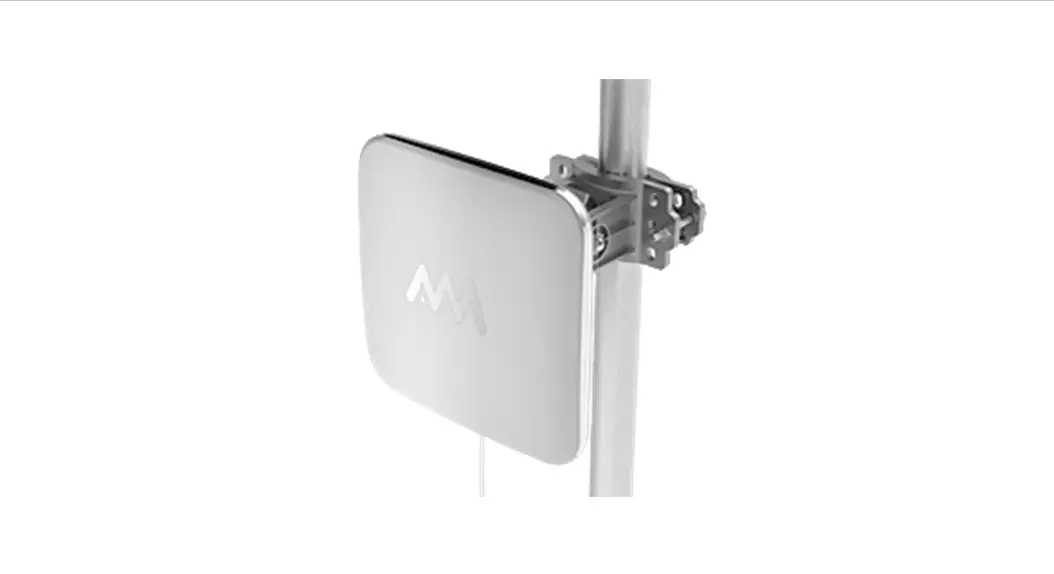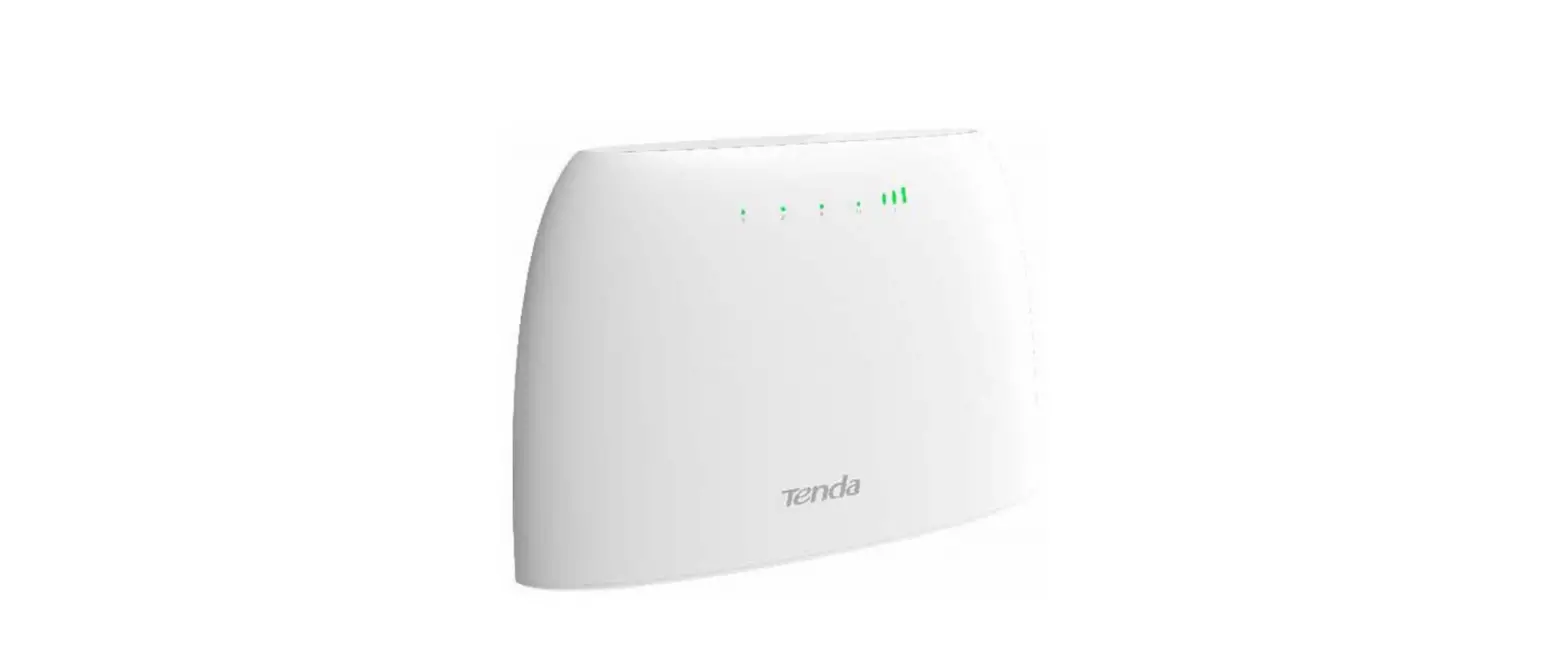

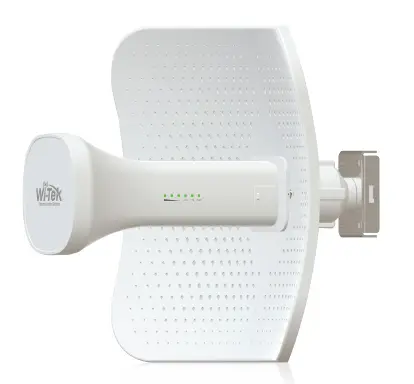
Wi-Tek WI-LTE113-O 4G LTE Outdoor GPE
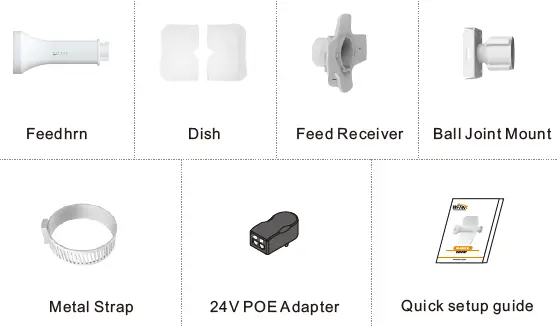
Package content
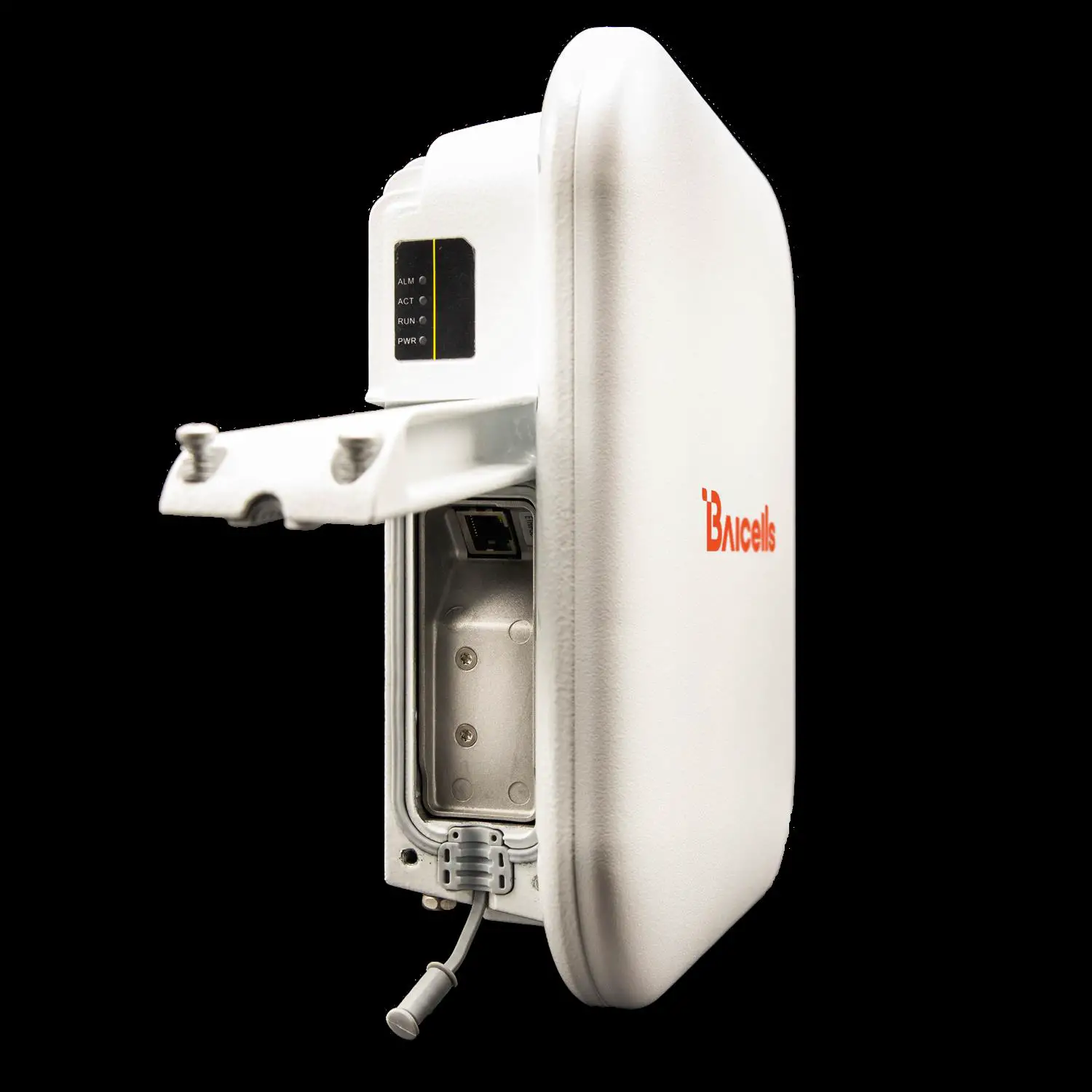
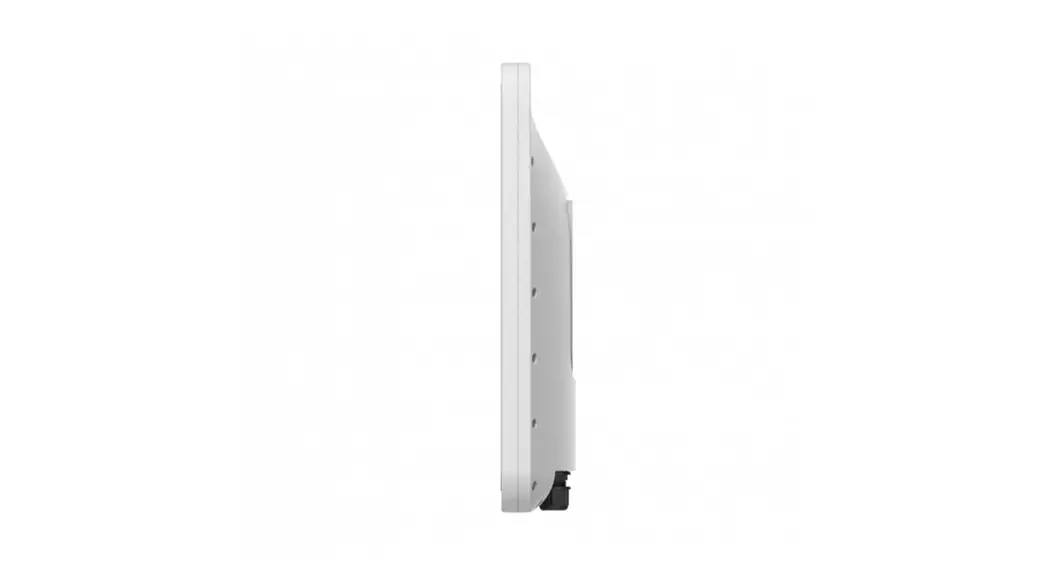
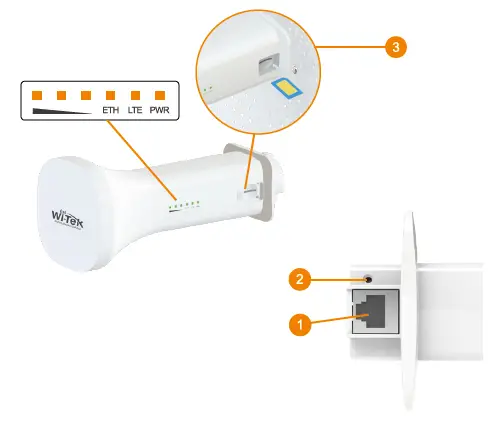
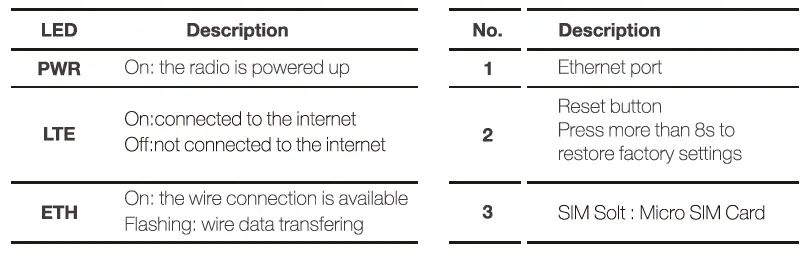
Hardware Overview

Mounting
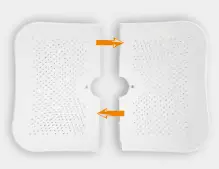
- Combine the two parts of the dish reflector.

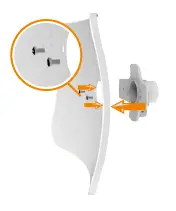
- Hold the reflector assembly by heand (do not usea tabletop or flat surface) and insert the Feed Re-ceiver into the reflector, secure it wiith two screw.

WARNING
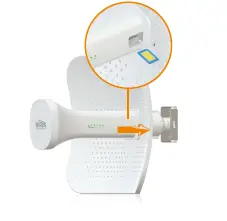
Do not install the Feed Receiver into the reflector assembly by pushing down onto a tabletop orother flat surface as this can deform the panels. Hold the reflector assembly by hand. - Insert the Micro SlM card and close thesilicone cover. And then insert the Radio Feed into the Feed Receiver.

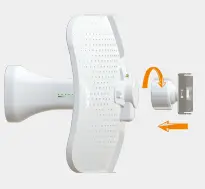
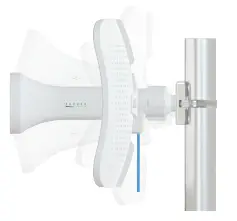
- Attach the Ball Joint Mount to the Feed Re-ceiver by turning the lock nut clockwise by hand.Do not tighten the nut.

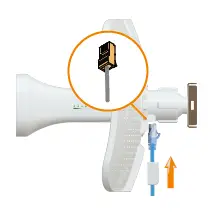
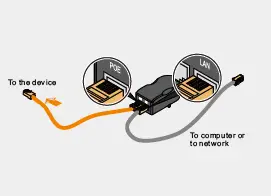
- Pull out the port cover and connect an Ethernetcable to the port, then push back the cover.

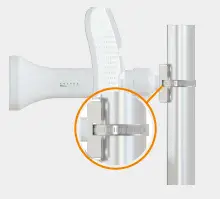
- Open the Metal Strap and feed it through thetwo slots ofthe Ball Joint Mount, then wrap theMetal Strap around the pole.

- Loosen the lock nut on the Ball Joint Mount,and aim at the other end of the wireless link.After that lock the nut.

- Power up the device,plug and play.

Web configuration
Launch your web browser then enter http://192.16A8.1.1 in the address bar and specify the default login key:admin.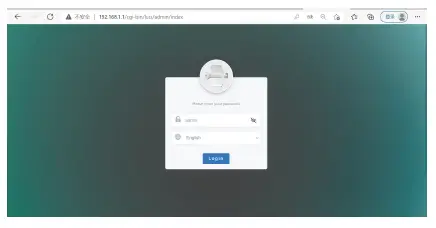
Configuration complete.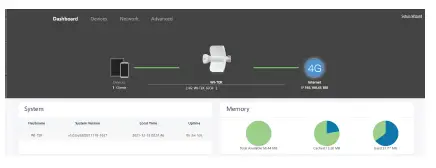
Cloud Management Setting
Cloud management settings
- Step 1 Launch your web browser then enter http://cloud2.wireless-tek.com in the address bar.
- Step 2 Register an account password by user name or email.
- Step 3 log in to the cloud account with the account password after registration.

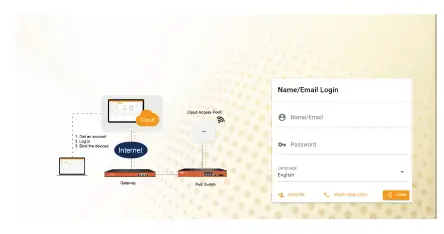
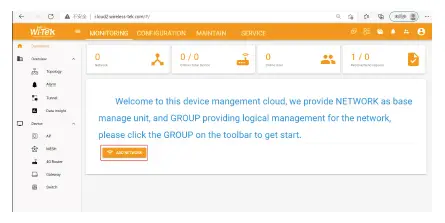
After the login is successful, the steps to bind the device on the cloud account are as follows:
- Click ADD NETWORK

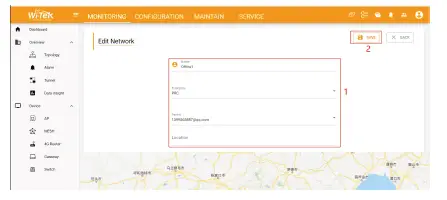
- Fill in the group name and location, click save.

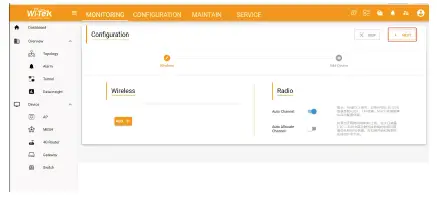
- And click next.

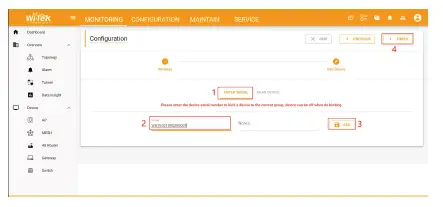
- Enter serial number, click ADD to create and click FINISH,the configuration is complete.
Note:
The 17-digit SN code of the 4G Router is shown on the sticker on the back of the device.
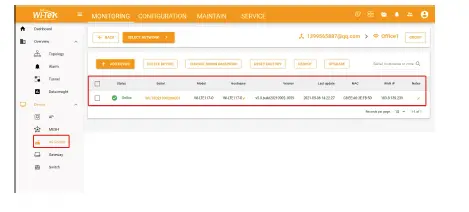
- In the relevant device options, you can see the bound device information.

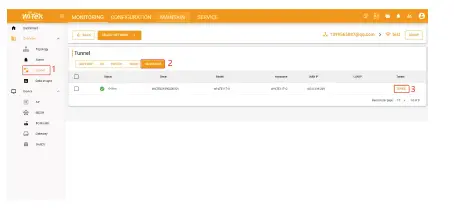
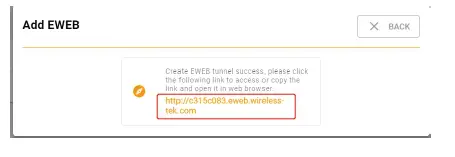
- ¼‰Click Tunnel, select 4G Router, click EWEB to log in to the device


Warranty Card
- Username
- Address
- Telephone No.
- Purchase Shop
- Purchase Address
- Product Model No.
- Purchase Time
- Serial No.
- Dealer Signature
If the product defects within three months after purchase, we will provide you a new product of the same model.
If the product defects within the three-year warranty period, we will provide the professional maintenance service.
Proof of purchase and a complete product serial number are required to receive any services guaranteed as part of the limited warranty.
Any other defects that are not caused by workmanship or product quality, such as natural disaster, water damage, extreme thermal or environmental conditions. sticker damaged, warranty card losing will disqualify the product from limited warranty.
Wireless-Tek Technology Limited
Address: Room 402 4F, BiaoFan Technology Building, Bao’An Avenue, FuYong Town, Bao’An district, ShenZhen
Website:www.wireless-tek.com
Tel:86-0755-32811290
Email:[email protected]
Technical Support: [email protected]
www.wireless-tek.com
 Wi-Tek Cloud
 Test and Measurement Equipment | Tektronix
 Wireless-Tek Technology Limited.