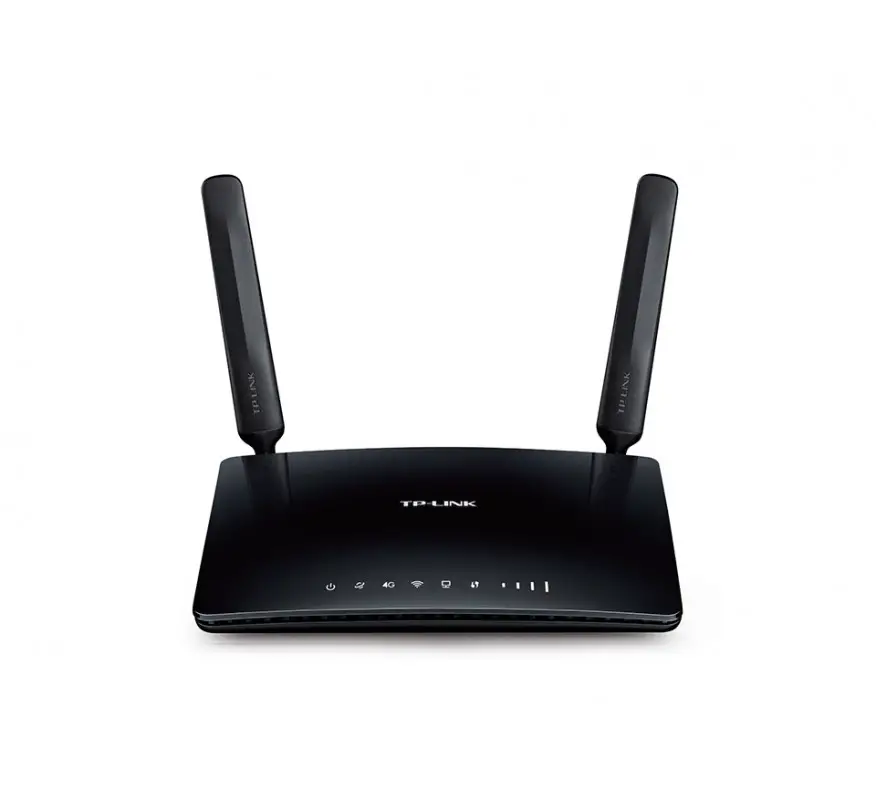
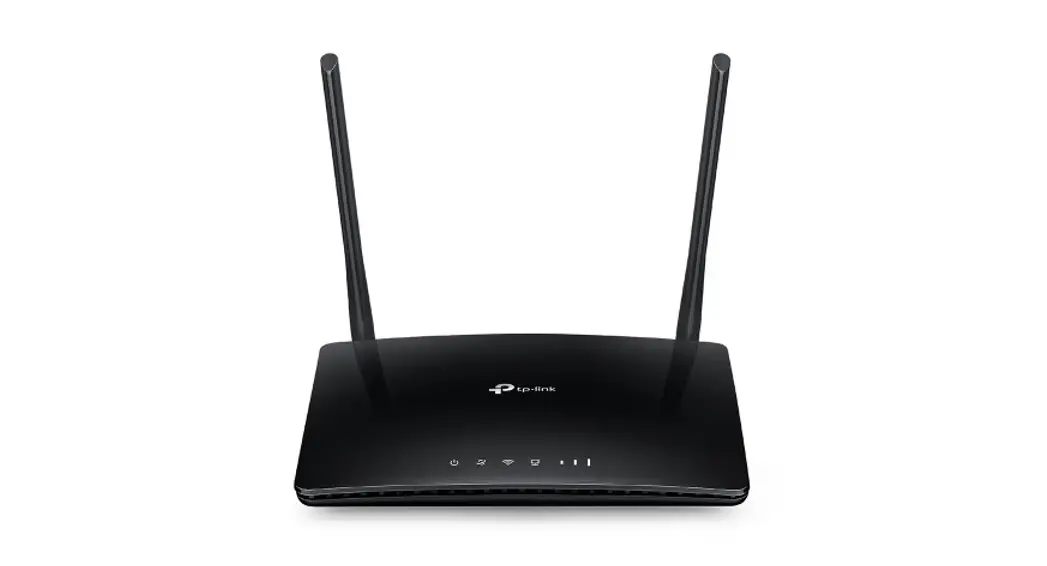
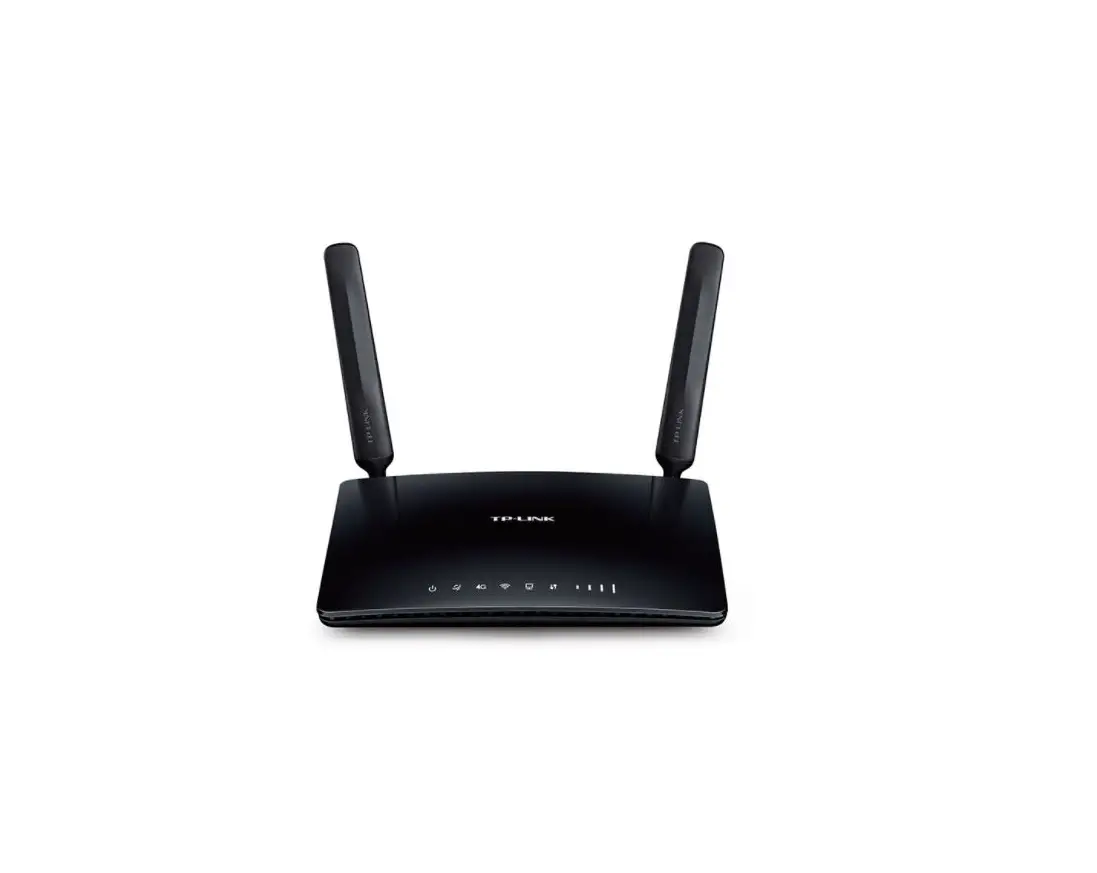
WI-LTE300 Wireless 4G LTE Router
Product Information
The WI-LTE300 is a wireless 4G LTE router manufactured by
Wireless-Tek Technology Limited. It provides high-speed internet
connectivity using 4G LTE networks. The router supports multiple
working modes, including SOHO Router, 4G Router, Eth-First Router,
and 4G-First Router. It comes with a power adapter and supports
Micro SIM cards.
Package Content
- WI-LTE300 router
- Power adapter
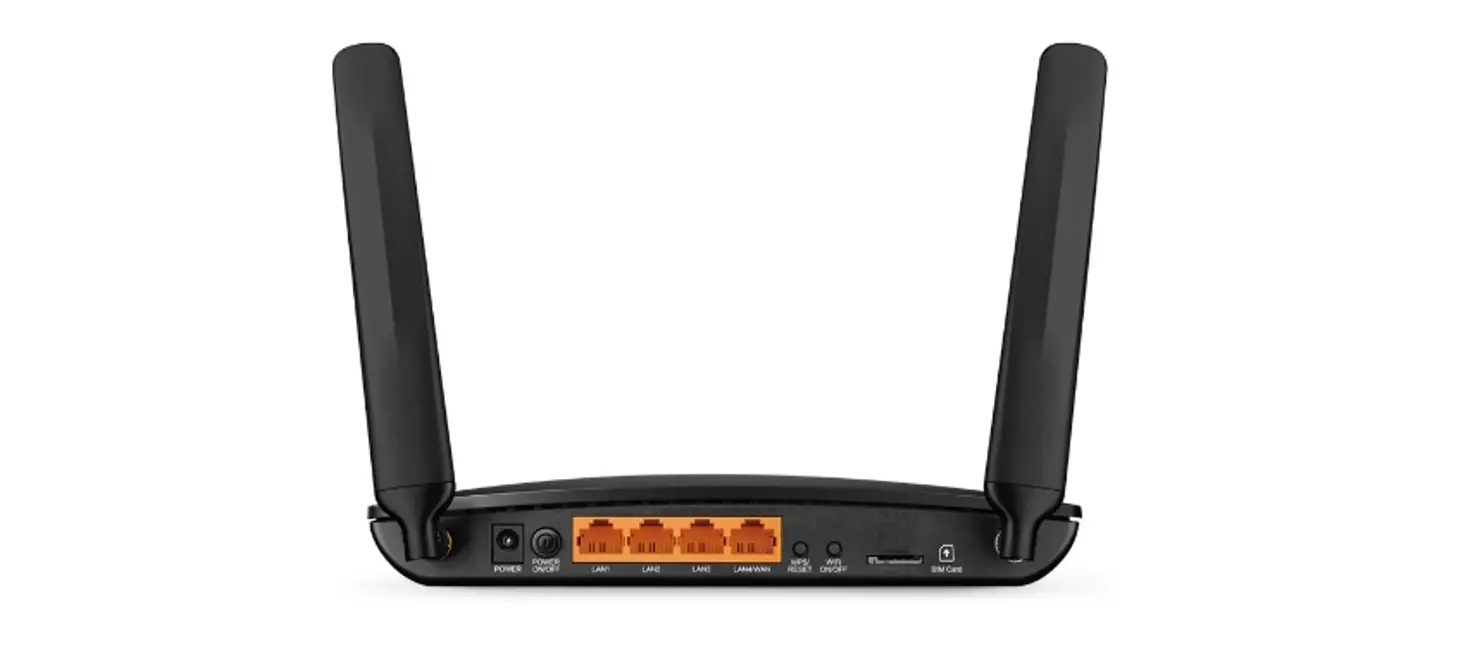
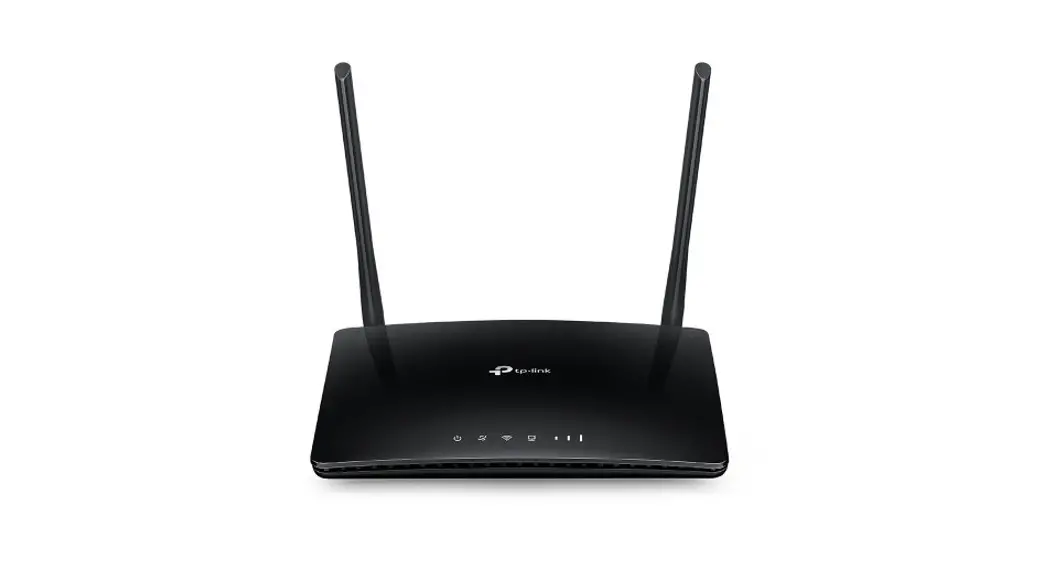
Hardware Overview
- PWR: Power indicator
- Wi-Fi: Wi-Fi status indicator
- 4G: LTE network status indicator
- WAN: Internet connection status indicator
- LAN1, LAN2: LAN port status indicators
Status Indication
- PWR: On – The device is powered up, Off – The device is powered
off - Wi-Fi: On – Wi-Fi is normal, Off – Wi-Fi is abnormal
- 4G: On – LTE network is available, Red – LTE network is
disabled - WAN: On – Router is connected to the internet, Off – No
internet connection - LAN1: On – Device linked to LAN1 port, Off – No device linked
to LAN1 port - LAN2: On – Device linked to LAN2 port, Off – No device linked
to LAN2 port
Product Usage Instructions
Login Method
- Connect your PC to the router via Ethernet cable or Wi-Fi.
- Launch your web browser and enter “http://192.168.1.1” in the
address bar. - Specify the default login key as “admin”.
Router Configuration
- Select the country, fill in the wireless SSID, encryption
method, and key information, and click Next. - Choose the desired working mode and click Next.
- Click the complete button to finish the configuration.
Cloud Management Settings
- Launch your web browser and enter
“http://cloud2.wireless-tek.com” in the address bar. - Register an account password using your username or email.
- Login to the cloud account with the account password after
registration. - Fill in the group name and location, and click save.
- In the relevant device options, you can see the bound device
information.
Device Binding on Cloud Account
- After successful login, click ADD NETWORK.
- Enter the serial number of the router and click ADD to
create. - Click FINISH to complete the configuration.
Note: The 17-digit serial number (SN code) of the router is
shown on the sticker on the back of the device.
Technical Support
For technical support, you can visit the company website or
contact Wireless-Tek Technology Limited:
- Website: www.wireless-tek.com
- Telephone: 86-0755-32811290
- Email: [email protected]
- Technical Support: [email protected]
RoHS compliant.
WI-LTE300
Wireless 4G LTE Router Quick Installation Guide
www.wireless-tek.com
Package content
Hardware Overview
PWR
Wi-Fi
4G
WA N
LAN
LAN
Power adapter
Login method
WI-LTE300
POWER RRSET LAN2
LAN1
WA N
SIM
Configuration steps
There are four working modes: SOHO Router, 4G Router, Eth-First Router, 4G-First Router 1) The default mode is 4G Router, click Next to enter.
3) Click the complete button to complete the setting.
1×DC 12V PowerCord
1×WI-LTE300
12V DC
LAN WAN
POWER RRSET LAN2
LAN1
WA N
SIM
RESET
Micro SIM
1×Internet Cable
1×Quick Installation Guide
Action Power WiFi Sign 4G WAN LAN1 LAN2
Status Indication
On: The device is powered up. Off: The device is powered off.
On: Wi-Fi is normally. Off: Wi-Fi is abnormal.
On: The LTE network is available. Red: The LTE ntework is disabled.
On: The router is connected to the internet. Off: The is no internet connection.
On: There is a device linked to LAN1 port Off: There is no device linked to LAN1 port
On: There is a device linked to LAN2 port Off: There is no device linked to LAN2 port
Please connect devices according to the above topology.
Follow the steps for quick Router configuration,using initial setup wizard: Step 1 Connect your PC to device via Ethernet cable or Wireless.
Note: Default WiFi nameWI-TEK_XXXXPassword88888888
Step 2 Launch your web browser then enter http://192.168.1.1 in the address bar and specify the default login key:admin.
Note: Eth-First Router : If the internet service becomes unavailable via the Eth connection, the router automatically switches to the LTE network.
4G-First Router:If the LTE network service cannot be connected, the router will automatically switch to the Eth network.
4) Configuration complete.
WI-LTE300
2) Select the country, fill in the wireless SSID, encryption method, and key information,and click Next to enter.
Cloud management settings
Step 1 Launch your web browser then enter http://cloud2.wireless-tek.com in the address bar. Step 2 Register an account password by user name or email. Step 3 Log in to the cloud account with the account password after registration.
2) Fill in the group name and location, click save.
5) In the relevant device options, you can see the bound device information.
WI-LTE300
WI-LTE300
3And click next.
6Click Tunnel, select 4G Router, click EWEB to log in to the device.
WI-LTE300
After the login is successful, the steps to bind the device on the cloud account are as follows:
1) Click ADD NETWORK
4Enter serial number, click ADD to create and click FINISH, the configuration is complete.
Note: The 17-digit SN code of the 4G Router is shown on the sticker on the back of the device.
Warranty Card
Username Address Telephone No. Purchase Shop Purchase Address Product Model No. Purchase Time Serial No. Dealer Signature
If the product defects within three months after purchase, we will provide you a new product of the same model. If the product defects within the three-year warranty period, we will provide the professional maintenance service. Proof of purchase and a complete product serial number are required to receive any services guaranteed as part of the limited warranty. Any other defects that are not caused by workmanship or product quality, such as natural disaster, water damage, extreme thermal or environmental conditions. sticker damaged, warranty card losing will disqualify the product from limited warranty.
Technical Support
Cloud Management
Company Website
Wireless-Tek Technology Limited
Address: Room 402 4F, BiaoFan Technology Building, Bao’An Avenue, FuYong Town, Bao’An district, ShenZhen Website:www.wireless-tek.com Tel:86-0755-32811290 Email:[email protected] Technical Support:[email protected]
RoHS
 Wi-Tek Cloud
 Test and Measurement Equipment | Tektronix
 Wireless-Tek Technology Limited.