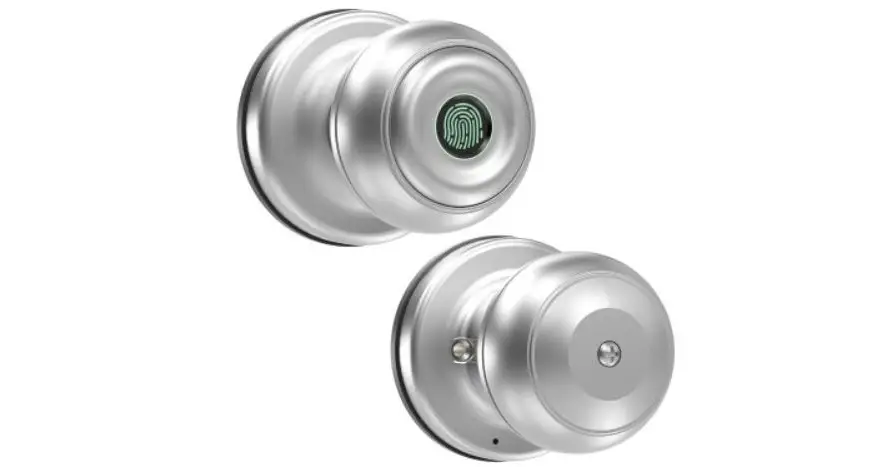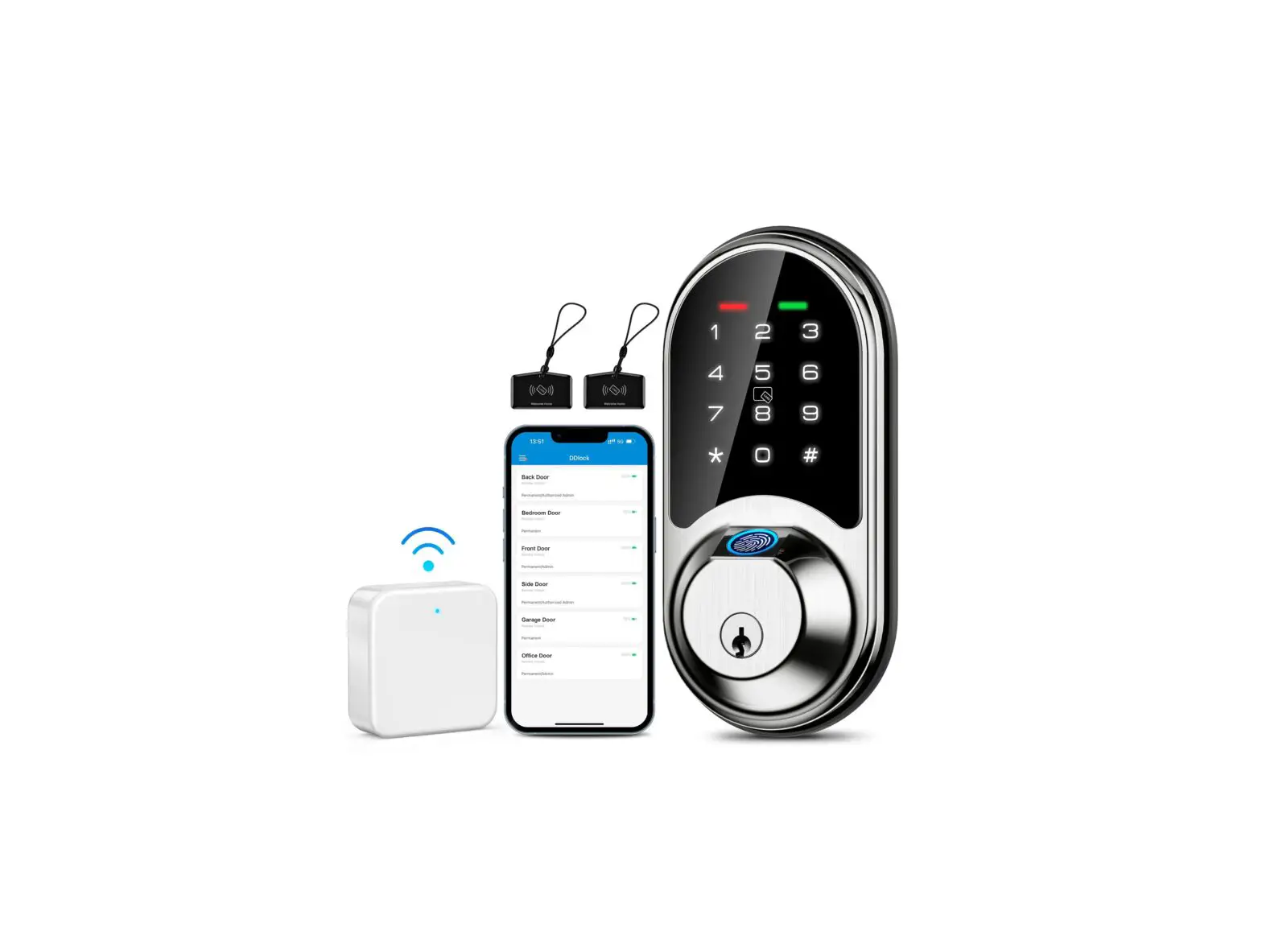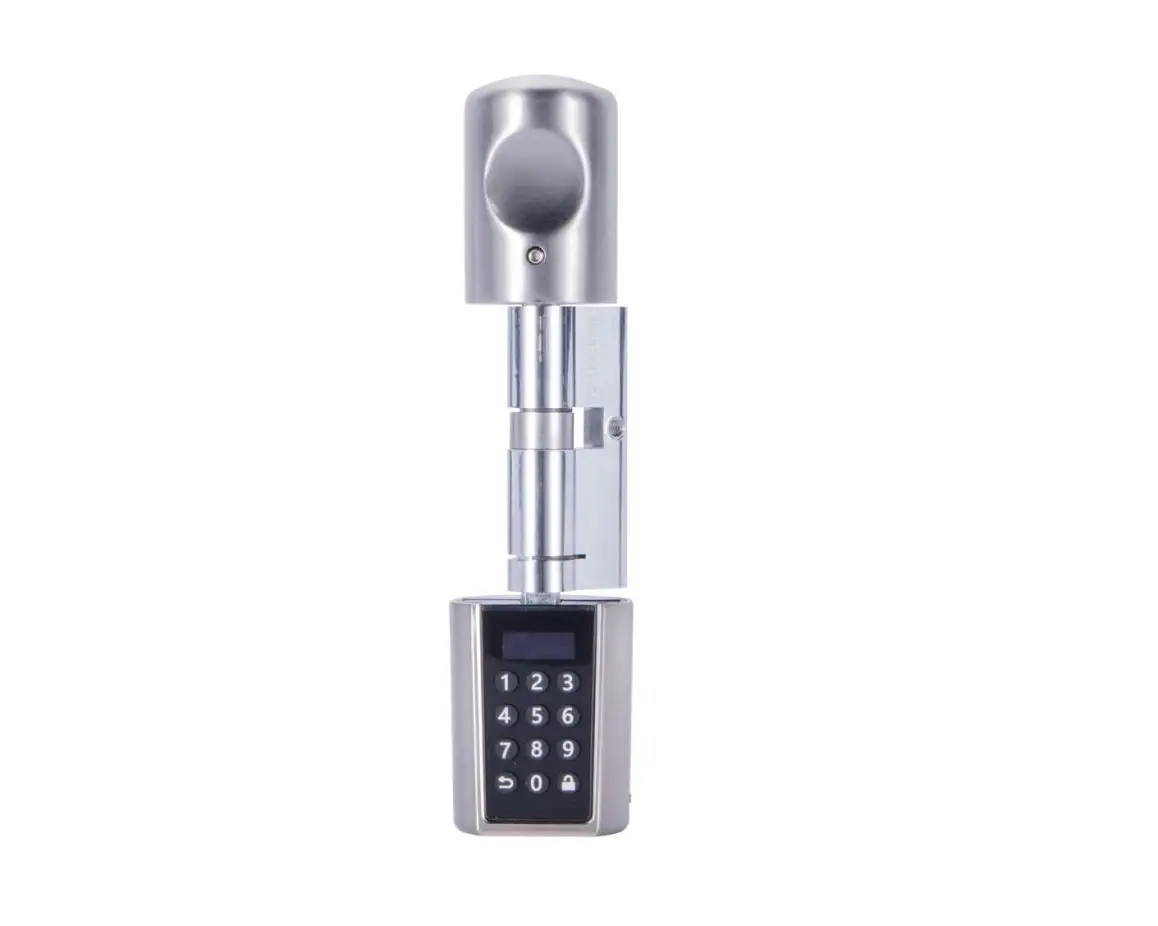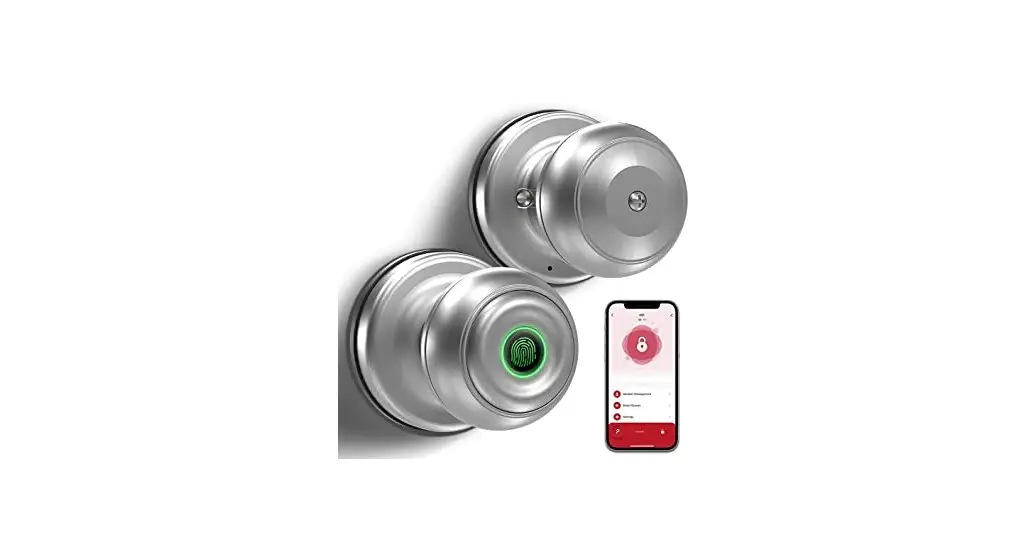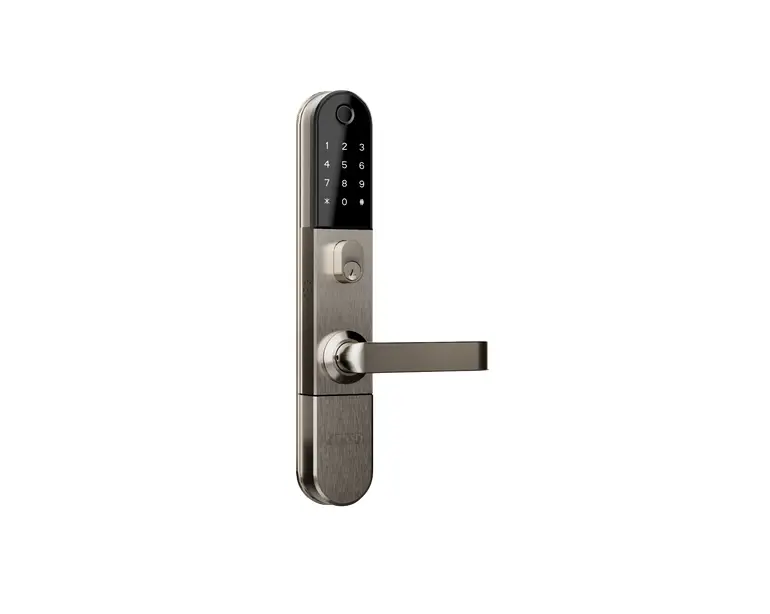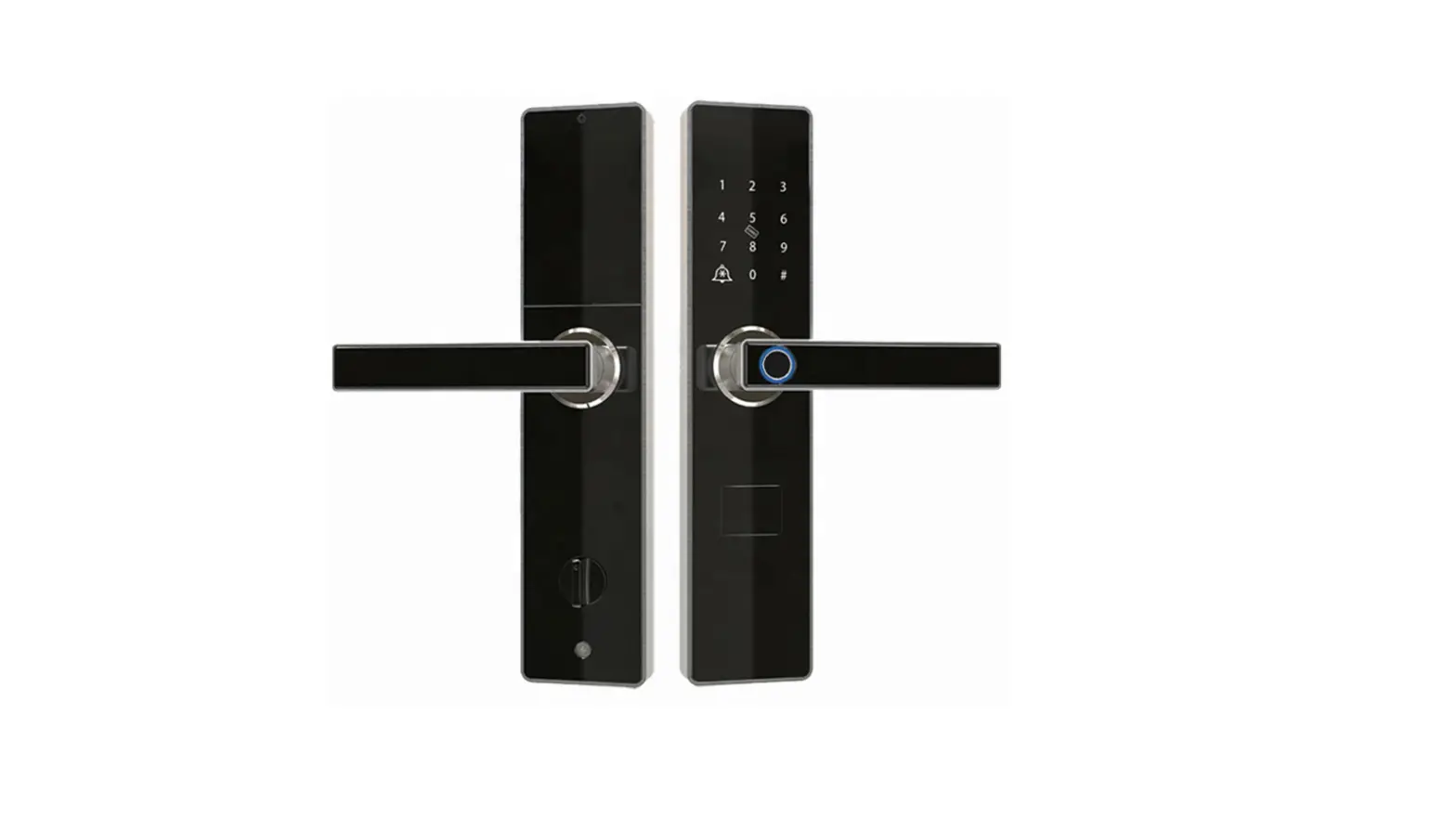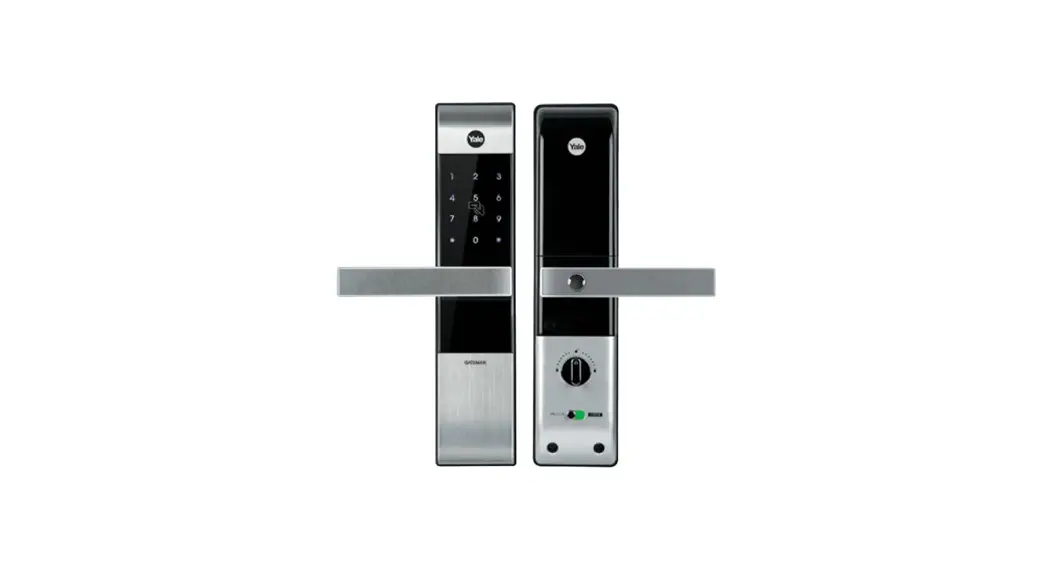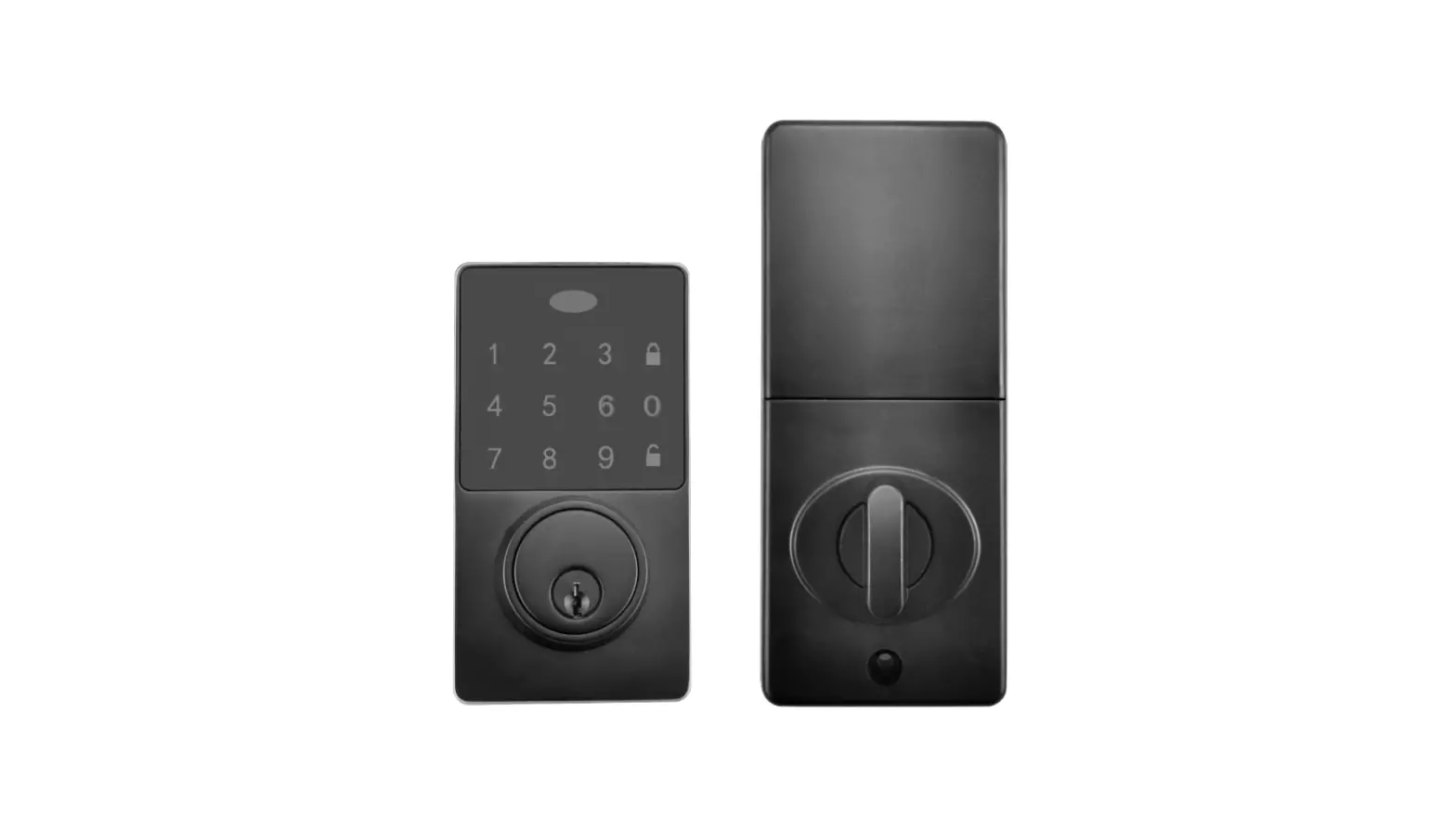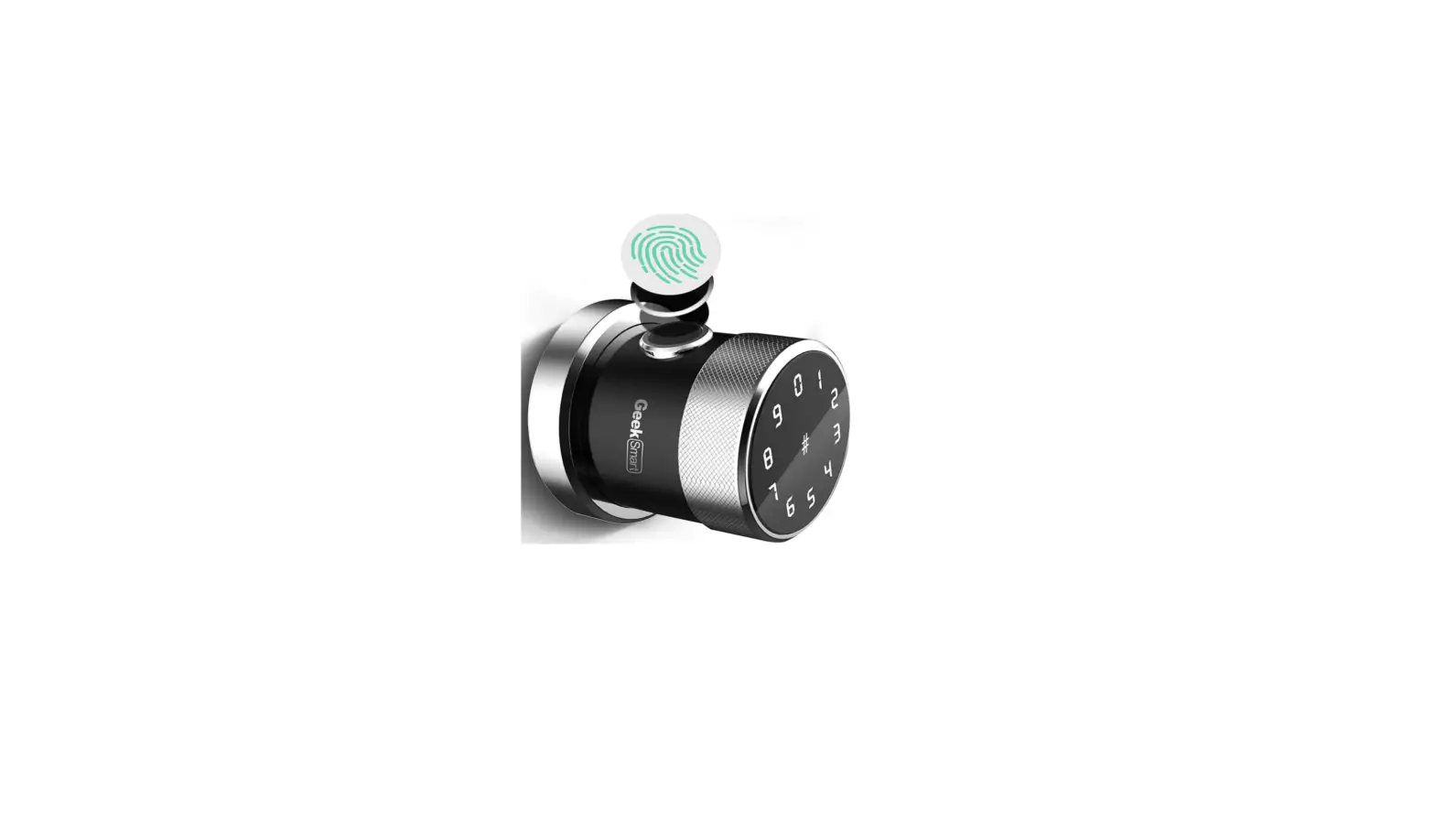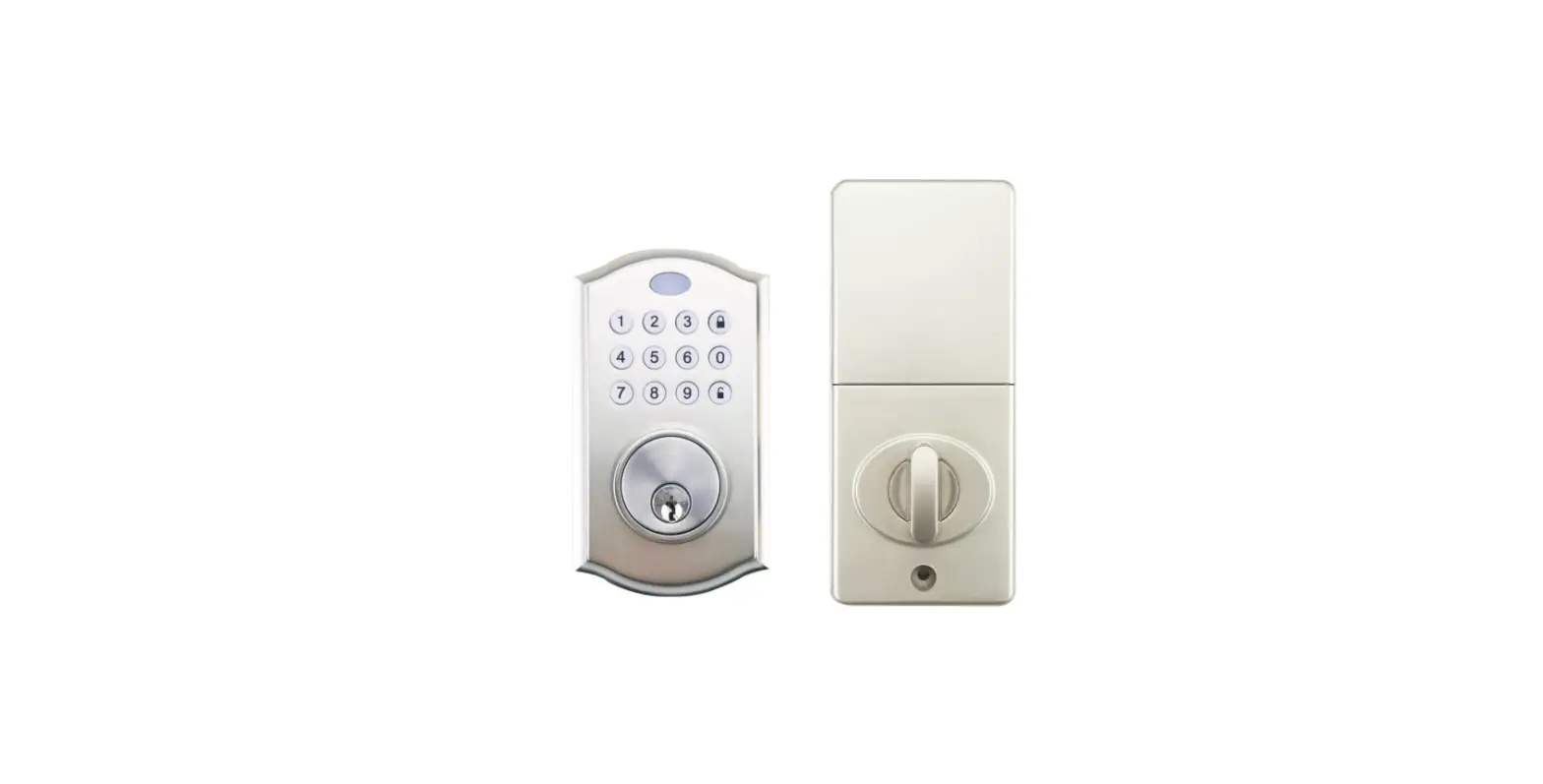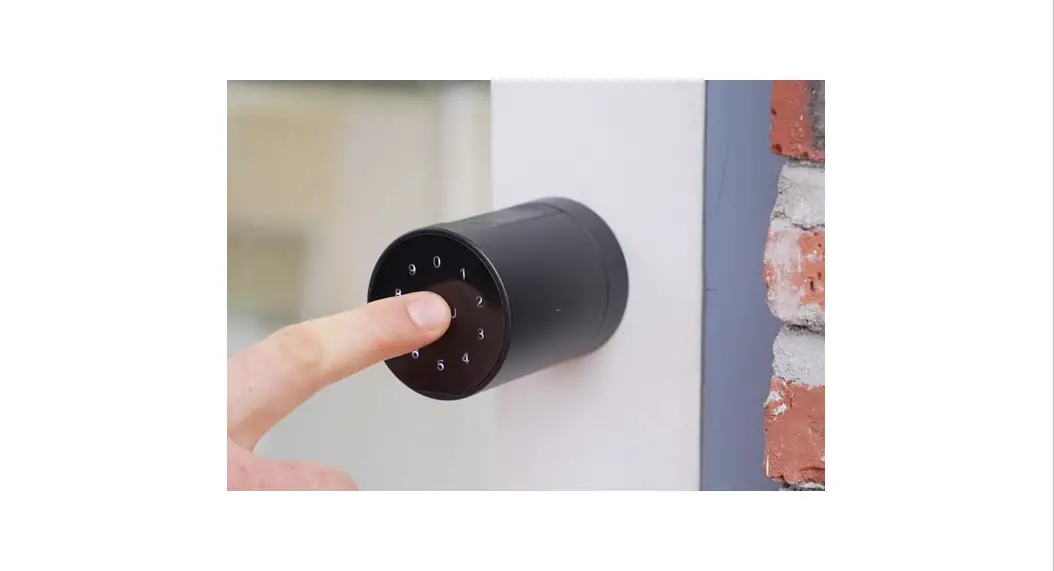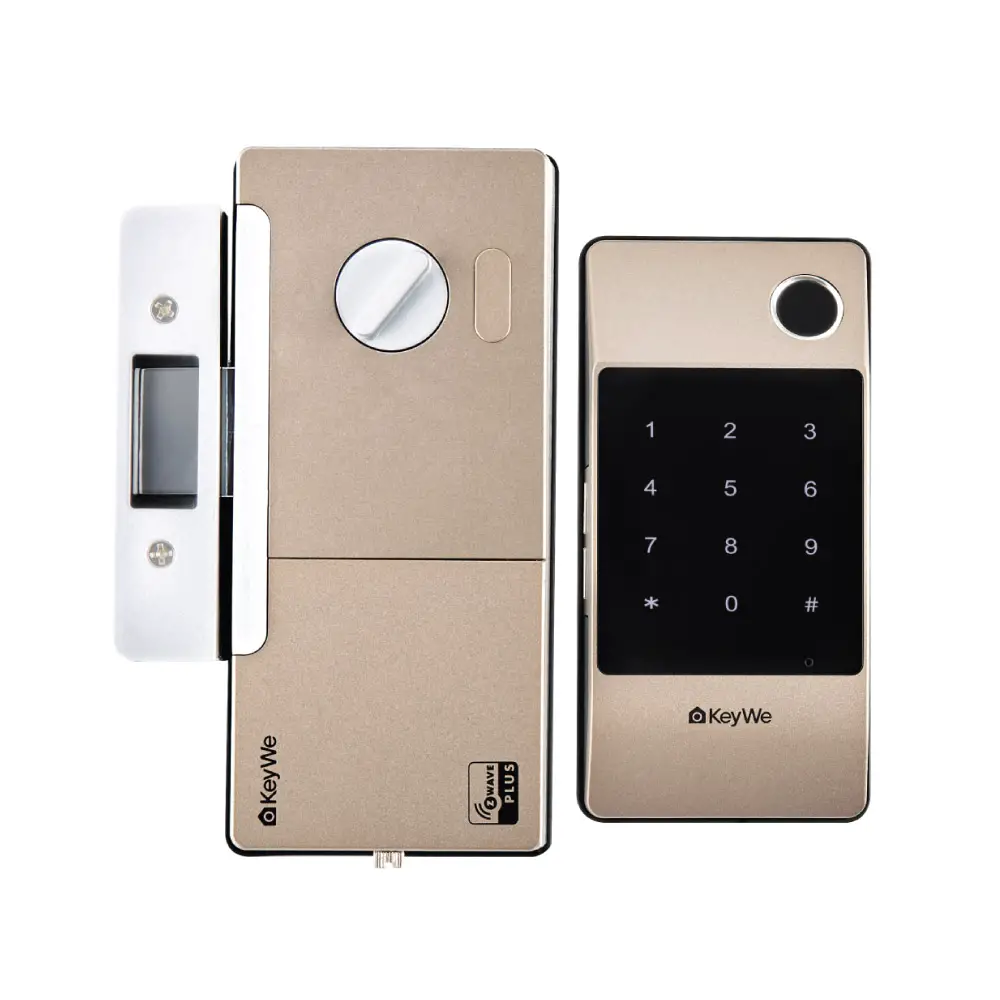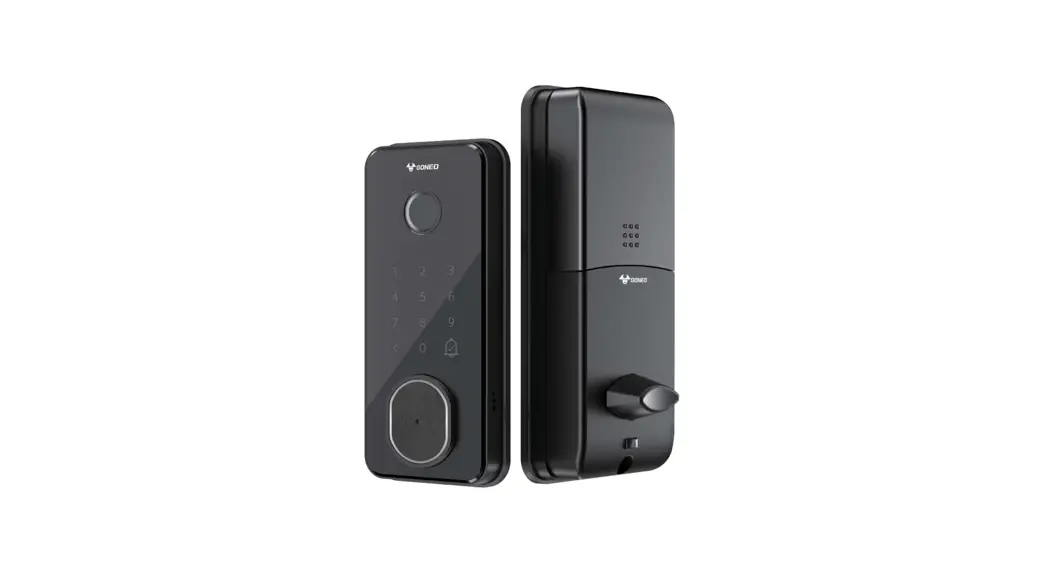

GNK-SA01 Smart Door Electronic Lock
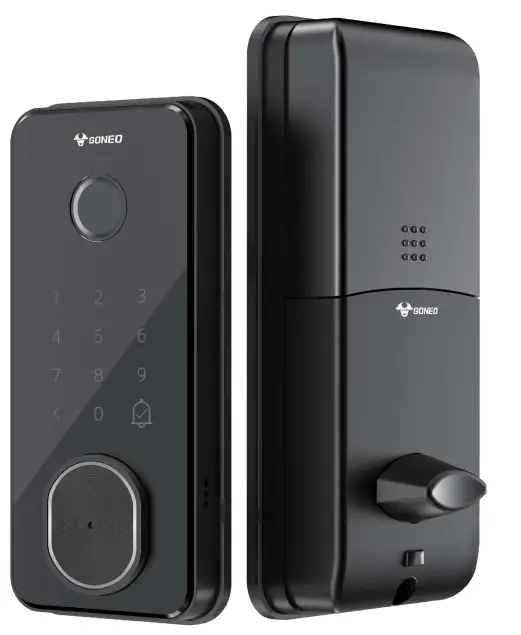 User Guide
PACKING ACCESSORIES
Please check the packing box and accessories when you got the lock in hand.

PRODUCT SPECIFICATION
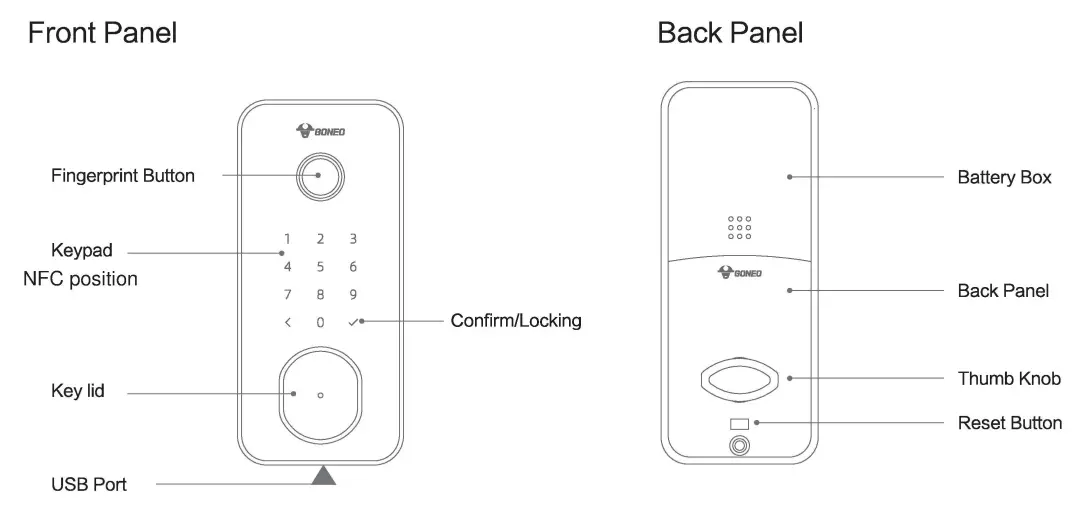
TO OPEN AND CLOSE
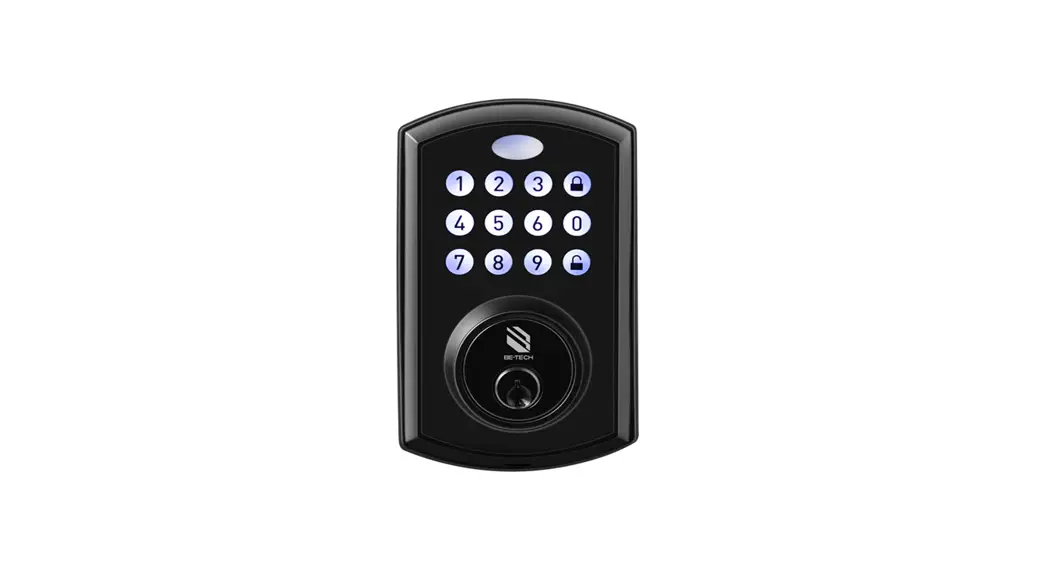
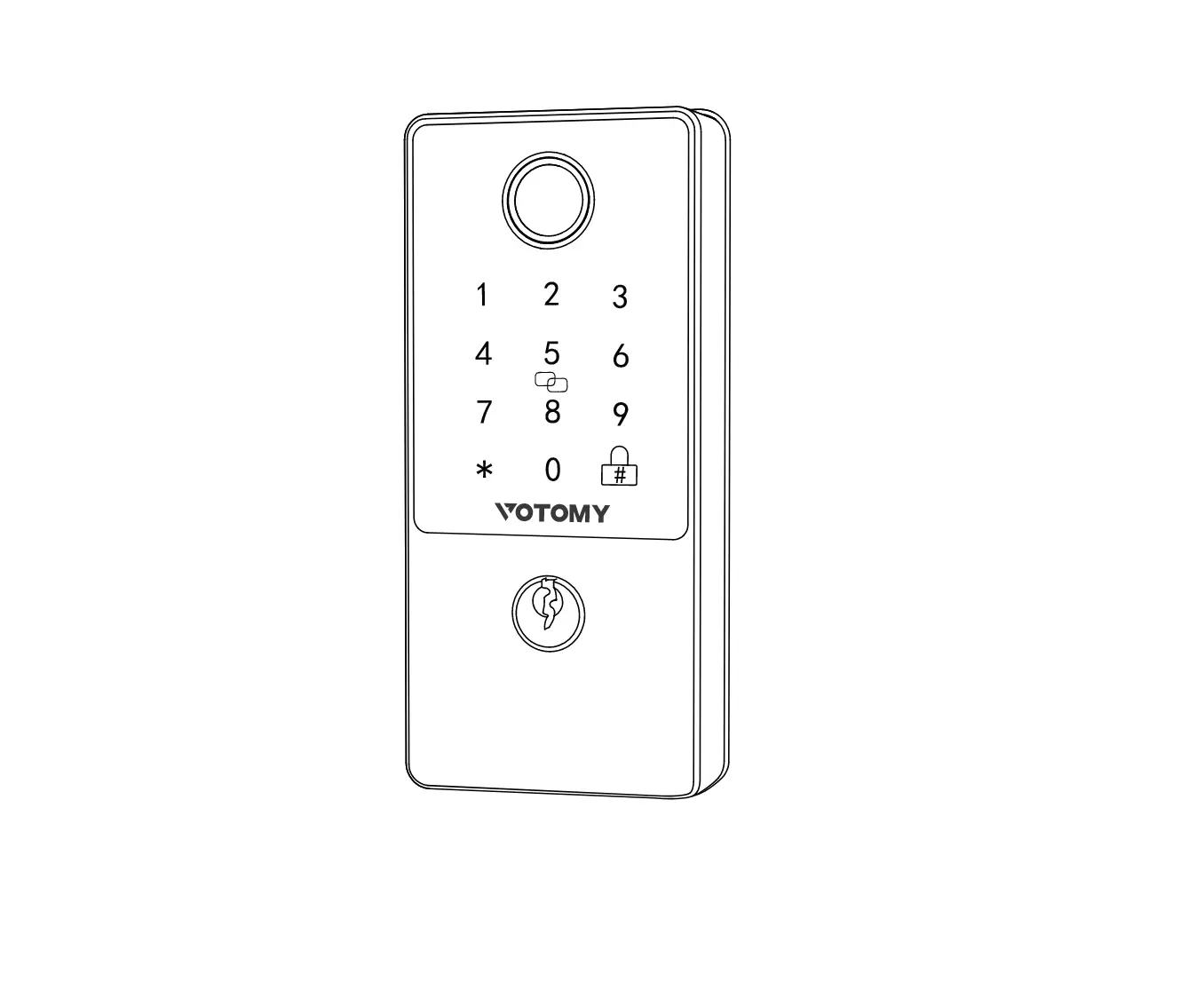
Enter the valid passcode to open the door. Long press the button °<‘ to close the door when the keypad is not activated.
RESET TO FACTORY STATE
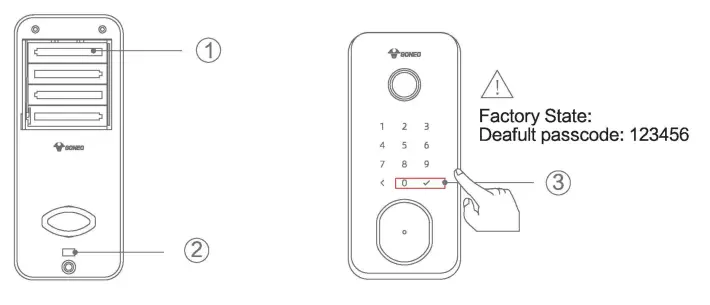
| Steps | Operation | Sound tip | Note |
| 1 | Remove and install a battery | Do the next step in 10 seconds | |
| 2 | Press ‘Reset Button’ over 10 seconds | Please input the initialization passcode | |
| 3 | Input 000V | Deleting administrator successful |
INSTALLATION GUIDES
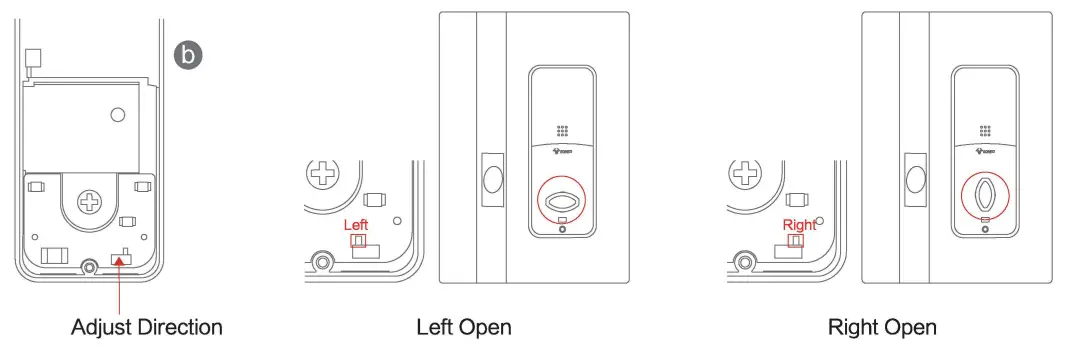
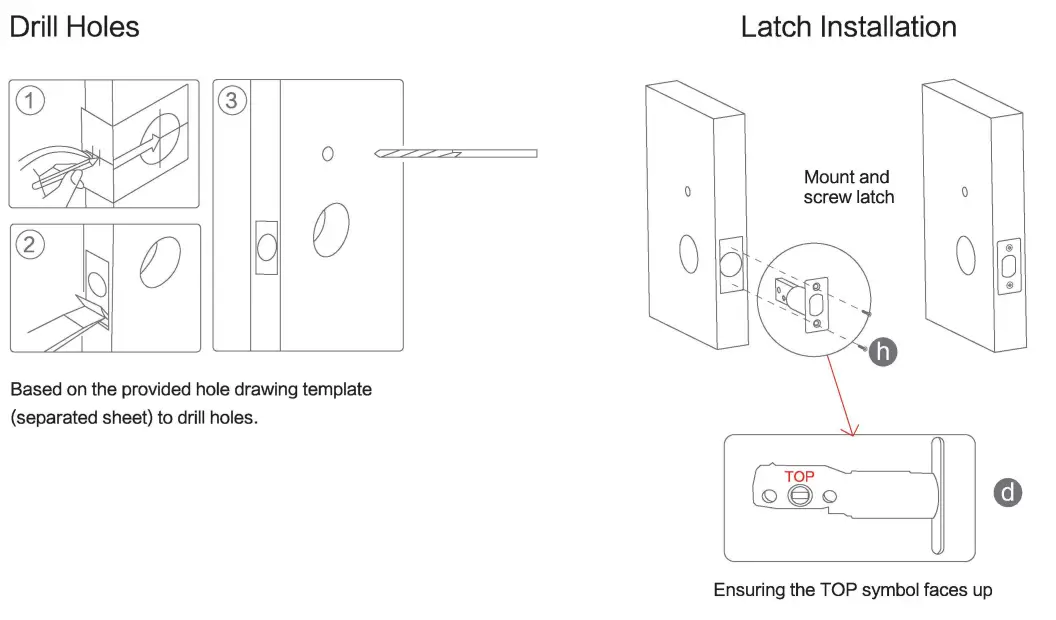
DOOR INSTALLATION
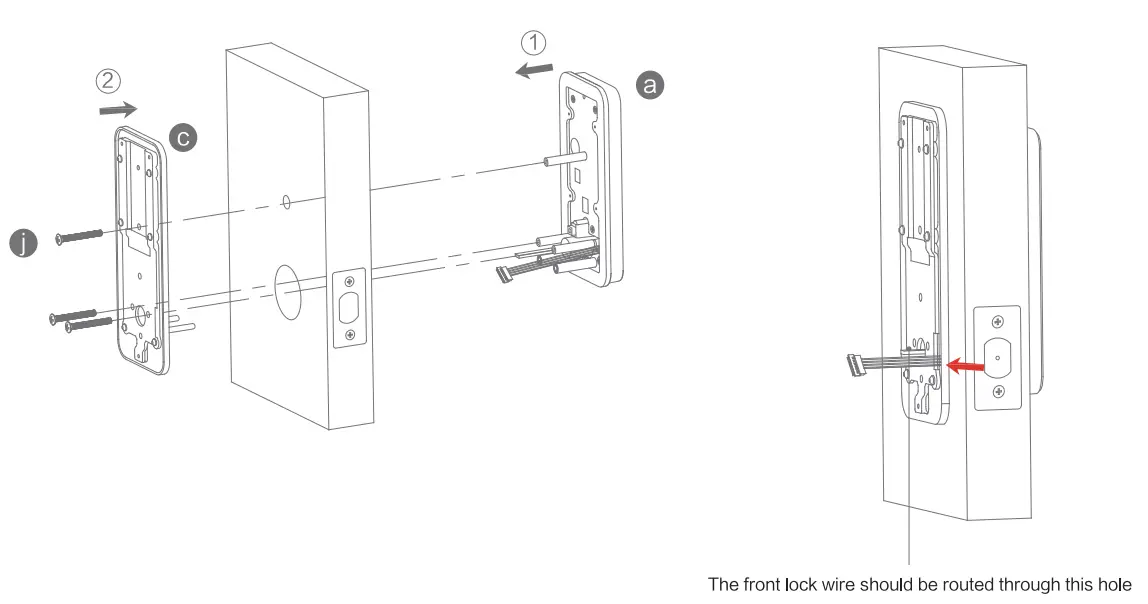
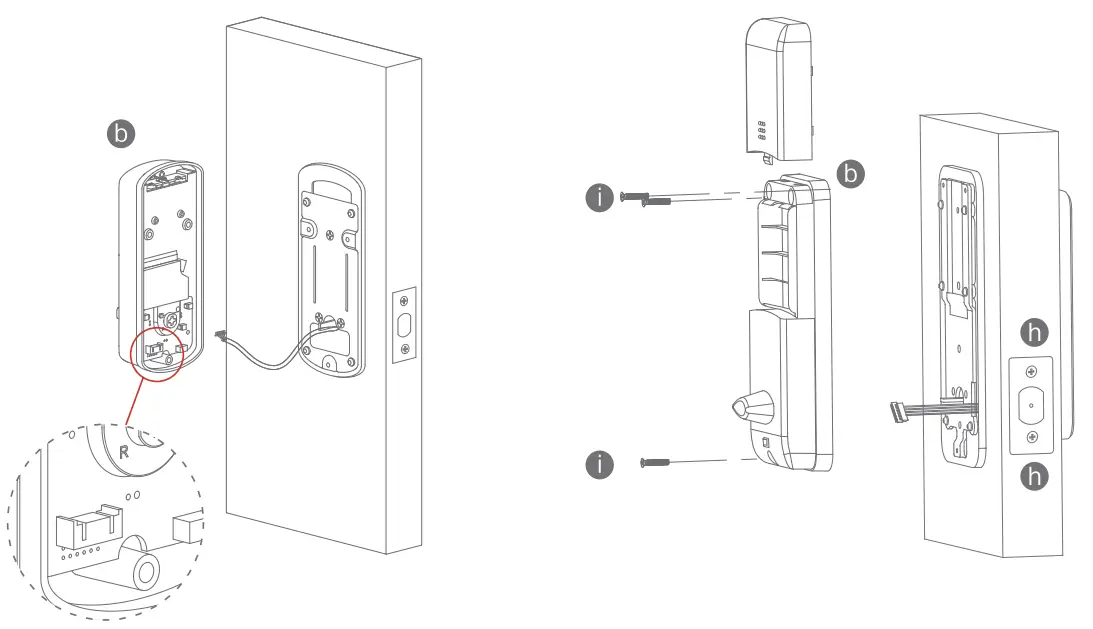
LOCK BODY INSTALLATION
- Fix the front panel on the door and cross the cable through the hole. Make sure the cylinder ring shall be horizontal position.
- Cross the cable through the mounting plate, and fix the gasket with the front panel.

- Connect the cable with the connector on the PCB board.
- Fix the back panel with the screw as the photo.
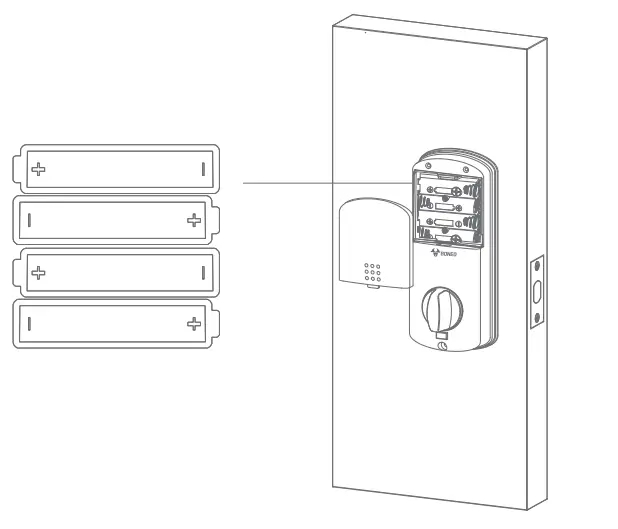
ASSEMBLE THE BATTERY
Put 4pcs AA alkaline batteries into the battery box, notice the polarity ( + / – )
TETLOCK APP SETTINGS
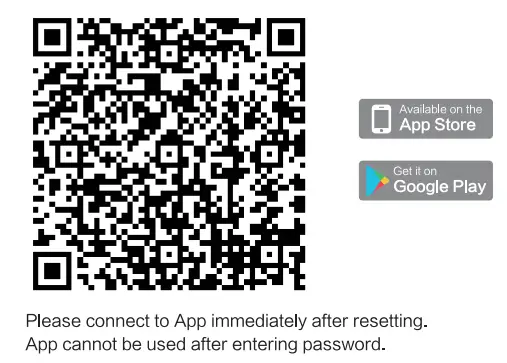
Please download the TTLock on Apple store or Google play. Also you can scan the QR code below to download the APP directly.
http://a.app.qq.com/o/simple.jsp?pkgname=com.tongtongsuo.app&fromcase=40003
 NOTICE: FCC Statement This device complies with Part 15 of the FCC Rules. Operation is subject to the following two conditions: (1) this device may not cause harmful interference, and (2) This device must accept any interference received, including interference that may cause undesired operation. FCC ID: 2A7MC—GNKSA01 WARNING: Changes or modifications to this unit not expressly approved by the party responsible for compliance could void the user’s authority to operate the equipment. NOTICE: This equipment has been tested and found to comply with the limits for a Class B digital device, pursuant to Part 15 of the FCC Rules. These limits are designed to provide reasonable protection against harmful interference in a residential installation. This equipment generates uses and can radiate radio frequency energy and, if not installed and used in accordance with the instructions, may cause harmful interference to radio communications.
However, there is no guarantee that interference will not occur in a particular installation. If this equipment does cause harmful interference to radio or television reception, which can be determined by turning the equipment off and on, the user is encouraged to try to correct the interference by one or more of the following measures:
- Reorient or relocate the receiving antenna.
- Increase the separation between the equipment and receiver.
- Connect the equipment into an outlet on a circuit different from that to which the receiver is connected.
- Consult the dealer or an experienced radio / ‘TV technician for help.
OPERATION STEPS
| Setting up the Smart Lock | Steps | Operation | Sound Tip | Note |
| Conned the app | 1 | Download the TTLock on the Apple store or Google play | You can scan the QR code on the box | |
| 2 | Reset the lock to factory state | Please add a Bluetooth administrator | The detailed steps are in “3 RESET TO FACTORY STATE | |
| 3 | Open the TTLock App→Add Lock→Door Loa→Next →Choose the Lock →Assign a Name | Adding administrator successful | (i)The administrator passcode will be upgraded after connected App (2)The effective distance of APP connection <6.5611 1 2mm | |
| How to find the administrator’s passcode after connecting App | Settings→Basics→Admin passcode | |||
| Change the administrator passcode | 1 | Press < 12✓ button | Please input the administrator’s passcode | |
| 2 | Input administrator’s passcode and ✓ (Default passcode: 123456, only not connected App ) | Please input the new administrator passcode | The administrator passcode will be upgraded after connected App | |
| 3 | input a new passcode and ✓ | Please input again | ||
| 4 | input a new passcode and ✓ | Operation successful | ||
| Enroll user password/fingerprint | 1 | Press <80✓ button | Please input the administrator’s passcode | |
| 2 | Input administrator’s passcode and ✓ | Please input your fingerprint or passcode | ||
| 3 | Touch the fingerprint button 4 times or Input a new passcode and ✓2 times | Please input again Input successful | The button indicator turns green once succeeded. | |
| 4 | Press < | Exit setting mode | ||
| Delete all fingerprints | 1 | Press <70 ✓ button | Please input the administrator’s passcode | |
| 2 | Input administrator’s passcode and ✓ | Operation successful | ||
| Delete all passcode (except the administrator) | 1 | Press <71 ✓ button | Please input passcode | |
| 2 | Input administrator’s passcode and ✓ | Operation successful | ||
| Locking it from outside | Press ✓ button over 2 seconds | Locked | No password required |
Gongniu Group Co., Ltd.
East Industrial Zone, Guanhaiwei Town,
Cixi City, Zhejiang Province, China
@ Gongniu Group Co., Ltd.
All rights reserved by Gongniu Group Co, Ltd.
Reproduction in whole or in part is prohibited.
Customer Service: [email protected]