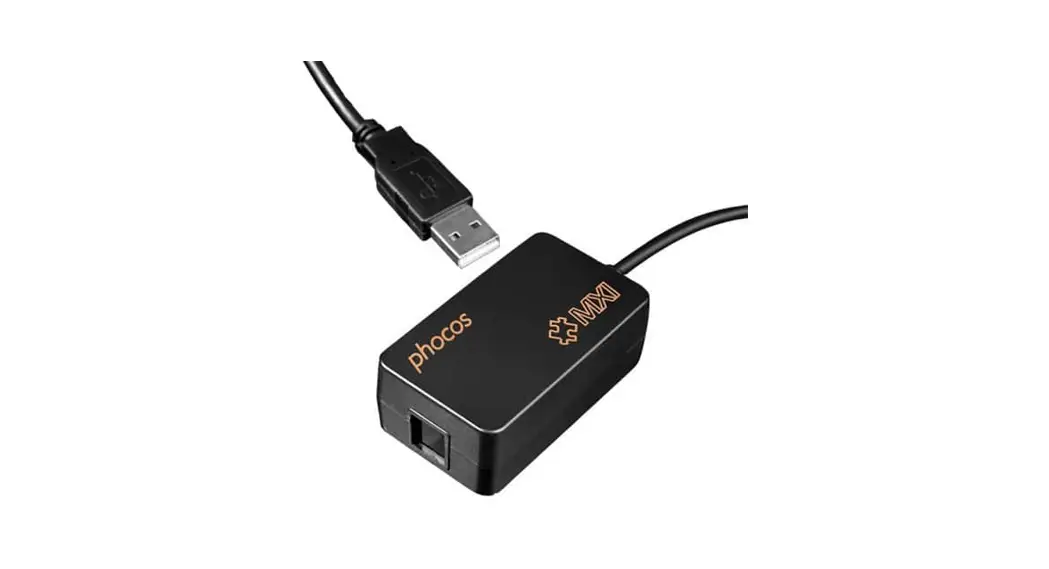
 MXI-IR PC USB Interface
Installation Guide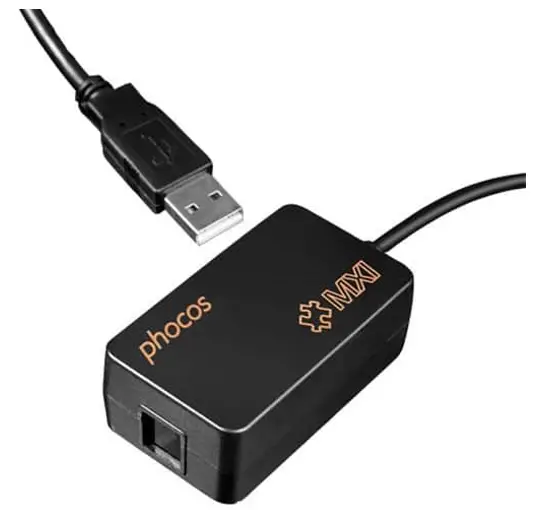
MXI-IR PC USB Interface
MXI-IR Driver Installation Guide Windows 7
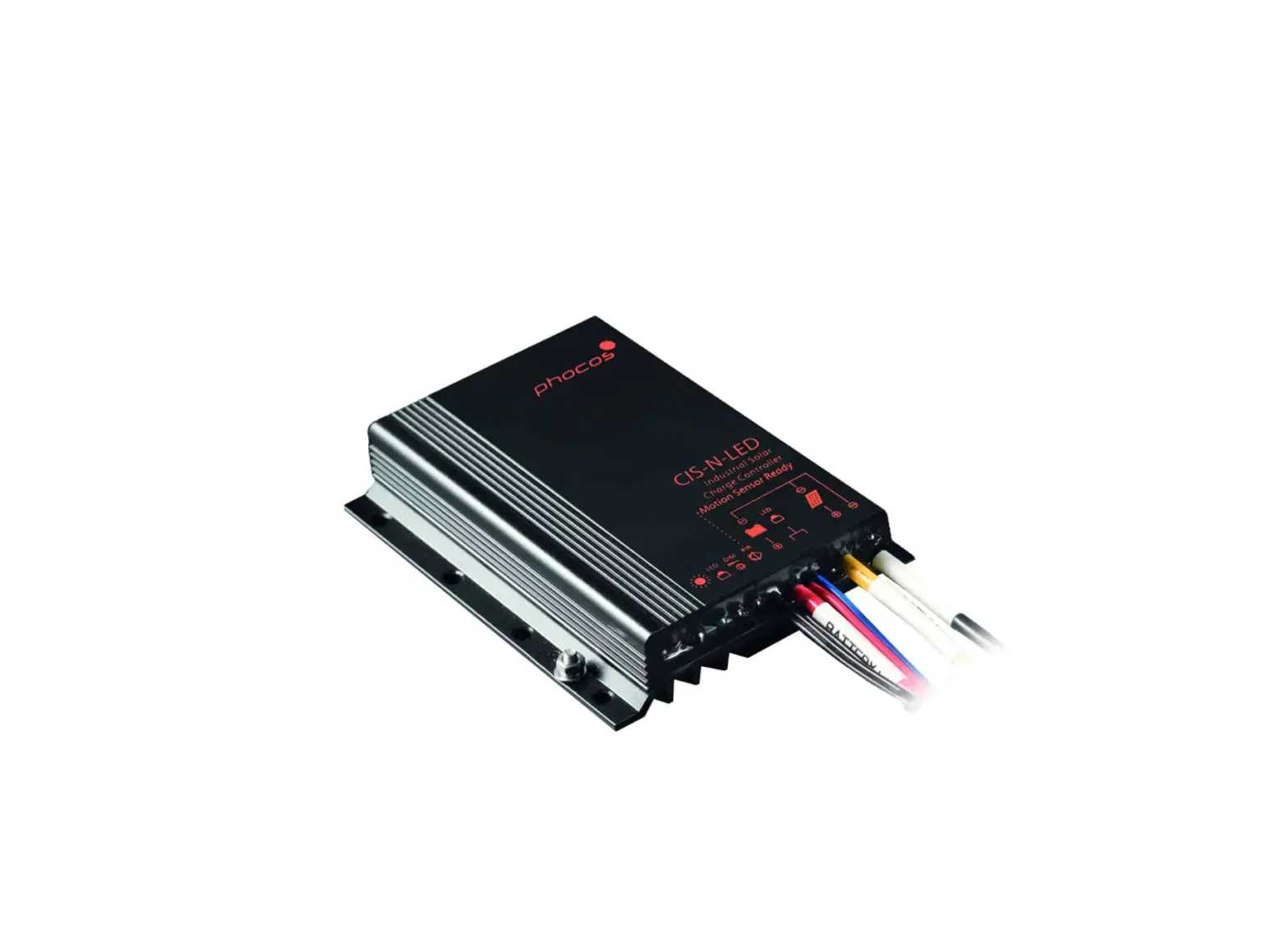
Software for Phocos CIS Controller Series: Single Load: CIS, CIS-N, CIS-LED, CIS-MPPT Dual Load: CIS, CIS-N
www.phocos.com
Before You Begin
Dear customer,
Please download the CISCO software, and extract the files using the Windows “Extract All” feature (or equivalent program).
Note: The drivers from the compressed files will not work, and your installation will fail. This is normal. Take note of the file location on your computer.
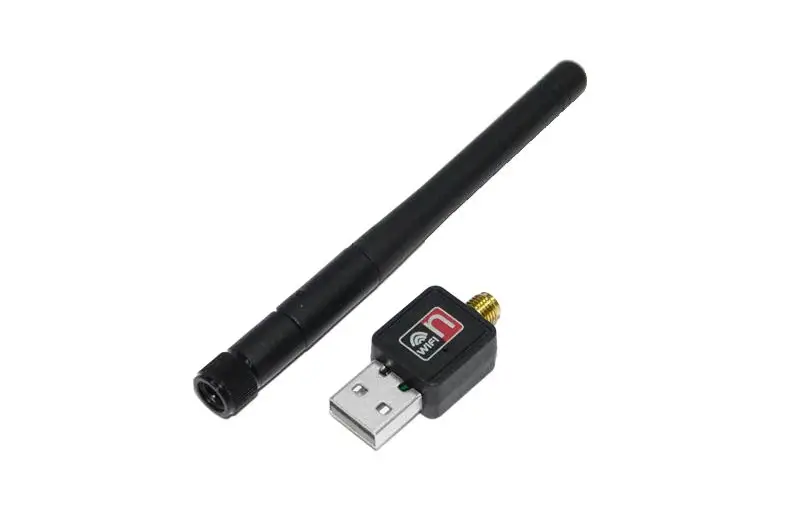
Plug in your MXI-IR to a free USB port on your computer.
You are now ready to begin.
Software Features/Controller
2.1. STEP 1: Open the Device Manager
One way to do this is to click the “Start” button, then right-click on the “Computer” menu option, and then click “Manage”. This will open the “Computer Management”. Click on “Device Manager”. Use the following three screenshots to guide you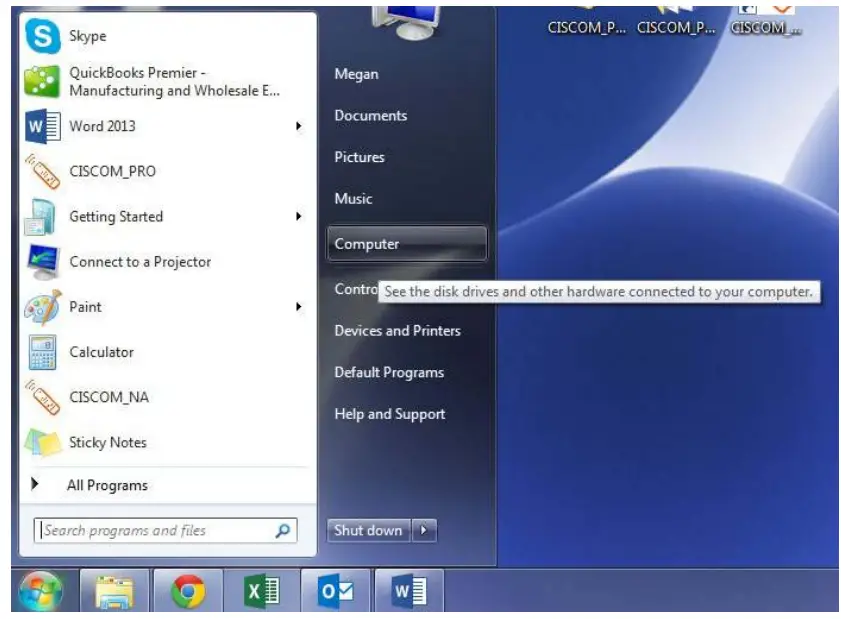
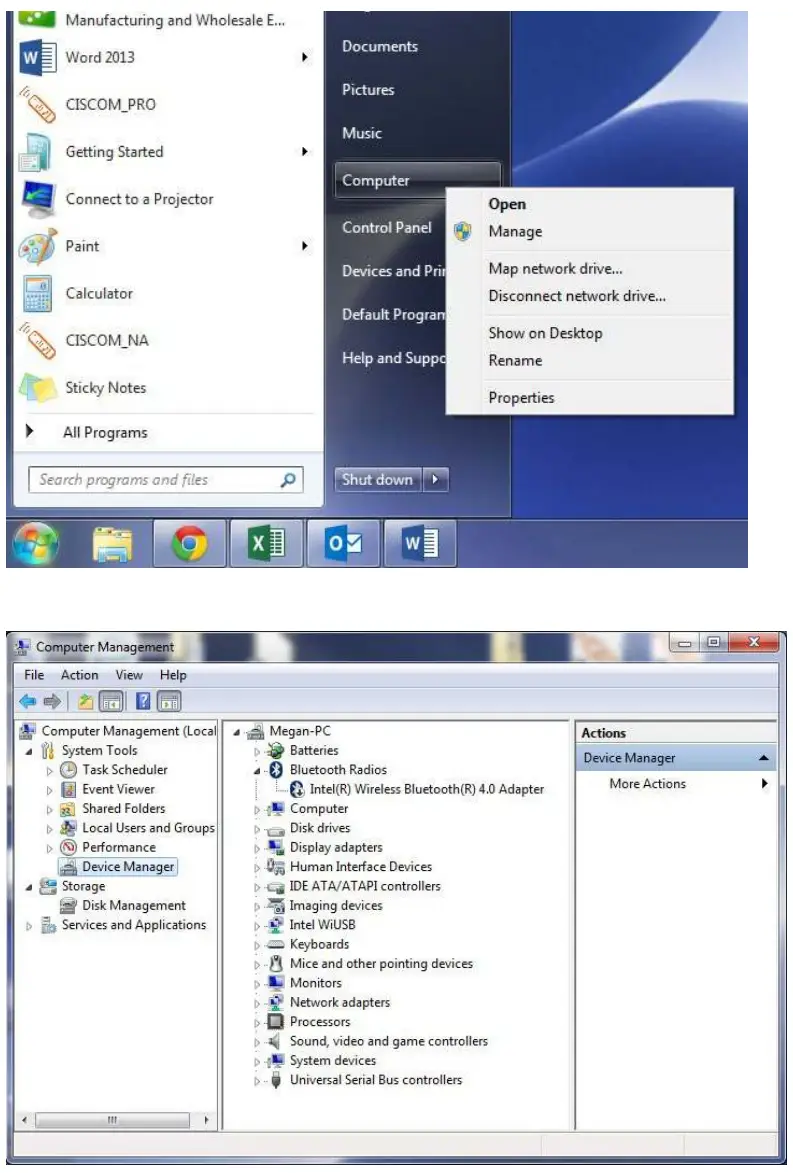 2.2. STEP 2: Update the MXI-IR Driver Manually
Locate the “Phocos MXI-IR” in your device list under “Other Devices”. (Older versions may list “Phocos CXI” or “USB Serial Port” under “Other Devices”.)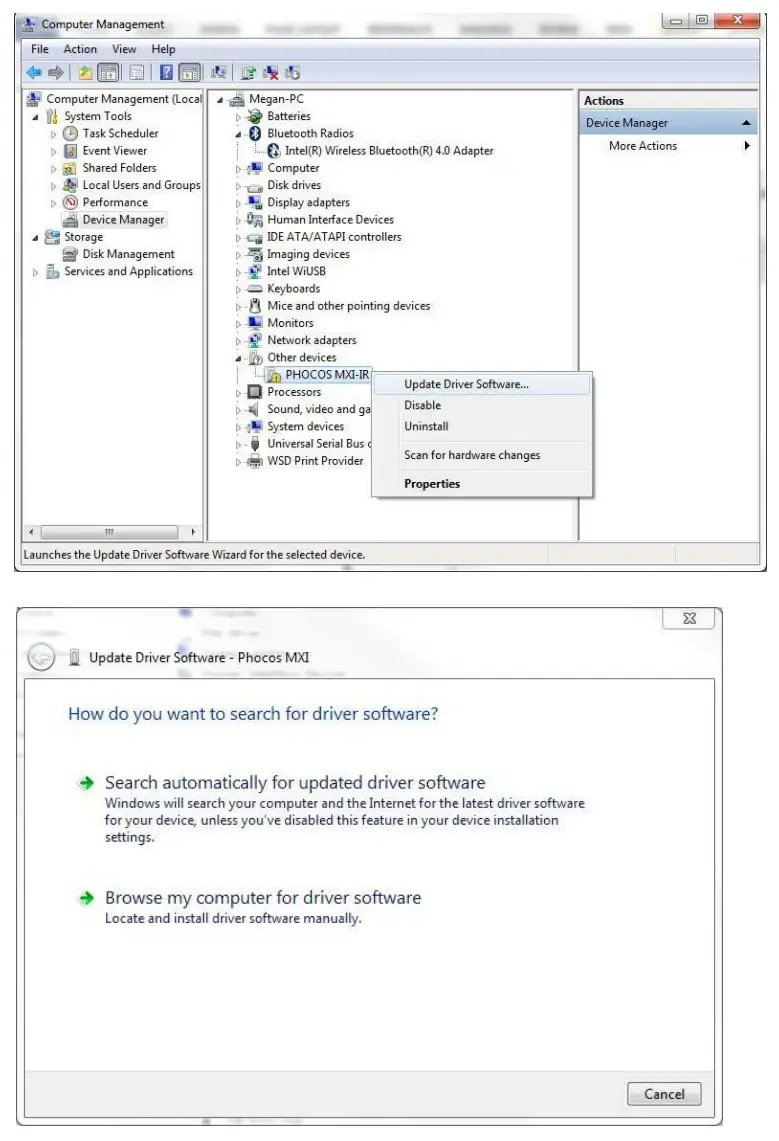 Select “Browse my computer for driver software”.
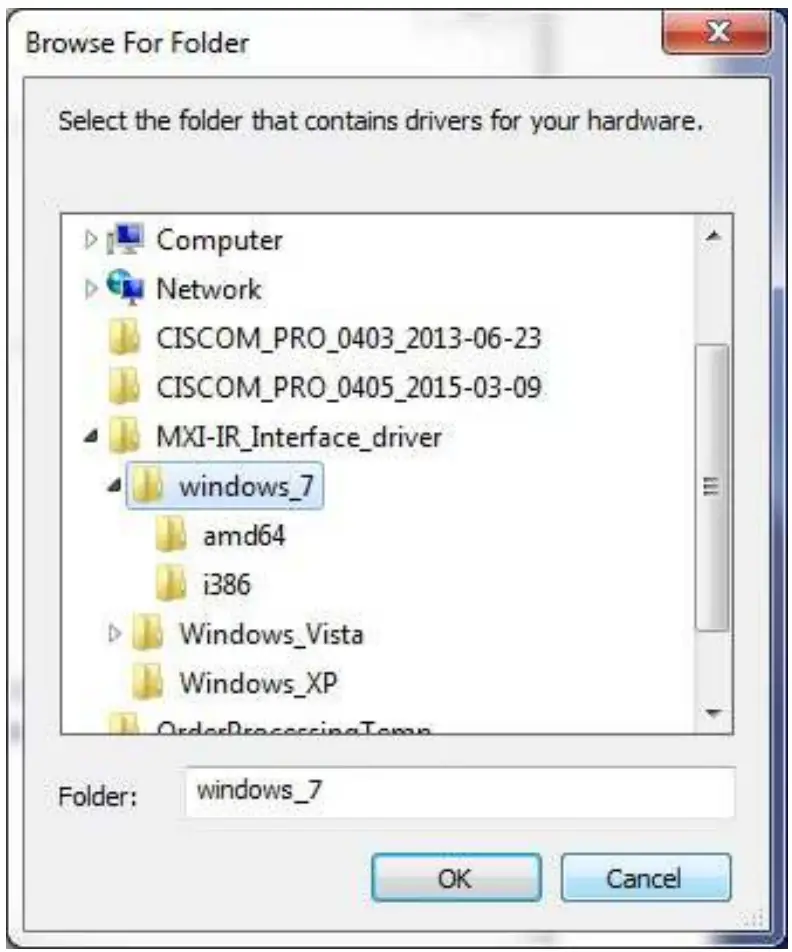
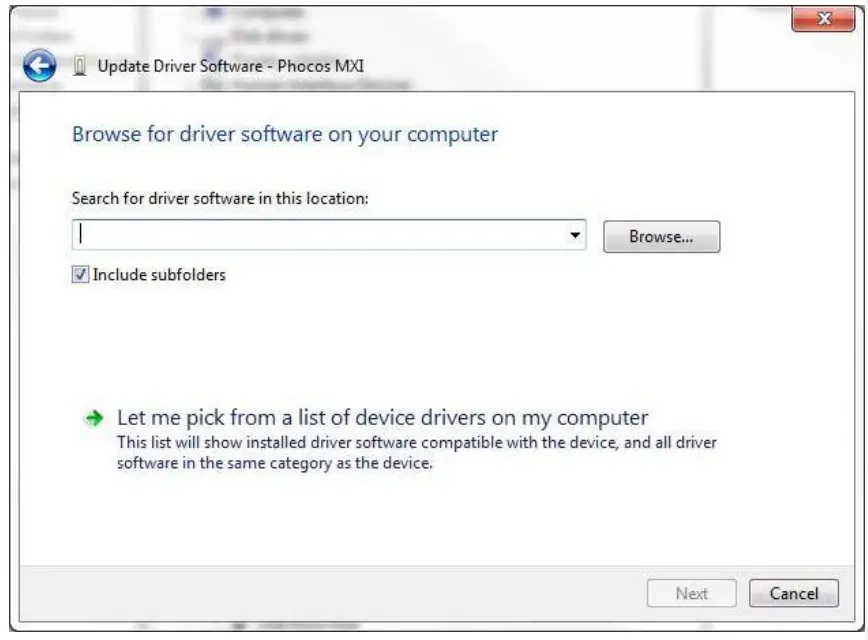 Use the “Browse” button to find the location on your computer where you saved the extracted CISCOM files, and find the “MXI-IR_Interface_Driver” folder. This folder will contain folders titled various Windows operating systems. Select the “Windows_7” folder.
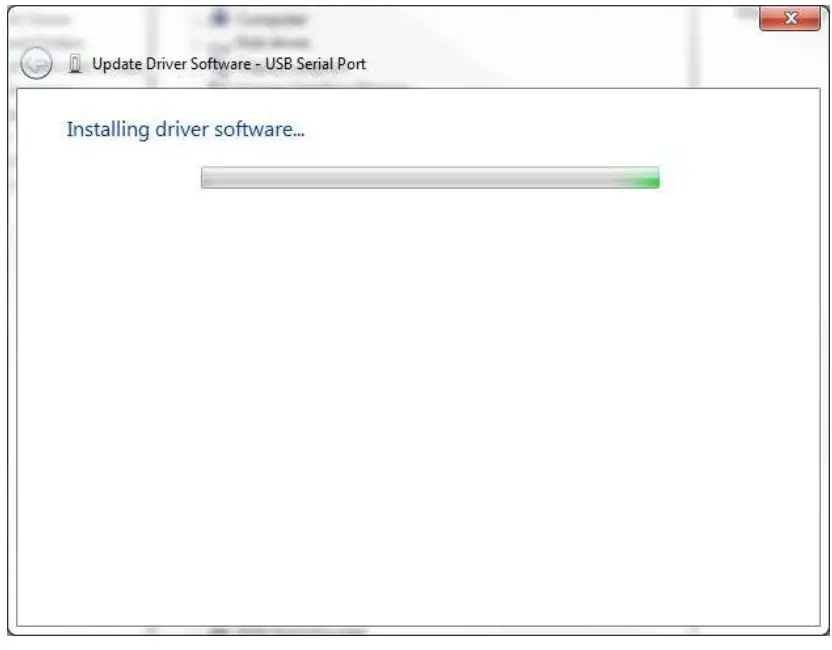
 Windows will install the drivers.
 You may see the following screen saying that Windows cannot verify the publisher.
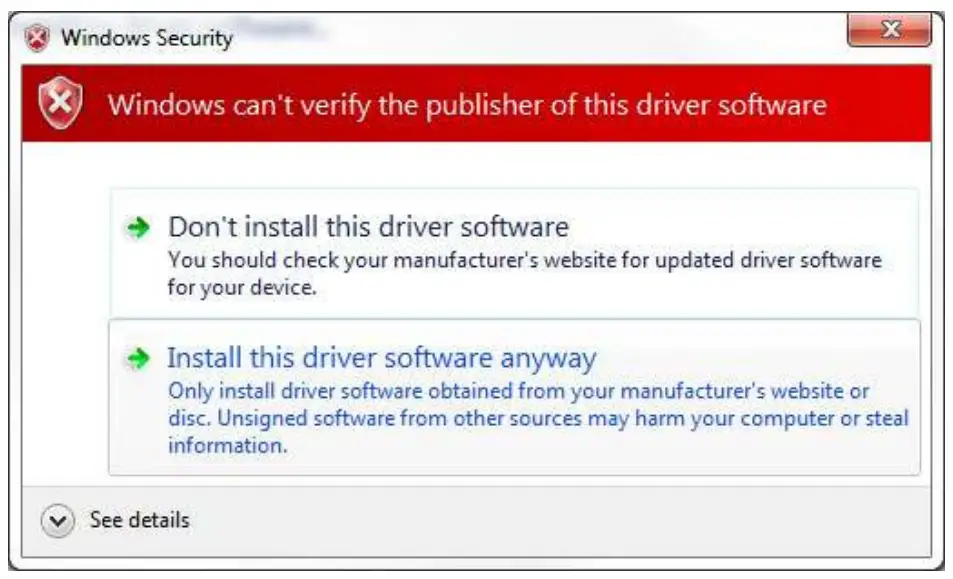 Select “Install this driver software anyway”. (This is normal because Phocos is not yet a verified publisher with Microsoft.)
Once the installation is complete, the following screen will appear stating that the driver was updated successfully.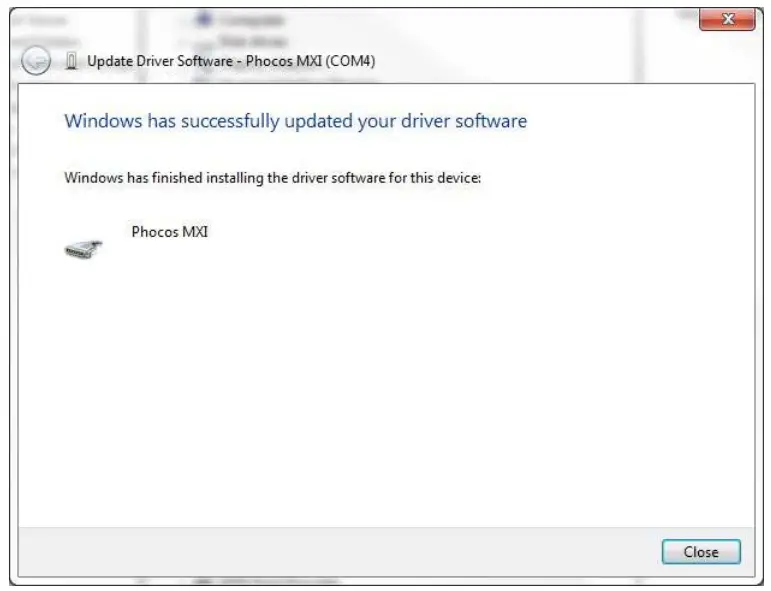
Use With CISCOm
The CISCOM software requires the correct COM port to be selected for use when the MXI-IR is used to communicate with a CIS controller Open the CISCOM program, and select “Interface” in the upper left corner of the window. (You may not see any COM ports listed.) Select “Refresh COM PORTS”.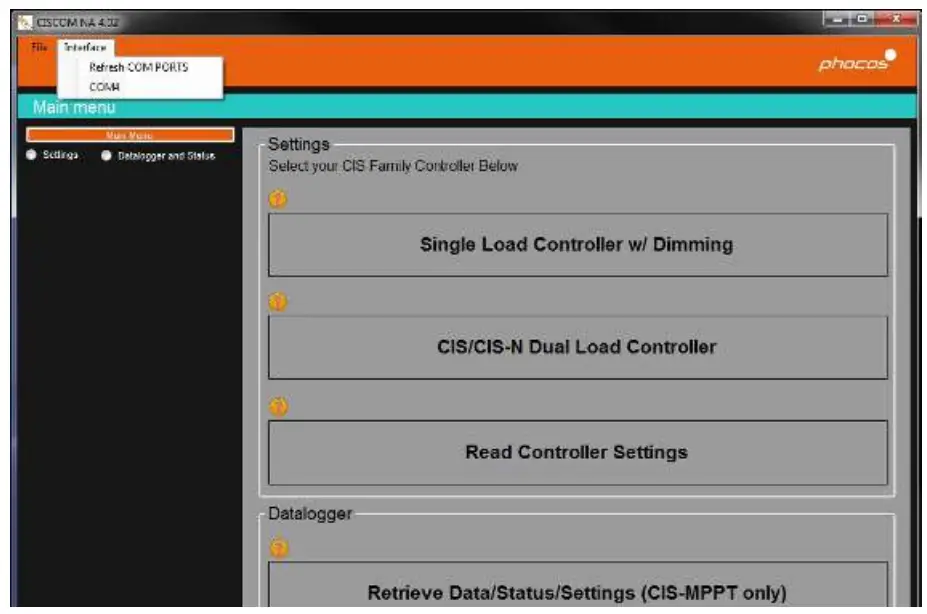 Select the “Interface” menu again, and select a COM port. If there is more than one listed, pick the first one.
3.1. Verification Without a Controller
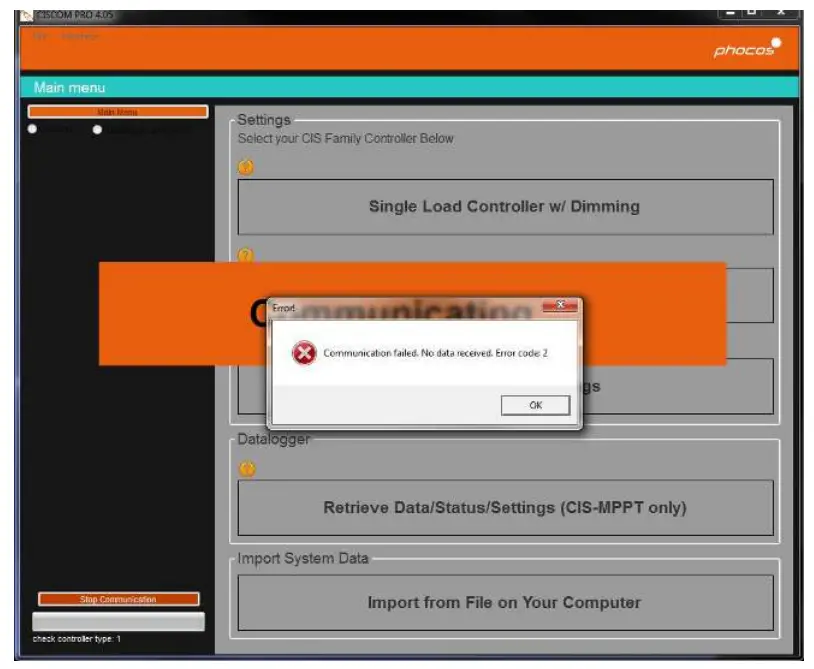
Select the “Read Controller Settings” button. If it is the correct COM port, the “Communicating…” notification will be displayed.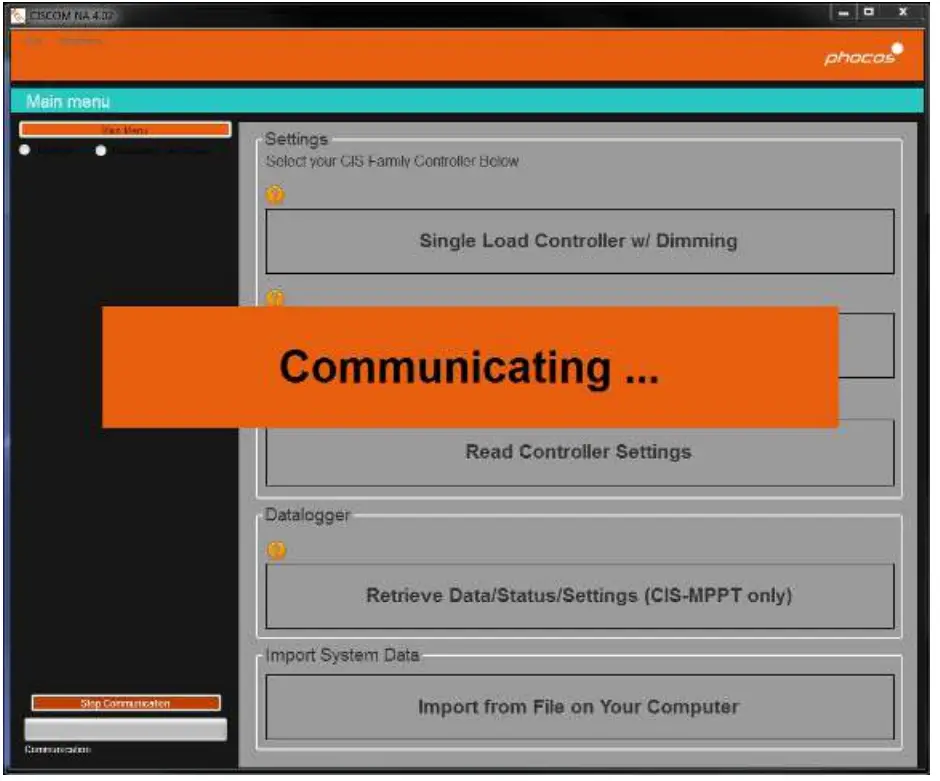 Then the following error message will be displayed: “Communication failed. No data received. Error code: 2”. This verifies a correct install of the MXI-IR driver.
 3.2. Verification With a Controller
Ensure that the CIS controller is powered on. This will be indicated by either a solid green LED or a flashing green LED on the controller. Point the infrared transceiver of the MXI-IR to the infrared transceiver of the CIS controller. Select the “Read Controller Settings” button. If it is the correct COM port, the “Communicating…” notification will be displayed.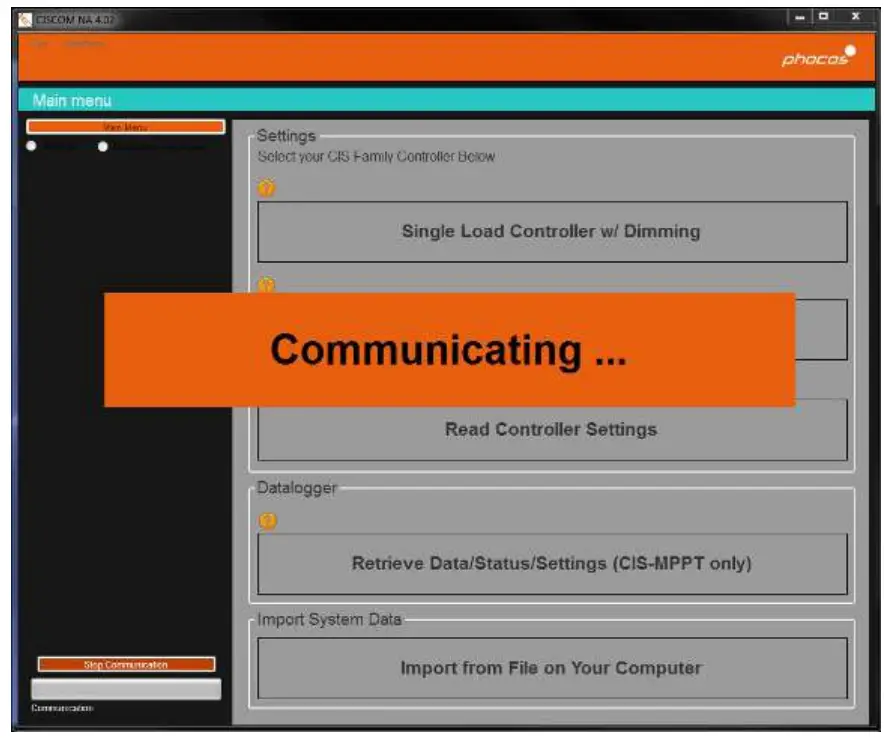 When communication is successfully finished, the settings menus will be displayed with the controller’s settings similar to the diagram below. If no error message is displayed, this verifies a correct install of the MXI-IR driver.
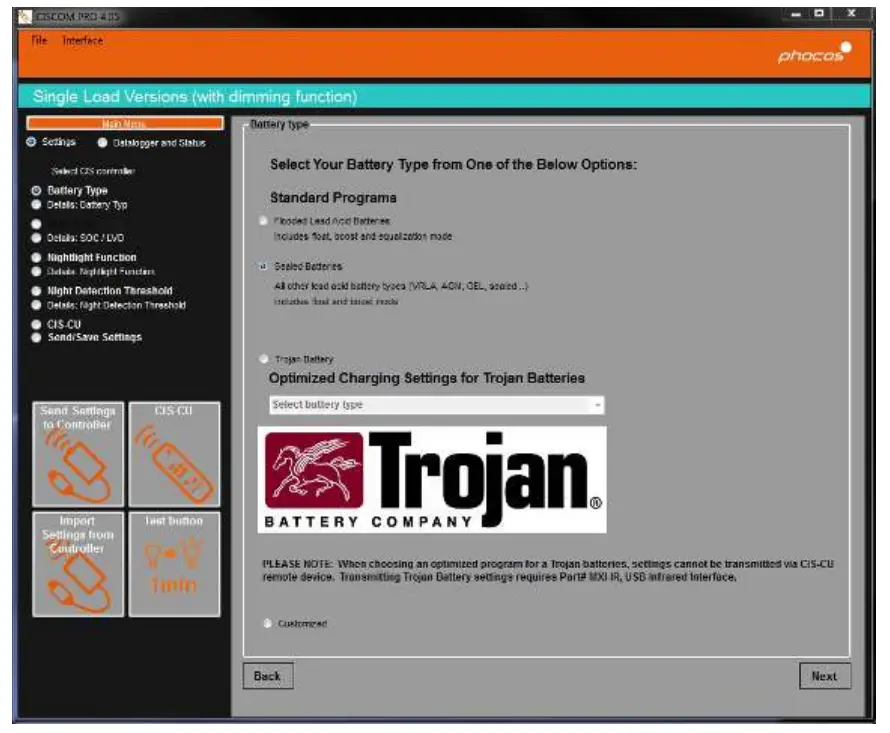 3.3. Problems During Verification
If your first COM port selection was incorrect, the following error message will be displayed. “Communication failed. Unable to open the port. Error code: 1”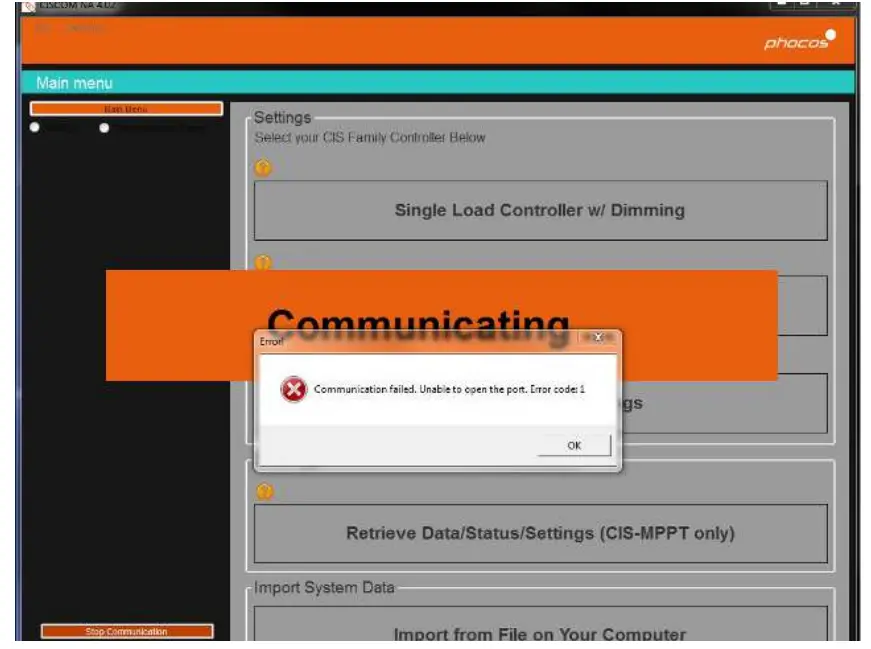 Select “OK”, and then choose the next COM port from the Interface Menu. Repeat the process until you can verify your driver was installed correctly.
Note: The controller must be connected to a battery in order to send or receive information with MXI-IR. For additional support, please contact us. http://www.phocos.com/contact-form
Phocos AG
Magirus-Deutz-Str. 12
89077 Ulm, Germany
Tel./Phone +49 731 9380688-0
Fax +49 731 9380688-50
[email protected]
www.phocos.com
Subject to change without notice
 Solar Power Charge Controllers, Inverters, and More | Phocos