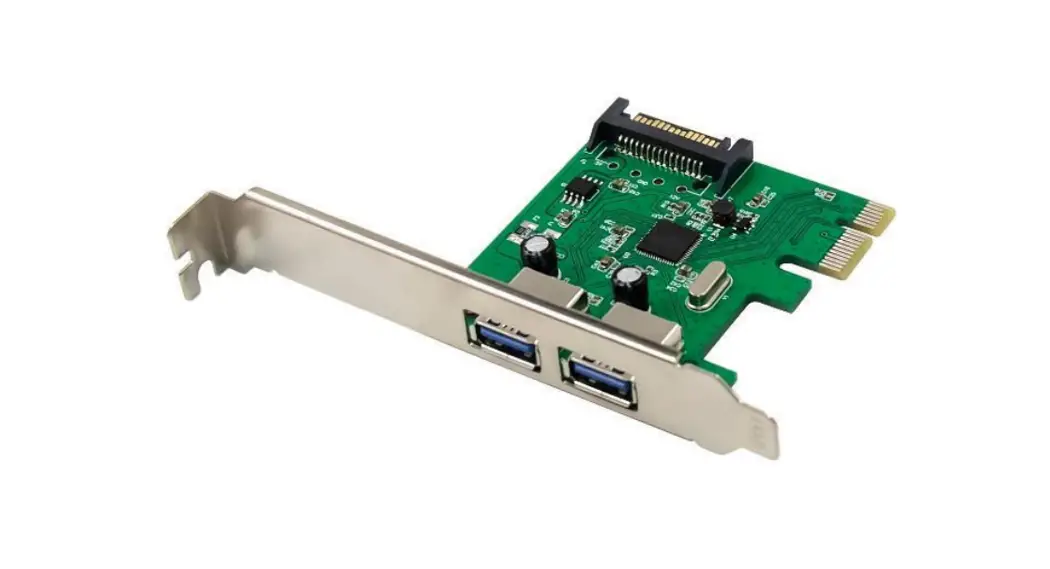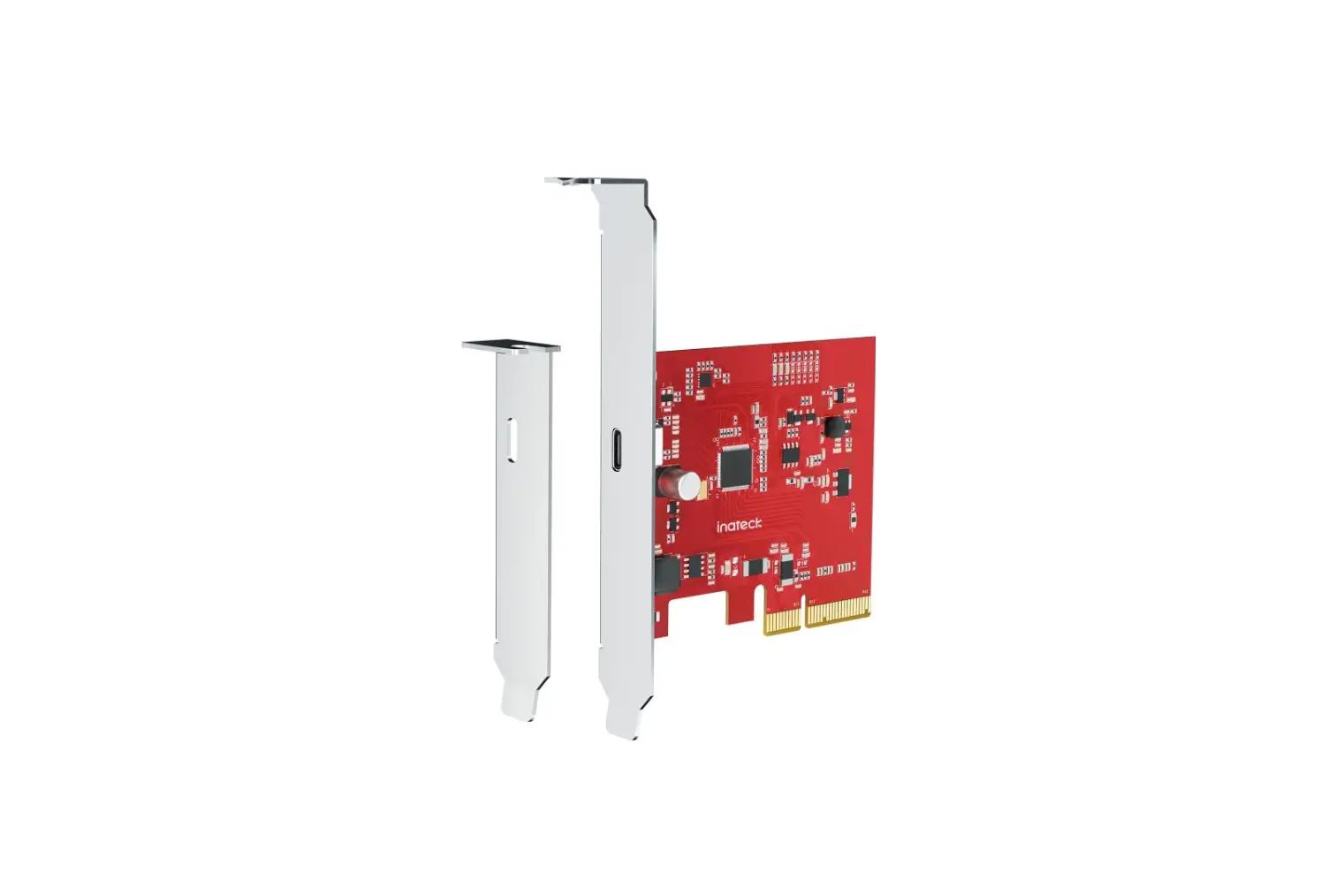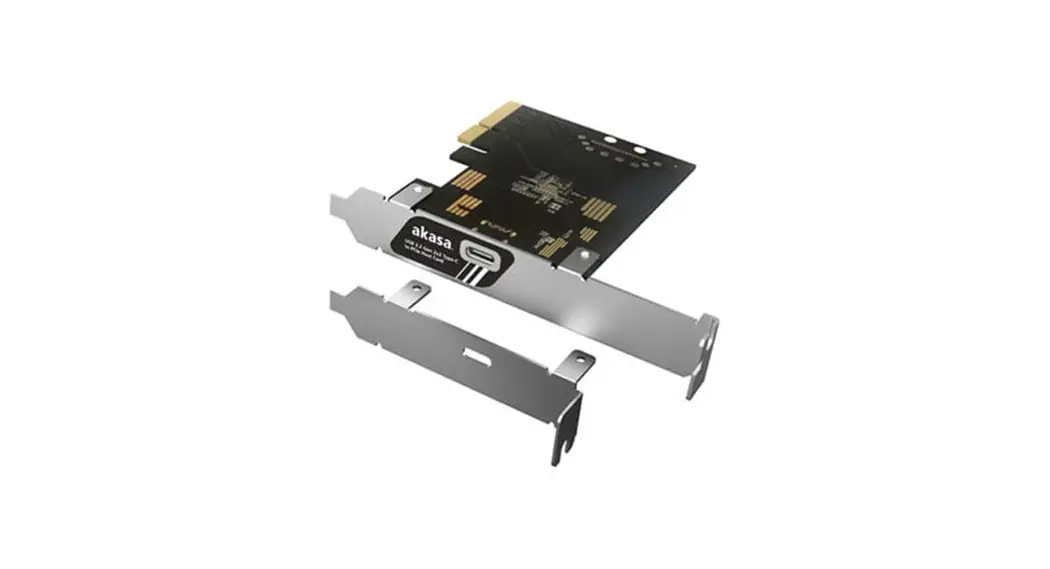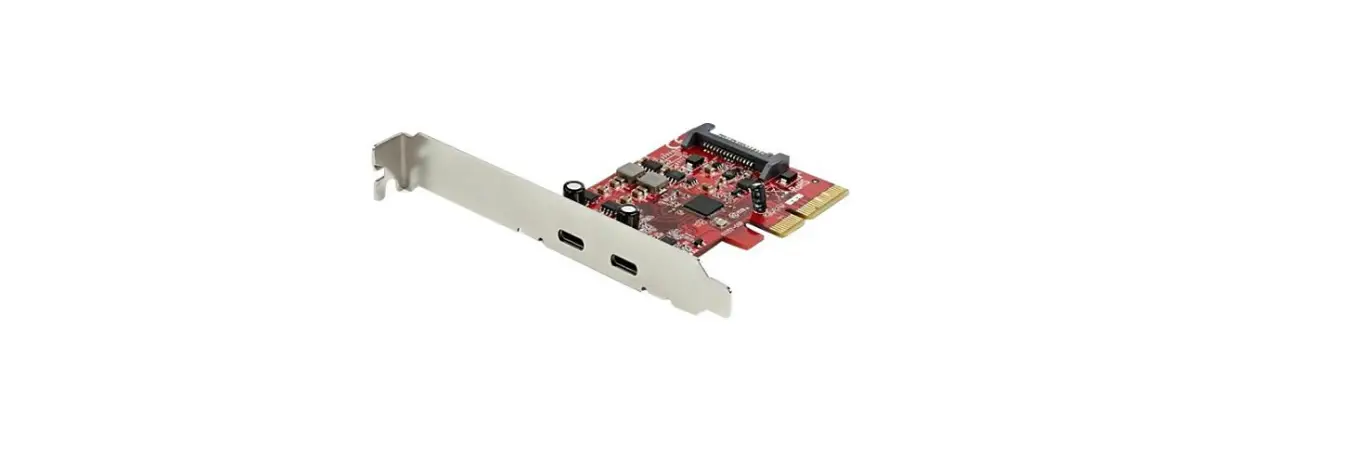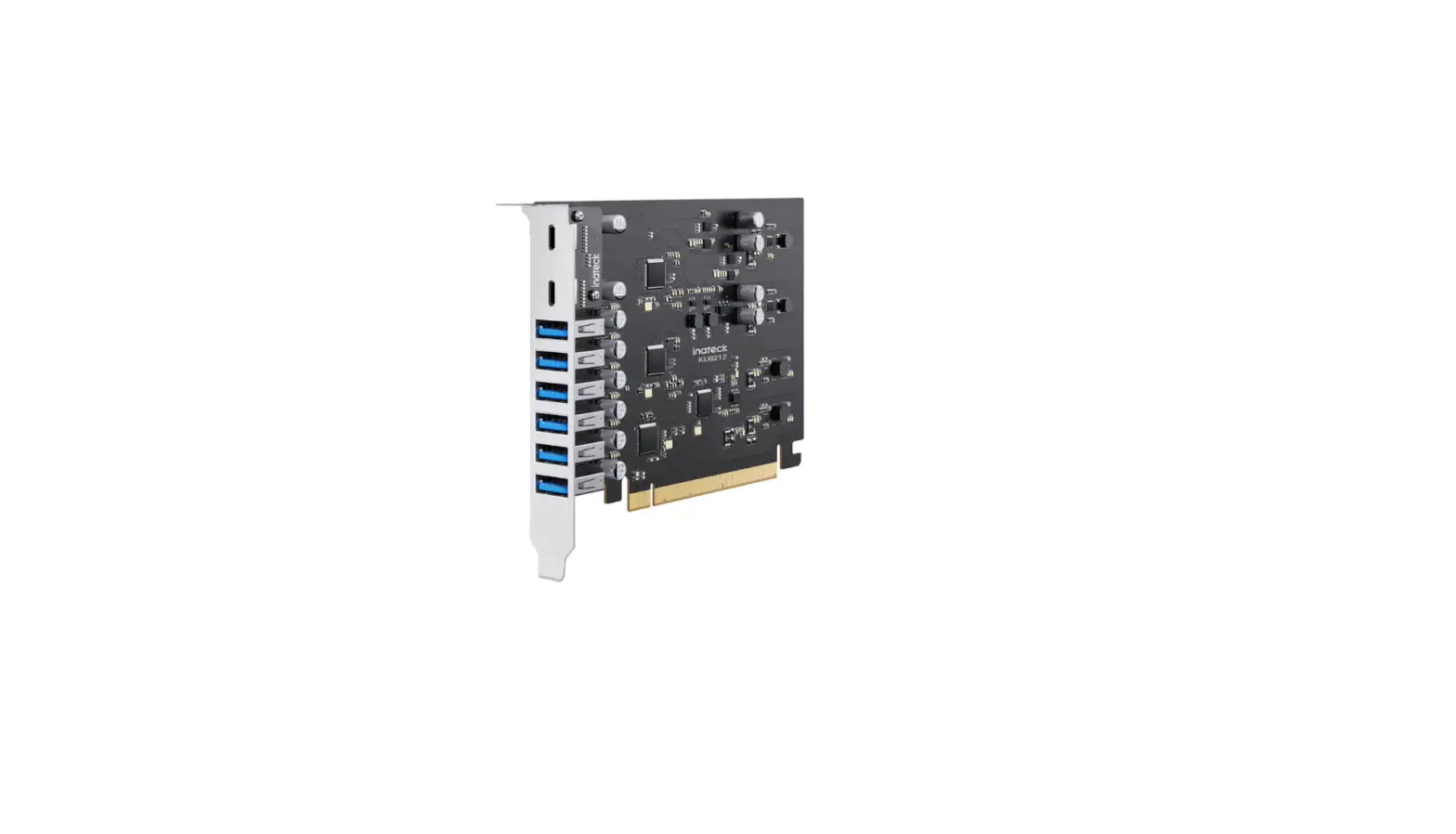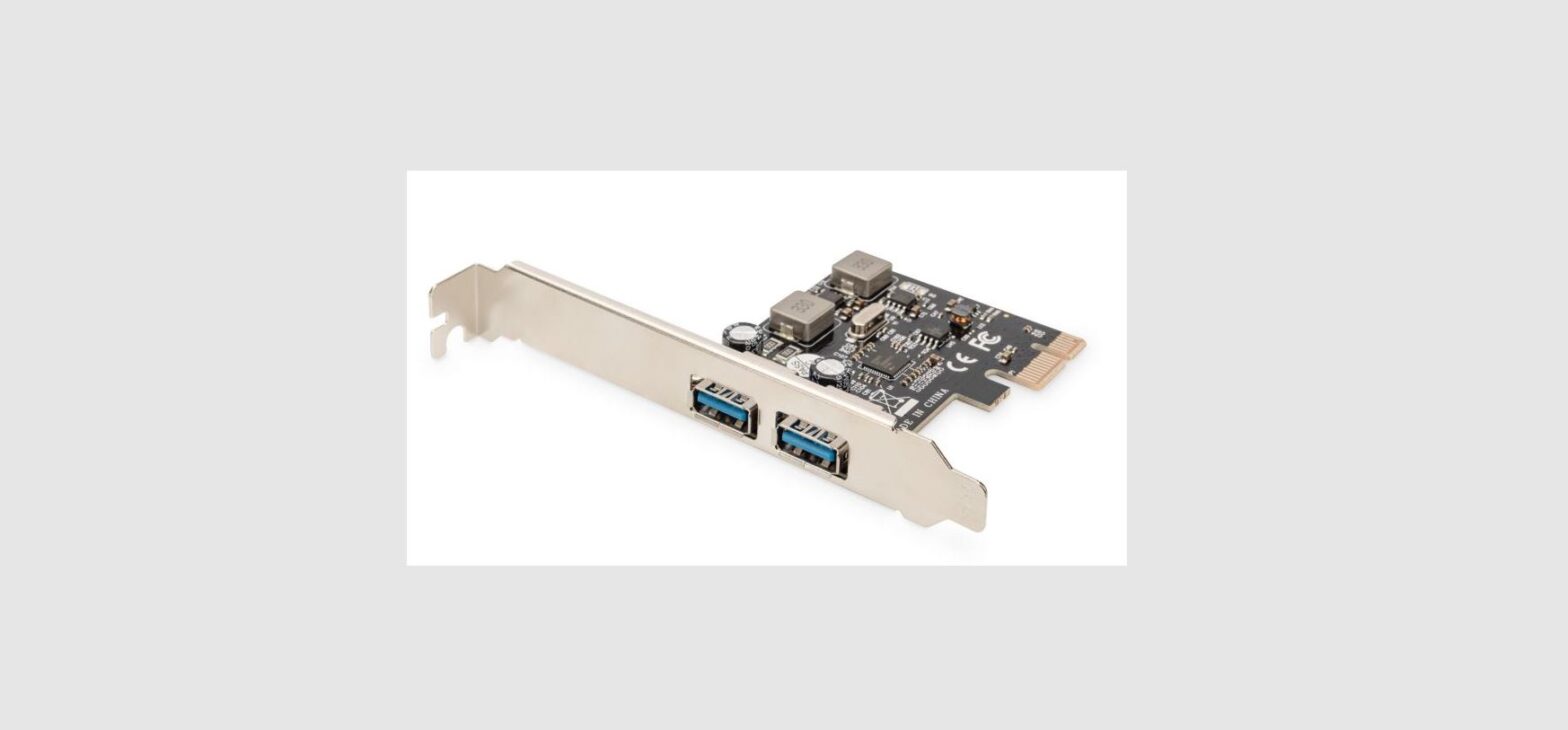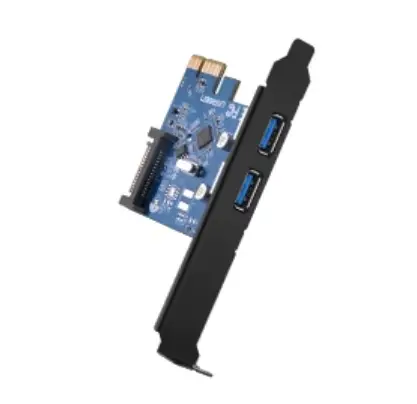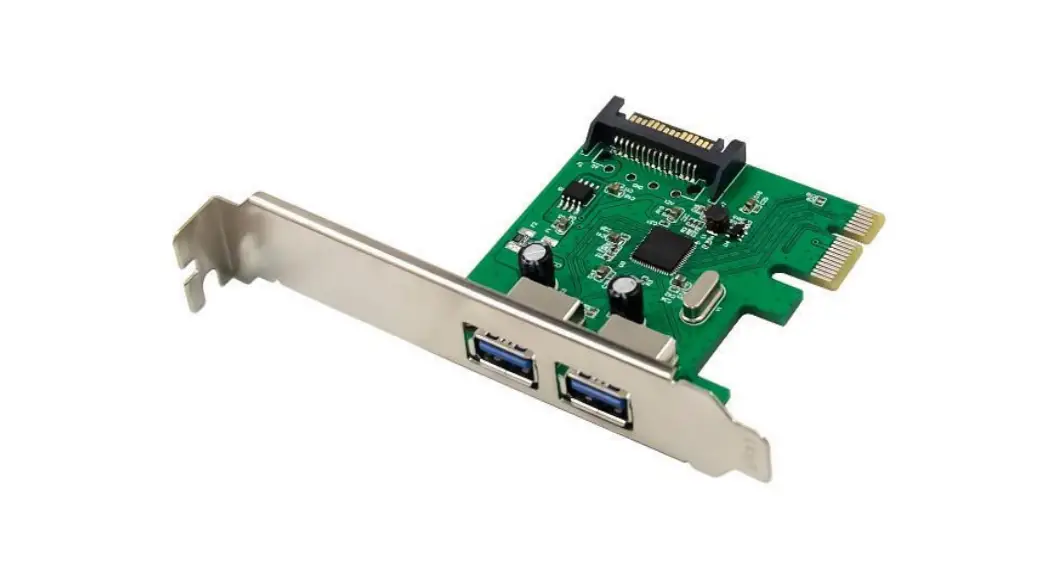
 EMRICK06G 2 Port USB 3.0 PCIe Card
Installation Guide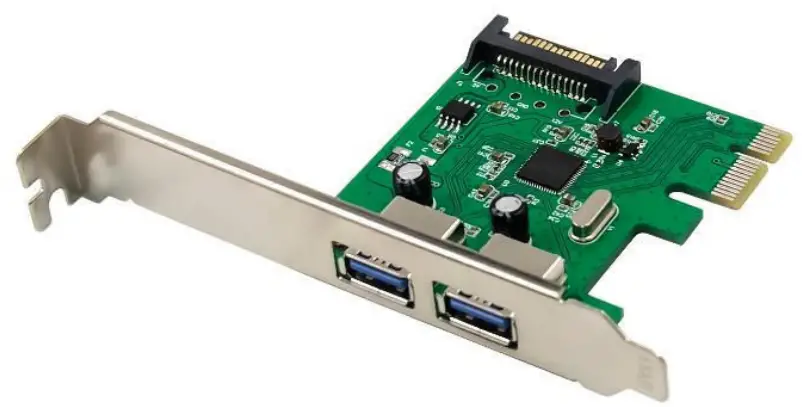
Multilingual Quick Installation Guide
2-Port USB 3.0 PCIe Card
EMRICK06G
Installation & usage
- Turn Off the power to your computer.
- Unplug the power cord and remove your computer’s cover.
- Remove the slot bracket from an available PCIe slot.
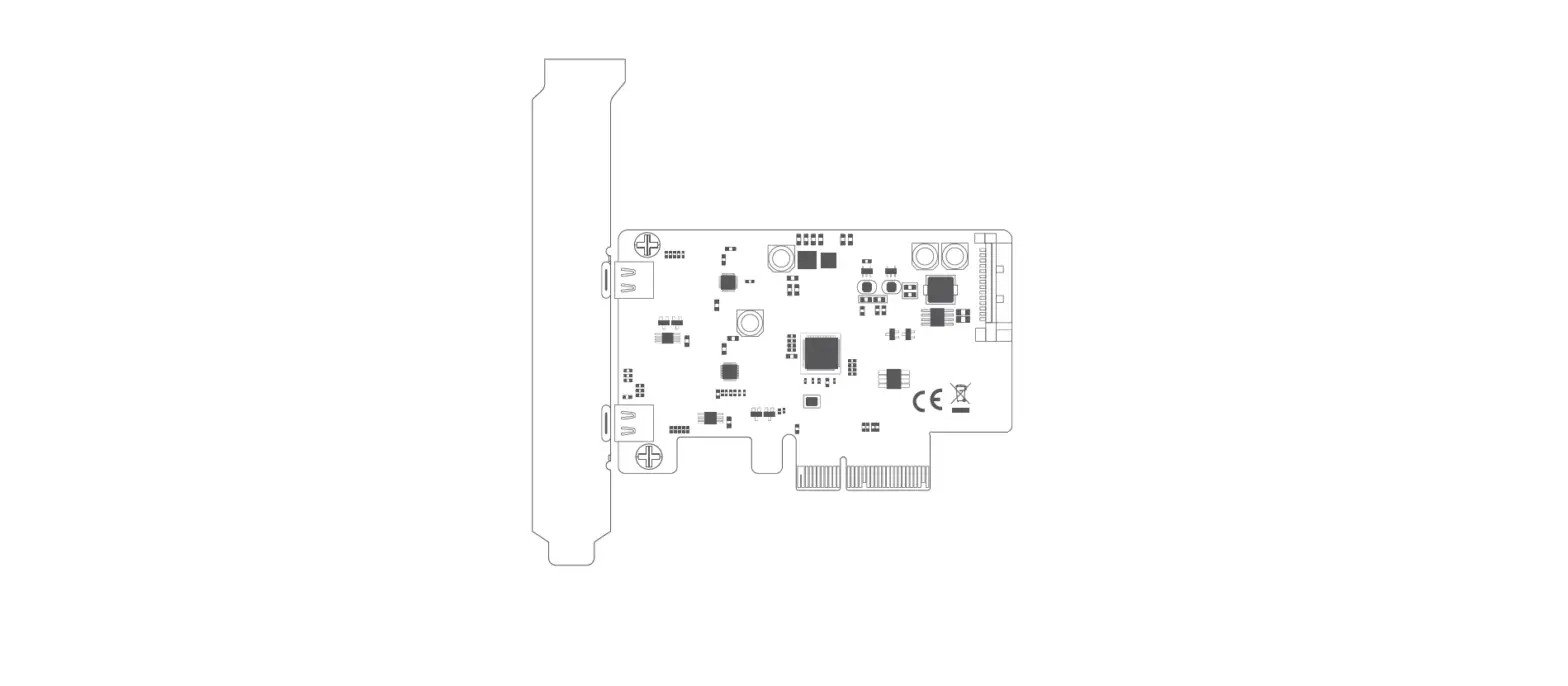
- To install the card, carefully align the card’s bus connector with the selected PCIe slot on the motherboard. Push the board down firmly.
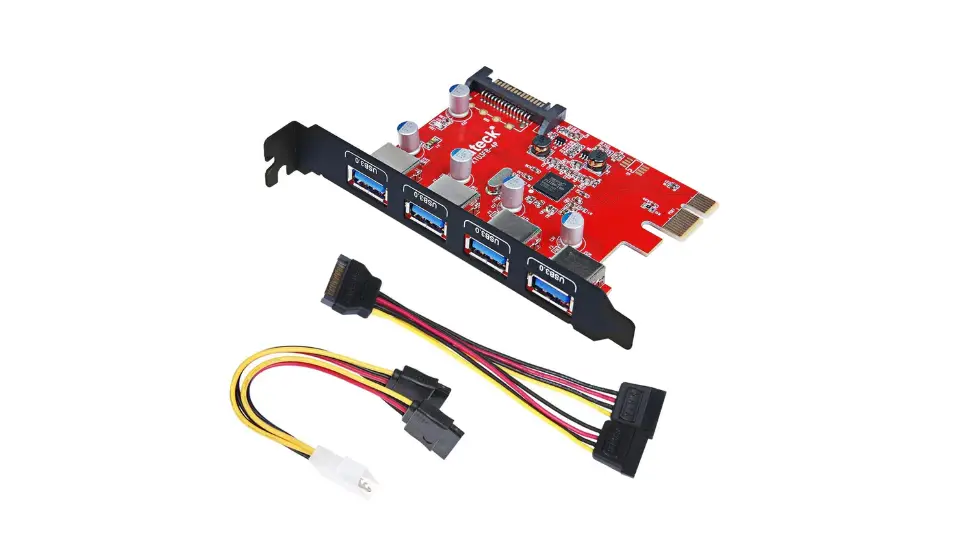
*The PCI Express USB 3.0 Card must be connected the SATA power cable to SATA power jack.
- Replace the slot bracket’s holding screw to secure the card.
- Replace the computer cover and reconnect the power cord.
Your computer will show the “New Hardware Wizard” on your screen. You can ignore this “New Hardware Wizard” by clicking “Cancel”.
Windows XP/Server2003/Vista/Server2008/Win7 (32/64 bit):
- Insert the CD-ROM in the optical drive of your computer. The AutoPlay option will be shown automatically. Click on “Run Autorun.exe” to start the autorun menu.
- Select “Install Drivers” and follow the onscreen instructions to install the required drivers for the serial PCIe card.
- When the driver installation is complete, restart your computer to ensure the drivers are correctly loaded.
Windows 8/8.1/10 (32/64 bit):
- The computer will automatically recognize and install the new hardware. No driver installation is required.
CONCEPTRONIC® is a registered trademark of Digital Data Communications GmbH
© Copyright Digital Data Communications GmbH.
All Rights Reserved.
www.conceptronic.net
[email protected]