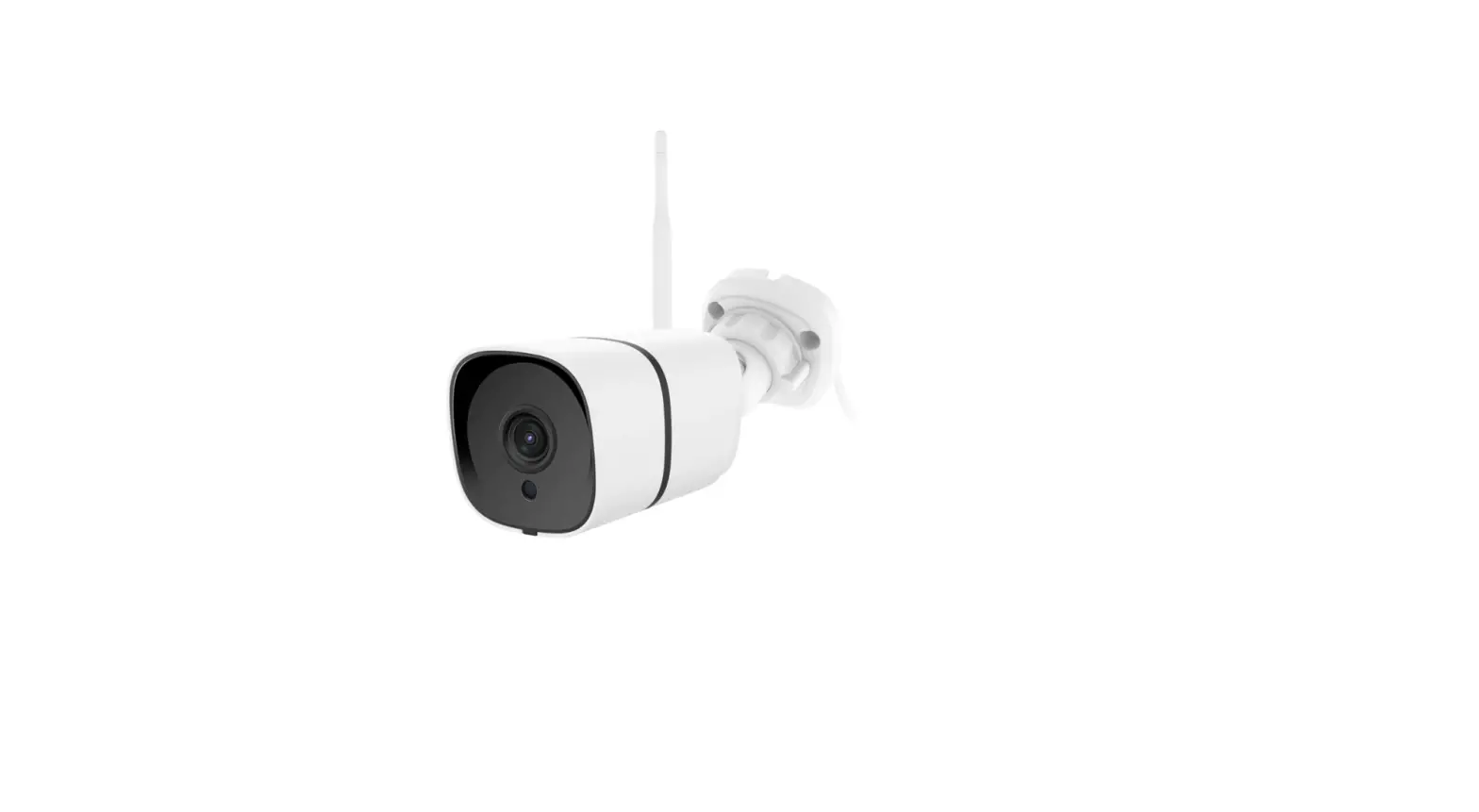
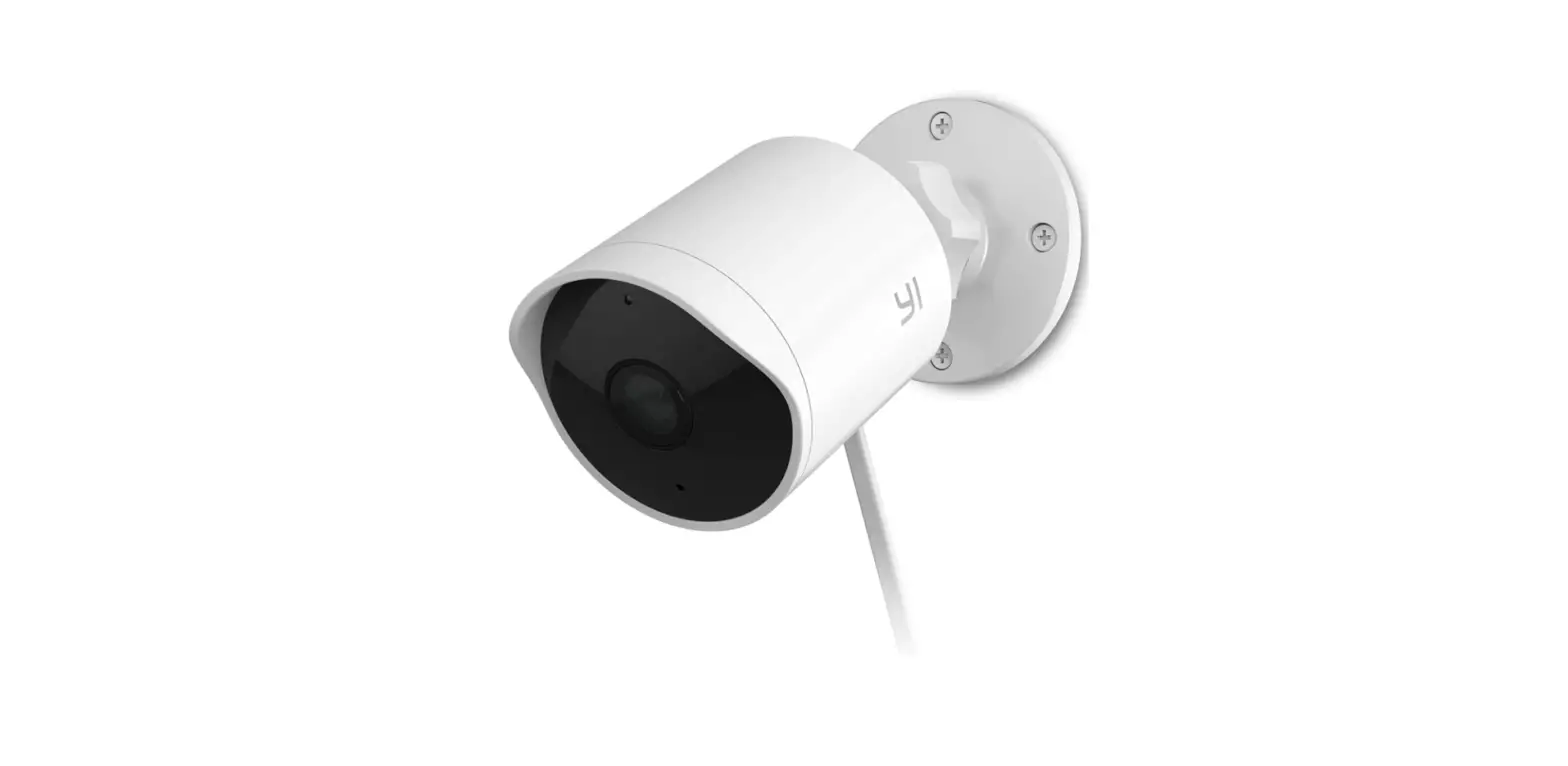
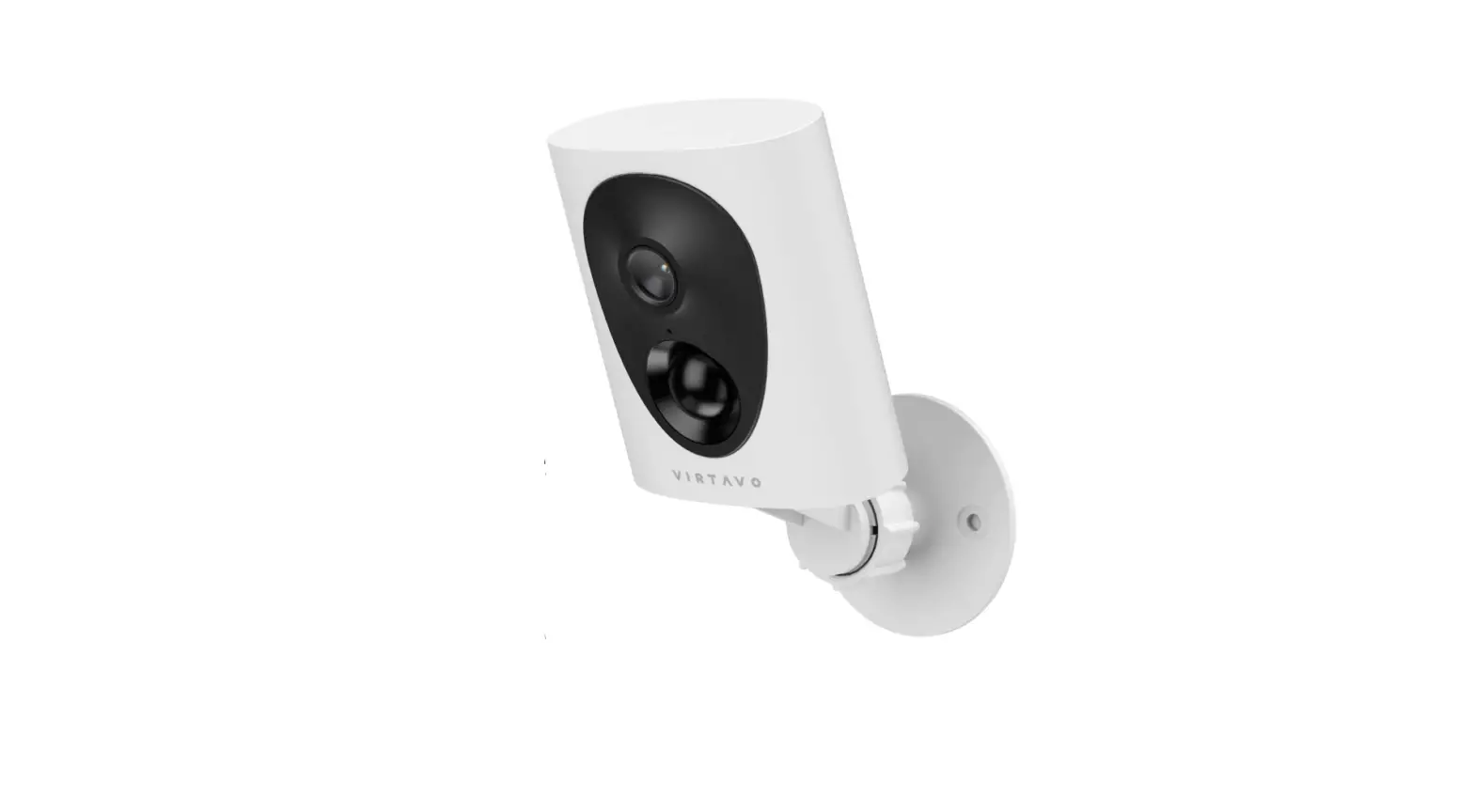
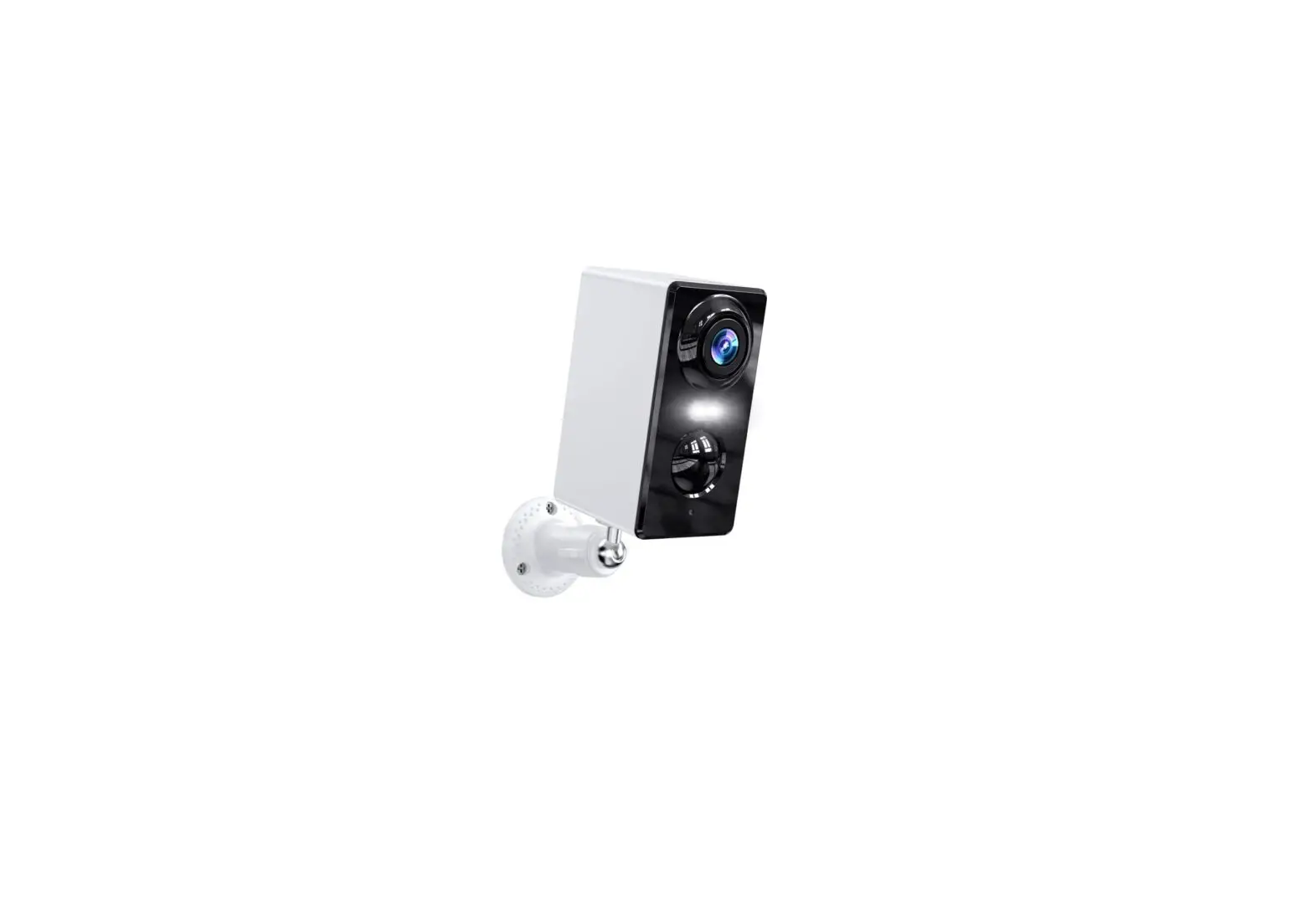
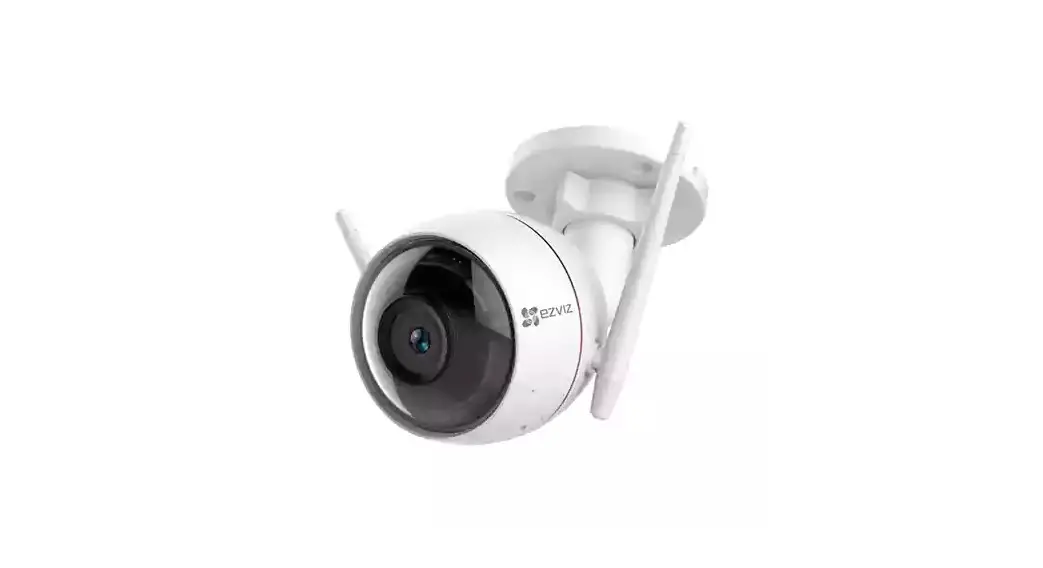
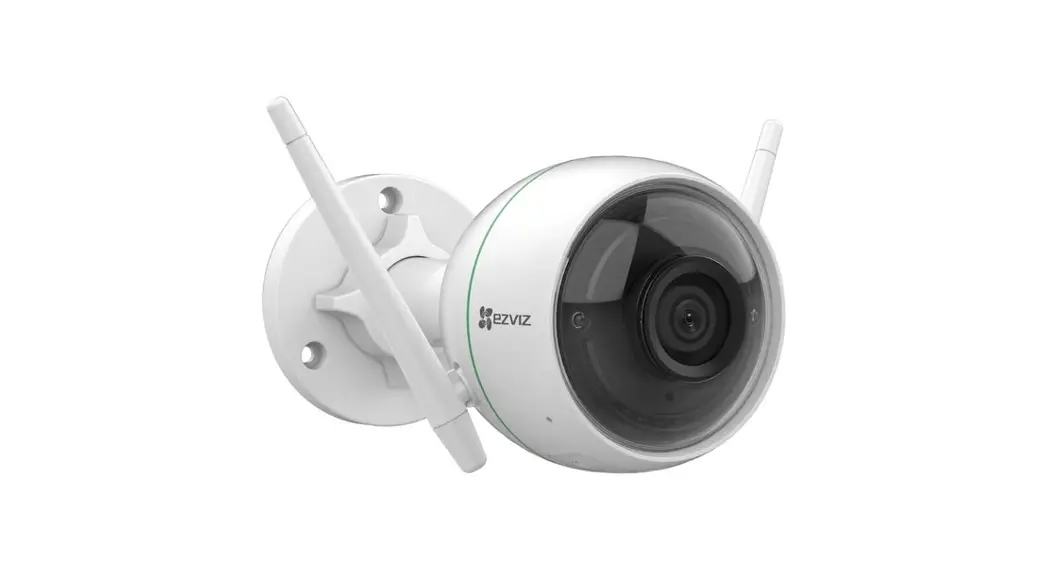
Vimtag 8310 Mini G3 Security Outdoor Camera
 Vimtag 8310 Mini G3 Security
Product Introduction


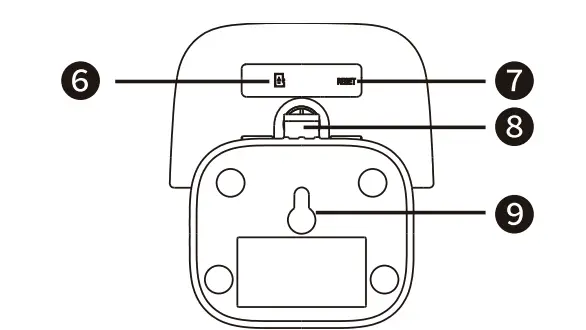
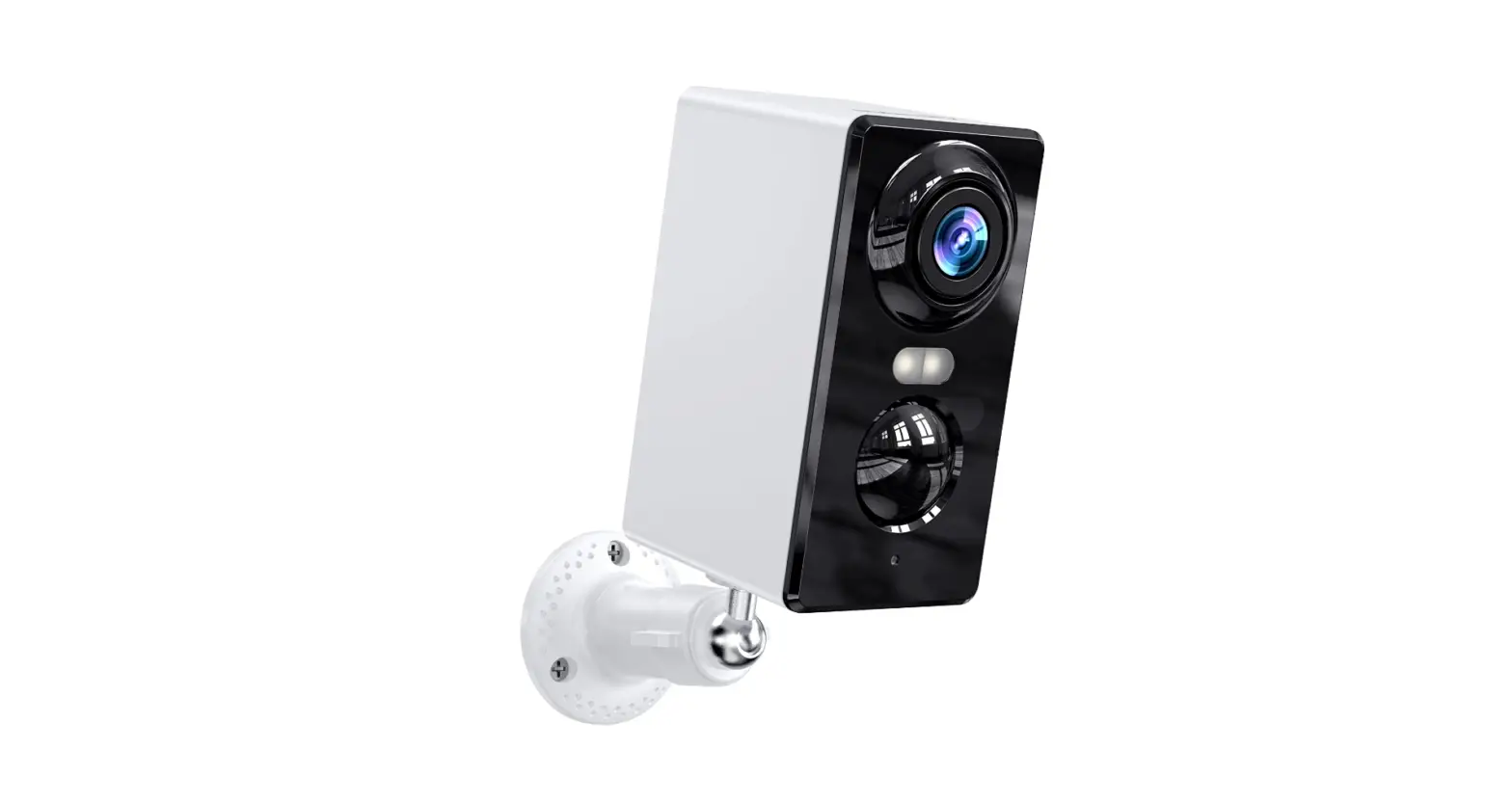
- Supplement Light
- Lens
- Microphone
- Speaker
- power cable
- MicroSD Card Slot (SD Card not included)
- RESET Button
- Hook
- mounting hole
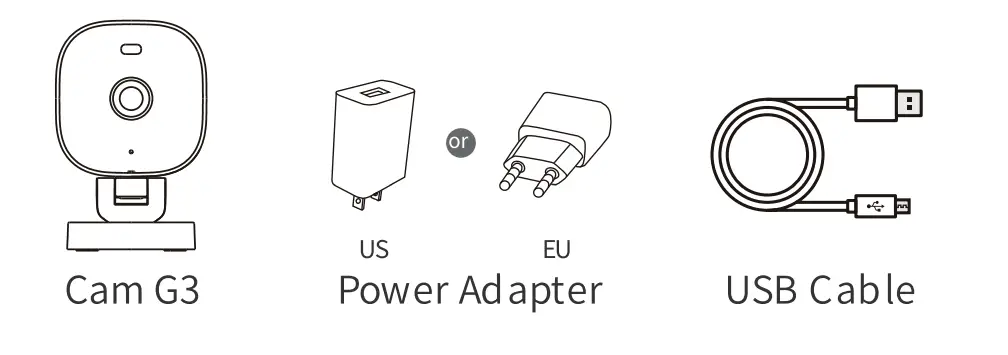
IN THE BOX
- Vimtag Cam G3 xl
- USB Cable xl
- Expansive Rubber Plug xl
- Power Adapter xl
- MountingScrew xl
- Manual xl
- 3M Sticker xl
 Tools needed for the camera installation(Apart from the tools in the package box)
Install “Vimtag” APP
To download the Vimtag, please refer to the following 3 ways. Please note, each app requires iOS 7.0 or later version, Android 4.2.2 or later, For PC users, it require Windows 7 /8/10 or later version.
- Option 1: Download the Vimtag from Apple App Store(iOS) or Google Play Store (Android).
- Option 2: Download the Vimtag on the website: http://vimtag.com/download
- Option 3: Scan the QR code by smartphone to download the Vimtag.


Sign Up Account
Note: When using the application for the first time, please turn on the following 2 permissions.
Allow “Vimtag” to access mobile cellular data and WLAN, otherwise, you will not be able to add devices. Allow “Vimtag” to receive messages, otherwise, the phone will not receive alert push notifications when motion detection or audible alerts are triggered. The following is a screenshot of 10S cell phone operation, android cell phone permissions open method is basically the same as this method.
New users must register by email: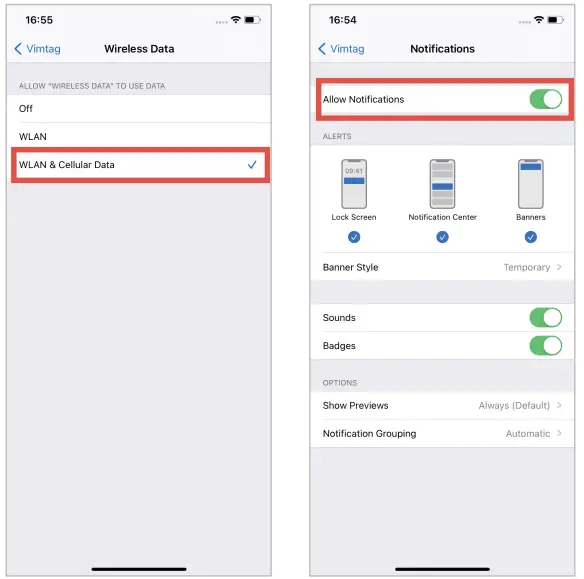
- Click on “Sign up”.
- Follow the steps to complete your account registration.
- Login.
Wi-Fi Set Up on Phone
Note: Please set the camera up through a 2.4GHz internet connection, not support 5GHz for connection yet.
- Place the camera and smartphone within 1 to 3 feet (30 to 100 cm) of the router to ensure Wi-Fi signal strongly.
- Plug the adapter in the device to power up.
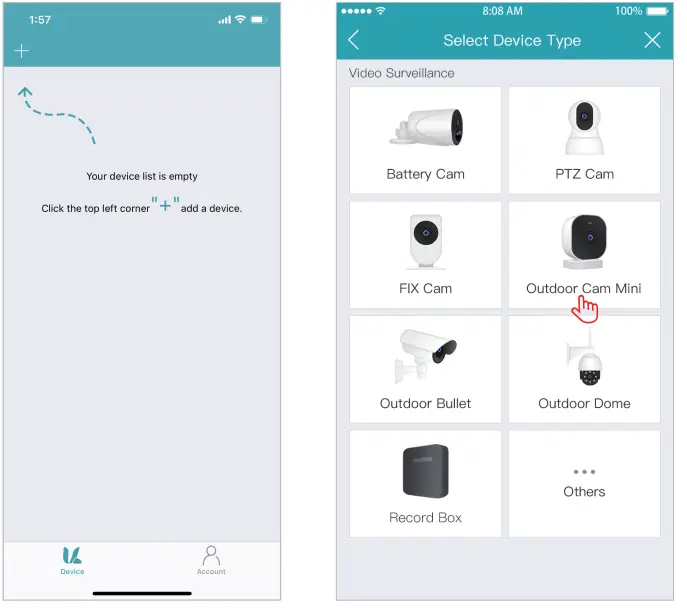
- Then click the”+” button in the top left corner, and select the Outdoor Cam Mini.
- Scan the QR Code attached to the camera or input the device ID directly to add a new device. Go into the network connection interface.
- Then please follow the steps in the APP interface to add devices.

Mount the camera onto a wall
Note: Before mounting the camera:
- Unplug the USB cable from the power adapter.
- Find a spot where the camera can easily reach a power outlet.
- Make sure the camera receives a strong Wi-Fi connection in your spot ant to mount it so that it can stream video to yourVimtag App.
- A 3M adhesive strip is provided for people who don’t holes in the w nt to drill all. Adhere the plate with the 3M adhesive strip after listening to the charging cable under the bracket’s hook.
Normal Install
Note: Keep a gap of more tha10 inches (25 cm) between objects to the side of the camera lens to avoid overexposure caused by Infrared light reflection.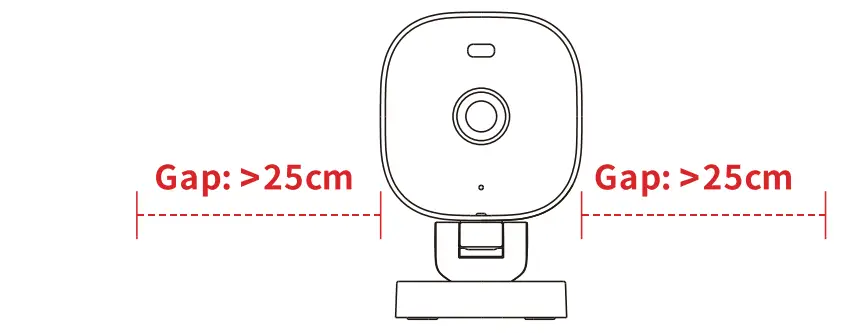
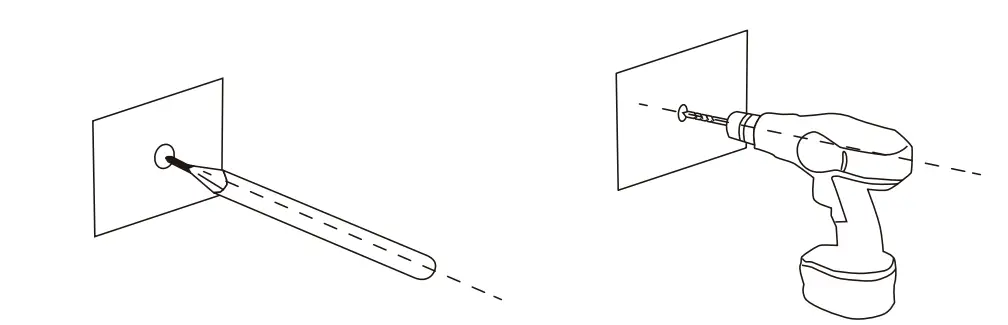
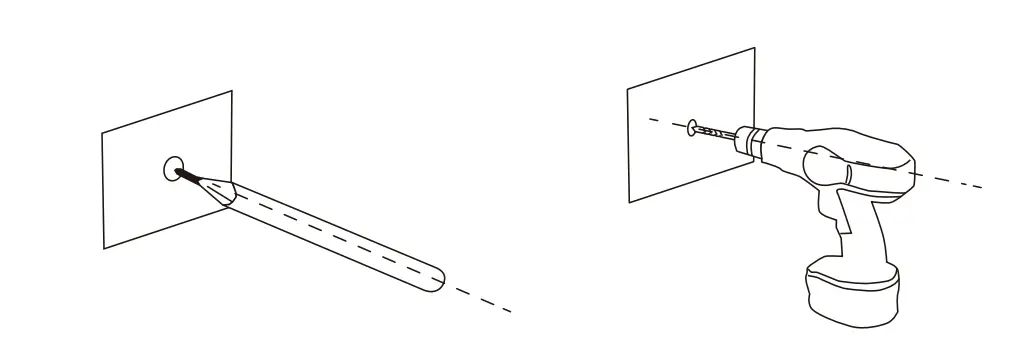
- Mark the positions for the screw holes with a pencil after you determine the installation position.

- drill holes in the points you just marked.
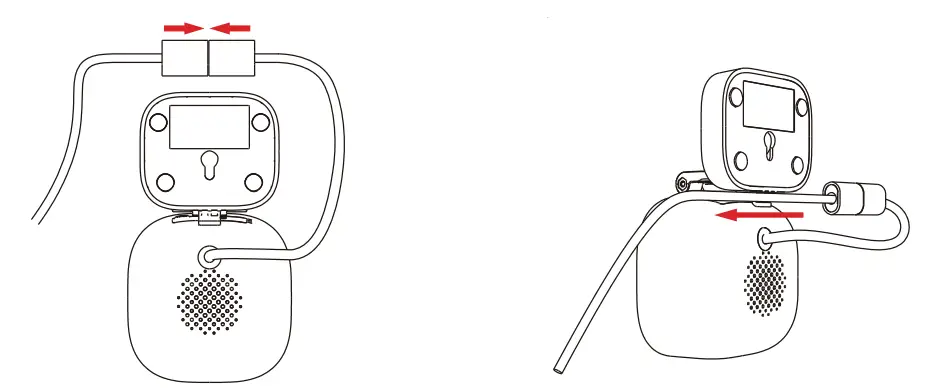
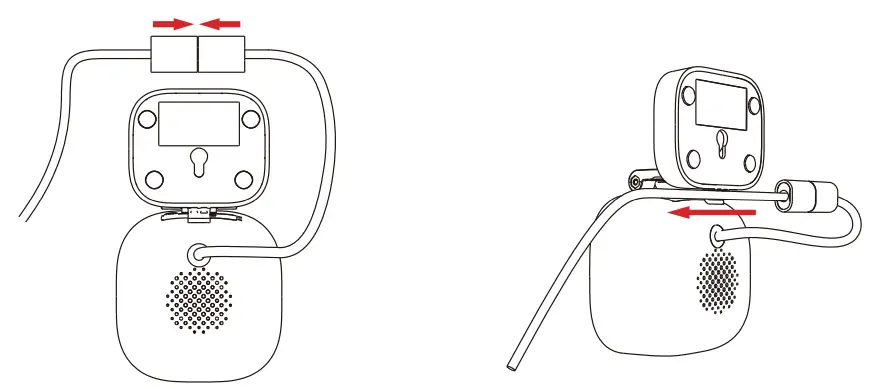
- connect the power cord

- Pass the cable through the bracket’s hook
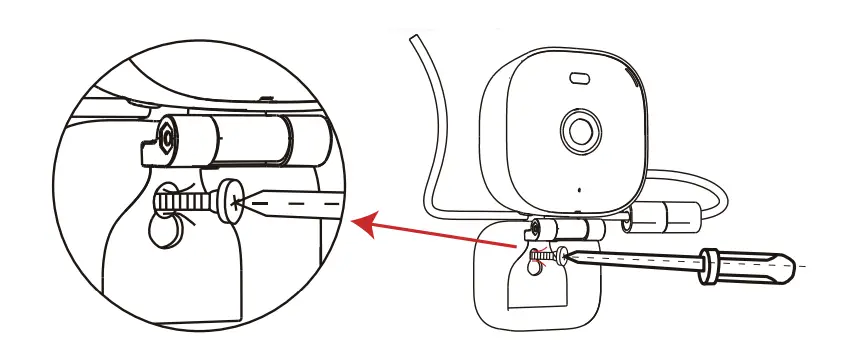
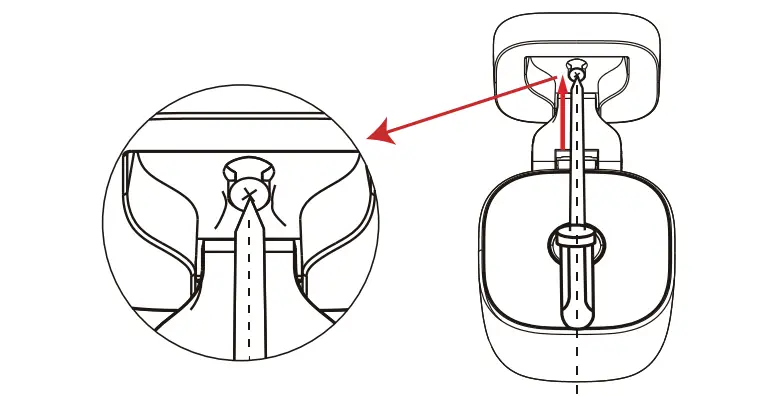
- Screw the camera into position

Upside Down Install
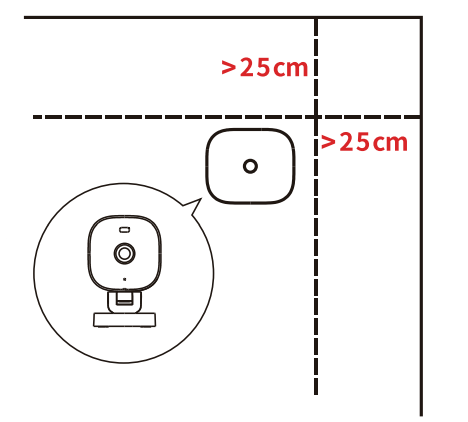
Note: Keep a gap of more than 10 inches (25 cm) between objects to the side of the camera lens to avoid overexposure caused by Infrared light reflection.
- Mark the positions for the screw holes with a pencil after you determine the installation position.

- Drill holes in the points you just marked.
- Connect the power cord

- Pass the cable through the bracket’s hook
- Screw the camera into position

FAQ
Setting Issues
WiFi Connection Failed During Initial Setup Process?
- Please set the camera up through a 2.4GHz internet connection, not support 5GHz for connection yet.
- Please ensure you have entered the correct WiFi password.
- Put your camera close to your router to ensure a strong WiFi signal. @Please reset the camera for 10 seconds to restore to factory settings, you need to configure connecting again.
Device offline?
- Check whether the WIFI network is good and restart the router. @If the location is far away from router, resulting in the inability to obtain a good WIFI signal, it is recommended to move the router to a closer location, or add a WIFI extender to enhance the home WIFI performance.
- Remove the camera from yourVimtag account, please reset the camera for 10 seconds to restore to factory settings (Please set the camera up through a 2.4GHz internet connection, not support 5GHz for connection yet), and then re-add it.
- Check that the device firmware and applications are up to date.
Can’t play history videos?
- Check the status of SD card in”Settings” and make sure the SD card is successfully recognized.
- Reinsert the SD card.
- In the application, format the SD card.
- Max supports 128 GB.
- Try another new SD card.
How to share the camera with my family?
- First let your family sign up for a new account, pay attention to register with a new email account.
- Go the settings,choose11 Device Sharing11, and enter the device password, then click to generate the QR code.
- The person who you are sharing this with will open the app, select the device type, and scan the QR code.
WHAT App Issues
There are spots on the Vimtag interface.
- Please wipe the camera lens.
- If it is still in it,please slap the lens from the side of the camera, then check if the spot moves.
- If it is still in it,please contact our customer support.
- lf you receive tips like”Network Diagnostic”, it means that your network is unstable, We recommend you to restart the camera; if it doesn1t recover, restart the router.
- lfyou receive a screen showing “loading” and “OKB” on the top right corner, please check your Wi-Fi network if it is stable.
- lf you the video is lagging, please check the network of your camera connected or move the camera closer to the router. Then test it again.
- lfyou can’t receive notifications.please confirm the following things.
- Please check if you accept the Vim tag send notification to your phone.
- Please check if you turn on the “Sound” and “Vibration”on Vimtag (Account”my”-Notification Center).
- If you choose the alarm type and enable the alarm on Notification (Camera Settings-Alarm type).
Other Issues
- lf you can’t hear the voice clearly from the app or camera side via two way audio, please turn up the speaker of the phone and camera, and keep your phone away from the camera more than 2 meters, then try it again.
- As for accessories broken issues, such as power adapter, power cable, wall mount, please contact our customer support directly.
Customer Service
- Warranty
12- month Limited Warranty - NOTE
We hope that you enjoy the new purchase But if you are not satisfied with the product and plan to return,we strongly suggest that you reset the camera to factory default settings and take out the inserted SD Card before returning. - Technical Support
If you need help, please contact Vimtag before returning your product. Most questions can be answered through our on line support center at http://www.vimtag.com
FCC Compliance Statement
FCC WARNING:
Any Changes or modifications not expressly approved by the party responsible for compliance could void the user’s authority to operate the equipment. This device complies with part 15 of the FCC Rules. Operation is subject to the following two conditions:
- This device may not cause harmful interference, and
- this device must accept any interference received, including interference that may cause undesired operation.
FCC RADIATION EXPOSURE STATEMENT:
This equipment complies with FCC radiation exposure limits set forth for an uncontrolled environment. This equipment should be installed and operated with minimum distance 20cm between the radiator & your body. This transmitter must not be co-located or operating in conjunction with any other antenna or transmitter.
FAQS
When you connect the camera, you should use the wifi’s password, the camera itself doesn’t need the password to use.Any concerns or need more help, please contact us through”Orders>>Sold by>>contact us”
The camera needs class 10, 4GB -128GB micro SD card.
There are two ways to mount it on the wall, you can either stick it to the wall with the Red “+” Logo tape that came in the package or use the screw pack to screw the camera to the wall.
The video feed is encrypted, please be assured about that.
When you connect the camera with Alexa, the Alexa has no sound when the camera detects motion,but you could view the video from Alexa.
The length of the USB cable that comes with the package is about 6.6 feet. But there is a hidden line on the back of the camera, about 0.44 feet.
In addition, our store also sells a 16.6 feet USB cable for this camera to be used outdoors.
If you have this need, you can pay attention to the products of our store.
Yes, it is compatible with Samsung Galaxy A10e.
If the camera is used inside the window at night, there will be a glare, just turn off the night vision mode.
Yep, you could just watch the live when you want to check.
Yes, it is compatible with the Cloud Box.
Yes, you could choose to use the SD card only, and if you want to extend the subscription of the cloud storage, you could choose to use SD card as well.
You could enter the app, select settings>>Spotlight to turn off the function,
This one you do not necessarily have to attach to wire to operate. I liked this because I rent and do not want to wire anything permanent camera. This one just needs to be plugged into a source and will do like one wired. I have it in my doorway (at the top corner so the door will close – just make sure it is not pinching the plug-in). My door has a light socket so it’s convenient for my purposes, you will have to determine where you want it. It is outside my door and the spotlight does work. I purchased Vimtag for outdoors mainly. If you are wanting to wire a Vimtag camera, then suggest you check their seller link (All Amazon sellers can be found near the picture on the page and somewhere between the title of the product and brief selling points for one to wire. For me, this does the purpose without wiring and the pictures are fantastic day or night viewing. I have the app on my iPad and can monitor there and check. I plan to purchase one or two more: for my patio and another room. Hope this helps, but this little camera will surprise you. It also has in the back a place to insert a disc to backup (Scan card/disk – their site explains it and whether 125bg, 256 gb), and it is flexible in positioning and at certain angles – (be sure to not turn-twist fast or hard – I cannot say enough about this little camera and worth the very affordable price.
Any concerns or need more help, the customer service could be contacted through”Orders>>sold by>>contact us”