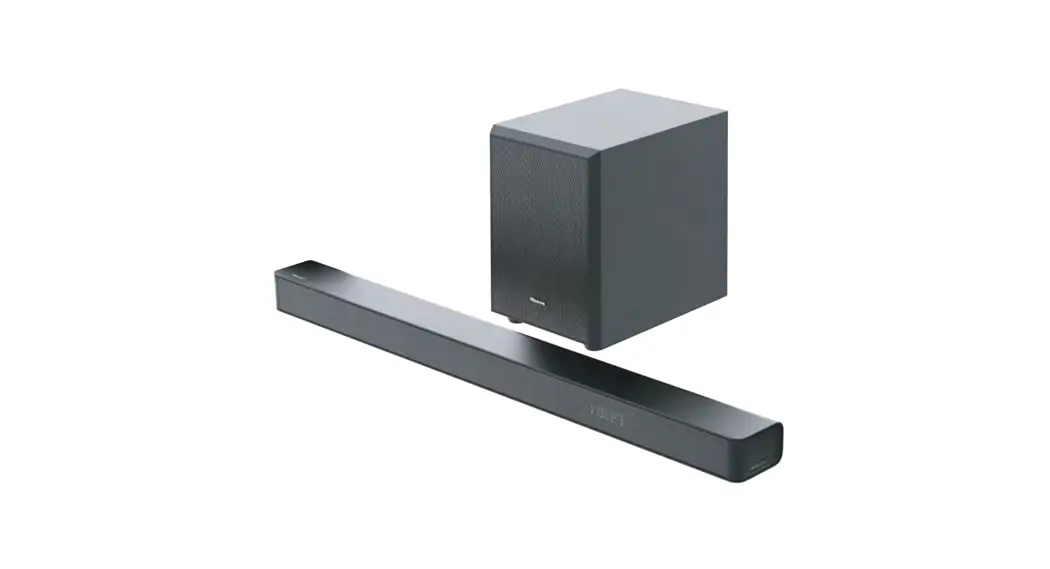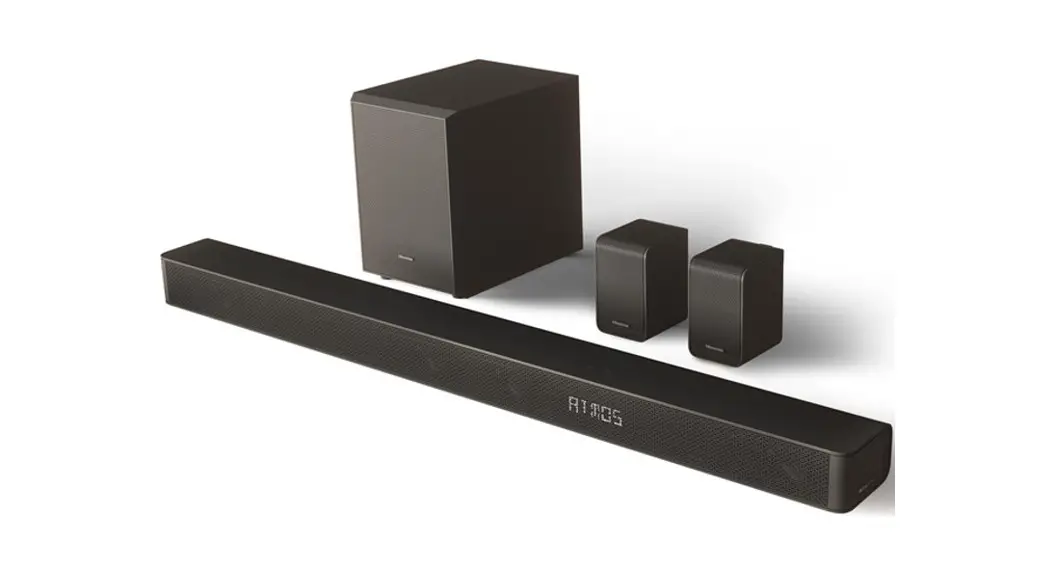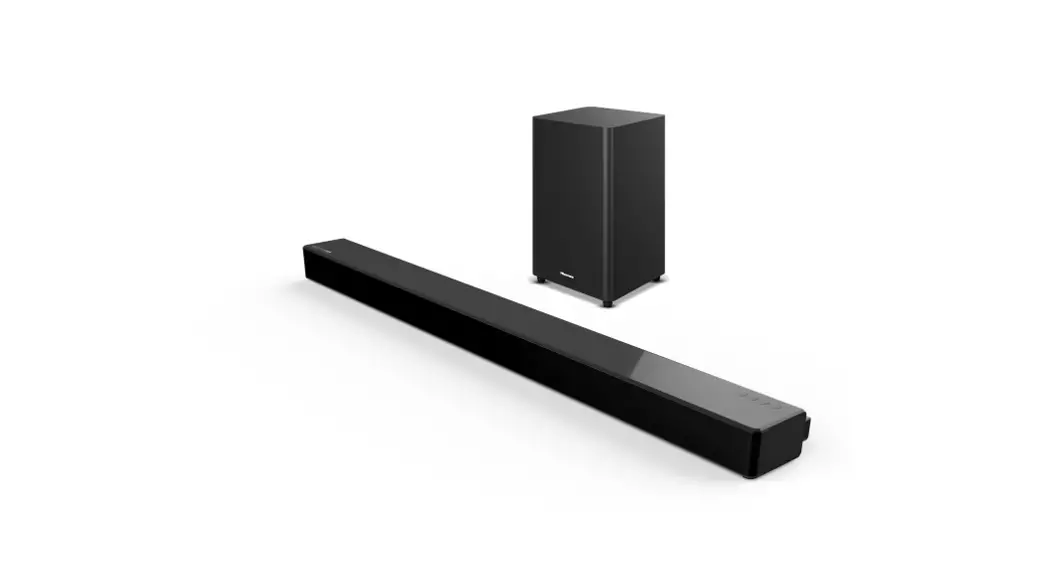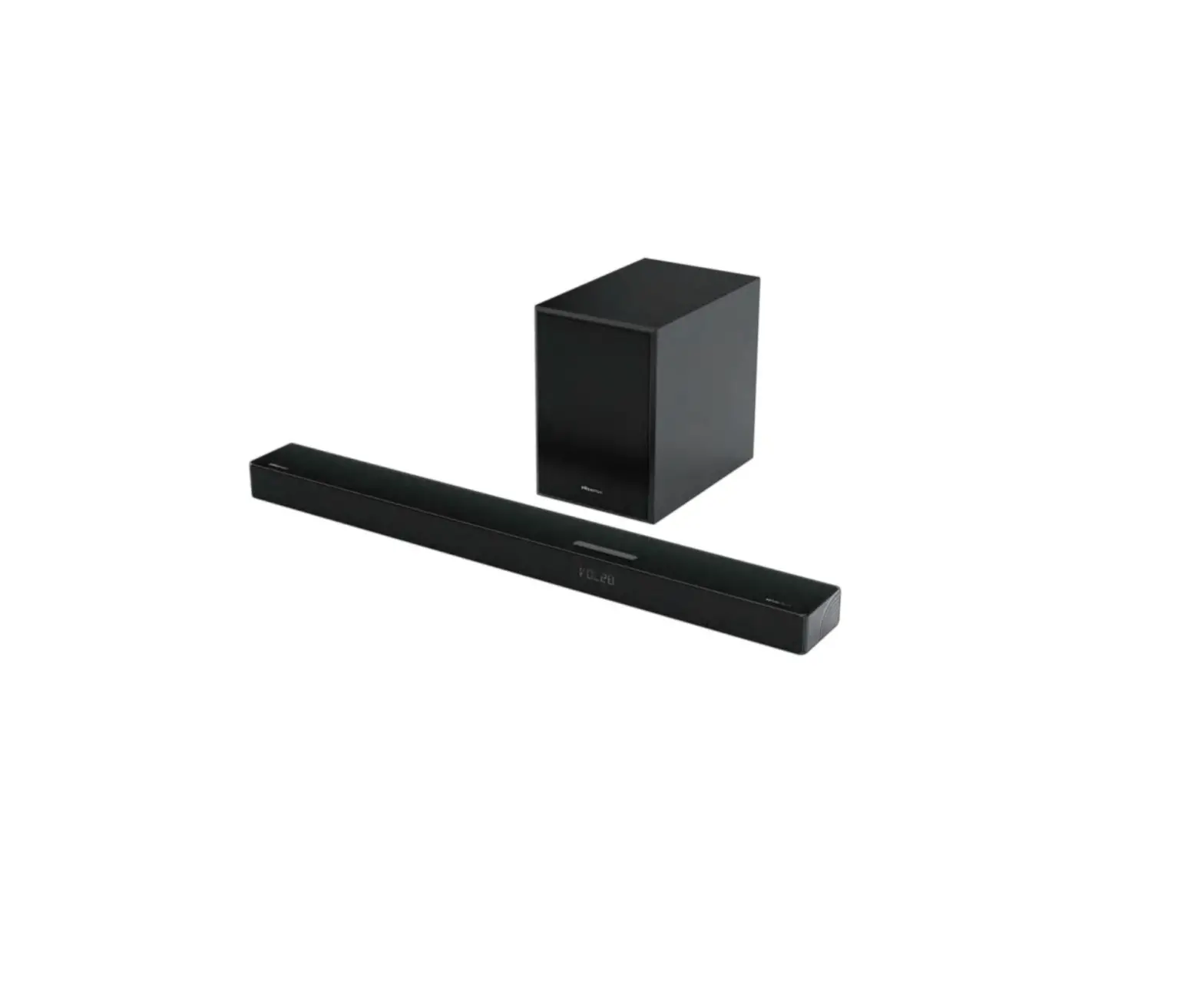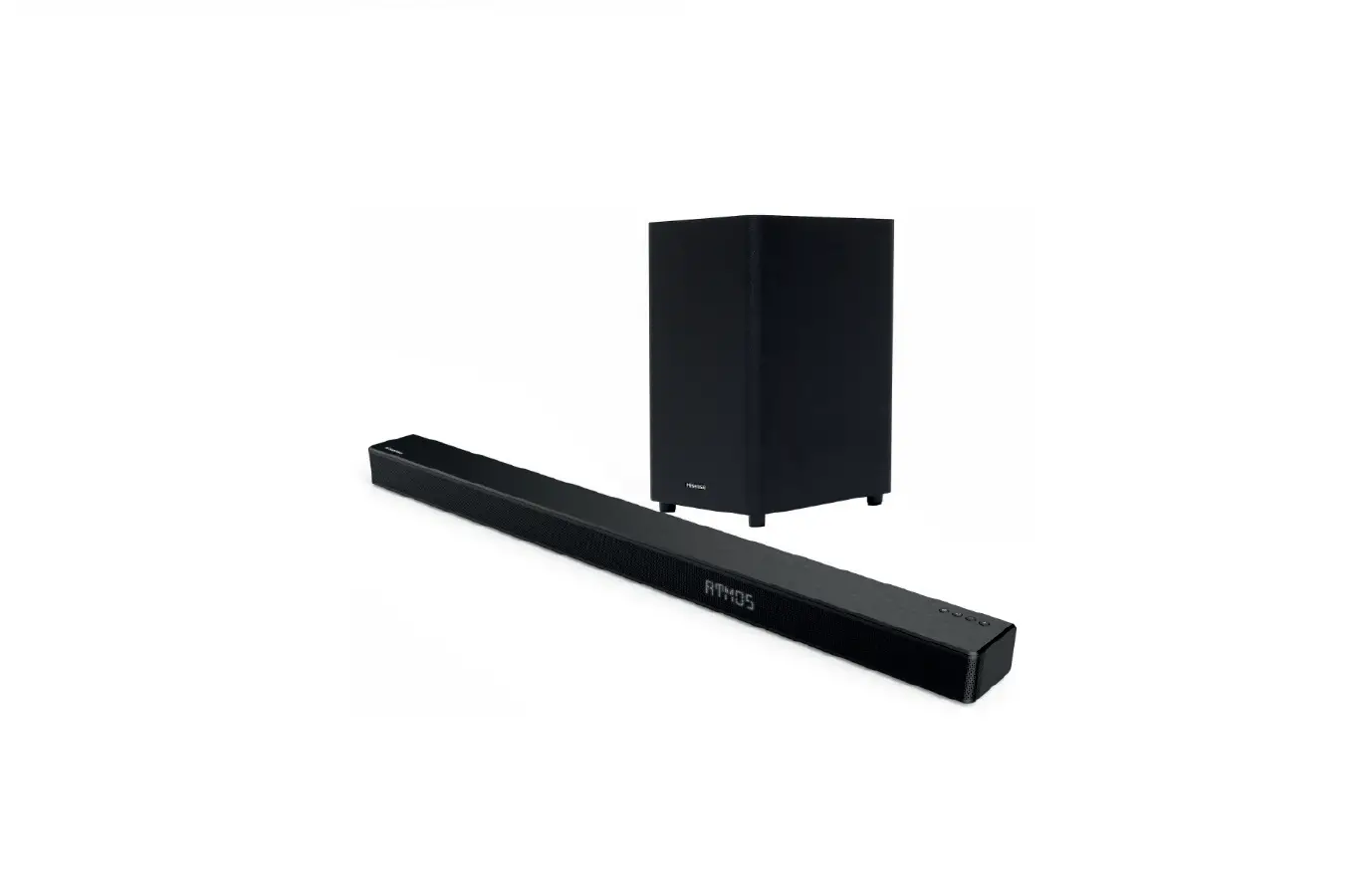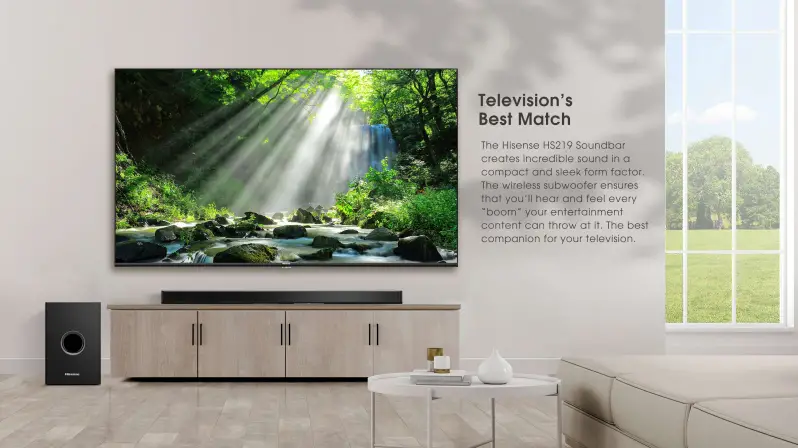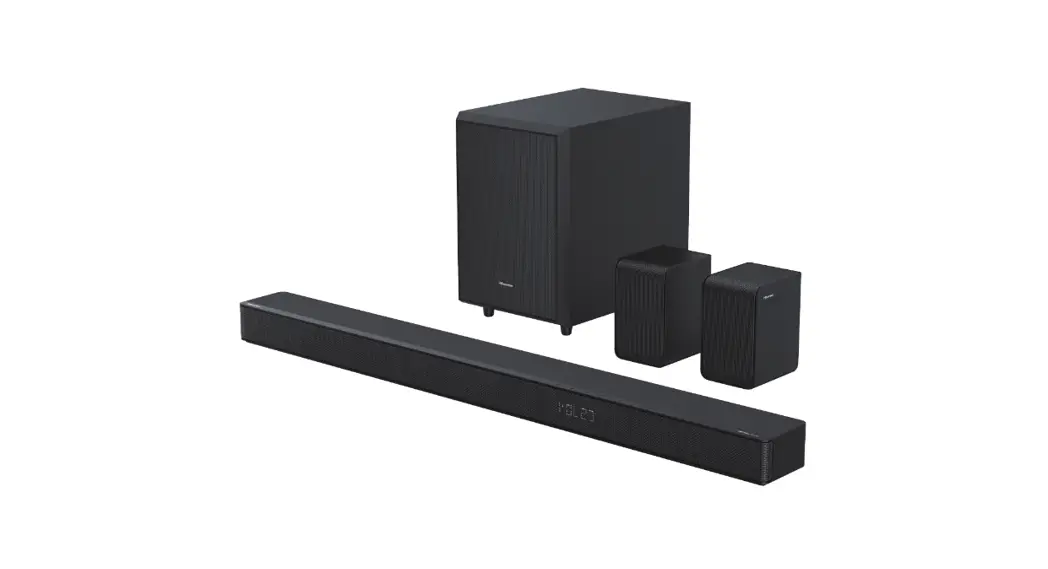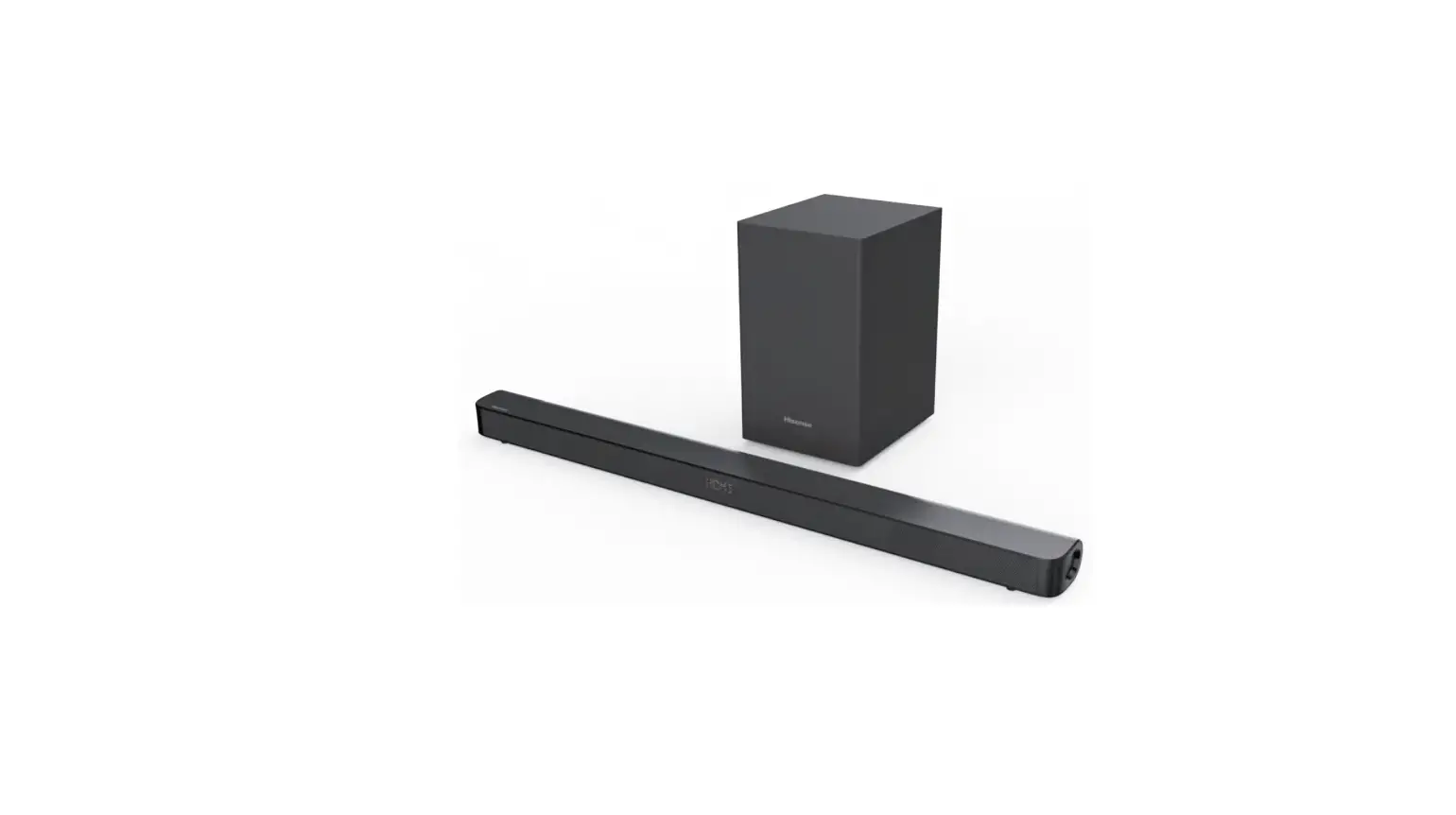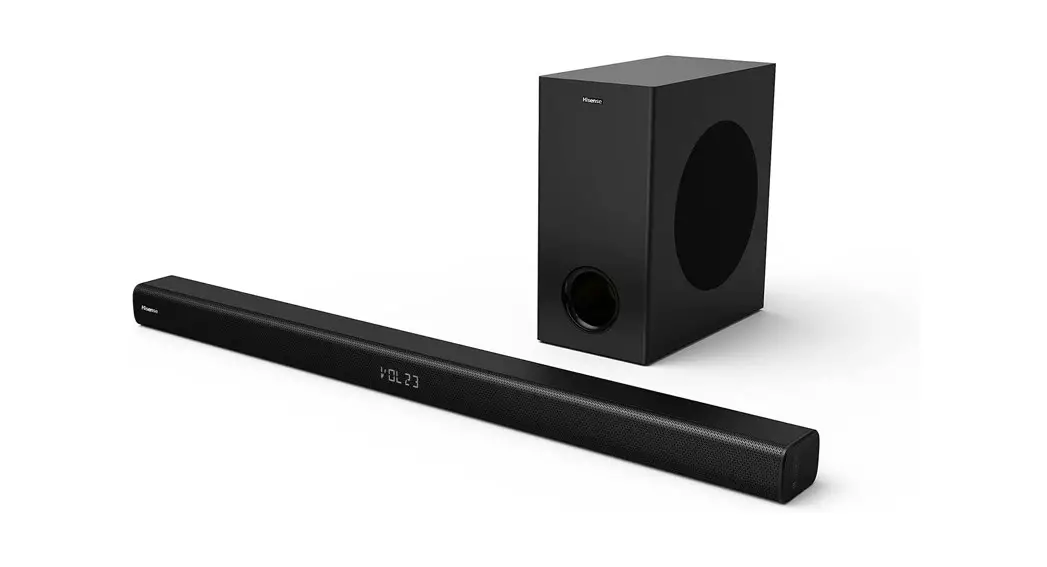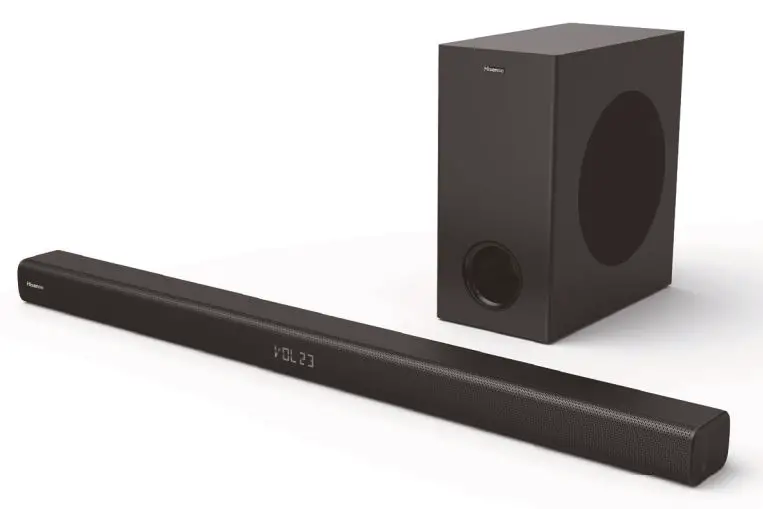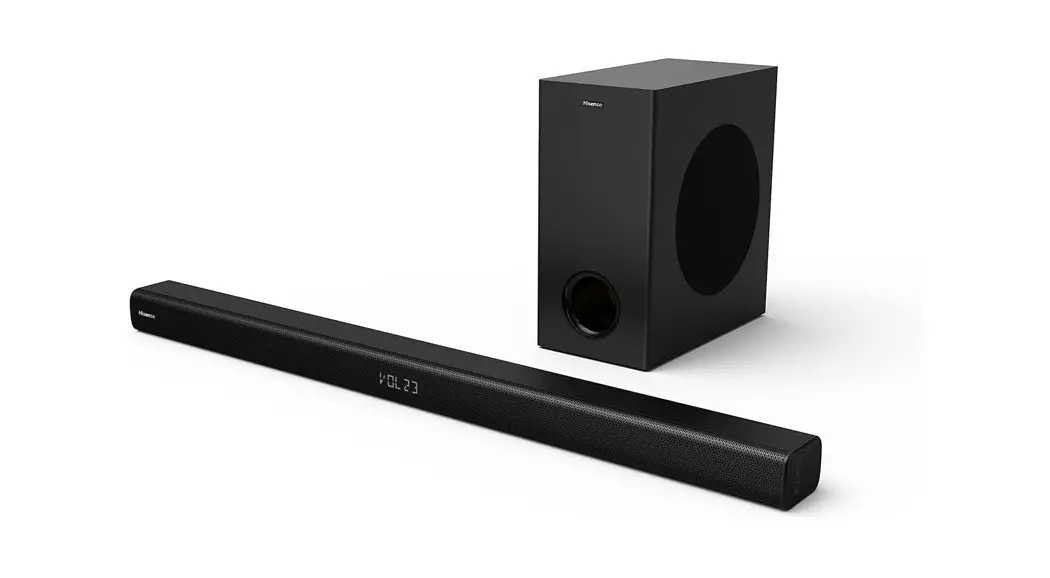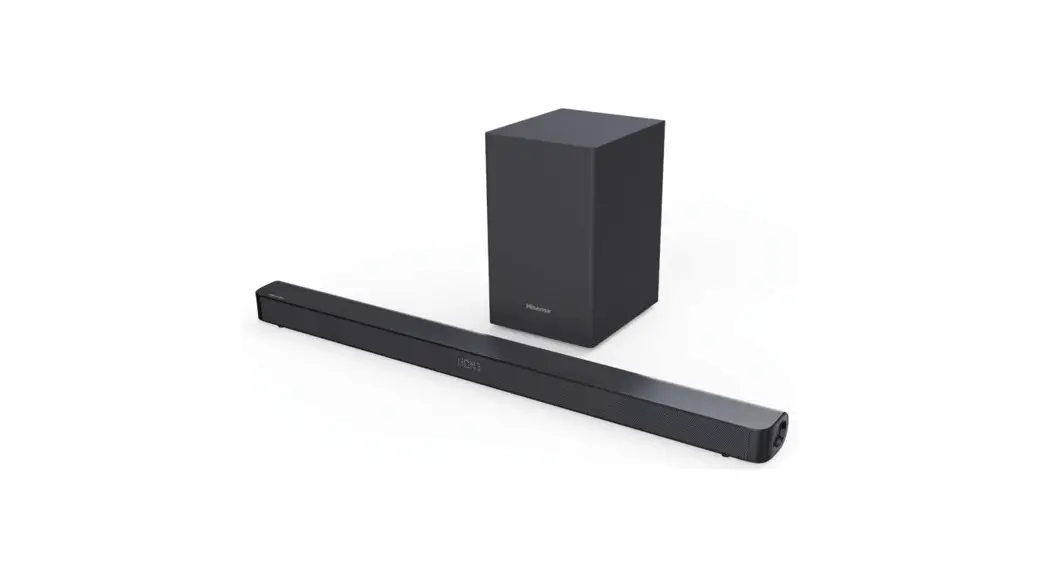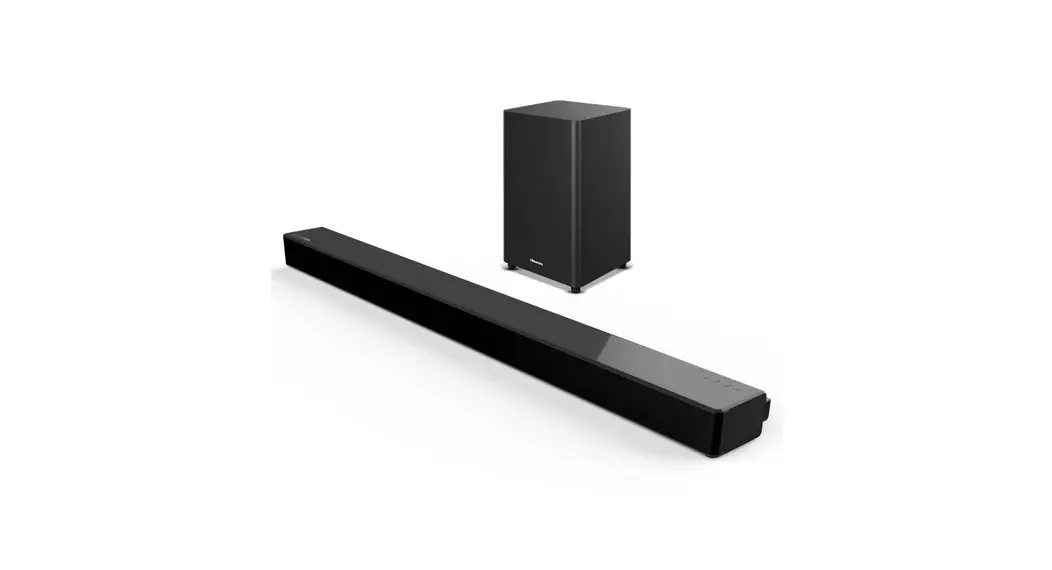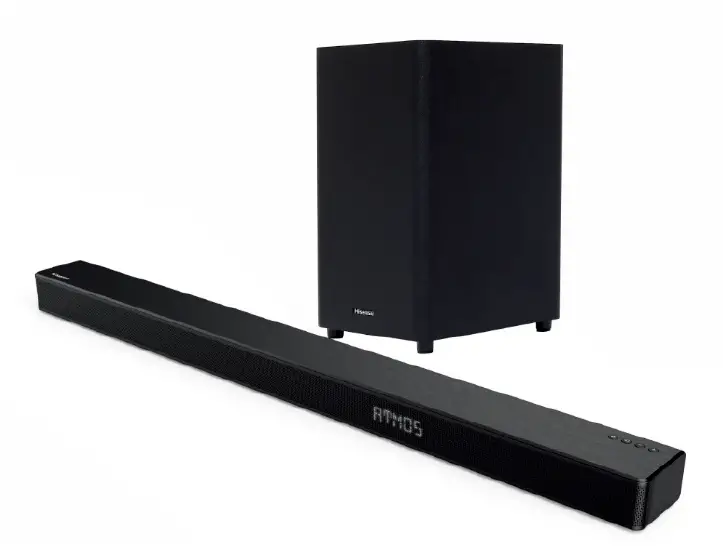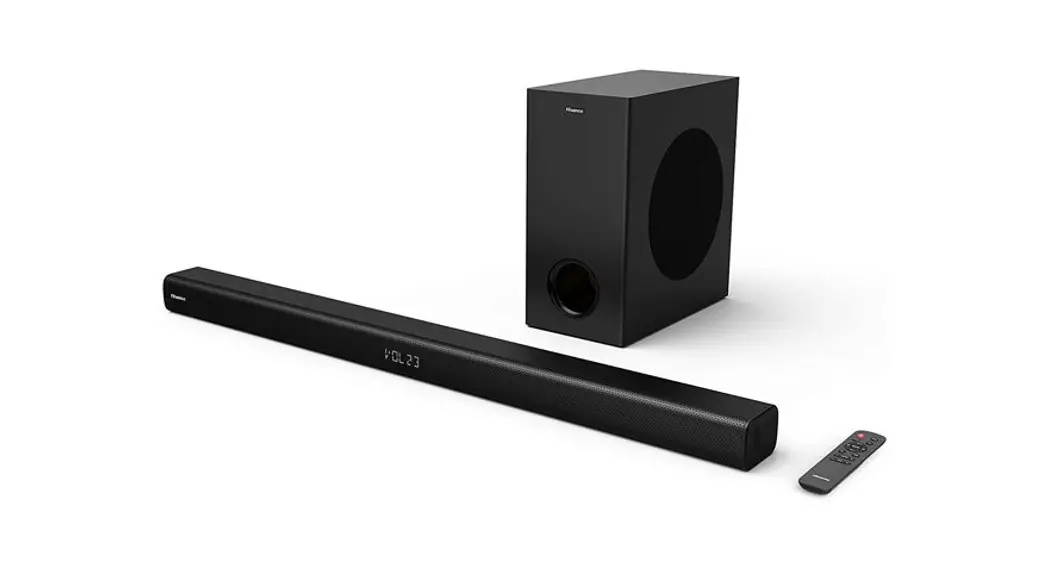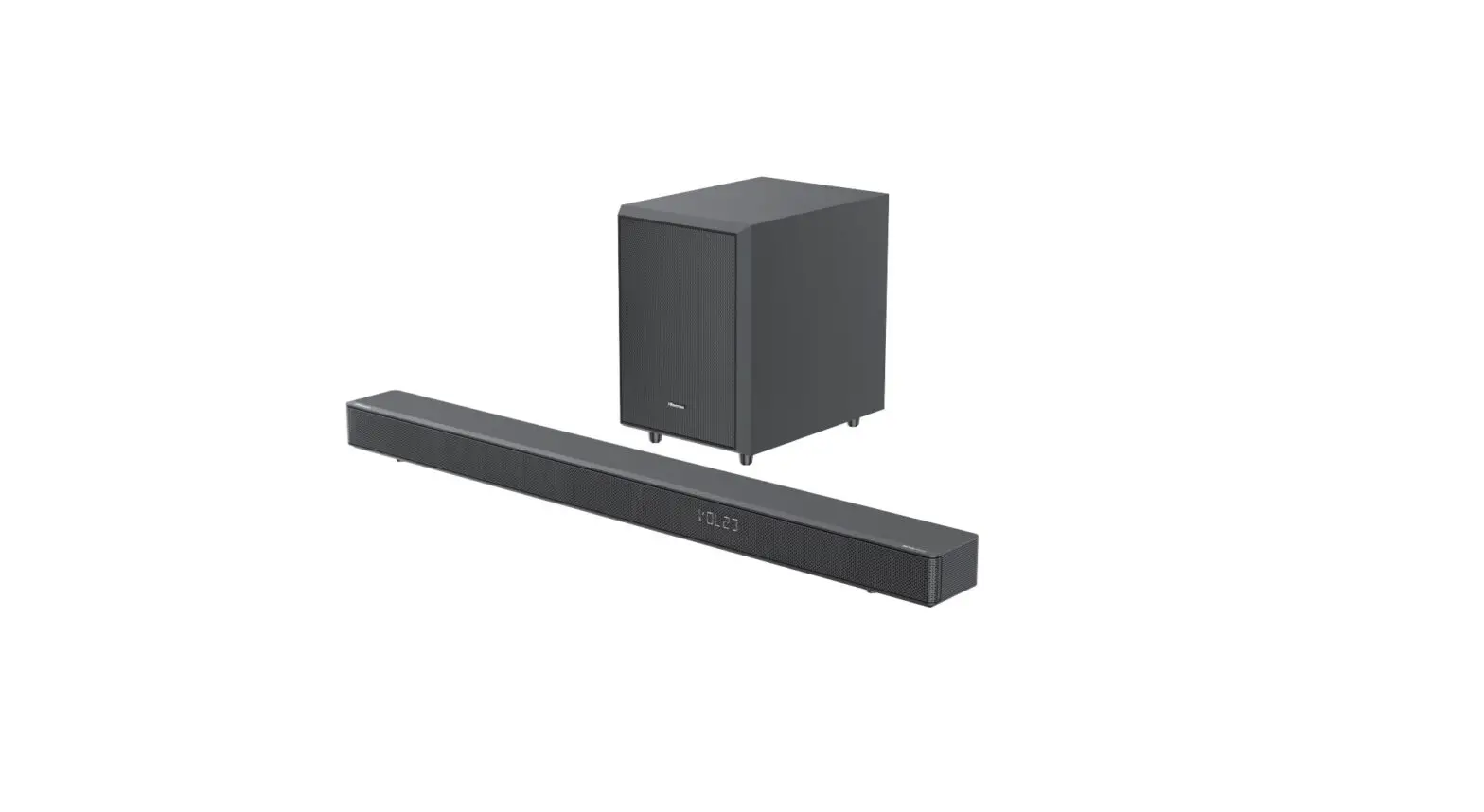
Hisense AX3125H 3.1.2 Channel Soundbar with Wireless Subwoofer User Guide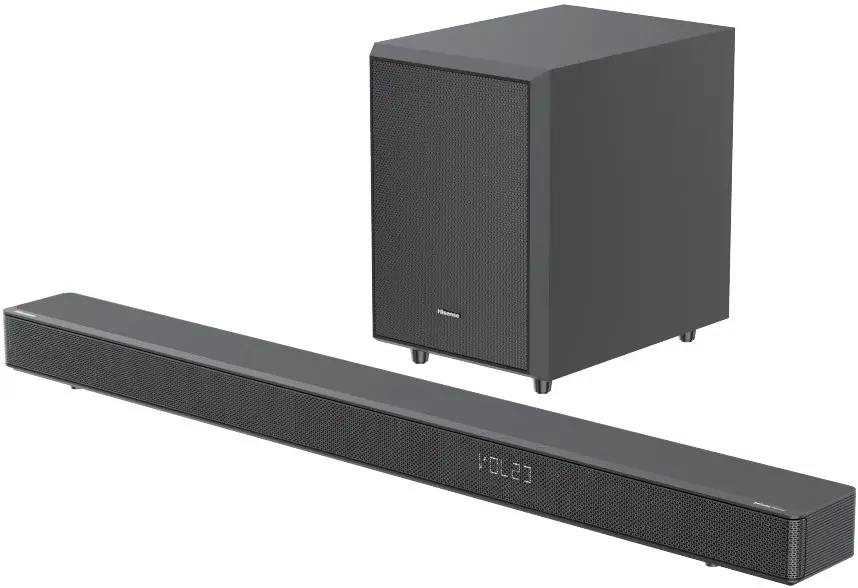
What’s in the Box
- Main Unit

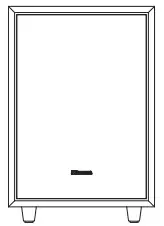
- Wireless Subwoofer
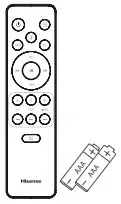
- Remote Control / AAA Batteries x 2
- User Manual / Quick Start Guide
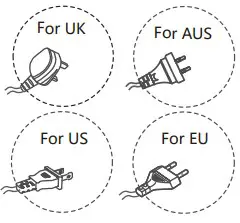
- * Plug type varies by region
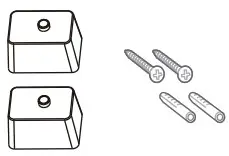
- Brackets (x2) /Bracket Screw (x2) / Wall Anchors (x2)
- HDMI Cable
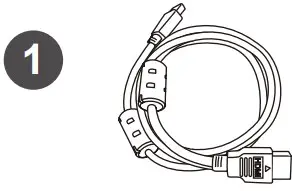
- Optical Cable
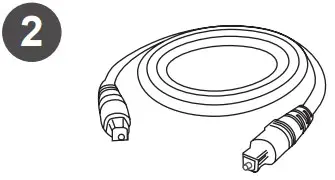
- AC Power Cord x 2 For Main Unit / Wireless Subwoofer
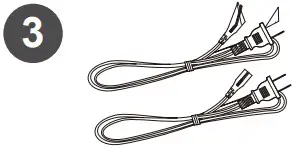
* Power cord quantity and plug type vary by regions.
Identifying the Parts
Main Unit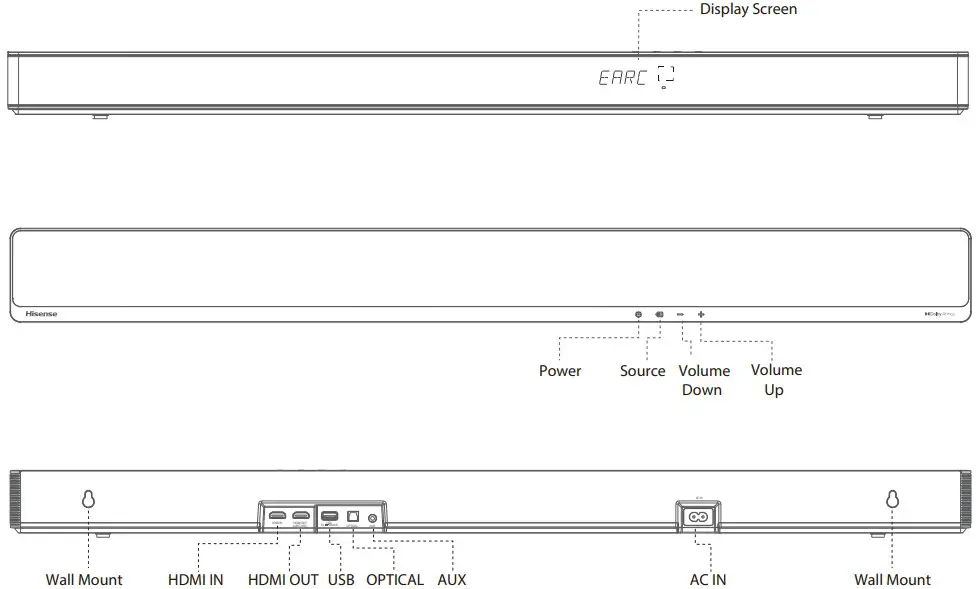
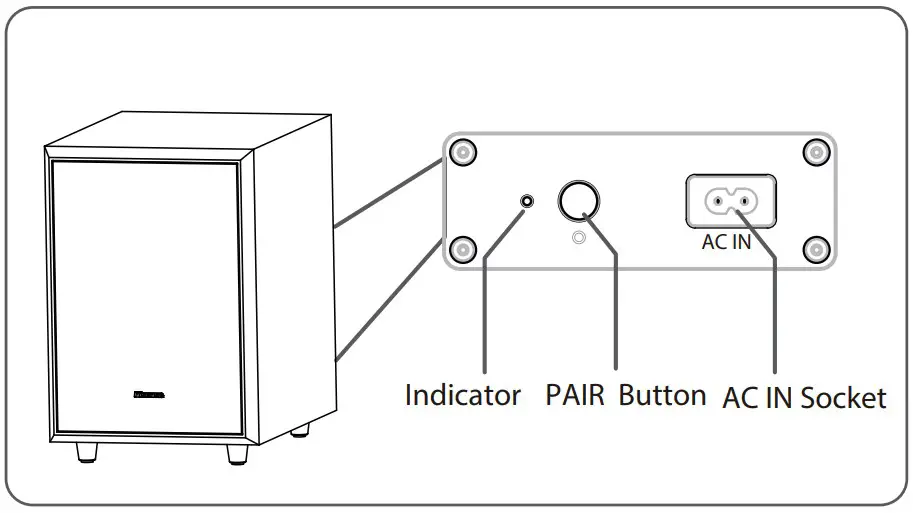
Indicator
- Fast blink: The subwoofer in pairing mode
- Constant on: Connected / Paired successfully
- Slow blink: Connection / Pairing failed
PAIR Button
- 2 seconds: Clear the pairing record and enter to pairing mode
AC IN Socket
Connect to power supply
Power to Soundbar and Subwoofer
The subwoofer and soundbar will automatically pair when they are plugged into the mains sockets and turned on. No cable is needed for connecting the two units.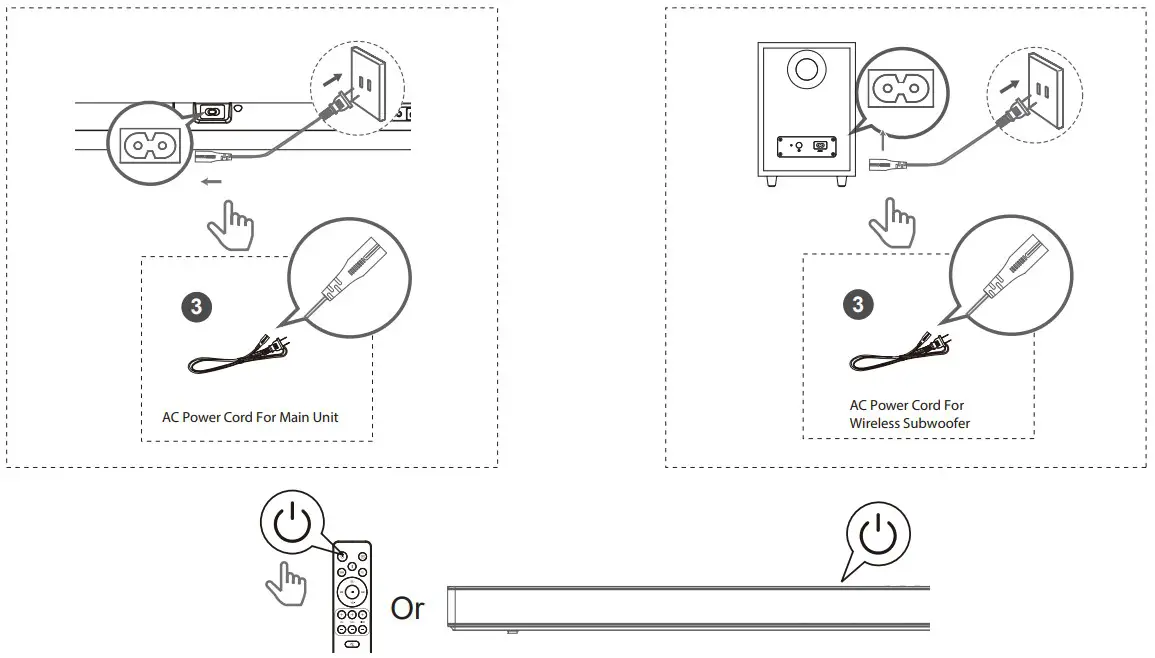
Power cord quantity and plug type vary by regions.
* If no audio from the wireless subwoofer can be heard, manually pair up them. refer to use manual page 14 “Manual Pairing” description
Select the play function ( )
)
TV(HDMI ARC)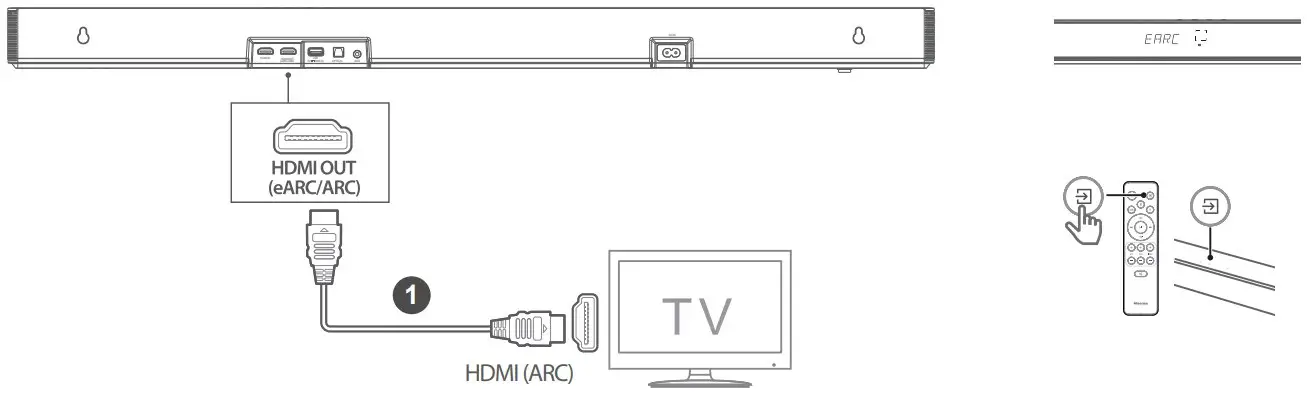
| Display | Mode |
 | HDMI eARC |
 | HDMI ARC |
TV(OPTICAL)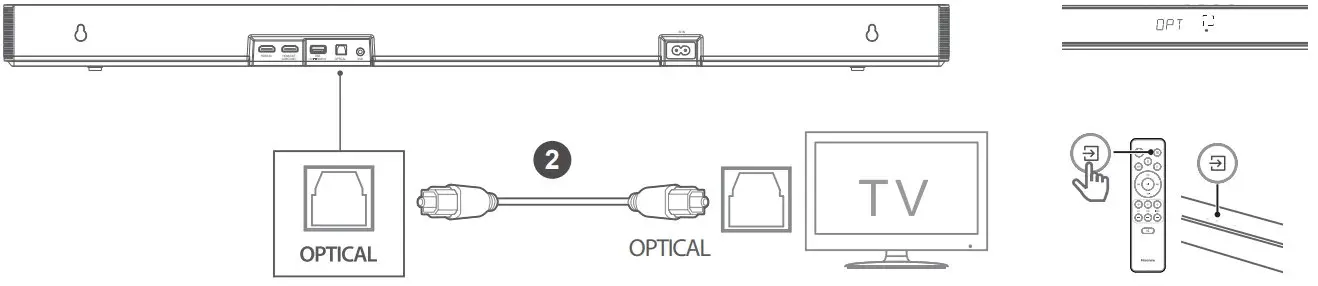
| Display | Mode |
 | OPTICAL |
TV(HDMI ARC)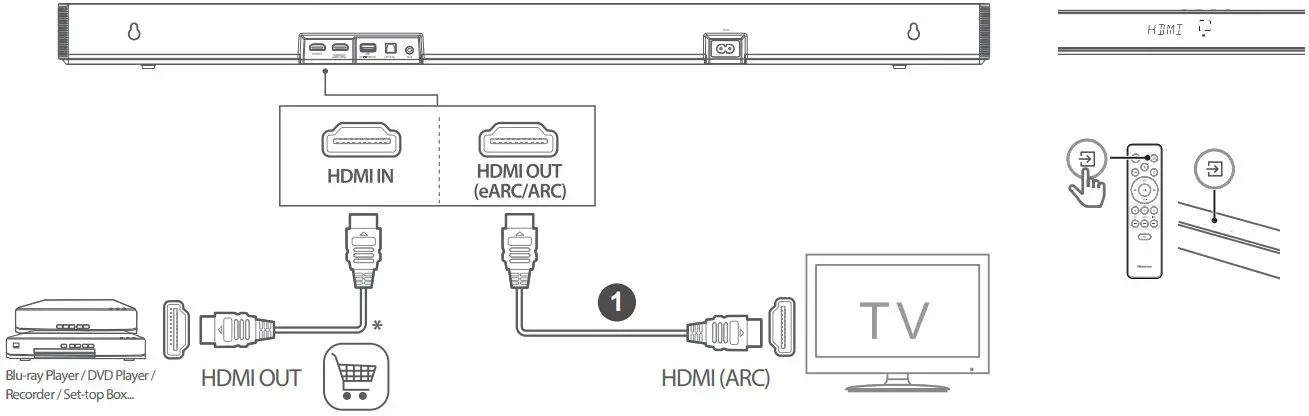
| Display | Mode |
 | HDMI IN |
PAD, Mobilephone, PC etc.(AUX)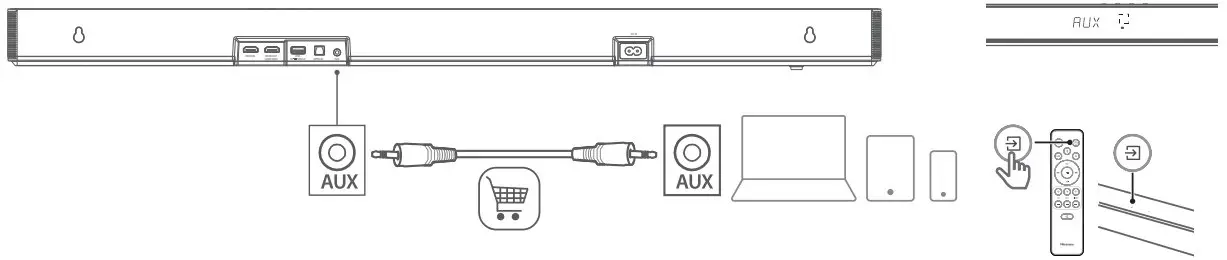
| Display | Mode |
 | HDMI IN |
Remote Control
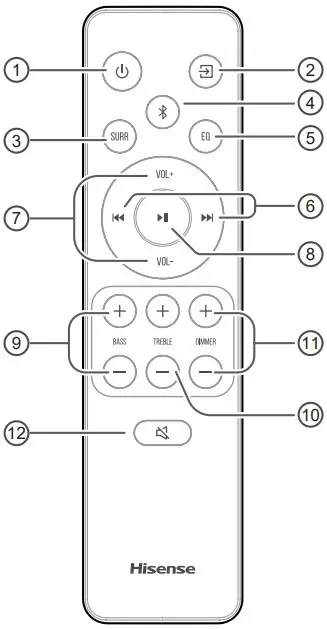
 Switch the unit between ON and STANDBY mode.
- (SOURCE) Select the play mode.
- SURR Adjust the surround ON/OFF.
 (Bluetooth) Select the Bluetooth mode. Press and hold the (Bluetooth) button to activate the pairing function in Bluetooth mode or disconnect the existing paired Bluetooth device.
- EQ Select MUSIC/MOVIE/NEWS/SPORT/NIGHT/GAME/AI
 Skip to previous/next track in Bluetooth / USB mode. Select MUSIC/MOVIE/NEWS/SPORT/NIGHT/GAME/AI setup menu confirm a selection.
- VOL+/VOL- Increase/decrease the volume level.
 Play/pause/resume playback in Bluetooth / USB mode. Press and hold the button for 3s to enter
- BASS+/- Adjust bass level.
- TREBLE+/- Adjust treble level.
- DIMMER+/- Adjust display brightness.
 (MUTE) Mute or resume the sound.
Replace the Remote Control Battery
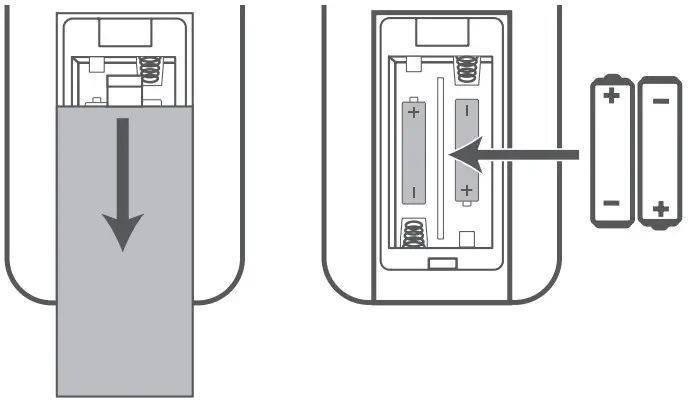
- Press and slide the back cover to open the battery compartment of the remote control.
- Insert two AAA size batteries. Make sure the (+) and (–) ends of the batteries match the (+) and (–) ends indicated in the battery compartment.
- Close the battery compartment cover.
- Do not mix old and new batteries;
- Do not mix alkaline, standard (Carbon-Zinc) or rechargeable (Ni-Cd, Ni- MH, etc.) batteries.
Bluetooth( ) Operation
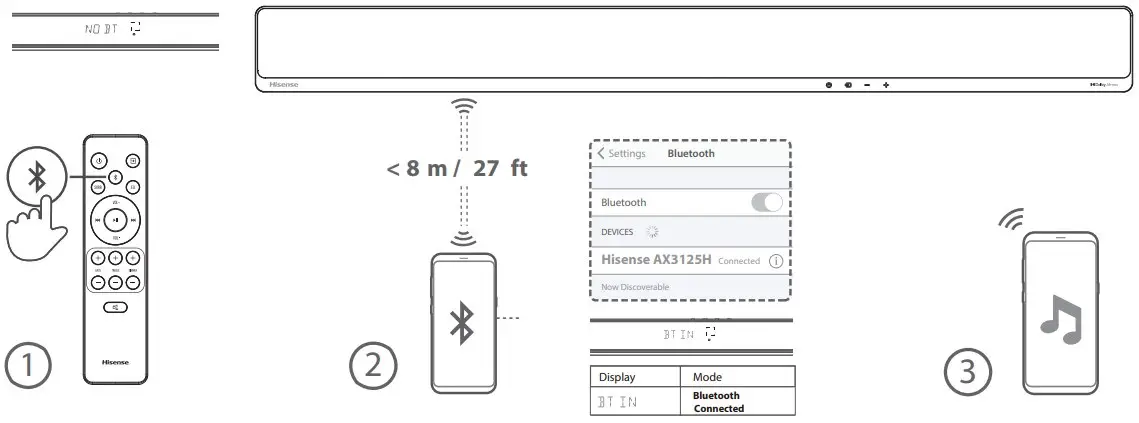
| Display | Mode |
 | Bluetooth Not Connected |
| Display | Mode |
 | Bluetooth Connected |
Wall Mounting
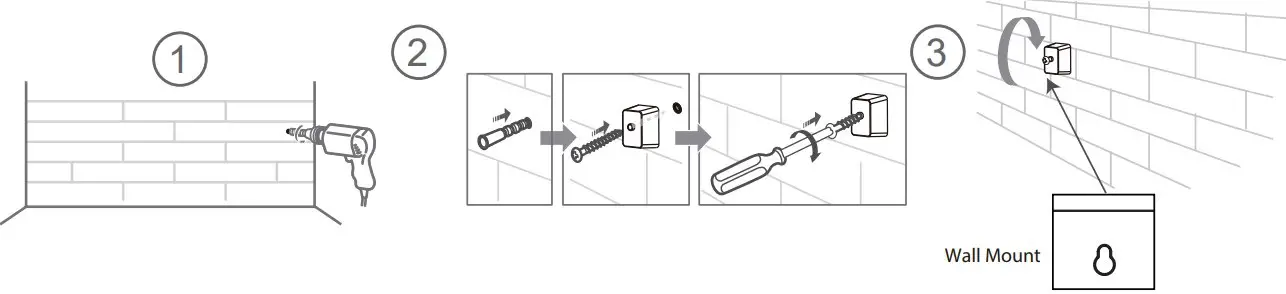



Roku, the Roku logo, Roku TV, Roku TV Ready, and the Roku TV Ready logo are trademarks and/or registered trademarks of Roku, Inc. This product is Roku TV Ready-supported in the United States, United Kingdom, Mexico and Canada. Countries are subject to change. For the most current list of countries in which this product is Roku TV Ready-supported, please email [email protected].