BDP-320 AV Receiver
Product Information: Pioneer In-Dash AV Receivers
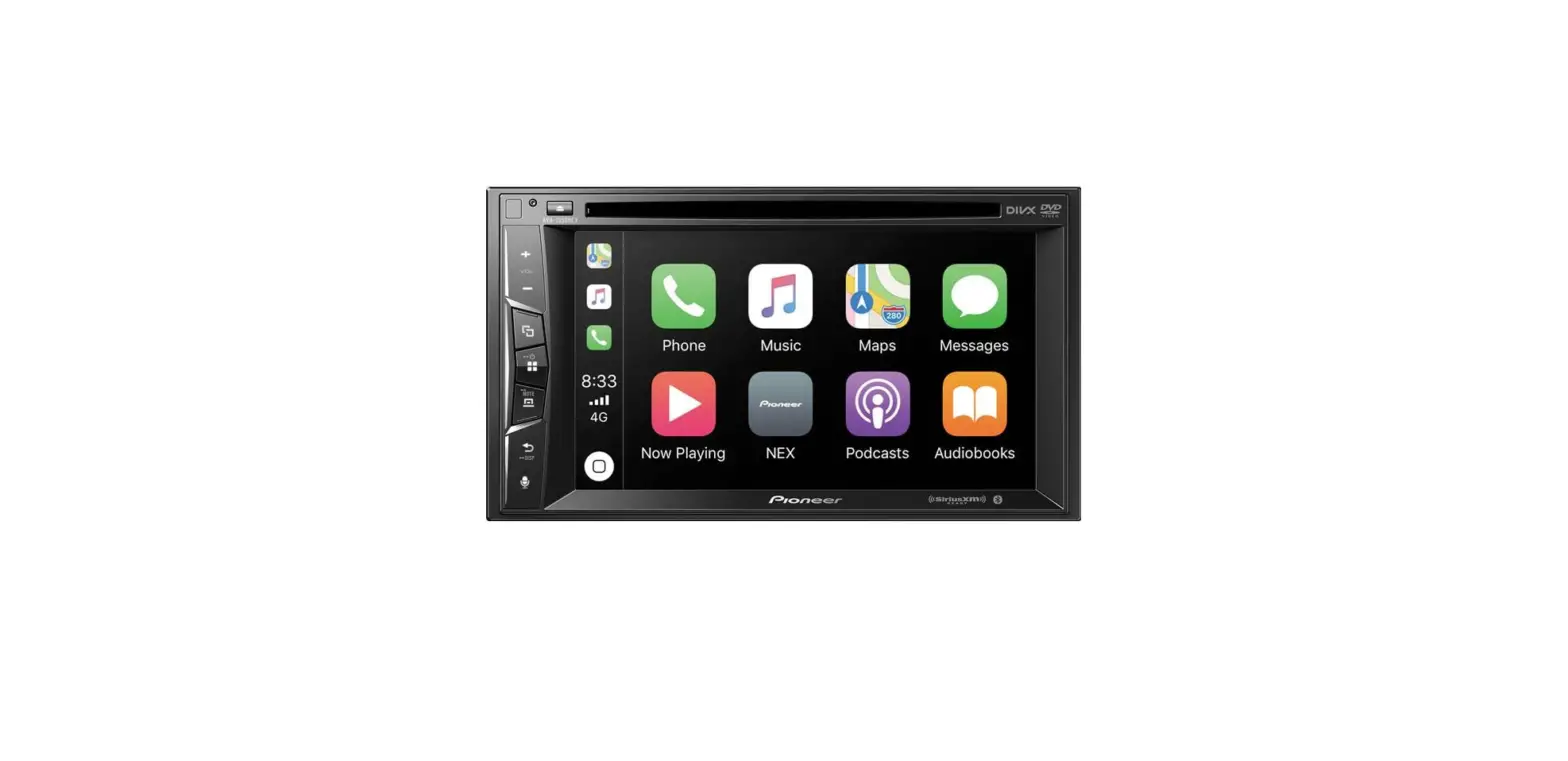
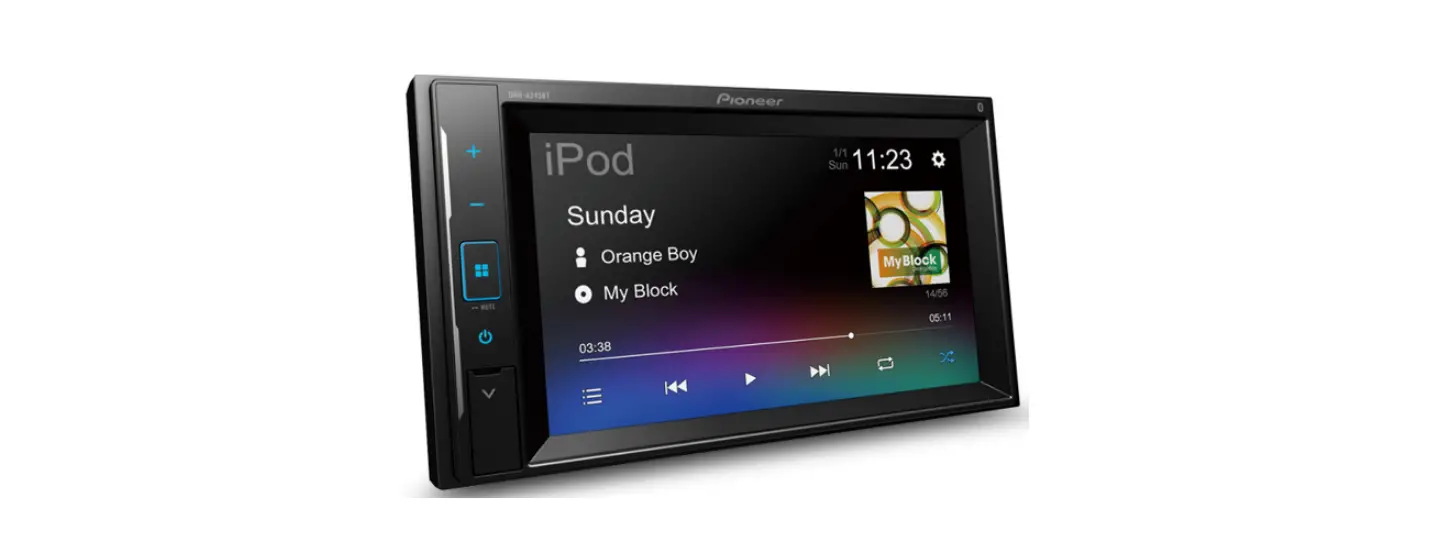
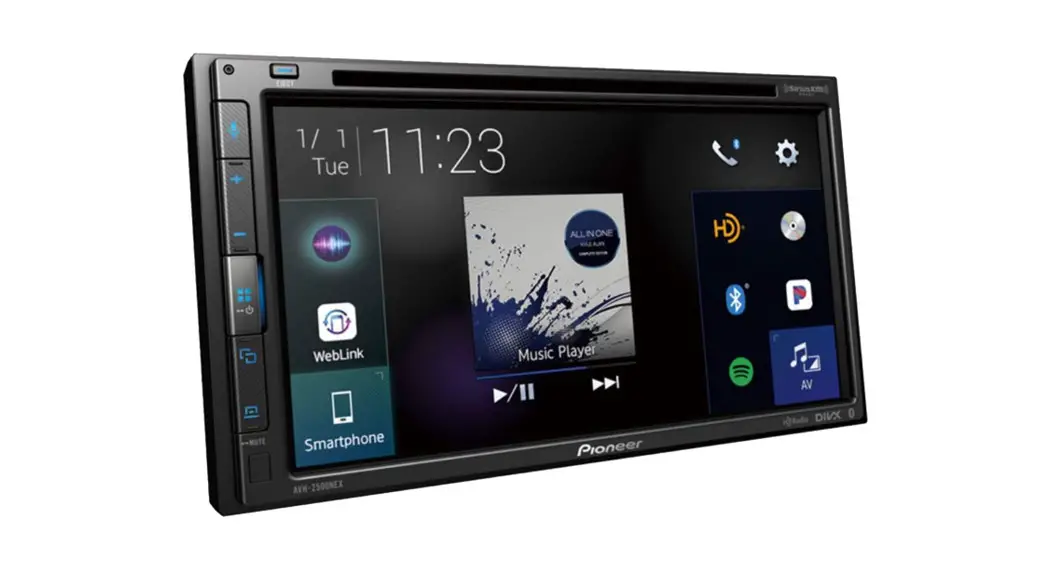
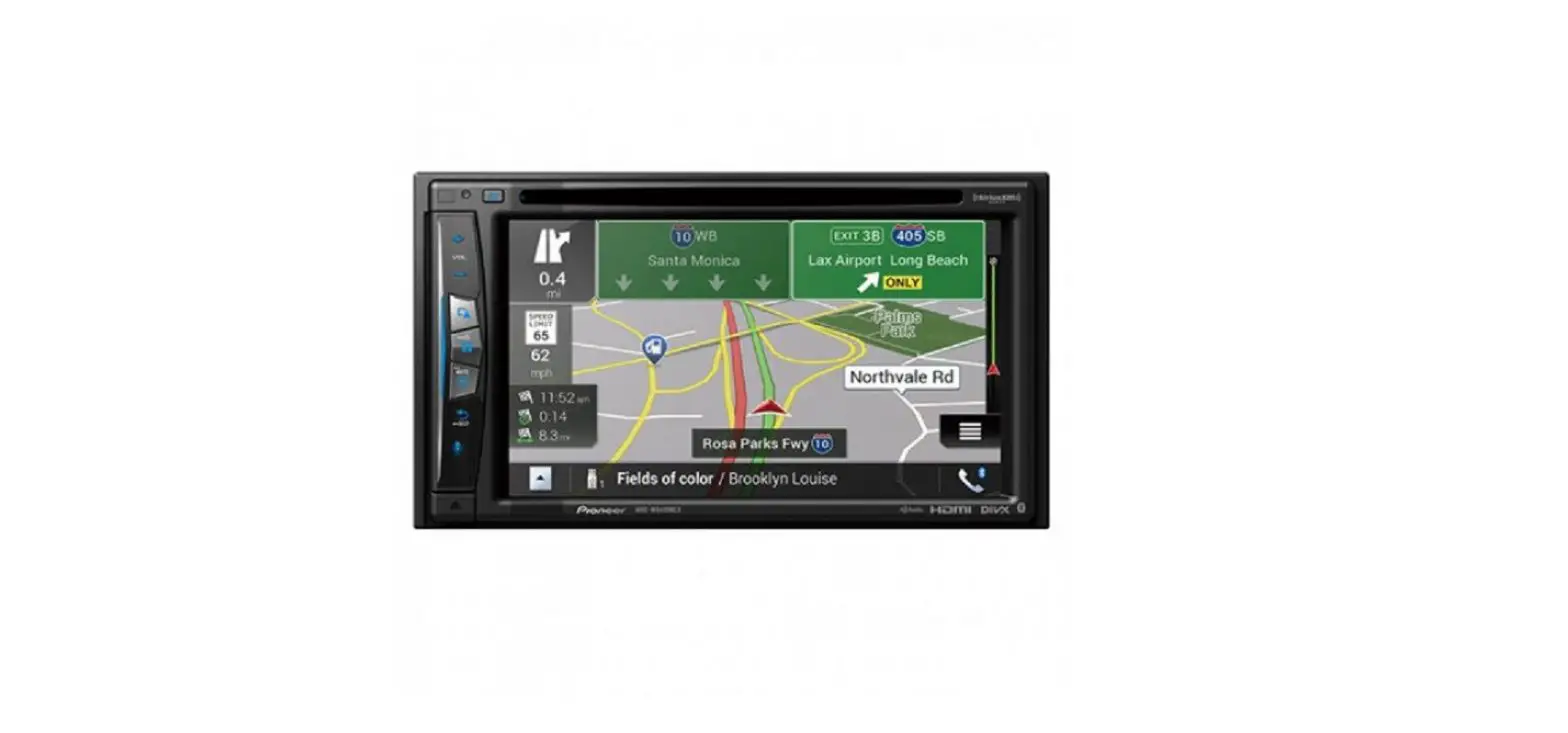
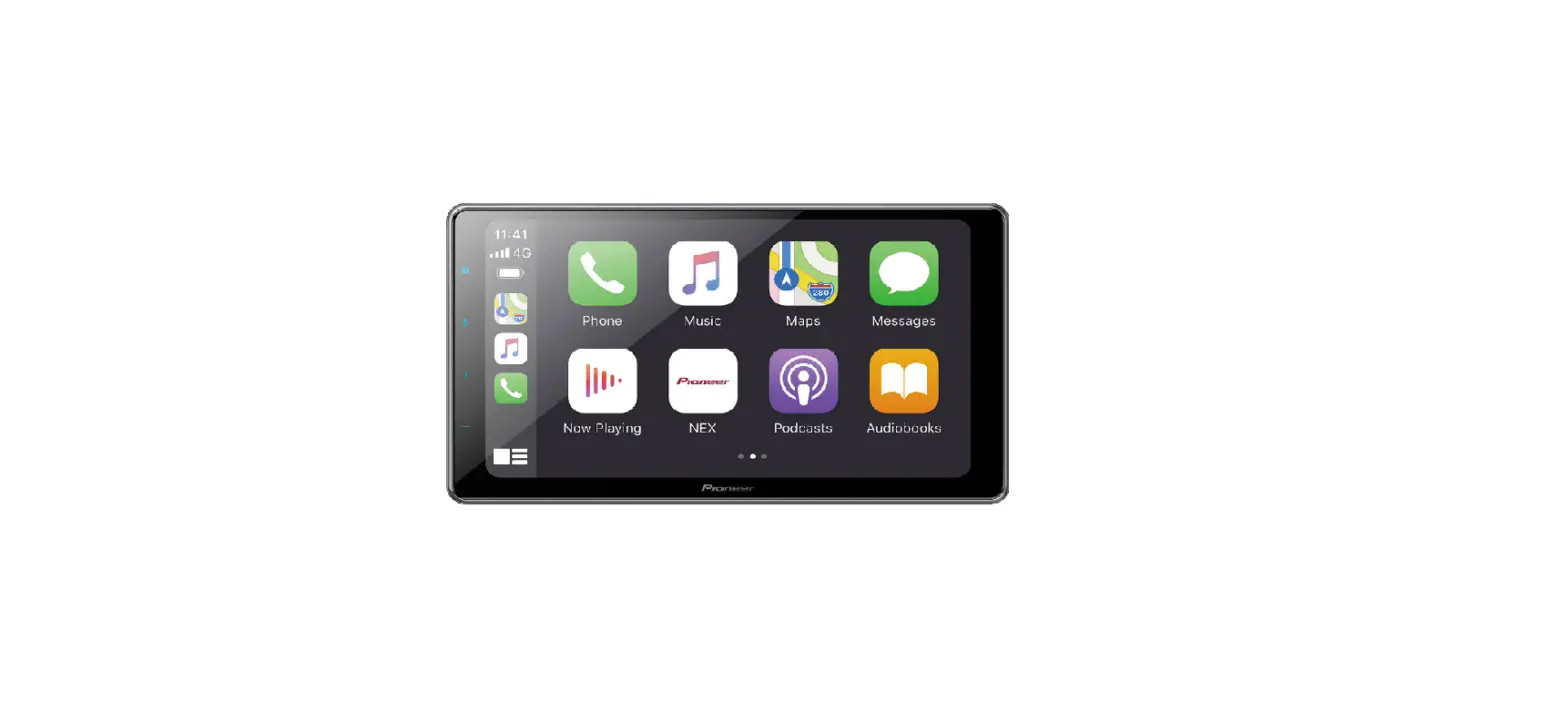
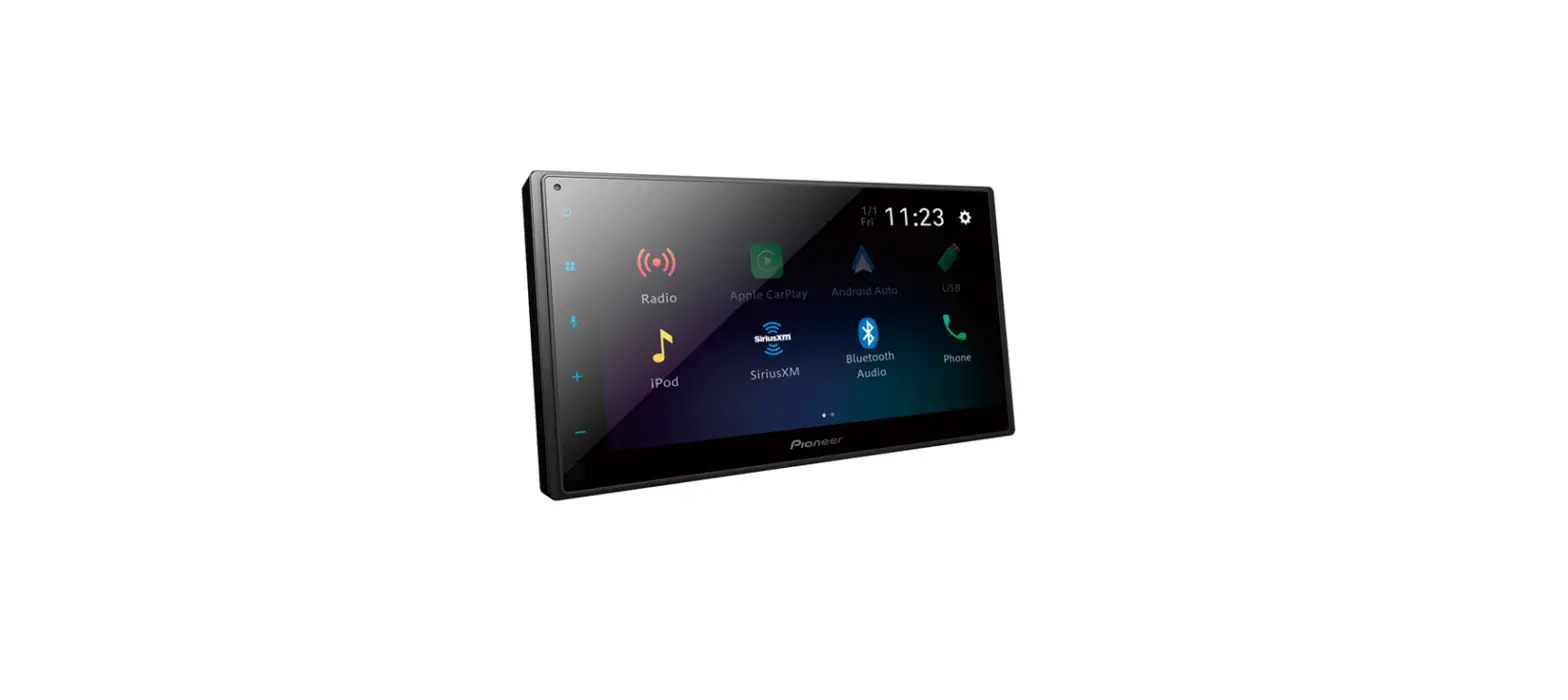
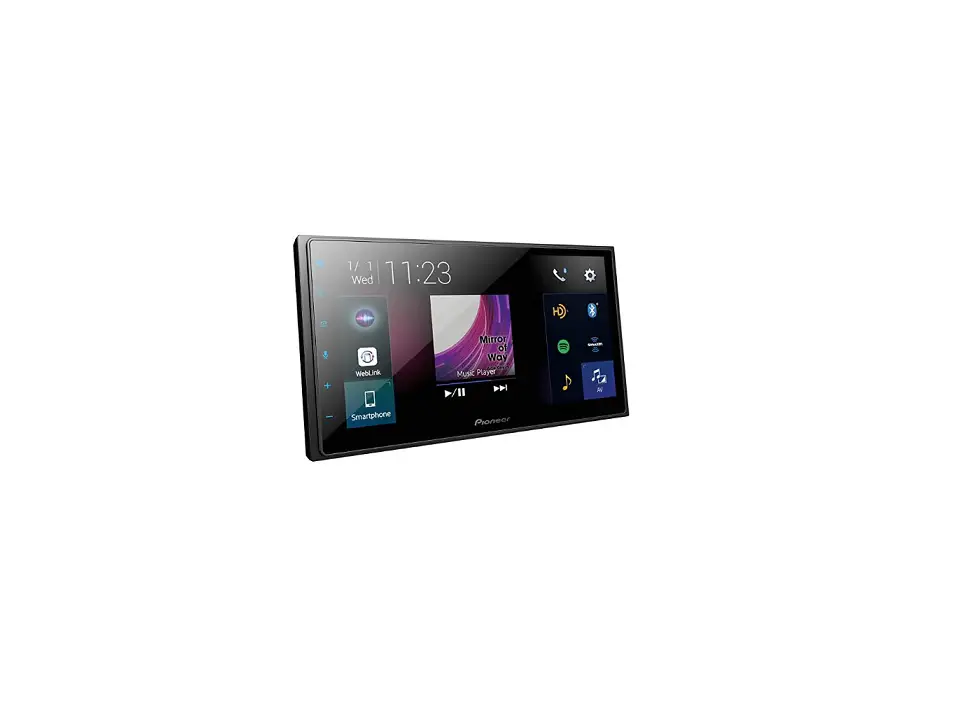
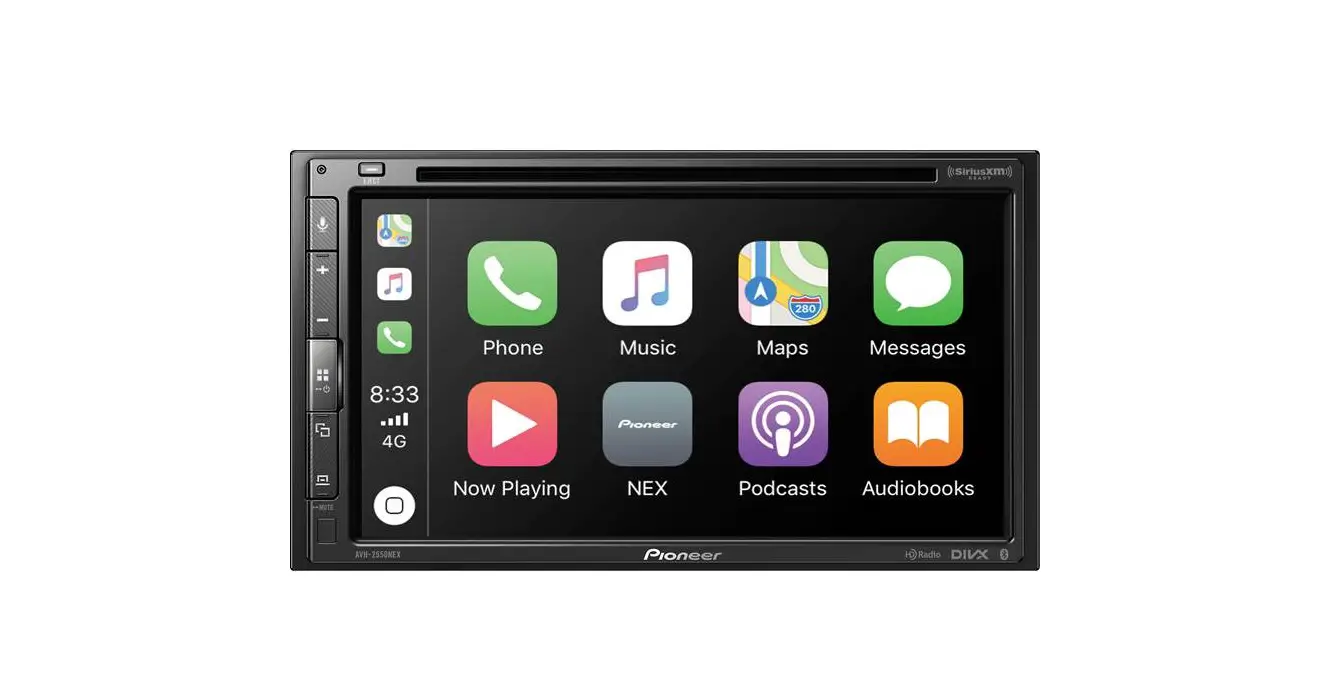
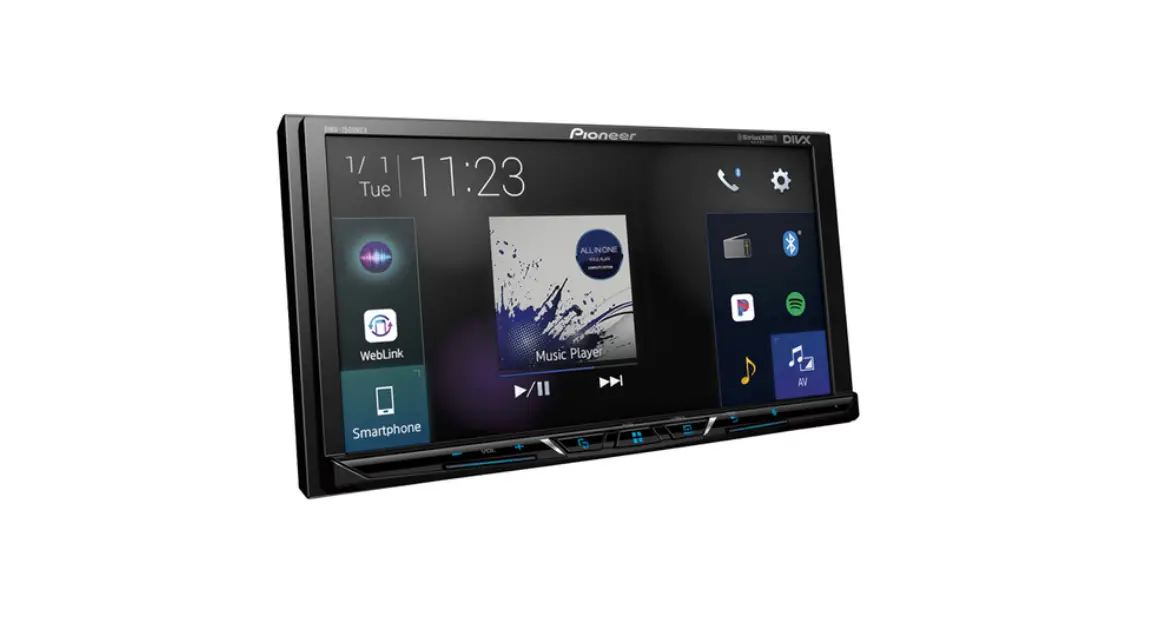
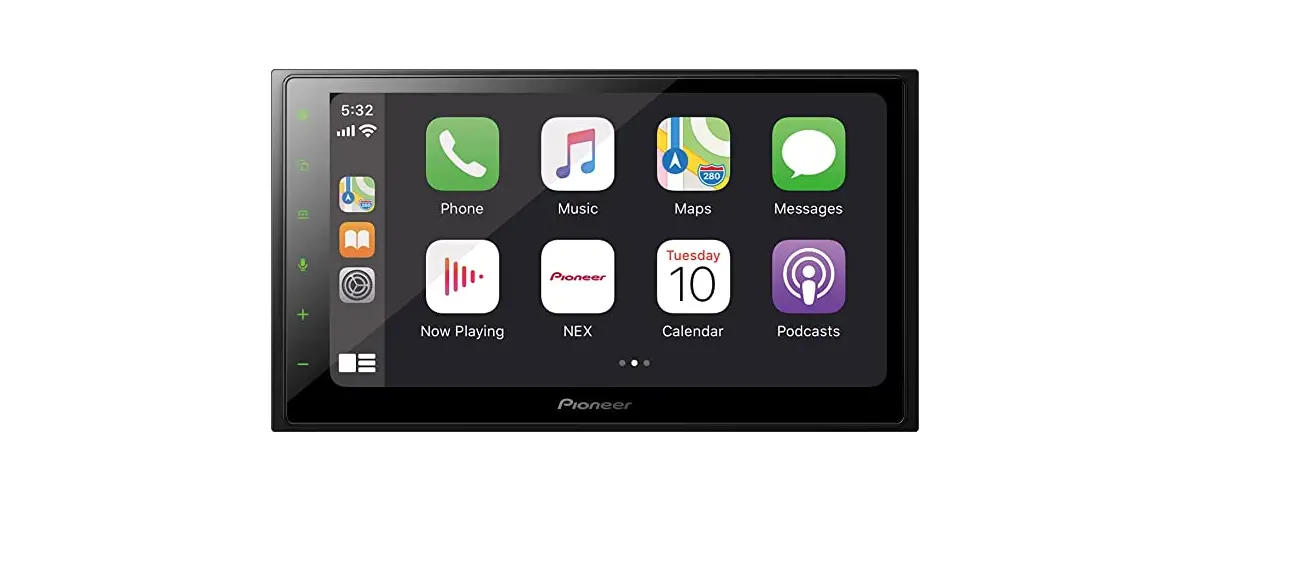
The Pioneer In-Dash AV Receivers are a range of audiovisual
receivers designed for use in vehicles. These receivers provide
features such as touchscreen displays, Bluetooth connectivity, and
compatibility with various media sources.
The firmware update instructions provided here are specifically
for the following models of Pioneer In-Dash AV Receivers sold in
the United States:
- AVH-240EX/XNUC
- AVH-241EX/XNUC
- DMH-130BT/XNUC
- DMH-240EX/XNUC
- DMH-241EX/XNUC
- DMH-342EX/XNUC
- DMH-340EX/XNUC
- DMH-341EX/XNUC
Product Usage Instructions: System Firmware Update
Checking the firmware version
- Touch the [System Information] key on the receiver.
- Scroll down the list and select [System
Information]. - Note the current MPU software version and the Others
information displayed on the screen. This information will be
needed for further steps.
Checking the Model name
- If your phone is not connected via Bluetooth, touch the
[Phone] button on the receiver. - Check the Model Name displayed on the screen. Note this
information as it will determine which firmware update files you
should download.
Downloading the firmware update files
- Go to Pioneer’s website using the following link: https://www.pioneerelectronics.com/PUSA/Support/Downloads
- Locate and download the appropriate firmware update files for
your specific model based on the Model Name you noted earlier. - Extract the downloaded zip file, which will produce a file
named “ISP_UPDT.BIN” with the corresponding MPU version (e.g., MPU:
V1.41).
Updating the firmware on your unit
IMPORTANT: Before proceeding with the firmware update,
ensure that your Pioneer In-Dash AV Receiver model matches one of
the following:
- AVH-240EX/XNUC
- AVH-241EX/XNUC
- DMH-130BT/XNUC
- DMH-240EX/XNUC
- DMH-241EX/XNUC
- DMH-342EX/XNUC
- DMH-340EX/XNUC
- DMH-341EX/XNUC
- Connect a blank USB storage device (formatted with FAT32) to
your computer. - Locate the correct “ISP_UPDT.BIN” file corresponding to your
model and MPU version. - Copy the “ISP_UPDT.BIN” file onto the USB storage device.
Once you have successfully completed these steps, you can
proceed with the firmware update process for your Pioneer In-Dash
AV Receiver.
System Firmware Update Instructions for Pioneer In-Dash AV Receivers
This firmware update applies only to the following models of Pioneer In-Dash AV Receivers sold in the United States.
AVH-240EX/XNUC AVH-241EX/XNUC DMH-130BT/XNUC
DMH-240EX/XNUC DMH-241EX/XNUC DMH-342EX/XNUC
DMH-340EX/XNUC DMH-341EX/XNUC
IMPORTANT Please download and print these firmware update instructions before downloading and installing the firmware update. It is important that you complete all steps correctly and in the order described below.
Note: If you have any questions, please contact Pioneer Customer Service toll free at 1-800-421-1404, Monday through Friday, 7:30 AM – 11:30 AM and 12:30 PM – 4:00 PM (Pacific Time), excluding holidays, or by email through parts.pioneerelectronics.com/contact.
In order to perform this update, the following items are needed: · Pioneer In-Dash AV receiver listed above. · A USB storage device meeting the following requirements: – 2 GB or larger in capacity, formatted to FAT32 – Blank (should not contain any files)
CAUTION · DO NOT turn your unit off or eject the USB storage device while the firmware is being updated. · You can only update the firmware when the vehicle is stopped and the parking brake is engaged.
Checking the firmware version
Check whether the firmware of your unit needs to be updated by checking the version number of the firmware. Procedure:
1. Touch the following key.
2. Scroll down the list and touch [System Information].
3. Check the current MPU software version and make a note of the “Others” information. Tip: The current MPU software version and “Others” information depend on your unit, the capture as below for reference only.
Checking the Model name
Check the Model name of your product for let you know which firmware update files you should download. Procedure:
1. Touch [Phone].
2. Check the Model Name. Tip: The Model Name depends on your unit which you purchased, the capture as below for reference only. When the phone is not connected via Bluetooth:
When the phone is connected via Bluetooth:
Downloading the firmware update files from Pioneer’s website
1. Download the firmware update files by clicking on the following link and finding your product: https://www.pioneerelectronics.com/PUSA/Support/Downloads
2. Extract the download file. The downloaded zip file will produce the following file when decompressed: (See the table below)
Model Name
AVH240EX/XNUC
AVH241EX/XNUC
DMH240EX/XNUC
DMH241EX/XNUC
DMH340EX/XNUC
DMH341EX/XNUC
DMH130BT/XNUC
DMH342EX/XNUC
Update is possible
Update is necessary when when “Others” in
System Information is
Current MPU software version is Lower than 1.41
HMS106G
Current MPU software version is Lower than 1.41
HMS106H
Current MPU software version is Lower than 1.41
HMS107G
Current MPU software version is Lower than 1.41
HMS107H
Current MPU software version is Lower than 1.41
HMS108E
Current MPU software version is Lower than 1.41
HMS108F
Current MPU software version is Lower than 1.41
HMS108G
Current MPU software version is Lower than 1.41
HMS108H
Extracted file Name
Version
ISP_UPDT.BIN MPU: V1.41
ISP_UPDT.BIN MPU: V1.41
ISP_UPDT.BIN MPU: V1.41
ISP_UPDT.BIN MPU: V1.41
ISP_UPDT.BIN MPU: V1.41
ISP_UPDT.BIN MPU: V1.41
ISP_UPDT.BIN MPU: V1.41
ISP_UPDT.BIN MPU: V1.41
Note: Do not update if “Others” in System Information does not match your unit.
Updating the firmware on your unit
IMPORTANT
AVH-240EX/XNUC AVH-241EX/XNUC DMH-130BT/XNUC
DMH-240EX/XNUC DMH-241EX/XNUC DMH-342EX/XNUC
DMH-340EX/XNUC DMH-341EX/XNUC
· DO NOT perform this firmware update if the model number of your Pioneer product is anything other than one of the above models.
· Ensure that the update file is located within the root (top) folder of your USB storage device. There should be no other files within the USB storage device.
· While your unit is being updated, DO NOT turn off the system’s power and DO NOT touch the unit’s touchscreen as this may result in severe damage to your unit.
· DO NOT remove the USB storage device during the firmware update process. · Performing the firmware update will restore all settings to their default values. · Disconnect any external mobile devices that are currently connected to your unit.
Procedure: 1. Connect a blank (formatted with FAT32) USB storage device to your computer, and then locate the correct update file and copy it onto the USB storage device.
2. Connect the USB storage device to the USB port.
3. Touch [MPEG]. Tip: The update screen appears when the vehicle is stopped and the parking brake is engaged. If the update screen does not appear even when parked, return to step 1 and check if the update file was copied to the root (top) folder of the USB storage device correctly.
Version up will start. 4. The progress is displayed during the updating.
DO NOT turn your unit off or eject the USB storage device while the firmware is being updated. 5. Display will show “Update succeeded” when the update is complete.
6. The product will reboot after the update is finished. Do not touch anything even when the screen is blacked out. After it has finished rebooting, the screen will return to the Radio screen.
7. Disconnect the USB storage device, then touch the following key. 8. Scroll down the list and touch [Restore Settings]. 9. Touch [OK] to be sure to restore the settings.
10. The product will reboot and display the Radio screen. The firmware update is now completed. Your Pioneer AV Receiver is now ready for use.
Confirm that the firmware has been updated
Perform the same procedure for “Checking the firmware version” to confirm that the firmware has been updated. Procedure:
1. Touch the following key.
2. Scroll down the list and touch [System Information].
3. Check that the MPU software version updated to `’V1.41” and that the “Others” information is the same as before the update.
If you have any difficulty performing these instructions, please contact Pioneer Customer Service toll free at 1-800-421-1404, Monday through Friday, 7:30 AM – 11:30 AM and 12:30 PM – 4:00 PM (Pacific Time), excluding holidays, or online through parts.pioneerelectronics.com/contact.
———————————————————–Copyright 2023 Pioneer Corporation
 Pioneer Parts Online