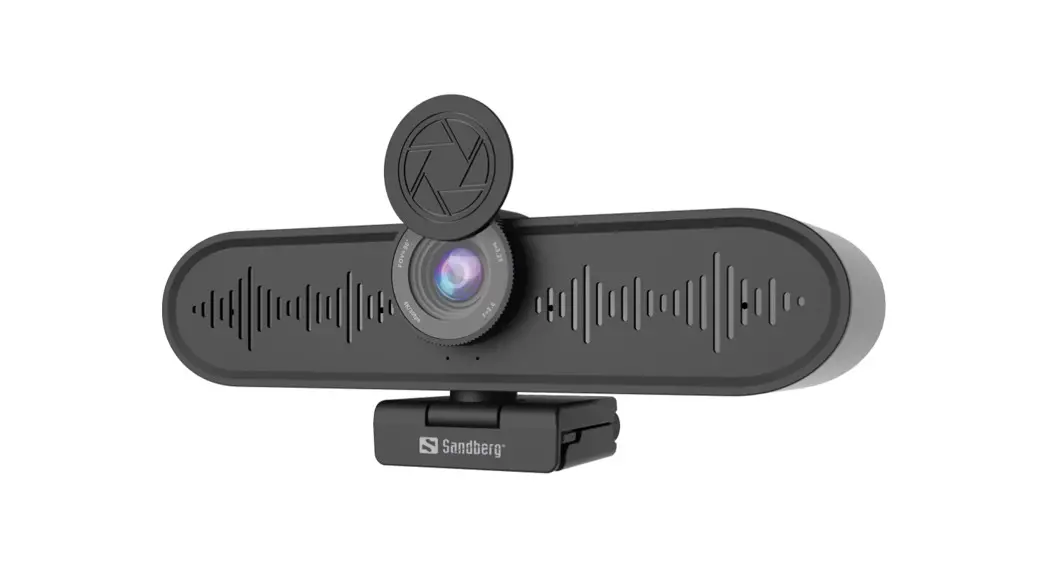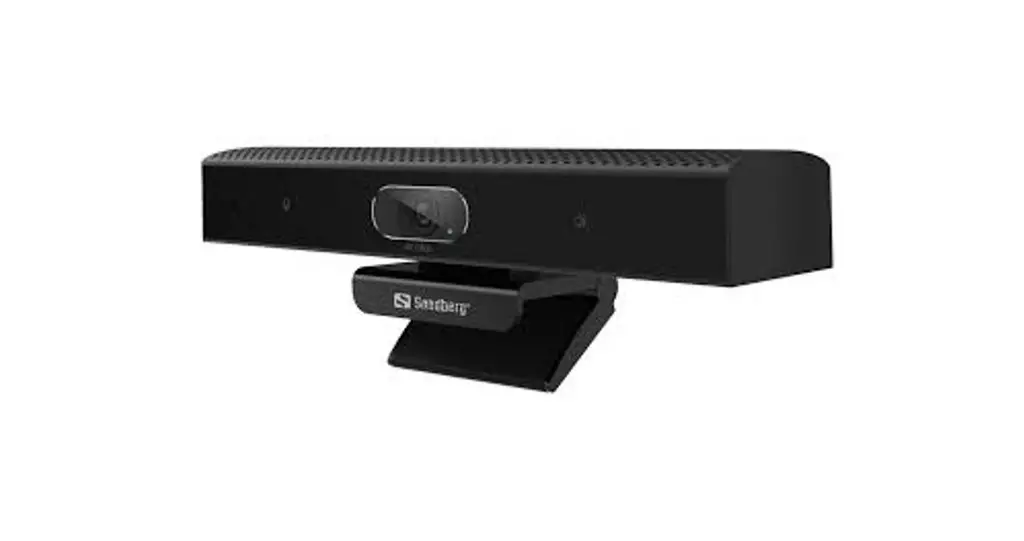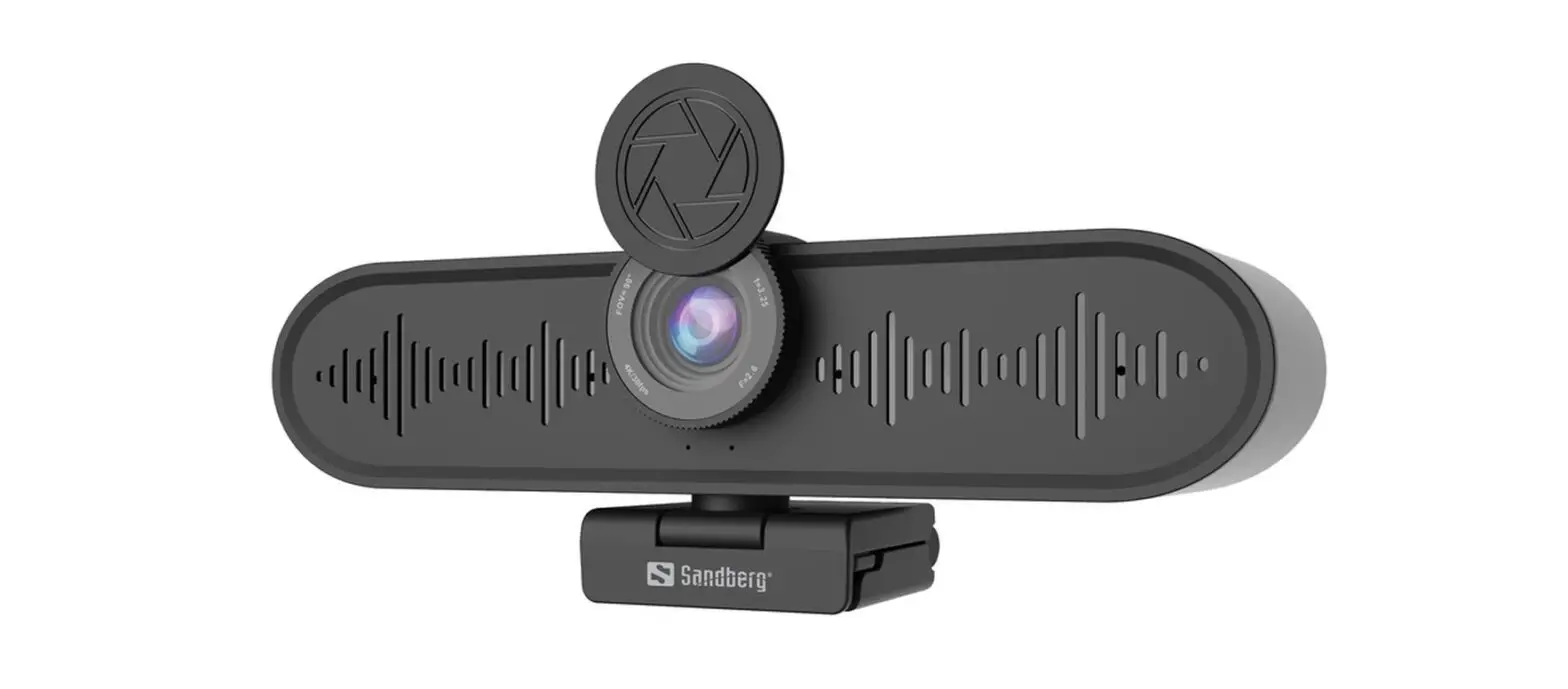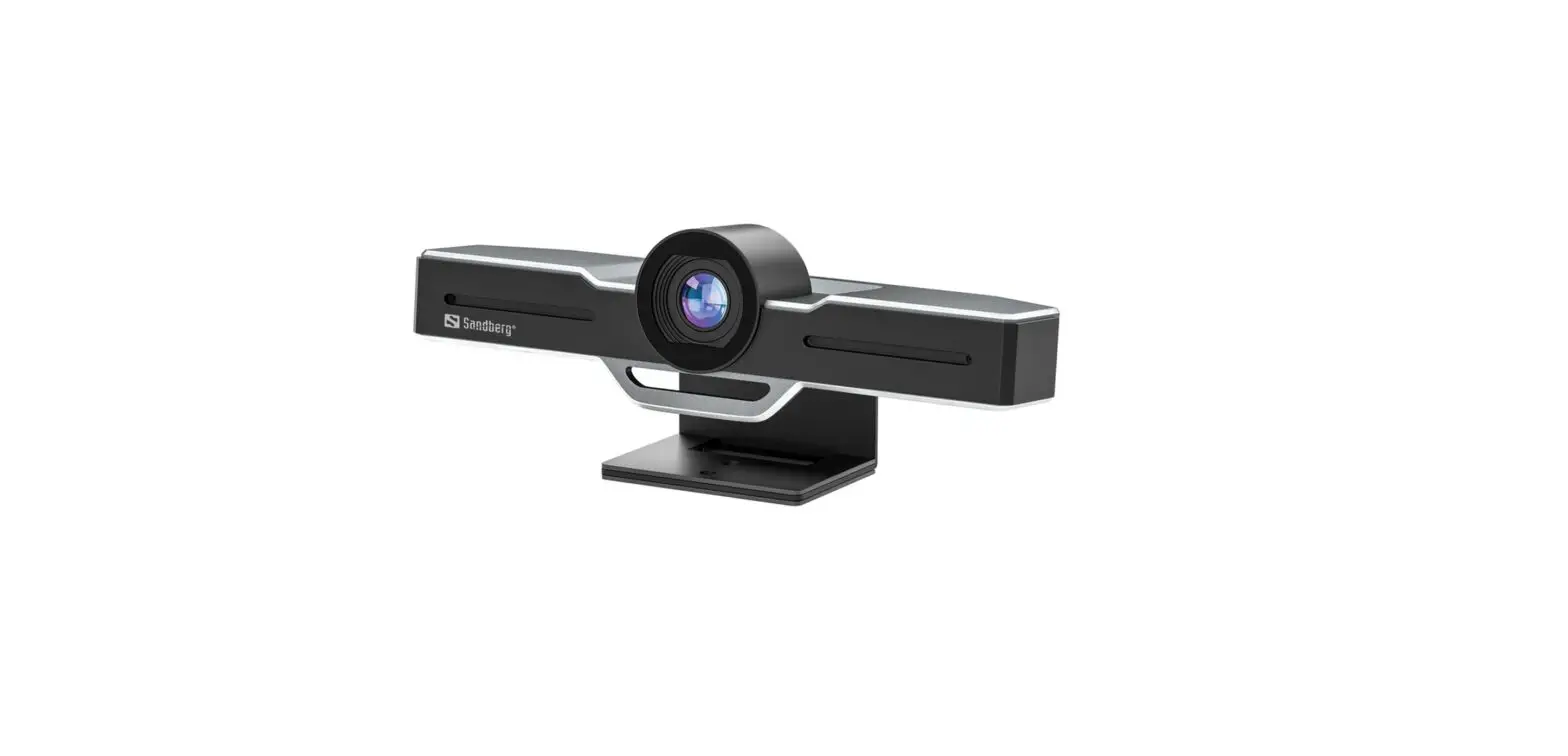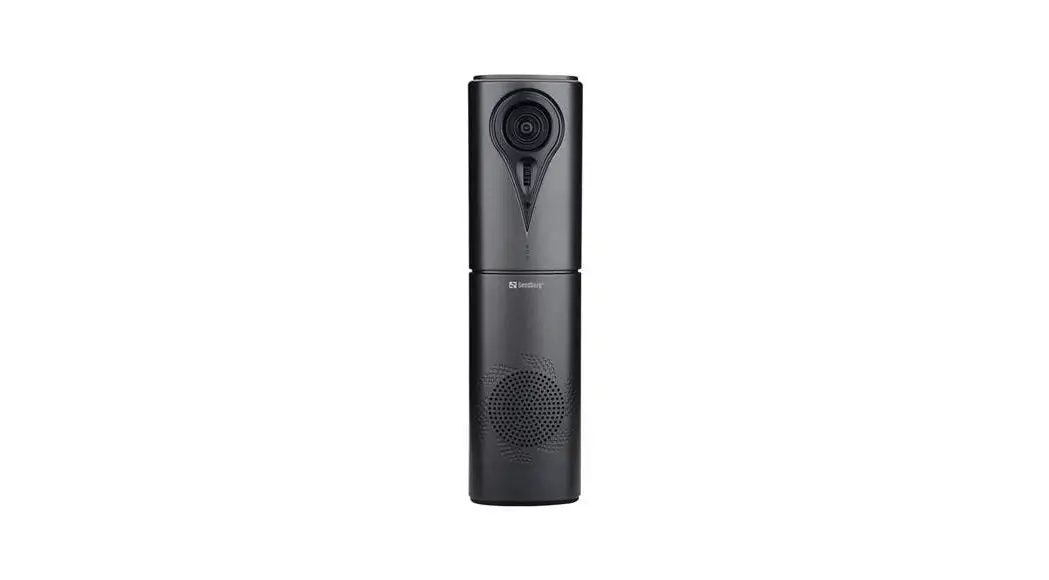
 All-in-1 ConfCam
1080P Remote
Quick guide
134-23
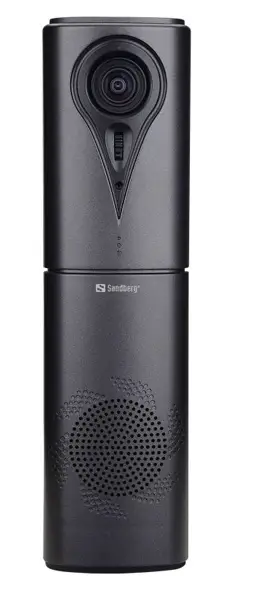

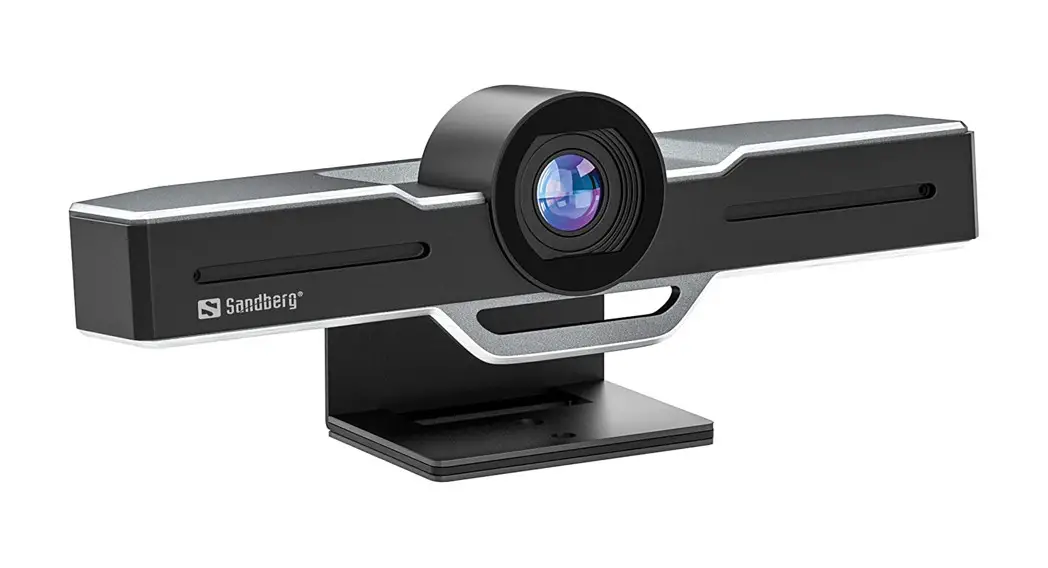
Product overview
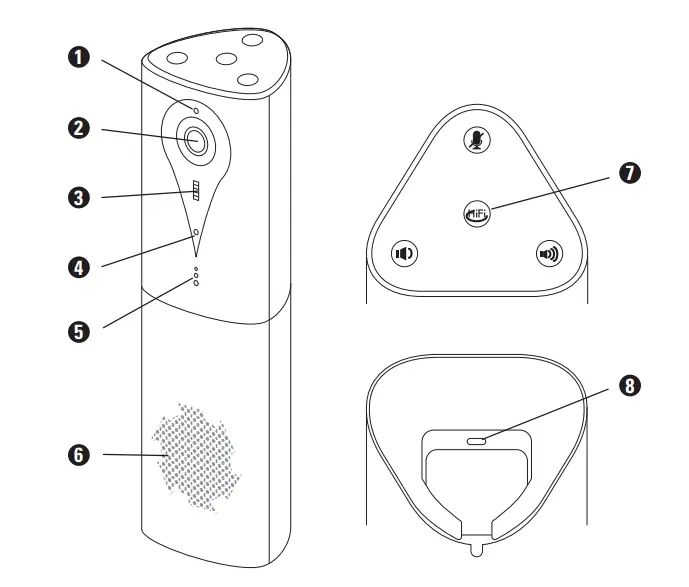
| Blue LED indicator for video ON/OFF | Work status LEDs Indicator |
| HD wide view angle lens | Speaker |
| Tilt movement wheel | Touch buttons (see scheme next page) |
| Omni-directional microphone | USB-C port |
Touch buttons 7 and LED indicator 5
| Touch buttons | LED indicator color | ||
 | Microphone Mute | Blue | Microphone working |
| Red | Mute Microphone | ||
 | HiFi Mode | Blue | Conference Interaction |
| Green | HiFi mode for music playing | ||
 | Volume Down | LED Indicator blinking while Volume down | |
 | Volume Up | LED indicator blinking while Volume UP | |
NOTE: Mic is automatically muted if in “HIFI mode” (LED is green).
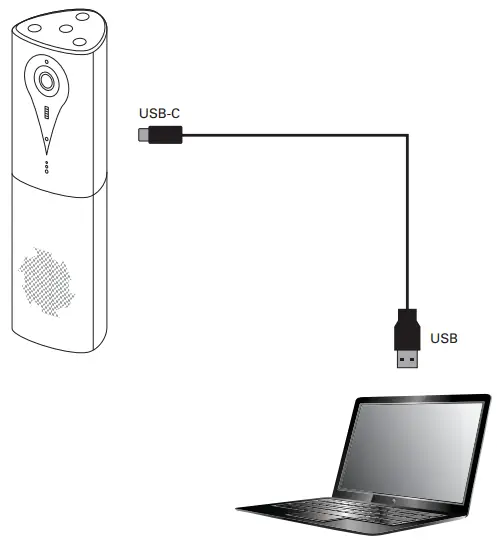
Connect a webcam to the USB port on the computer
Software installation
The camera works driver-less and is compatible with most chat applications.
If you want to get further options for video effects and image adjustments, please follow this link:
www.sandberg.world/webcamguide
Choose this device name on the device list for video-camera, speaker and recording microphone: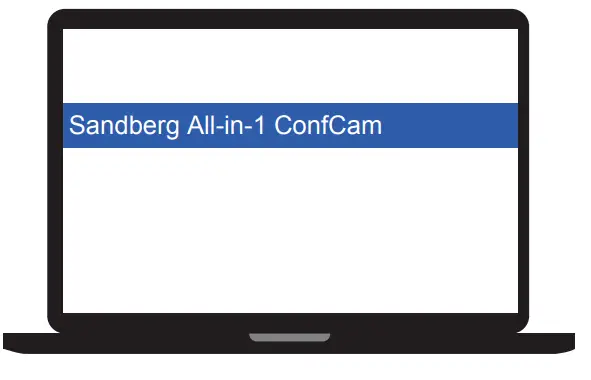
Remote control
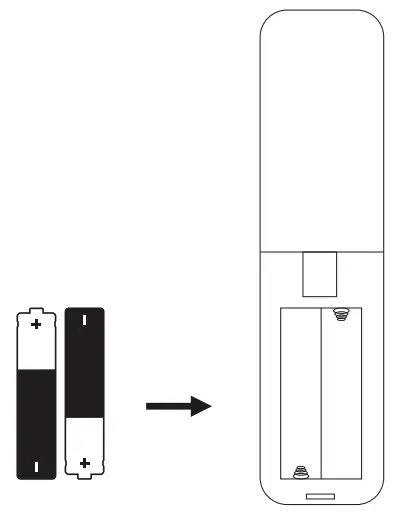
Open the back of the remote control and insert 2 x AAA batteries.
Digital Pan, Tilt and Zoom functions (EPTZ)
Zoom:
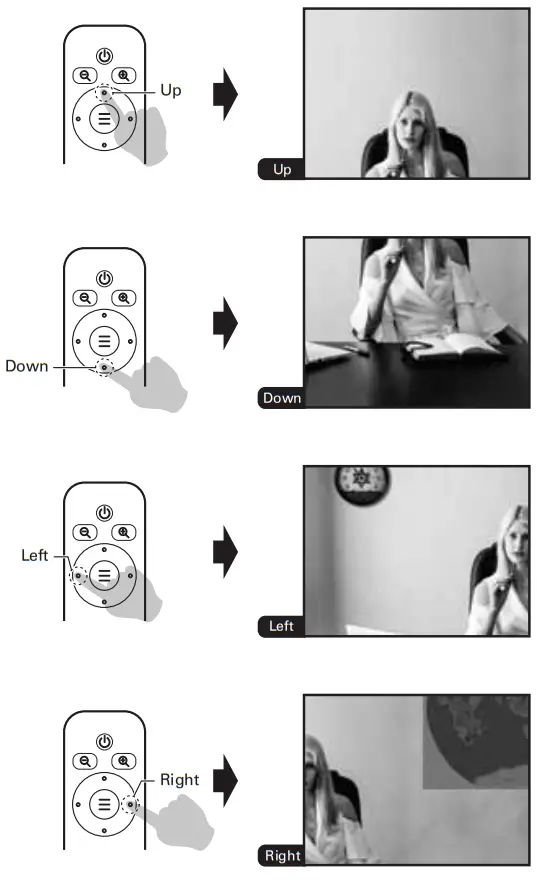
The camera supports EPTZ 3x digital zoom. When you zoom into the image the option opens for moving Up / Down (Tilt) and Left / Right (Pan).
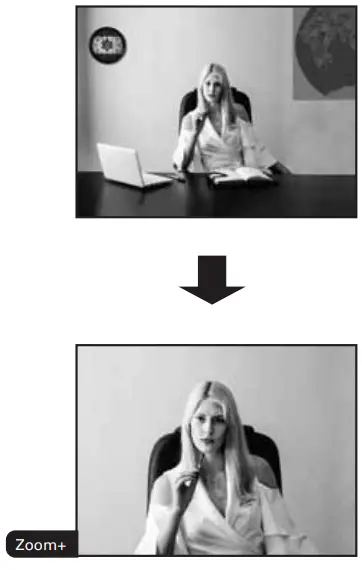
- Press Zoom+
 on the remote control to zoom in the image.
- After the image is zoomed in, you can move the image viewing angle Up /Down (Tilt) and Left / Right (Pan).

 on the remote control to zoom in the image.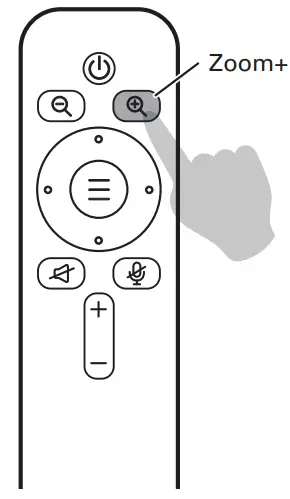
Picture in Picture (PIP)
After the image is zoomed in, you can see the full out-zoomed image in a small overlay frame (PIP).
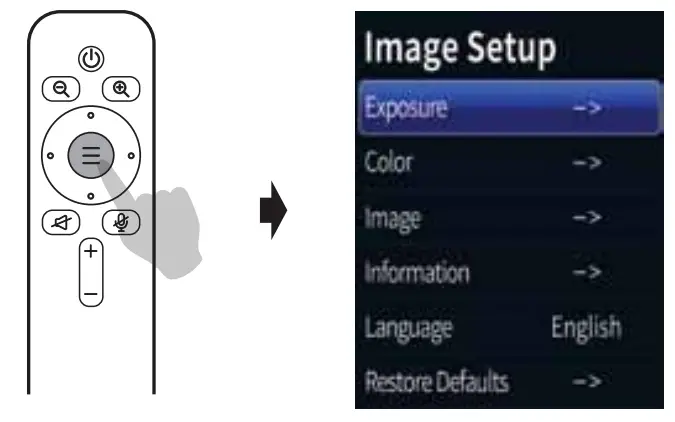
- Press “Camera OSD Menu (Middle)”, select “Image”.

- Select “PIP” to “On”. Picture in Picture function turns on, users can see the small picture-in-picture window at the bottom of the right.
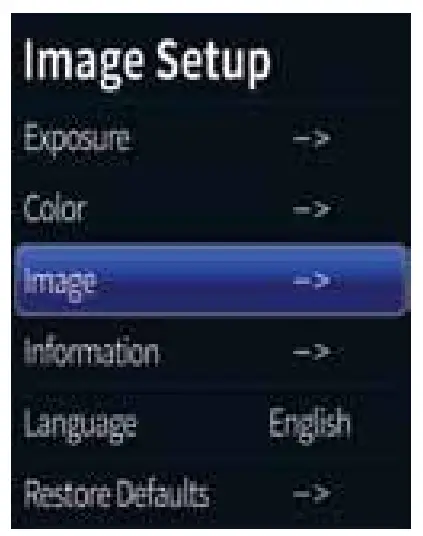
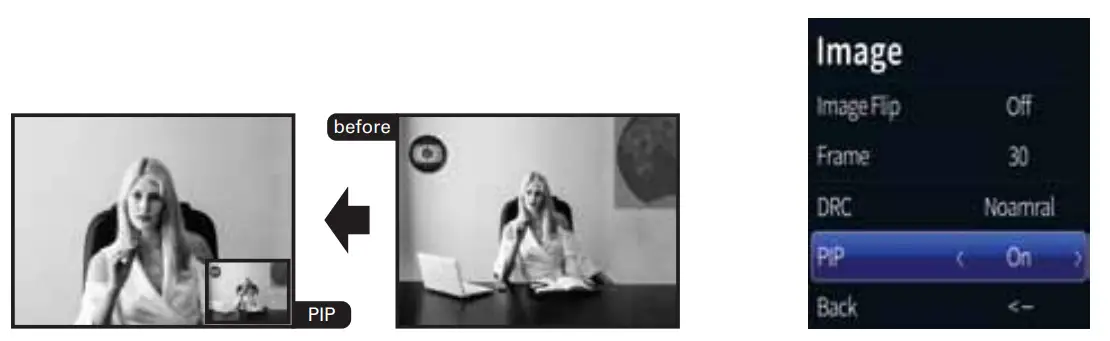
Image Setup
► Exposure Brightness:
Adjust image brightness Adjustable Value: 0-255; Default: 64
Backlight: Adjust the backlight Optional: Off / On; Default: Off
AE: Adjust the exposure settings Optional: Auto/ Shutter; Default: Auto
Shutter: Shutter speed Optional: 1/10000-1/25; Default: 1/25
Flicker: Anti-flicker adjustment Optional: 50/60; Default: 50 Back:
Back to previous menu
► Color
Hue: Adjust image hue Optional: 0-100; Default: 50
Saturation: Adjust image saturation Optional: 0-100; Default: 50
Sharpness: Adjust image sharpness Optional: 0-127; Default: 50
WB: Select white balance mode Optional: Auto/Manual; Default: Auto
Color Temp: Adjust color temperature Optional: 1500-15000; Default: 5000
Back: Back to previous menu
► Image
Image Flip: Mirror and rotate image=Optional: Off/All/Flip/Mirror; Default: Off
Frame: Select image frame= Optional 30/25; Default: 30
Image Mode: Select image style=Optional Normal/Clear/Bright/Beauty Default: Normal
PIP: Picture in picture function,= Optional: Off/On; Default: Off
Back: Back to previous menu
► Information
Version:Firmware version info.
Model: Camera model info.
Date: Firmware version date.
The information may vary according to product updates.
► Language OSD menu language.
Restore Defaults Restore camera parameters to default values.
- No Pan/Tilt movement function while OSD Menu on-screen.
- The shutter can only be adjusted if it is selected as Shutter in the AE menu.
Support
http://helpdesk.sandberg.world
Warranty
There is a five-year warranty on your Sandberg product. Please read the warranty terms and register your new Sandberg product at www.sandberg.world/warranty

 For information on handling electronic waste, see www.sandberg.world/weee
 Helpdesk - Sandberg A/S