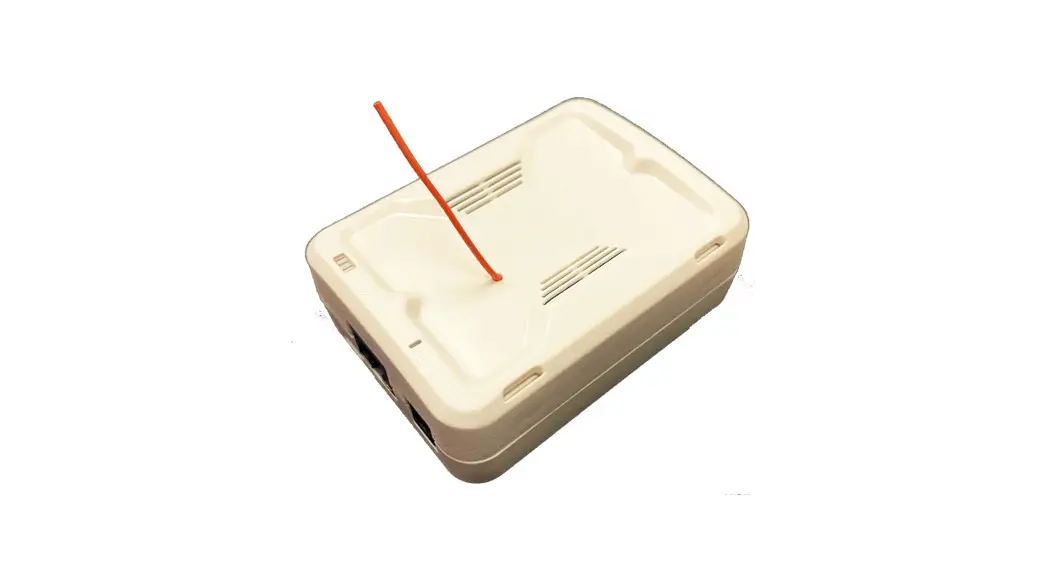
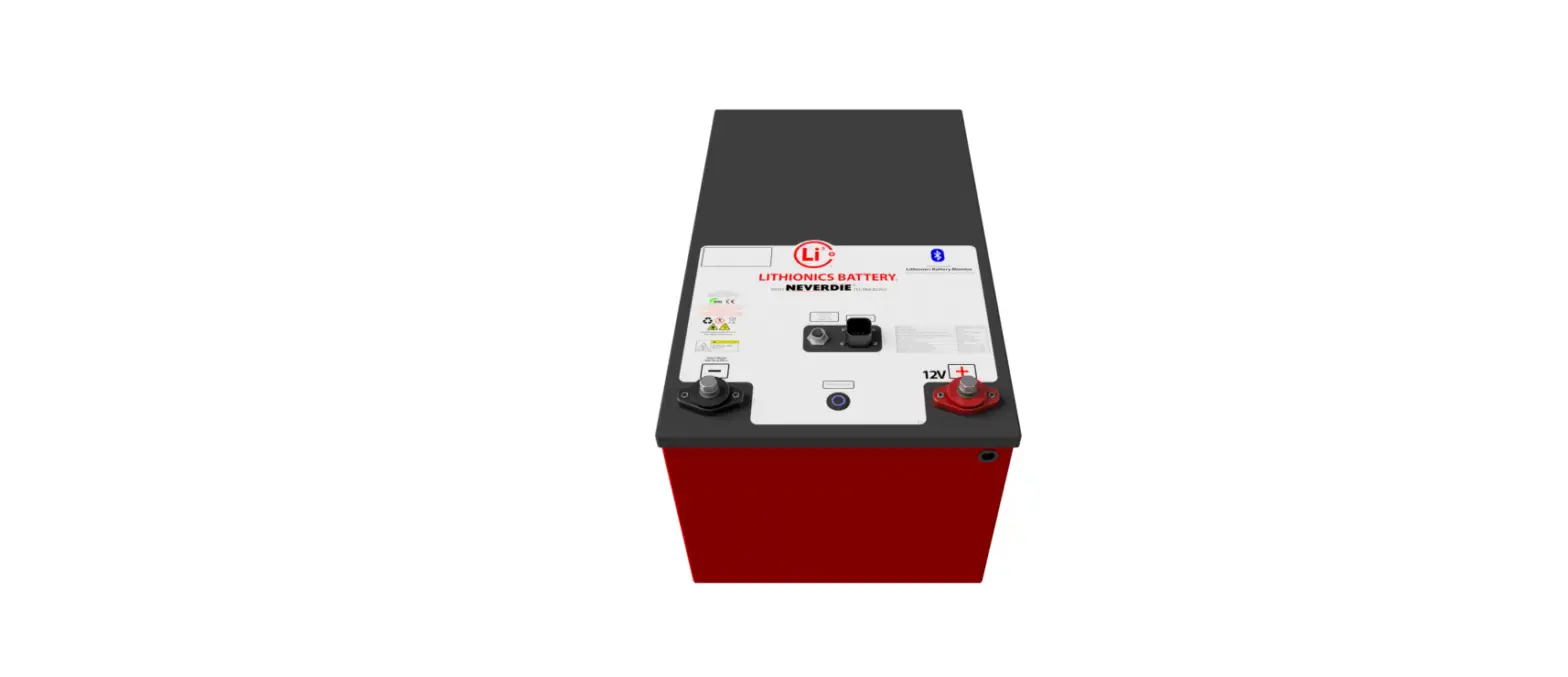
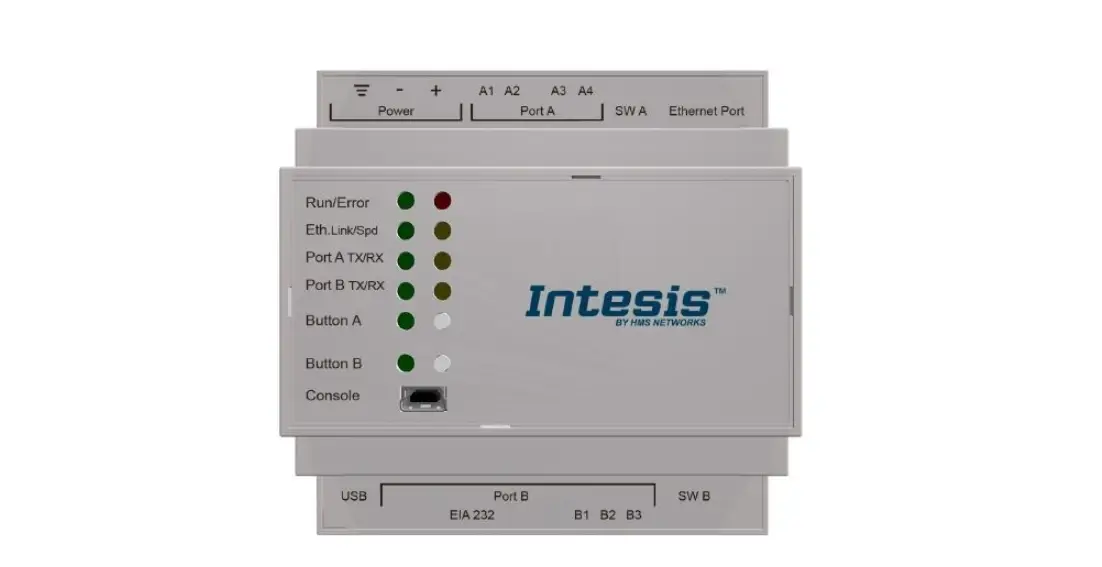
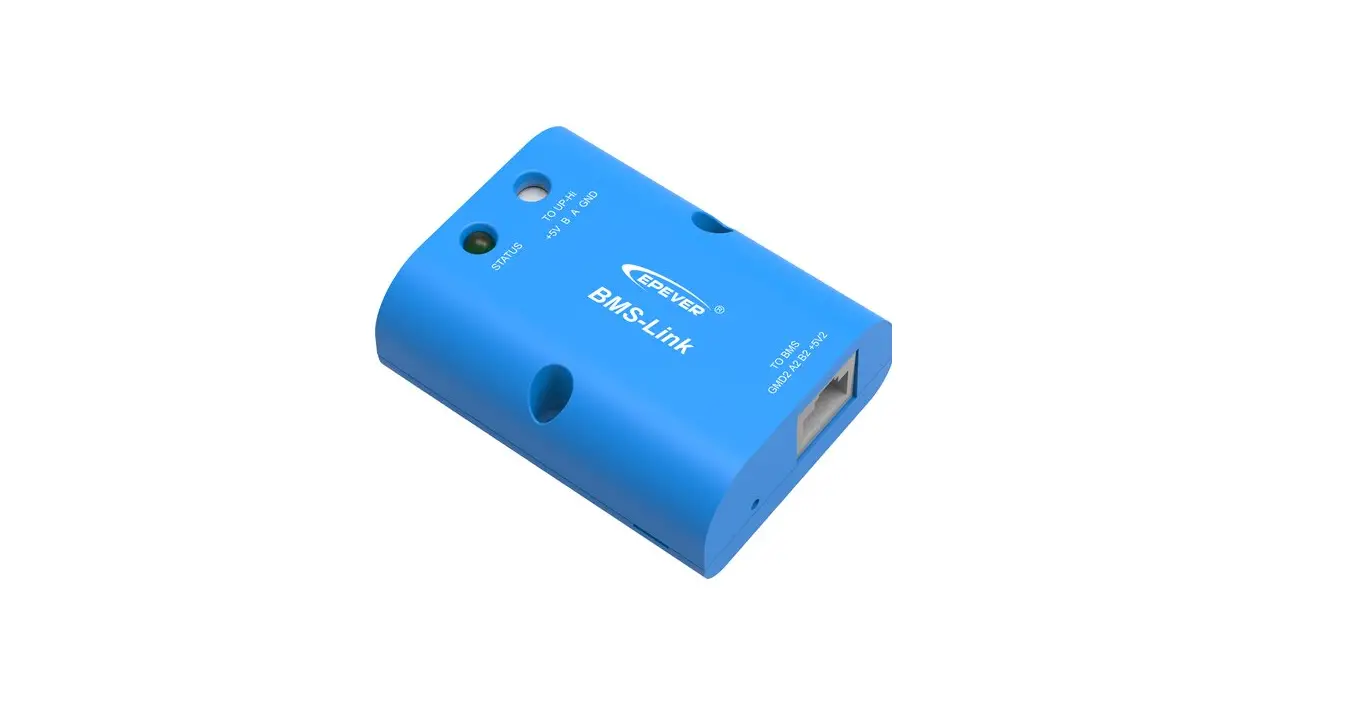
BMS Upgraded By CANbox
Product Information
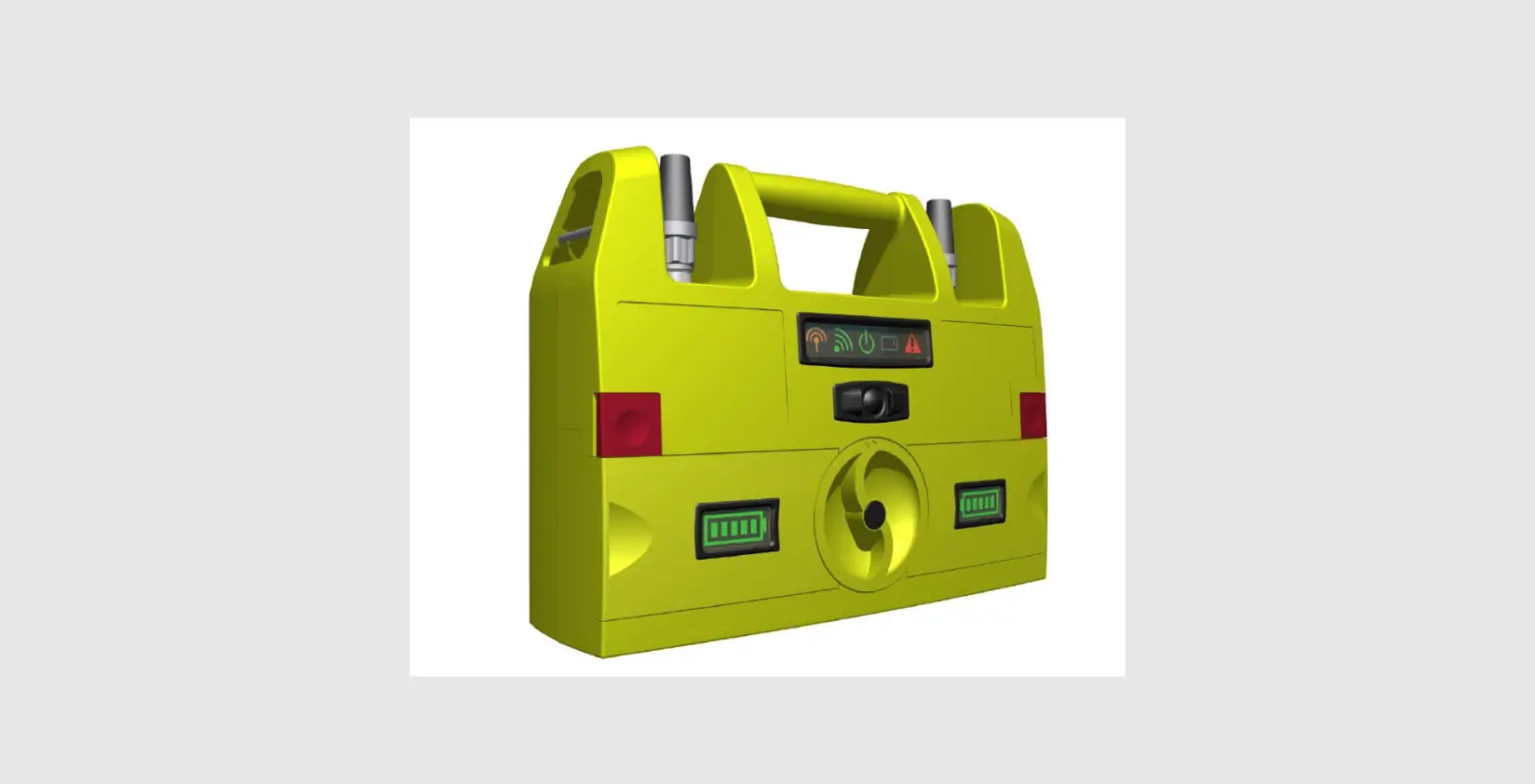
The product is a Battery Management System (BMS) that has been
upgraded using the CAN box. The BMS is used to monitor the
real-time running data of the battery and can also be used to
upgrade the firmware of the battery. To perform the firmware
upgrade, the BMS Monitor software needs to be used, and all
communication cables connected to the ‘M/S’ terminal of the battery
should be disconnected. The product requires the installation of
three drivers located in the ‘CAN Drivers’ folder. The PC format
should be set to ‘Chinese Simplified China’ for proper operation.
Product Usage Instructions
To upgrade the firmware of the battery, please follow these steps:
1. Install the three drivers located in the ‘CAN Drivers’ folder.
2. Set the PC format to ‘Chinese Simplified China’. 3. Open the
BMS_TOOL.exe software. 4. Choose the Firmware Upgrade icon. 5.
Select the address of the battery, matching the SW3 setting on the
battery. 6. Click on the Connect icon to establish a connection
with the battery. 7. Click on Select File to choose the firmware
file. 8. Click on Upgrade to start the firmware upgrade process. 9.
After the firmware upgrade is completed, the battery will
automatically turn off. 10. Turn on the battery to complete the
upgrade process. For additional support, please visit the CFE
Support Website Service at cfenergygroup.com.
Operation Guidance on BMS upgraded By CAN box
Note: If battery need upgrade the firmware, please disconnect all the Communication cables of The `M/ S’ terminal, BMS Monitor was used to upgrade firmware or monitor battery real time running data.
1. Driver Installation Install the 3 drivers in `CAN Drivers’ Folder
2. Formats setting
Set the PC Format on `ChineseSimplified China’
3. Firmware upgrade by CAN Bus Tool & BMS Monitor (1) Open the “BMS_TOOL.exe”;
(2) Follow the steps below to do Firmware Upgrade
Choose “Firmware Upgrade” icon Select “Address” of the battery (Match the SW3 on the battery)
Click “Connect” icon to connect the battery Click “Select File” to select Firmware Click “Upgrade” to do Upgrade the battery (3) After the firmware upgraded, the battery will Turn OFF automatically (4) Turn the battery on than the upgrade is done
For more support please check CFE Support Website Service (cfenergygroup.com)
 CF Energy
 Service