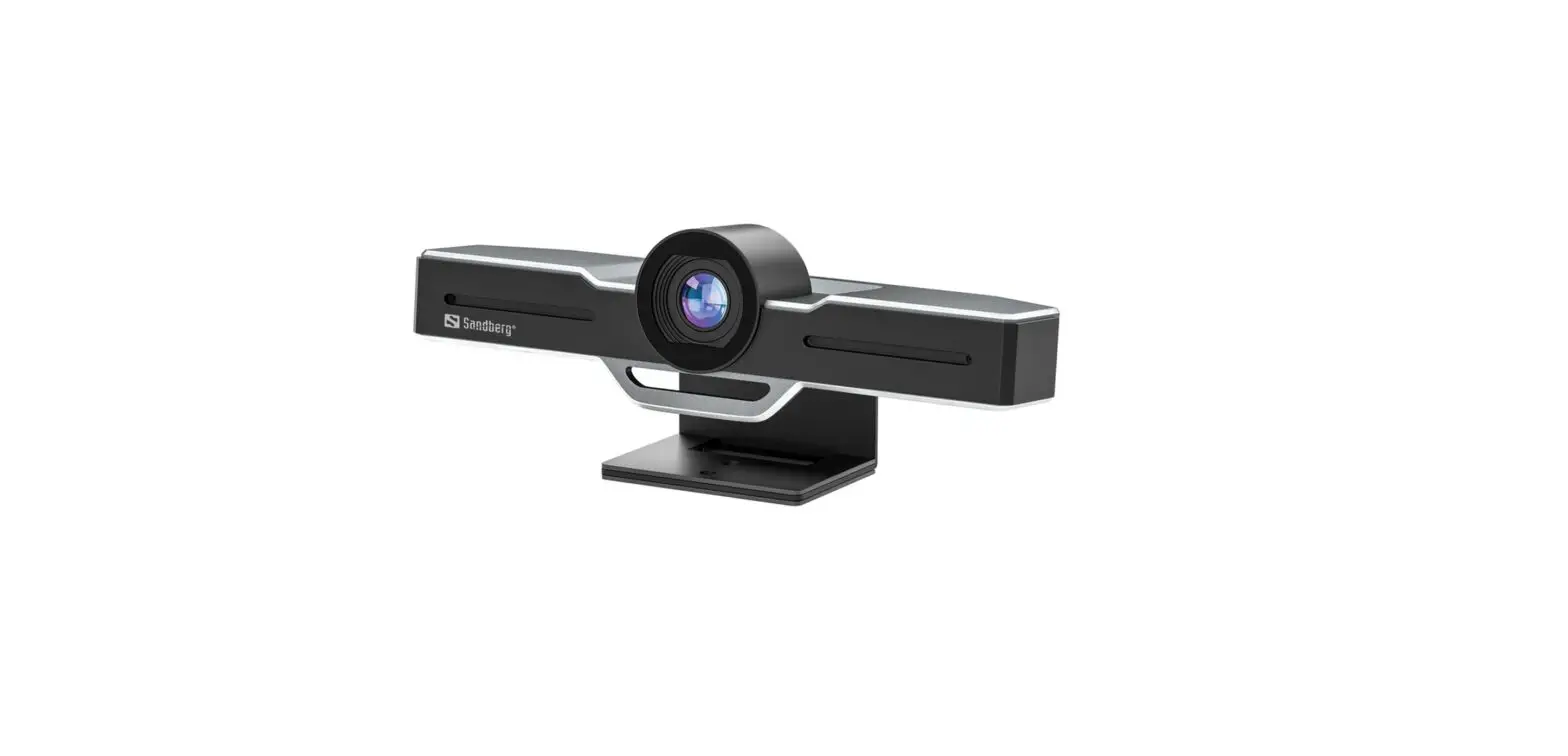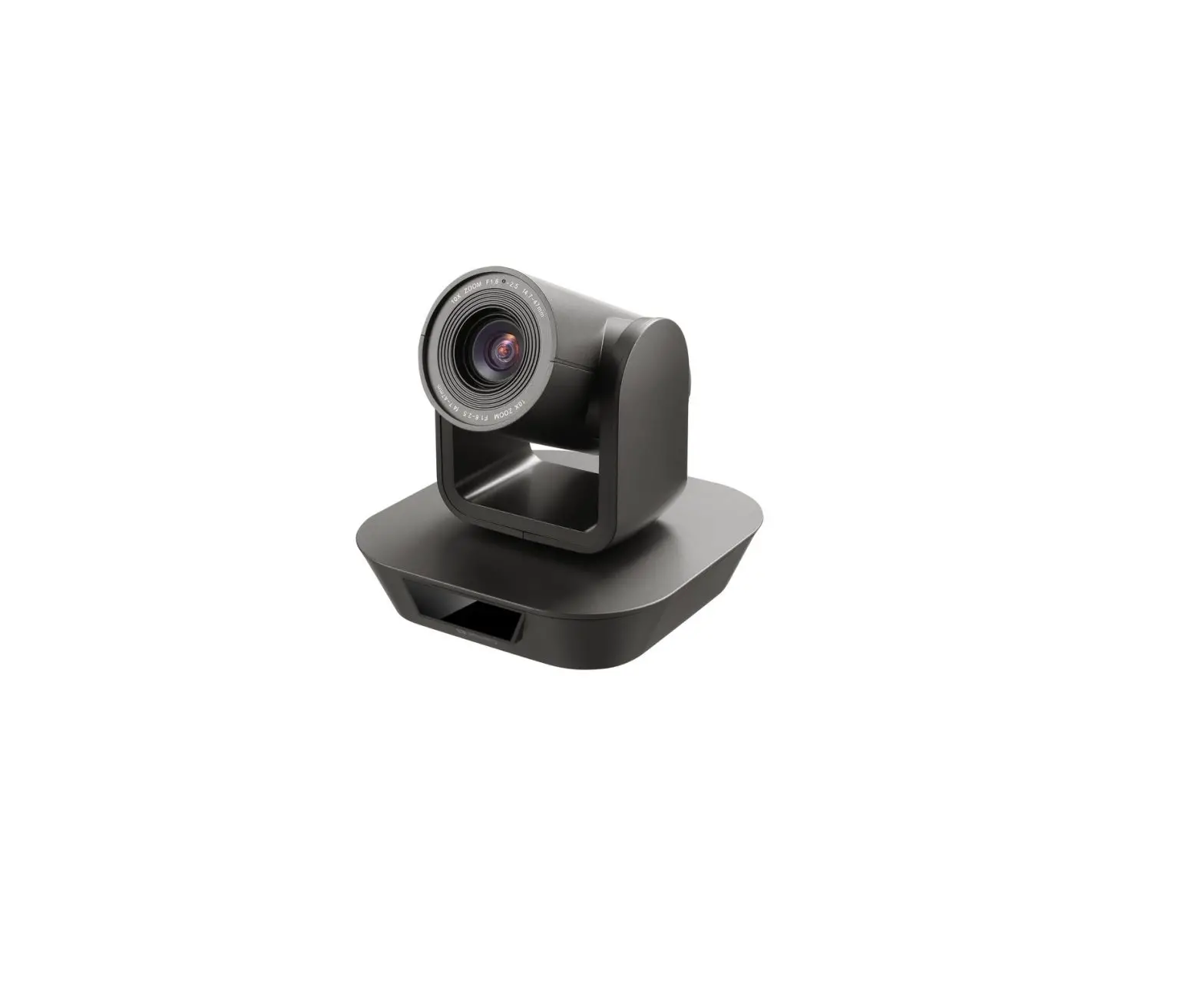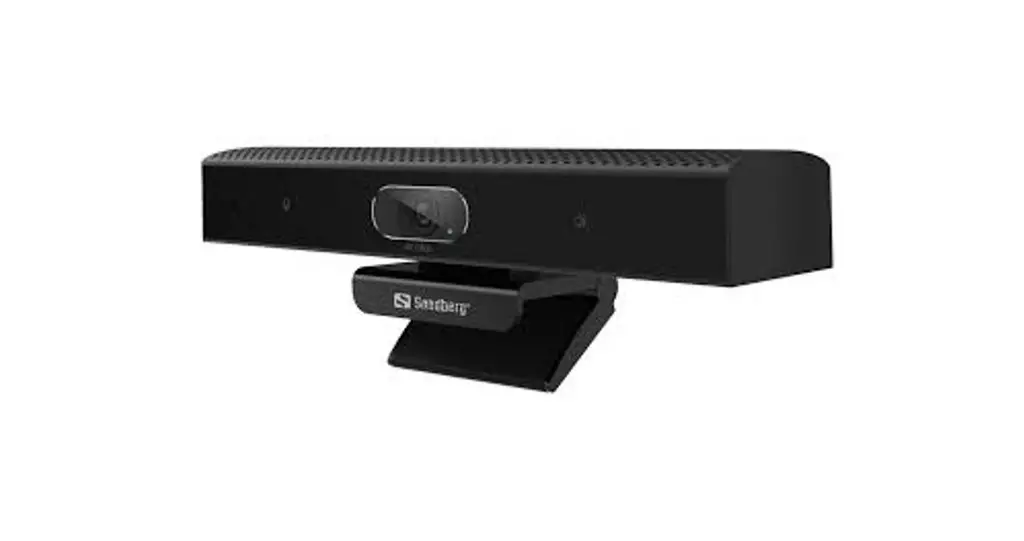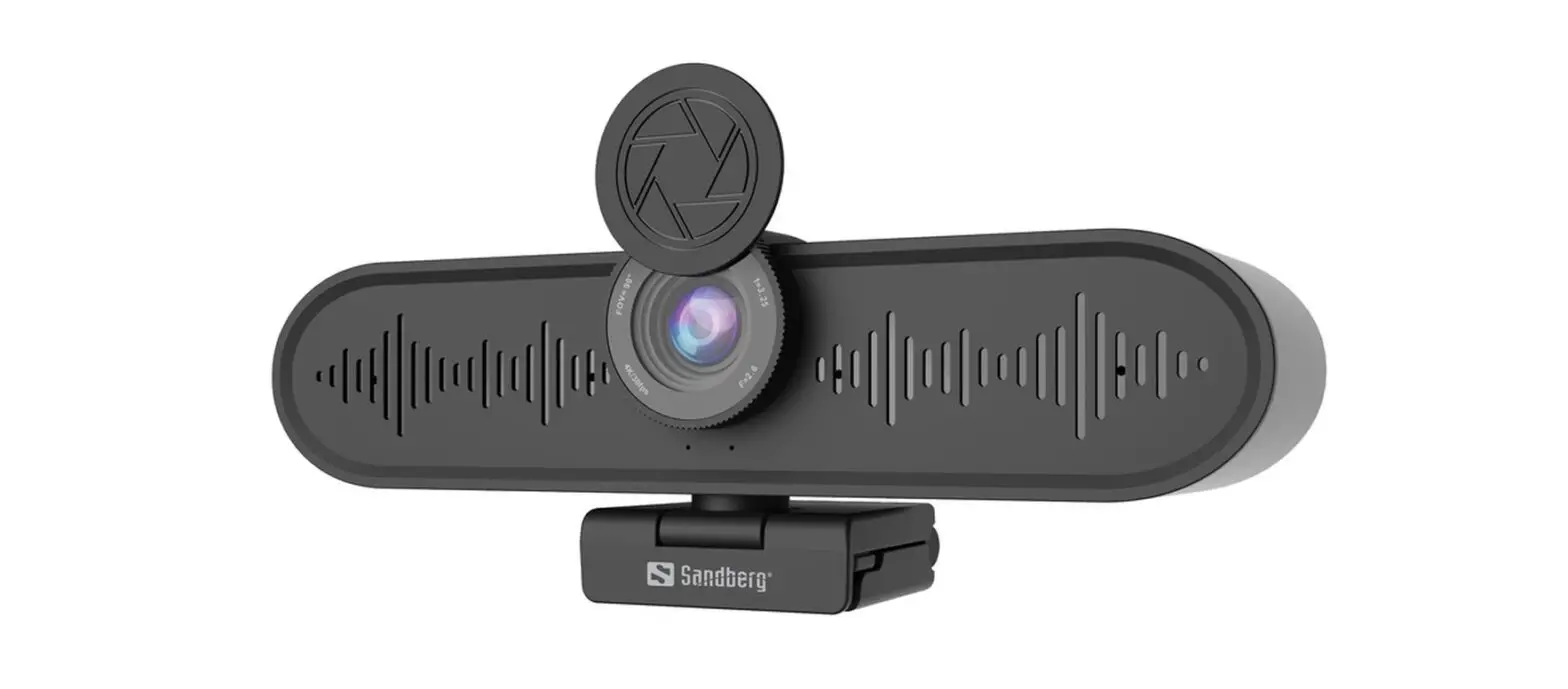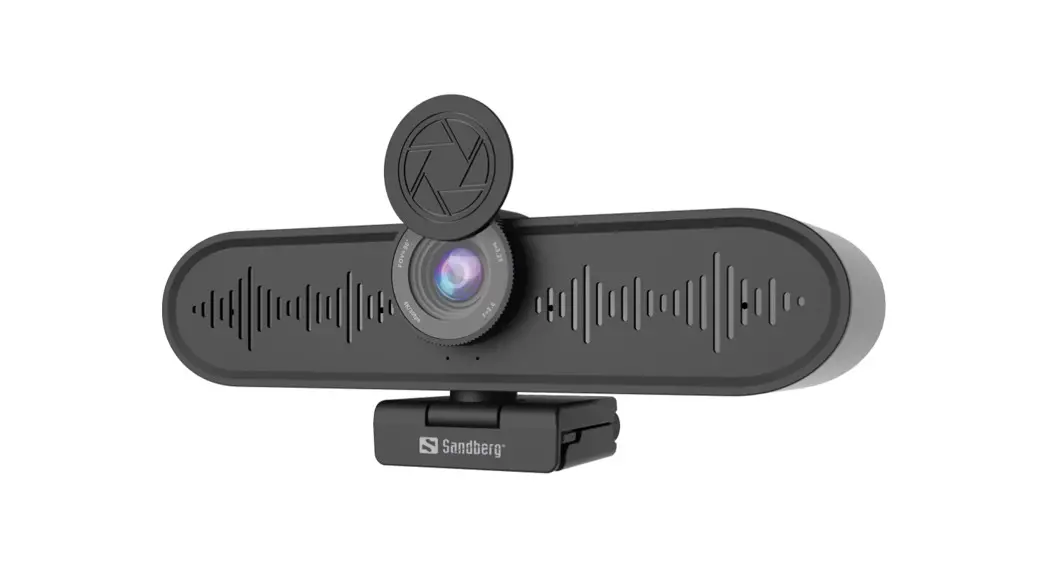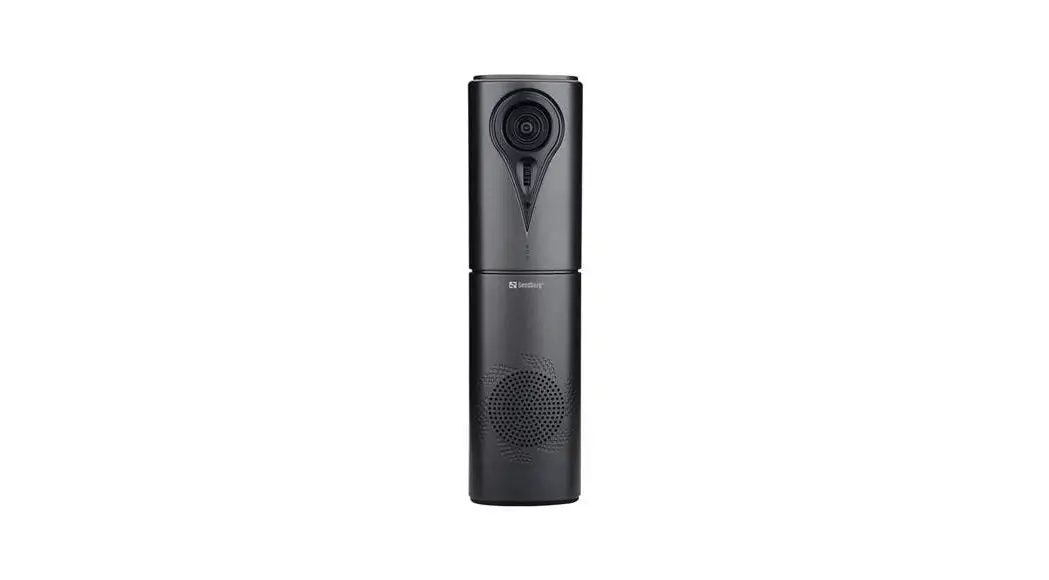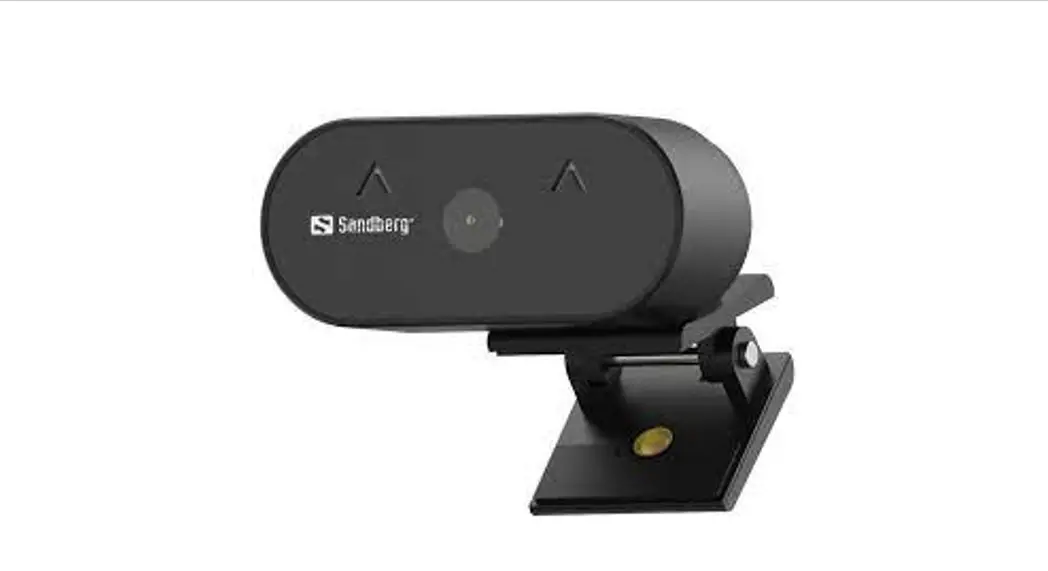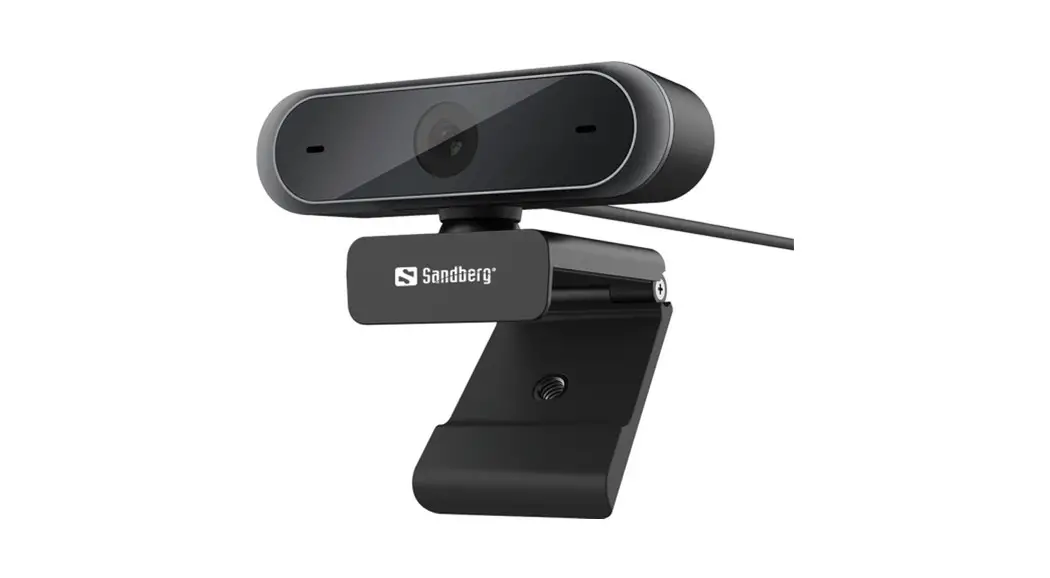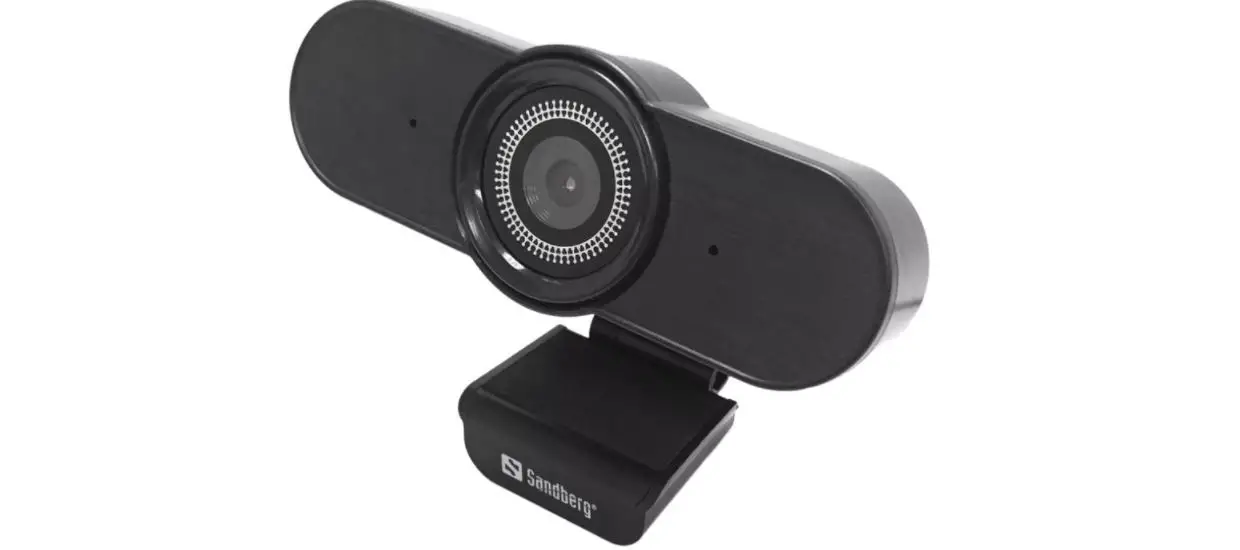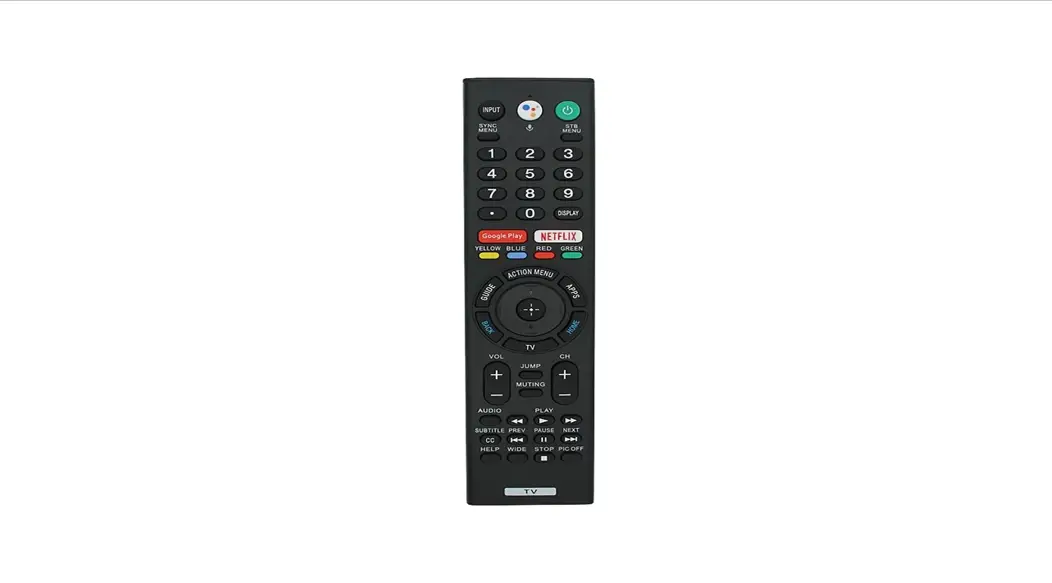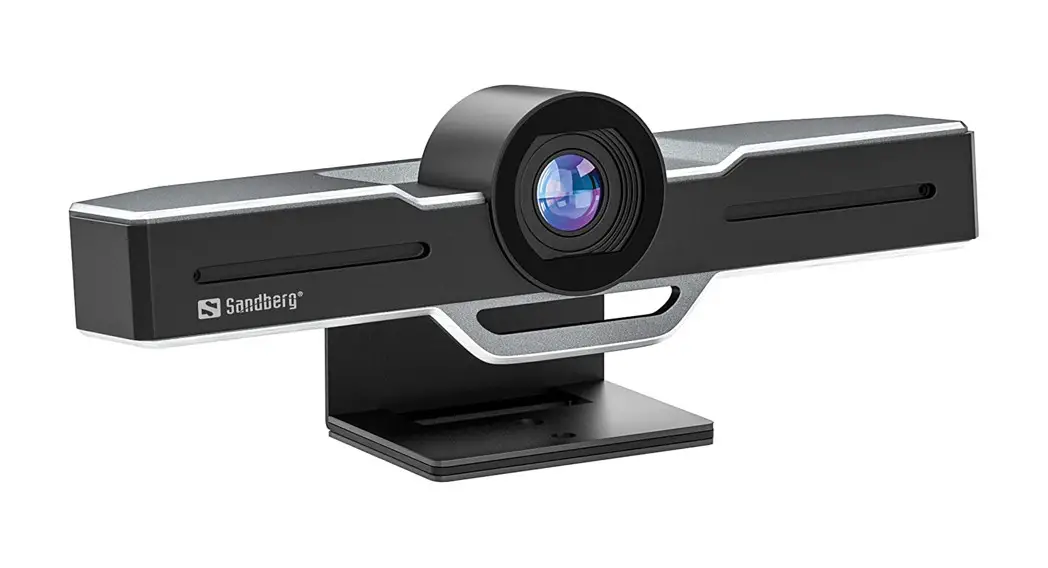

ConfCam EPTZ
1080P HD Remote
Quick guide
134-22

Product overview
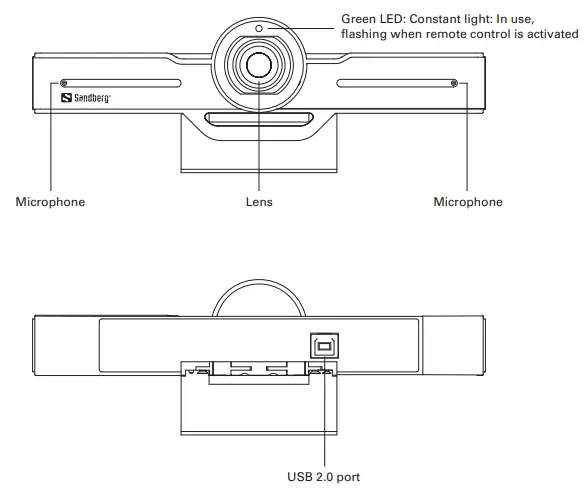
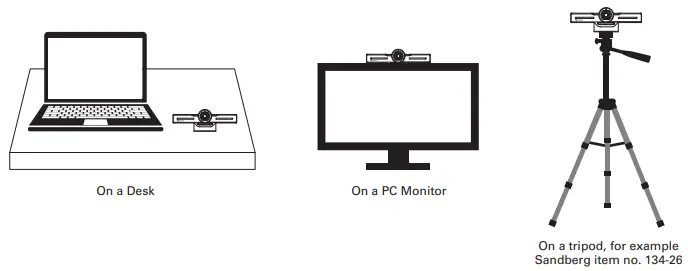
Mounting options
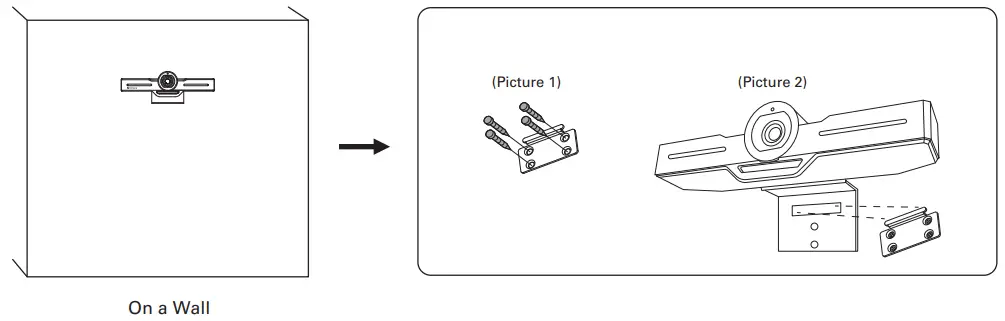
Screw the wall mount bracket on the wall, refer to the following picture 1.
Fasten the camera on the wall mount bracket, refer to the following picture 2.
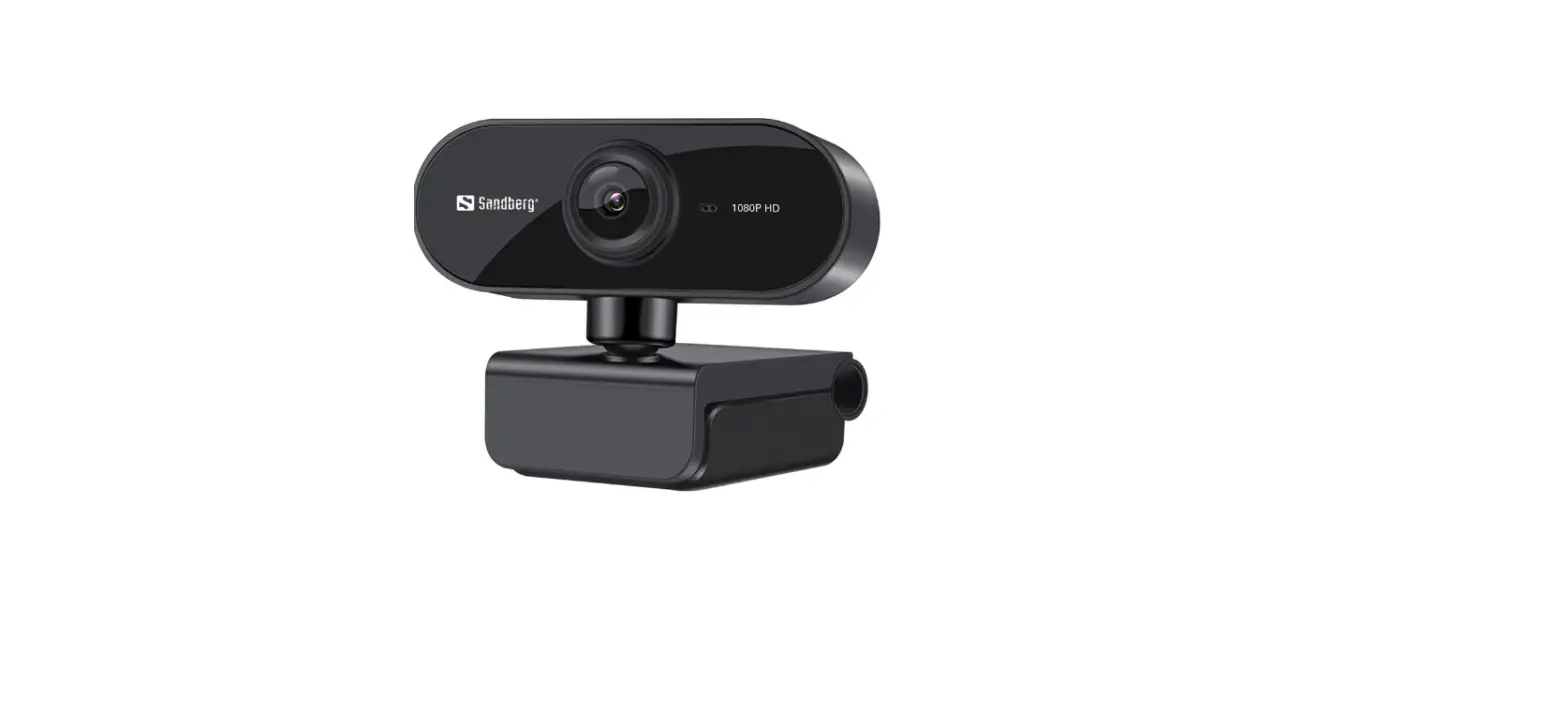
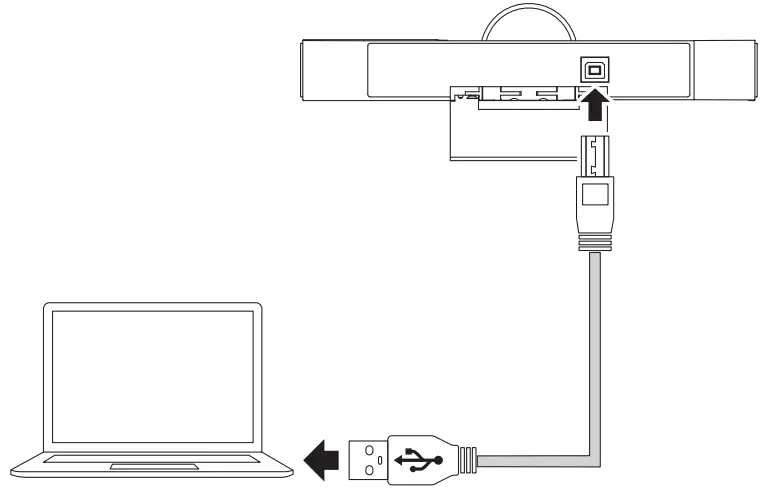
Connect a webcam to the USB port on a computer
Software installation
The camera works driver-less and is compatible with most chat applications.
If you want to get further options for video effects and image adjustments, please follow this link: www.Sandberg.world/webcamguide
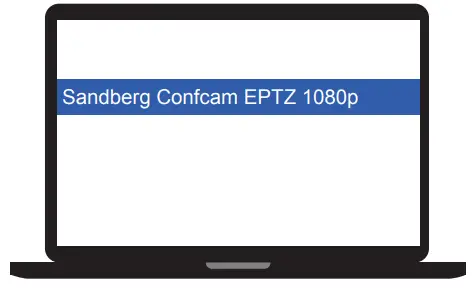
Choose this device name on the device list for video-camera and recording microphone:
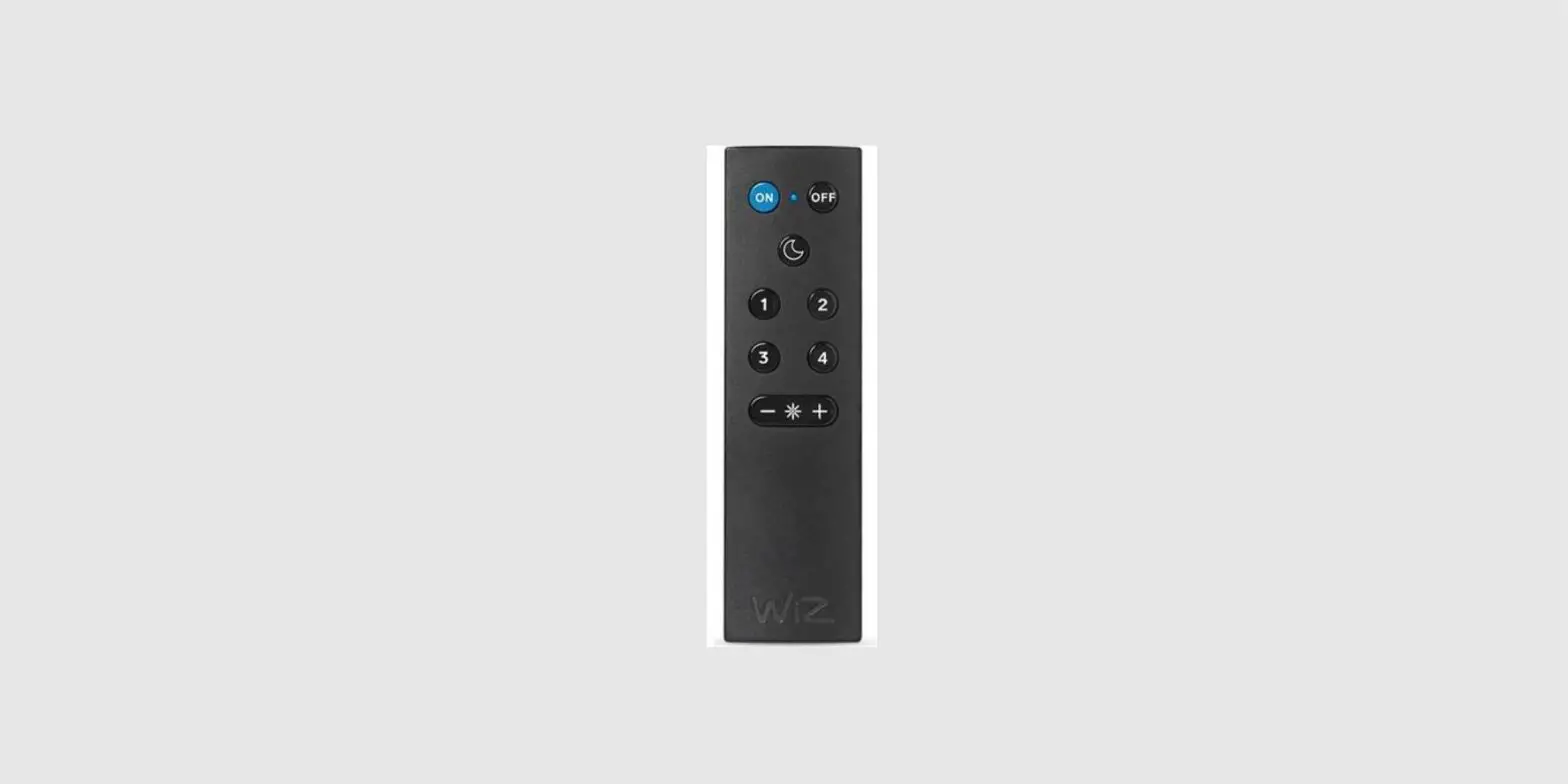
Remote control
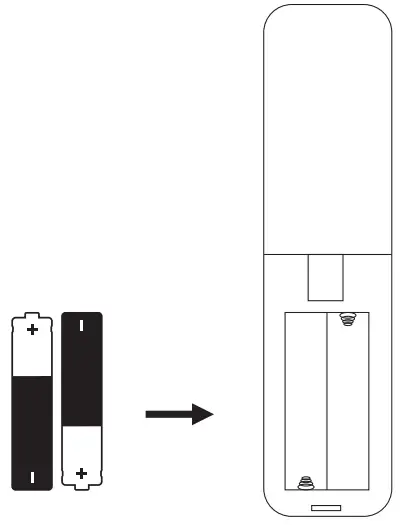
Open the back of the remote control and insert 2 x AAA batteries.
Digital Pan, Tilt, and Zoom functions (EPTZ)
Zoom:
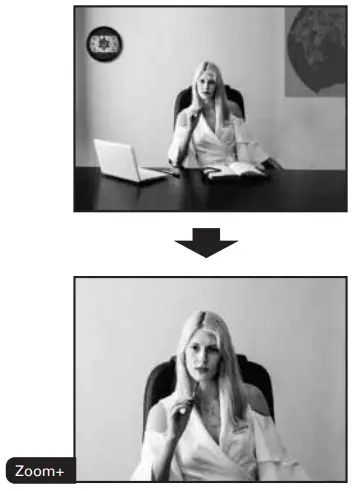
The camera supports EPTZ 3x digital zoom.
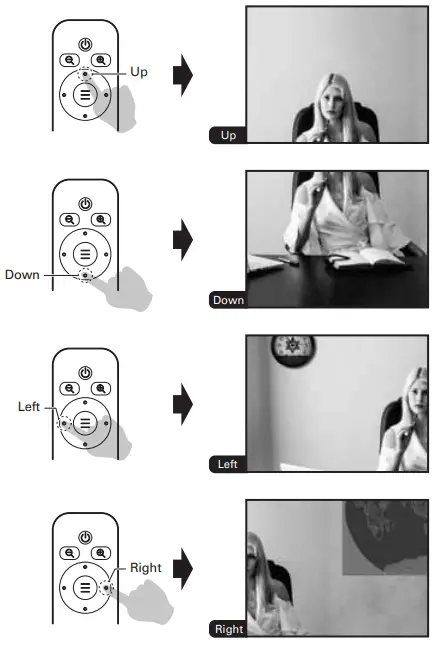
When you zoom into the image the option opens for moving Up / Down (Tilt) and Left / Right (Pan).
- Press Zoom+
 on the remote control to zoom in on the image.

- After the image is zoomed in, you can move the image viewing angle Up / Down (Tilt) and Left / Right (Pan).

 on the remote control to zoom in on the image.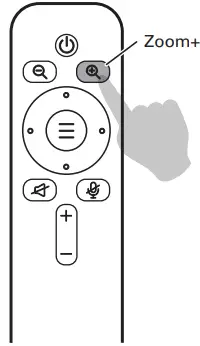
Picture in Picture (PIP)
After the image is zoomed in, you can see the full out-zoomed image in a small overlay frame (PIP).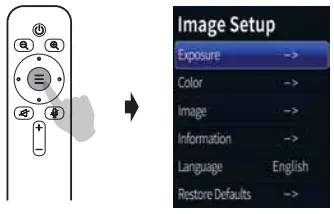
- Press “Camera OSD Menu (Middle)”, select “Image”.

- Select “PIP” to “On”. Picture in Picture function turns on, users can see a small picture-in-picture window at the bottom of the right.


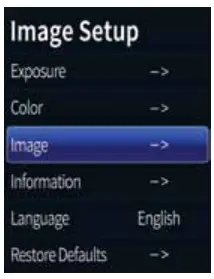
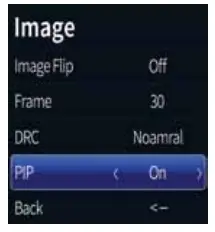
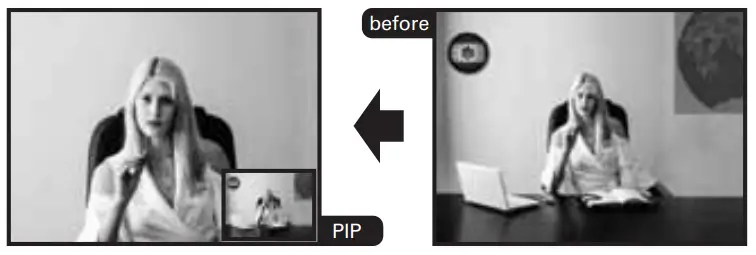
Image setup
Image Setup
- Exposure
Brightness: Adjust image brightness—-Adjustable Value: 0-255; Default: 64
Backlight: Adjust the backlight ———-Optional: Off / On; Default: Off
AE: Adjust the exposure settings——-Optional: Auto/ Shutter; Default: Auto
Shutter: Shutter speed ——————- Optional: 1/10000-1/25; Default: 1/25
Flicker: Anti-flicker adjustment…….— Optional: 50/60; Default: 50
Back: Back to the previous menu
- Color
Hue: Adjust image hue ————————-Optional: 0-100; Default: 50
Saturation: Adjust image saturation———–Optional: 0-100; Default: 50
Sharpness: Adjust image sharpness———–Optional: 0-127; Default: 50
WB: Select white balance mode ————–Optional: Auto/Manual; Default: Auto
Color Temp: Adjust color temperature——Optional: 1500-15000; Default: 5000
Back: Back to the previous menu
- Image
ImageFlip: Mirror and rotate the image———-Optional: Off/All/Flip/Mirror;
Default: Off
Frame: Select image frame————Optional 30/25; Default: 30
Image Mode: Select image style——Optional Normal/Clear/Bright/Beauty
Default: Normal
PIP: Picture in picture function,…………….Optional: Off/On;
Default: Off
Back: Back to the previous menu
- Information
Version: Firmware version info.
Model: Camera model info.
Date: Firmware version date.
*The information may vary according to product updates.
- Language
OSD menu language. - Restore Defaults
Restore camera parameters to default values.
 No Pan/Tilt movement function while OSD Menu on-screen.
The shutter can only be adjusted if it is selected as Shutter in the AE menu.
Support
http://helpdesk.sandberg.world
Warranty
There is a ve-year warranty on your Sandberg product.
Please read the warranty terms and register your new Sandberg product at www.Sandberg.world/warranty

 For information on handling electronic waste, see www.Sandberg.world/weee
 Helpdesk - Sandberg A/S